Managing study and site-level setting
In a clinical trial, the process of data collection should be a unified procedure that requires some preconfigured parameters for all sites.
In EDC, you can control if there are stages of data soft and hard lock as a part of the review and approval process and whether the collected data must be signed by the principal investigator (PI) as a mandatory validation step.
You can configure study-level settings related to the soft lock, hard lock, and PI signature features that will affect all the sites by default. However, if the site requires it, you can configure the site settings individually.
In EDC, you can configure study-level settings of CRF and visit statuses that are applicable to all the study sites. These settings include:
-
CRF status transition configuration. With this option you can control which operations performed in the eClinical applications or external systems can affect the CRF review status in EDC.
For instance, if the CRF is DM Reviewed and one of the enabled changes occurs, such as lab data sync or subject randomization data changes, then the DM Reviewed status is canceled, and the CRF becomes Completed.
-
Soft lock logic. With this option you can set conditions under which the study is locked to prevent unauthorized modifications and introduce exceptions if required.
For instance, you want the CRFs to be locked to prevent them from any editing, however, you still allow for queries to be opened for soft-locked data to be able to address any discrepancies.
-
PI signature requirements. With this option you can specify if the principal investigator (PI) signature is required at sites and introduce exceptions for data modifications in signed CRFs if required.
Important
For the hierarchical study design, you need to configure the study-level settings individually for the master study and its substudies.
-
In the EDC application header, select the STUDY INFO tab.
-
From the left pane, select Study Information.
 Figure 1. Accessing study information management
-
From the contents panel, select the Status Configuration tab.
-
On the page that opens, configure your study-level settings as explained in the following table.
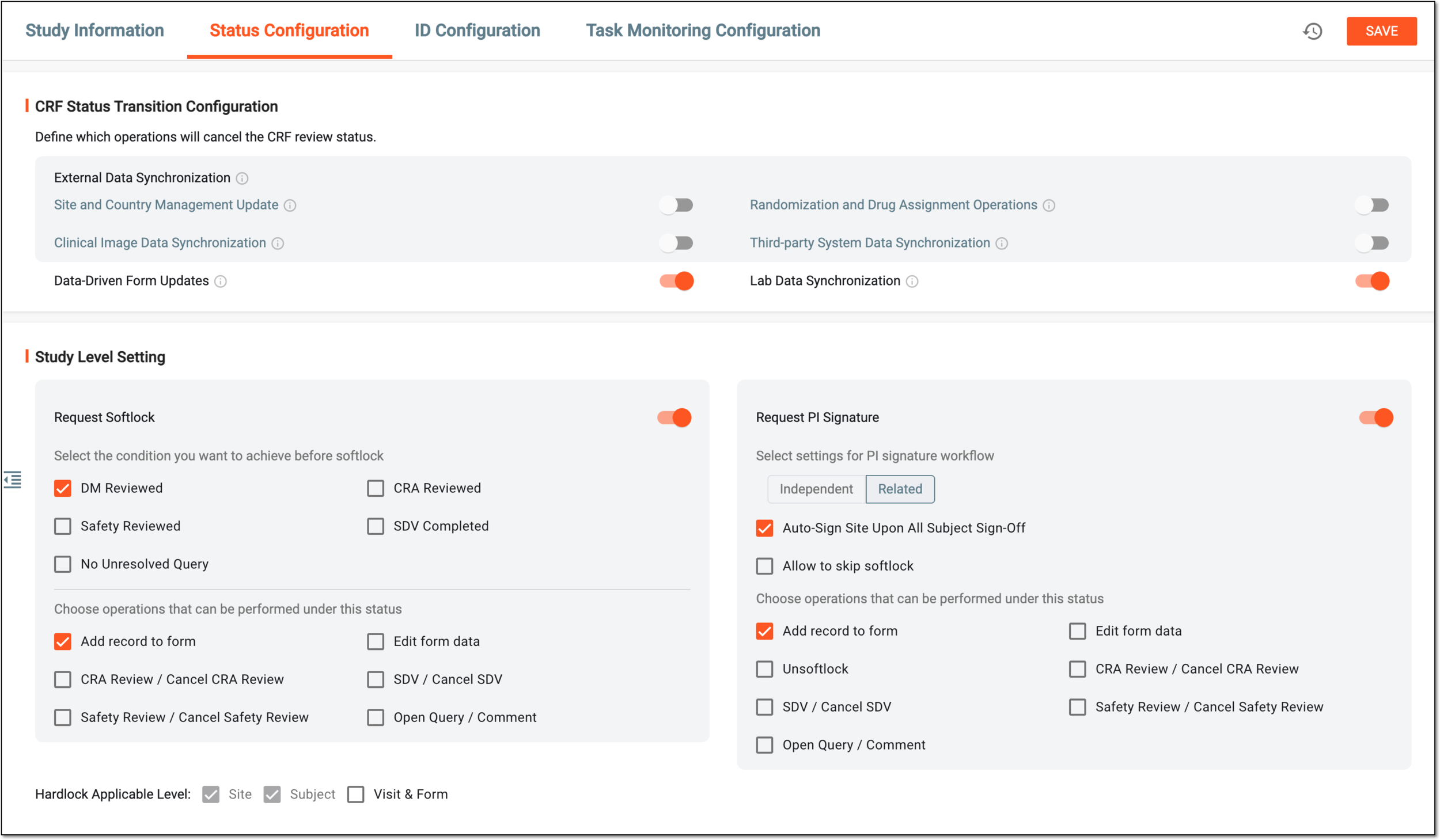 Figure 2. Configuring study-level settings
Element
Details
CRF Status Transition Configuration
External Data Synchronization
Site and Country Management Update
Turn the toggle on or off to allow or prohibit the changes of site or country details in CTMS affect the related CRF review status in EDC.
Randomization and Drug Assignment Operations
Turn the toggle on or off to allow or prohibit the changes of subject randomization or treatment assignment data in IWRS affect the related CRF review status in EDC.
Clinical Image Data Synchronization
Turn the toggle on or off to allow or prohibit the changes performed to medical images via IMAGING affect the related CRF review status in EDC.
Third-party System Data Synchronization
Turn the toggle on or off to allow or prohibit the changes triggered by integrations with external systems affect the related CRF review status in EDC.
Internal Data Synchronization
Data-Driven Form Updates
Turn the toggle on or off to allow or prohibit the changes in EDC, such as CRF version upgrade or else, affect the related CRF review status.
Lab Data Synchronization
Turn the toggle on or off to allow or prohibit the changes in lab data configurations in EDC to affect the related CRF review status.
Study Level Setting
Softlock
Request Softlock
Turn on the toggle if you want the sites to request soft lock from a designated user between the data review stages.
When you configure study-level setting, set the conditions for the Softlock feature. These conditions ensure that you can only soft-lock sites when all the conditions that you set are met. Users will not be able to
                                        soft-lock sites or forms accidentally or without the predefined conditions, including required reviews and resolved queries.
Select the condition you want to achieve before softlock
DM Reviewed
Select this checkbox to require a data manager (DM) review of the study data before the designated user can soft lock the study.
Safety Reviewed
Select this checkbox to require a safety review of the study data before the designated user can soft lock the study.
SDV Completed
Select this checkbox to require a Source Data Verification (SDV) review of the study data before the designated user can soft lock the study.
No Unresolved Query
Select this checkbox if you want all study-level queries to be resolved before the designated user can soft lock the study.
Choose operations that can be performed under this status
Add record to form
Select this checkbox so the designated user can add records to forms when the form is soft-locked.
If the parent-level subject, site, or study is soft-locked, users cannot add records to forms even if you select the Add record to form checkbox.Edit form data
Select this checkbox so the designated user can edit data in the form that is soft-locked.
DM Reviewed
Select this checkbox to allow the DM review to be performed after the form is soft-locked.
This option becomes available if DM Reviewed checkbox is not selected as a condition to be achieved before
                                        the soft-lock.
SDV
Select this checkbox to allow the SDV review to be performed after the form is soft-locked.
This option becomes available if SDV Completed checkbox is not selected as a condition to be achieved
                                        before the soft-lock.
Safety Review
Select this checkbox to allow the safety review to be performed after the form is soft-locked.
This option becomes available if Safety Reviewed checkbox is not selected as a condition to be achieved
                                        before the soft-lock.
Open Query
Select this checkbox to allow opening new queries after the form is soft-locked.
This option becomes available if No Unresolved Query checkbox is not selected as a condition to be achieved
                                        before the soft-lock.
PI Signature
Request PI Signature
Turn on the toggle if you want the site to request a PI signature to confirm data validation at the site.
You can also configure the setting for PI signature so the designated personnel can still apply their signature without soft-locking the site. Before doing so, ensure that the site meets all the predefined conditions for the Softlock feature, such as required reviews and resolved queries.Independent/Related
Use the buttons to configure the PI signature setting as follows:
-
Independent: select to make the PI signature option available at any status of the CRF except for Initial (when the data entry has not started yet); this makes it possible for the PI to sign the form disregarding other roles' signatures or the lock status of the CRF.
-
Related: select to make the PI signature option only available upon the completion of the conditions that must be achieved before the soft lock and actual soft-locking of the CRF (if not set to skip the locking).
Auto-Sign Site Upon All Subject Sign-Off
Select this checkbox to automatically sign the site once all the subjects at the site have the PI signature. If cleared, the PI must sign the site separately when needed.
Allow to skip softlock
Select this checkbox to allow designated users to skip soft-locking the study when they apply their PI signature at the site.
This checkbox is only available for the Related form dependency setting.Choose operations that can be performed under this status
Add record to form
Select this checkbox so the designated users can add records to forms when they apply their PI signature at the site.
For the Related form dependency, if the parent-level subject, site, or study is signed, users cannot add records to
                                        forms even if you select the Add record to form checkbox.
For the Independent form dependency, adding a record to a form that is signed or whose parent-level subject, site, or study is signed, removes the signature and the PI must sign the respective entities again.Edit form data
Select this checkbox so the designated users can edit form data when they apply their PI signature at the site.
Unsoftlock / Softlock
Select this checkbox so the designated users can soft-lock or unlock the study when they apply their PI signature at the site.
This checkbox is only available for the Independent form dependency setting.Unsoftlock
Select this checkbox so the designated users can unlock the study when they apply their PI signature at the site.
This checkbox is only available for the Related form dependency setting.DM Review
Select this checkbox to allow the DM review to be performed after the form is signed by the PI.
SDV
Select this checkbox to allow the SDV review to be performed after the form is signed by the PI.
Safety Review
Select this checkbox to allow the safety review to be performed after the form is signed by the PI.
Open Query/Comment
Select this checkbox to allow opening new queries and adding comments after the form is signed by the PI.
This checkbox is only available for the Independent form dependency setting.Hardlock Applicable Level
Site
Select this checkbox if you want to allow the hard-lock of the study sites.
Hard-locking the site means ceasing data entry and amendment for all the subjects and their forms at the specific site.
Subject
Select this checkbox if you want to allow the hard-lock of the subjects of the study.
Hard-locking the subject means ceasing data entry and amendment for all the visits and forms of the specific subject.
Visit & Form
Select this checkbox if you want to allow the hard-lock of the visits and forms of the study.
Hard-locking the visit or form means ceasing data entry and amendment for all the forms of the specific visit or the records of the specific form.
SAVE
Select
 to implement the changes.
 -
-
In the confirmation dialog that appears if your changes affect the current data entry flow, select
 to proceed with your action.
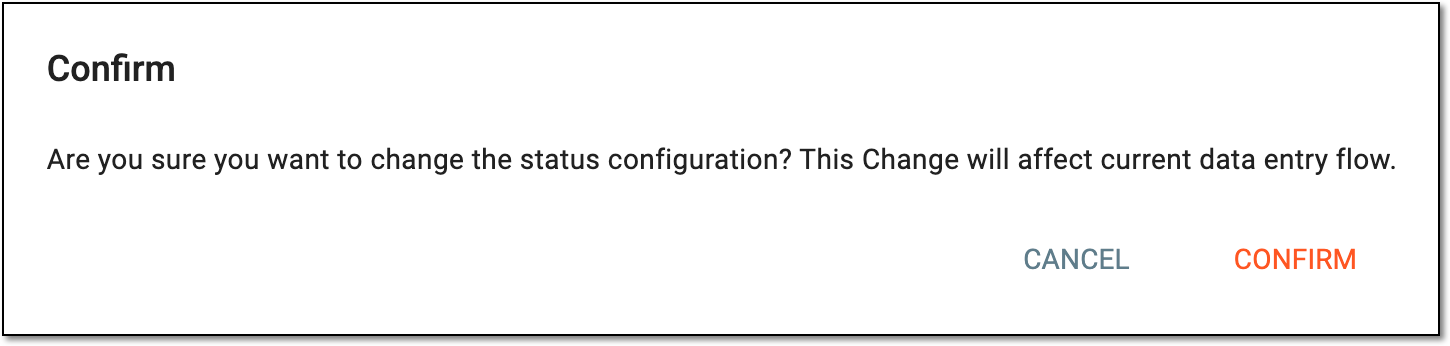 Figure 3. Confirming status configuration change
Once saved and confirmed, the study follows the set configurations of soft and hard locking data and requesting the PI's signature.
In EDC, for each site, you can configure individual settings related to soft lock, hard lock, and PI signature features. These settings can differ from those configured at the study level and applied to the sites without individual configurations.
Important
The site-level configuration does not affect the default study-level configuration for the soft lock, hard lock, and PI signature functionalities.
-
In the EDC application header, select the STUDY INFO tab.
-
From the left pane, select Study Information.
Figure 1. Accessing study information management
-
On the page that opens, select the Status Configuration tab.
-
On the page that opens, in the Site Level Setting section, select one of the following:
-
New Item
 : to add a new site-level setting of the soft lock, hard lock, and PI signature.
 -
Edit
 : to update the soft lock, hard lock, and PI signature settings for the site.
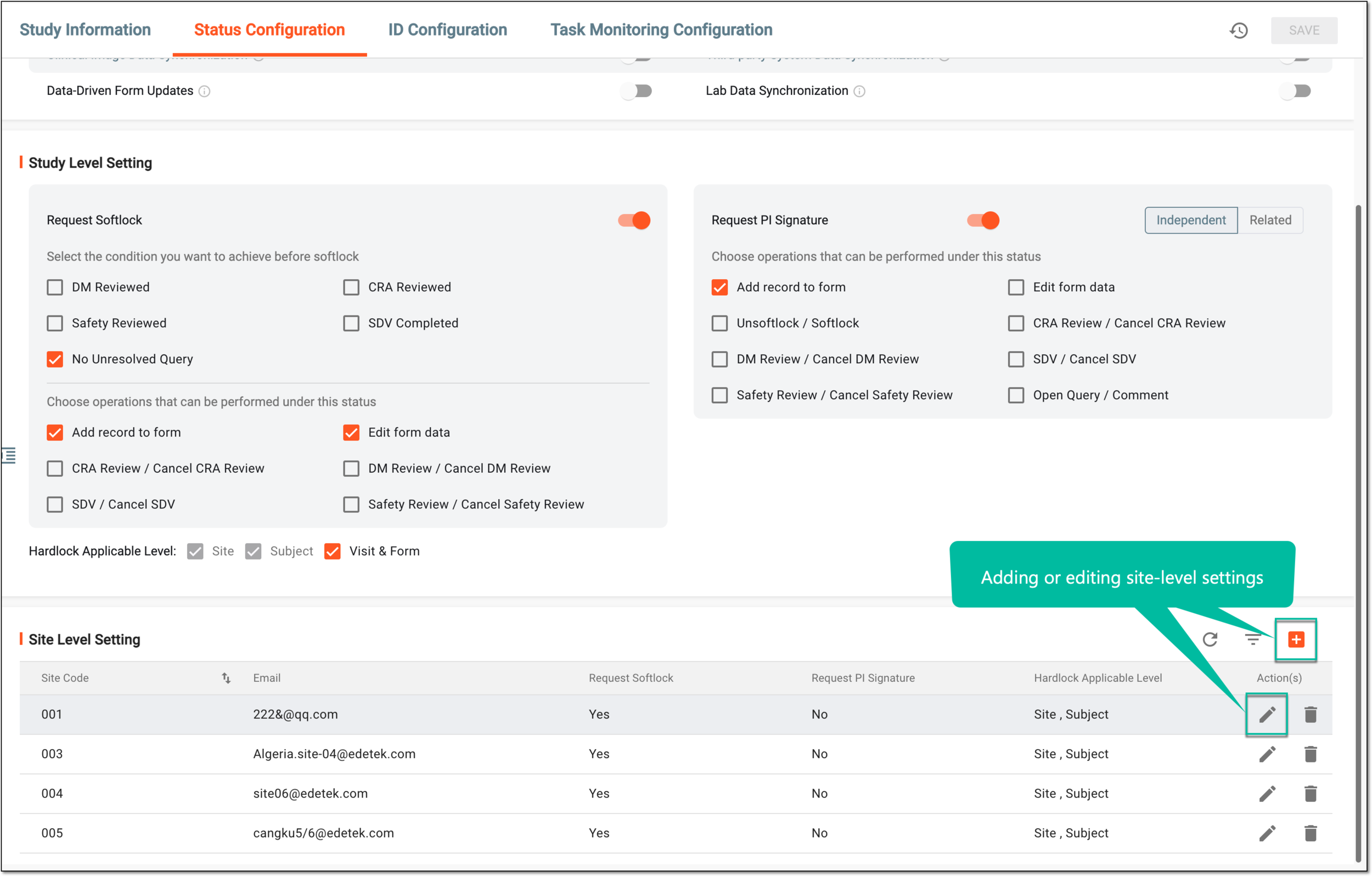 Figure 2. Adding or editing site-level settings
-
-
In the Site Details panel that opens, configure the site-level settings as explained in the following table.
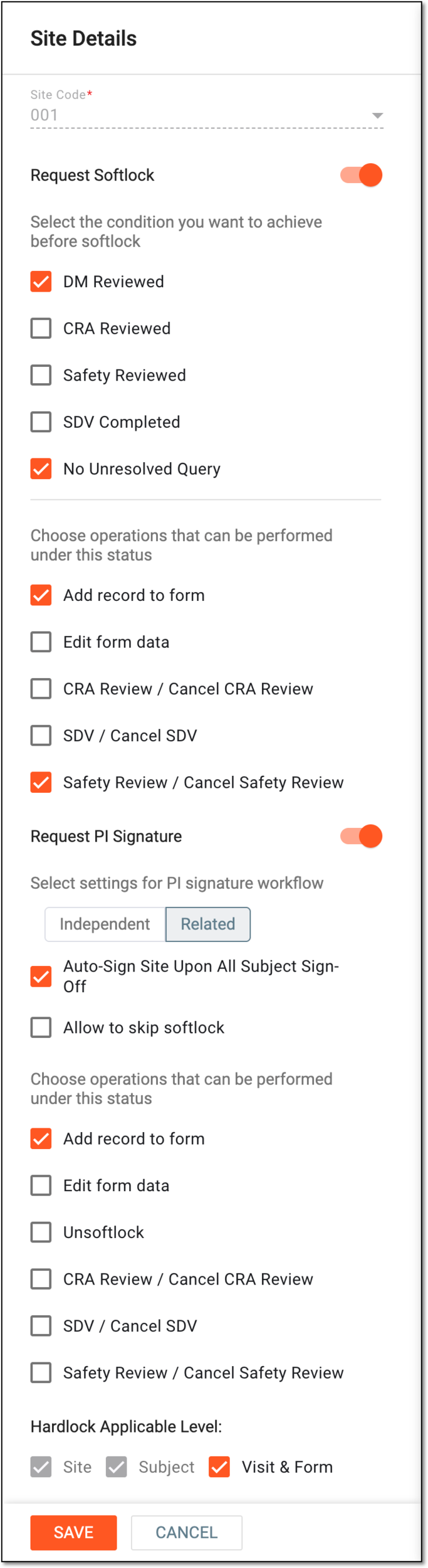 Figure 3. Configuring site-level settings
Tip
In the following table, mandatory elements are marked with an asterisk (*).
Element
Details
Site Code*
Select the unique code of the site for which you want to configure the site-level settings.
You can only select the site code when you're adding a new site-level setting.Request Softlock
Turn on this toggle if you want the sites to request soft lock from a designated user between the data review stages.
This toggle is automatically turned on and cannot be turned off if the site already has one or more active subjects.Select the condition you want to achieve before softlock
DM Reviewed
Select this checkbox to require a data manager (DM) review of the study data before the designated user can soft lock the study.
CRA Reviewed
Select this checkbox to require a clinical research associate (CRA) review of the study data before the designated user can soft lock the study.
Safety Reviewed
Select this checkbox to require a safety review of the study data before the designated user can soft lock the study.
SDV Completed
Select this checkbox to require a Source Data Verification (SDV) review of the study data before the designated user can soft lock the study.
No Unresolved Query
Select this checkbox if you want all study-level queries to be resolved before the designated user can soft lock the study.
Choose operations that can be performed under this status
Add record to form
Select this checkbox so the designated user can add records to forms when the study is soft-locked.
If the parent-level subject, site, or study is soft-locked, users cannot add records to forms even if you select the Add record to form checkbox.Edit form data
Select this checkbox so the designated user can edit form data when the study is soft-locked.
Request PI Signature
Turn on the toggle if you want the site to request a PI signature to confirm data validation at the site.
You can also configure the setting for PI signature so the designated personnel can still apply their signature without soft-locking the site. Before doing so, ensure that the site meets all the predefined conditions for the Softlock feature, such as required reviews and resolved queries.Select settings for PI signature workflow
Independent/Related
Represents one of the following:
-
Independent: if selected, the PI signature option is available at any status of the CRF except for Initial (when the data entry has not started yet); this makes it possible for the PI to sign the form disregarding other roles' signatures or the lock status of the CRF.
-
Related: if selected, the PI signature option only available upon the completion of the conditions that must be achieved before the soft lock and actual soft-locking of the CRF (if not set to skip the locking).
This setting follows the study-level dependency configuration and cannot be manually
                                        changed at the site level.
Auto-Sign Site Upon All Subject Sign-Off
Select this checkbox to automatically sign the site once all the subjects at the site have the PI signature. If cleared, the PI must sign the site separately when needed.
Allow to skip softlock
Select this checkbox to allow designated users to skip soft-locking the study when they apply their PI signature at the site.
If the parent-level subject, site, or study is signed, users cannot add records to forms even if you select the Add record to form checkbox.This checkbox is only available for the Related form dependency setting.Choose operations that can be performed under this status
Add record to form
Select this checkbox so the designated users can add records to forms when they apply their PI signature at the site.
Edit form data
Select this checkbox so the designated users can edit form data when they apply their PI signature at the site.
Unsoftlock / Softlock
Select this checkbox so the designated users can soft-lock or unlock the study when they apply their PI signature at the site.
This checkbox is only available for the Independent form dependency setting.Unsoftlock
Select this checkbox so the designated users can unlock the study when they apply their PI signature at the site.
This checkbox is only available for the Related form dependency setting.CRA Review / Cancel CRA Review
Select this checkbox to allow the CRA's review to be performed or cancelled (if already done) after the form is signed by the PI.
DM Review / Cancel DM Review
Select this checkbox to allow the DM's review to be performed or cancelled (if already done) after the form is signed by the PI.
SDV / Cancel SDV
Select this checkbox to allow the SDV to be performed or cancelled (if already done) after the form is signed by the PI.
Safety Review / Cancel Safety Review
Select this checkbox to allow the safety review to be performed or cancelled (if already done) after the form is signed by the PI.
Open Query / Comment
Select this checkbox to allow opening new queries and adding comments after the form is signed by the PI.
This checkbox is only available for the Independent form dependency setting.Hardlock Applicable Level
Site
Select this checkbox if you want to enable the hard-lock on the site level.
Subject
Select this checkbox if you want to enable the hard-lock on the subject level.
Visit & Form
Select this checkbox if you want to enable the hard-lock on the visit level.
SAVE
Select
to implement the changes.CANCEL
Select
 to dismiss the changes without saving.
 -
-
In the confirmation dialog that appears if your changes affect the current data entry flow, select
to proceed with your action.Figure 4. Confirming status configuration change
Once saved and confirmed, the site follows the set configurations of soft and hard locking data and requesting the PI's signature.