Manage study information
On the Study Information page, you can view the study details such as its type, purpose, randomization, blinding, review settings, and others. Some of this data populates from the CTMS application, but other details you can edit directly from the Study Information page.
Important
To configure the study from Study Information, you need to have the Write permission granted to your user role via the ADMIN application. Users with the Read permission can only view the configurations but not make amendments.
The Lock permission gives you the right to hard-lock the study data via the Metrics functionality.
-
In the EDC application header, select the STUDY INFO tab.
-
From the left pane, select Study Information.
 Figure 1. Accessing study information management
-
On the page that opens, under the Study Information tab, view and edit some fields as explained in the following table.
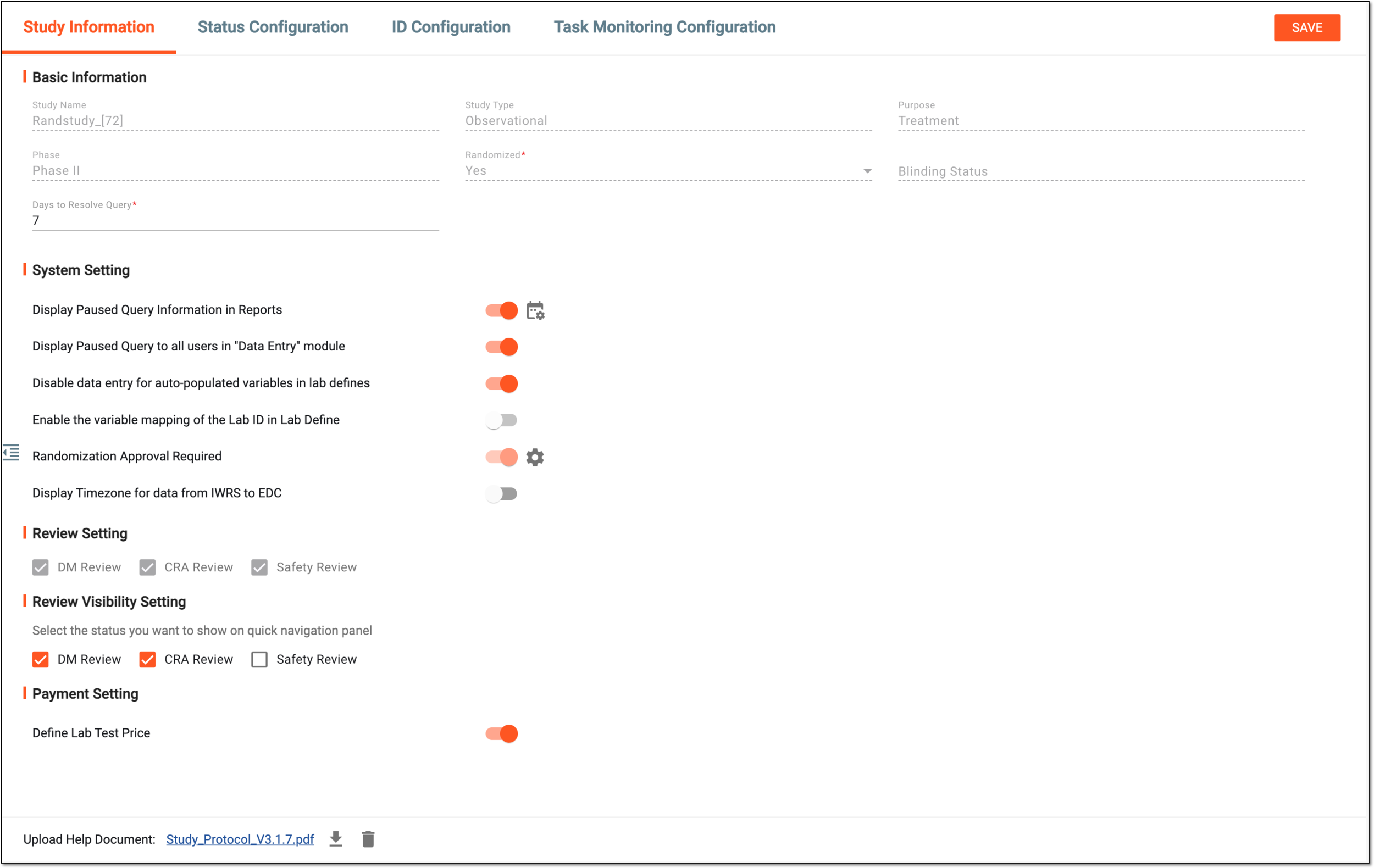 Figure 2. Managing study information
Tip
In the following table, mandatory elements are marked with an asterisk (*).
Element
Details
Study Name
A read-only field of the study name is populated from the study basic information module of CTMS.
Study Type
A read-only field of the study type is populated from CTMS, for example, observational, interventional, or feasibility.
Purpose
A read-only field of the study purpose is populated from CTMS, for example, "To find ways to more effectively prevent, diagnose, or treat disease."
Phase
A read-only field of the current phase of the study populated from CTMS.
Randomized
A read-only field of the randomization settings populated from CTMS. The field displays if the study is randomized (Yes) or not (No).
Blinding Status
A read-only field of the study blinding status—Open-Label, Blinded, or Double-Blinded—populated from CTMS.
Days to Resolve Query*
Enter the number of days you want to resolve all the queries within your study before they expire.
Leave the field blank if you want the users to set a specific resolution period for each query individually upon creation.
System Setting
Display Paused Query Information in Reports
Turn the toggle on to display information about paused queries in query reports of EDC. If turned off, such information does not appear in EDC reports.
Display Paused Query to all users in "Data Entry" module
Turn the toggle on to display the paused queries on subject, visit, and form pages upon data entry in EDC. If turned on, all users, regardless of their role, can see the paused query, but only those with the respective permissions can act on it. If turned off, paused queries are only visible to the users who have the permissions to act on them.
Review Days Setting
Select
 to open the dialog where you can update the number of days during which EDC queries can be considered paused.
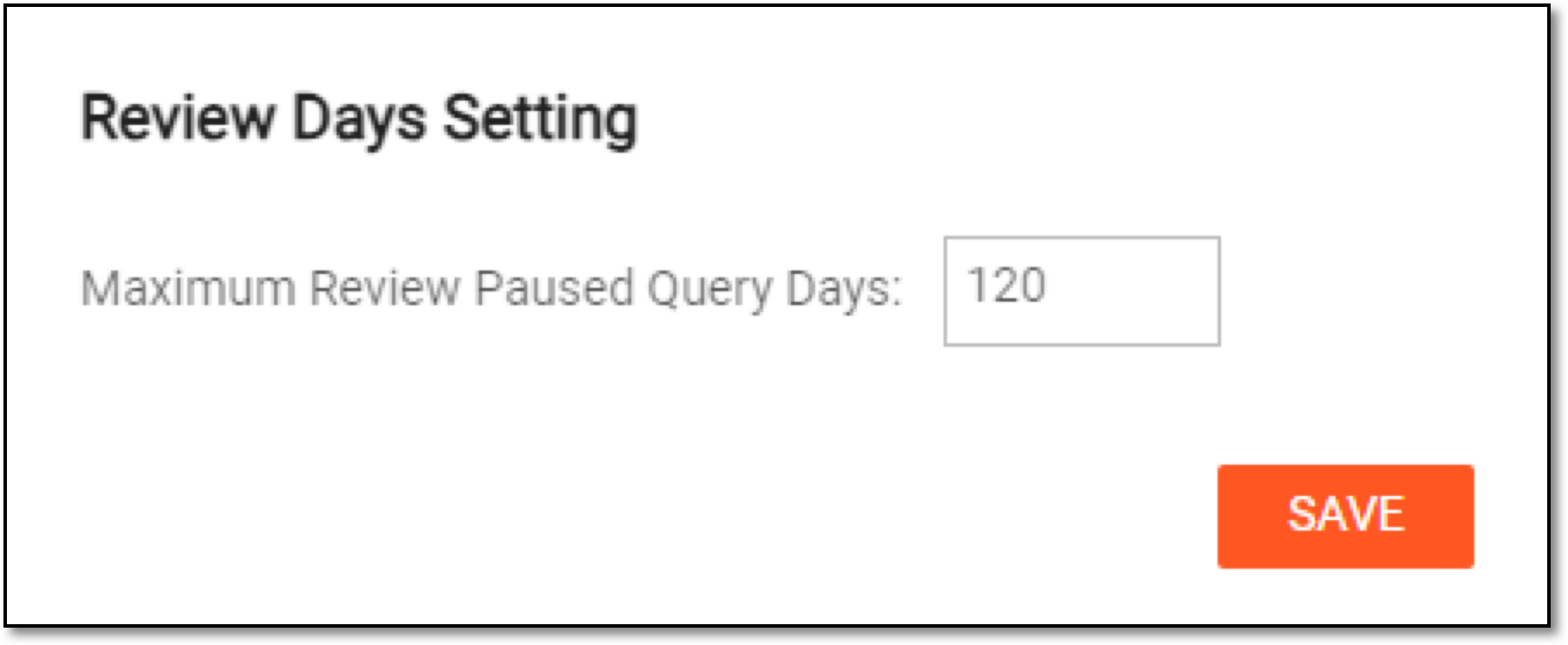 Figure 3. Updating query days
Disable data entry for auto-populated variables in lab defines
Turn the toggle on to restrict the editing of the variable that is automatically filled in as specified when you add a new lab. If turned off, the automatically filled variable remains editable.
Enable the variable mapping of the Lab ID in Lab Define
Turn the toggle on to enable the Lab ID variable in the new lab configuration form. This helps you configure the lab identifier when setting up the lab details. Then this ID is populated to the needed forms upon data entry. If the toggle is turned on, the lab ID is also included to the downloadable file template you use for adding lab normal ranges via file import.
If turned off, then you do not have the configurable Lab ID variable upon lab defining or in the exported and imported files. In such a case, you select the lab ID for each form individually upon data entry.
The toggle is turned off by default. If at least one lab is already defined for the study, the toggle becomes uneditable.Randomization Approval Required
Turn this toggle on for the system to request approval of the assigned user role before performing subject randomization.
This option can be disabled if the randomization functionality is not activated for your study or the randomization is handled via IWRS.Set Disable Randomization Approved Condition
Select
 to open the page where you can enter a condition for canceling approved randomization for subjects.
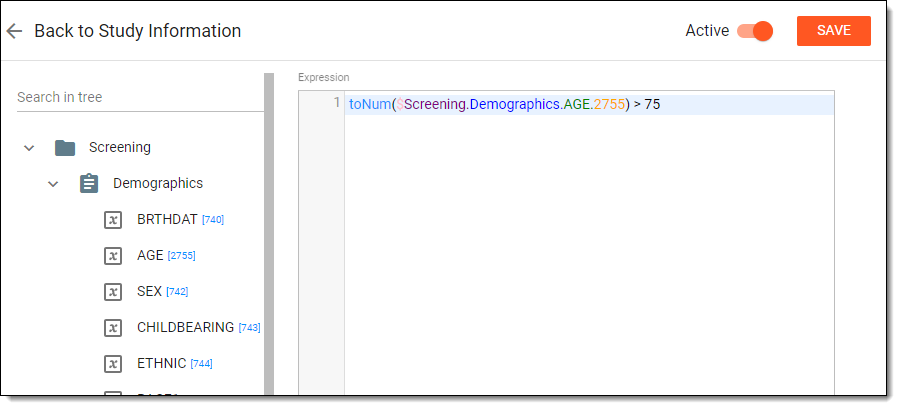 Figure 4. Entering condition
For example, you have configured a condition to cancel approved randomization for subjects over 75 years old. So if randomization for some subjects has been previously approved, and then the data has been entered indicating that the age of those subjects is over 75, approved randomization will be canceled for such subjects.
You can only enter and save the condition if according to the ADMIN setting, randomization is handled via EDC and not via IWRS.Display Timezone for data from IWRS to EDC
Turn this toggle on for the system to convert subject-related dates entered in IWRS according to the timezone enabled for EDC. If the subject is randomized, it syncs the randomized date and time from IWRS, and the date and time in both applications are identical.
Review Setting
This block is strictly informative. The study-level configuration of data review stages is performed in
                                  Study Designer (SD).
DM Review
Indicates if the data manager (DM) review of the study data is enabled. If cleared, the DM review is not required.
This configuration is done via SD and cannot be changed in EDC.CRA Review
Indicates if the clinical research associate (CRA) review of the study data is enabled. If cleared, the CRA review is not required.
This configuration is done via SD and cannot be changed in EDC.Safety Review
Indicates if the safety review of the study data is enabled. If cleared, the safety review is not required.
This configuration is done via SD and cannot be changed in EDC.Review Visibility Setting
This block of settings determines the review status visibility on the subject visits navigation panel under the DATA ENTRY tab.
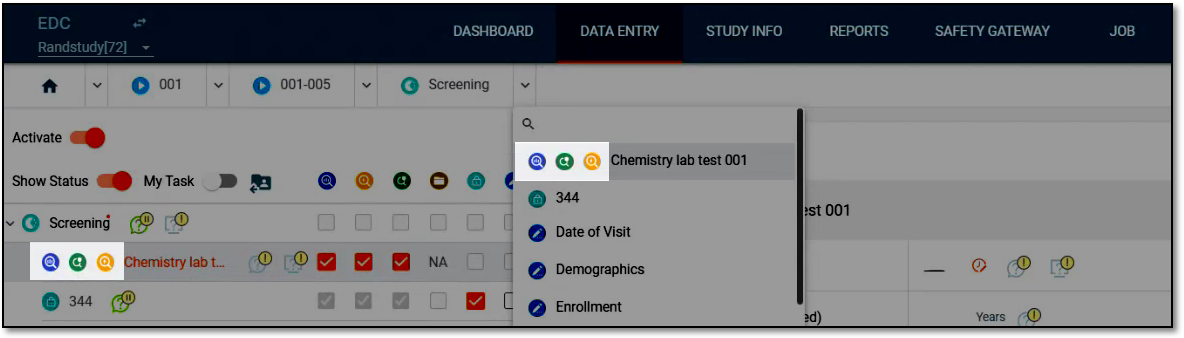 Figure 5. Viewing form review status in data entry
DM Review
Select or clear the checkbox to display or hide the DM Review status icon next to the forms on the subject visits navigation panel under the DATA ENTRY tab.
CRA Review
Select or clear the checkbox to display or hide the CRA Review status icon next to the forms on the subject visits navigation panel under the DATA ENTRY tab.
Safety Review
Select or clear the checkbox to display or hide the Safety Review status icon next to the forms on the subject visits navigation panel under the DATA ENTRY tab.
Payment Setting
Define Lab Test Price
Turn the toggle on to enable the functionality to set up pricing for lab tests from the site normal range page. If turned off, the pricing functionality is disabled.
SAVE
Select
 to save the changes in the above-described fields.
Upload Help Document
Upload
Select
 and follow the prompts to upload a file that you find useful for your study. This can be the study protocol version or any other document you need.
[File name]
Select the file name link to preview the document contents in the new tab of your browser.
Download
Select
 and follow the prompts to download the file to your computer.
Delete
Select
 to delete the file from the system.
Operation History
Select
 to open the Operation History dialog and analyze the complete log of uploaded files, their deletion, and
download any historical version of the help document by selecting Download next to it.
to open the Operation History dialog and analyze the complete log of uploaded files, their deletion, and
download any historical version of the help document by selecting Download next to it.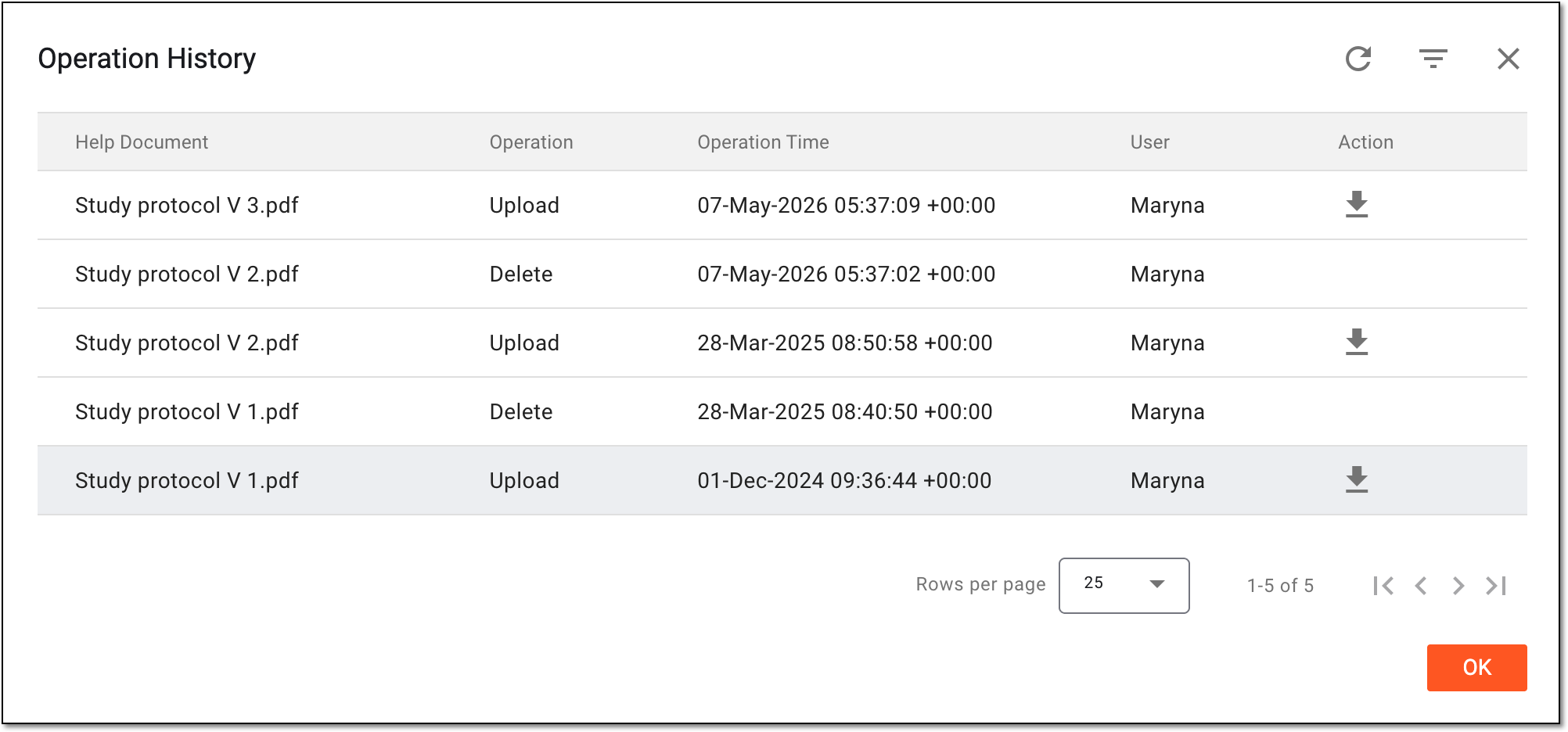 Figure 6. Analyzing operation history and versions of help document
Once your updates are saved, you have successfully updated the study settings.