View subject visits
The Subject Visit Overview page comprises all visits a specific subject has had or will have during a study. Here, you can check the visit status and date, the number of queries opened on a particular visit form, and so on. Also, this page is your starting point for entering form data since all the forms needed to collect subject data are stored here.
-
In the EDC application header, select the DATA ENTRY tab.
-
On the site list page that opens, select the tile representing the site with which you want to work.
 Figure 1. Accessing site
-
In the Subject ID column, select the ID of a subject to open their visit overview.
 Figure 2. Selecting subject
-
On the Subject Visit Overview page that opens, the summary of all subject visits is displayed and structured as follows.
-
On the left, there is a panel with all subject visits. The list of visits here is study-specific, it is designed for each study individually by the EDETEK's study design team according to the study protocol and depends on the phase the subject is at.
You can expand each visit to see the forms that require data entry.
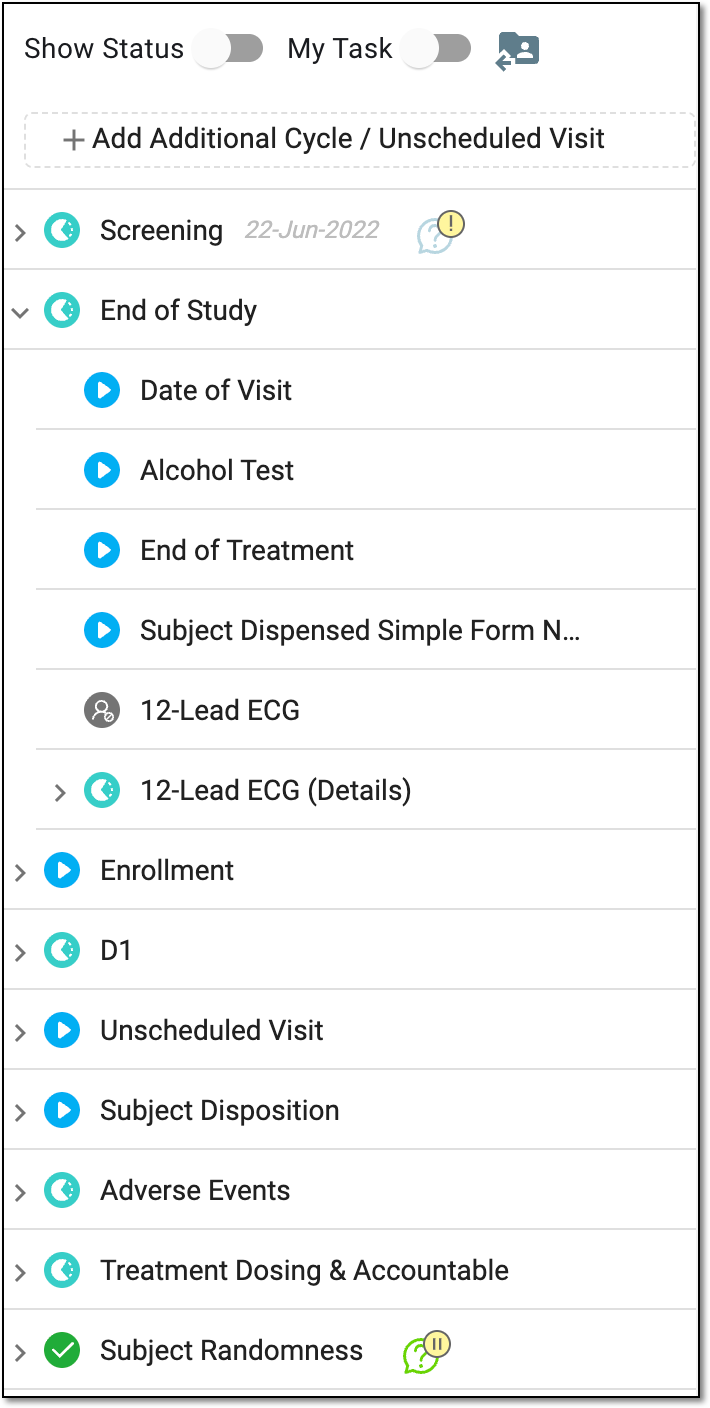 Figure 3. Subject visits and forms panel
Tip
The exclamation mark symbol
 next to a query or form means that the query or form is overdue—the window of days established for resolving the query
or or filling the form is exceeded. The pause
next to a query or form means that the query or form is overdue—the window of days established for resolving the query
or or filling the form is exceeded. The pause  symbol next to a query means that the visit or its form has a query that is paused.
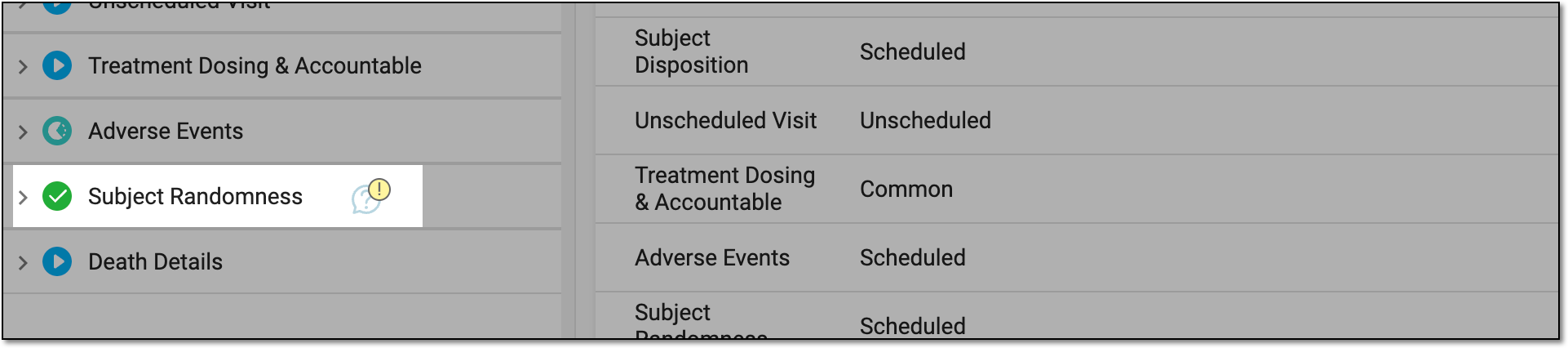 Figure 4. Viewing overdue queries and forms
-
On the right, the details of subject visits are displayed in the Subject Visit Overview list as explained in the following table.
Figure 5. Subject visit overview
Element
Details
Show Visit Disabled by Rule
Manage the Subject Visit Overview list as follows:
-
Turn off this toggle (which is the default setting) to hide the visits disabled according to the dependency rules preset in SD.
-
Turn on this toggle to show the visits disabled according to the dependency rules preset in SD.
The system remembers your setting of this toggle for the current session and applies the same one for all subjects when you switch between their visit overviews. However, this setting is not a study-level configuration, and it only controls the data displayed
                                      for the current user until you leave the page.
Visit Name
Represents the name of the study visit.
Visit Type
Represents the type of study visit:
-
Scheduled: when the visit is a one-time occurrence.
-
Common: when the visit is available throughout the study.
Visit Date
Represents the date of the subject's visit. The value is not available if the visit is not yet completed. Once the visit is completed, the date becomes available in the table.
The value is editable, you can enter the date of the visit manually if needed.
Visit Status
Represents the status of the visit form. If Initial is displayed, it means that no data has been entered yet.
Visit Active
Represents the state of the visit:
# of Missing Form
Represents the number of missing forms. If the visit is associated with five forms and data has not yet been entered in one of those forms, the number of missing forms is also five. If data has been entered in two of the five forms, three will be displayed, respectively.
Select the link that indicates the number of missing forms, and in the Missing Form dialog that opens, check which forms are missing.
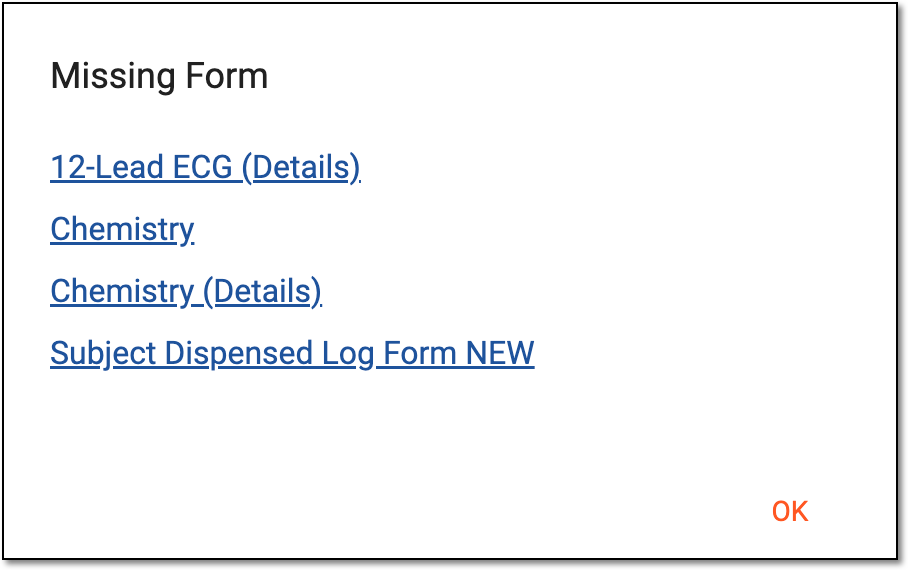 Figure 6. List of missing forms
Select
 to close the dialog or select any form of your choice to access the form and enter the form data.
# of My Open Manual Query
Represents the number of queries created manually by an Investigator or Monitor if they find inaccurate or missing form data. These queries have to be addressed by you.
# of My Answered Manual Query
Represents the number of queries created manually that have already been resolved by you.
# of My Open System Query
Represents the number of queries that are generated automatically by the EDC system when the data entered in the forms falls outside the predefined value. These queries have to be addressed by you.
# of My Answered System Query
Represents the number of queries generated automatically by the system and resolved by you.
The exclamation mark symbol
next to a query or form means that the query or form is overdue—the window of days established for resolving the query or or filling the
form is exceeded. -
-
After you have studied all the needed details of the visit, you can return to the site list by selecting the home button  from the toolbar or proceed to the certain visit's
form overview.
from the toolbar or proceed to the certain visit's
form overview.