Edit subject visit date
The Subject Visit Overview page comprises all visits a specific subject has had or will have during the study. Here, you can check the visit status, the number of queries opened on a particular visit form, and so on. Also, from this page, you can check the current date of the subject visit and edit it if needed.
There can be different reasons to change the date of a subject visit. For instance, upon entering data from the source file, the data manager made a mistake and selected an incorrect date. Then, to correct the error, you can edit the date.
Another example can be an error in a source document, and upon receiving the follow-up data, you need to edit the visit date to correct the mistake.
-
In the EDC application header, select the DATA ENTRY tab.
-
On the site list page that opens, select the tile representing the site with which you want to work.
 Figure 1. Selecting site tile
-
In the Subject List page that appears, from the Subject ID column, select the subject whose visit date you want to edit.
 Figure 2. Selecting subject
-
In the table, next to the needed visit, from the Action column, select Edit Date of Visit
 .
.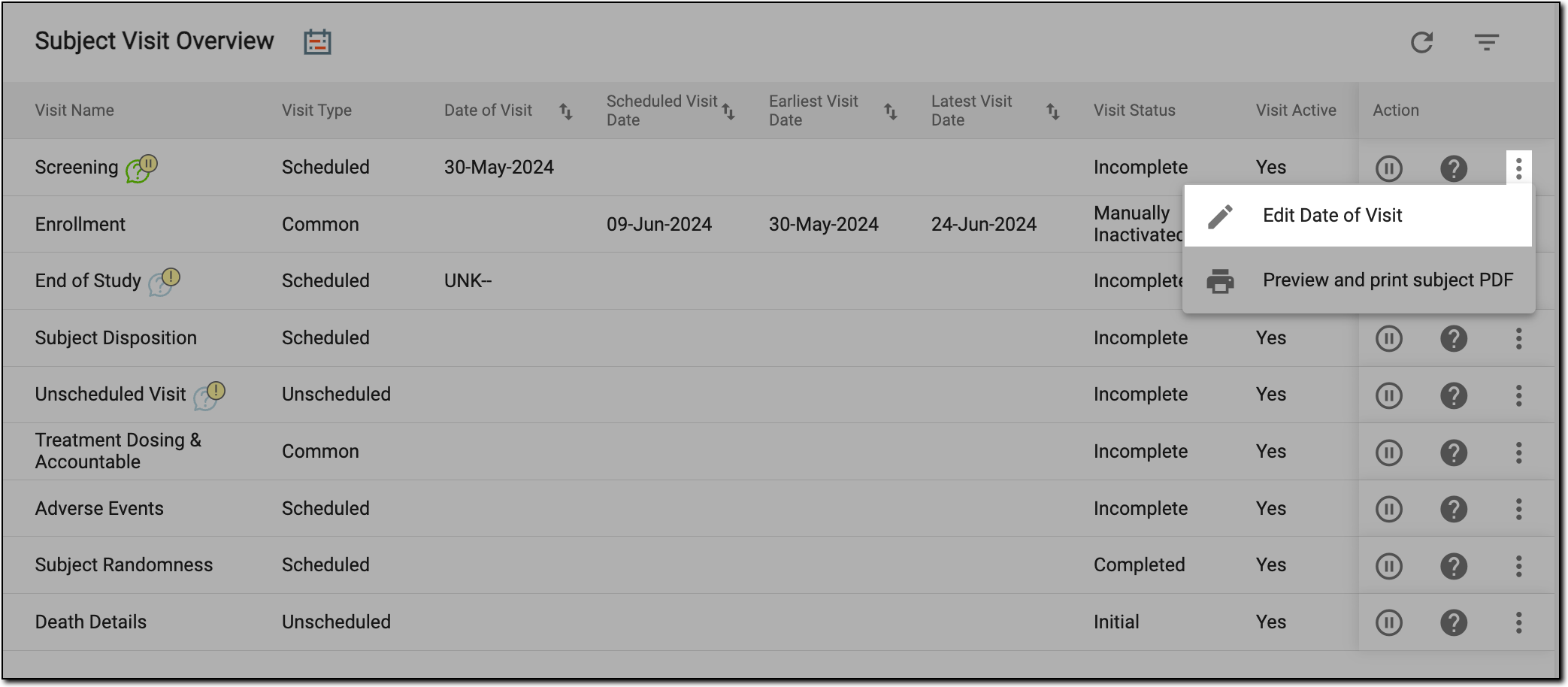 Figure 3. Selecting to edit visit date
-
In the Edit dialog that appears, complete the details as explained in the following table.
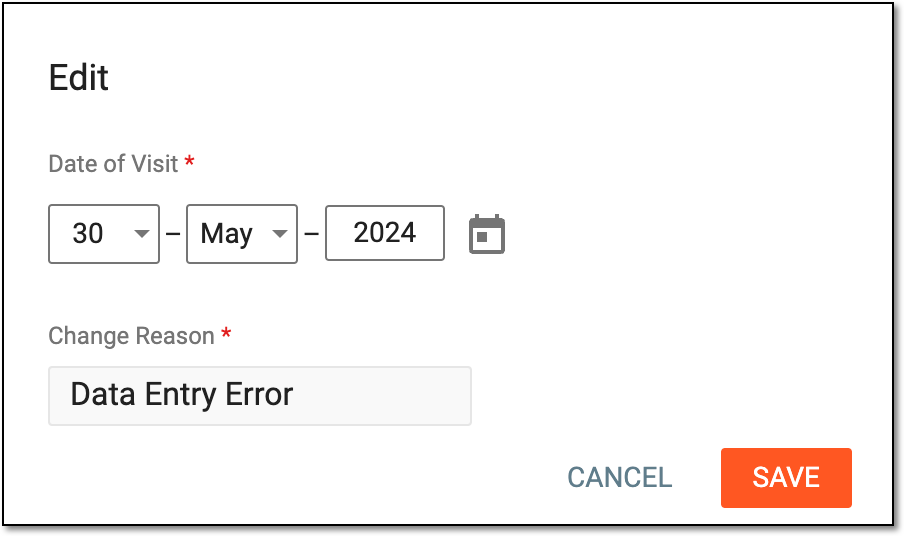 Figure 4. Updating visit date
Tip
In the following table, mandatory elements are marked with an asterisk (*).
Element
Details
Date of Visit*
Enter the date of the visit.
Change Reason*
Enter the reason for editing the date.
This field is only available if the visit date already exists in the system and you change it. For the first entry of the visit date, there is no Change Reason field.Save
Select
 to save the implemented changes.
Cancel
Select
 to discard the changes without saving.
Upon saving, the subject visit date becomes updated. In EDC, you can track the history of such changes per visit via the Audit Trail functionality or for all visits via the Audit report.