Add unscheduled visit
If a subject returns to the site for a visit outside of the protocol evaluation time points, you need to sign in to the EDC system and create the unscheduled visit for that subject.
Important
To add unscheduled visits manually in EDC, the respective functionality must be enabled via Study Designer (SD).
Once the visit is created, you must complete the Unscheduled Visit Evaluation (UE) form that is created automatically for that visit in EDC.
Important
One Unscheduled Visit Evaluation form is completed for each subject evaluation performed outside scheduled protocol evaluations.
-
In the EDC application header, select the DATA ENTRY tab.
-
On the site list page that opens, select the tile representing the site with which you want to work.
 Figure 1. Accessing site
-
In the Subject ID column, select the subject whose data you want to enter.
 Figure 2. Selecting subject
-
On the page that opens, from the toolbar of the subject visits tree, select Add Unscheduled Visit.
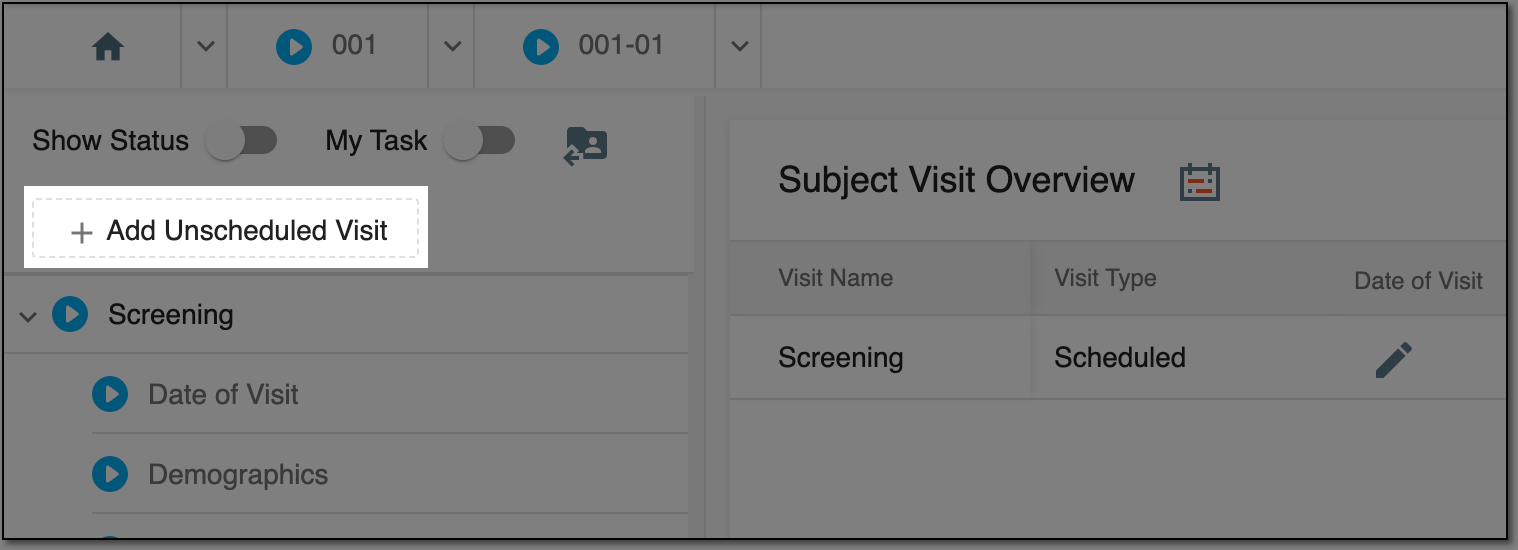 Figure 3. Adding unscheduled visits
-
In the New Unscheduled dialog that appears, select any of the available unscheduled visits to add to the subject. Then select
 .
.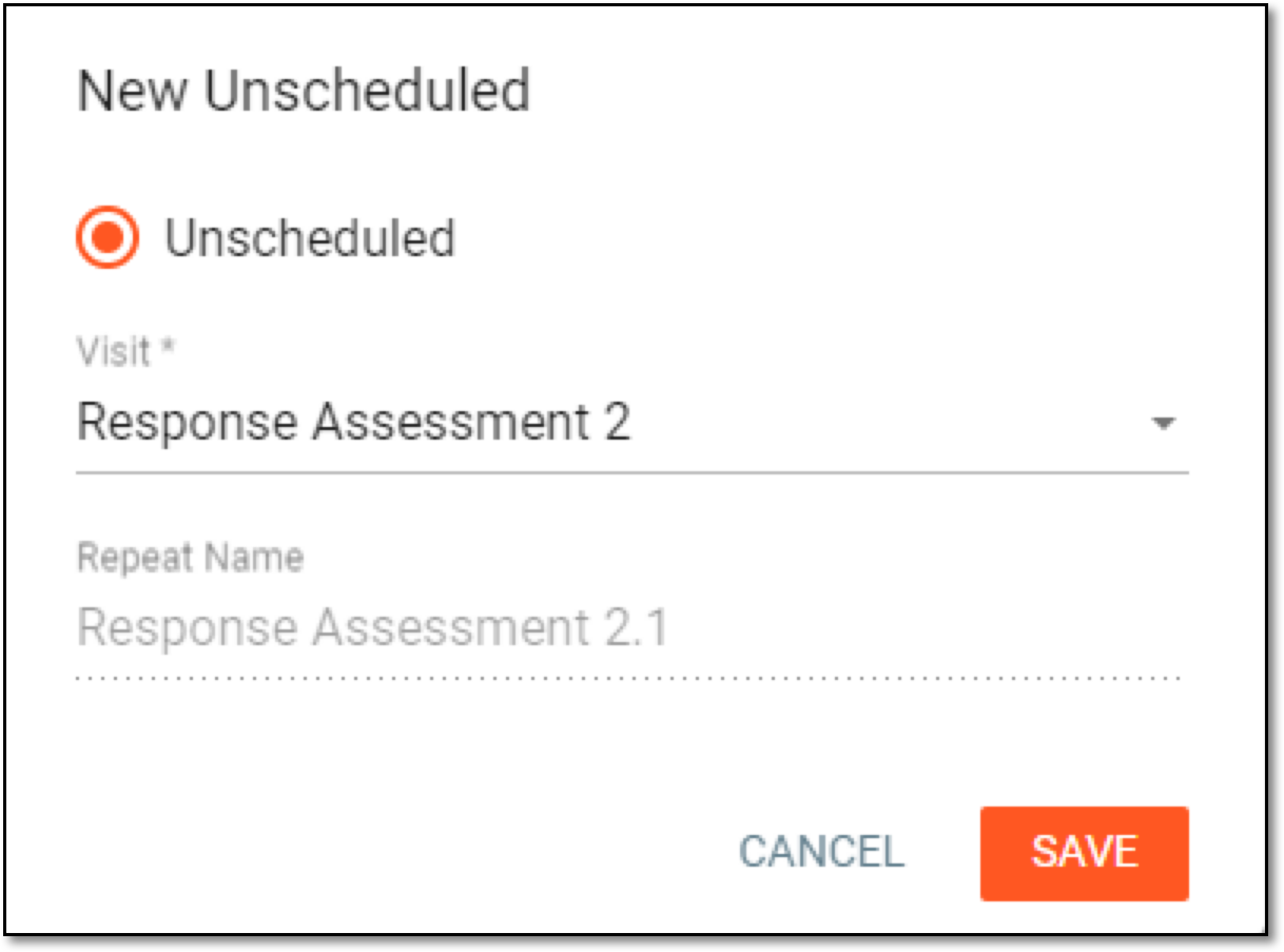 Figure 4. Adding unscheduled visit
Tip
The list of unscheduled visits populates from the currently used CRF version configured in the Study Designer (SD) application.
Once saved, a new unscheduled visit is added. You can now complete corresponding forms when needed.