Activate/Inactivate visit
In the EDC application, you can activate or deactivate a subject visit while completing the data entry. If inactivated, the visit and its forms become unavailable for data entry until activated again.
-
In the EDC application header, select the DATA ENTRY tab.
-
On the site list page that opens, select the tile representing the site with which you want to work.
 Figure 1. Accessing site tile
-
In the Subject List page, from the Subject ID column, select the subject whose visit you want to activate or inactivate.
 Figure 2. Selecting the subject
-
In the Subject Visit Overview table that opens, next to the needed visit, from the Action column, select Activate
 or Inactivate
  to perform the respective action.
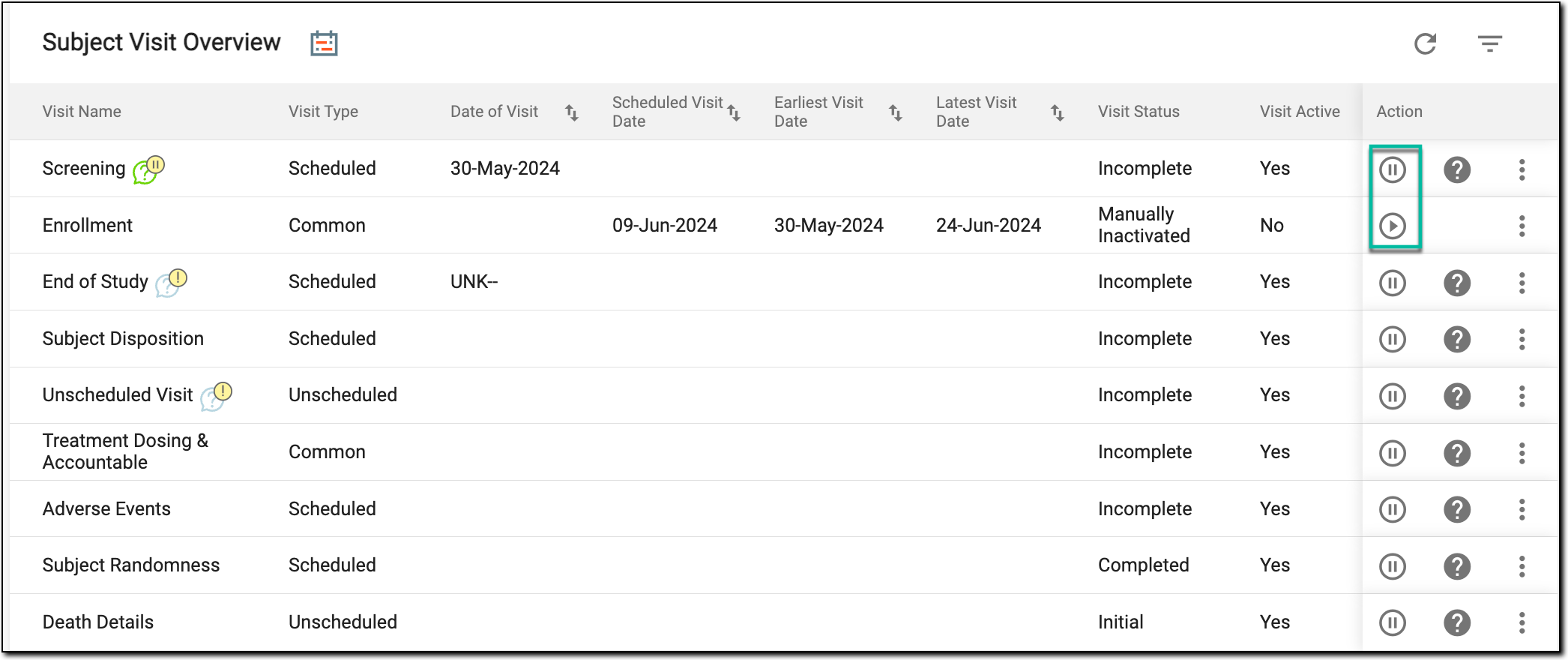 Figure 3. Activating/Inactivating visit
Important
A visit does not support the activate/inactivate feature if the visit is not created or triggered.
-
In the Reason dialog that appears, enter the reason for activating or inactivating a visit, and then select
 .
.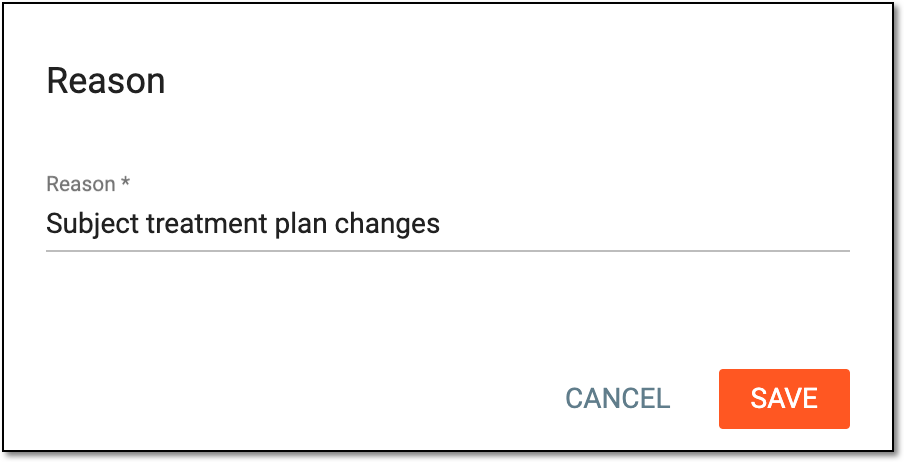 Figure 4. Providing reason for visit activation/inactivation
Once selected, the visit is either activated or inactivated, depending upon the action performed.