Preview and print subject visit PDF
In the EDC application, the Subject Visit Overview page comprises all visits a specific subject has had or will have during a study. Here, you can check the visit status, any queries opened for the visit, and other details. Also, from this page, you have the option to preview and print the PDF document on a specific visit if you need to have the visit details for use outside the EDC system.
Using the preview, you thoroughly review the PDF and see if there is anything that needs to be fixed prior to printing. The printed PDF contains concise information on the visit, including details such as site information, relevant case report forms (CRFs) associated with the visit, and so on.
-
In the EDC application header, select the DATA ENTRY tab.
-
On the site list page that opens, select the tile representing the site with which you want to work.
 Figure 1. Selecting site tile
-
In the Subject List page that appears, from the Subject ID column, select the subject whose visit you want to preview and print.
 Figure 2. Selecting subject
-
In the Subject Visit Overview table that appears, next to the needed visit, from the Action column, select More
 > Preview and print subject PDF
  .
.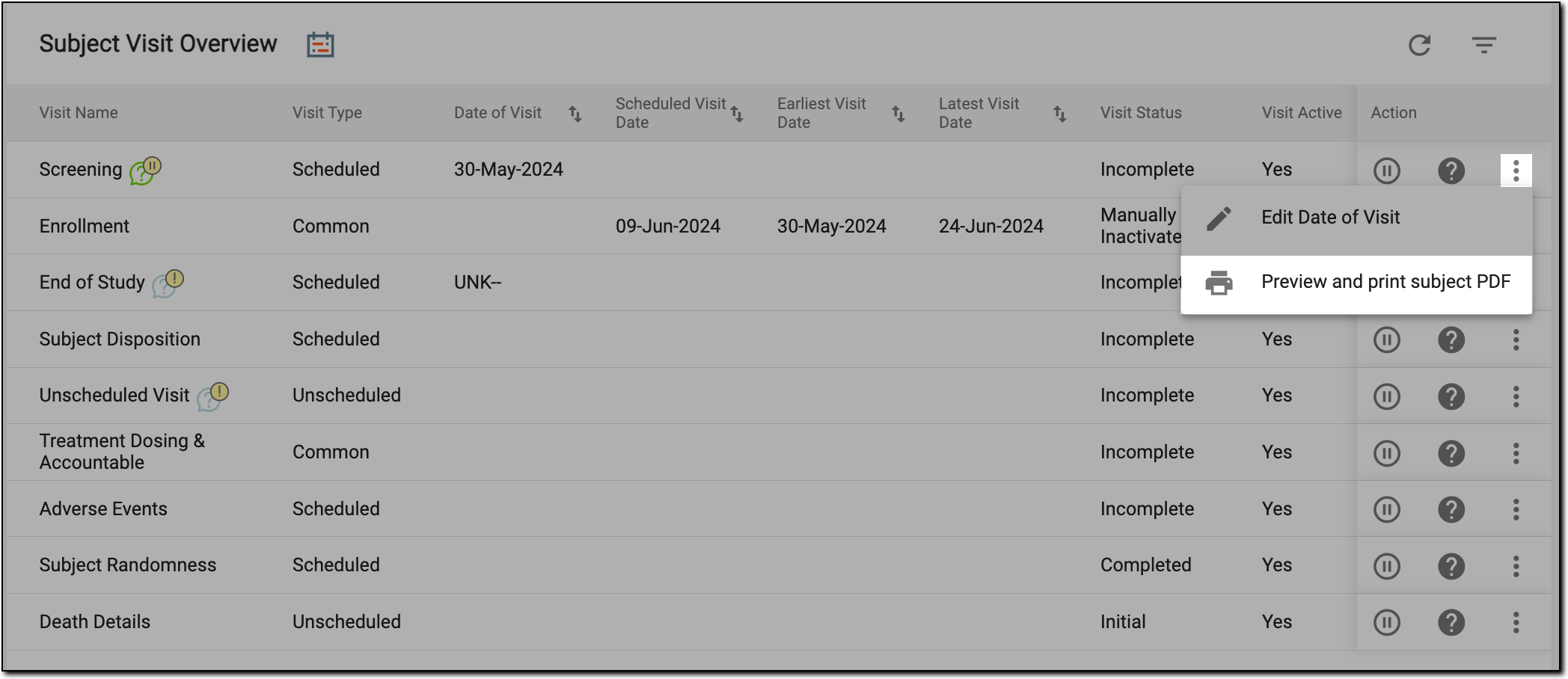 Figure 3. Selecting to preview and print PDF
-
In the new browser tab that opens, preview the details of the generated PDF version of the selected visit details.
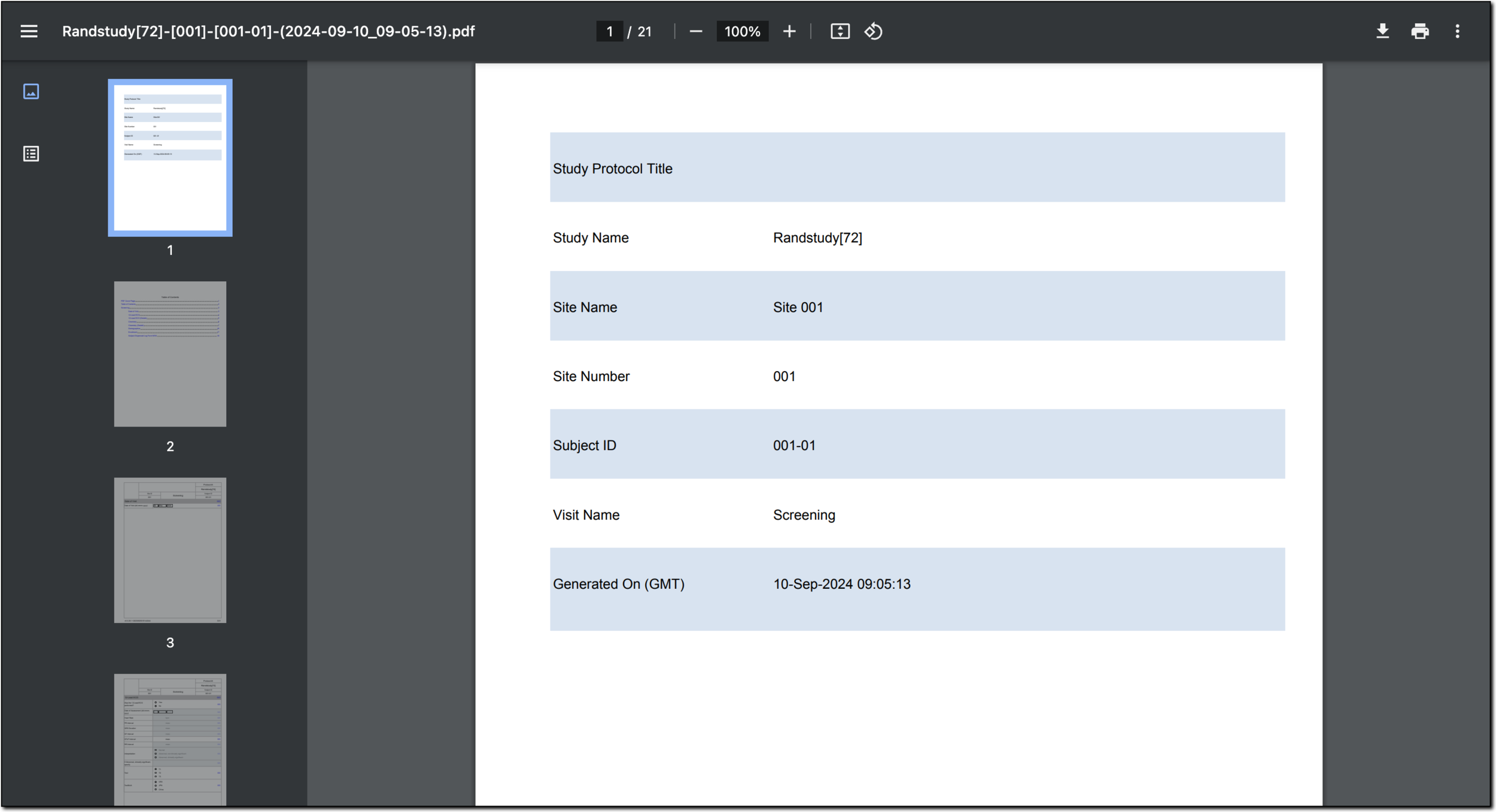 Figure 4. Previewing visit PDF
-
After reviewing the details, from the browser toolbar, select Print to print the generated PDF file.
You have previewed and printed the PDF file with the details of the selected visit.