Add new lab
In the EDC application, when subject lab results are entered manually in respective case report forms (CRFs) of the DATA ENTRY tab, the system automatically populates the preset normal range values for those lab tests. Thus, the system compares and validates the actual data against normal ranges and inputs the results of the tests to the form.
For the EDC system to know how to complete the lab data CRFs, you need to define a lab and map the respective CRF fields to the domains from whose variables the data should be taken.
For instance, the age data is taken from the specific variable of the DM (Demographics) domain, and some lab data from the LB (Laboratory) domain variables. Thus, when the test results are entered in a CRF related to this lab, the EDC application can automatically populate the respective mapped data and estimate the normal ranges.
-
In the EDC application header, select the STUDY INFO tab.
-
In the left pane, select the Lab > Lab Define subtab.
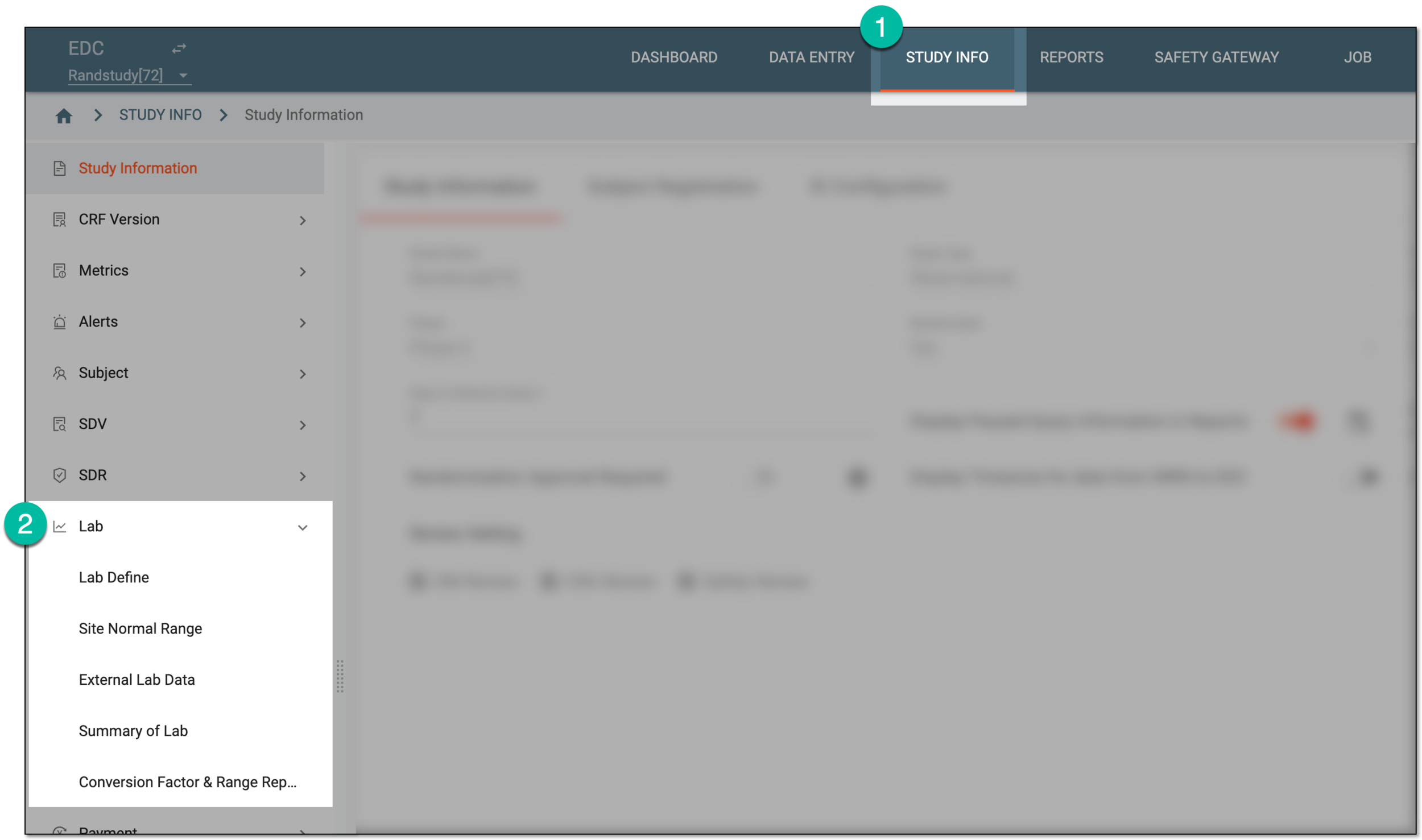 Figure 1. Accessing lab management
-
From the workspace toolbar of the Lab List table that appears, select New Item
 .
.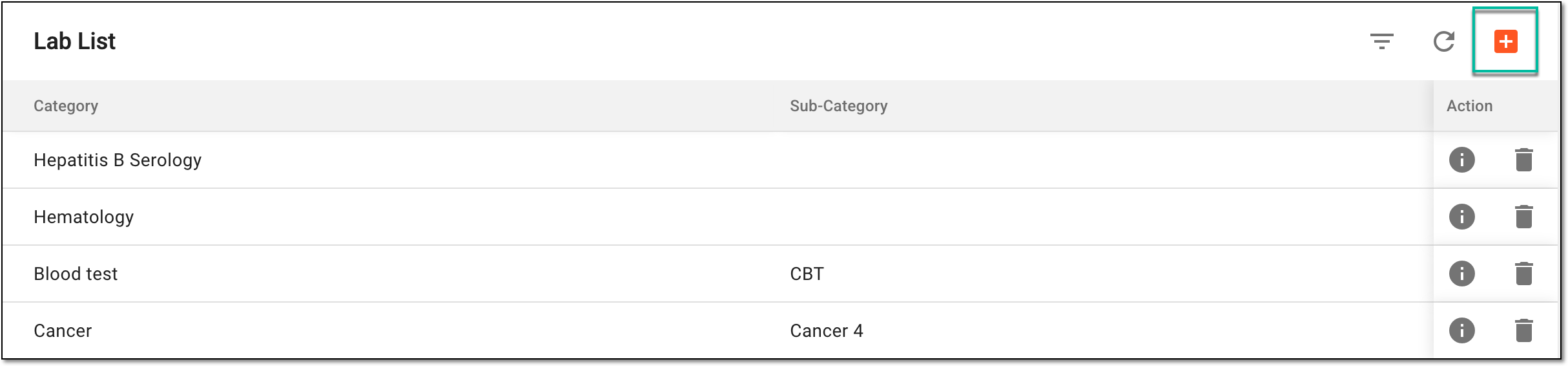 Figure 2. Selecting option to add new lab
-
On the page that opens, in the New Lab form, complete the fields as explained in the following table.
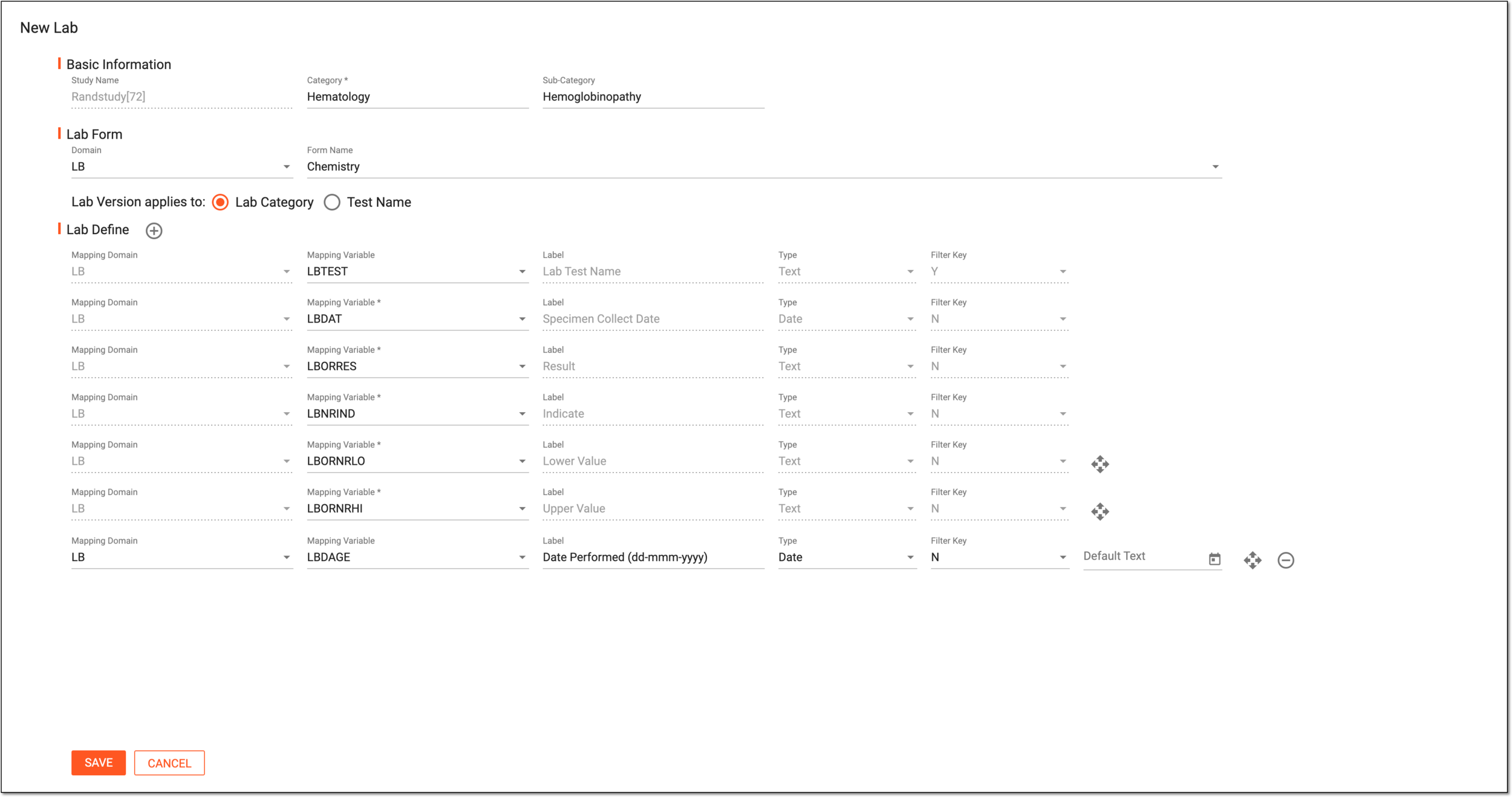 Figure 3. Adding new lab
Tip
In the following table, mandatory elements are marked with an asterisk (*).
Element
Details
Basic Information
Study Name
Represents the name of the study that you are currently working on within the EDC app. The study cannot be changed here, the field is read-only.
Category*
Enter the category of lab test data that is collected for your study, for example, Hematology.
Sub-Category
Enter the subcategory of lab data within the specified category. Currently, this parameter is not used in any of the EDC-maintained studies.
Lab Form
Domain
Select the domain to which the anticipated subject data refers, for instance, LB for laboratory data or DM for demographics.
Form Name
Select the forms for which you want this lab data to be implemented. The forms are populated from the Study Designer app.
Lab ID*
Select the lab identifier that is to be populated to all the related forms upon data entry. If selected, you need to map the variables of the forms to correspond to lab identifier.
This field is only available, if the lab id variable configuration is enabled under the study information
                                  settings.
Lab version applies to
Select one of the options as follows.
Lab Define
In this block, map the domains to the variables—specify from which domain the data for the variable is taken to complete the selected form. The mandatory rows are predefined although manageable.
Mapping Domain
Select the domain from which you want the system to take the data to complete the variable.
Mapping Variable
Select the variable that you want to define for the selected domain. The list of available variables depends on the domain.
If in doubt, you can check the variable codes and their references in the annotated CRF for your study.
If you select a variable that has been previously mapped, the corresponding details are populated in the Label, Type, and Filter Key fields.
For instance, you select the LBID variable that stands for a laboratory ID number, and in the Label field, the Lab ID value is populated and cannot be changed.
Label
Enter the name of the field representing the variable in the CRF.
If the variable has been previously mapped, the value of the field is populated automatically.
Type
Select the data type of the variable value: date, text, or number.
If the variable has been previously mapped in the system, the field is populated automatically.
Filter Key
Select Y or N to specify if the form can be filtered by this value or not, respectively.
If the variable has been previously mapped in the system, the field is populated automatically.
Default Text
Enter the default text for the variable that is populated to the form and can be changed by the user completing the form.

Select the plus symbol to add a new row.

Select the minus symbol next to the unneeded row to delete it.

Select the moving symbol next to the row and drag the row to the desired location on the list to adjust their order.
SAVE
Select
 to implement the changes.
CANCEL
Select
 to discard the changes.
Upon saving, the lab appears in the Lab List table. You can now proceed to add normal ranges for this lab.