Edit lab details
For the EDC system to know how to complete the data in the lab result case report forms (CRFs), you need to define a lab by mapping the domains from which the data should be taken to each field of the CRF. Thus, when the test results are entered in a CRF related to this lab, the EDC application can automatically populate the respective data and estimate the normal ranges.
In EDC, you can edit the existing labs in case you want to change some details or mapping parameters.
-
In the EDC application header, select the STUDY INFO tab.
-
In the left pane, select the Lab > Lab Define subtab.
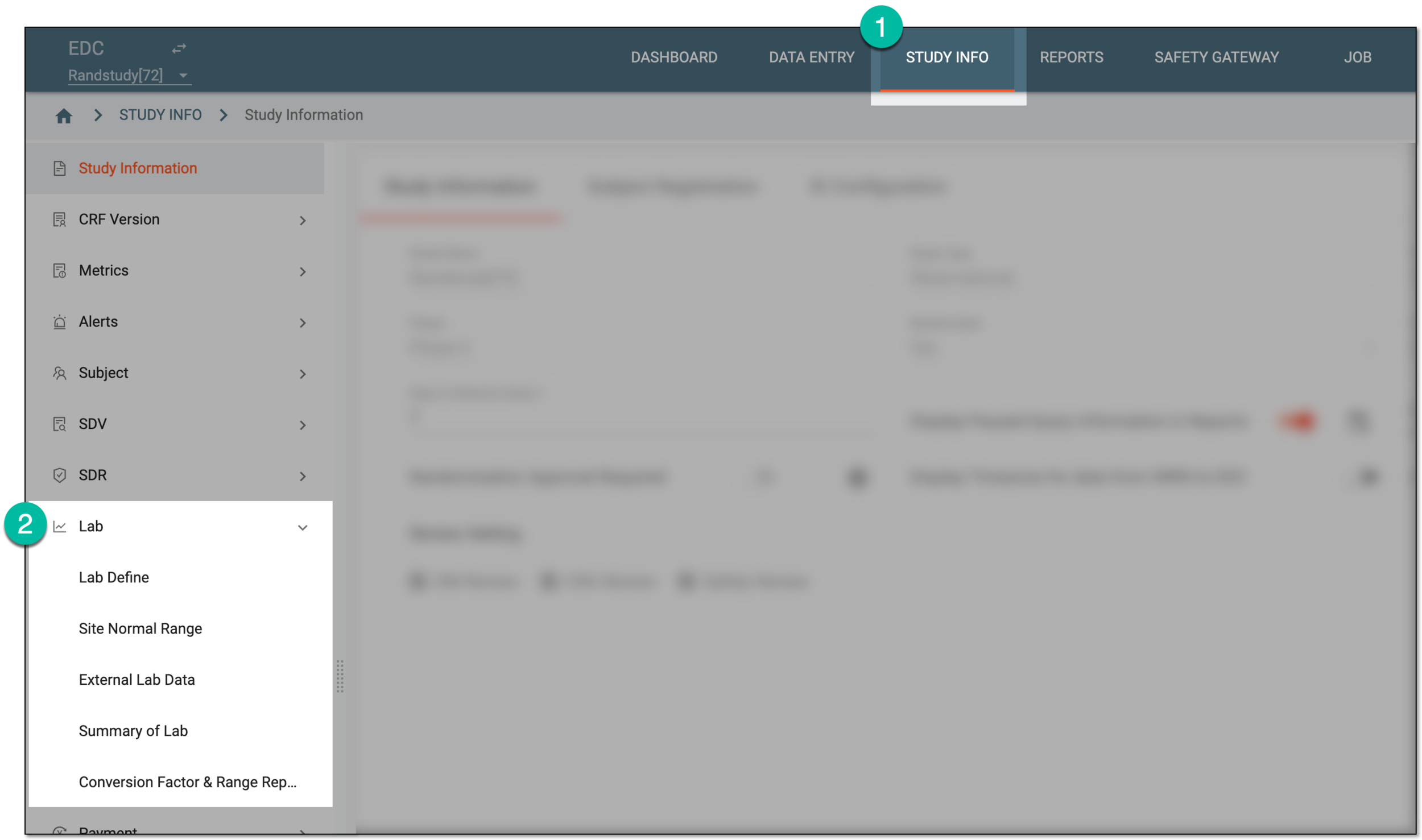 Figure 1. Accessing lab management
-
In the Lab List table that appears, locate the lab of your interest and in the Actions column next to it, select Info
 .
.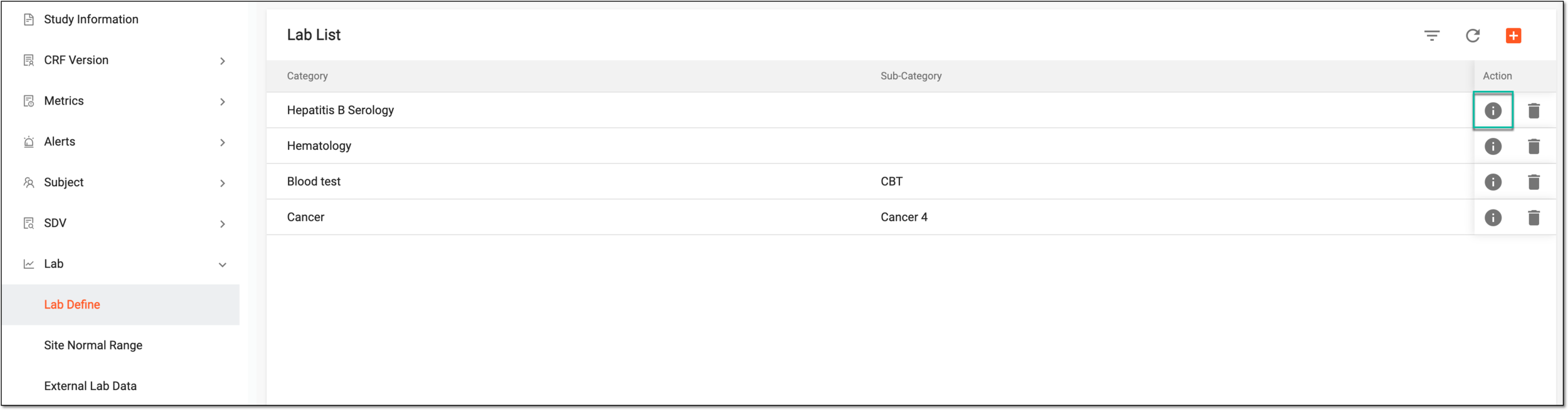 Figure 2. Selecting option to edit lab details
-
In the Edit Lab form that opens, update the details as needed. These fields are identical to those explained in the table of the Add new lab section.
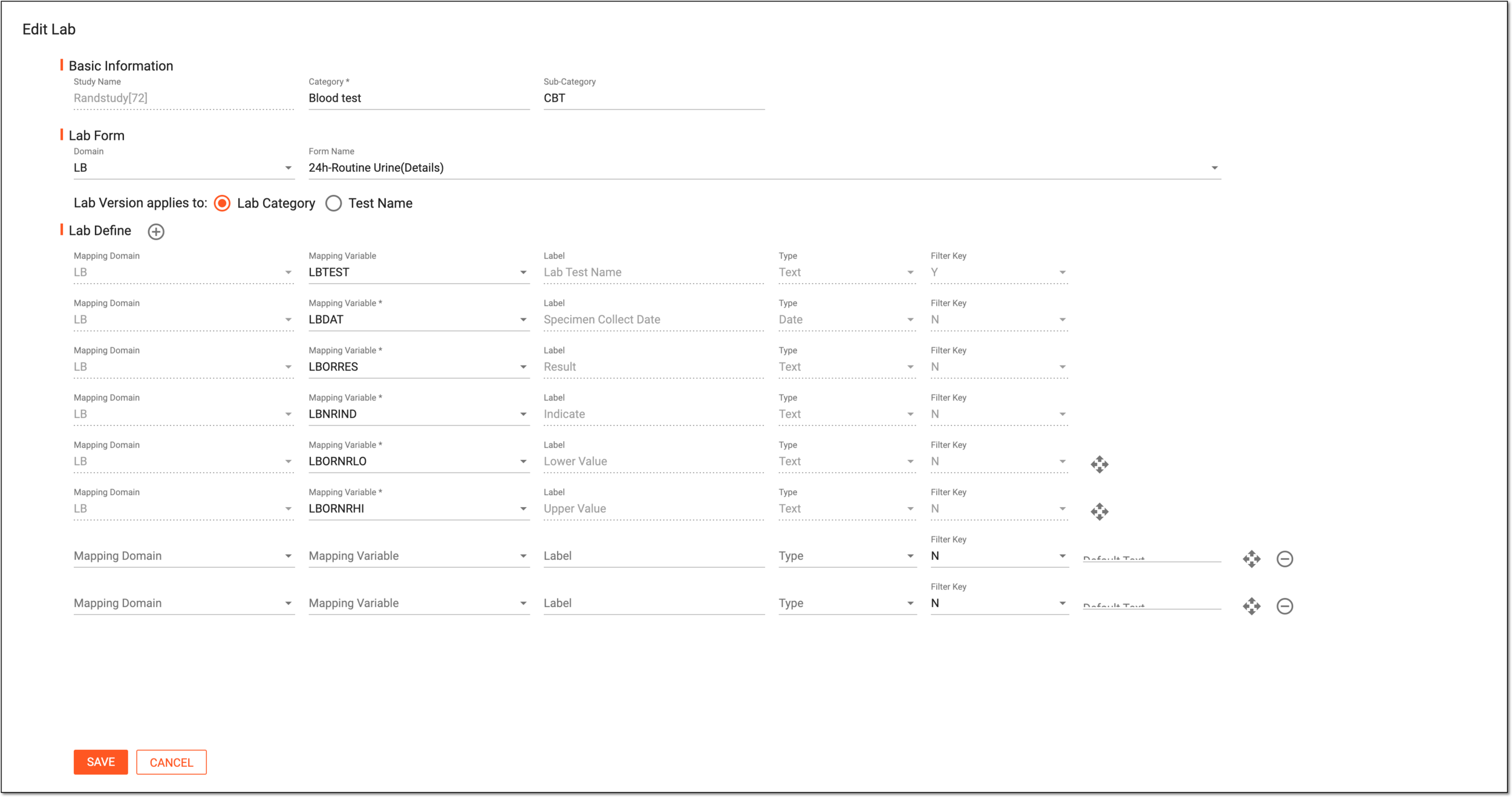 Figure 3. Editing lab details
-
Select
 to implement the changes.
Once saved, the lab information is updated. You can now proceed to manage normal ranges for this lab.