Update basic information of study
In CTMS, you can maintain basic information and settings of a specific study, adjusting them according to the business requirements.
Important
Note that you can update basic information only if the study has not been previously closed, terminated, or suspended.
-
Access the study management page in one of the following ways:
-
In the CTMS application header, select the DASHBOARD tab and then select the study dashboard of your interest.
 Figure 1. Accessing study management from dashboard
-
In the CTMS application header, select the STUDY MANAGEMENT tab. Then from the Study Data List table, select the study name of your interest.
 Figure 2. Accessing study management from study data list
Tip
Note that if a study is being configured for the first time after being synced from the ADMIN application, then it can only be accessed from the Study Data List table. Upon accessing, a dialog appears in which you can update only the study's basic information explained in the following table.
Afterward, you can proceed with updating the rest of the configurations.
-
-
On the study page that opens, in the left pane, expand Study Details and select Basic Information.
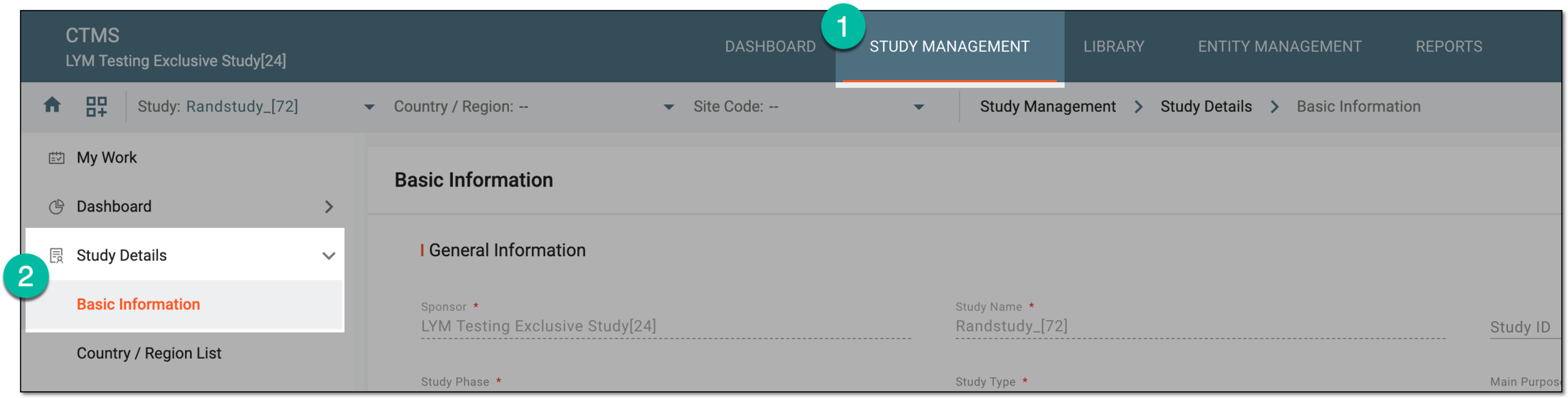 Figure 3. Accessing study basic information
-
In the Basic Information form that appears, update study details as explained in the following table.
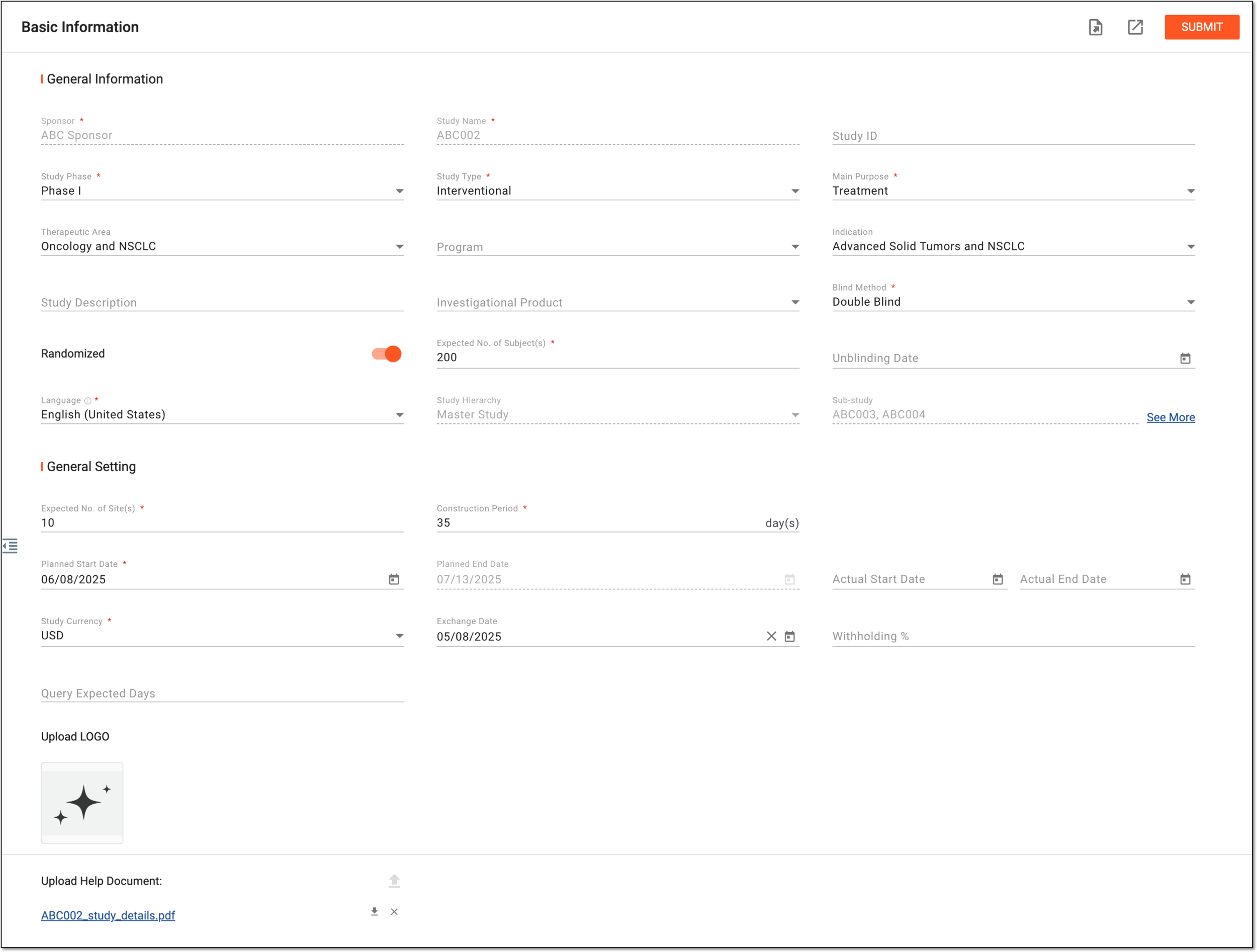 Figure 4. Updating study basic information
Tip
In the following table, mandatory elements are marked with an asterisk (*).
Element
Details
General Information
Sponsor*
View the name of the study sponsor. This field is read-only because once you define the sponsor while creating a study, it can no longer be changed.
Study Name*
View the name of the study. This field is read-only because once you define the name while creating the study, it can no longer be changed.
Study ID
Enter the study identification number.
Study Phase*
Select one of the five phases for the selected study.
Study Type*
Select the type of your study: Interventional, Observational, or Expanded Access.
Main Purpose*
Select the purpose of the study (treatment, screening, or else).
Therapeutic Area
Select the therapeutic area to which the selected study belongs. The list of therapeutic areas can be customized if needed.
Program
Select the program if the study is a part of any. The list of programs can be customized if needed.
Indication
Enter an underlying question or problem that the study aims to address. The list of indications can be customized if needed.
Study Description
Enter a meaningful description for the selected study.
Investigational Product
Select the medical product or device that is being researched in the selected study. The list of investigational products can be customized if needed.
Blind Method*
Select the blinding type of your study: Open Label, Single Blind, Double Blind, or Triple Blind.
Unblinding Date
Select the unblinding date for the chosen blinded type. This field does not appear if Open Label is selected as the blinded method.
Randomized
Switch this toggle on or off to establish whether the study is randomized or not.
Expected No. of Subject(s)*
Enter the expected number of subjects that are to participate in the study.
Language*
Select the language in which the system will display the following data in CTMS:
-
Operation history records, specifically, system-generated comments
-
Audit trail records, specifically, system-generated comments
-
Exported data file elements, such as column names in Excel files, extracted system-generated records, and so on
-
Preset data in the application, for instance, field names in protocol deviation or monitoring templates that are preconfigured in the system and not custom-created via the CTMS library
Study Hierarchy
Represents one of the following:
-
Master Study: the study is a master study—an overarching clinical trial protocol designed to achieve clinical trial objectives through a unified framework of multiple substudies.
-
Sub-study: the study is a substudy—an individual component of a master study protocol with its specific objectives, such as evaluating a product, dose, or subject category.
This field is only available if the study hierarchy is configured in ADMIN. The field is unavailable for
                                  independent studies.
Master Study
Represents the name of the master study associated with the substudy whose basic information you are analyzing.
This field is only available for a substudy if the study hierarchy is configured in
                                  ADMIN.
Sub-study
Represents the name of the substudies associated with the master study whose basic information you are analyzing. Select See More to open the substudy details in the dialog.
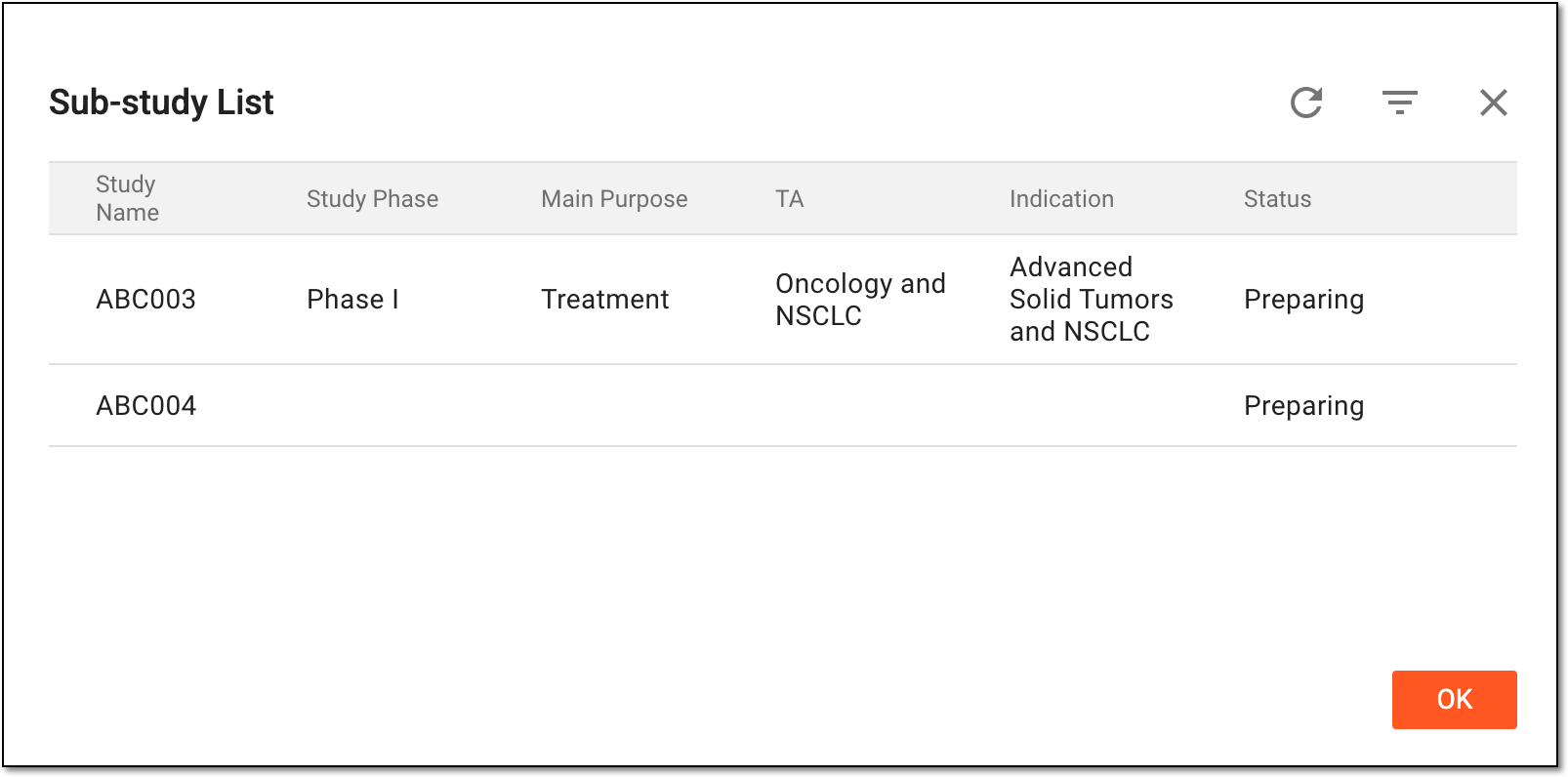 Figure 5. Reviewing substudy list
This field is only available for a master study if the study hierarchy is configured in
                                  ADMIN.
General Setting
Expected No. of Site(s)*
Enter the expected number of sites where the study is to be conducted.
Construction Period*
Enter the number of days that are required for the study to be conducted.
Planned Start Date*
Select the date when the study is planned to be started.
Planned End Date
View the date when the study is planned to be finished. The date is generated automatically based on the entered number of construction days and planned start date.
Actual Start Date
Select the actual date when the study has started.
Actual End Date
Select the actual date when the study has finished.
Closed Date* / Terminated Date* / Suspended Date*
View the date when the study has been closed, terminated, or suspended.
This field is not available if no such operations have taken place for the study.Study Currency*
Select the currency that is to be used for financial management for the study.
The currency cannot be changed and the field becomes read-only if the study has are any active contracts.The list of available currency units can be customized if needed via the CTMS library.Exchange Date
Select the fixed date for the currency exchange procedures. Only the exchange rate of this date is considered during any payment transactions.
Withholding
Enter the percentage of deducted money. When the bills are paid, the indicated amount in percent is to be paid later.
Query Expected Days
Enter the number of days assigned as the query resolution period for the study.
Upload LOGO
Upload the picture with the logotype. This logo is to be used in the trip report after it is exported.
SUBMIT
Select
 to apply the introduced changes.
This button is available only if the study has not been previously closed, terminated, or suspended.Export
Select
 to extract the study basic details as an XLSX file and download it to your computer.
Export History
Select
 to access the Export History dialog with the complete list of historic versions of generated
and exported files for the study basic details, that you can download to your computer by selecting Download
to access the Export History dialog with the complete list of historic versions of generated
and exported files for the study basic details, that you can download to your computer by selecting Download  next to
them.
next to
them.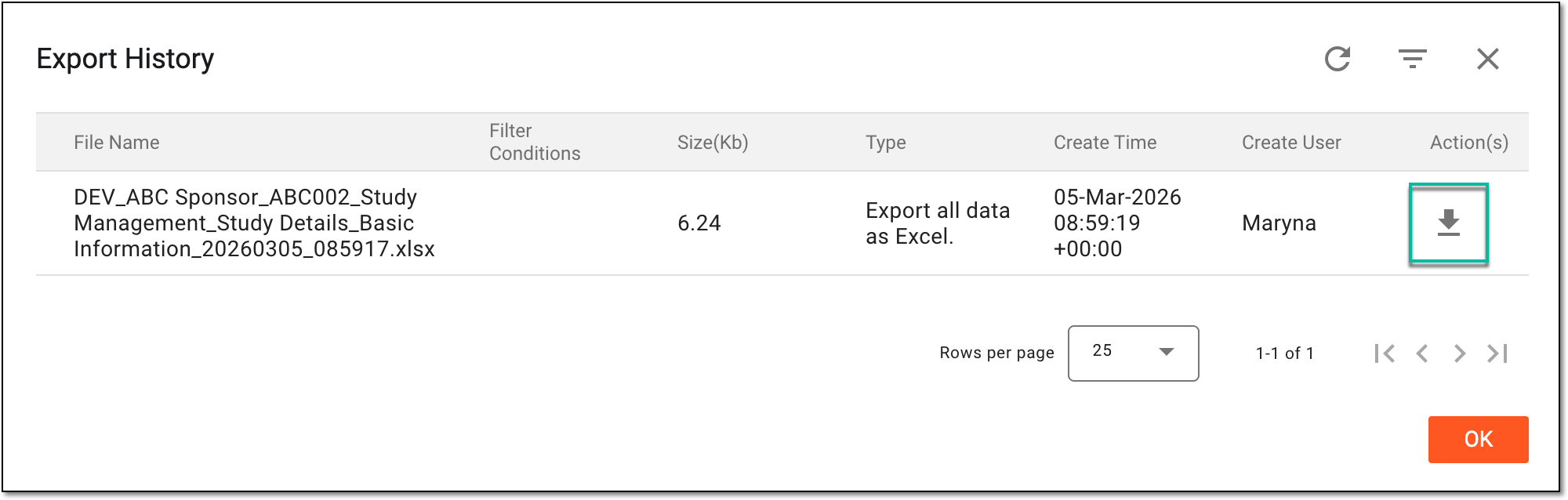 Figure 6. Downloading historic versions of study details
Upload Help Document
Select
 and follow the prompts to upload a file that you find useful for your study. This can be the study protocol version or any other document you need.
[File name]
For PDF files, select the file name link to preview the document contents in the new browser tab.
Download
Select
and follow the prompts to download the file to your computer.Delete
Select
 to delete the file from the system.
 -
Once submitted, study details become updated.