Add data element
In CTMS, you can add new data elements to the existing dictionaries of the Reference Data subtab. Usually, while adding the dictionaries, the System Administrators add the data elements to them as per the study protocol requirements. However, if you are unable to find a required data element in a dictionary, then you can add custom data elements to the dictionaries.
-
In the CTMS application header, select the LIBRARY tab.
-
On the page that opens, from the left pane, select the Reference Data subtab.
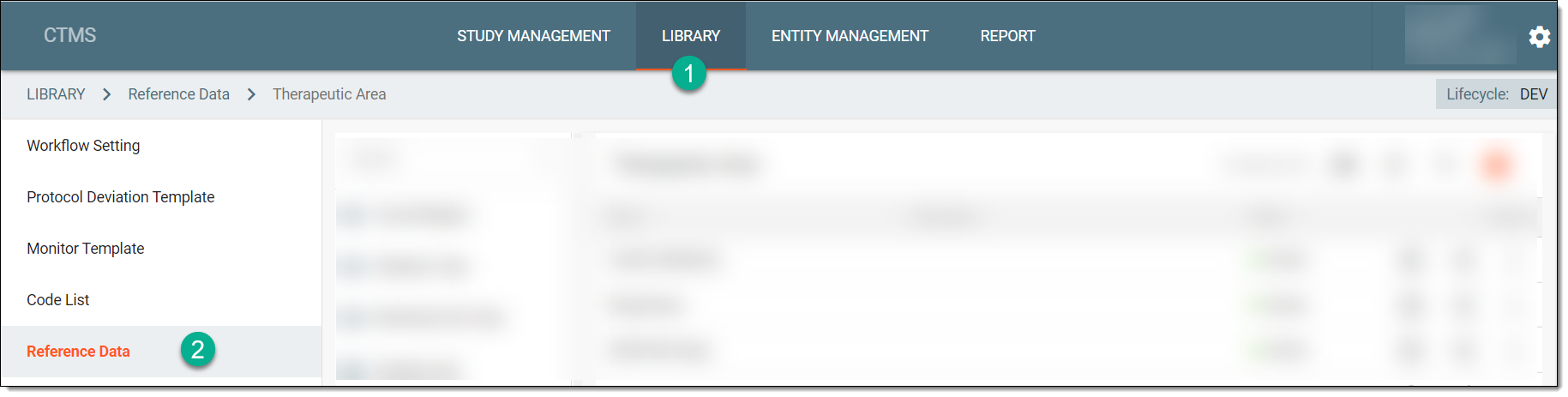 Figure 1. Accessing reference data
-
From the pane displaying the list of available dictionaries, select the required one.
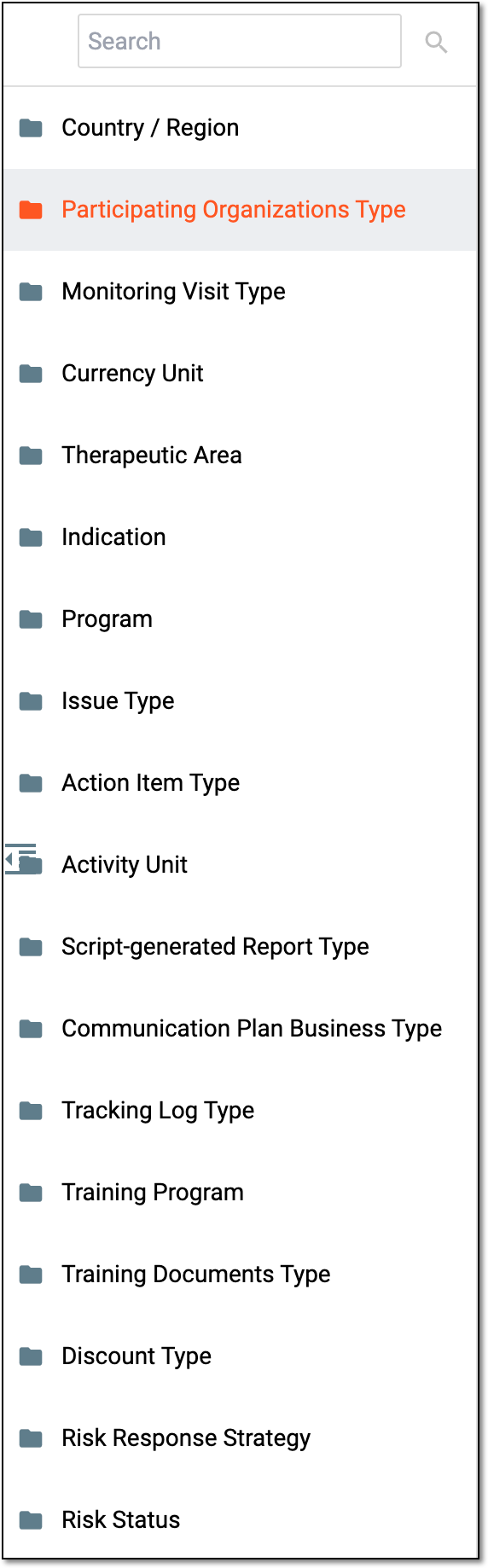 Figure 2. Selecting dictionary
Tip
You can find the required dictionary by entering its name in the Search field.
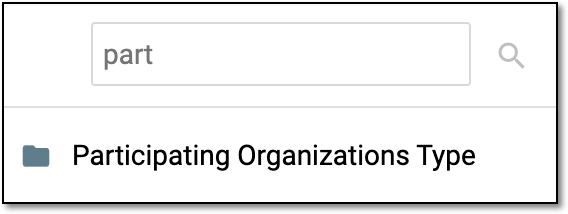 Figure 3. Searching dictionary
-
From the workspace toolbar, turn on the Including Code toggle if your data elements have a code associated with them as per the protocol requirements or institute requirements, such as the National Cancer Institute (NCI). If irrelevant, leave the toggle turned off.
 Figure 4. Enabling data element codes
-
From the workspace toolbar, select New Item
 .
.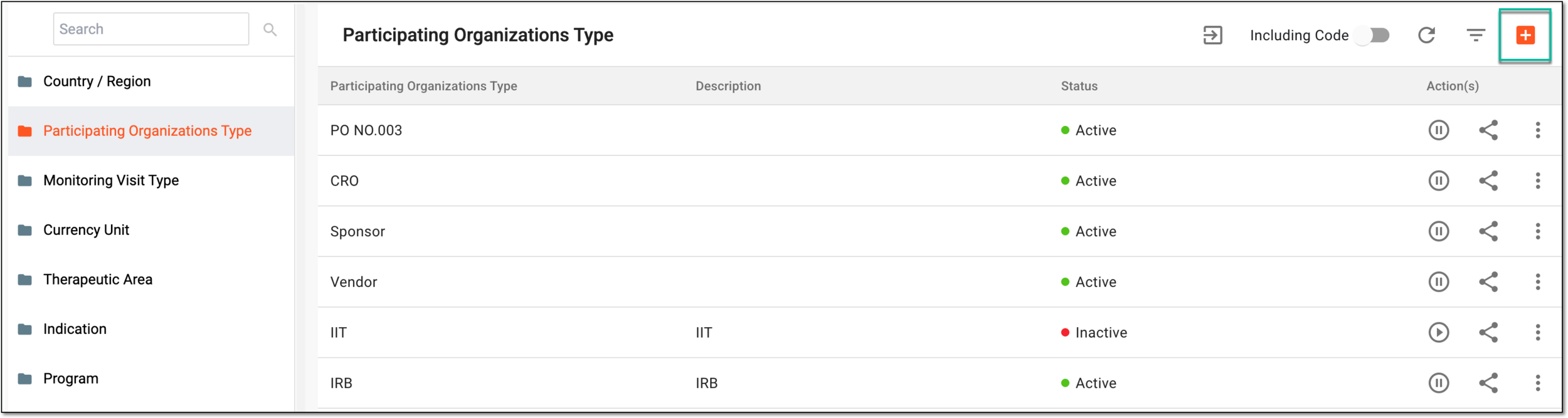 Figure 5. Selecting to add data elements to dictionary
-
In the New dialog that appears, add the details as explained in the following table.
 Figure 6. Adding data element to dictionary
Tip
In the following table, mandatory elements are marked with an asterisk (*).
Element
Details
Name*
Enter a unique name for your data element.
Code*
Enter the code associated with your data element.
This field is displayed only if the Including Code toggle is turned on.Description
Enter a brief description of the data element you are adding.
SAVE
Select
 to save your changes.
CANCEL
Select
 to discard your changes.
Upon saving, the data element is added.