Create study for sponsor
A study refers to a research investigation designed to evaluate the safety, efficacy, and other relevant aspects of a medical intervention, such as a drug, device, or treatment. Studies are conducted by a sponsor to gather data and evidence to support regulatory approval and contribute to the scientific understanding of medical interventions and preventions for existing ailments.
When the necessary sponsors are added to the client's company, you can create studies for each sponsor. The basic study entities are created via the ADMIN interface according to clinical trial specifications defined by the sponsor.
Important
More advanced study details are maintained in the CTMS application after the corresponding sponsor is granted access.
There can be an independent study design or a hierarchical study structure with master and substudies. Hierarchical organizational structures are used in clinical trials to improve efficiency and adaptability in drug development, especially for complex or multidrug investigations.
-
In the ADMIN application header, select the HIERARCHIES tab.
-
In the left pane of the page that opens, select the needed sponsor
 .
.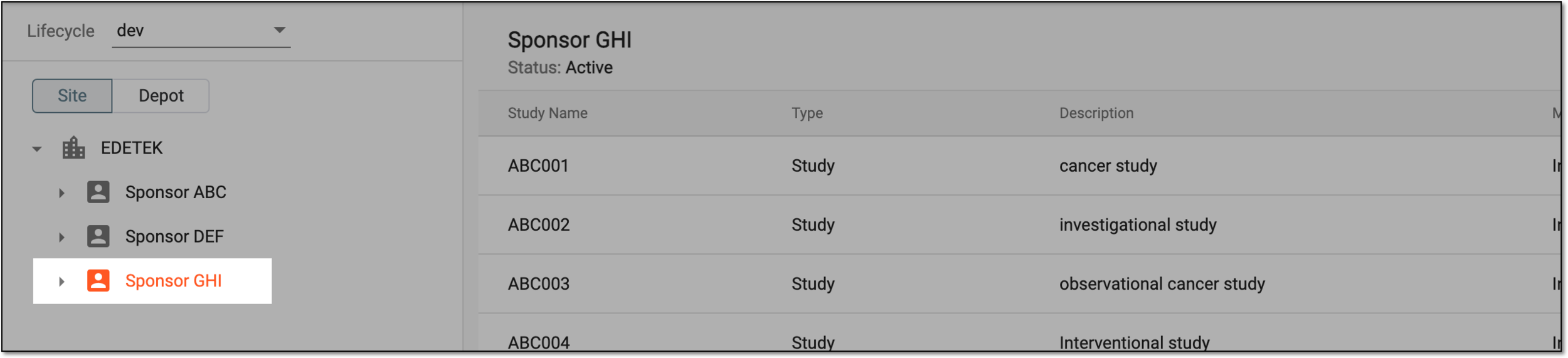 Figure 1. Selecting sponsor
-
From the workspace toolbar of the table that appears, select New Item
 .
. Figure 2. Select to create study
-
In the dialog that appears, provide study details as explained in the following table.
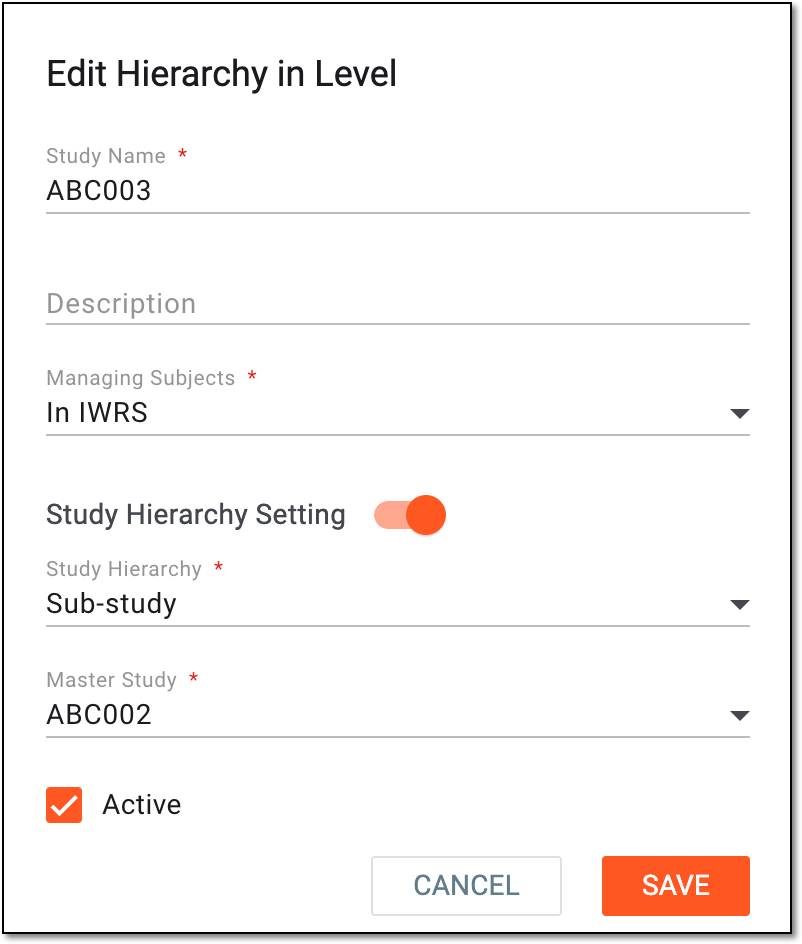 Figure 3. Creating study for sponsor
Tip
In the following table, mandatory elements are marked with an asterisk (*).
Element
Details
Study Name*
Enter a unique name for the study you are creating.
Description
Enter brief information describing the study.
Managing Subjects*
Select one of the following options:
-
In EDC: if you want the subject registration for this study to be done in the EDC system. The EDC subject management is usually performed for studies focused on comprehensive data collection, ensuring accurate and real-time entry of subject information, clinical assessments, and adherence to visit schedules.
-
In IWRS: if you want the subject registration for this study to be done in the IWRS system. The IWRS subject management is usually performed for studies where randomization, treatment allocation, and controlled dispensation of investigational products are integral to the research protocol.
This field is unavailable if the sponsor does not use the eClinical EDC and IWRS apps.If the sponsor has an integration with some external subject management systems, the EDETEK team can set up the integration for a specific study.Study Hierarchy Setting
Control the setting as follows:
-
Turn on the toggle to enable the study hierarchy configuration and specify whether it is a master or substudy.
-
Turn off the toggle to disable the study hierarchy configuration and proceed with an independent study design.
Study Hierarchy*
Select one of the following:
-
Master Study: to establish this study as Master—an overarching clinical trial protocol designed to achieve clinical trial objectives under a unified framework. This approach simplifies clinical development by introducing multiple substudies to operate under the same regulatory and operational entity.
-
Sub-study: to establish this study as Sub—an individual component of a master protocol with its specific objectives, such as evaluating a product, dose, or subject category. Substudy inherits the core structure and governance from the master one but has its own endpoints.
This field is only available when the Study Hierarchy Setting toggle is turned on.Master Study*
Select the master study to which belongs the substudy you are creating create.
This field is only available when in the Study Hierarchy field, Sub-study is
                                  selected.
Active
Select this checkbox to enable the study, thus making it available for execution and management in the eClinical platform.
SAVE
Select
 to implement the changes.
CANCEL
Select
 to discard the study creation process.
 -
-
Once saved, one of the respective dialogs appear:
-
For the substudy, acknowledge that the study hierarchy setting as well as master and substudy relation configurations are irreversible and cannot be changed once saved. Select OK to confirm that all the settings are correct and you are ready to create the study.
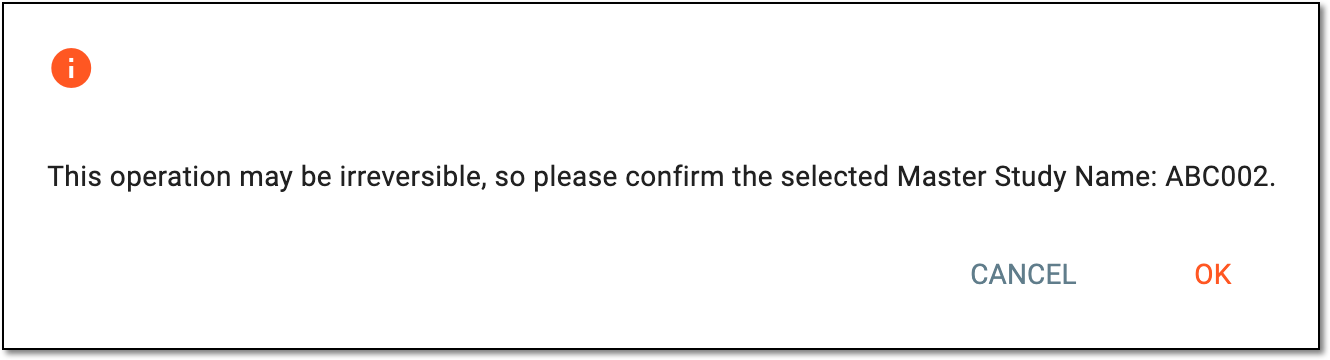 Figure 4. Confirming substudy creation
-
For the substudy whose master study has eLearning courses, in the dialog that appears, acknowledge the instructions, select OK to close the dialog, and proceed with copying the eLearning courses if needed.
 Figure 5. Acknowledging eLearning courses notification
-
For all newly-created studies, the system requests if you want to proceed to assigning apps to the study right away. Select Yes to proceed or Not now to skip this step for now and return to it later.
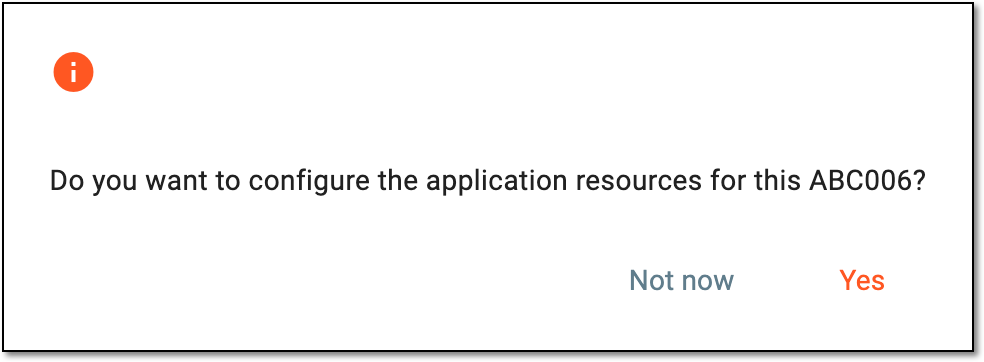 Figure 6. Proceeding to app selection for study
-
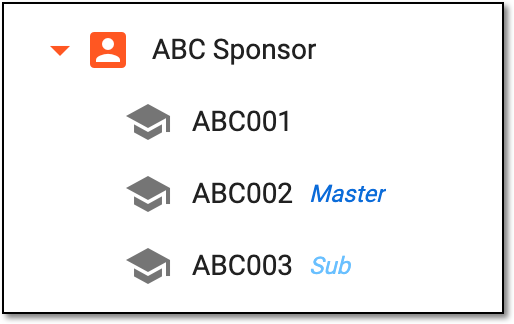
The study is created for the sponsor. For Master or Sub studies, the respective markers appear next to their names in the hierarchy. An independent study has no markers.
 |