Register new subject
A subject is a healthy volunteer or a patient who has enrolled to participate in the clinical trial according to criteria defined in the study protocol. If the system configuration has been set to manage subjects in IWRS, you can only register new subjects in this application. Otherwise, the subject registration and management occur in the EDC application.
To provide the ability to register subjects in IWRS, the following preconditions must be met:
-
In the ADMIN application, the study administrator enables subject management in IWRS, grants users permission to create subjects in IWRS, and provides them with access to study sites and depots.
-
In the IWRS application, the study administrator enables users to register subjects to the study.
-
Sites intended for subject registration cannot be terminated, suspended, or closed in the CTMS application, otherwise, the option to register new subjects is not available.
-
In the IWRS application header, select the SUBJECT tab.
-
On the Subject List page that opens, from the workspace toolbar, select a site where you want to register a new subject.
 Figure 1. Selecting site to view subjects
-
Then from the same workspace toolbar, select New Subject
 .
. -
In the Register Subject dialog that opens, provide subject details as explained in the following table.
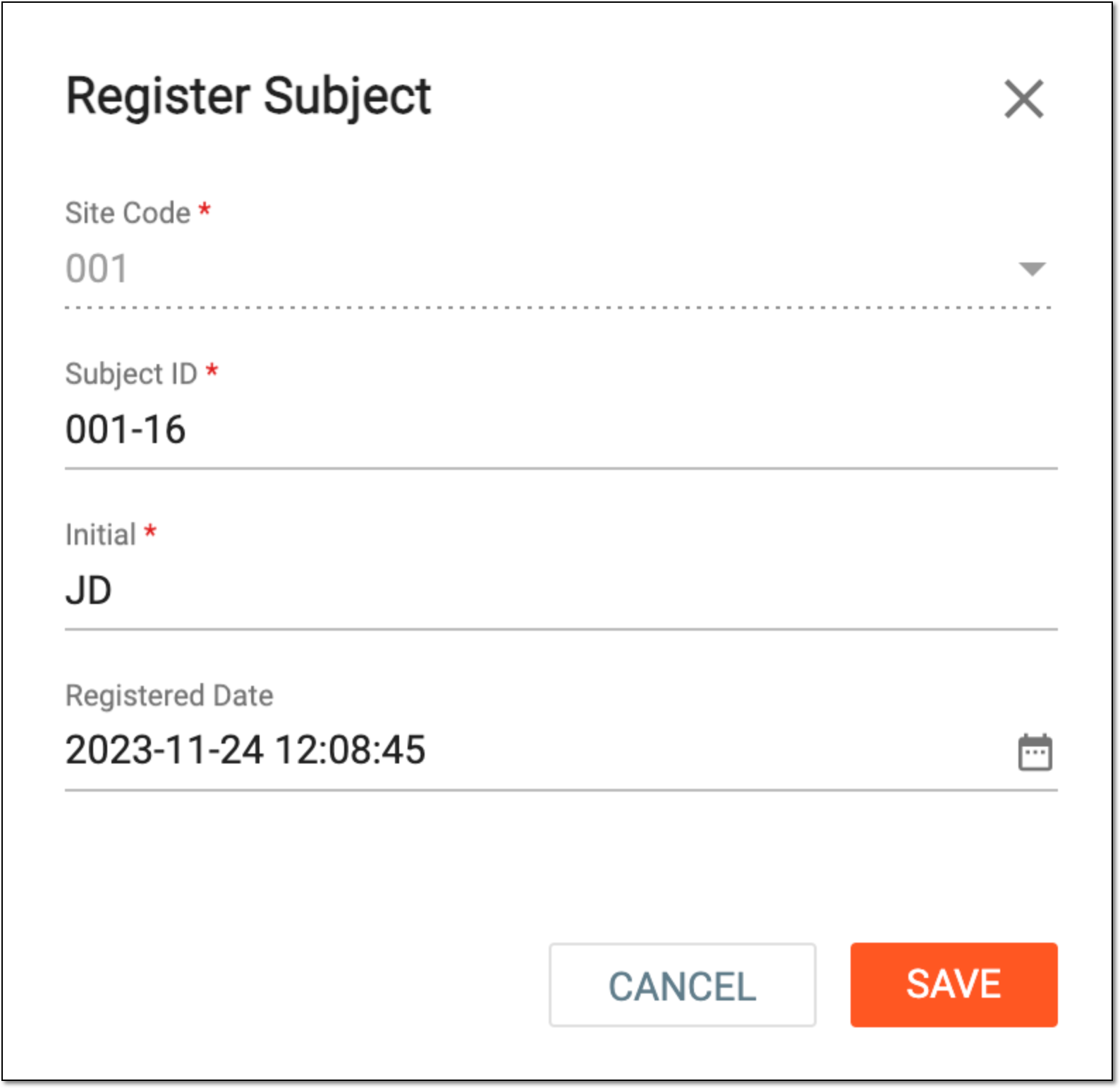 Figure 2. Registering subject
Tip
In the following table, mandatory elements are marked with an asterisk (*).
Element
Details
Site Code*
A read-only field that represents a site code. It is prefilled based on the previously selected site.
[Unique ID Label]
Enter a unique identifier for the subject you intend to register.
The field name depends on the unique ID label configuration of your study. The ID can be
                                  autogenerated and uneditable if configured so in ID settings.
Initial*
Enter the subject's initials.
This field is available only if configured so in study settings.Registered Date
Select
 to specify the exact date and time of subject registration.
This field is available only if the subject phase configuration requires you to enter the date of subject registration.SAVE
Select
 to register the subject.
CANCEL
Select
 or
or  to stop registering the subject.
Once saved, the subject is registered. You can now approve randomization for this subject.