Configure subject registration parameters
In a clinical trial, the process of subject registration is a unified procedure that requires some preconfigured parameters for all sites. In IWRS, you can configure the subject registration process of your study—set the number of expected subjects, specify what parameters to get, and so on.
Important
The IWRS Subject Registration functionality is only available if, in the ADMIN app, the Managing Subjects value is set to In IWRS. If in the ADMIN application, Managing Subjects is set to In EDC, the Subject Registration page in IWRS does not appear.
-
In the IWRS application header, select the TREATMENT DESIGN tab.
-
On the page that opens, in the left pane, select the Study Information subtab.
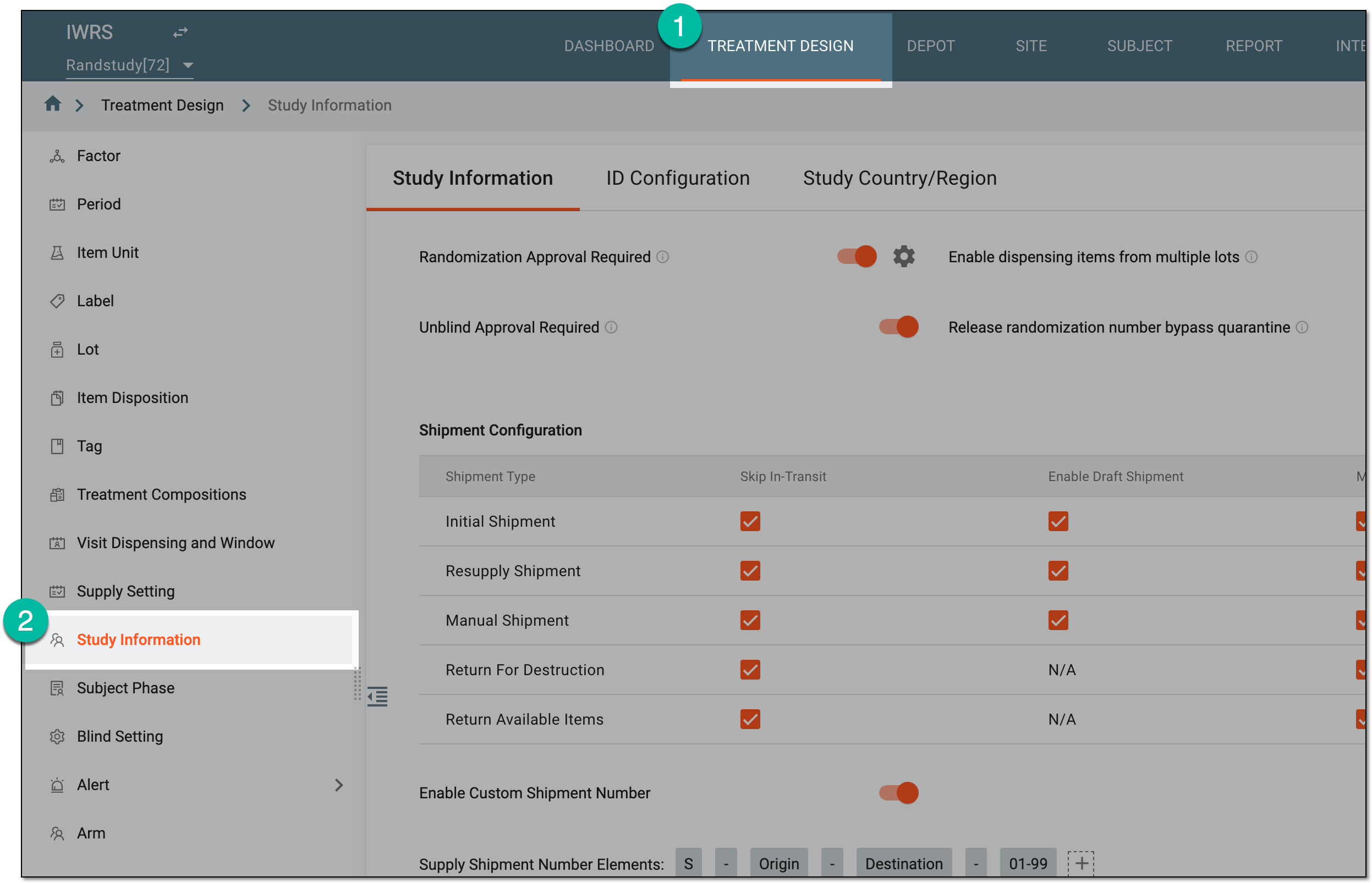 Figure 1. Accessing study configurations
-
On the Study Information contents panel, select the Subject Registration tab.
-
In the form that opens, configure subject registration parameters at the study and site levels as explained in the following table.
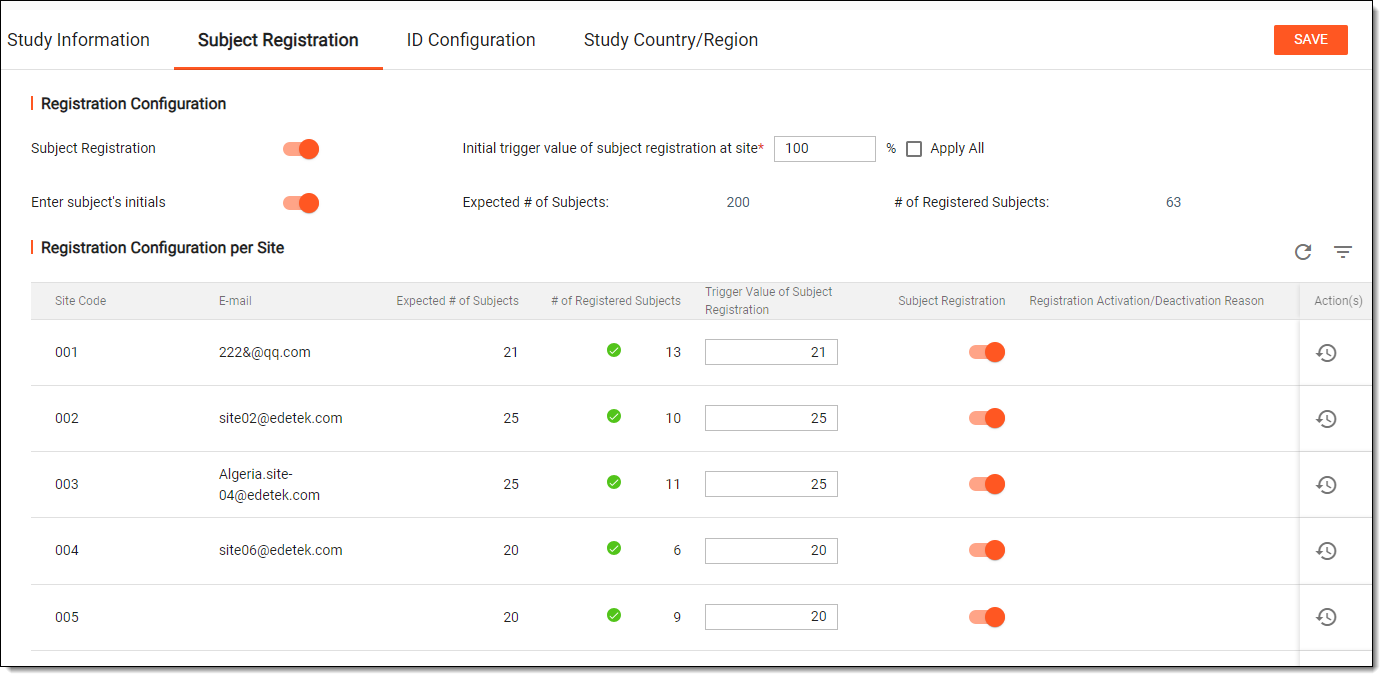 Figure 2. Configuring subject registration parameters
Element
Details
Registration Configuration
Subject Registration
Turn this toggle on to enable registration of new subjects in IWRS.
Initial trigger value of subject registration at site
Enter the percentage of subjects registered in a study upon reaching which, the subject registration stops. To prevent sites from registering new subjects, when the number of registered subjects is greater than or equal to the trigger value, the Subject Registration toggle is turned off automatically.
For example, the expected number of subjects in your study is 100, and you set the initial trigger value to 80%. When the number of actually registered subjects in your study equals 80, the registration of new subjects stops.
Apply All
Select this checkbox to apply the initial trigger value of subject registration at the site to all sites of the study.
Enter subject's initials
Turn this toggle on to provide the possibility to enter subjects' initials during their registration in IWRS.
Expected # of Subjects
Represents the total expected number of subjects to take part in the study. The value is populated from the CTMS application.
# of Registered Subjects
Represent the most current number of subjects registered in the study.
Registration Configuration per Site
Site Code
Represents the code of the site.
E-mail
Represents the contact email address of the site set via the CTMS application.
Expected # of Subjects
Represents the number of expected subjects of the site set via the CTMS application. The number of registered subjects cannot exceed the number of expected subjects.
# of Registered Subjects
Represents the actual current number of subjects registered at the site. There are icons that indicate whether or not the subject registration is still available for the site:
-
The green check icon
 means you can register more subjects at the site.
 -
The yellow exclamation mark icon
 means the trigger value has been reached or surpassed, and you can no longer register subjects at
the site.
means the trigger value has been reached or surpassed, and you can no longer register subjects at
the site.
Trigger Value of Subject Registration
Enter the number of subjects you want to register at a site. Upon reaching the specified limit the subject registration at the site stops.
To prevent sites from registering new subjects, when the number of registered subjects is greater than or equal to the trigger value, the Subject Registration toggle is turned off automatically.
Subject Registration
Turn this toggle on or off to allow (activate) or restrict (deactivate) subject registration at a site. If the toggle is turned off, you can no longer register subjects at this site. Upon turning this toggle on/off, you must specify the reason for your action in the Registration Activation/Deactivation Reason column.
The user notification on the action of subject registration activation/deactivation can be configured in the
                                  EDC system.
Registration Activation/Deactivation Reason
Represents the reason for activation/deactivation of subject registration at a site.
Actions
Select Operation History
 to view the history of subject registration activation/deactivation at a site.
SAVE
Select
 to save the implemented changes.
 -
Once saved, the subject registration parameters are configured.