Add alert
Alerts is a feature of EDC that helps you set up for different users to receive a notification email on predefined events occurring within the application (adverse event occurrence, subject phase change, queries being created, and so on).
To add a new alert, you need to access the respective alert configurator and complete the forms of all the blocks within as explained in the following sections.
The adverse events (AE) occur almost in every clinical trial and have to be accounted for and managed according to the study protocol. In EDC, the AE occurrence is recorded in the dedicated forms making it convenient to trace the event development and submit the data as needed. The AE alerts functionality exists in EDC to further help users timely react to such events. You can set up notifications for the users or user role representatives when the AE-related forms are completed or updated so that they react to the occurrences more quickly and efficiently.
Important
The users receive the AE alerts based on the site access permissions granted to them via the ADMIN application.
-
In the EDC application header, select the STUDY INFO tab.
-
On the page that opens, in the left pane, select Alerts > AE.
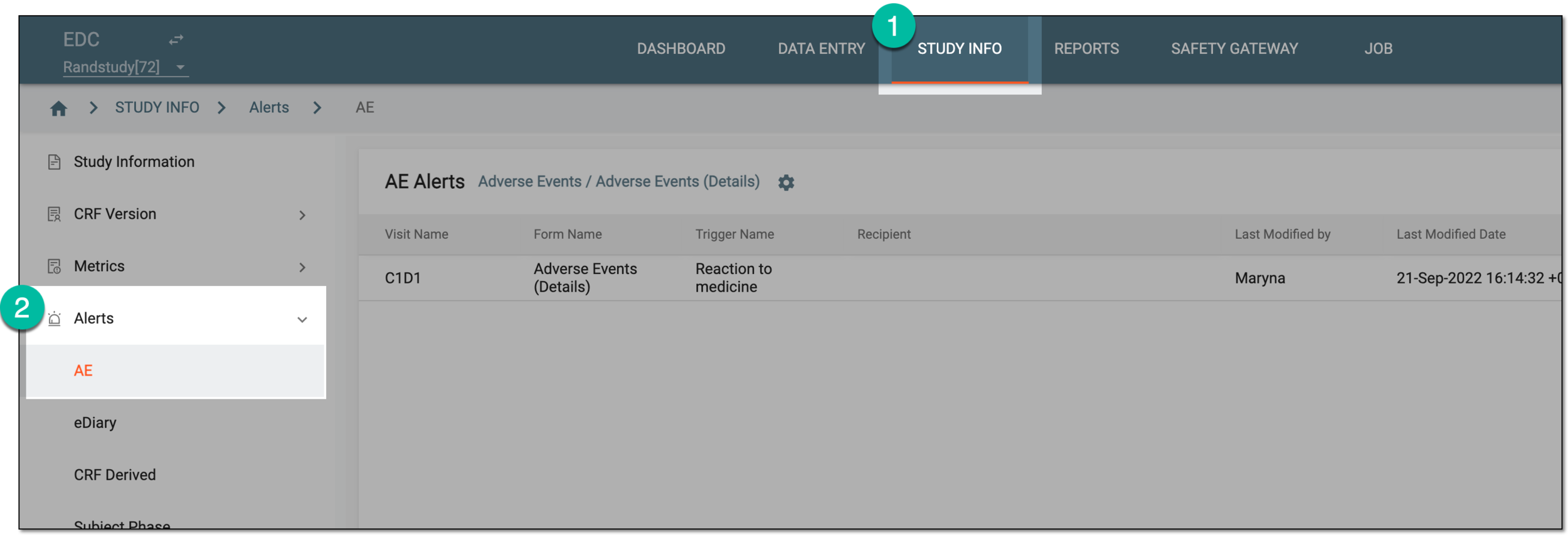 Figure 1. Accessing AE alerts
-
On the AE Alerts page that opens, above the table, click
 to select the AE tracking visit and form.
 Figure 2. Locating AE visit and form selection
-
In the Setting dialog that appears, fill in the fields as explained in the following table.
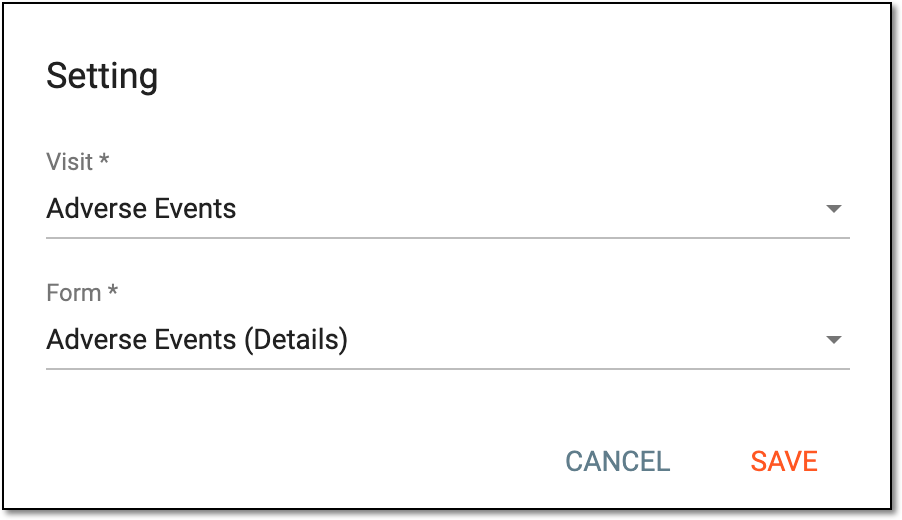 Figure 3. Selecting AE visit and form
Tip
In the following table, mandatory elements are marked with an asterisk (*).
Element
Details
Visit*
Select the visit for whose form you need to manage the AE alerts.
Form*
Select the form for which you want to manage the AE alerts.
SAVE
Select
 to implement the changes and display the alerts for the selected visit and form in the AE
Alerts list.
to implement the changes and display the alerts for the selected visit and form in the AE
Alerts list.CANCEL
Select
 to dismiss the changes, close the dialog, and return to the AE Alerts list.
 -
On the AE Alerts page, from the workspace toolbar, select New Item
 .
. Figure 4. Selecting to add new AE alert
-
In the form that opens, configure the AE alert as explained in the following table.
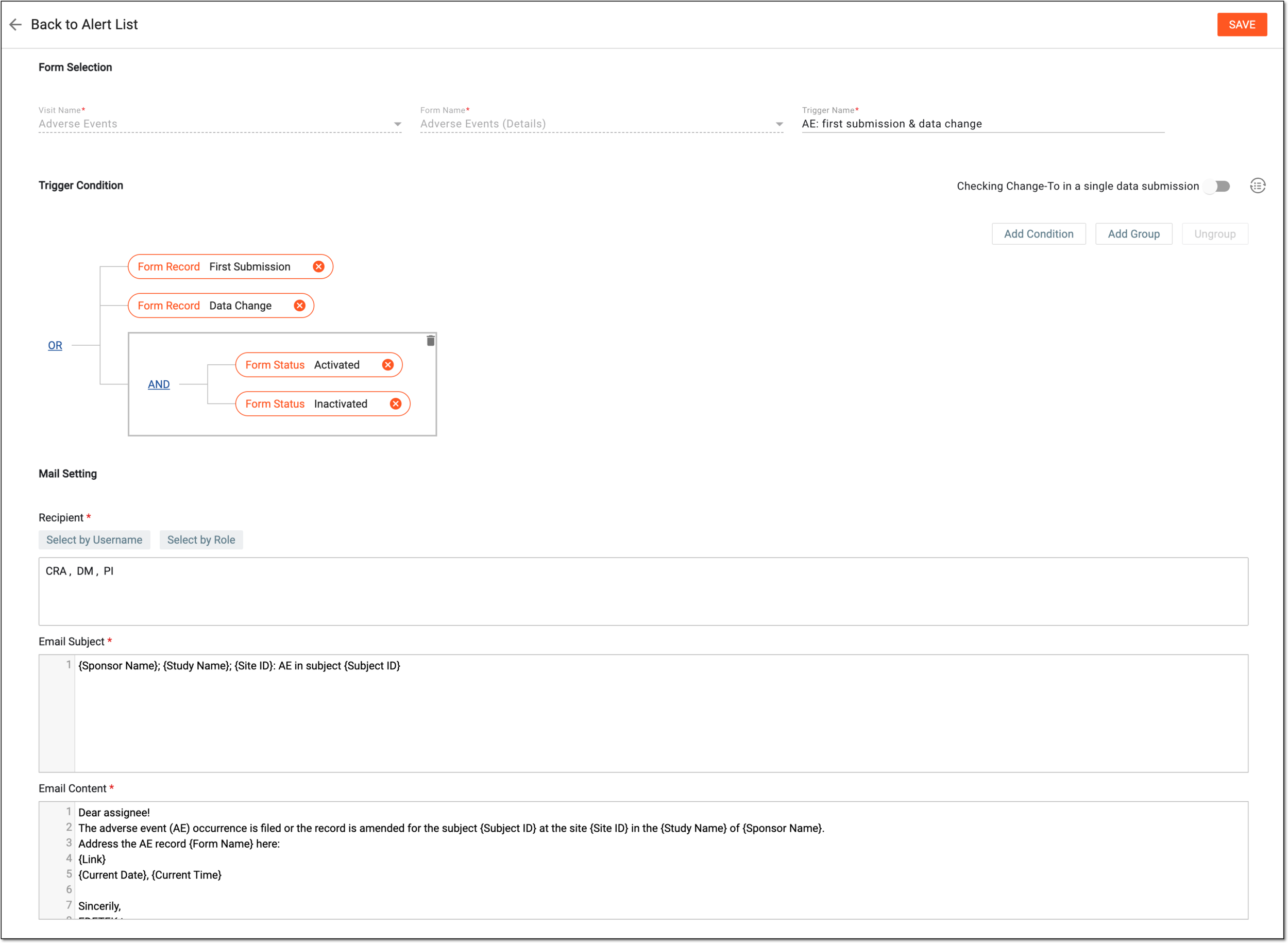 Figure 5. Configuring AE alert
Tip
In the following table, mandatory elements are marked with an asterisk (*).
Element
Details
Form Selection
Visit Name
Displays the name of the visit at which the AE is tracked. The field is read-only since the visit for the AE tracking is preselected on the AE Alerts page.
Form Name
Displays the name of the form for the AE tracking. The field is read-only since the form for the AE tracking is preselected on the AE Alerts page.
Trigger Name*
Enter the descriptive name of the trigger. For instance, AE: first submission and data change.
Trigger Condition
Checking Change-To in cumulative data submission/Checking Change-To in a single data submission
Set the toggle as follows:
Convert Text
If you prefer entering trigger conditions in text format rather than building a diagram, select
 to open the Convert
Text dialog. In the Trigger Expression field, use variables in braces to outline the conditions that once met trigger the alert email.
to open the Convert
Text dialog. In the Trigger Expression field, use variables in braces to outline the conditions that once met trigger the alert email.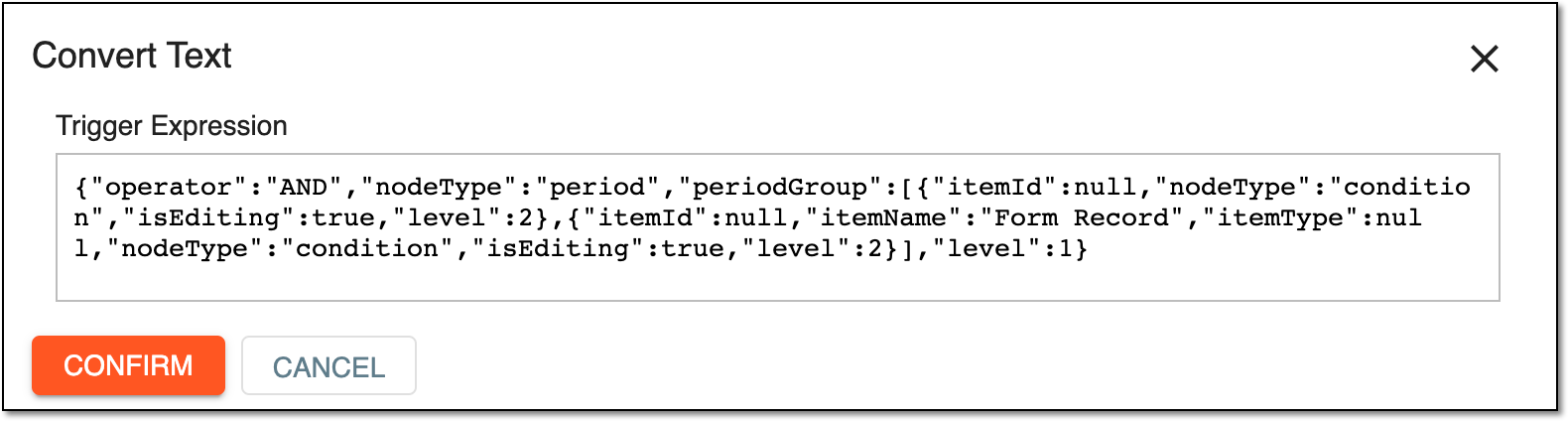 Figure 6. Setting up trigger variables in text editor
When configured, select
 to save the changes and return to the alert configurator page, where the trigger conditions you set are
displayed as a diagram.
to save the changes and return to the alert configurator page, where the trigger conditions you set are
displayed as a diagram.Add Condition
Select
 to add a condition field. From the dropdown menus of each field, select the options that you want to set as trigger conditions.
Upon selection of some values, the additional fields may appear to specify the condition.
to add a condition field. From the dropdown menus of each field, select the options that you want to set as trigger conditions.
Upon selection of some values, the additional fields may appear to specify the condition.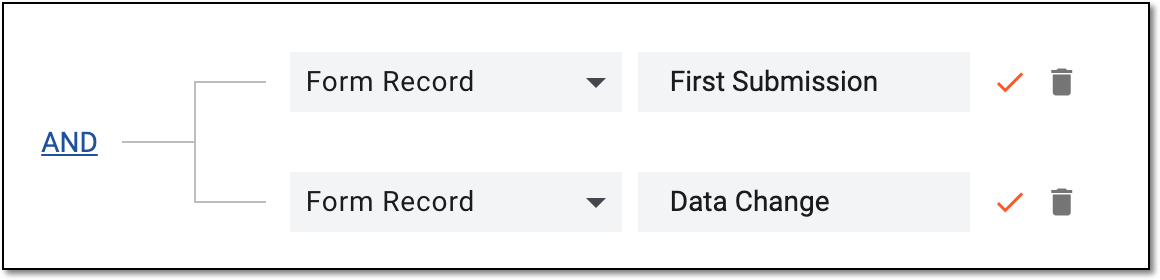 Figure 7. Setting trigger conditions
Add Group
Select
 to add a set of conditions to act as one within the general scheme. Configure your group following the same logic as for the standalone
condition.
to add a set of conditions to act as one within the general scheme. Configure your group following the same logic as for the standalone
condition.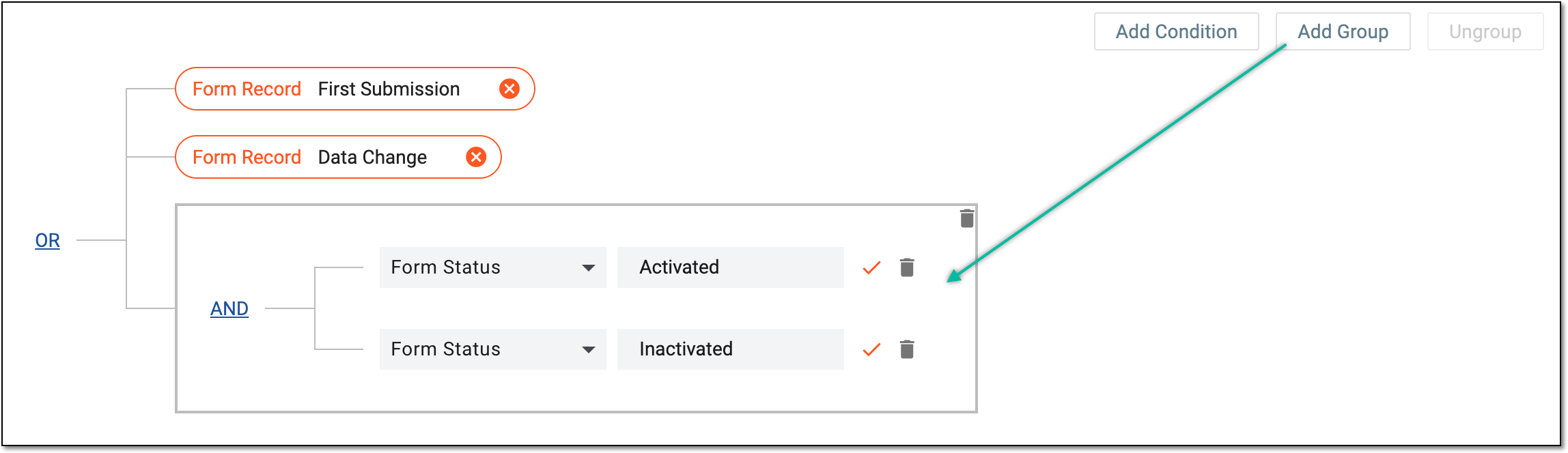 Figure 8. Adding trigger condition group
You can add groups of conditions within other groups to deepen the hierarchical connections of your alert triggers. To do this, select the group of conditions on the diagram and then select
.AND/OR
When more than one field is added, the AND/OR operator is used to make the conditions equal or alternate, respectively. Simply click the current operator to choose its value—AND or OR.
For example, set up conditions as follows: Form Record First Submission and Form Record Data Change with the OR operator. Thus, the alert is triggered when the data is first entered in the selected form or any time the data in this form is updated.
Change
Select
 to set the condition for data item change from certain value to another one.
For instance, you set the condition for the SVDAT value to change from Blank to Not Blank. This triggers the alert when the user enters the value into the previously empty visit date field of the selected CRF.
 Figure 9. Setting change condition
Equal
Select
 to set the condition for data item equality to a certain value.
For instance, you set the condition for the SVDAT value to change to Not Blank. This triggers the alert when the user enters the value in the visit date field of the selected CRF.
 Figure 10. Setting equal condition

Select the red check mark next to the condition field to save its values.

Select the deletion symbol next to the unsaved condition field or group to remove it from the diagram.

Select the red cross symbol next to the saved condition field to remove it from the diagram.
Ungroup
Use
 to remove the grouping and convert to standalone conditions. To do this, select the grouped conditions on the diagram, then click . Once done, the fields in the selected group are no longer interdependent.
Mail Setting
Recipient*
Select the following:
-
Select by Role: to expand the list of user roles and choose the ones to whose representatives the email notification must be sent when the alert triggers.
-
Select by Username: to expand the list of users and choose the ones to whom the email notification must be sent when the alert triggers.
Subject*
Enter a meaningful subject for the notification email.
Type the opening brace "{" to display the list of variables that you can add to the email subject. Note that variables can be added one at a time.
Content*
Provide the main text of the notification email, specifying all the details of the event that triggers the alert.
Type the opening brace "{" to display the list of variables that you can add to the email body. Note that variables can be added once at a time.
SAVE
Select
 to implement the changes.
Back to Alert List
Select
 to discard the changes without saving and return to the alert list.
 -
Once saved, the alert is configured and starts sending email notifications to the selected recipients when the set trigger conditions are met.
eDiary is a mobile application used for the collection and management of clinical data of subjects. It supports subjects' self-recording of treatment and diagnosis information. In EDC, you have the option to set up alerts to notify specific users of the data entry or other actions with forms within eDiary so that they react to it more quickly and efficiently.
Important
The users receive the eDiary alerts based on the site access permissions granted to them via the ADMIN application.
-
In the EDC application header, select the STUDY INFO tab.
-
On the page that opens, in the left pane, select Alerts > eDiary Form.
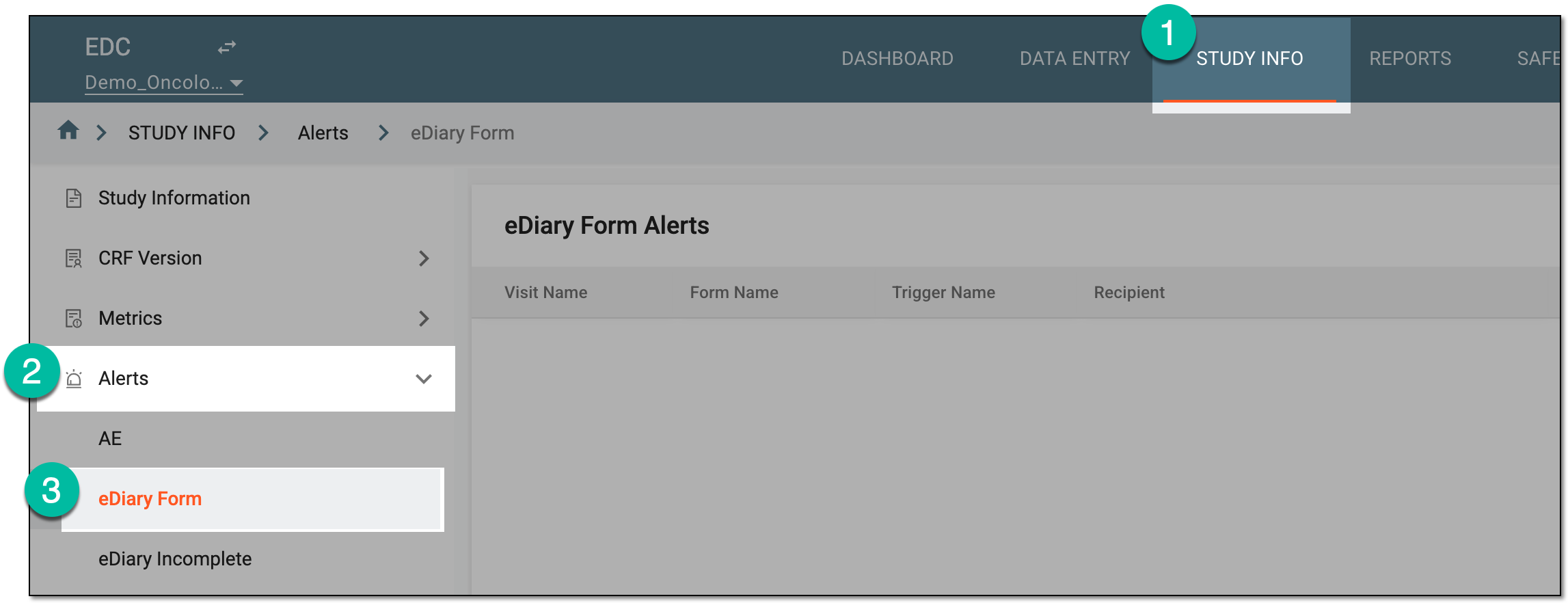 Figure 1. Accessing eDiary form alerts
-
On the eDiary Form Alerts page that opens, from the workspace toolbar, select New Item
. -
On the page that opens, complete the fields of the Form Selection block as explained in the following table.
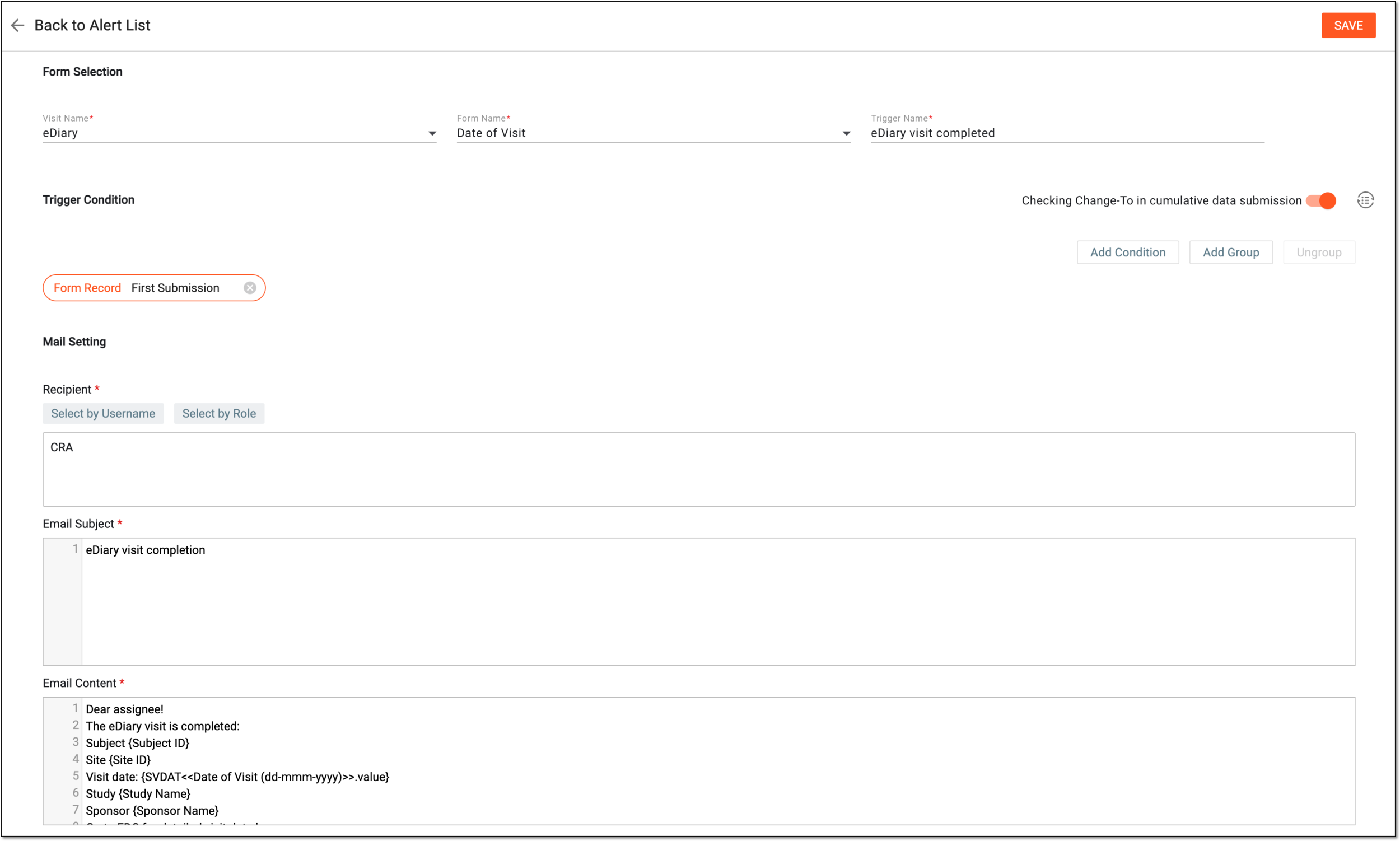 Figure 2. Configuring eDiary alert
Tip
In the following table, mandatory elements are marked with an asterisk (*).
Element
Details
Form Selection
Visit Name
Select the visit for which you want the actions with the associated form to trigger the alert.
Form Name
Select the form for which you want to trigger the alert upon the set conditions.
Trigger Name*
Enter the descriptive name of the trigger, for instance, eDiary visit completed.
Trigger Condition
Checking Change-To in cumulative data submission/Checking Change-To in a single data submission
Set the toggle as follows:
Convert Text
If you prefer entering trigger conditions in text format rather than building a diagram, select
to open the Convert
Text dialog. In the Trigger Expression field, use variables in braces to outline the conditions that once met trigger the alert email.Figure 3. Setting up trigger variables in text editor
When configured, select
to save the changes and return to the alert configurator page, where the trigger conditions you set are
displayed as a diagram.Add Condition
Select
to add a condition field. From the dropdown menus of each field, select the options that you want to set as trigger conditions.
Upon selection of some values, the additional fields may appear to specify the condition.Figure 4. Setting trigger conditions
Add Group
Select
to add a set of conditions to act as one within the general scheme. Configure your group following the same logic as for the standalone
condition.Figure 5. Adding trigger condition group
You can add groups of conditions within other groups to deepen the hierarchical connections of your alert triggers. To do this, select the group of conditions on the diagram and then select
.AND/OR
When more than one field is added, the AND/OR operator is used to make the conditions equal or alternate, respectively. Simply click the current operator to choose its value—AND or OR.
For example, set up conditions as follows: Form Record First Submission and Form Record Data Change with the OR operator. Thus, the alert is triggered when the data is first entered in the selected form or any time the data in this form is updated.
Change
Select
to set the condition for data item change from certain value to another one.For instance, you set the condition for the SVDAT value to change from Blank to Not Blank. This triggers the alert when the user enters the value into the previously empty visit date field of the selected CRF.
Figure 6. Setting change condition
Equal
Select
to set the condition for data item equality to a certain value.For instance, you set the condition for the SVDAT value to change to Not Blank. This triggers the alert when the user enters the value in the visit date field of the selected CRF.
Figure 7. Setting equal condition
Select the red check mark next to the condition field to save its values.
Select the deletion symbol next to the unsaved condition field or group to remove it from the diagram.
Select the red cross symbol next to the saved condition field to remove it from the diagram.
Ungroup
Use
to remove the grouping and convert to standalone conditions. To do this, select the grouped conditions on the diagram, then click . Once done, the fields in the selected group are no longer interdependent.Mail Setting
Recipient*
Select the following:
-
Select by Role: to expand the list of user roles and choose the ones to whose representatives the email notification must be sent when the alert triggers.
-
Select by Username: to expand the list of users and choose the ones to whom the email notification must be sent when the alert triggers.
Subject*
Enter a meaningful subject for the notification email.
Type the opening brace "{" to display the list of variables that you can add to the email subject. Note that variables can be added one at a time.
Content*
Provide the main text of the notification email, specifying all the details of the event that triggers the alert.
Type the opening brace "{" to display the list of variables that you can add to the email body. Note that variables can be added once at a time.
SAVE
Select
to implement the changes.Back to Alert List
Select
to discard the changes without saving and return to the alert list. -
Once saved, the alert is configured and starts sending email notifications to the selected recipients when the set trigger conditions are met.
eDiary is a mobile application used for the collection and management of clinical data of subjects. With this app, subjects can record their treatment and diagnosis information in electronic forms on their devices.
In EDC, you have the option to set up alerts to notify specific users if subject fails to complete or validate their eDiary forms on time. Each alert email contains the attached Excel file that lists all the forms that were not completed by subjects via eDiary on time—within the specified visit window. The alerts are grouped by the visit window time for user convenience.
For instance, Subject A and Subject B have to complete their visit from 8:00 to 9:00 AM on a specific date and enter their data into the eDiary forms during this time frame. If the data is not entered, the system triggers the alert email to the assigned user to inform them that during the 8:00 to 9:00 AM time interval, two subjects have not completed their eDiary forms.
Such alerts improve study oversight by informing site personnel in real time about form incompletion, allowing for timely follow-up with the subject and ensuring an uninterrupted data collection process.
Important
The users receive the eDiary incompletion alerts based on the site access permissions granted to them via the ADMIN application.
-
In the EDC application header, select the STUDY INFO tab.
-
On the page that opens, in the left pane, select Alerts > eDiary Incomplete.
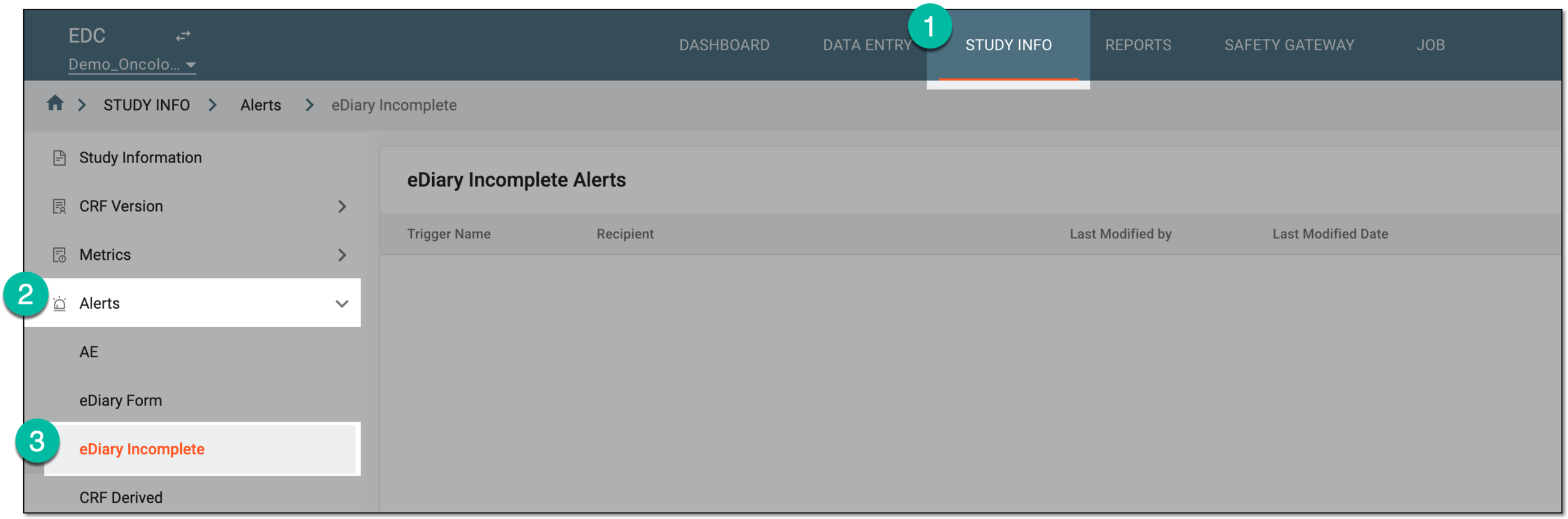 Figure 1. Accessing eDiary incompletion alerts
-
On the eDiary Incomplete Alerts page that opens, from the workspace toolbar, select New Item
. Figure 2. Selecting option to add eDiary incompletion alert
-
In the eDiary Incomplete form that opens, configure the alert details as explained in the following table.
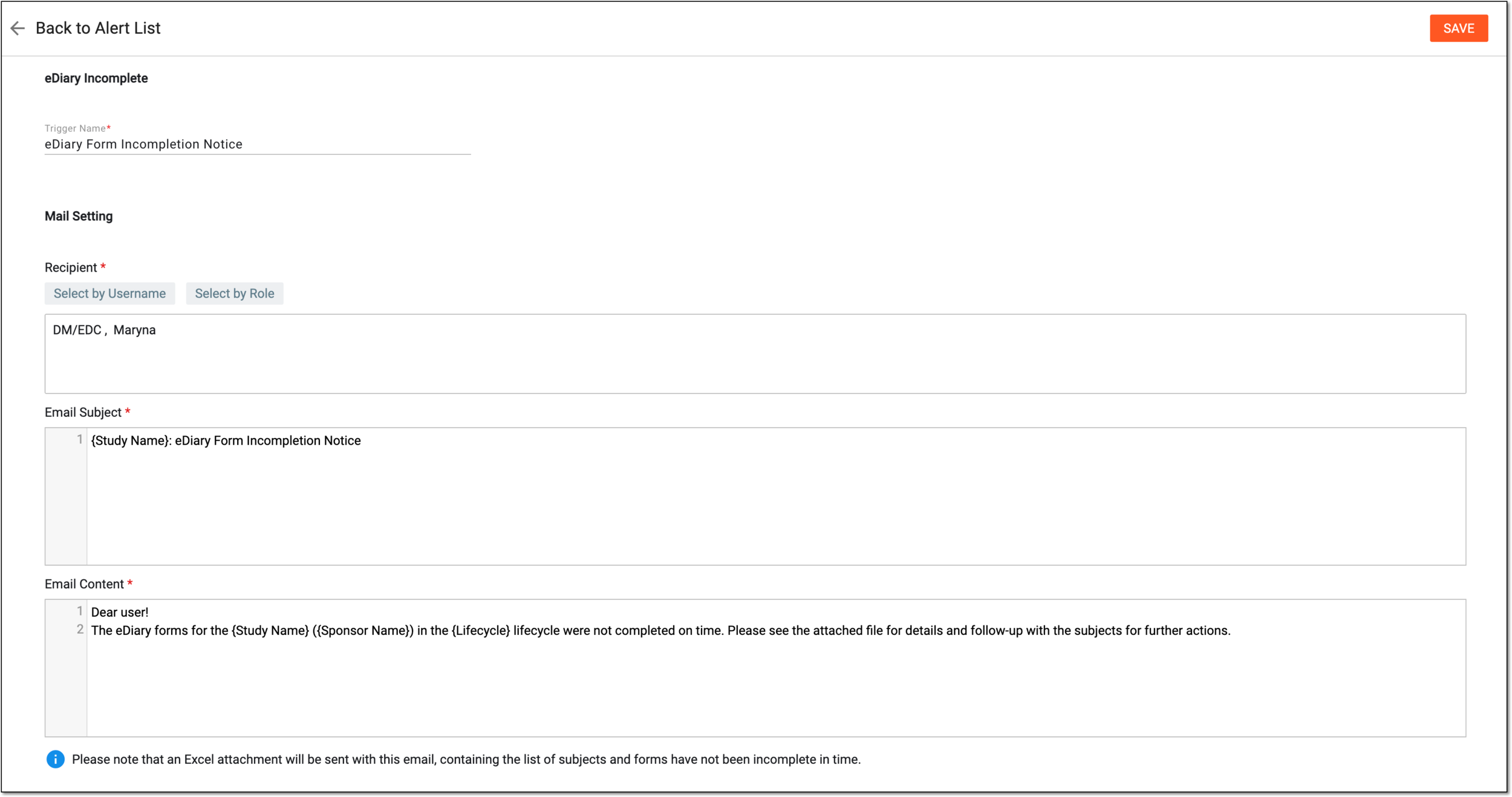 Figure 3. Configuring eDiary incompletion alert
Tip
In the following table, mandatory elements are marked with an asterisk (*).
Element
Details
Trigger Name*
Enter the descriptive name of the trigger, for instance, eDiary form incompletion notice.
Mail Setting
Recipient*
Select the following:
-
Select by Role: to expand the list of user roles and choose the ones to whose representatives the email notification must be sent when the alert triggers.
-
Select by Username: to expand the list of users and choose the ones to whom the email notification must be sent when the alert triggers.
Subject*
Enter a meaningful subject for the notification email.
Type the opening brace "{" to display the list of variables that you can add to the email subject. Note that variables can be added one at a time.
Content*
Provide the main text of the notification email, specifying all the details of the event that triggers the alert.
Type the opening brace "{" to display the list of variables that you can add to the email body. Note that variables can be added once at a time.
SAVE
Select
to implement the changes.Back to Alert List
Select
to discard the changes without saving and return to the alert list. -
Once saved, the specified recipients start receiving alert emails with eDiary incompletion statistics as per set condition.
eDiary is a mobile application used for the collection and management of clinical data of subjects. With this app, subjects can record their treatment and diagnosis information in electronic forms on their devices.
In EDC, you can set up alerts to notify specific users if subjects' eDiary completion rate is below the set threshold. With this notifications, it is possible to see in real time any decline in the subjects' interaction with the app and respond to it appropriately, for example, by contacting specific subjects directly and communicating the problem.
Important
The users receive the eDiary completion rate alerts based on the site access permissions granted to them via the ADMIN application.
-
In the EDC application header, select the STUDY INFO tab.
-
On the page that opens, in the left pane, select Alerts > eDiary Completion Rate.
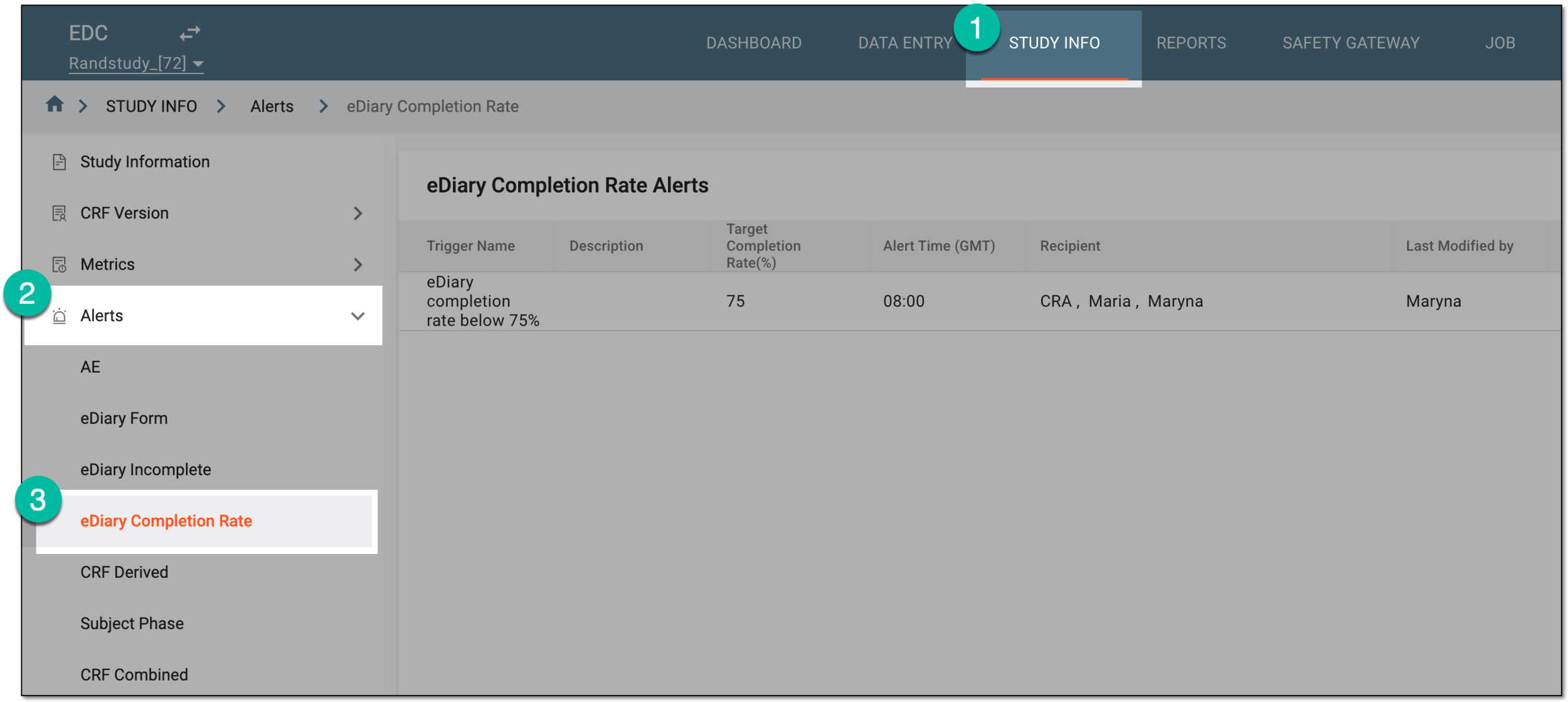 Figure 1. Accessing eDiary completion rate alerts
-
On the eDiary Completion Rate Alerts page that opens, from the workspace toolbar, select New Item
. Figure 2. Selecting option to add eDiary completion rate alert
-
In the eDiary Incomplete form that opens, configure the alert details as explained in the following table.
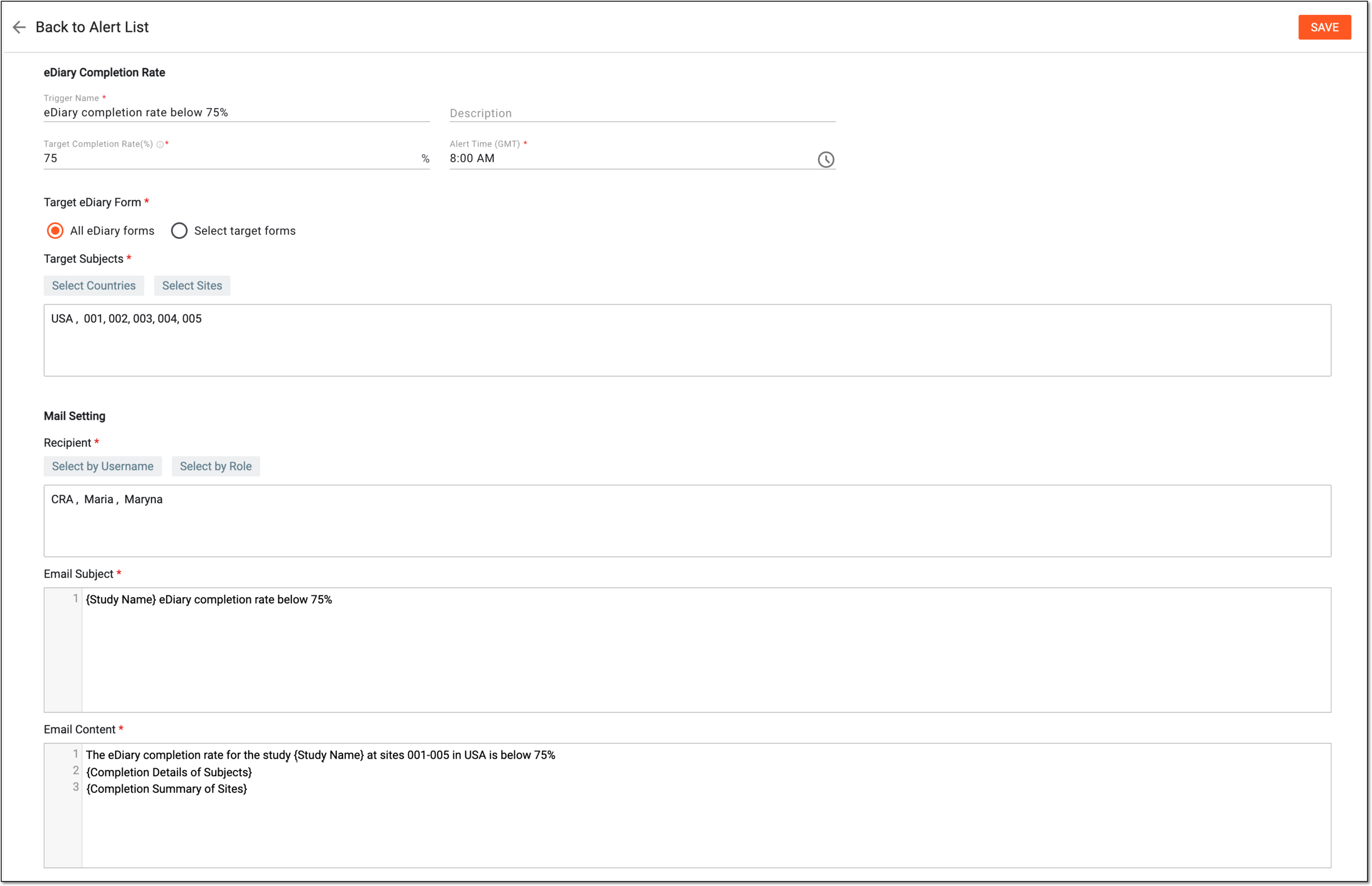 Figure 3. Configuring eDiary completion rate alert
Tip
In the following table, mandatory elements are marked with an asterisk (*).
Element
Details
Trigger Name*
Enter the descriptive name of the trigger, for instance, eDiary completion rate below 75%.
Description
Enter any additional information to outline the specifics of the alert.
Target Completion Rate (%)*
Enter the number in percentage to set the threshold of eDiary form completion for the subject. If the subject's completion rate is below this threshold, this subject's data is included in the statistics accounted for this alert.
Alert Time (GMT)*
Set the time in Greenwich Mean Time when the system must calculate the selected eDiary form completion rate for the target subjects and send out the statistics to the alert recipients.
Target eDiary Form*
Select one of the following:
-
All eDiary forms: for the system to calculate the completion rate of all the forms in the eDiary app.
-
Select target forms: to choose specific forms to be included in the completion rate calculation. For this option, the list of forms appears; select the checkboxes next to the forms that must be accounted for in the completion rate.
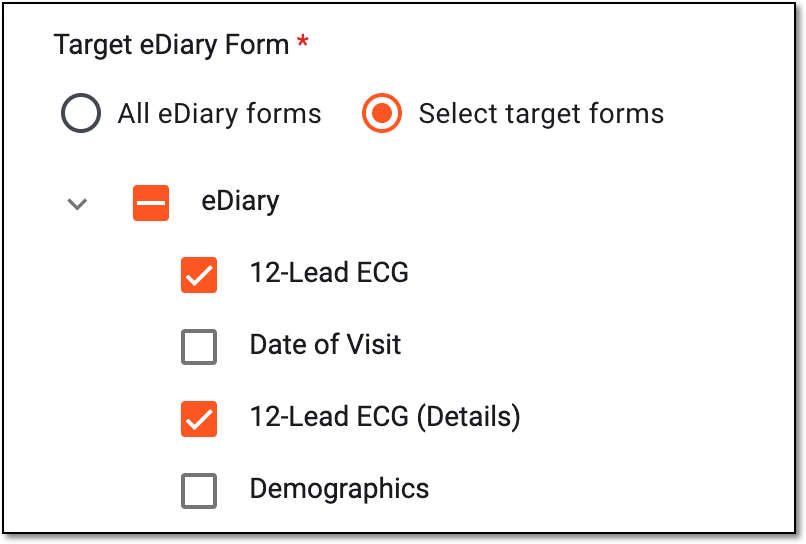 Figure 4. Selecting target forms
Target Subjects*
Select the following:
-
Select Countries: to choose the countries the subjects of which are accounted for the completion rate statistics. If only countries are selected (with no selected sites), then all subjects of all sites in these countries are accountable.
-
Select Sites: to choose the sites the subjects registered at which are accounted for the completion rate statistics. If sites are selected, then only the subjects of these sites are accountable.
Mail Setting
Recipient*
Select the following:
-
Select by Role: to expand the list of user roles and choose the ones to whose representatives the email notification must be sent when the alert triggers.
-
Select by Username: to expand the list of users and choose the ones to whom the email notification must be sent when the alert triggers.
Subject*
Enter a meaningful subject for the notification email.
Type the opening brace "{" to display the list of variables that you can add to the email subject. Note that variables can be added one at a time.
Content*
Provide the main text of the notification email, specifying all the details of the event that triggers the alert.
Type the opening brace "{" to display the list of variables that you can add to the email body. Note that variables can be added once at a time.
Use the {Completion Details of Subjects} and {Completion Summary of Sites} variables only in the email content and avoid them in the subject as these are to be replaced with the tables representing the completion rate statistical data.SAVE
Select
to implement the changes.Back to Alert List
Select
to discard the changes without saving and return to the alert list. -
Once saved, the specified recipients start receiving alert emails with eDiary completion rate statistics as per set condition.
In EDC, you can keep track of the specific case report form (CRF) updates by setting up alerts to notify users of defined occurrences, for instance, certain data item completion or else. This type of alerts is called CRF-derived since it is directly connected to the CRF maintenance.
Important
The users receive the CRF-derived alerts based on the site access permissions granted to them via the ADMIN application.
-
In the EDC application header, select the STUDY INFO tab.
-
On the page that opens, in the left pane, select Alerts > CRF Derived.
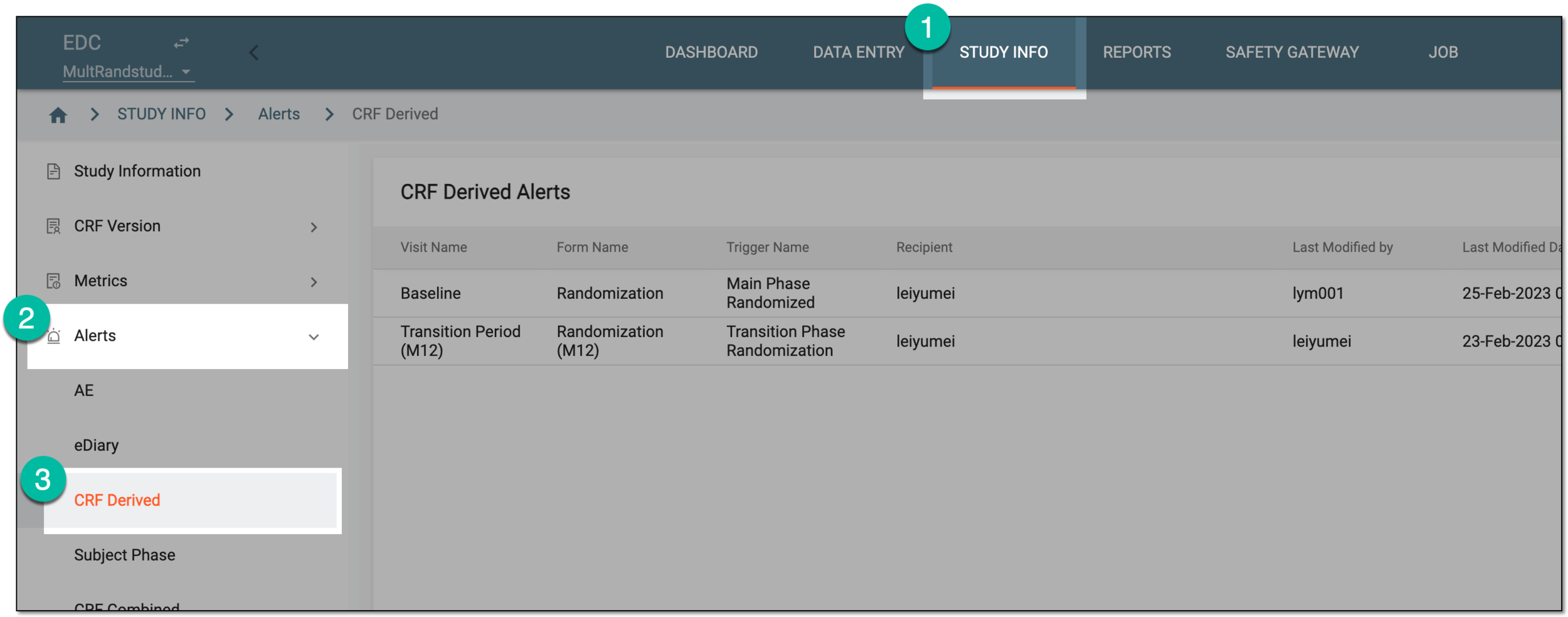 Figure 1. Accessing CRF derived alerts
-
On the CRF Derived Alerts page that opens, from the workspace toolbar, select New Item
. Figure 2. Selecting to add new CRF derived alert
-
On the page that opens, complete the fields of the Form Selection block as explained in the following table.
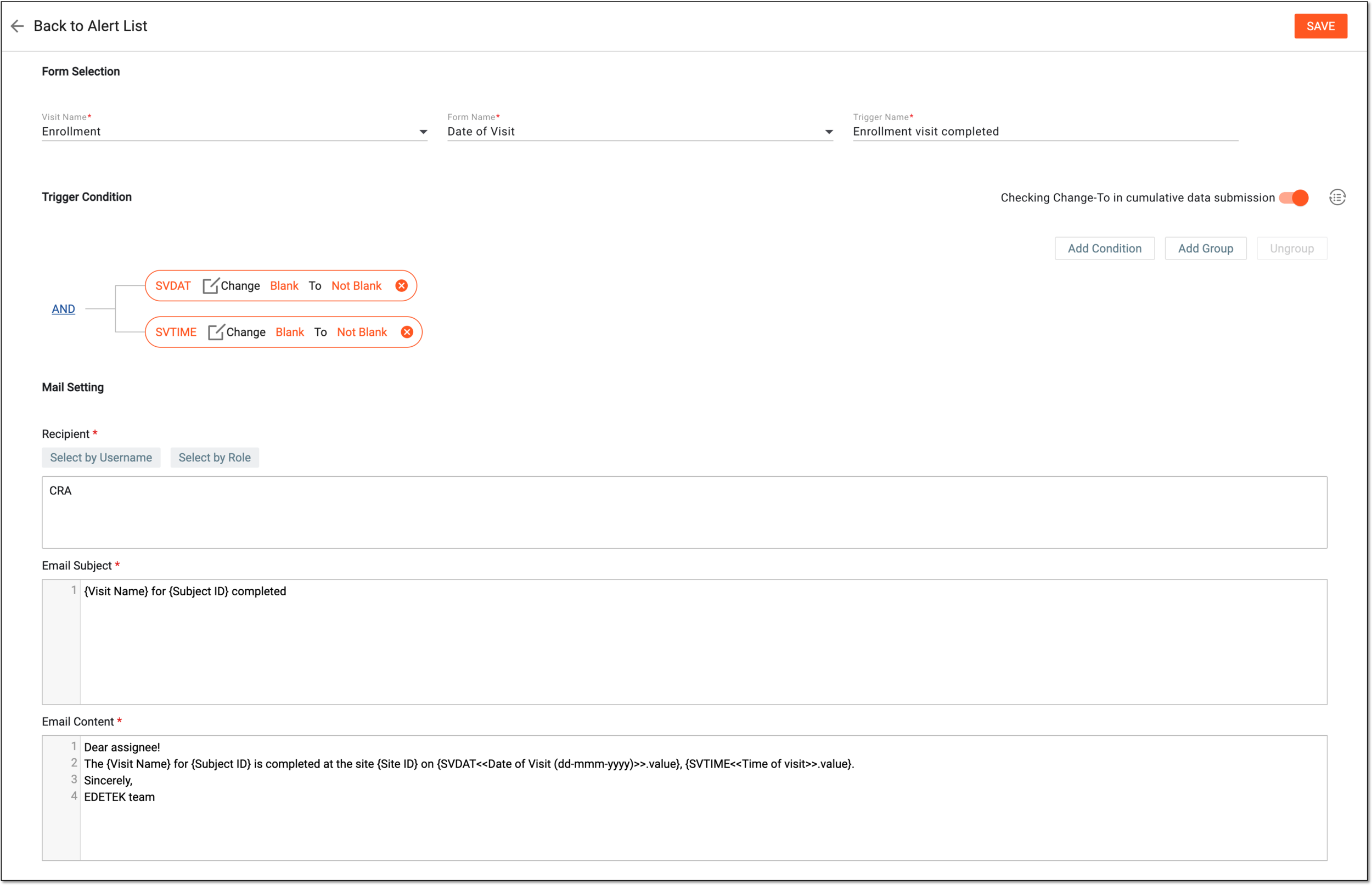 Figure 3. Configuring CRF-derived alert
Tip
In the following table, mandatory elements are marked with an asterisk (*).
Element
Details
Form Selection
Visit Name
Select the visit for which you want the actions with the associated form to trigger the alert.
Form Name
Select the form for which you want to trigger the alert upon the set conditions.
Trigger Name*
Enter the descriptive name of the trigger, for instance, Enrollment visit completed.
Trigger Condition
Checking Change-To in cumulative data submission/Checking Change-To in a single data submission
Set the toggle as follows:
Convert Text
If you prefer entering trigger conditions in text format rather than building a diagram, select
to open the Convert
Text dialog. In the Trigger Expression field, use variables in braces to outline the conditions that once met trigger the alert email.Figure 4. Setting up trigger variables in text editor
When configured, select
to save the changes and return to the alert configurator page, where the trigger conditions you set are
displayed as a diagram.Add Condition
Select
to add a condition field. From the dropdown menus of each field, select the options that you want to set as trigger conditions.
Upon selection of some values, the additional fields may appear to specify the condition.Figure 5. Setting trigger conditions
Add Group
Select
to add a set of conditions to act as one within the general scheme. Configure your group following the same logic as for the standalone
condition.Figure 6. Adding trigger condition group
You can add groups of conditions within other groups to deepen the hierarchical connections of your alert triggers. To do this, select the group of conditions on the diagram and then select
.AND/OR
When more than one field is added, the AND/OR operator is used to make the conditions equal or alternate, respectively. Simply click the current operator to choose its value—AND or OR.
For example, set up conditions as follows: Form Record First Submission and Form Record Data Change with the OR operator. Thus, the alert is triggered when the data is first entered in the selected form or any time the data in this form is updated.
Change
Select
to set the condition for data item change from certain value to another one.For instance, you set the condition for the SVDAT value to change from Blank to Not Blank. This triggers the alert when the user enters the value into the previously empty visit date field of the selected CRF.
Figure 7. Setting change condition
Equal
Select
to set the condition for data item equality to a certain value.For instance, you set the condition for the SVDAT value to change to Not Blank. This triggers the alert when the user enters the value in the visit date field of the selected CRF.
Figure 8. Setting equal condition
Select the red check mark next to the condition field to save its values.
Select the deletion symbol next to the unsaved condition field or group to remove it from the diagram.
Select the red cross symbol next to the saved condition field to remove it from the diagram.
Ungroup
Use
to remove the grouping and convert to standalone conditions. To do this, select the grouped conditions on the diagram, then click . Once done, the fields in the selected group are no longer interdependent.Mail Setting
Recipient*
Select the following:
-
Select by Role: to expand the list of user roles and choose the ones to whose representatives the email notification must be sent when the alert triggers.
-
Select by Username: to expand the list of users and choose the ones to whom the email notification must be sent when the alert triggers.
Subject*
Enter a meaningful subject for the notification email.
Type the opening brace "{" to display the list of variables that you can add to the email subject. Note that variables can be added one at a time.
Content*
Provide the main text of the notification email, specifying all the details of the event that triggers the alert.
Type the opening brace "{" to display the list of variables that you can add to the email body. Note that variables can be added once at a time.
SAVE
Select
to implement the changes.Back to Alert List
Select
to discard the changes without saving and return to the alert list. -
Once saved, the alert is configured and starts sending email notifications to the selected recipients when the set trigger conditions are met.
A subject phase is a specific phase that the study participant—subject—has to complete to move further to the next phase of the trial.
For instance, there are Screening and Enrolled phases. The subject can only be enrolled in the study when they complete all the screening procedures and qualify for the participation. Thus, the subject has to complete the Screening phase to move to Enrolled.
In EDC, subjects can be moved to a certain phase manually by the user or automatically by the system based on the predefined logic. The subject phase change alert helps you keep track of such occurrences in the study by configuring specific notifications for dedicated users. This helps to react to the subject phase change more promptly and efficiently.
Important
The users receive the subject phase alerts based on the site access permissions granted to them via the ADMIN application.
-
In the EDC application header, select the STUDY INFO tab.
-
On the page that opens, in the left pane, select Alerts > Subject Phase.
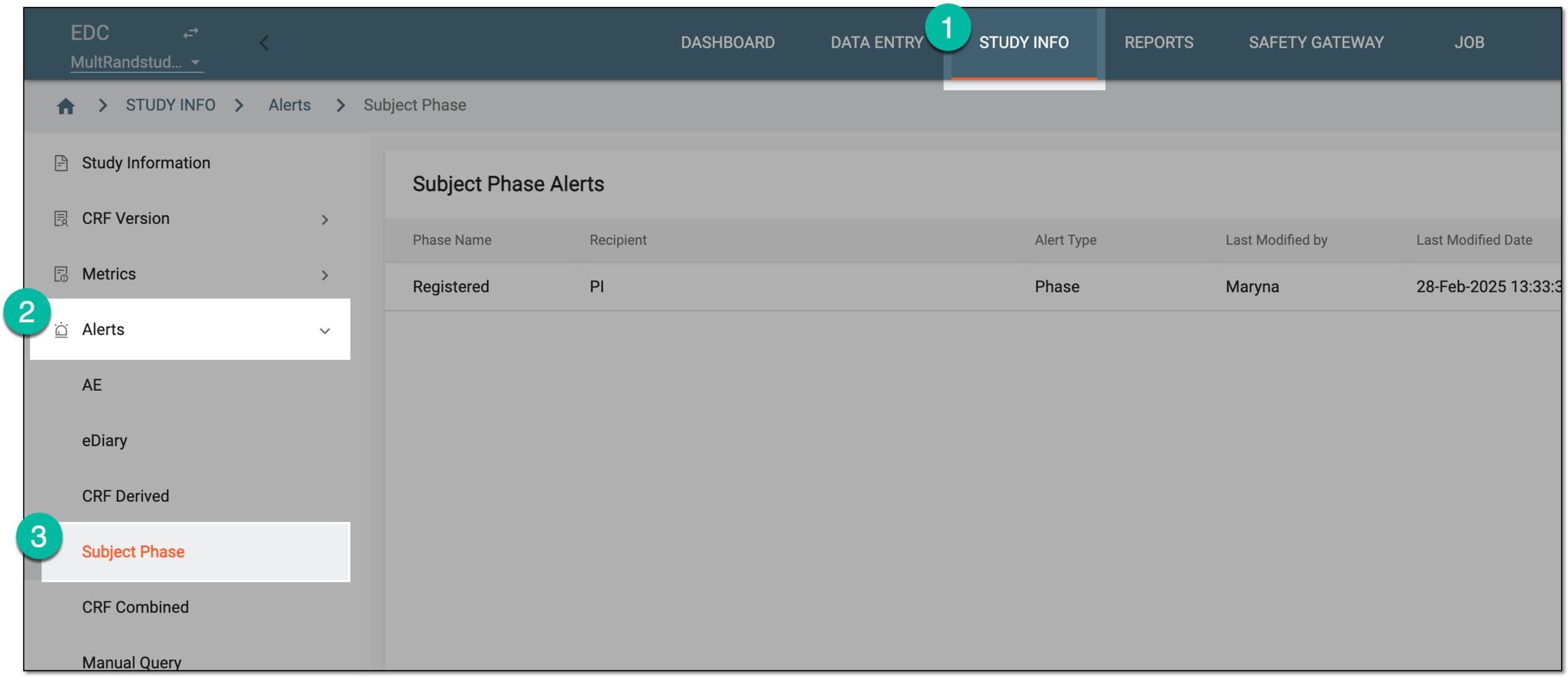 Figure 1. Accessing subject phase alerts
-
On the Subject Phase Alerts page that opens, from the workspace toolbar, select New Item
. Figure 2. Adding subject phase alert
-
On the page that opens, in the Phase Selection block, complete the fields as explained in the following table.
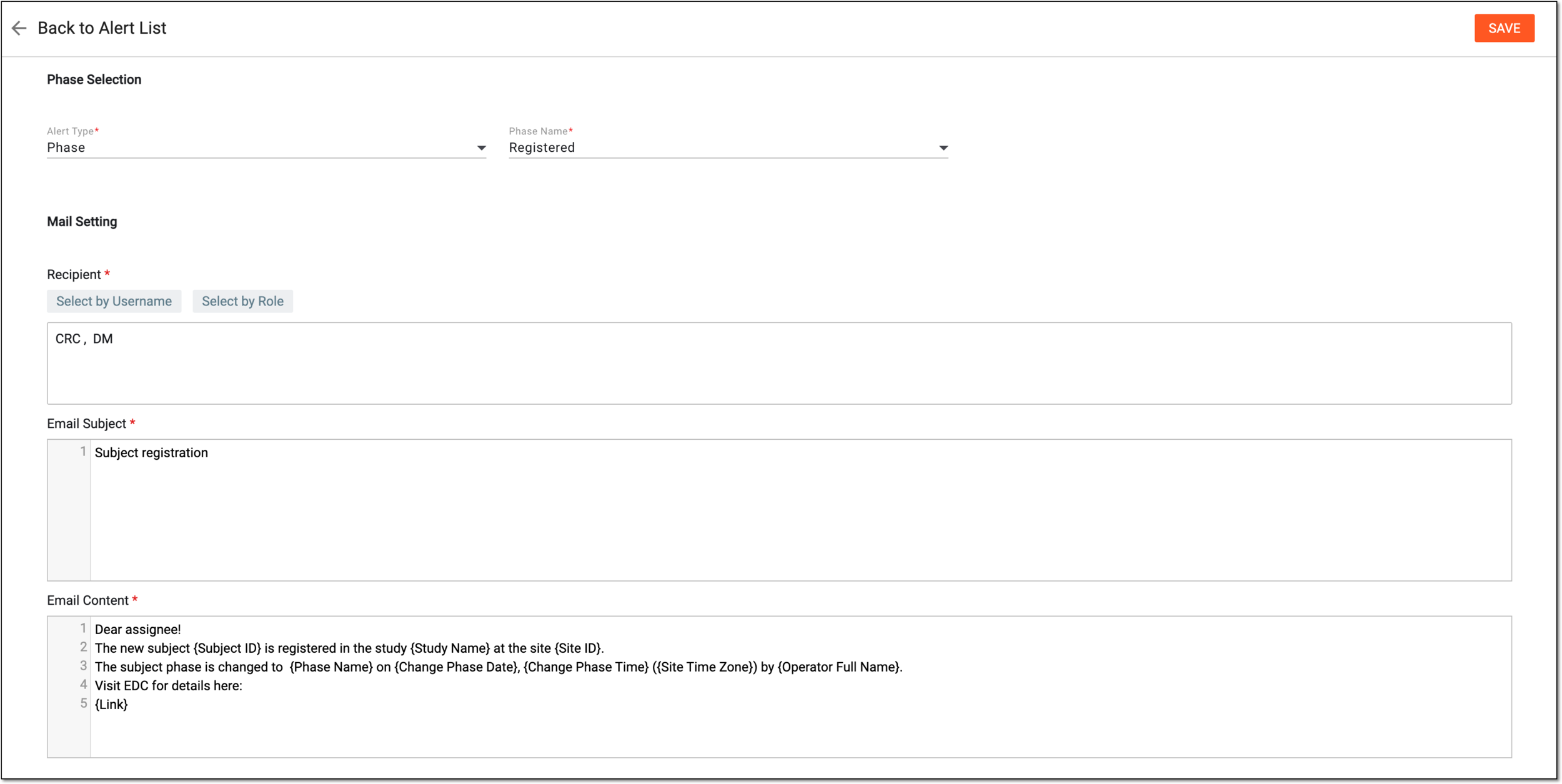 Figure 3. Configuring subject phase alert
Tip
In the following table, mandatory elements are marked with an asterisk (*).
Element
Details
Phase Selection
Alert Type*
Select one of the following alert types:
-
Phase: select this type if you want to trigger the alert every time the subject phase is forwarded to the one specified in the Phase Name field.
For instance, if you select the Screening phase, each time a subject in your study is forwarded to this phase, the system will trigger the alert.
-
Reverse Phase: select this type if you want to trigger the alert every time the subject phase is reversed from the one specified in the Phase Name field.
For instance, if you select the Screening phase, each time a subject in your study is reversed from this phase to the previous one, the system will trigger the alert.
Phase Name*
Select the subject phase that you want to trigger the alert whenever subjects in your study are forwarded to or reversed from this phase.
Mail Setting
Recipient*
Select the following:
-
Select by Role: to expand the list of user roles and choose the ones to whose representatives the email notification must be sent when the alert triggers.
-
Select by Username: to expand the list of users and choose the ones to whom the email notification must be sent when the alert triggers.
Subject*
Enter a meaningful subject for the notification email.
Type the opening brace "{" to display the list of variables that you can add to the email subject. Note that variables can be added one at a time.
Content*
Provide the main text of the notification email, specifying all the details of the event that triggers the alert.
Type the opening brace "{" to display the list of variables that you can add to the email body. Note that variables can be added once at a time.
SAVE
Select
to implement the changes.Back to Alert List
Select
to discard the changes without saving and return to the alert list. -
Once saved, the alert is configured and starts sending email notifications to the selected recipients when the subjects are forwarded to or reversed from the specified phase.
In EDC, with the CRF Combined alert, you can set up the system to notify you or any interested users when all the certain visit forms or specific fields of those forms are initiated or completed. With this alert, you can track the completion of particular fields, so you can also use it to get updates as soon as the subjects have provided some data of your interest, such as answers for inclusion and exclusion criteria-related questions.
For instance, you need to know when all the subjects have passed the screening visit and reported their age, gender as female, and of childbearing potential to meet the inclusion criteria in the trial. Thus, you configure the CRF Combined alert trigger conditions for these specific fields, and it triggers as soon as they are completed.
Another example of this alert usage can be to notify a dedicated user like the medical monitor that some particular form is initiated signaling that it is time to plan a data monitoring visit at the site.
Important
The users receive the CRF combined alerts based on the site access permissions granted to them via the ADMIN application.
-
In the EDC application header, select the STUDY INFO tab.
-
On the page that opens, in the left pane, select Alerts > CRF Combined.
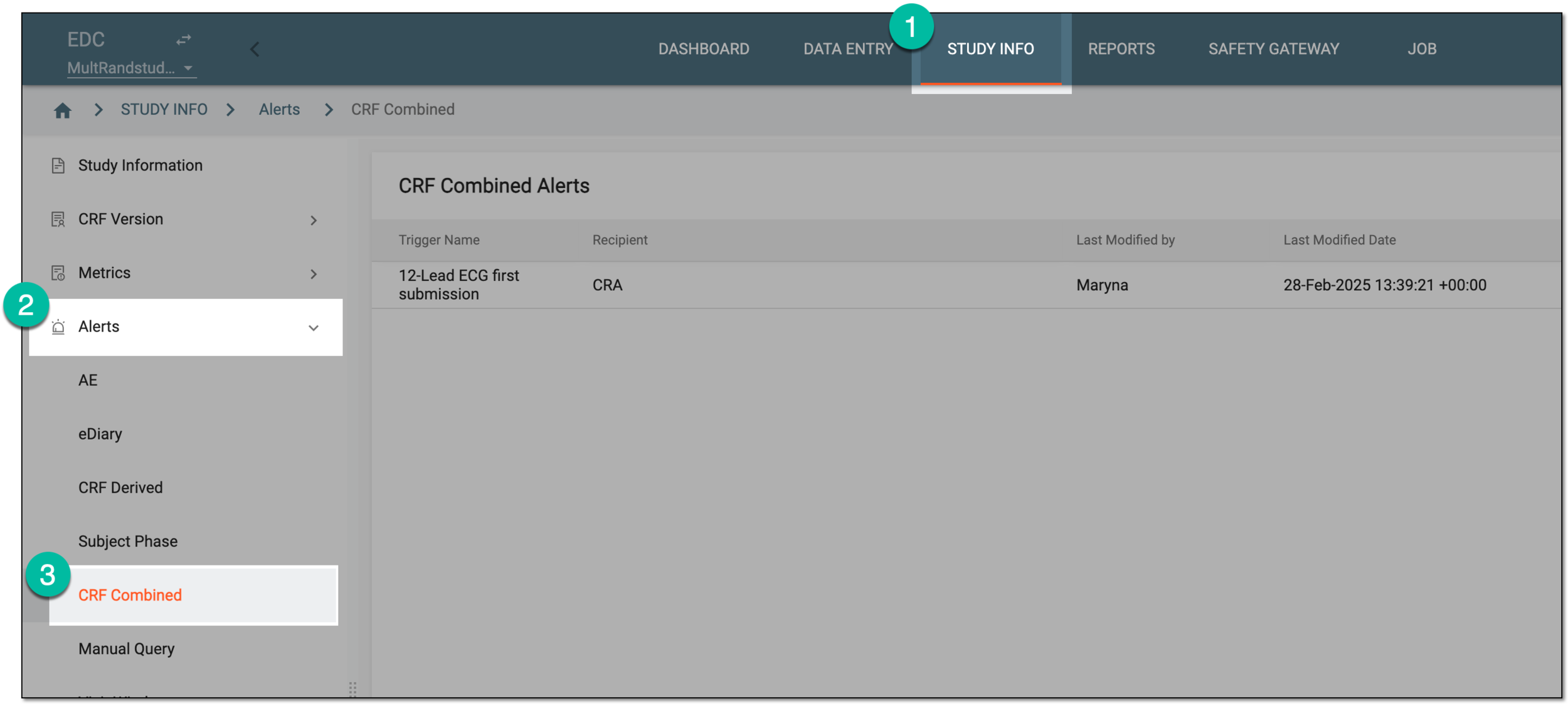 Figure 1. Accessing CRF combined alerts
-
On the CRF Combined Alerts page that opens, from the workspace toolbar, select New Item
. Figure 2. Adding new CRF combined alert
-
On the page that opens, in the Basic Info block, in the Trigger Name* field, enter the descriptive name of your alert notification.
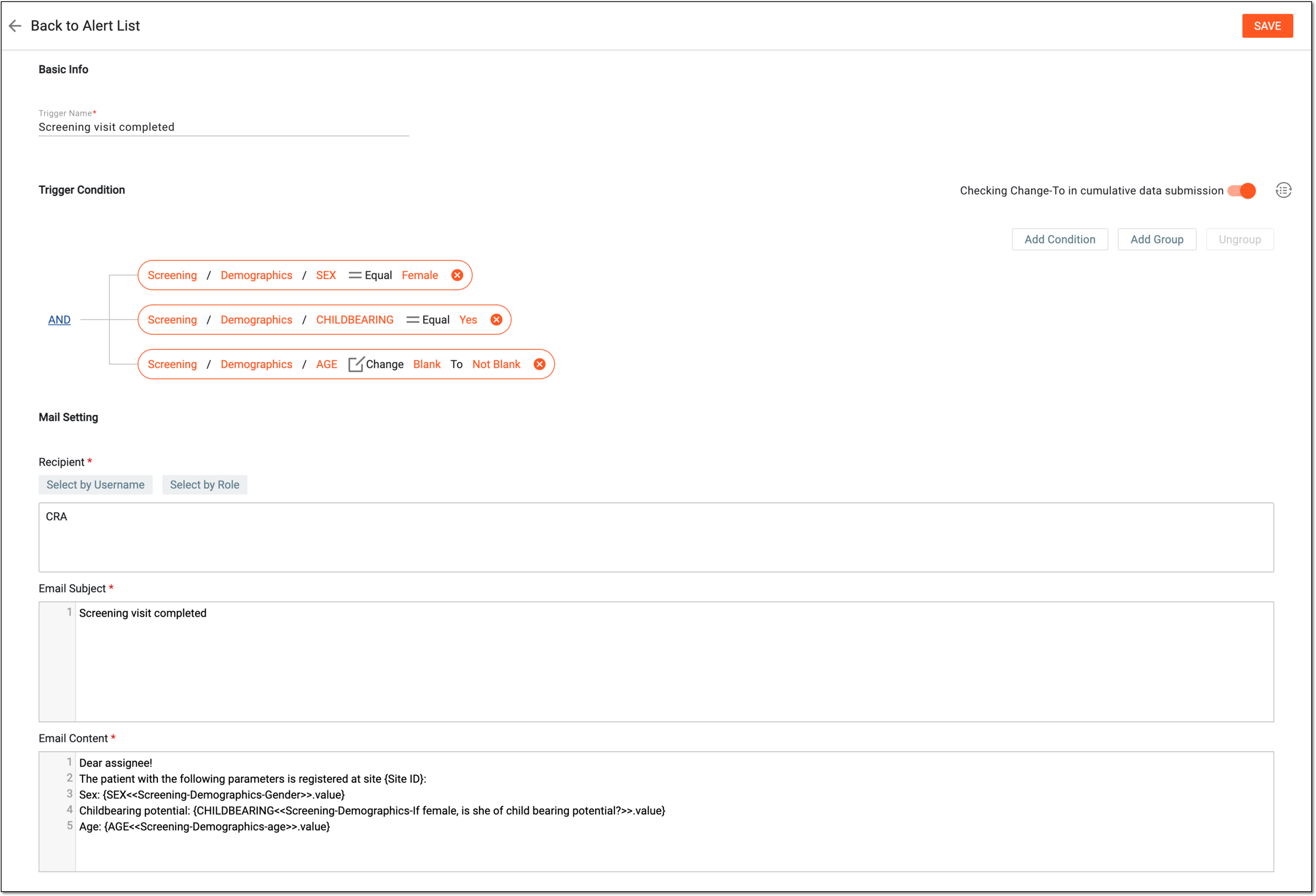 Figure 3. Configuring CRF combined alert
Tip
In the following table, mandatory elements are marked with an asterisk (*).
Element
Details
Basic Info
Trigger Name*
Enter the descriptive name of the alert, for instance, Screening visit completed.
Trigger Condition
Checking Change-To in cumulative data submission/Checking Change-To in a single data submission
Set the toggle as follows:
Convert Text
If you prefer entering trigger conditions in text format rather than building a diagram, select
to open the Convert
Text dialog. In the Trigger Expression field, use variables in braces to outline the conditions that once met trigger the alert email.Figure 4. Setting up trigger variables in text editor
When configured, select
to save the changes and return to the alert configurator page, where the trigger conditions you set are
displayed as a diagram.Add Condition
Select
to add a condition field. From the dropdown menus of each field, select the options that you want to set as trigger conditions.
Upon selection of some values, the additional fields may appear to specify the condition. Figure 5. Screening visit completed for CRF combined alert
Add Group
Select
to add a set of conditions to act as one within the general scheme. Configure your group following the same logic as for the standalone
condition.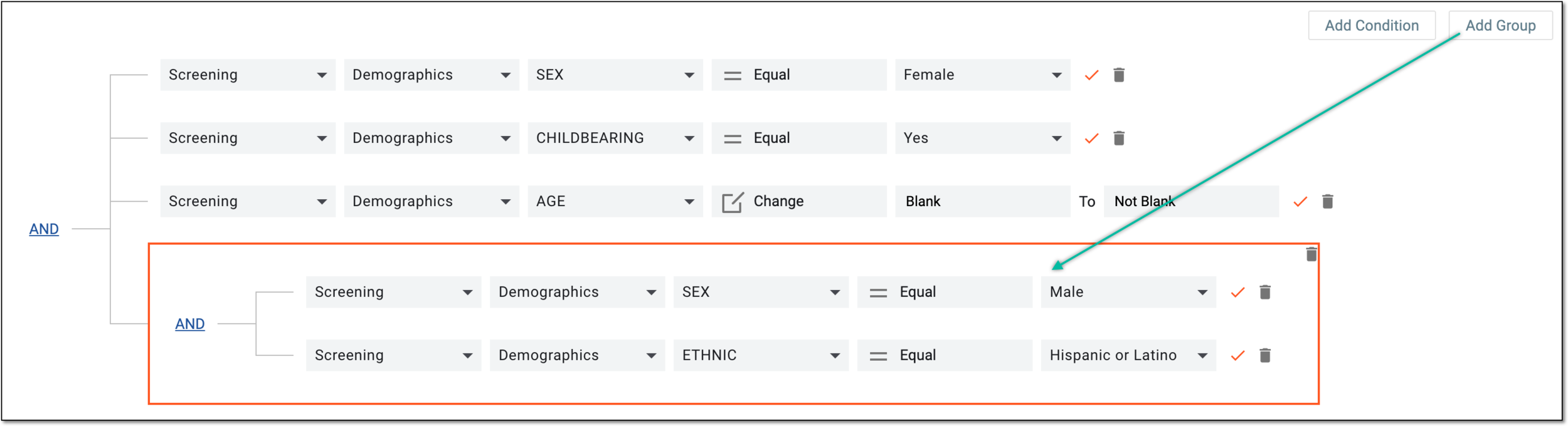 Figure 6. Adding trigger condition group for CRF combined alert
You can add groups of conditions within other groups to deepen the hierarchical connections of your alert triggers. To do this, select the group of conditions on the diagram and then select
.AND/OR
When more than one field is added, the AND/OR operator is used to make the conditions equal or alternate, respectively. Simply click the current operator to choose its value—AND or OR.
For example, set up conditions as follows: Form Record First Submission and Form Record Data Change with the OR operator. Thus, the alert is triggered when the data is first entered in the selected form or any time the data in this form is updated.
Change
Select
to set the condition for data item change from certain value to another one.For instance, you set the condition for the SVDAT value to change from Blank to Not Blank. This triggers the alert when the user enters the value into the previously empty visit date field of the selected CRF.
Figure 7. Setting change condition
Equal
Select
to set the condition for data item equality to a certain value.For instance, you set the condition for the SVDAT value to change to Not Blank. This triggers the alert when the user enters the value in the visit date field of the selected CRF.
Figure 8. Setting equal condition
Select the red check mark next to the condition field to save its values.
Select the deletion symbol next to the unsaved condition field or group to remove it from the diagram.
Select the red cross symbol next to the saved condition field to remove it from the diagram.
Ungroup
Use
to remove the grouping and convert to standalone conditions. To do this, select the grouped conditions on the diagram, then click . Once done, the fields in the selected group are no longer interdependent.Mail Setting
Recipient*
Select the following:
-
Select by Role: to expand the list of user roles and choose the ones to whose representatives the email notification must be sent when the alert triggers.
-
Select by Username: to expand the list of users and choose the ones to whom the email notification must be sent when the alert triggers.
Subject*
Enter a meaningful subject for the notification email.
Type the opening brace "{" to display the list of variables that you can add to the email subject. Note that variables can be added one at a time.
Content*
Provide the main text of the notification email, specifying all the details of the event that triggers the alert.
Type the opening brace "{" to display the list of variables that you can add to the email body. Note that variables can be added once at a time.
SAVE
Select
to implement the changes.Back to Alert List
Select
to discard the changes without saving and return to the alert list. -
Once saved, the alert is configured and starts sending email notifications to the selected recipients when the set trigger conditions are met.
A query is a request to fix the encountered discrepancy in the study data. While working with forms in EDC and finding some inaccurate or missing data, you can manually create queries at the visit, form, record, or item level for accountable users to address the issues and either correct them or confirm the data's accuracy.
In EDC, you can set up alerts to notify specific users of manually created queries, so that they can react to them more quickly and efficiently. This helps with query resolution oversight to ensure proper data management in the study.
Important
The users receive the manual query alerts based on the site access permissions granted to them via the ADMIN application.
-
In the EDC application header, select the STUDY INFO tab.
-
On the page that opens, in the left pane, select Alerts > Manual Query.
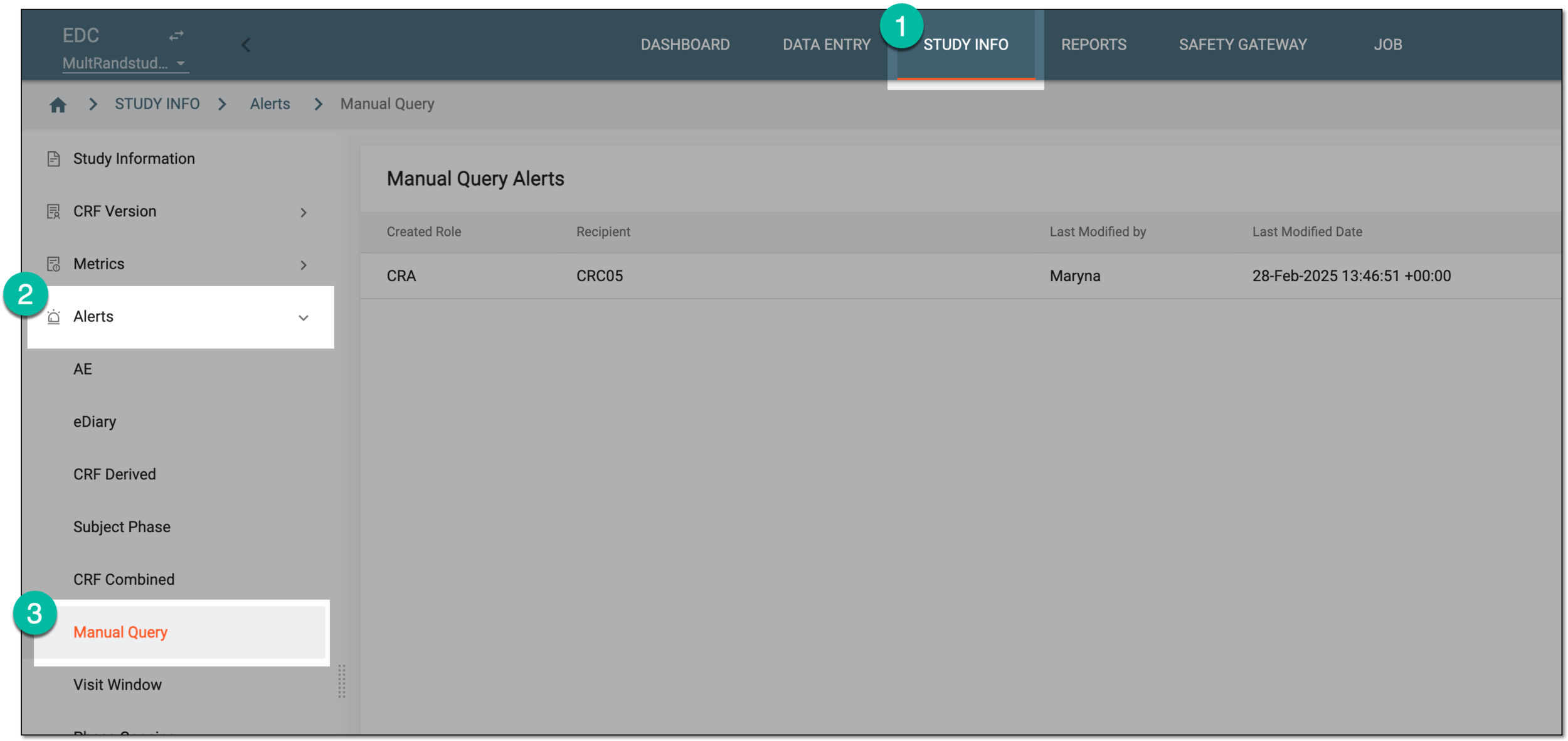 Figure 1. Accessing manual query alerts
-
On the Manual Query Alerts page that opens, from the workspace toolbar, select New Item
. Figure 2. Selecting to add new manual query alert
-
In the Manual Query Alert form that opens, complete the fields as explained in the following table.
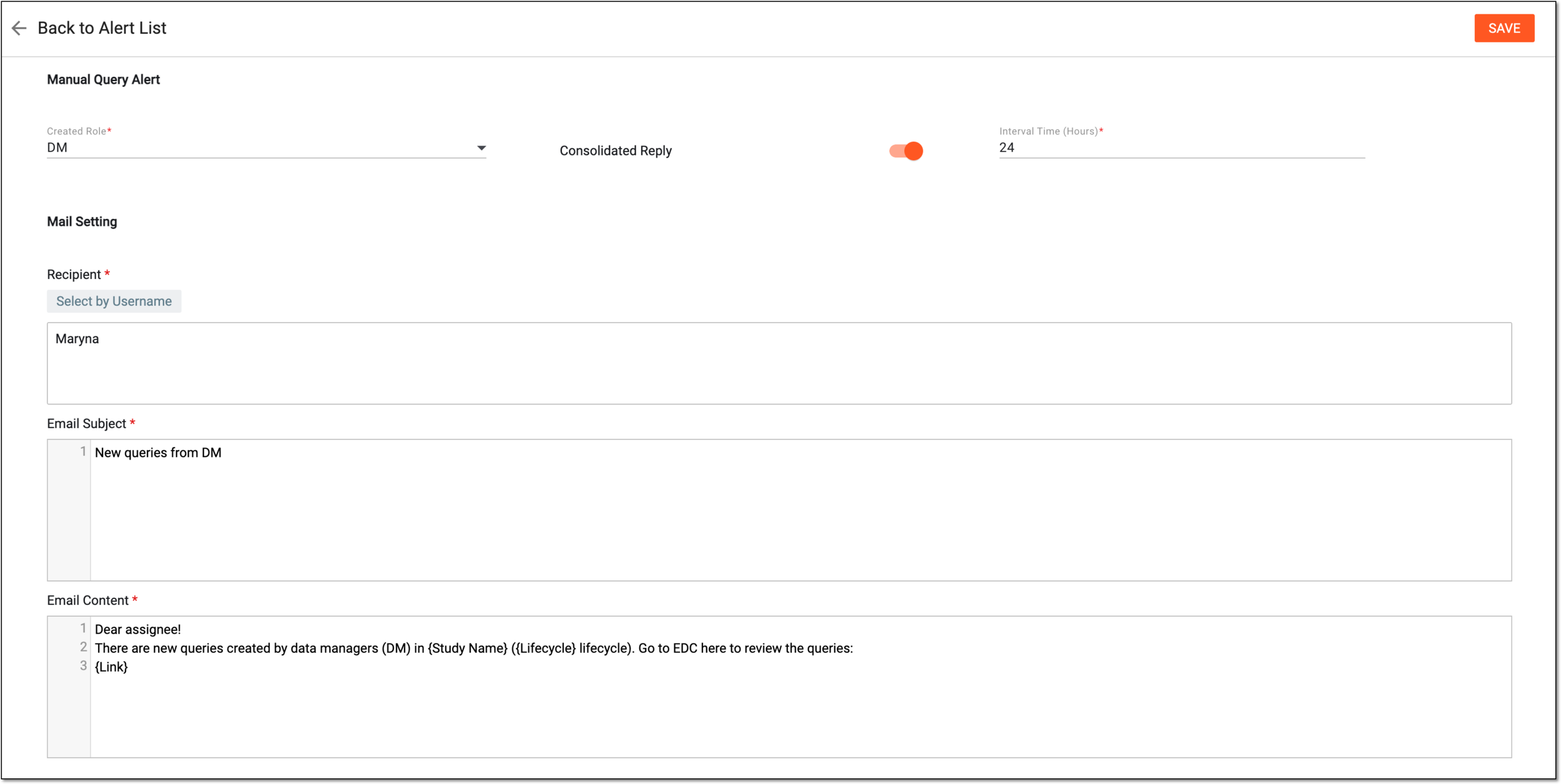 Figure 3. Configuring manual query alert
Tip
In the following table, mandatory elements are marked with an asterisk (*).
Element
Details
Created Role*
Select the user role of the manual queries for whom you want to trigger the alert. The list of user roles is populated by the roles that have a manual query assigned to them at record, form, visit, or item level.
Consolidated Reply
Set as follows:
-
Turn the toggle on to summarize the manual queries received during a manageable time interval into one email alert to minimize the number of email notifications and have a more organized alert system.
-
Turn the toggle off for the system to send an individual alert email on each manual query.
Interval time (Hours)*
Enter the hours for which the system should summarize the manual query alerts into one email. This field is only available if the Consolidated Reply toggle is turned on.
Mail Setting
Recipient*
Select the following:
-
Select by Role: to expand the list of user roles and choose the ones to whose representatives the email notification must be sent when the alert triggers.
-
Select by Username: to expand the list of users and choose the ones to whom the email notification must be sent when the alert triggers.
Subject*
Enter a meaningful subject for the notification email.
Type the opening brace "{" to display the list of variables that you can add to the email subject. Note that variables can be added one at a time.
Content*
Provide the main text of the notification email, specifying all the details of the event that triggers the alert.
Type the opening brace "{" to display the list of variables that you can add to the email body. Note that variables can be added once at a time.
SAVE
Select
to implement the changes.Back to Alert List
Select
to discard the changes without saving and return to the alert list. -
Once saved, the specified recipients start receiving alert emails as per set condition.
A window is a specified permissible time frame within which a subject can pay a visit to a site. In EDC, you can set up an alert to notify certain users of upcoming visit windows to ensure they prepare the needed arrangements to receive subjects. Or you can set up alerts for missing data for past visits so that the dedicated personnel can react to the situation promptly and efficiently.
Important
The users receive the visit window alerts based on the site access permissions granted to them via the ADMIN application.
-
In the EDC application header, select the STUDY INFO tab.
-
On the page that opens, in the left pane, select Alerts > Visit Window.
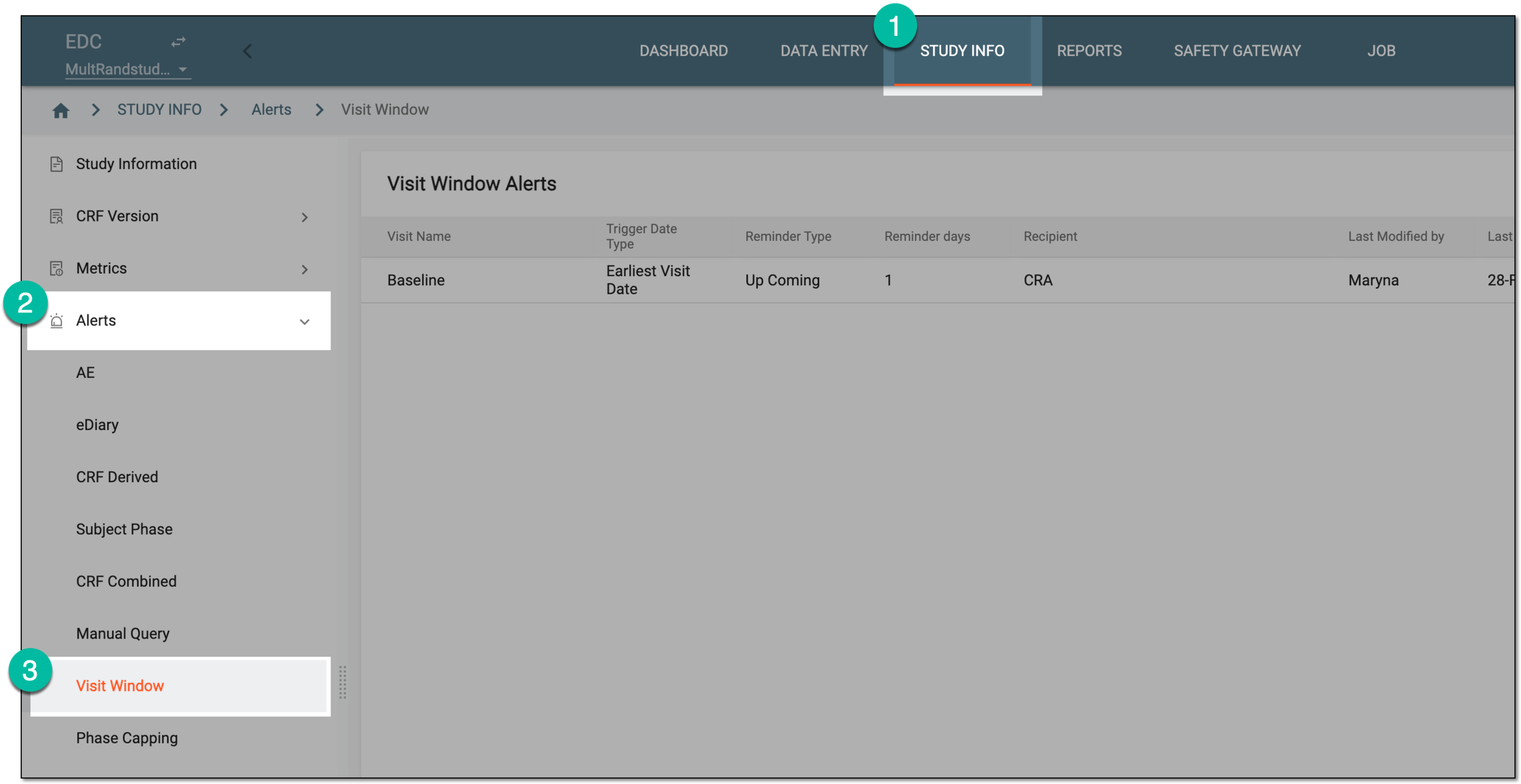 Figure 1. Accessing visit window alerts
-
On the Visit Window Alerts page that opens, from the workspace toolbar, select New Item
. Figure 2. Selecting to add new visit window alert
-
On the page that opens, complete the fields of the Visit Window block as in the following table.
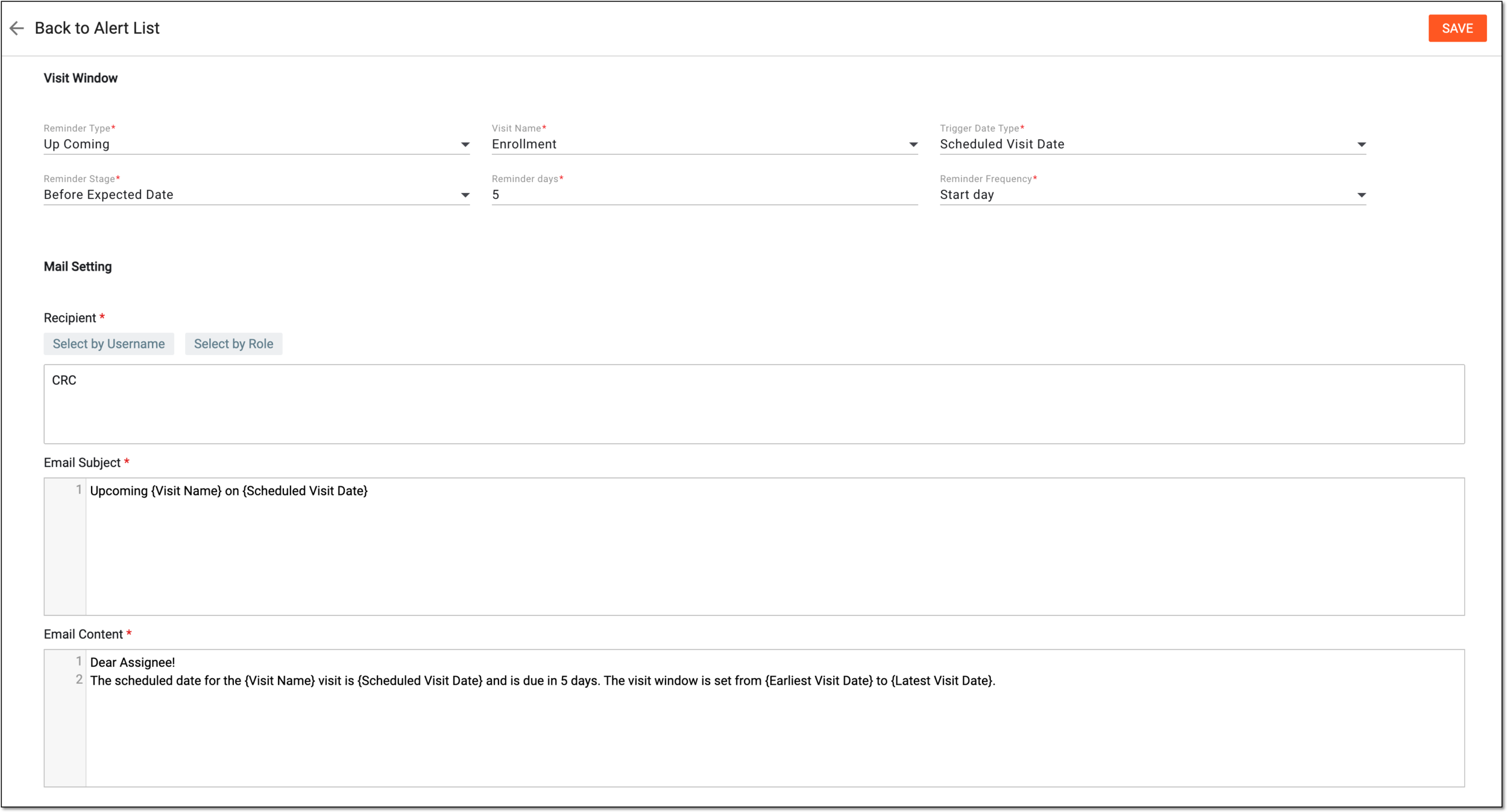 Figure 3. Configuring visit window alert
Tip
In the following table, mandatory elements are marked with an asterisk (*).
Element
Details
Visit Window
Reminder Type*
Select one of the following reminder types:
-
Up Coming: to send out an alert notification on the upcoming visit window.
-
Data Not Entered: to send out an alert notification that the visit window has passed and the data is missing from the form associated to the visit.
Visit Name*
Select the visit or multiple visits for which the alert notification must be triggered.
Trigger Date Type*
Select one of the available date types for the trigger: Target, Access, or Overdue.
Reminder Stage*
Select the stage at which the reminder of the visit has to be triggered, for instance, Before Expected Date.
Reminder Days*
Enter the number of days that the reminder stays effective.
Reminder Frequency*
Select the frequency of the reminder triggering, for instance, Start Day.
Mail Setting
Recipient*
Select the following:
-
Select by Role: to expand the list of user roles and choose the ones to whose representatives the email notification must be sent when the alert triggers.
-
Select by Username: to expand the list of users and choose the ones to whom the email notification must be sent when the alert triggers.
Subject*
Enter a meaningful subject for the notification email.
Type the opening brace "{" to display the list of variables that you can add to the email subject. Note that variables can be added one at a time.
Content*
Provide the main text of the notification email, specifying all the details of the event that triggers the alert.
Type the opening brace "{" to display the list of variables that you can add to the email body. Note that variables can be added once at a time.
SAVE
Select
to implement the changes.Back to Alert List
Select
to discard the changes without saving and return to the alert list. -
Once saved, the specified recipients start receiving alert emails as per set condition.
In EDC, you can manually control subject phase capping parameters for subjects in study-associated countries and sites.
Subject phase capping refers to the process of setting limits (caps) on the number of subjects that can be transferred to or remain in a specific phase—registration, enrollment, randomization, or else. This helps to ensure the trial progression according to the protocol, maintain balance across treatment groups, and prevent excessive allocation of subjects to certain phases.
To track the current status of subject registration to the study or enrollment to certain phases, you can configure respective notifications for interested parties so that they are updated via email on all actions that require immediate attention, for instance, subject registration deactivation for a certain site.
Important
The users receive the phase capping alerts based on the site access permissions granted to them via the ADMIN application.
-
In the EDC application header, select the STUDY INFO tab.
-
On the page that opens, in the left pane, select Alerts > Phase Capping.
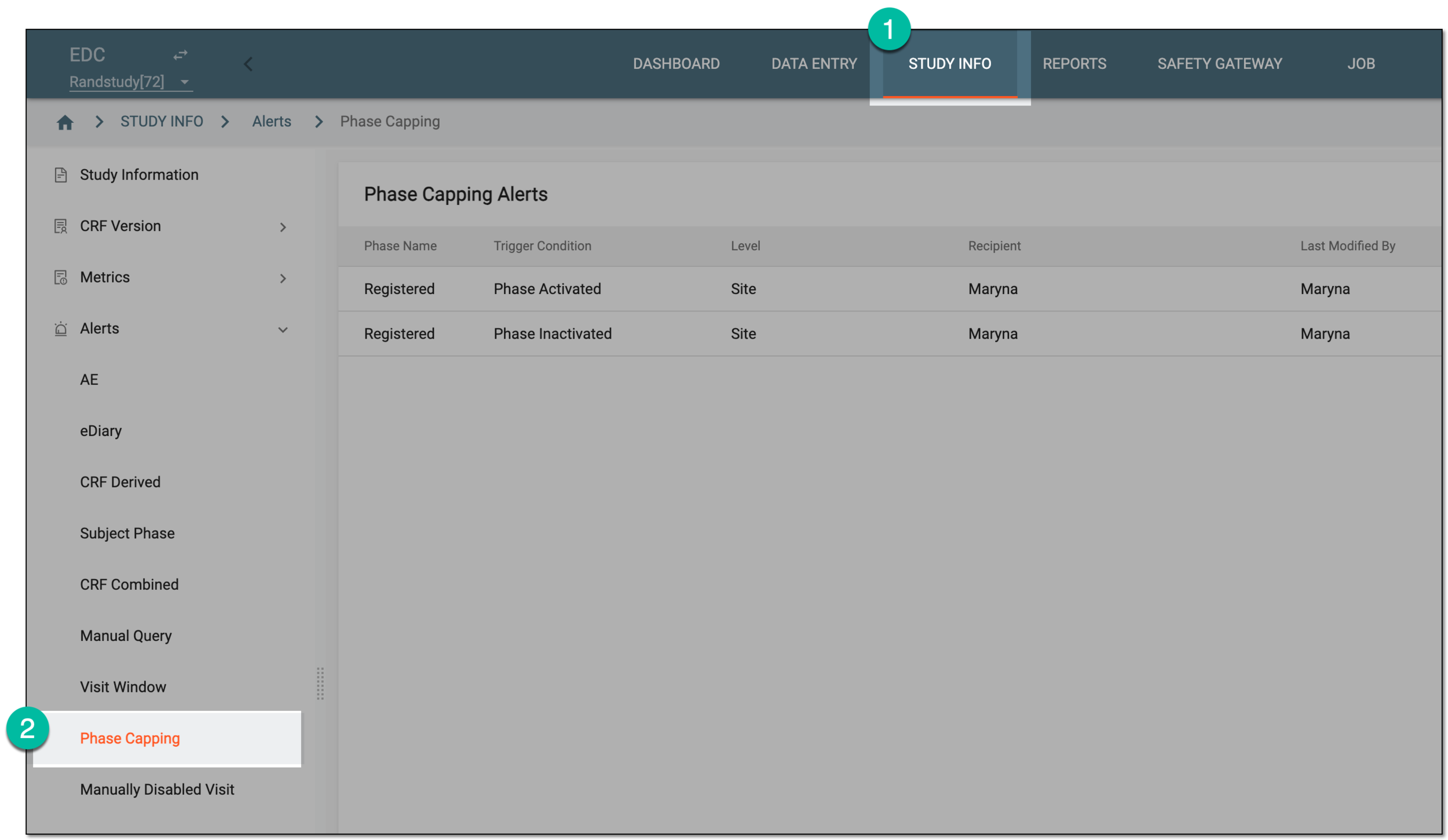 Figure 1. Accessing phase capping alerts
-
On the Phase Capping Alerts page, from the workspace toolbar, select New Item
. Figure 2. Adding phase capping alert
-
In the Phase Capping form that opens, configure the alert settings as explained in the following table.
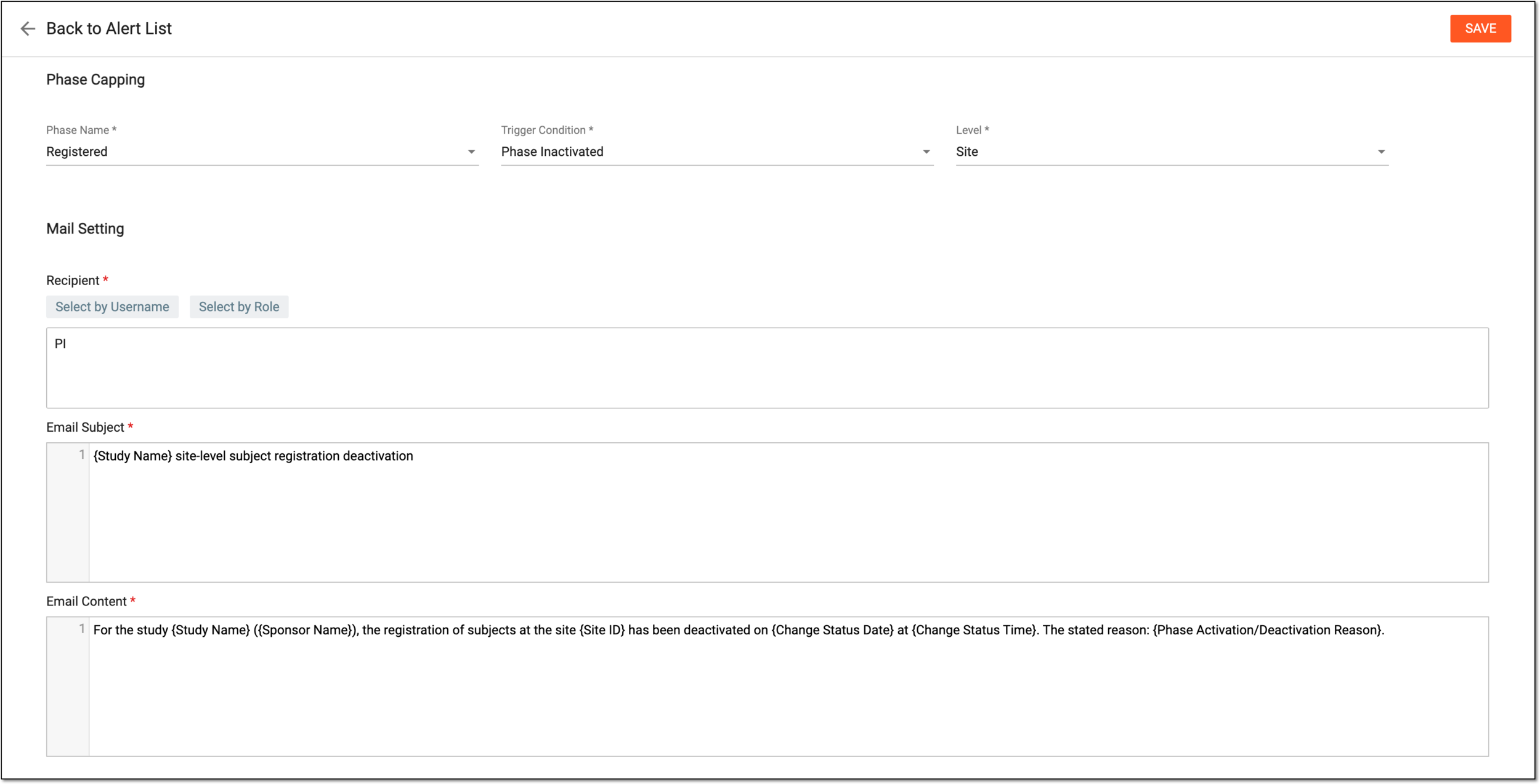 Figure 3. Configuring phase capping alert
Tip
In the following table, mandatory elements are marked with an asterisk (*).
Element
Details
Phase Name*
Select the subject phase for which you want to configure the phase capping notification. The phases available here for selection are the ones set as configurable subject capping phases.
Trigger Condition*
Select one of the following conditions upon meeting which the alert is sent:
-
Phase Activated: the alert triggers when the phase change for subjects at a site or country is activated. If selected, upon alert configuration, the designated recipient(s) receive notification on the subject phase change activation at the country or site to which they have access based on their user group configurations in the ADMIN application.
-
Phase Inactivated: the alert triggers when the phase change for subjects at a site or country is deactivated. If selected, upon alert configuration, the designated recipient(s) receive notification on the subject phase change deactivation at the country or site to which they have access based on their user group configurations in the ADMIN application.
Level*
Select the level at which you want your alert to trigger:
-
Site: the alert triggers when the phase change for subjects is activated or deactivated at the site to which the recipient has access based on their user group configurations in the ADMIN application.
-
Country: the alert triggers when the phase change for subjects is activated or deactivated in the country to which the recipient has access based on their user group configurations in the ADMIN application.
Mail Setting
Recipient*
Select the following:
-
Select by Role: to expand the list of user roles and choose the ones to whose representatives the email notification must be sent when the alert triggers.
-
Select by Username: to expand the list of users and choose the ones to whom the email notification must be sent when the alert triggers.
Subject*
Enter a meaningful subject for the notification email.
Type the opening brace "{" to display the list of variables that you can add to the email subject. Note that variables can be added one at a time.
Content*
Provide the main text of the notification email, specifying all the details of the event that triggers the alert.
Type the opening brace "{" to display the list of variables that you can add to the email body. Note that variables can be added once at a time.
SAVE
Select
to implement the changes.Back to Alert List
Select
to discard the changes without saving and return to the alert list. -
Once saved, the alert is configured and the recipients start receiving email notifications according to the applied settings.
The visit schedule and attendance are of great importance in a clinical trial. If any visit gets canceled (disabled manually), it must be acknowledged by the dedicated users to ensure protocol compliance and patient safety and avoid potential risks of such an action. For this purpose, you can configure alerts to notify specific users of the visit cancellation so that they react to it promptly and efficiently.
Important
The users receive the manually disabled visit alerts based on the site access permissions granted to them via the ADMIN application.
-
In the EDC application header, select the STUDY INFO tab.
-
On the page that opens, in the left pane, select Alerts > Manually Disabled Visit.
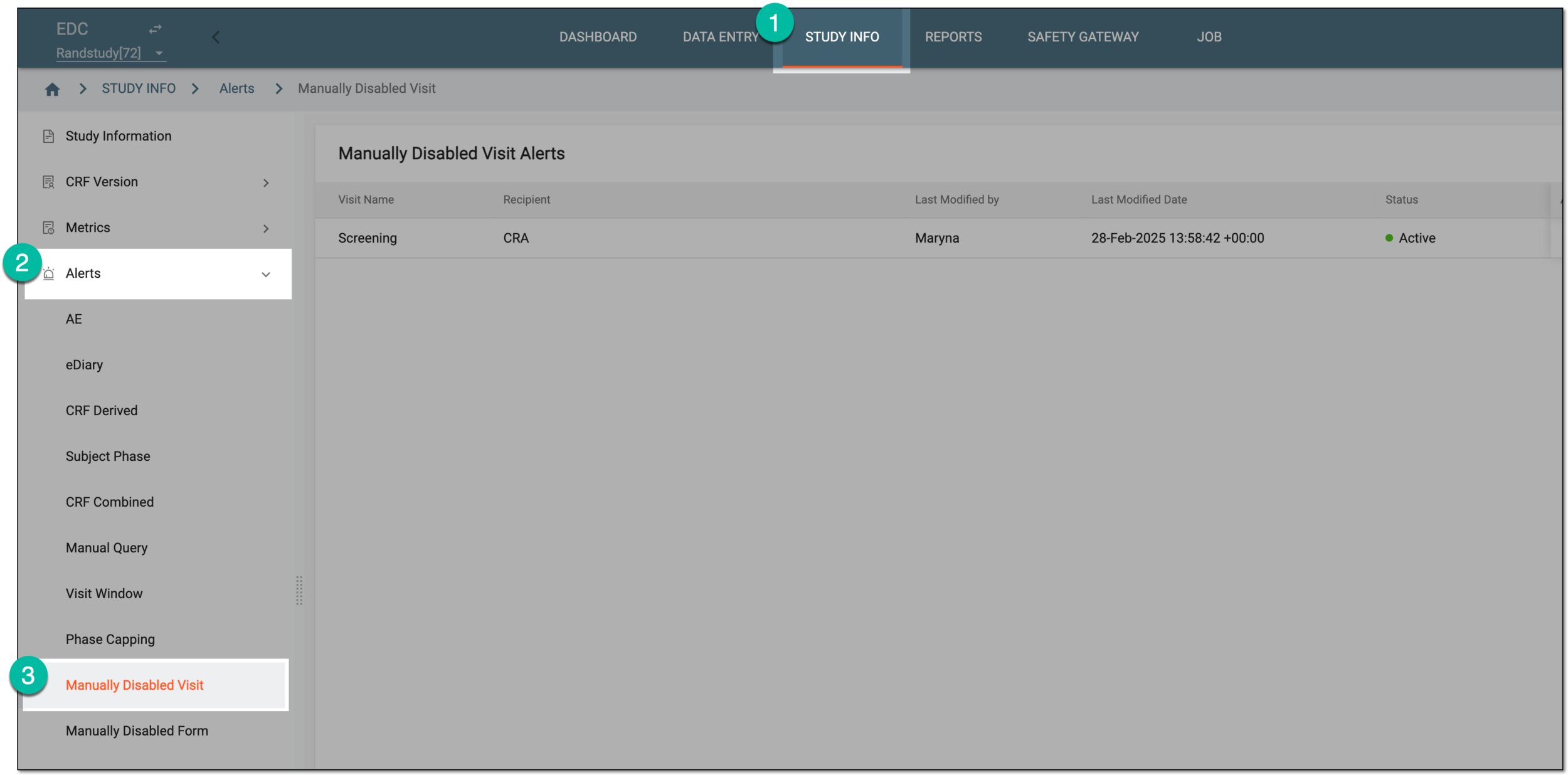 Figure 1. Accessing manually disabled visit alerts
-
On the Manually Disabled Visit Alerts page that opens, from the workspace toolbar, select New Item
. Figure 2. Selecting to add new manually disabled visit alert
-
On the page that opens, complete the alert configuration as explained in the following table.
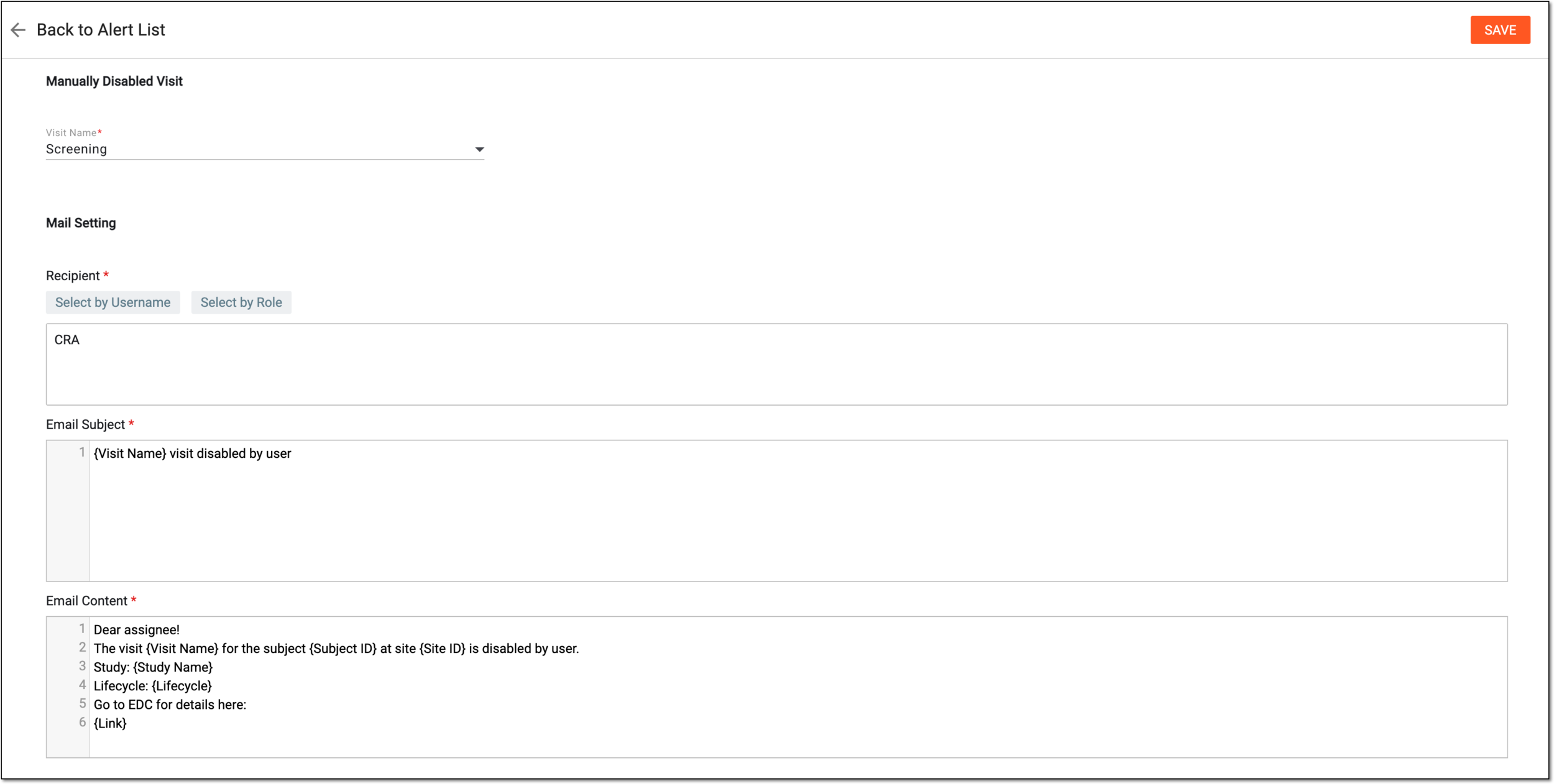 Figure 3. Configuring alert for manually disabled visit
Tip
In the following table, mandatory elements are marked with an asterisk (*).
Element
Details
Manually Disabled Visit
Visit Name*
Select the visit that if inactivated manually by the user triggers the alert notification.
Mail Setting
Recipient*
Select the following:
-
Select by Role: to expand the list of user roles and choose the ones to whose representatives the email notification must be sent when the alert triggers.
-
Select by Username: to expand the list of users and choose the ones to whom the email notification must be sent when the alert triggers.
Subject*
Enter a meaningful subject for the notification email.
Type the opening brace "{" to display the list of variables that you can add to the email subject. Note that variables can be added one at a time.
Content*
Provide the main text of the notification email, specifying all the details of the event that triggers the alert.
Type the opening brace "{" to display the list of variables that you can add to the email body. Note that variables can be added once at a time.
SAVE
Select
to implement the changes.Back to Alert List
Select
to discard the changes without saving and return to the alert list. -
Once saved, the alert is configured and the recipients start receiving email notifications according to your setting.
In the course of the clinical trial, all the subject data is captured in case report forms CRFs when they pay visits to study sites. If any form is inactivated (disabled) and cannot be filled out, it can lead to severe consequences—patient safety risks, protocol deviation, and such. To control this process in EDC, you can set up alerts to notify specific users of the form disabling so that they react to it promptly and efficiently.
Important
The users receive the manually disabled form alerts based on the site access permissions granted to them via the ADMIN application.
-
In the EDC application header, select the STUDY INFO tab.
-
On the page that opens, in the left pane, select Alerts > Manually Disabled Form.
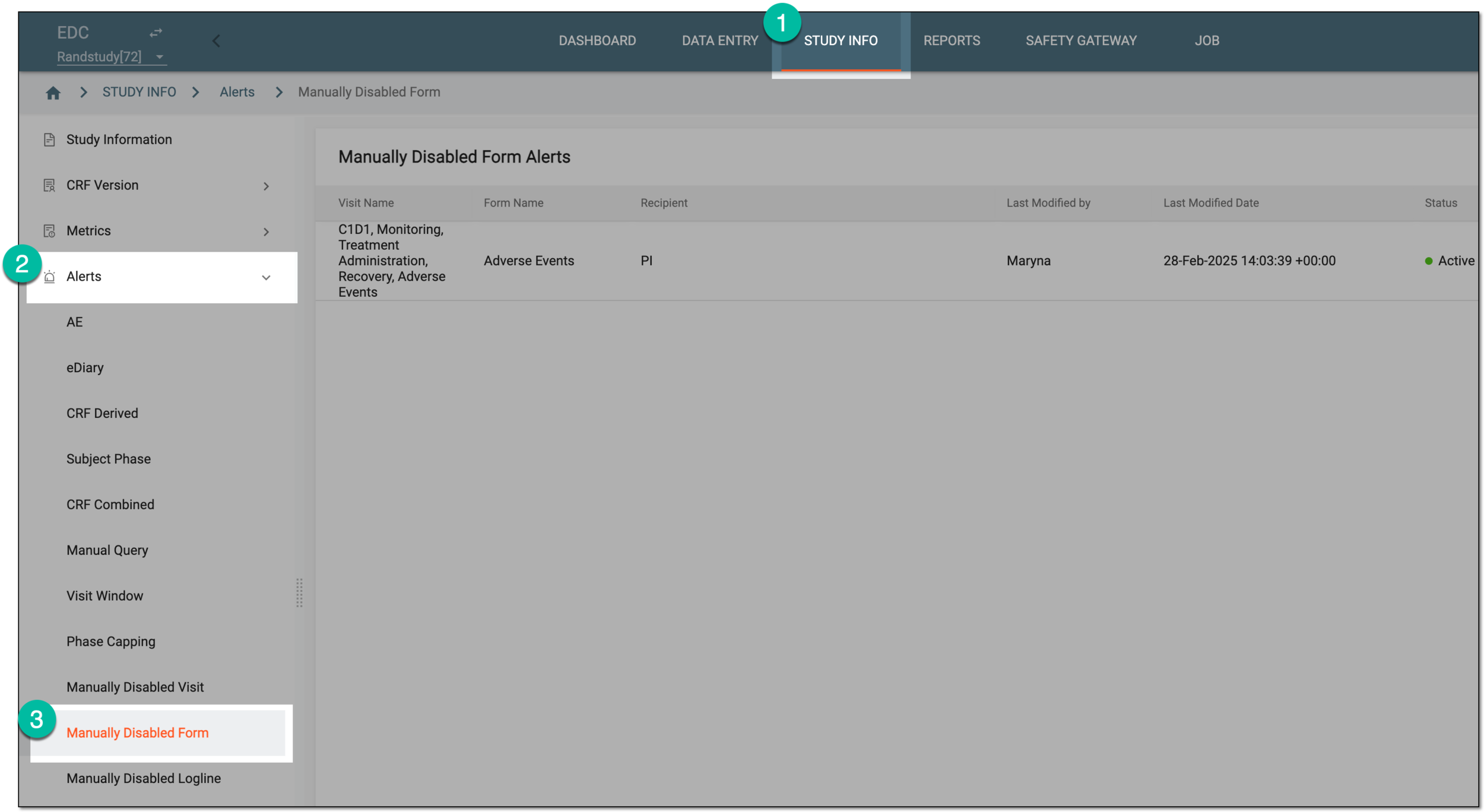 Figure 1. Accessing manually disabled form alerts
-
On the Manually Disabled Form Alerts page that opens, from the workspace toolbar, select New item
. Figure 2. Selecting to add new manually disabled form alert
-
On the page that opens, configure the alert as explained in the following table.
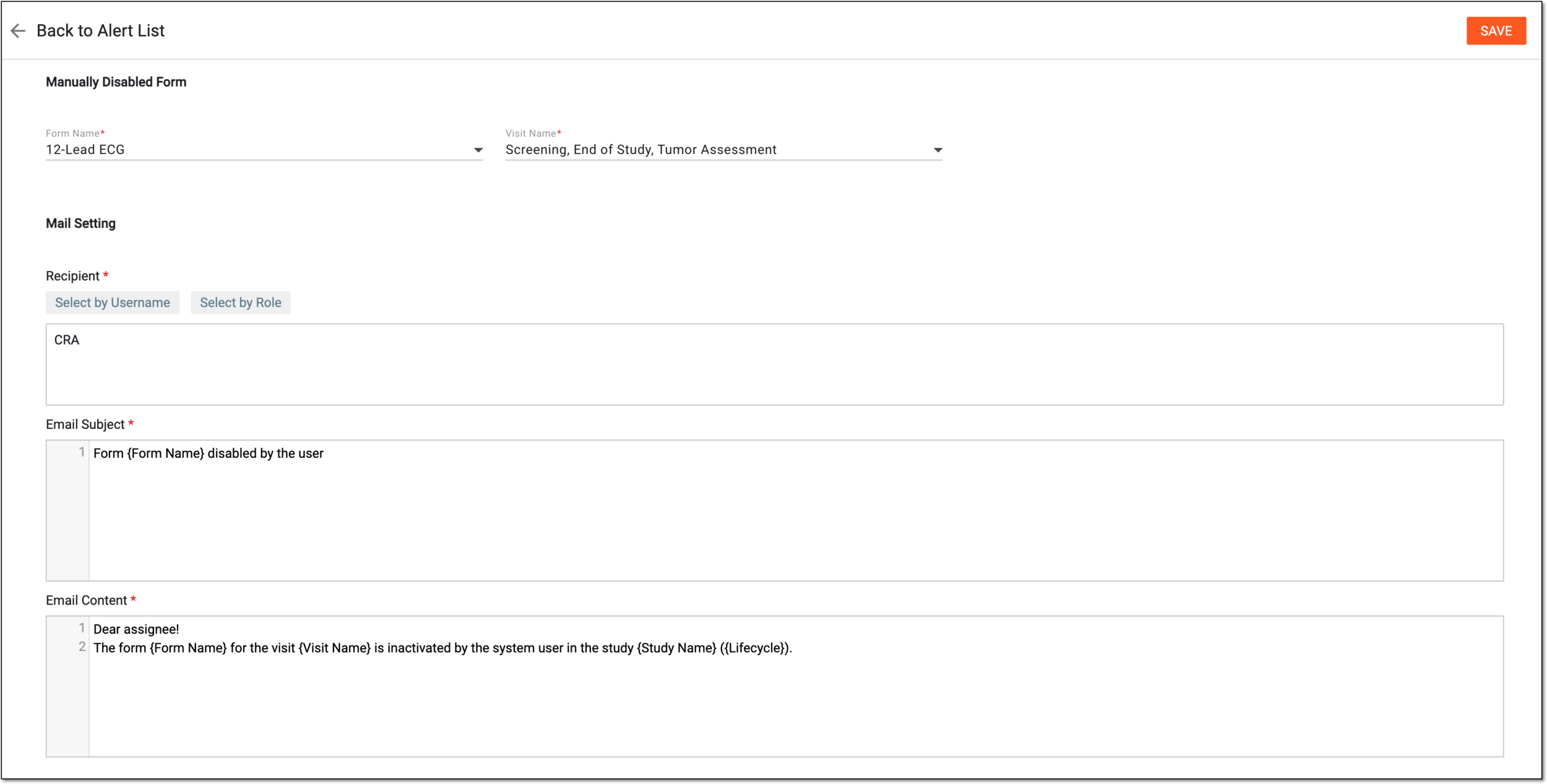 Figure 3. Configuring alert for manually disabled form
Tip
In the following table, mandatory elements are marked with an asterisk (*).
Element
Details
Manually Disabled Form
Form Name*
Select the form that if inactivated manually by the user triggers an alert.
Visit Name*
Select the visit for the associated form of which you want to trigger the alert.
Mail Setting
Recipient*
Select the following:
-
Select by Role: to expand the list of user roles and choose the ones to whose representatives the email notification must be sent when the alert triggers.
-
Select by Username: to expand the list of users and choose the ones to whom the email notification must be sent when the alert triggers.
Subject*
Enter a meaningful subject for the notification email.
Type the opening brace "{" to display the list of variables that you can add to the email subject. Note that variables can be added one at a time.
Content*
Provide the main text of the notification email, specifying all the details of the event that triggers the alert.
Type the opening brace "{" to display the list of variables that you can add to the email body. Note that variables can be added once at a time.
SAVE
Select
to implement the changes.Back to Alert List
Select
to discard the changes without saving and return to the alert list. -
Once saved, the alert is configured and the recipients start receiving email notifications according to your setting.
In the course of the clinical trial, all the subject data is captured in case report forms CRFs when they pay visits to study sites. For such CRF type as log form, there are multiple records—loglines—within the same CRF. If any of such CRF records is disabled and cannot be filled out, it can lead to severe consequences—patient safety risks, protocol deviation, and such. To control this process in EDC, you can set up alerts to notify specific users of the form disabling so that they react to it promptly and efficiently.
Important
The users receive the manually disabled logline alerts based on the site access permissions granted to them via the ADMIN application.
-
In the EDC application header, select the STUDY INFO tab.
-
On the page that opens, in the left pane, select Alerts > Manually Disabled Logline.
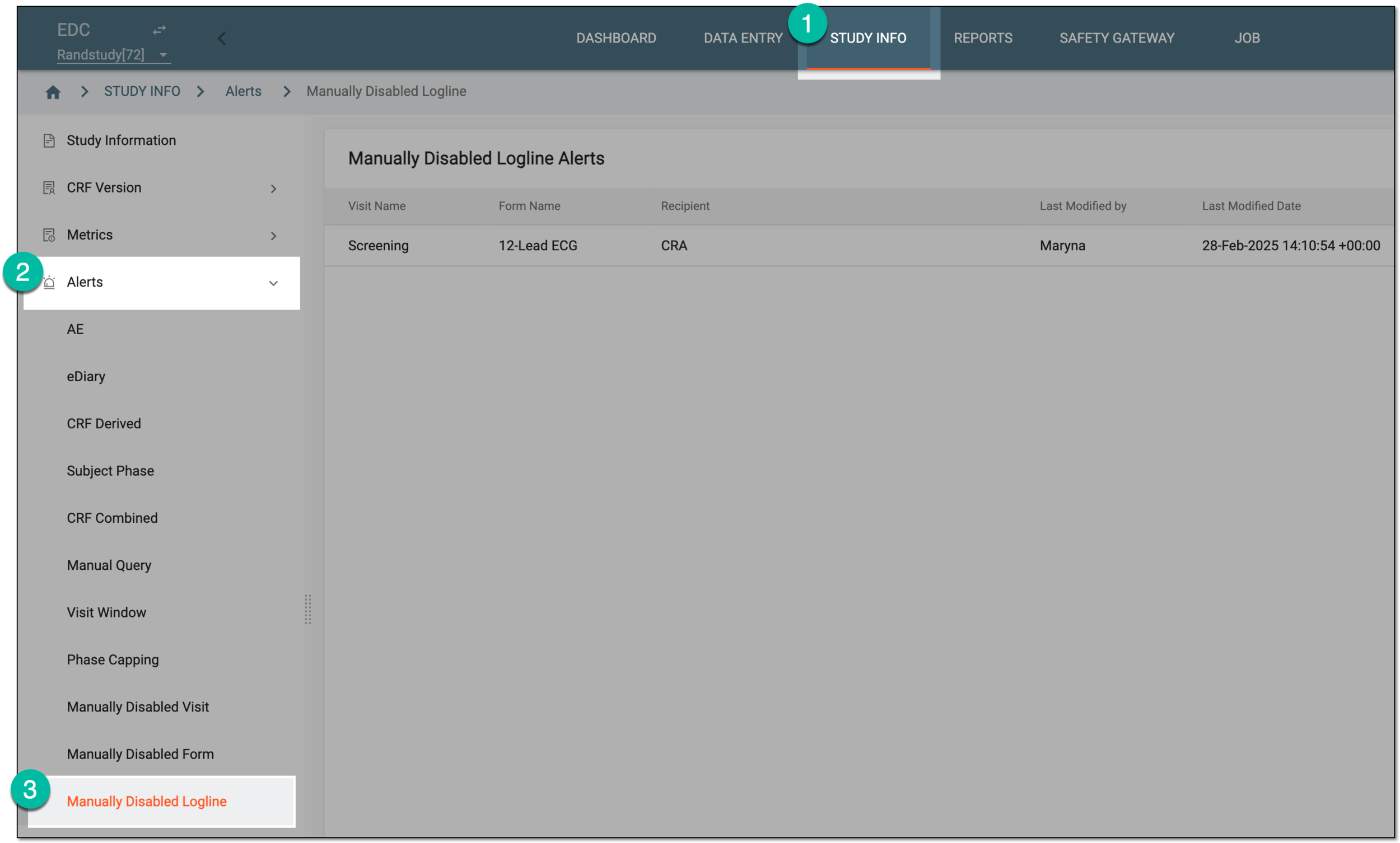 Figure 1. Accessing manually disabled logline alerts
-
On the Manually Disabled Logline Alerts page that opens, from the workspace toolbar, select New Item
. Figure 2. Selecting to add new manually disabled logline alert
-
On the page that opens, configure the alert details as explained in the following table.
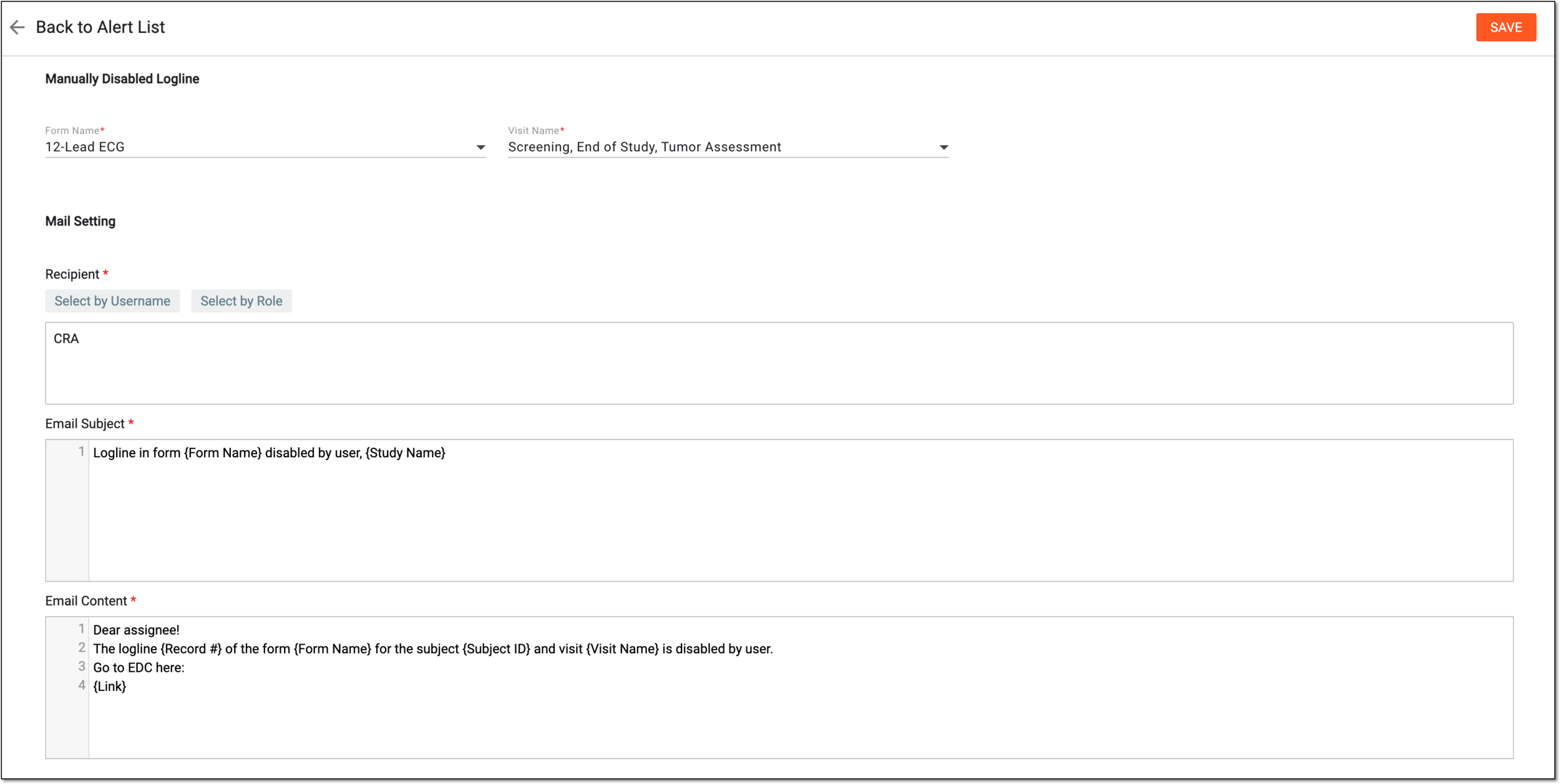 Figure 3. Configuring alert for manually disabled logline
Tip
In the following table, mandatory elements are marked with an asterisk (*).
Element
Details
Manually Disabled Form
Form Name*
Select the form whose record if inactivated manually by the user triggers an alert.
Visit Name*
Select the visit for the associated form of which you want to trigger the alert.
Mail Setting
Recipient*
Select the following:
-
Select by Role: to expand the list of user roles and choose the ones to whose representatives the email notification must be sent when the alert triggers.
-
Select by Username: to expand the list of users and choose the ones to whom the email notification must be sent when the alert triggers.
Subject*
Enter a meaningful subject for the notification email.
Type the opening brace "{" to display the list of variables that you can add to the email subject. Note that variables can be added one at a time.
Content*
Provide the main text of the notification email, specifying all the details of the event that triggers the alert.
Type the opening brace "{" to display the list of variables that you can add to the email body. Note that variables can be added once at a time.
SAVE
Select
to implement the changes.Back to Alert List
Select
to discard the changes without saving and return to the alert list. -
Once saved, the alert is configured and the recipients start receiving email notifications according to your setting.
A randomization alert is a customizable notification mechanism that generates an email to inform relevant parties when subject randomization succeeds or fails. You can only create one randomization alert per each transaction type—randomization failure or success.
Important
The users receive the randomization approval alerts based on the site access permissions granted to them via the ADMIN application.
-
In the EDC application header, select the STUDY INFO tab.
-
On the page that opens, in the left pane, select Alerts > Randomization Approved.
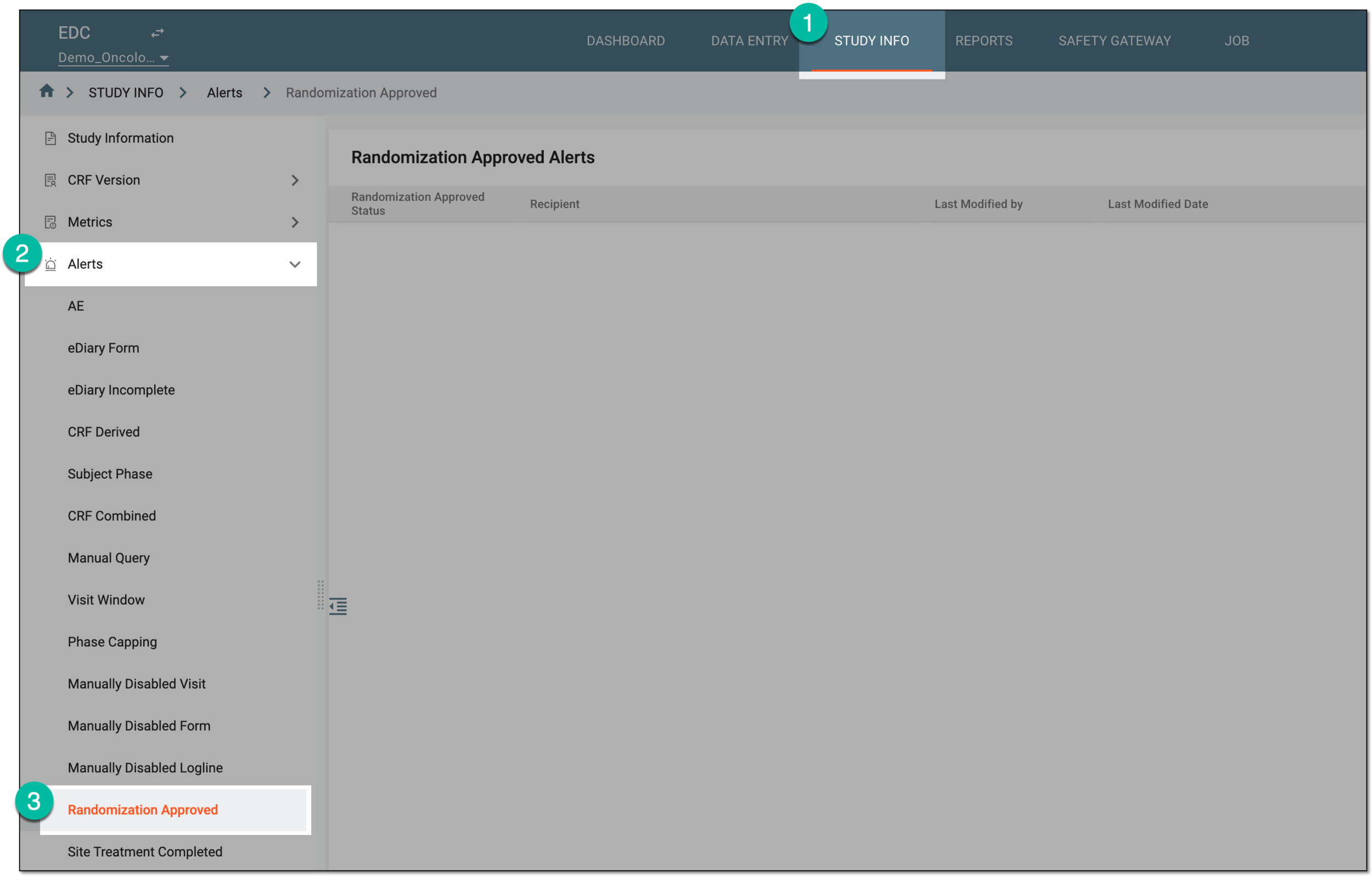 Figure 1. Accessing randomization approval alerts
-
On the Randomization Approved Alerts page that opens, from the workspace toolbar, select New Item
. Figure 2. Selecting option to add randomization approval alert
-
On the page that opens, configure the alert as explained in the following table.
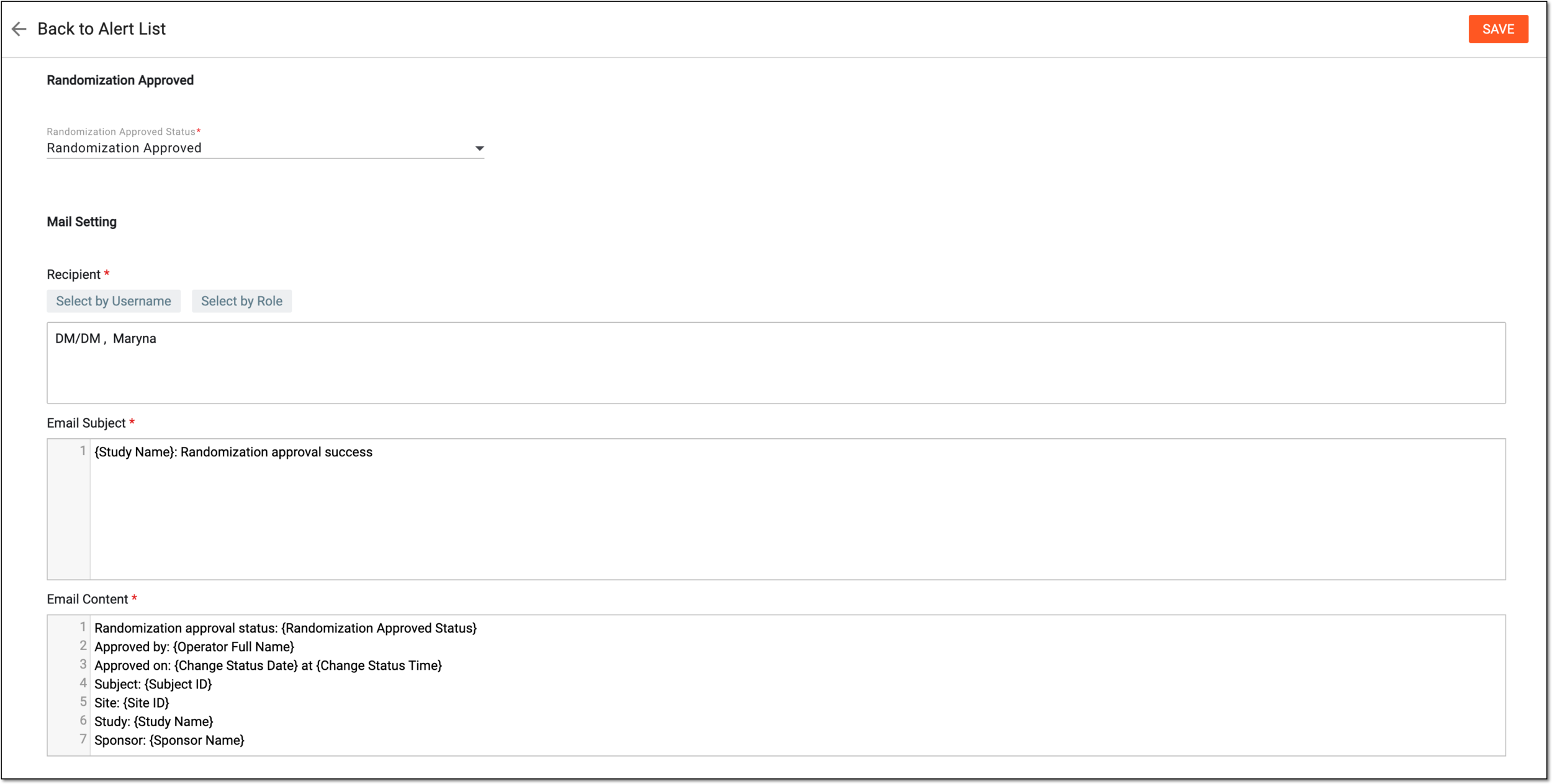 Figure 3. Configuring randomization approval alert
Tip
In the following table, mandatory elements are marked with an asterisk (*).
Element
Details
Randomization Approved
Randomization Approved Status*
Select one of the following:
-
Randomization Approved: to trigger the alert email each time the subject randomization is approved.
-
Randomization Disapproved: to trigger the alert email each time the subject randomization is withdrawn.
Mail Setting
Recipient*
Select the following:
-
Select by Role: to expand the list of user roles and choose the ones to whose representatives the email notification must be sent when the alert triggers.
-
Select by Username: to expand the list of users and choose the ones to whom the email notification must be sent when the alert triggers.
Subject*
Enter a meaningful subject for the notification email.
Type the opening brace "{" to display the list of variables that you can add to the email subject. Note that variables can be added one at a time.
Content*
Provide the main text of the notification email, specifying all the details of the event that triggers the alert.
Type the opening brace "{" to display the list of variables that you can add to the email body. Note that variables can be added once at a time.
SAVE
Select
to implement the changes.Back to Alert List
Select
to discard the changes without saving and return to the alert list. -
Once saved, the assigned recipients start receiving the alert email each time the radomization status for the subject changes as per your configuration.
In EDC, you can set up alerts that generate email notifications for relevant parties when treatment—a series of interventions and investigational product administration—is completed for the last subject at a specific site, meaning that the treatment process is seized at this site completely. The purpose of a site treatment completion alert is to promptly notify the responsible EDC users that the process of data collection can be finalized and other activities can be initiated for the site, such as collected data analysis and validation.
Important
The users receive the treatment completion alerts based on the site access permissions granted to them via the ADMIN application.
-
In the EDC application header, select the STUDY INFO tab.
-
On the page that opens, in the left pane, select Alerts > Site Treatment Completed.
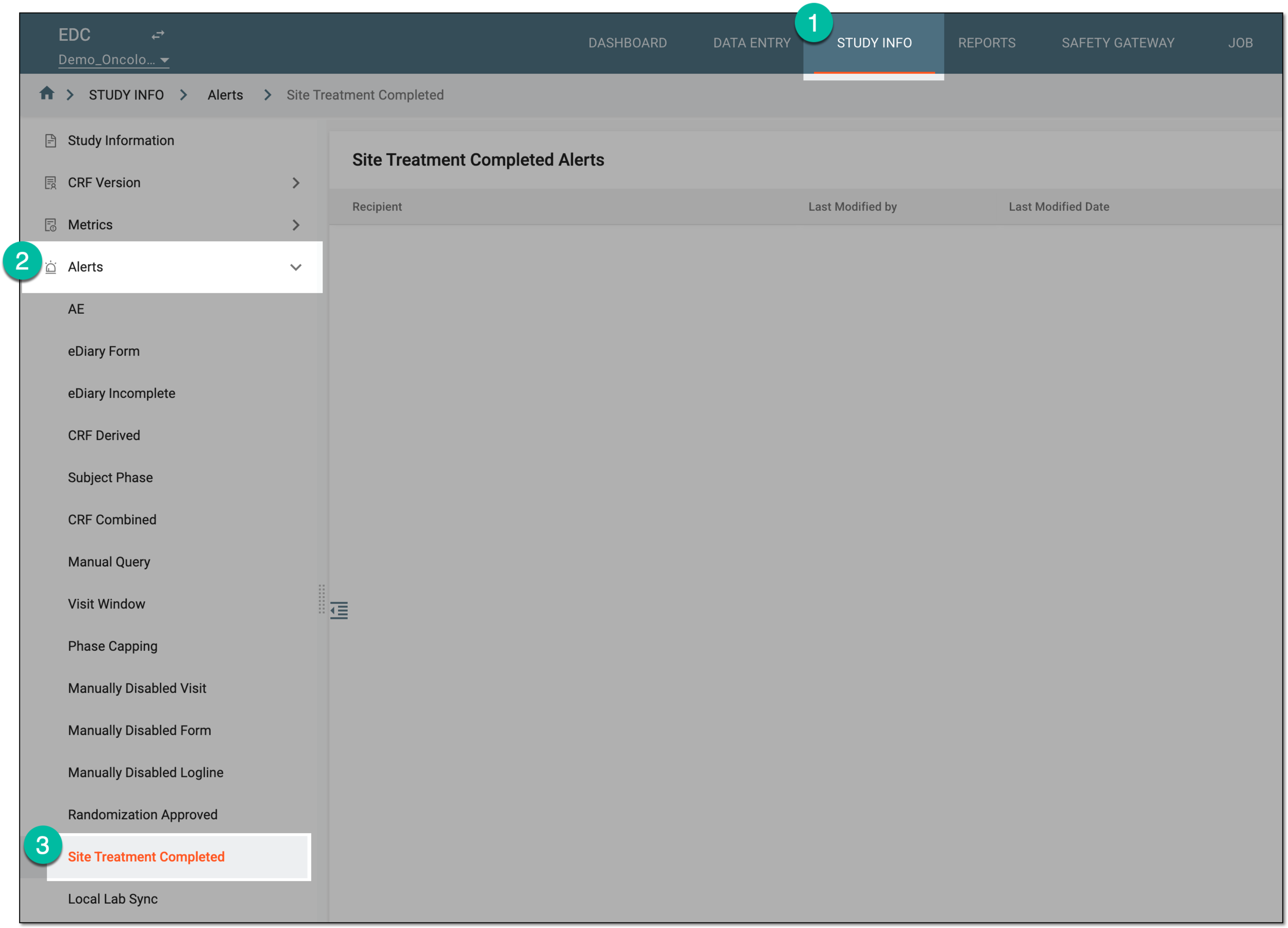 Figure 1. Accessing site treatment completion alerts
-
On the Site Treatment Completed Alerts page that opens, from the workspace toolbar, select New Item
. Figure 2. Selecting option to add site treatment completion alert
-
In the Site Treatment Completed form that opens, complete the mail setting block as explained in the following table.
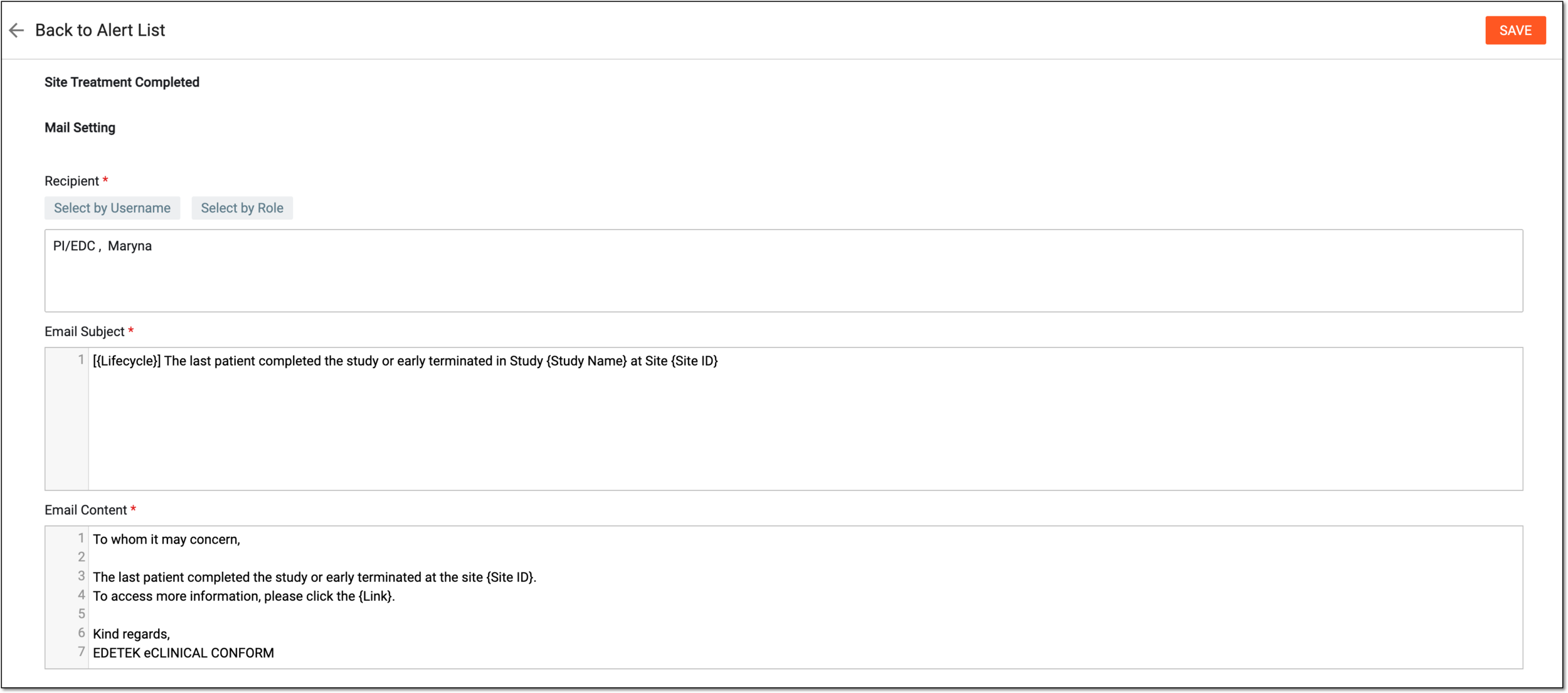 Figure 3. Configuring site treatment completion alert
Tip
In the following table, mandatory elements are marked with an asterisk (*).
Element
Details
Mail Setting
Recipient*
Select the following:
-
Select by Role: to expand the list of user roles and choose the ones to whose representatives the email notification must be sent when the alert triggers.
-
Select by Username: to expand the list of users and choose the ones to whom the email notification must be sent when the alert triggers.
Subject*
Enter a meaningful subject for the notification email.
Type the opening brace "{" to display the list of variables that you can add to the email subject. Note that variables can be added one at a time.
Content*
Provide the main text of the notification email, specifying all the details of the event that triggers the alert.
Type the opening brace "{" to display the list of variables that you can add to the email body. Note that variables can be added once at a time.
SAVE
Select
to implement the changes.Back to Alert List
Select
to discard the changes without saving and return to the alert list. -
Once saved, the assigned recipients start receiving email notifications as per your configurations.
In EDC, you can configure alerts—automatically triggered notifications—to be sent out to interested parties each time the newly created or updated lab normal range version is not synced with the associated case report forms (CRFs). When the normal ranges are not synced to forms, it can result in distorted data interpretation and threaten data integrity, thus making it important to timely notify the study personnel in charge.
This alert triggers as soon as there is any unsynced lab normal range data and continue sending daily until the data is synced to forms. Every triggered email notification has the XLSX attachment containing the unsynchronized lab version details and a list of the affected CRFs.
Important
The users receive the unsynced lab version alerts based on the site access permissions granted to them via the ADMIN application.
The data in the attached XLSX file is also filtered based on each user's permission. If the user does not have permission for all the associated forms, then the XLSX sheets includes a similar message: "No forms available for viewing. This may be due to permission restrictions."
-
In the EDC application header, select the STUDY INFO tab.
-
On the page that opens, in the left pane, select Alerts > Local Lab Sync.
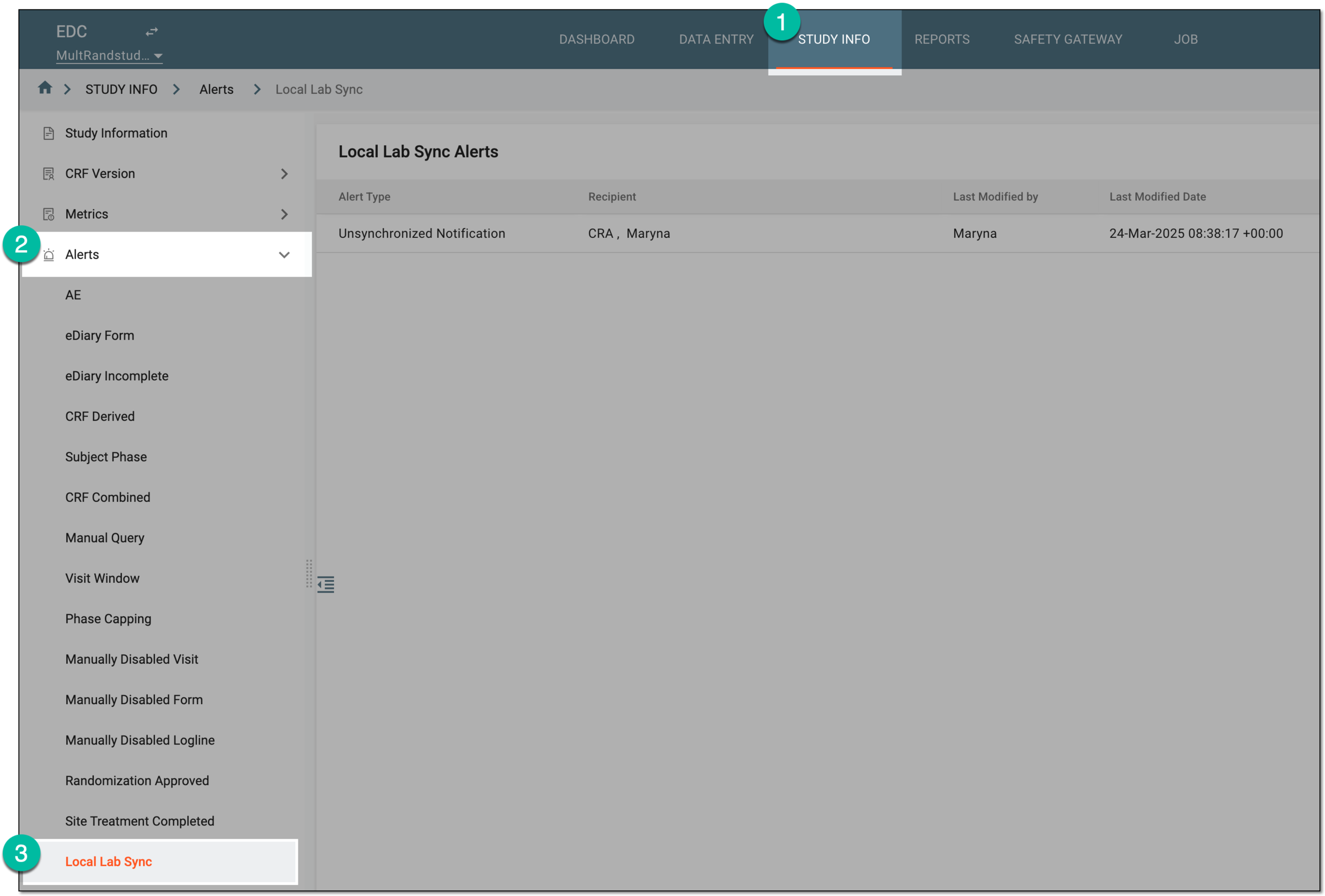 Figure 1. Accessing unsynced lab version alerts
-
On the Local Lab Sync Alerts page that opens, select New Item
. Figure 2. Adding new unsynced lab version alert
-
In the form that opens, configure the alert as explained in the following table.
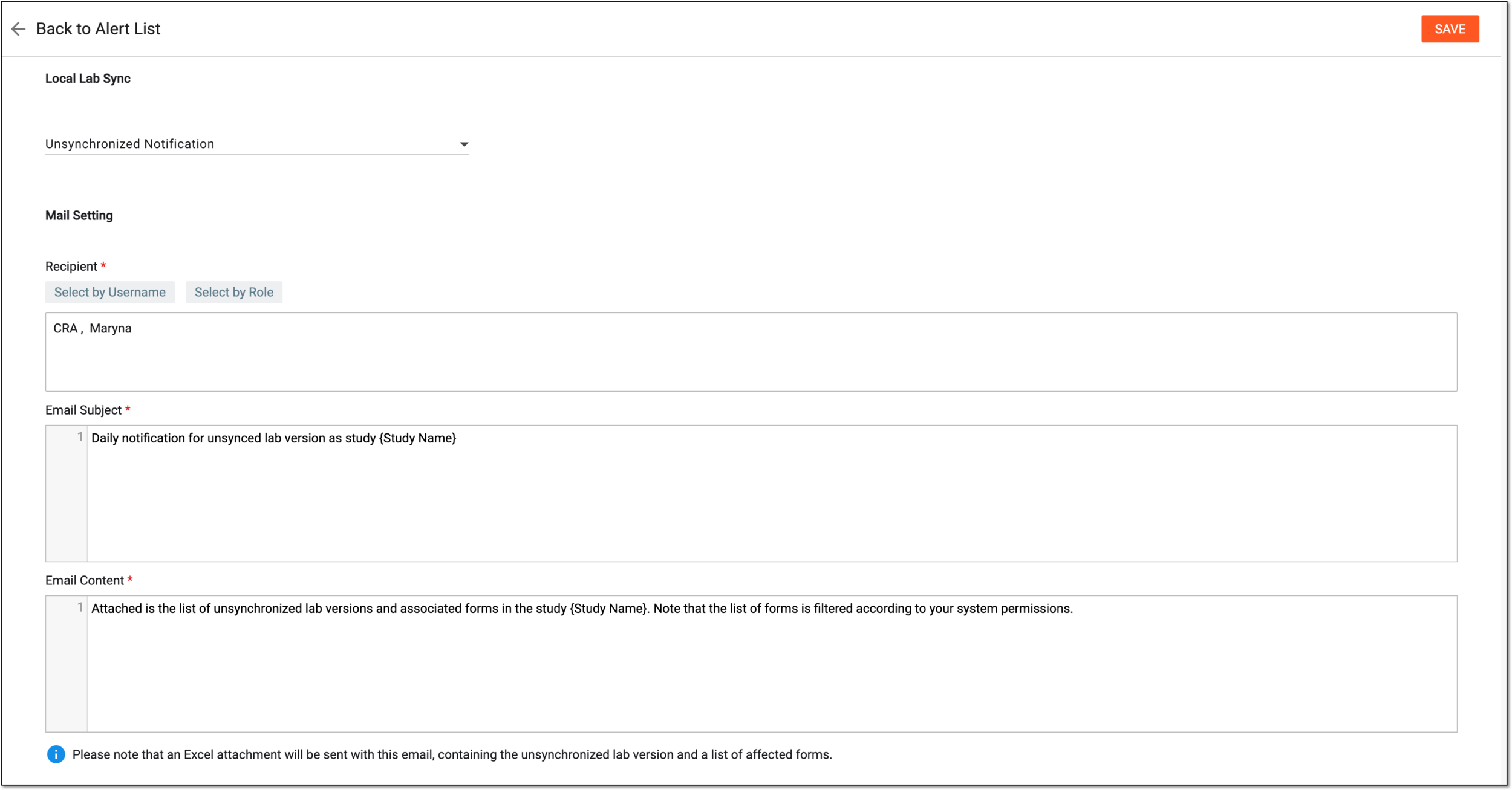 Figure 3. Configuring unsynced lab version alert
Tip
In the following table, mandatory elements are marked with an asterisk (*).
Element
Details
Local Lab Sync
Unsynchronized Notification
Select this event type to trigger the alert notification. Currently, this is the only available alert type for lab data sync operations.
Mail Setting
Recipient*
Select the following:
-
Select by Role: to expand the list of user roles and choose the ones to whose representatives the email notification must be sent when the alert triggers.
-
Select by Username: to expand the list of users and choose the ones to whom the email notification must be sent when the alert triggers.
Subject*
Enter a meaningful subject for the notification email.
Type the opening brace "{" to display the list of variables that you can add to the email subject. Note that variables can be added one at a time.
Content*
Provide the main text of the notification email, specifying all the details of the event that triggers the alert.
Type the opening brace "{" to display the list of variables that you can add to the email body. Note that variables can be added once at a time.
SAVE
Select
to implement the changes.Back to Alert List
Select
to discard the changes without saving and return to the alert list. -
Upon saving, the alert is added to the Local Lab Sync Alerts list. The recipients start receiving email notifications according to your settings. The emails are sent at 00:00 UTC on the selected send date to the chosen recipients, indicating whether the lab version is synchronized.
An edit check is a predefined set of conditions for the CRF on how the data must be entered into its fields via EDC. If the entered data fails to satisfy these conditions (does not meet the edit check rule) a system query is generated for the corresponding fields and their variables.
Tip
In eClinical, edit-check rules are configured upon CRF design and you can access the complete list of edit checks in SD. To EDC, edit checks are populated when publishing the CRF version and upgrading the study or site to this version.
The general purpose of edit checks is real-time data validation during entry, allowing for timely incompliance detection. To help with addressing issues as soon as possible, EDC provides the edit check alert functionality—configurable notifications that immediately alert the personnel in charge of system queries generated due to edit check rules. This helps take corrective actions on time to ensure patient safety and protocol adherence.
Important
The users receive the edit check alerts based on the site access permissions granted to them via the ADMIN application.
-
In the EDC application header, select the STUDY INFO tab.
-
On the page that opens, in the left pane, select Alerts > Edit Checks.
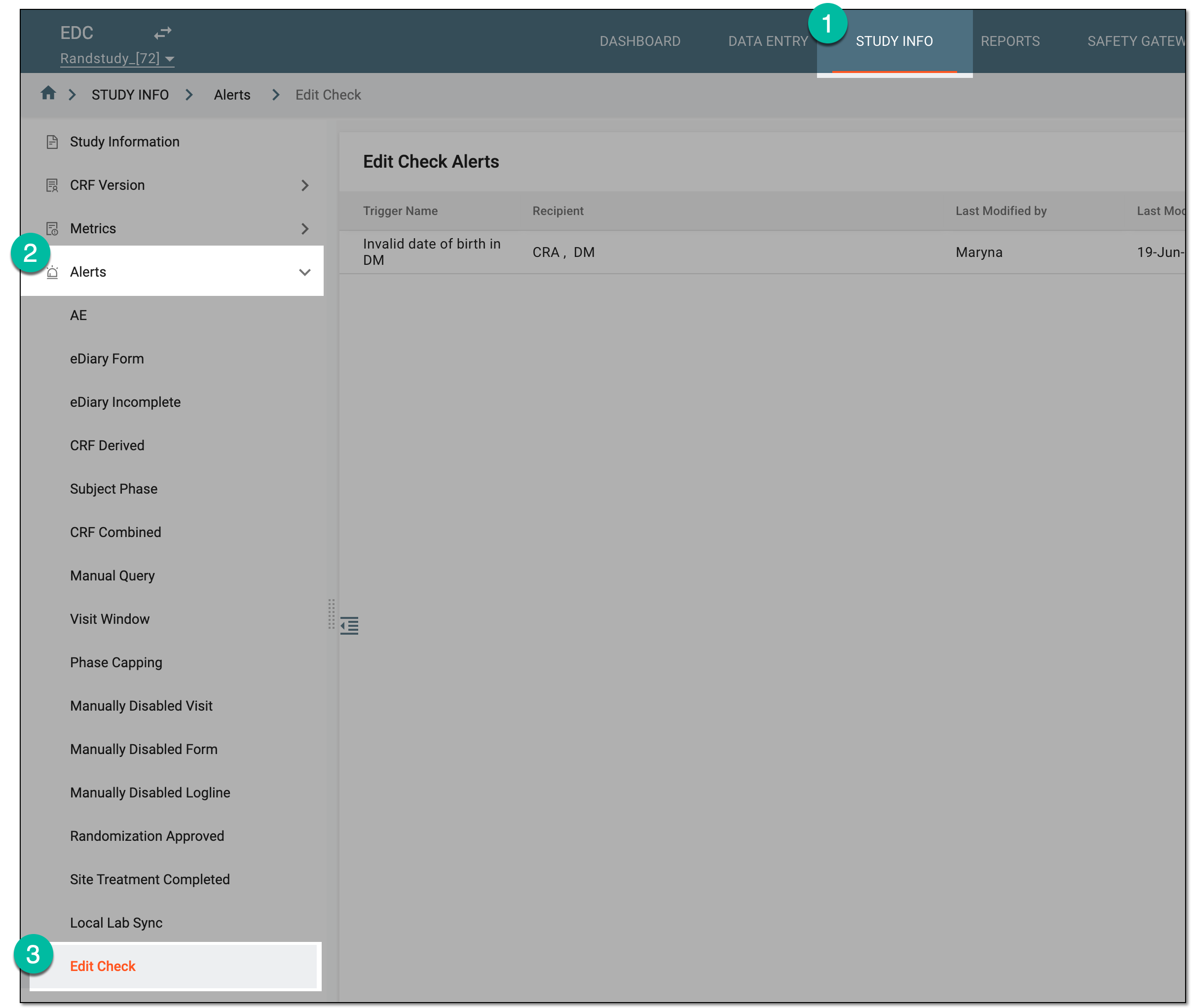 Figure 1. Accessing edit check alerts
-
On the Edit Check Alerts page that opens, from the workspace toolbar, select New Item
. Figure 2. Selecting option to add new edit check alert
-
In the Edit Check form that opens, complete the configurations as explained in the following table.
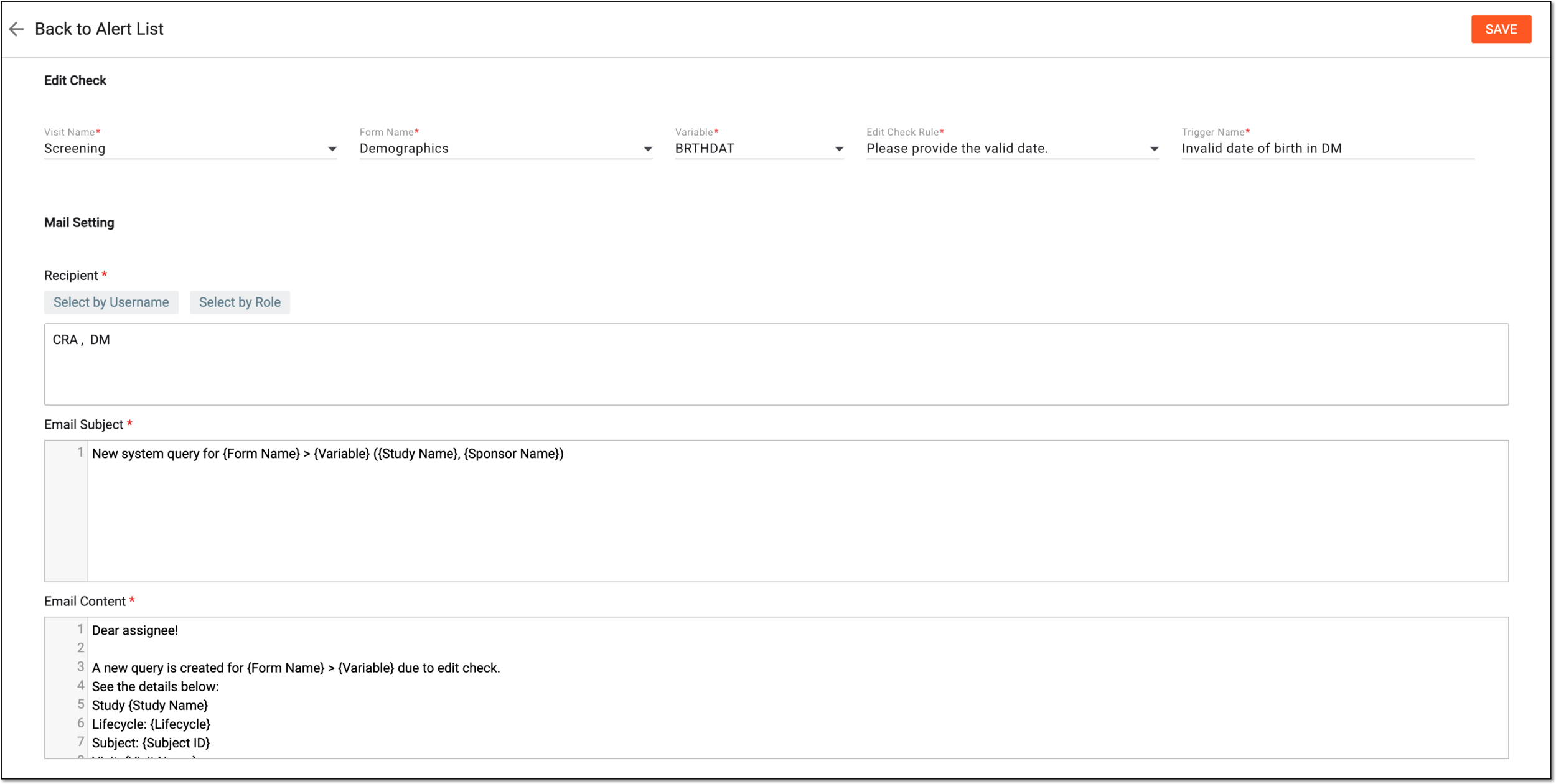 Figure 3. Configuring edit check alert
Tip
In the following table, mandatory elements are marked with an asterisk (*).
Element
Details
Visit Name*
Select the visit whose CRF contains the variable with the configured edit-check rule for which you need to trigger the alert.
Form Name*
Select the CRF that contains the variable with the configured edit-check rule for which you need to trigger the alert.
Variable*
Select the variable with the configured edit-check rule for which you need to trigger the alert.
Edit Check Rule*
Select the edit-check rule that when breached upon data entry triggers the alert.
Trigger Name*
Enter the unique and descriptive name for the alert you configure.
Mail Setting
Recipient*
Select the following:
-
Select by Role: to expand the list of user roles and choose the ones to whose representatives the email notification must be sent when the alert triggers.
-
Select by Username: to expand the list of users and choose the ones to whom the email notification must be sent when the alert triggers.
Mail Subject*
Enter a meaningful subject for the notification email.
Type the opening brace "{" to display the list of variables that you can add to the email subject. Note that variables can be added one at a time.
Mail Content*
Provide the main text of the notification email, specifying all the details of the event that triggers the alert.
Type the opening brace "{" to display the list of variables that you can add to the email body. Note that variables can be added once at a time.
SAVE
Select
to implement the changes.Back to Alert List
Select
to discard the changes without saving and return to the alert list. -
Once saved, the alert is configured and starts triggering when the specified event occurs.
In EDC, you can set up the alerts for events noncompliant with study requirements that occur as a result of using mobile apps—eDiary and eCOA—by the subjects and study conductors.
The noncompliant events can be missed data entries, recorded breaches of treatment requirements, and so on. Configuring the compliance rules and then notifying the in-charge personnel, for instance, the principal investigator (PI), of any noncompliance helps them react promptly, address the users in question, and eliminate further risks of the same character.
Each alert email contains the attached Excel file that lists all the noncompliant events, subject identification, visit and form names, and other useful details to help address the issue and resolve it.
Important
The users receive the noncompliance alerts based on the site access permissions granted to them via the ADMIN application.
-
In the EDC application header, select the STUDY INFO tab.
-
On the page that opens, in the left pane, select Alerts > Non-Compliance.
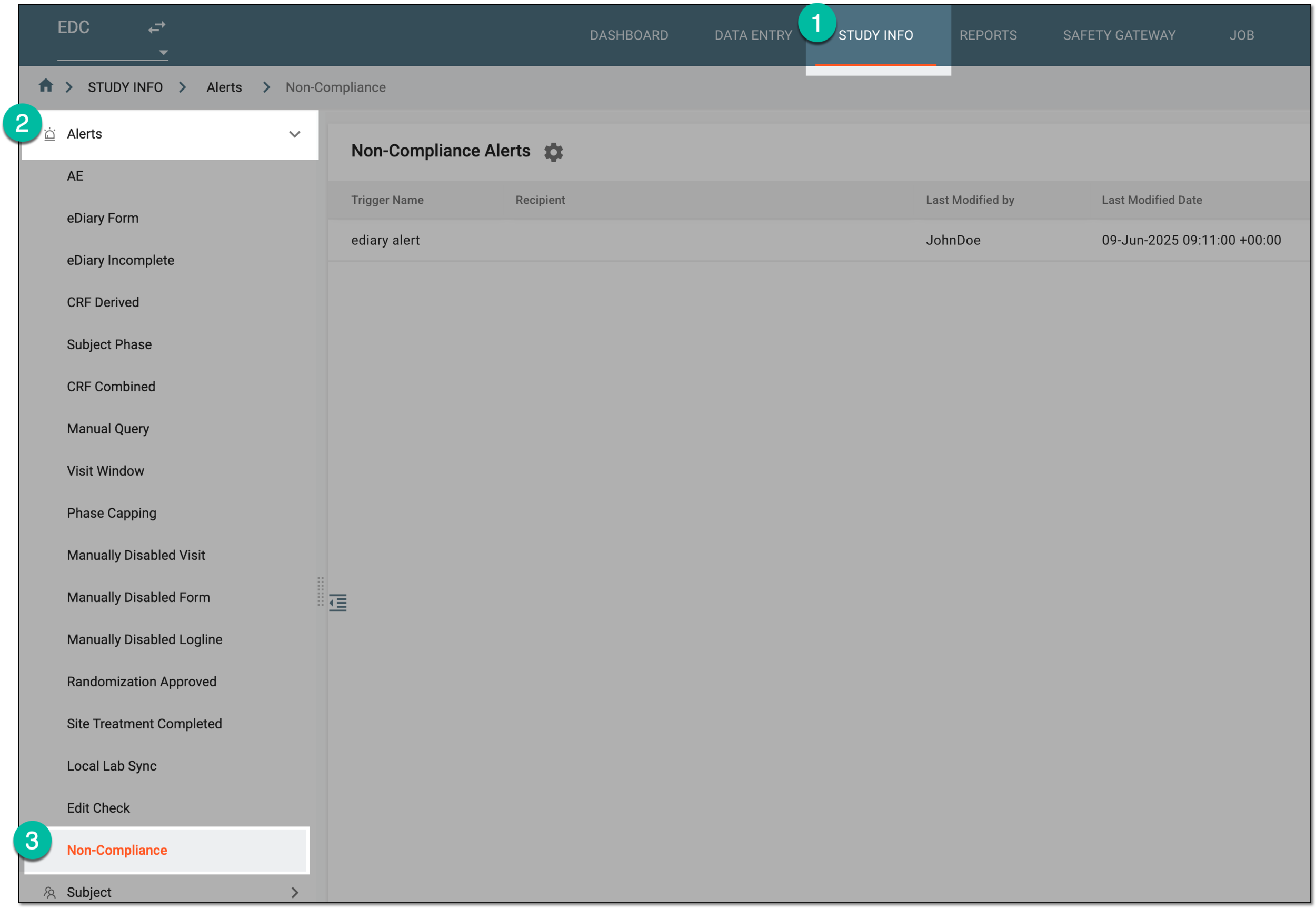 Figure 1. Accessing noncompliance alerts
-
On the Non-Compliance Alerts page that opens, select
 to access the noncompliance criteria
configuration.
to access the noncompliance criteria
configuration.Tip
If the noncompliance criteria configuration is already done, skip this step and proceed to step 5 to start adding new alert.
 Figure 2. Accessing compliance criteria configuration
-
In the Configure Compliance Criteria dialog that appears, set up the conditions of data entry compliance as explained in the following table.
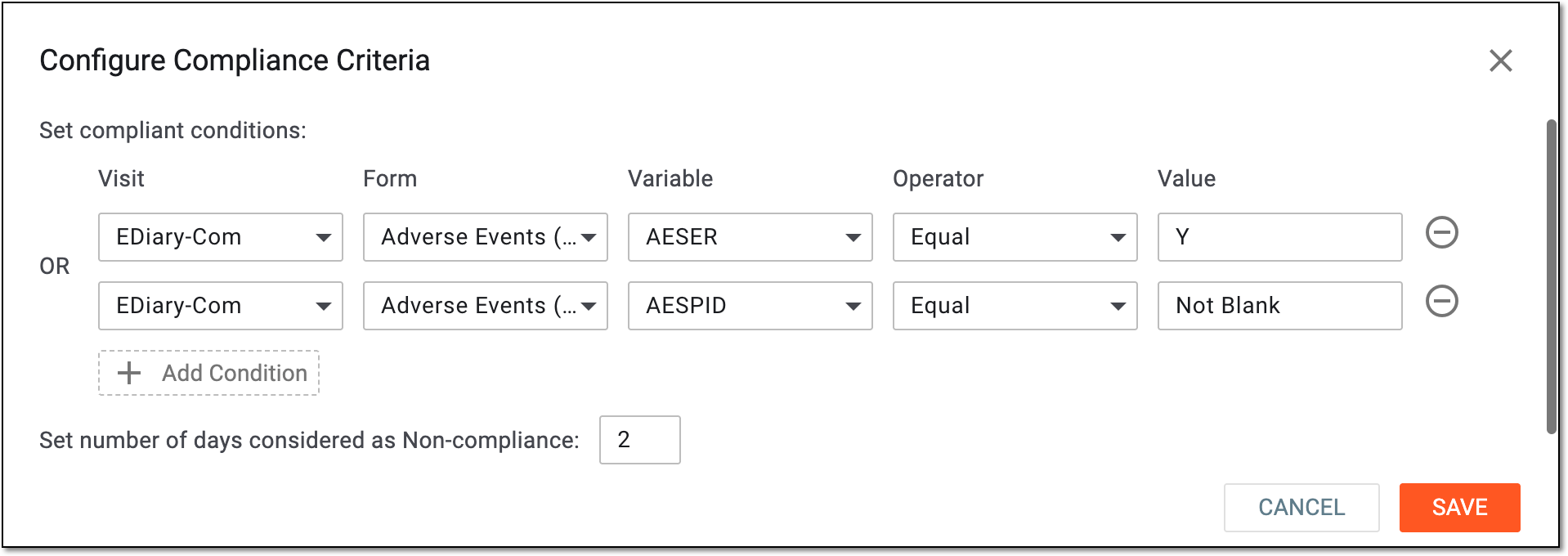 Figure 3. Configuring compliance criteria
Element
Details
Set compliant conditions
Visit
Select the visit for which the data entry rule must be set as compliance criteria.
Form
Select the name of the CRF for which the data entry rule must be set as compliance criteria.
Variable
Select the variable for which the data entry rule must be set as compliance criteria.
Operator
Select the option that satisfies your data entry rule criteria, such as Equal if you want the selected variable to be true to the set value.
For instance, if your variable is AESER (adverse event is serious), and you set the operator as Equal to value Y ("Yes"), it means that if the adverse event seriousness is answered "Yes," then the form record is compliant.
Value
Select the value to outline the rule of the data entry criteria. The compliance of data entry via mobile app is considered based on whether this value satisfies the selected operator.
For instance, if your variable's operator is Equal to value Y, then only this exact value can be considered compliant. If the N value is entered, it remains blank, or else, the record is noncompliant.
Add Condition
Select this option to add alternate condition for form compliance, thus, creating diverse and fluctuant rules for data entry.
Delete
Select
 next to the condition that you want to remove as no longer needed.
Set number of days considered as Non-compliance
Enter the number of days after the form becomes available for data entry, the passing of which automatically makes the record noncompliant if not submitted.
SAVE
Select
to implement the changes, close the dialog, and return to the Non-Compliance Alerts page to
add new alert.CANCEL
Select
to discard the changes, close the dialog, and return to the Non-Compliance
Alerts page. -
From the Non-Compliance Alerts page toolbar, select New Item
. Figure 4. Selecting option to add new noncompliance alert
-
In the Non-Compliance form that opens, complete the configurations as explained in the following table.
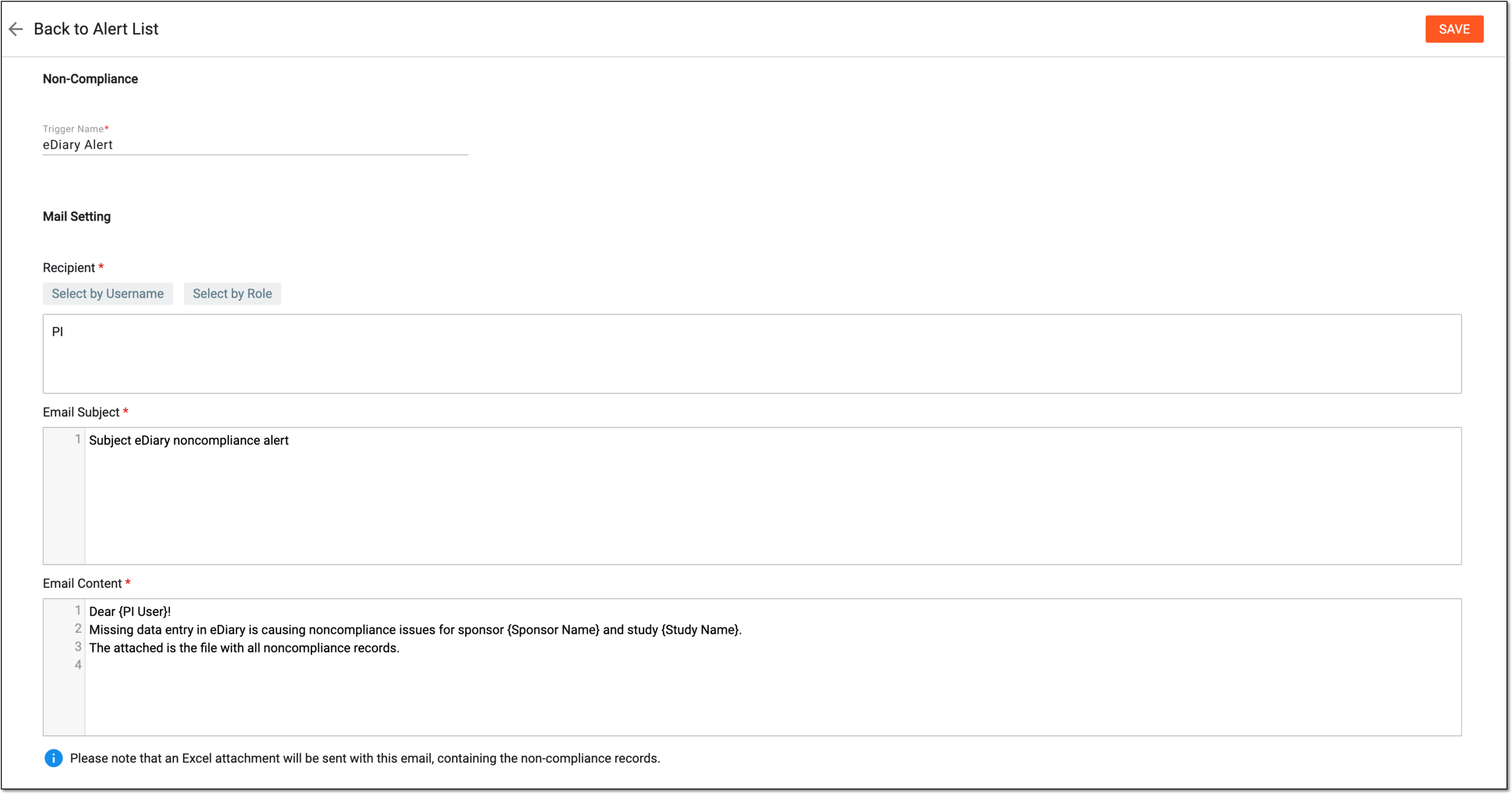 Figure 5. Configuring noncompliance alert
Tip
In the following table, mandatory elements are marked with an asterisk (*).
Element
Details
Trigger Name*
Enter the unique and descriptive name for the alert you configure.
Mail Setting
Recipient*
Select the following:
-
Select by Role: to expand the list of user roles and choose the ones to whose representatives the email notification must be sent when the alert triggers.
-
Select by Username: to expand the list of users and choose the ones to whom the email notification must be sent when the alert triggers.
Mail Subject*
Enter a meaningful subject for the notification email.
Type the opening brace "{" to display the list of variables that you can add to the email subject. Note that variables can be added one at a time.
Mail Content*
Provide the main text of the notification email, specifying all the details of the event that triggers the alert.
Type the opening brace "{" to display the list of variables that you can add to the email body. Note that variables can be added once at a time.
SAVE
Select
to implement the changes.Back to Alert List
Select
to discard the changes without saving and return to the alert list. -
Once saved, the specified recipients start receiving alert emails with noncompliance details as per set condition.
A payment request can be interpreted as an inquiry to perform financial compensation for a service. In a clinical trial, payment requests are created to maintain financial operations between the sponsor and vendors and other involved parties, such as sites, labs, and research facilities.
Once a new payment request is created, it remains in the draft state until submitted. Only the submitted payment requests can be audited and approved to be paid to the recipient
In EDC, you can set up the alerts to remind clinical research associates (CRAs) to submit the payment requests to ensure all payments are processed in time and not missed out.
Important
The users receive the noncompliance alerts based on the site access permissions granted to them via the ADMIN application.
-
In the EDC application header, select the STUDY INFO tab.
-
On the page that opens, in the left pane, select Alerts > Payment Request.
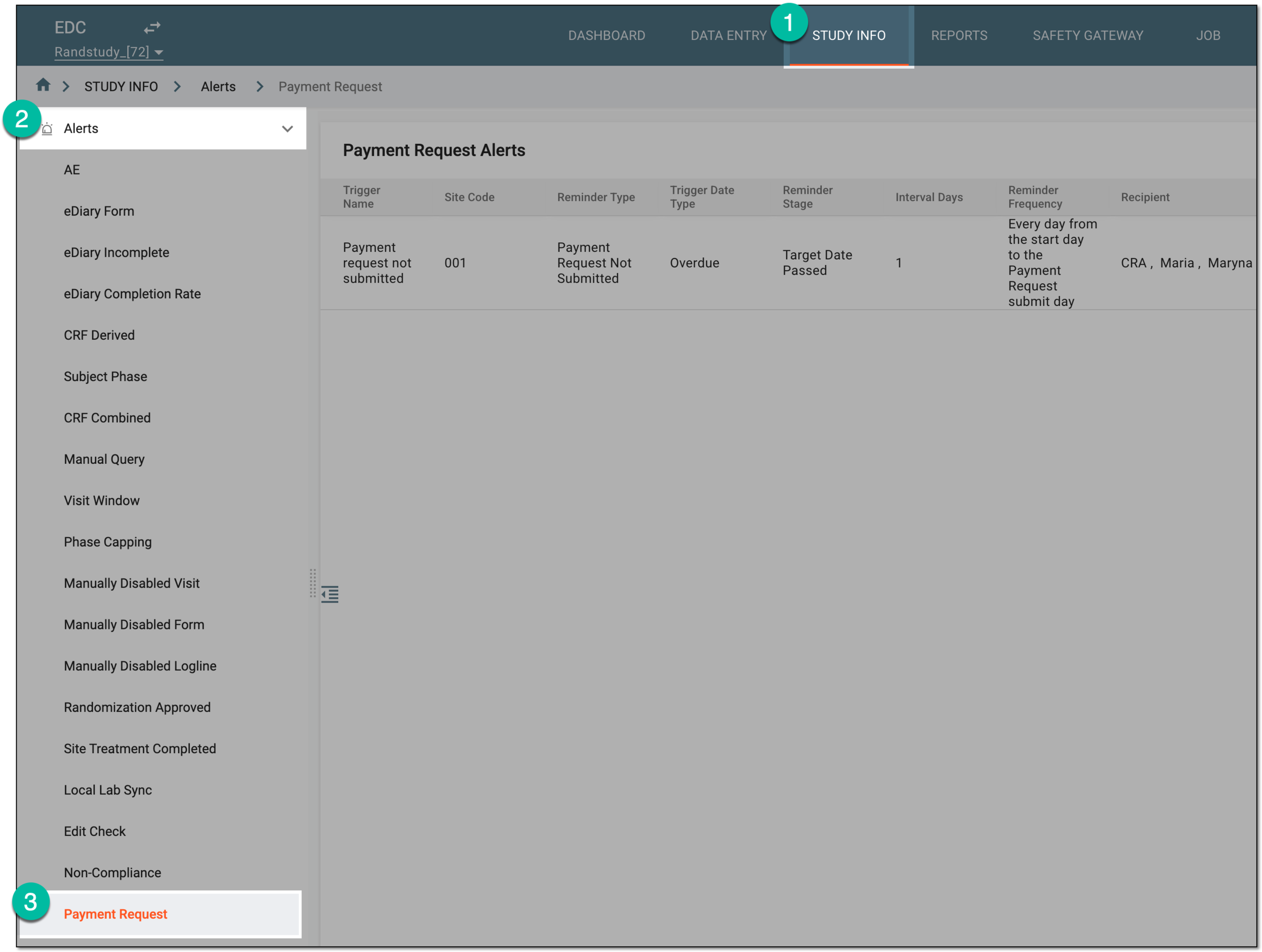 Figure 1. Accessing payment request alerts
-
From the Payment Request Alerts page toolbar, select New Item
. Figure 2. Selecting option to add new payment request alert
-
In the Non-Compliance form that opens, complete the configurations as explained in the following table.
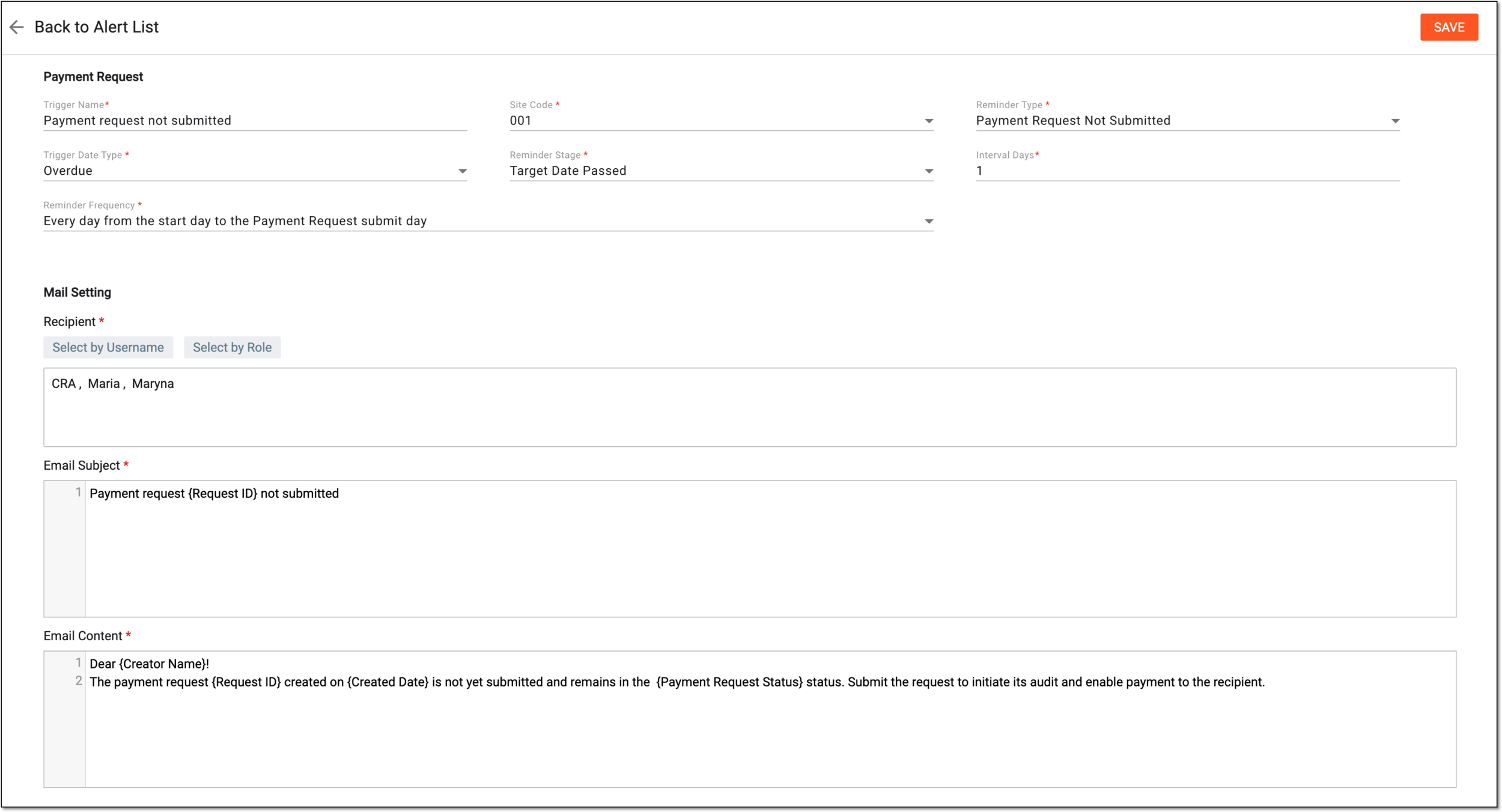 Figure 3. Configuring payment request alert
Tip
In the following table, mandatory elements are marked with an asterisk (*).
Element
Details
Trigger Name*
Enter the unique and descriptive name for the alert you configure.
Site Code*
Select the code of the site where you want the alert for the unsubmitted payment requests to trigger.
For instance, if you select Site 001 and Site 002, once the payment request is created at any of these sites but not submitted in time, the email triggers notifying the recipients of the event and reminding them to submit the request.
Reminder Type*
Represents the Payment Request Not Submitted type as the only one available for the payment request alert. This means that the reminder is triggered if the draft payment request is not submitted.
Trigger Date Type*
Represents the Overdue type as the only one available for the payment request alert. This means that the reminder is triggered if the reminder type event (in our case, the draft payment request is not submitted) does not meet its due date.
Reminder Stage*
Represents the Target Date Passed stage as the only one available for the payment request alert. This means that the reminder is triggered once the due date of the payment request submission expires.
Interval Days*
Enter the number of days to be added to the due date of the payment request submission before the reminder is triggered. This allows to prolong the period of time before triggering the alert email if needed. However, you can enter "0" if you need to trigger the reminder immediately upon the reminder type event entering the reminder stage (in our case, the draft payment request is not submitted when the target date passed).
Reminder Frequency*
Select one of the following:
-
Start day: to send the email notification once upon reminder type event entering the reminder stage (in our case, the draft payment request is not submitted when the target date passes).
-
Every day from the start day to the Payment Request submit day: to send email notifications once a day, starting from the reminder type event entering the reminder stage and until the issue is resolved (in our case, until the payment request is submitted).
Mail Setting
Recipient*
Select the following:
-
Select by Role: to expand the list of user roles and choose the ones to whose representatives the email notification must be sent when the alert triggers.
If the recipient role is selected, the email notification will be triggered only to the user of this role who is in charge to submit the payment request, and other users of the same role will not be disturbed. -
Select by Username: to expand the list of users and choose the ones to whom the email notification must be sent when the alert triggers.
Mail Subject*
Enter a meaningful subject for the notification email.
Type the opening brace "{" to display the list of variables that you can add to the email subject. Note that variables can be added one at a time.
Mail Content*
Provide the main text of the notification email, specifying all the details of the event that triggers the alert.
Type the opening brace "{" to display the list of variables that you can add to the email body. Note that variables can be added once at a time.
SAVE
Select
to implement the changes.Back to Alert List
Select
to discard the changes without saving and return to the alert list. -
Once saved, the specified recipients start receiving alert emails whenever the draft payment request is not submitted before its due date.
Any untoward medical occurrence in a clinical investigation subject administered a pharmaceutical product that does not necessarily have a causal relationship with this treatment. An adverse event (AE) can therefore be any unintended sign (including an abnormal laboratory finding), symptom, or disease temporally associated with the use of a medicinal (investigational) product, whether or not related to the medicinal (investigational) product.
An eClinical application that represents an administrative system used to manage users, authorities, and sponsors at the company level. It provides studies, sites, and sponsors with high-granularity role-based access management across all eClinical applications.
A time span that defines the allowable range for a subject visit in case it is not possible to conduct that visit on the exact scheduled visit date.
A specialized document in a clinical trial designed to collect the subject data.
See also eCRF.
A person who is the main line of communication between the sponsor and the investigator. The monitor provides assistance to investigators, ensuring that the trial is conducted and documented properly. In the clinical trial industry, often referred to as a clinical research monitor or clinical research associate (CRA).
In eClinical, queries are created to ask a question or get feedback from a designated system user on a particular data item. There are two types of queries in the system:
-
Manual query: these are created by the system users and assigned to responsible users to address the issues and either correct them or confirm the data's accuracy.
-
System query: these are generated automatically by the system and require user interaction to manage and resolve them.
An occurrence in a clinical trial in which the subject comes to a site to receive treatment, undergo some tests, or complete other required procedures.
In a clinical trial, a location where the subject treatment and drug dispensation occur. It can be a hospital, a private laboratory, or other institutions.
A specific phase that a subject has to complete in the course of a clinical trial to move further to the next phase. For instance, Screening, Enrolled, Randomized, and others.
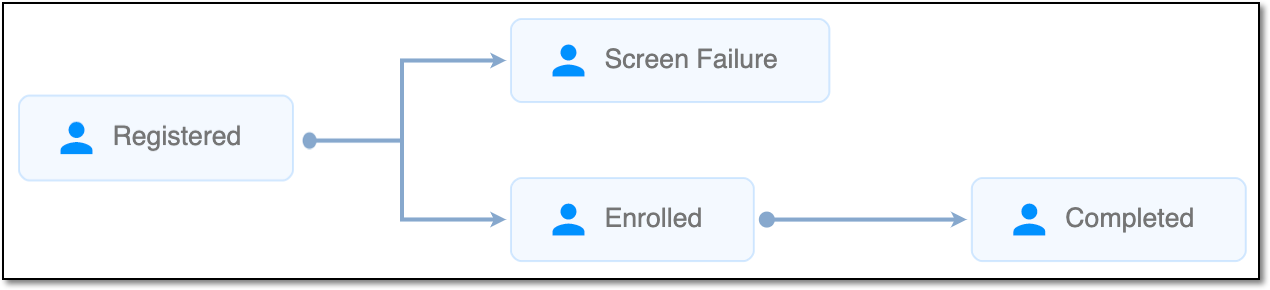 |
In eClinical, subject phases are designed individually for each study via the SD application, although they are referenced in others, like IWRS or EDC.
A process during which subjects receive their random numbers and are assigned to different arms based on the randomization scheme.
An individual piece of data collected within a domain. It represents a specific attribute or characteristic that can vary among subjects in a study. Each variable is defined by its format (such as categorical, continuous, and so on) and plays a crucial role in data analysis, allowing researchers to assess relationships and outcomes in the study.
For instance, within the "Demographics" domain, variables might include "Age," "Gender," and "Ethnicity."
An eClinical application that provides functionality to design and configure a study (clinical trial), namely to configure CRFs, set subject phases, visits, and others.
The application supports the design of the CDSIC ODM-compliant electronic CRFs to support EDC and eDiary data collection and management.
Get to know all the possibilities of the app with the comprehensive SD User Guide.
An eClinical mobile application used for the collection and management of clinical data of subjects, supporting iOS and Android systems. It is based on the electronic CRF provided by the Study Designer application to support subjects' self-recording of treatment and diagnosis information.
An eClinical mobile application designed for the collection of clinical outcome assessments, such as patient-reported outcomes, questionnaires, and other data related to the participant's health, symptoms, or treatment experiences.
A person responsible for overseeing and conducting the research study at a specific investigational site or multiple sites, depending on the study's design. The role of a PI is multifaceted and involves various responsibilities, such as study oversight, protocol adherence, participant recruitment and informed consent implementation, regulatory compliance, and so on.
In the eClinical system, the Principal Investigator (PI) role that is assigned to a person who oversees the data entering and signs off subjects—gives authorized confirmation that all the entered data is valid and follows the industry standards. The responsibilities of PI can vary depending on study requirements.
A person responsible for overseeing and monitoring a clinical trial to ensure it is conducted in compliance with regulatory standards and protocols. The CRA’s scope of work might include protocol review, site selection and initiation, monitoring, data entry control, and more.
In the eClinical system, the Clinical Research Associate (CRA) user role is assigned to a person who works with the sites, and in EDC, mainly has to make sure that the entered data is truthful to the source document. CRA checks the source document in a process called source data verification and ensures that everything entered by the clinical research coordinators is valid to avoid any discrepancies caused by human errors.