Subject phase capping in EDC
Subject phase capping refers to the process of setting limits (caps) on the number of subjects that can be transferred to or remain in a specific phase of the study—registration, enrollment, randomization, or else. This helps to ensure the trial progression according to the protocol, maintain balance across treatment groups, and prevent excessive allocation of subjects to certain phases.
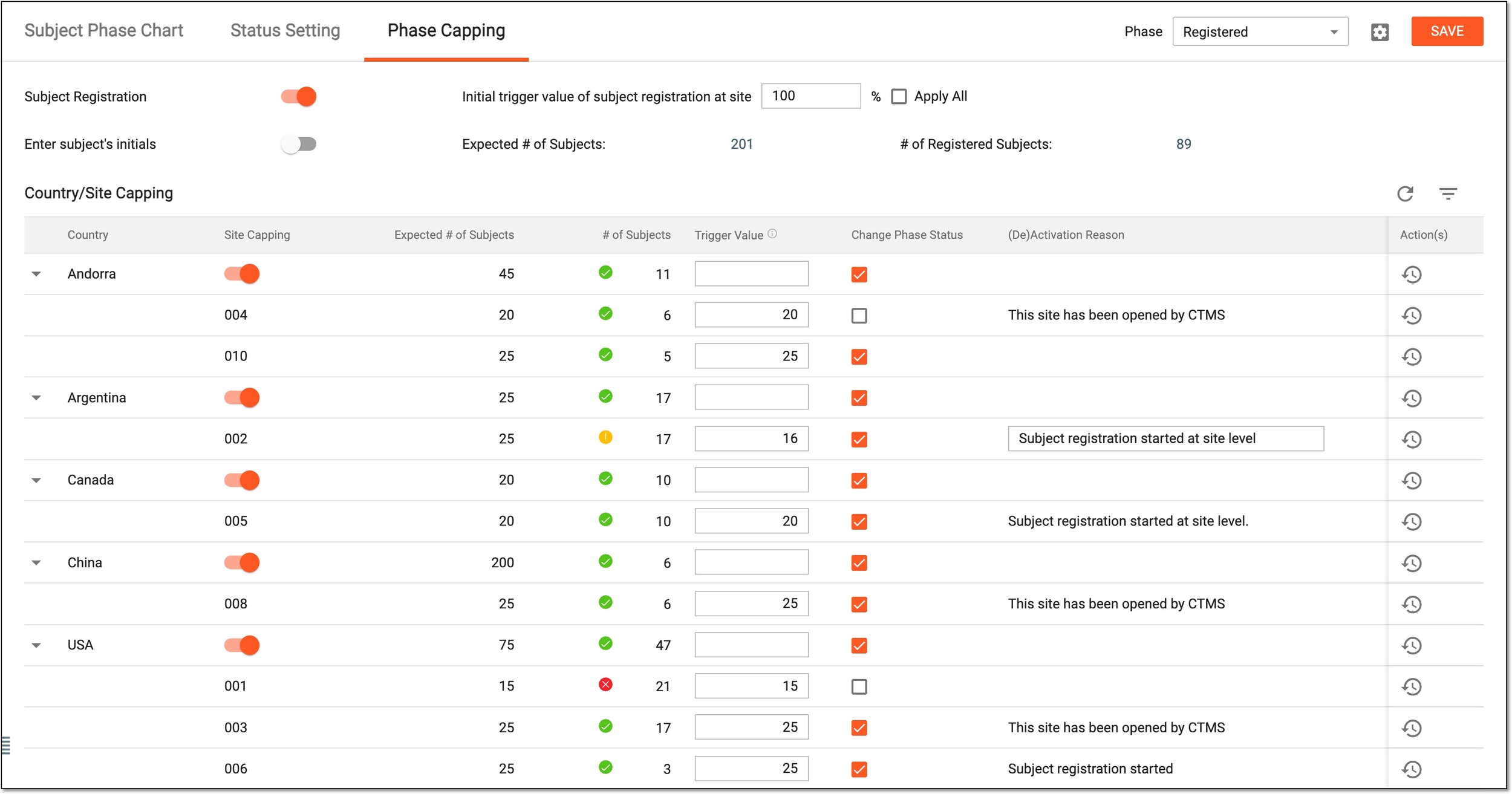
With the Phase Capping functionality of EDC, you can manage the subject phase inclusion limitations at two levels—study-level phase capping and country and site-level phase capping.
Important
To view or configure the phase capping parameters in EDC, the following preconditions must be met in the ADMIN application:
-
The Managing Subjects value is set to In EDC.
If set to In IWRS, all the fields of the Phase Capping page in EDC are not editable.
-
The Phase Capping Read or Phase Capping Write permissions are granted to your user role providing you with options to only view or amend the configurations, respectively.
Subject phase capping refers to the process of setting limits (caps) on the number of subjects that can be transferred to or remain in a specific phase of the study—registration, enrollment, randomization, or else. This helps to ensure the trial progression according to the protocol, maintain balance across treatment groups, and prevent excessive allocation of subjects to certain phases.
In EDC, you can manage the capping for subject registration and control these parameters at the study level. You can manually enable or disable subject registration for your study, or you can opt to set the limit so that when reached, the system ceases subject registration automatically.
Important
To view or configure the study-level phase capping parameters in EDC, the following preconditions must be met in the ADMIN application:
-
The Managing Subjects value is set to In EDC.
If set to In IWRS, all the fields of the Phase Capping page in EDC are not editable.
-
The Phase Capping Read or Phase Capping Write permissions are granted to your user role providing you with options to only view or amend the configurations, respectively.
-
The Registration subject phase is selected for configuration. For other subject phases, the study-level registration parameters are irrelevant.
-
In the EDC application header, select the STUDY INFO tab.
-
On the page that opens, in the left pane, select Subject > Subject Phase.
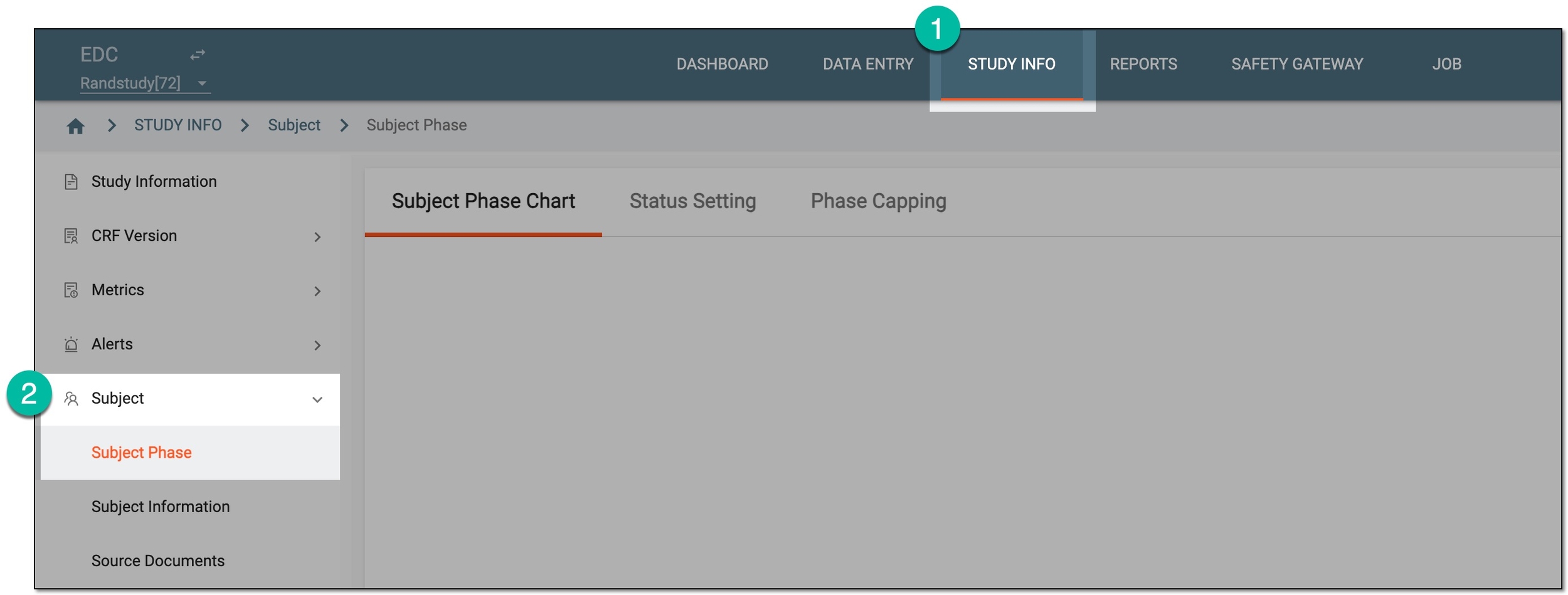 Figure 1. Accessing subject phase management
-
On the page that opens, select the Phase Capping tab. Then from the workspace toolbar, expand the Phase dropdown menu and select the Registered subject phase to change the study-level capping configurations.
 Figure 2. Selecting phase for configuration
Important
Registered is the only subject phase available for the study-level capping configurations.
-
For the Registered subject phase, complete the study-level phase capping settings as explained in the following table.
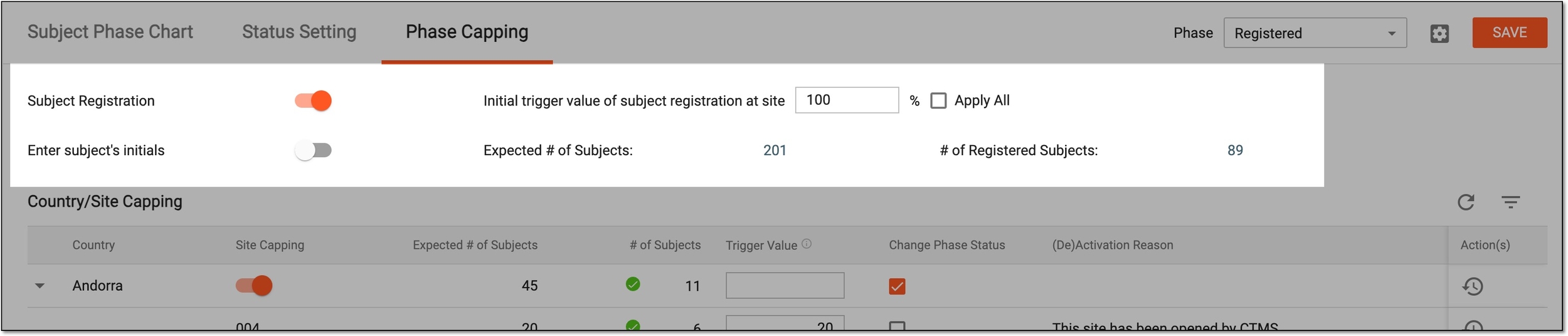 Figure 3. Managing study-level phase capping settings
Tip
In the following table, mandatory elements are marked with an asterisk (*).
Element
Details
Subject Registration
Turn this toggle on or off to allow or restrict subject registration at the study level. If the toggle is turned off, the whole subject registration functionality disappears from the study in the EDC application, and no sites can register subjects anymore.
Initial trigger value of subject registration at site %
Enter the percentage of subjects registered in a study upon reaching which, the subject registration stops. This helps you automate the registration cut-off and avoid human error.
To prevent sites from registering new subjects, when the number of registered subjects is greater than or equal to the trigger value, the Register Subject toggle is turned off automatically.
For example, the expected number of subjects in your study is 100, and you set the Initial trigger value of subject registration at site to 80%. Then when the number of actually registered subjects in your study equals 80, the registration of new subjects stops.
Apply All
Select this checkbox to apply the initial trigger value of subject registration at the site to all sites of the study.
Enter subject's initials
Turn this toggle on or off to specify whether the system should or should not require subject initials upon the creation of new subjects.
Expected # of Subjects
Represents the total expected number of subjects to take part in the study. This value is populated from the study's basic information in the CTMS application.
# of Registered Subjects
Represents the actual current number of subjects registered in the study. This value is updated automatically to reflect the most recent data.
SAVE
Select
 to save the implemented changes.
If you leave the page without saving, all the implemented changes are discarded.
Once saved, the study-level capping parameters are applied to the registration subject phase. You can also configure phase capping parameters at each country or site individually.
Subject phase capping refers to the process of setting limits (caps) on the number of subjects that can be transferred to or remain in a specific phase of the study—registration, enrollment, randomization, or else. This helps to ensure the trial progression according to the protocol, maintain balance across treatment groups, and prevent excessive allocation of subjects to certain phases.
In EDC, you can manage the process of subject inclusion limitations for different phases at the country or site levels. Thus, you can manually enable or disable subject capping for each of the sites or regions that are involved in your study. You can also opt to set the limit per site or country that once reached, the system ceases including subjects into a certain phase at that location automatically. This helps you to control the number of subjects entering certain study phases locally, for instance, how many of the registered subjects can be enrolled to the study at a certain site or country.
Important
To view or configure the country and site-level phase capping parameters in EDC, the following preconditions must be met in the ADMIN application:
-
The Managing Subjects value is set to In EDC.
If set to In IWRS, all the fields of the Phase Capping page in EDC are not editable.
-
The Phase Capping Read or Phase Capping Write permissions are granted to your user role providing you with options to only view or amend the configurations, respectively.
-
In the EDC application header, select the STUDY INFO tab.
-
On the page that opens, in the left pane, select Subject > Subject Phase.
Figure 1. Accessing subject phase management
-
On the page that opens, select the Phase Capping tab. Then from the workspace toolbar, expand the Phase dropdown menu and select the subject phase for which you want to change the capping configurations.
Figure 2. Selecting phase for configuration
Tip
Select Set Capping Phase
 to set the subject phases for which capping parameters can be configured.
 -
For the selected subject phase, complete the site-level phase capping settings as explained in the following table.
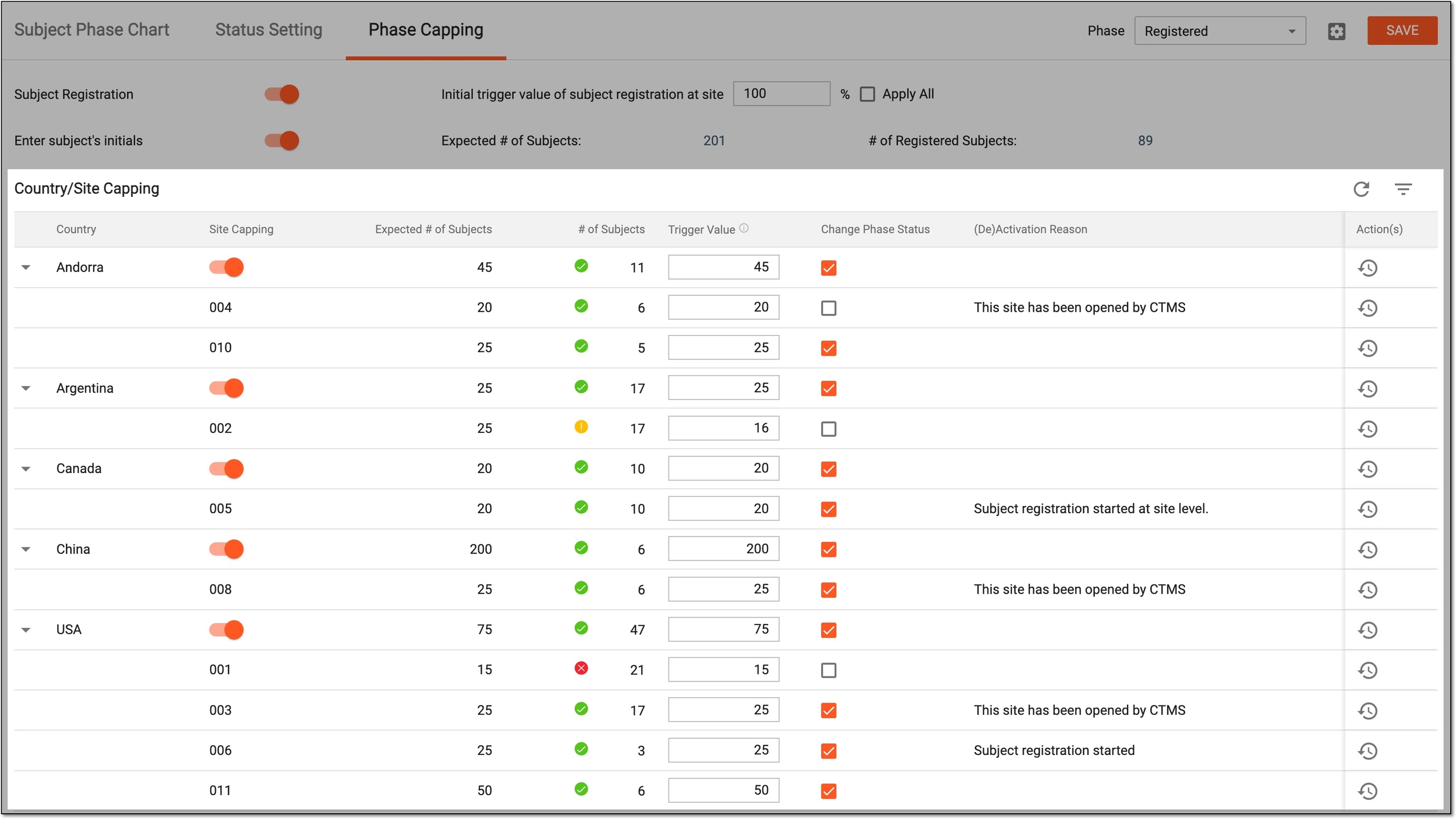 Figure 3. Managing country and site-level phase capping settings
Element
Details
Country
Represents the name of the country where the study is conducted and the sites are located.
Site Capping
Represents one of the following:
-
The toggle that you can turn on or off to enable or disable the site-level subject capping for the selected subject phase at a certain country.
If turned on, you can configure subject capping parameters individually per site. If turned off, only the country-level configuration is available and the system follows the set country-level parameters for all sites located in it.
-
The code of the site located in a certain country and for which you can configure subject capping parameters.
Expected # of Subjects
Represents the number of expected subjects of the country or site set via the CTMS application upon adding countries or adding sites to the study. The number of registered subjects cannot exceed the number of expected subjects.
# of Subjects
Represents the actual current number of subjects registered at the country or site along with the symbol indicators depicting whether or not the subject inclusion to the certain phase is still available for the country or site:
-
 : more subjects can be included into the selected phase at the country or site.
 -
 : the trigger value is almost reached and soon the subject inclusion will be ceased at the country or site.
 -
 : the trigger value is reached or surpassed, and you can no longer register subjects at the country or site.
Trigger Value
Enter the number of subjects you want to register at the country or site. Upon reaching the specified limit, the subject registration at the location stops.
To prevent sites from registering new subjects, when the number of registered subjects is greater than or equal to the trigger value, the Change Phase Status checkbox is automatically cleared.Change Phase Status
Select or clear the checkbox to allow or restrict the personnel at a certain country or a specific site to manually change the subject phase to the one selected for current configurations.
The checkbox is automatically cleared and the subject allocation ceases if the site phase or country phase becomes Closed, Terminated, or Suspended in CTMS. Upon this
                                        operation, the respective reason is autopopulated to the (De)Activation Reason column.
(De)Activation Reason
Represents the reason for activation or deactivation of subject phase change at a site or country. This field becomes active for entry and must be completed once you select or clear the Change Phase Status checkbox.
SAVE
Select
to save the implemented changes.If you leave the page without saving, all the implemented changes are discarded. -
Once saved, the subject capping parameters are updated for the respective phase in certain countries or at sites.
A specific phase that a subject has to complete in the course of a clinical trial to move further to the next phase. For instance, Screening, Enrolled, Randomized, and others.
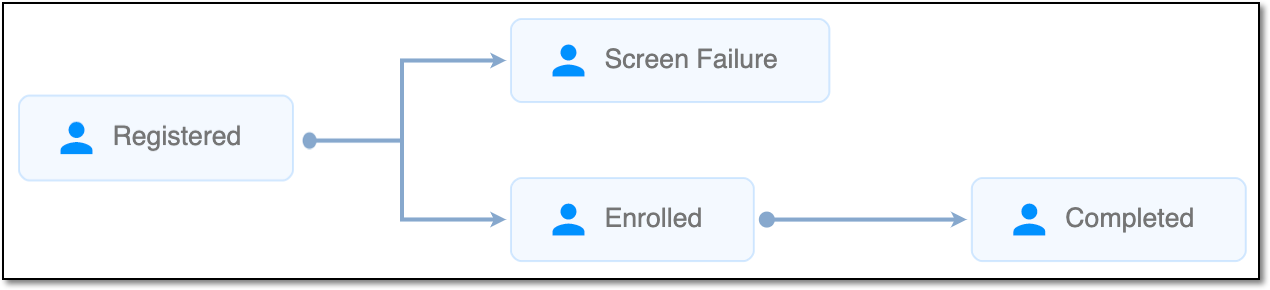 |
In eClinical, subject phases are designed individually for each study via the SD application, although they are referenced in others, like IWRS or EDC.
An eClinical application that represents an administrative system used to manage users, authorities, and sponsors at the company level. It provides studies, sites, and sponsors with high-granularity role-based access management across all eClinical applications.
An eClinical application that is mainly used to manage and control the personnel, communication, budget, progress, expenses, documents, and declaration involved in the entire clinical trial. It provides study and site management, study quality control, study progress tracking, project management, risk management, reports, and a visualized dashboard.
Get to know all the possibilities of the app with the comprehensive CTMS User Guide.