Update country phase in study
Each country added to the study can transition between different phases. This transition depends on the current status of study activities performed in a specific country. When the country is associated with a phase, it denotes what further actions can be done at sites in this country.
Important
Country phase settings are managed independently for the master study and substudies. Changes made in the master study do not apply to substudies, and changes in substudies do not affect the master study.
-
Access the study management page in one of the following ways:
-
In the CTMS application header, select the DASHBOARD tab and then select the study dashboard of your interest.
 Figure 1. Accessing study management from dashboard
-
In the CTMS application header, select the STUDY MANAGEMENT tab. Then from the Study Data List table, select the study name of your interest.
 Figure 2. Accessing study management from study data list
-
-
From the left pane of the page that opens, select Study Details > Country/Region List.
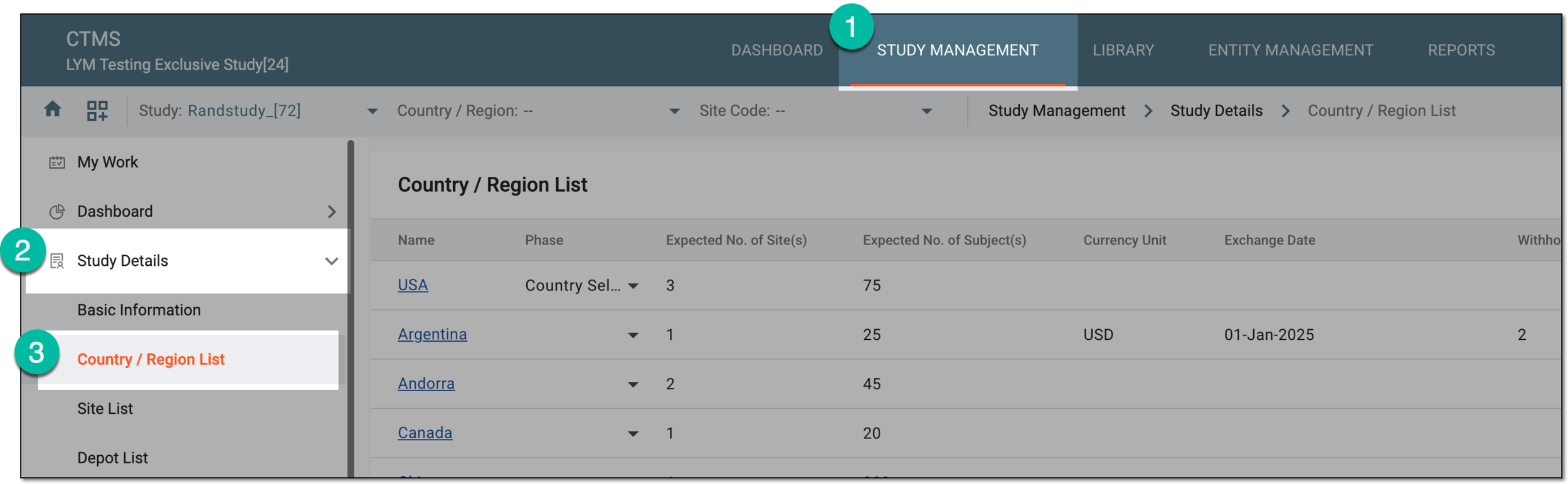 Figure 3. Accessing country and region list for study
-
In the Phase column of the Country / Region List table that appears, next to the needed country, select the phase you want to set for the country. The phases are explained in the following table.
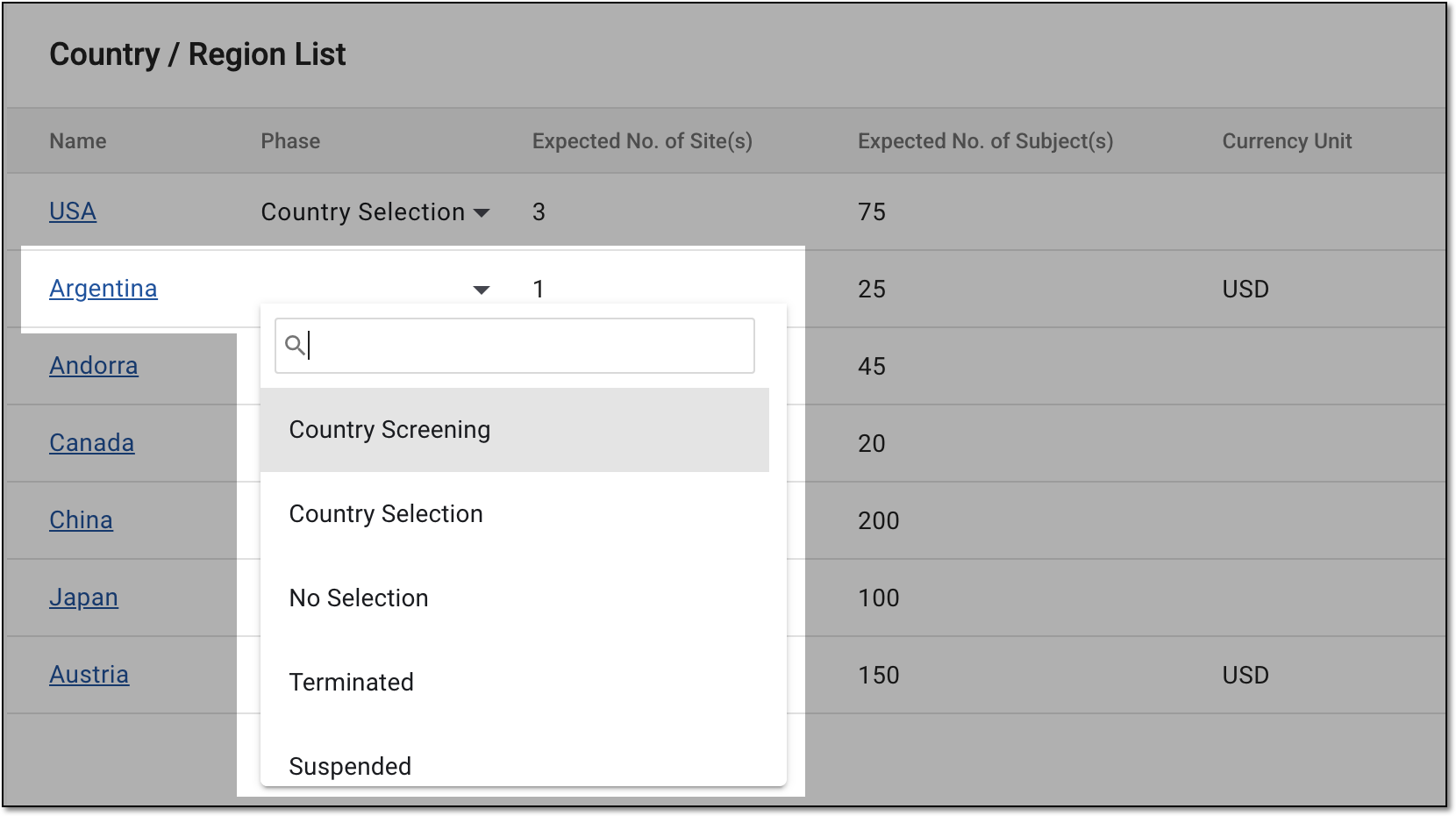 Figure 4. Updating county phase
Phase
Details
Country Screening
The country is being screened to verify that study activities can occur there.
Sites cannot be added to countries with this phase in CTMS. If at least one site has been previously added to the
                                  country, such a country can no longer enter this phase.
Country Selection
The data collection at corresponding sites can occur in countries with this phase.
Sites can be added to countries with this phase in CTMS.No Selection
The country in this phase can be maintained but cannot be associated with sites.
Sites cannot be added to countries with this phase in CTMS. If at least one site has been previously added to the country, such a country can no longer enter this phase.Terminated
The study-related activities and data collection can no longer occur in the country. If this phase is assigned to the country, you must confirm the action.
Suspended
The study research activities are temporarily halted in the country, pending further actions. If this phase is assigned to the country, you must confirm the action.
Closed
All necessary study-related activities at corresponding sites of the country are completed. If this phase is assigned to the country, you must confirm the action.
Note that you can close the country only after all sites located there have been closed. -
If you update the country phase to Closed, Terminated, or Suspended, in the Confirm dialog that appears, provide the details as follows.
Important
The details you need to provide for action confirmation depend on the authentication method configured for you in the system—via SSO or via providing your login and password.
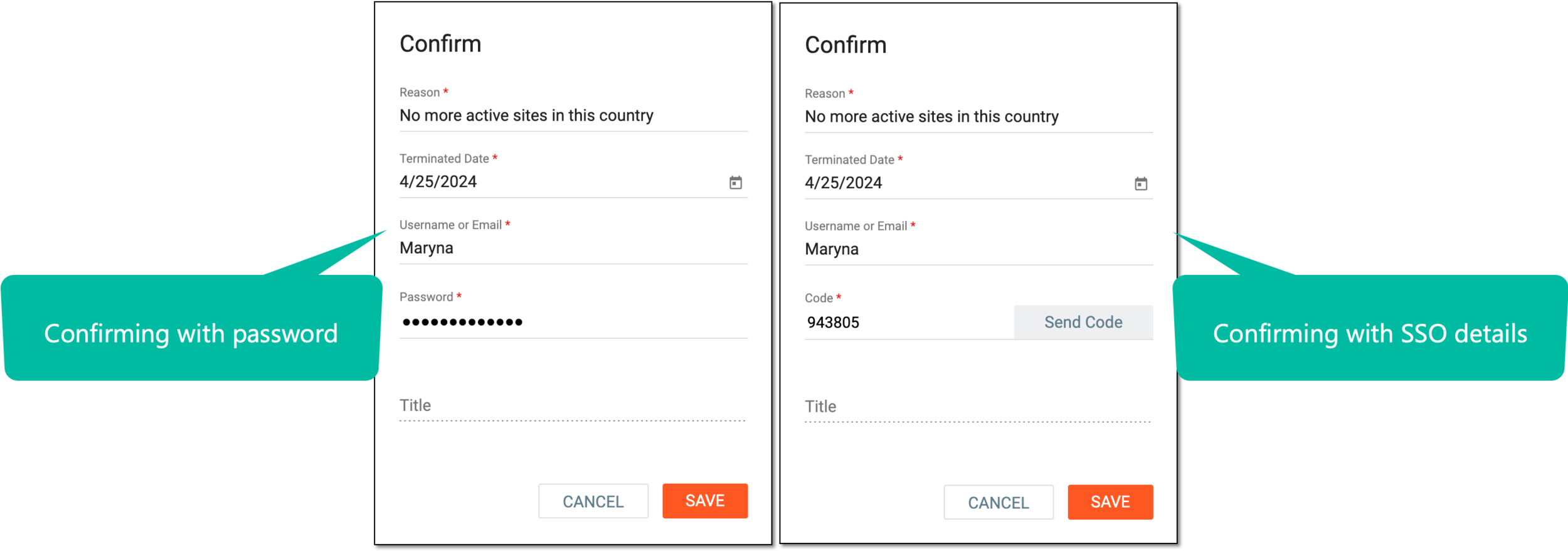 Figure 5. Confirming country phase update
Tip
In the following table, mandatory elements are marked with an asterisk (*).
Element
Details
Reason*
Enter the reason for terminating or suspending the country. You do not need to provide a reason for closing the country.
Closed Date* / Terminated Date* / Suspended Date*
Select
 to indicate the date when the country has been closed, terminated, or suspended.
Username or Email*
Enter your CTMS username or email address.
Send Code
Select
 to send the temporary PIN code to your email for which the SSO method is configured.
The button is only available if you use the authorization method via SSO.Code*
Enter the temporary PIN code that you received via email.
The field is only available if you use the authorization method via SSO.Password*
Enter the password to your CTMS username.
The field is only available if you use the authorization method by providing your login and password.Title
View the job title associated with your username.
SAVE
Select
 to confirm the country phase update.
CANCEL
Select
 to stop the country phase update.
Once selected and confirmed, the country phase is updated.