Add site to study
A site is a medical facility or a research center where the study is conducted. In the CTMS application, a list of sites that belong to a specific study can be viewed on a separate page. You can add new sites to the study if they are not on the list.
Important
Sites added to the master study are automatically copied to the substudy. You cannot add sites directly to a substudy—they only use the site list from the master study.
-
Access the study management page in one of the following ways:
-
In the CTMS application header, select the DASHBOARD tab and then select the study dashboard of your interest.
 Figure 1. Accessing study management from dashboard
-
In the CTMS application header, select the STUDY MANAGEMENT tab. Then from the Study Data List table, select the study name of your interest.
 Figure 2. Accessing study management from study data list
-
-
From the left pane of the study page that opens, select Study Details > Site List.
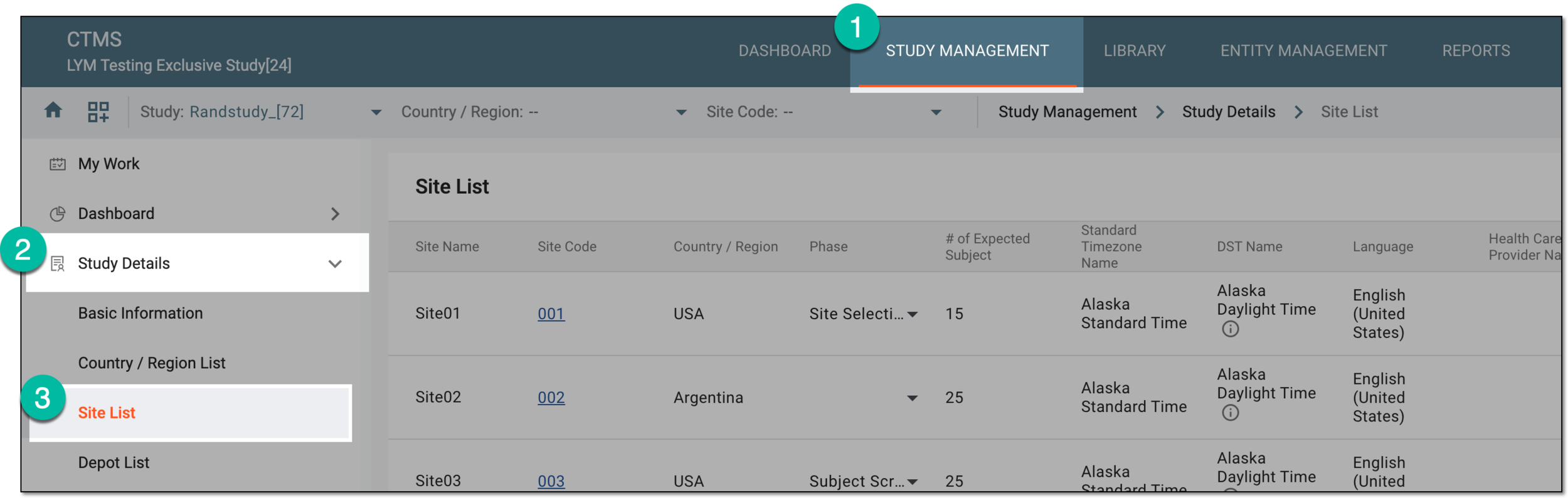 Figure 3. Accessing study sites
-
On the Site List page that opens, from the workspace toolbar, select New Item
 .
.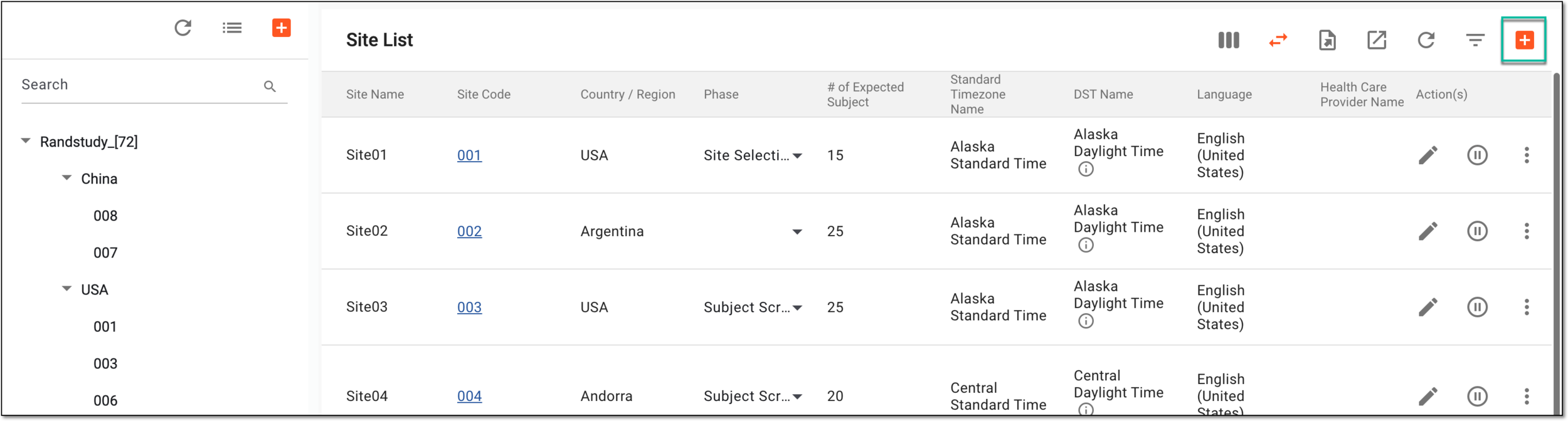 Figure 4. Accessing option to add site to study
-
In the dialog that opens, provide details as explained in the following table.
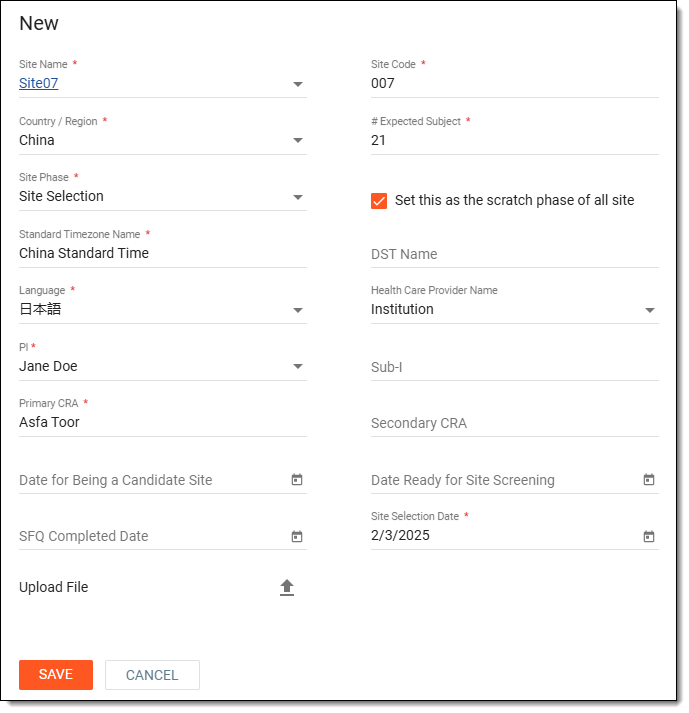 Figure 5. Adding site to study
Tip
In the following table, mandatory elements are marked with an asterisk (*).
Element
Details
Site Name*
From the dropdown list, select one of the available sites that have been previously configured.
Site Code*
Enter a unique code that is to identify the created site among other study sites.
Country/Region*
From the dropdown list, select the country where the created site is located.
# Expected Subject*
Enter the expected number of subjects that are to participate in the study at this particular site.
Note that you cannot enter a number of subjects greater than the expected number of subjects
                                  indicated for the study, otherwise, the notification appears informing you about the maximum number of expected subjects that can be entered for the added site.
Site Phase*
Select the site's phase indicating the current stage of a site in the clinical trial process:
-
Site Screening: indicates the site is being evaluated for its feasibility and suitability to participate in the trial.
-
Site Selection: signifies that the site has been chosen to participate in the trial but is not yet active.
-
Site Opened: indicates that the site has been activated and is ready to conduct trial activities, such as screening and enrolling participants.
Set this as the scratch phase of all site
Select the checkbox if you want to set the selected site phase as the first phase for all the future sites you create.
Standard Timezone Name*
Select the standard time zone depending on the location of the created site. All the site activities, for instance, the dispensation of items to subjects in IWRS, are recorded in the eClinical system according to this set time zone.
DST Name
Select the daylight saving time zone depending on the location of the created site.
Language*
Select the language that is spoken at the created study site.
Health Care Provider Name
Select a healthcare provider that is to be associated with the created site.
This field only appears if the site phase is Site Selection or Site Opened.PI*
Select a principal investigator who is to be in charge at the added site.
Sub-I
Select a sub or secondary investigator that can assist the principal investigator in charge of the site.
Primary CRA*
Select a clinical research associate responsible for managing and monitoring sites.
This field only appears if the site phase is Site Selection or Site Opened.Secondary CRA
Select a secondary clinical research associate to assist the primary clinical research associate.
This field only appears if the site phase is Site Selection or Site Opened.Date for Being a Candidate Site
Select the date picker icon
 to choose the date when the site was identified as a potential location for conducting the clinical trial.
Date Ready for Site Screening
Select the date picker icon
to choose the date when the site was ready and available to begin screening for the clinical trial.SFQ Completed Date
Select the date picker icon
to choose the date when the Site Feasibility Questionnaire (SFQ) was completed, indicating the site’s readiness and suitability for
participating in the clinical trial.Site Selection Date*
Select the date picker icon
to choose the date when the site was officially chosen to participate in the clinical trial.This field only appears if the site phase is Site Selection or Site Opened.CTA Date
Select the date picker icon
to choose the date when the Clinical Trial Agreement (CTA) was finalized or signed between the sponsor and the site.This field only appears if the site phase is Site Opened.IRB/IEC Approved
Represents whether the site being added to the study is approved by IRB/IEC. Select one of the following options:
-
Yes: the site added to the study is approved by IRB/IEC. If this option is selected, select the approval date.
-
No: the site added to the study is not approved by IRB/IEC.
-
N/A: the status of IRB/IEC approval is not available. If this option is selected enter the reason due to which the status is not available.
This field only appears if the site phase is Site Opened.IRB/IEC Approval Date
Select the IRB/IEC approval date. This field only appears if yes is selected in IRB/IEC Approved field.
Site Open Date
Select the date picker icon
to choose the date when the site was officially activated and ready to start conducting clinical trial activities, such as screening and
enrollment.This field only appears if the site phase is Site Opened.Currency
Select the type of currency (such as, USD, EUR) to be used for financial transactions or payments related to the site.
This field only appears if the site phase is Site Opened.Exchange Date
Select the date picker icon
to choose the date when the currency exchange rate is determined, often used for converting payments or budgets into the selected
currency.This field only appears if the site phase is Site Opened.Withholding %
Enter the percentage of payments to the site that is withheld, potentially for tax purposes or compliance with regulatory requirements, to be settled at a later stage.
This field only appears if the site phase is Site Opened.Upload File
You can upload any document that is to define the credibility of the created site.
SAVE
Select
 to add the configured site to the selected study.
CANCEL
Select
 to cancel the site creation process.
 -
Once saved, a new site is added to the study.