Add new site to CTMS
As mentioned in the Site management section, with the CTMS application, you can create and maintain a database of all medical facilities (sites), where clinical research, development, and testing are conducted. Thus, each time a new site record needs to be added to the CTMS system, you can do so following the instructions in this topic.
-
In the CTMS application header, select the ENTITY MANAGEMENT tab.
-
On the page that opens, in the left pane, leave the Site tab selected.
-
On the Site List page, above the table, select New Item
 .
. -
In the New Site form that opens, fill in the needed information as suggested in the following table.
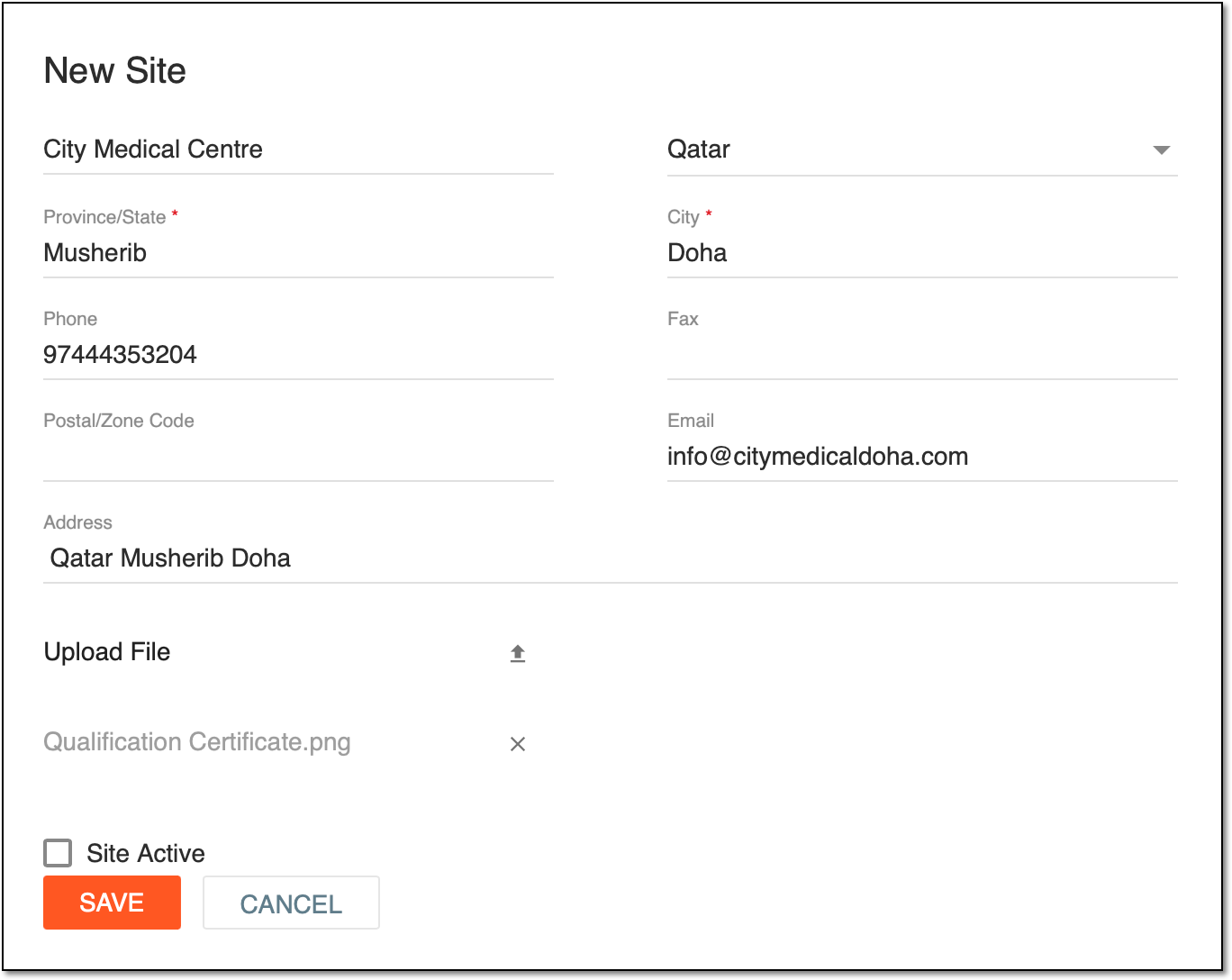 Figure 1. Example of filled in New Site form
Tip
In the following table, mandatory elements are marked with an asterisk (*).
Element
Details
Site Name*
Enter the unique name of the site you create.
Geographic Region*
Expand the list and select the geographic area where the site is located.
Province/State*
Enter the name of the province or state in which the site is located.
City*
Enter the name of the city in which the site is located.
Phone
Enter the phone number of the site. No spaces or special symbols are allowed.
Fax
Enter the fax number of the site.
Postal/Zone Code
Enter the postal code (zone) of the site.
Email
Enter the email address of the site.
Address
By default, the field is auto-completed with the names of the geographic region, province/state, and city that you have specified previously. Update the address if needed to make it more correct.
Upload File
Select
 to upload some documents that can help you or other collaborators later when conducting or administering a clinical trial at this site.
Site Active
-
Select the checkbox to activate the site.
Active sites can be used when linking studies to sites. When activated and linked, you tell the CTMS system and its users at which site the study is being conducted.
-
Leave the checkbox cleared to leave the site inactive (you can activate the site later on when needed).
Inactive sites cannot be linked to studies.
SAVE
Select
 to save the site record to the CTMS database.
CANCEL
Select
 to cancel adding a new site record to the CTMS database.
 -
Once saved, a new site record is added to CTMS. You are redirected to the Site List page, where a new tile representing the added site appears. Now, you can use it as an entity that you contract with to conduct your study.