Upgrade CRF version for all sites
In eClinical, CRFs are designed and maintained in the Study Designer (SD) application and then populated to EDC for data entry. Each time there is a need to implement any changes to the CRF, a new CRF version is created in SD. Then, in EDC, you can upgrade the CRF version for sites or subjects to keep the system up-to-date. For your convenience, you can upgrade all the sites in your study to the latest CRF version in bulk.
Important
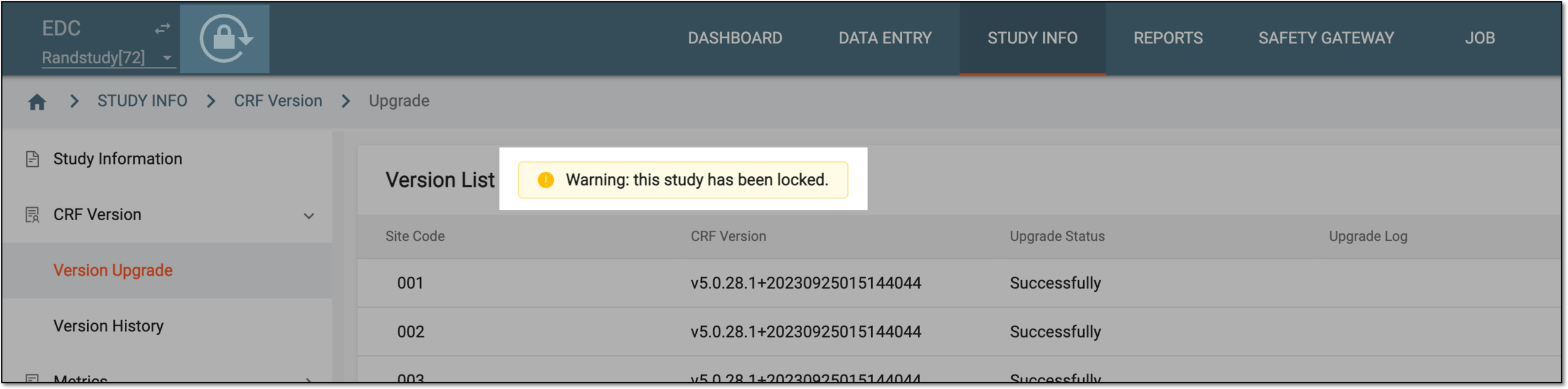
Locked studies cannot be upgraded. Unlock the study before upgrading the CRF version.
For the studies where the PI signature follows the independent setting and does not allow the data amendment once the CRF is signed, the signed CRFs are skipped upon the version upgrade.
-
In the EDC application header, select the STUDY INFO tab.
-
On the page that opens, in the left pane, select CRF Version > Version Upgrade.
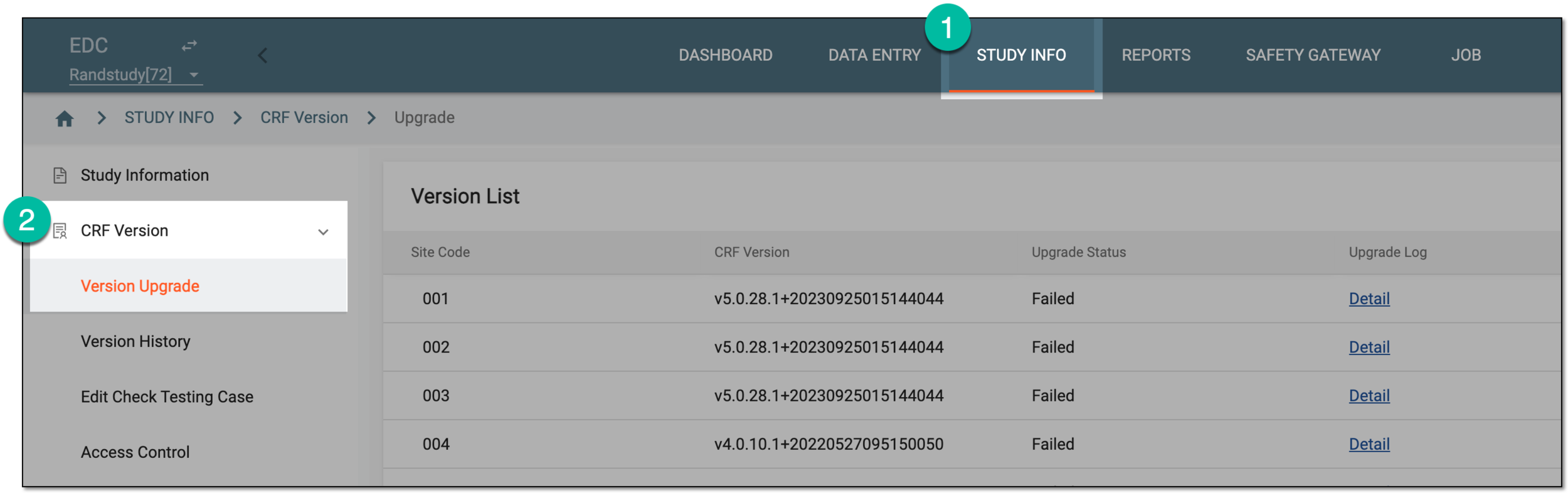 Figure 1. Accessing CRF version upgrade
-
On the Version List page that opens, from the workspace toolbar, select Upgrade All
 to upgrade all sites to the latest CRF version.
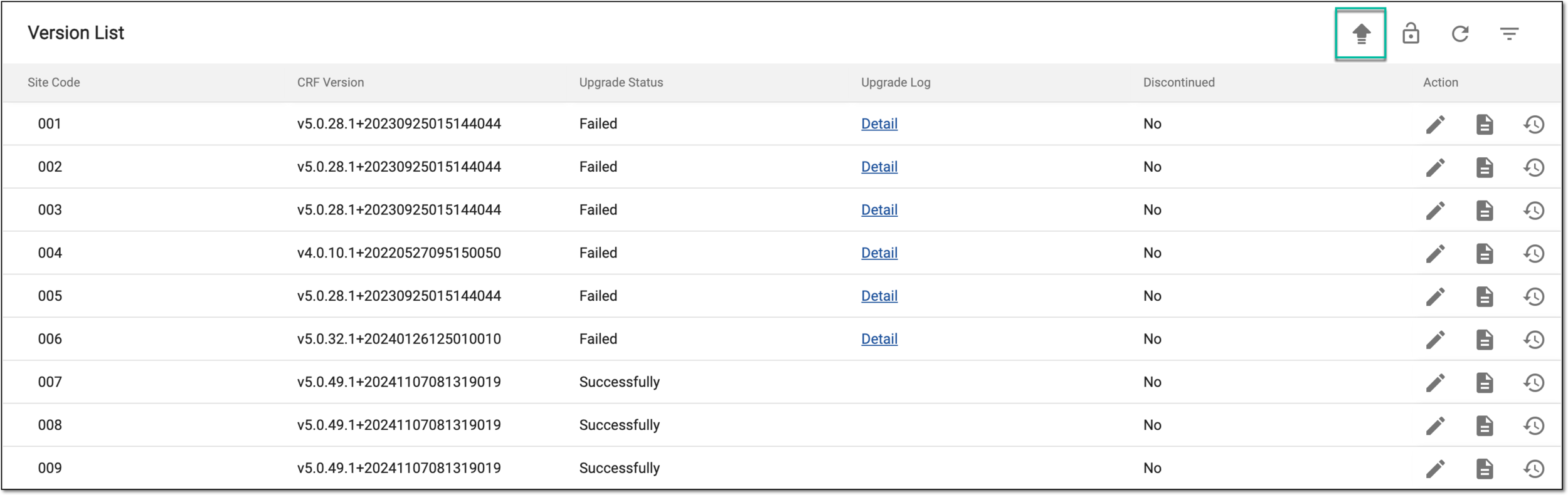 Figure 2. Selecting to upgrade CRF version for all sites
-
In the confirmation dialog that appears, select
 to upgrade the CRF version.
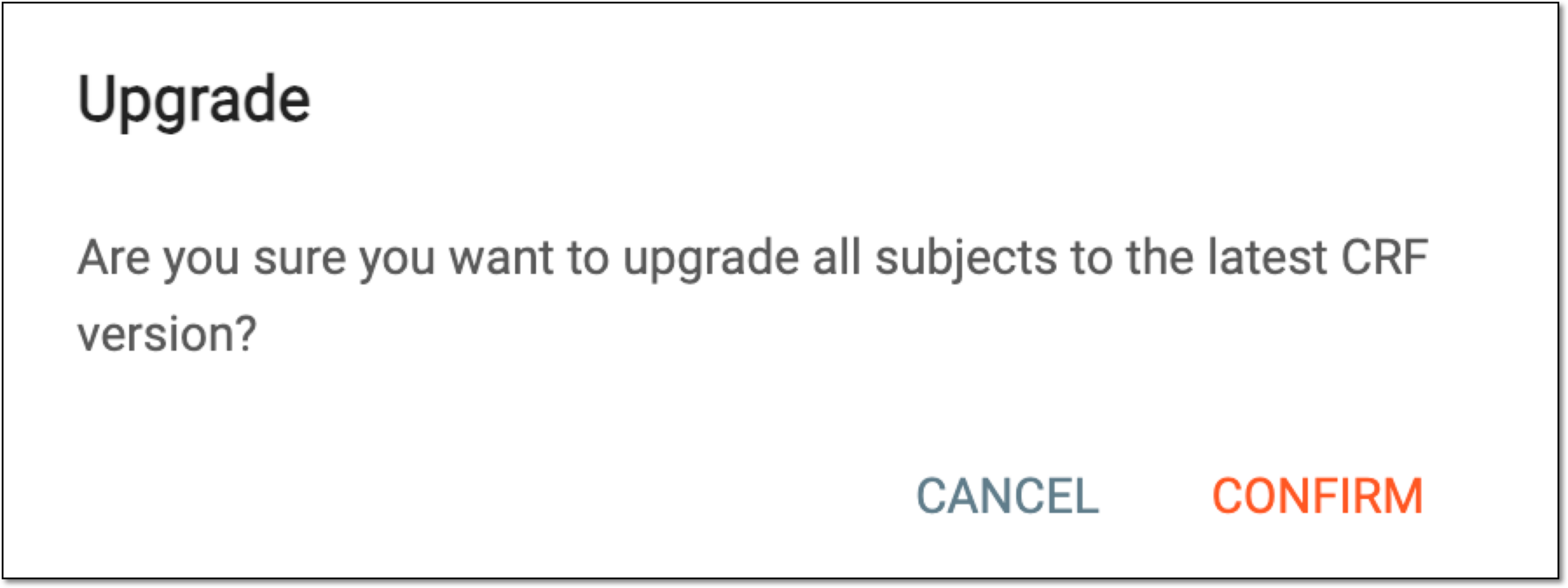 Figure 3. Confirming to upgrade CRF version
Once confirmed, the CRF version of all your study sites is upgraded. Due to the large amount of data, the upgrade might take a while, thus, the study is automatically locked until the upgrading process is complete. You can manually unlock the study once needed.