Lock/Unlock study in EDC
Locking a study means that users cannot make any changes to the study data, complete CRFs, manage subjects, or perform any changes whatsoever.
It is especially vital to lock a study when performing the CRF version change to avoid data entry inconsistencies between form versions. The study is always locked automatically upon CRF version upgrade for all the sites or can be locked manually by users to prevent others from managing the CRF versioning at the same time.
Study lock is also performed in EDC as a final step before initiating study decommissioning.
-
In the EDC application header, select the STUDY INFO tab.
-
On the page that opens, in the left pane, select CRF Version > Version Upgrade.
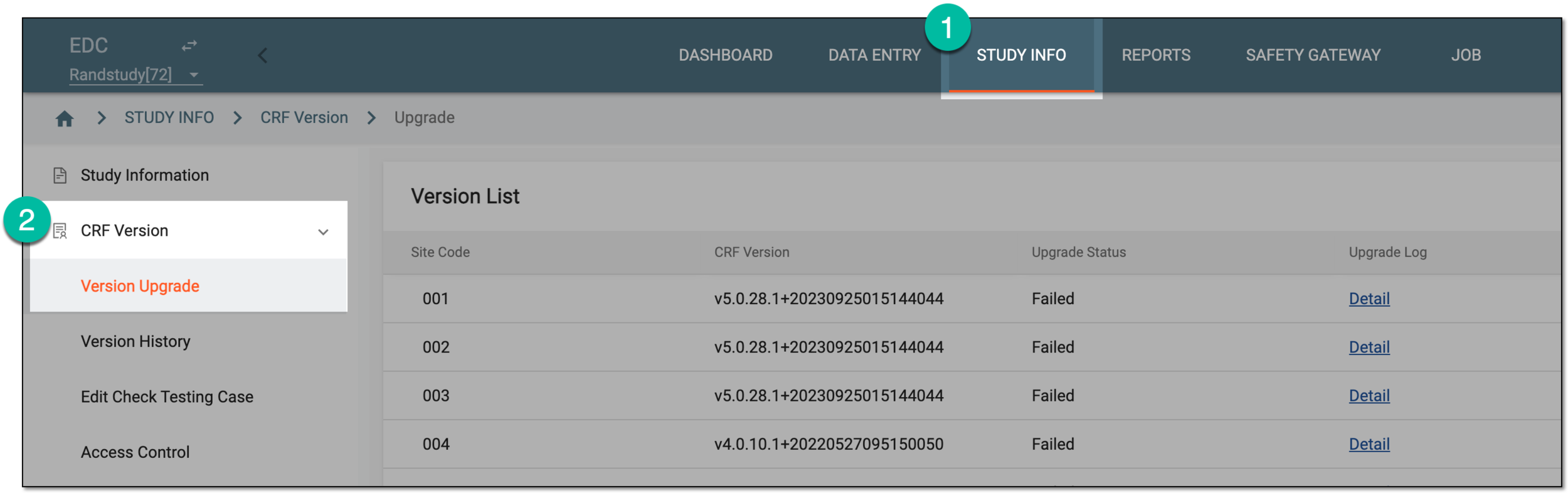 Figure 1. Accessing CRF version upgrade
-
On the Version List page that opens, from the workspace toolbar, select one of the following options:
-
Study Locked
 : select this option to unlock the locked study and make it available for management and data modifications.
 Figure 2. Unlocking study
-
Study Unlocked
 : select this option to lock the study and restrict any management options and data modifications.
 Figure 3. Unlocking study
-
Once selected, the study is locked or unlocked, respectively.