Basic study configurations
Using basic configurations, you can efficiently manage the study and its data. These configurations are available on the Study Data List page, which opens upon selecting the STUDY MANAGEMENT tab from the application toolbar. This page's contents depend on the view selected by the user—card grid view or table grid view.
The basic configurations you can perform to the study are explained in the following sections.
The card grid view of all the sponsor's studies currently maintained in CTMS helps you make a quick overview of all the basic study details and aspects, providing easy access to various CTMS modules where the depicted study details can be amended or maintained. This view gives you more function and accessibility than the Study Data List table, so you might prefer utilizing it for study management purposes.
-
In the CTMS application header, select the STUDY MANAGEMENT tab.
-
On the page that opens, switch to the desired study list view as follows.
-
On the Study Data List page, from the workspace toolbar, select Switch View
 .
.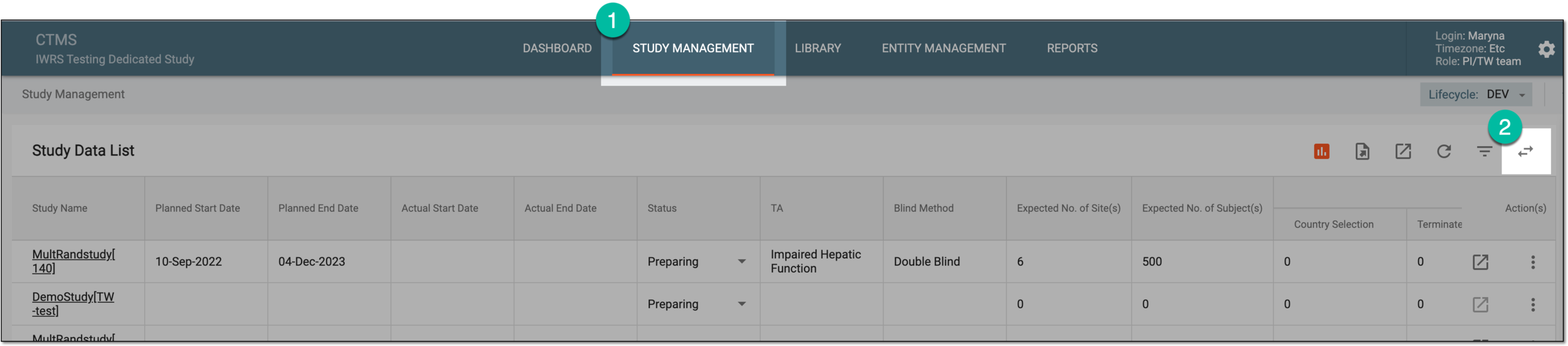 Figure 1. Switching to study card grid
-
On the resulting page, the list of all studies is depicted in a card grid view. The significance of all elements available on the study cards is explained in the following table.
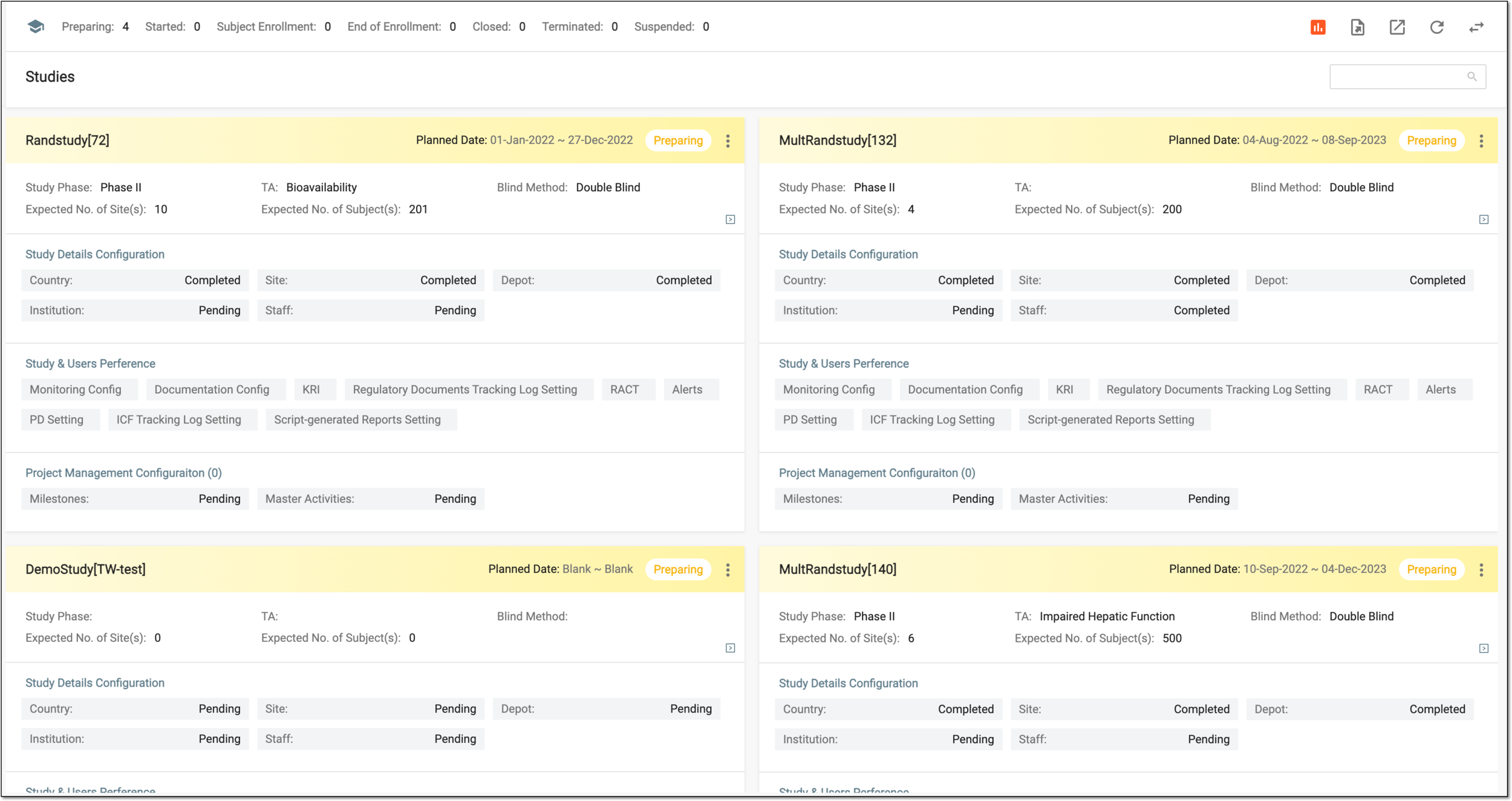 Figure 2. Analyzing study card details
Tip
The card color and the available elements vary based on the current study status and phase.
 Figure 3. Example of color-coded study cards
Element
Details
[Study name]
The card header contains the name of the study in its rightmost corner.
Master/Sub
The card header may contain the study hierarchy indicator next to the study name as follows:
-
Master: the study is a master study as per its configuration in ADMIN.
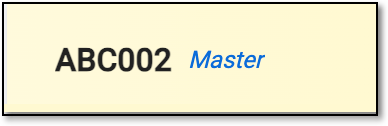 Figure 4. Master study indicator
-
Sub: the study is a substudy and serves as a hierarchical entity of the master study as per its configuration in ADMIN. Hover over Sub to see the master study to which the substudy belongs.
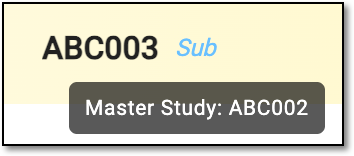 Figure 5. Master study indicator
-
No indicator: the study is an independent study and has no hierarchical entities.
Planned Date
Represents the planned dates of study starting and ending.
The planned dates can be updated under the study's basic information settings.[Study status]
Represents the status of the study which can be one of the following:
-
Preparing: the study is being set up and respective preparations are in progress.
-
Started: the study is live and respective sites and institutions are operating in specific countries.
-
Subject Enrollment: the subjects are actively registered and enrolled in the study.
-
End of Enrollment: the subject enrollment process of the study is completed.
-
Closed: the study is completed although the data analysis and manuscript preparation can still occur.
-
Terminated: the study is aborted before the planned end date for some reason, for instance, due to the observed efficacy of the treatment or, on the contrary, because of the serious adverse effect of the investigated product.
-
Suspended: the study research activities are temporarily halted and pending future action, for instance, collecting more data on the occurred adverse effects.
As per your business scenario, the study status is changed
                                                    manually.
Basic Information
Select this block of the study card to open the study basic information management module in the new browser tab.
Study Phase
Represents the current phase of the study (one of five industry-specific study phases).
TA
Represents the therapeutic area to which the selected study belongs.
Blind Method
Represents the blinding type of your study: Open Label, Single Blind, Double Blind, or Triple Blind.
Expected No. of Site(s)
Represents the expected number of sites where the study is to be conducted.
Expected No. of Subject(s)
Represents the expected number of subjects that are to participate in the study.
Master Study
Represents the name of the master study to which the substudy belongs.
The field is only available for substudies.Study Details Configuration
Country
Represents the current status of the country list configuration for the study:
-
Pending: no countries are added to your study yet.
-
Completed: the list of countries is formed for your study but can be amended if required.
Select this field to open the country and region list of your study in the new browser tab.
Site
Represents the current status of the site list configuration for the study:
-
Pending: no sites are added to your study yet.
-
Completed: the list of sites is formed for your study but can be amended if required.
Select this field to open the site list of your study in the new browser tab.
Depot
Represents the current status of the depot list configuration for the study:
-
Pending: no depots are added to your study yet.
-
Completed: the list of depots is formed for your study but can be amended if required.
Select this field to open the depot list of your study in the new browser tab.
Institution
Represents the current status of the institution list configuration for the study:
-
Pending: no institutions are added to your study yet.
-
Completed: the list of institutions is formed for your study but can be amended if required.
Select this field to open the institution list of your study in the new browser tab.
Staff
Represents the current status of the staff list configuration for the study:
-
Pending: no staff members are added to your study yet.
-
Completed: the list of staff members is formed for your study but can be amended if required.
Select this field to open the staff list of your study in the new browser tab.
Study & Users Perference
Monitoring Config
Select this element to access the monitoring configuration functionality for your study.
Documentation Config
Select this element to access the documentation configuration functionality for your study.
KRI
Select this element to access the key risk indicator management functionality for your study.
Regulatory Documents Tracking Log Setting
Select this element to access the settings of regulatory document tracking for your study.
RACT
Select this element to access the RACT list configuration for your study.
Alerts
Select this element to access the task reminders configuration for your study.
PD Setting
Select this element to access the protocol deviation settings for your study.
ICF Tracking Log Setting
Select this element to access the informed consent form tracking settings for your study.
Script-generated Reports Setting
Select this element to access the script-generated report settings for your study.
Project Management Configuraiton
Milestones
Represents the current status of the milestones configuration for the study:
-
Pending: no milestones are configured to your study yet.
-
Completed: the list of milestones is formed for your study but can be amended if required.
Master Activities
Represents the current status of the master activities configuration for the study:
-
Pending: no master activities are configured to your study yet.
-
Completed: the list of master activities is formed for your study but can be amended if required.
-
-
On the Studies page, from the workspace toolbar, select Switch View
.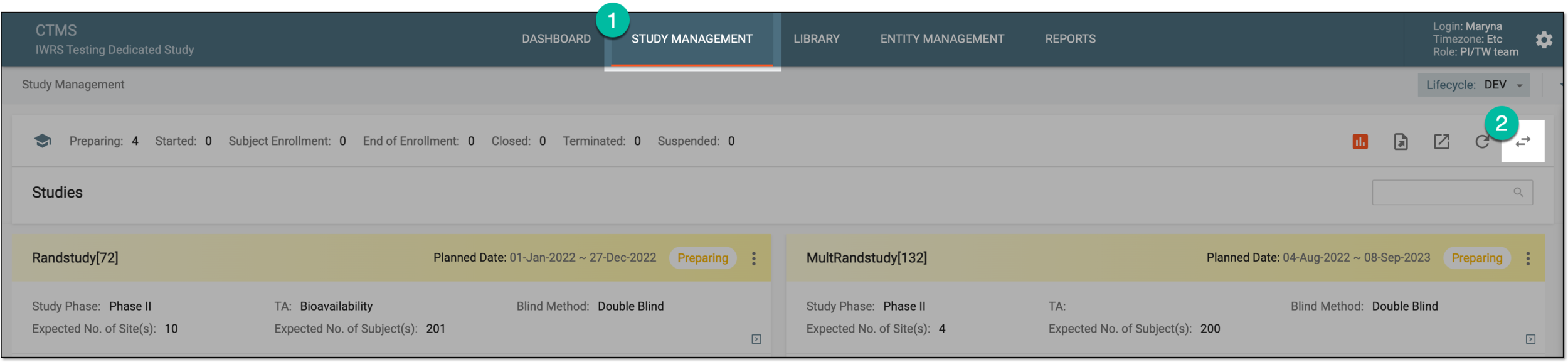 Figure 6. Switching to study table grid
-
On the resulting page, the list of all studies is depicted in a table view. The significance of all columns available is explained in the following table.
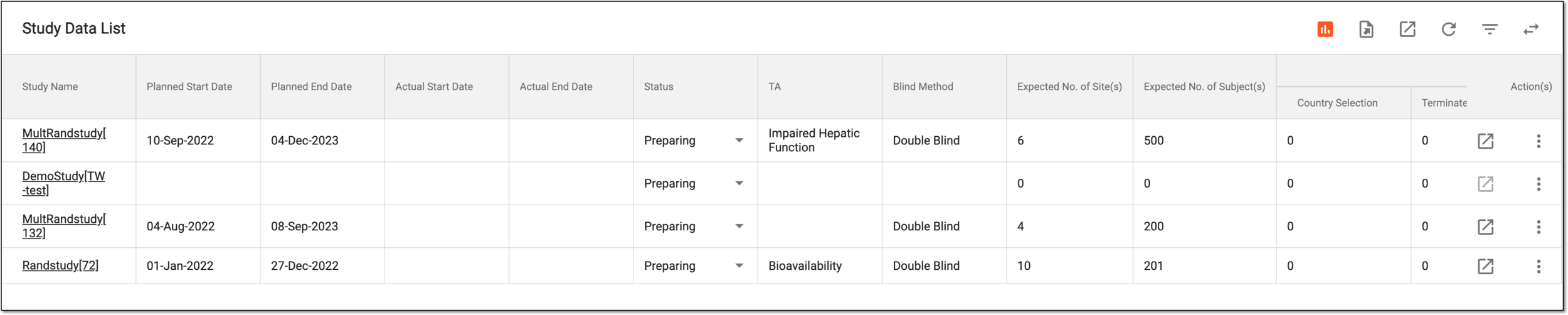 Figure 7. Analyzing study data list table
Column
Details
Study Name
Represents the study name. One of the following icons may be displayed next to the study name indicating its current status:
-
Closed
 : the study is completed.
 -
Terminated
 : the study is aborted.
 -
Suspended
 : the study is paused.
 -
Master
 : the study is a master study as per its configuration in ADMIN.
 -
Sub
 : the study is a substudy and serves as a hierarchical entity of the master study as per its configuration in ADMIN. Hover over
Sub to see the master study to which the substudy belongs.
: the study is a substudy and serves as a hierarchical entity of the master study as per its configuration in ADMIN. Hover over
Sub to see the master study to which the substudy belongs.
Planned Start Date
Represents the estimated date when the study is planned to go live.
The date can be updated under the study's basic information settings.Planned End Date
Represents the estimated date when the study is planned to be completed.
The date can be updated under the study's basic information settings.Actual Start Date
Represents the actual date when the study has started.
The date can be updated under the study's basic information settings.Actual End Date
Represents the actual date when the study has ended.
The date can be updated under the study's basic information settings.Status
Update the status of the study to one of the following:
-
Preparing: the study is being set up and respective preparations are in progress.
-
Started: the study is live and respective sites and institutions are operating in specific countries.
-
Subject Enrollment: the subjects are actively registered and enrolled in the study.
-
End of Enrollment: the subject enrollment process of the study is completed.
-
Closed: the study is completed although the data analysis and manuscript preparation can still occur.
-
Terminated: the study is aborted before the planned end date for some reason, for instance, due to the observed efficacy of the treatment or, on the contrary, because of the serious adverse effect of the investigated product.
-
Suspended: the study research activities are temporarily halted and pending future action, for instance, collecting more data on the occurred adverse effects.
TA
Represents the therapeutic area to which the selected study belongs.
The therapeutic area can be updated under the study's basic information settings.Blind Method
Represents the blinding type of your study: Open Label, Single Blind, Double Blind, or Triple Blind.
The blinding method can be updated under the study's basic information settings.Expected No. of Site(s)
Represents the expected number of sites where the study is to be conducted.
The expected number of sites can be updated under the study's basic information settings.Expected No. of Subject(s)
Represents the expected number of subjects that are to participate in the study.
The expected number of subjects can be updated under the study's basic information settings.Country
Represents the number of countries taking part in your study under each of the statuses—Country Selection, Terminated, Suspended, and Closed.
You can manage the list of countries and their statuses from the study's country and region
                                                    list.
Site
Represents the number of sites taking part in your study under each of the statuses—Site Selection, Site Opened, Subject Screened, Subject Recruitment, Site Closed, Terminated, and Suspended.
You can manage the list of sites and their statuses from the study's site list.Arrived Milestones
Represents the number of milestones configured for your study under each of the statuses—Incomplete, Incomplete & Overdue, and Completed.
You can configure and maintain the study milestones from the project management module. -
-
You have switched to the desired view—table or card grid—and learned the significance of the available elements. The selected view is now defaulted for you under the STUDY MANAGEMENT tab until switched otherwise.
The Study Overview chart represents the overall status statistics of the studies maintained in the CTMS application.
-
In the CTMS application header, select the STUDY MANAGEMENT tab.
-
On the Study Data List page that opens, from the workspace toolbar, select Study Overview
 .
.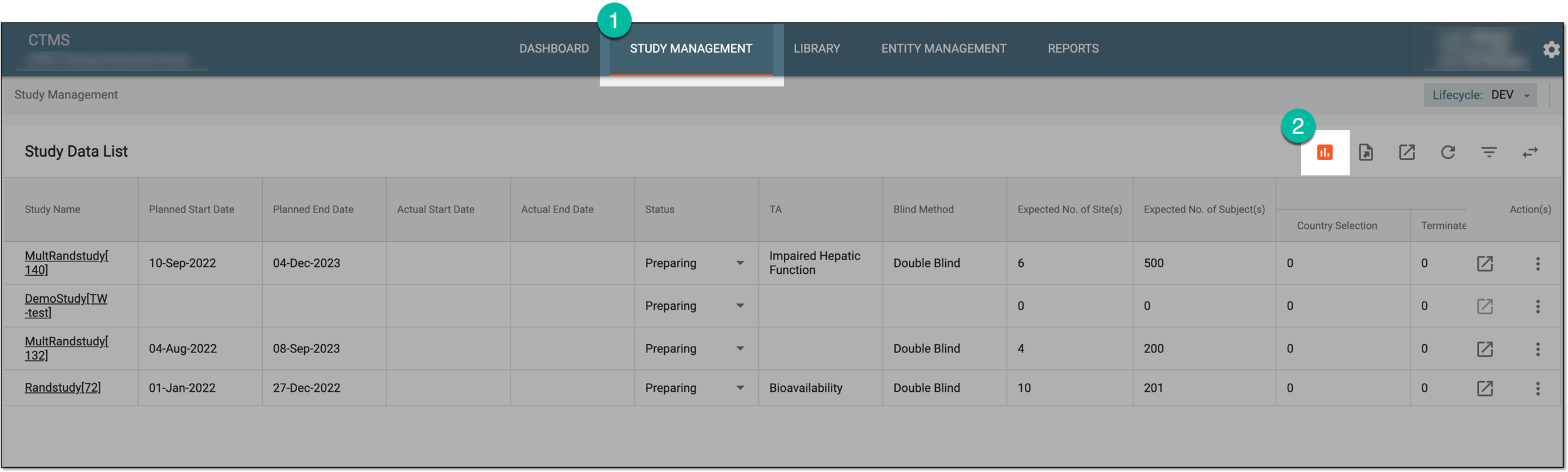 Figure 1. Accessing study overview
-
In the Study Overview dialog that opens, explore the status statistics of the studies maintained in the CTMS application. The status details can be found in the following table.
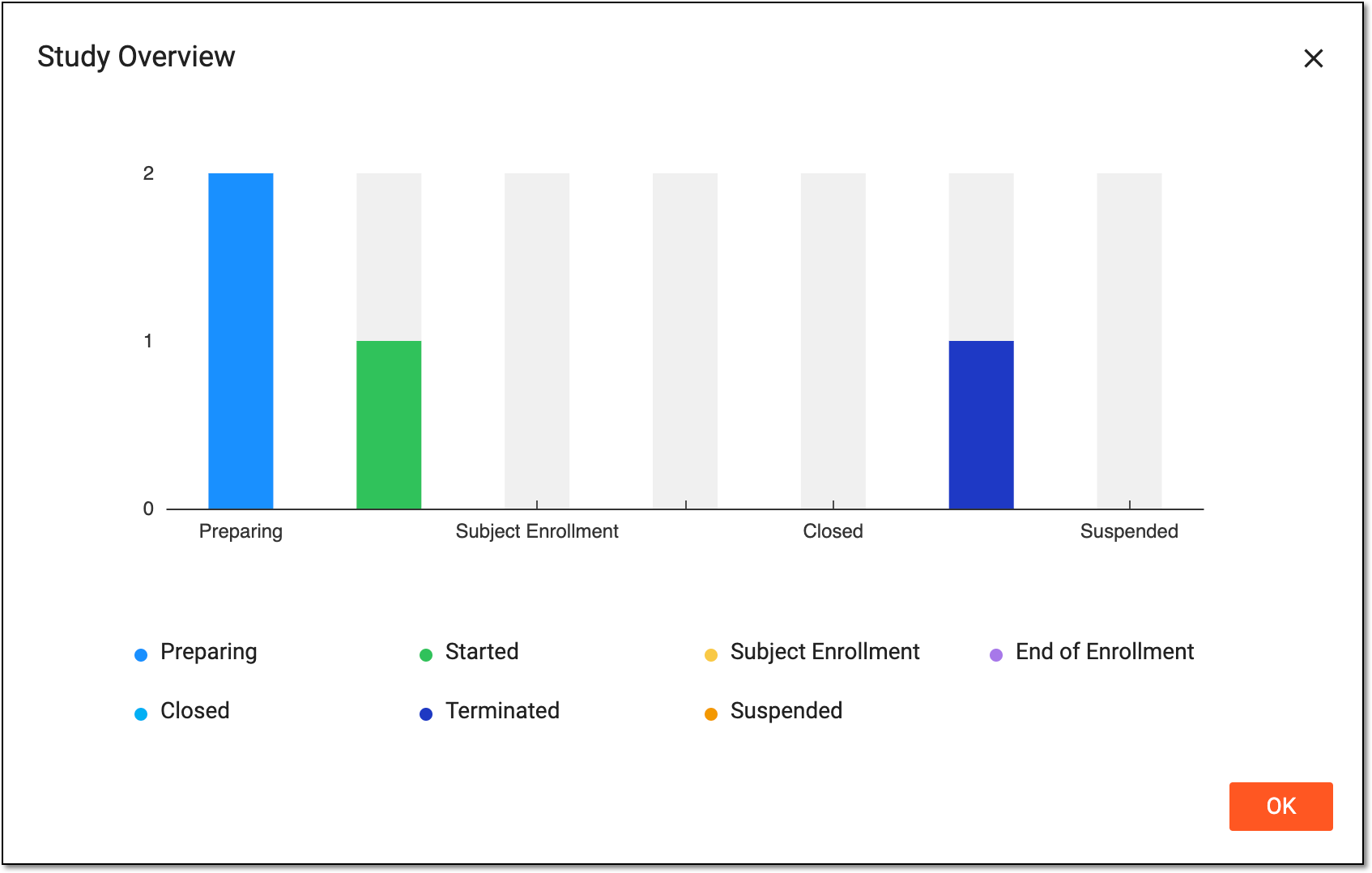 Figure 2. Study overview chart
Status
Details
Preparing
The study is being set up and respective preparations are being held.
Started
The study is live and respective sites and institutions start operating in specific countries.
Subject Enrollment
The subjects are actively registered and enrolled in a study.
End of Enrollment
The subject enrollment process of the study is completed.
Closed
The study is closed, although the data analysis and manuscript preparation can still occur.
Terminated
The study is aborted before the planned end date for some reason, for instance, due to the observed efficacy of the treatment or, on the contrary, because of the serious adverse effect of the investigated product.
Suspended
The study research activities are temporarily halted and pending future actions, for instance, collecting more data on adverse effects occurred.
-
Select
 to close the chart dialog and return to the Study Data List page.
You have examined the current status statistics of the studies maintained in the CTMS application. You can also change the study status.
In CTMS, you can change the study status manually. The study status represents the current stage of the study, which can be in preparation, already started to admit subjects, or else.
-
In the CTMS application header, select the STUDY MANAGEMENT tab.
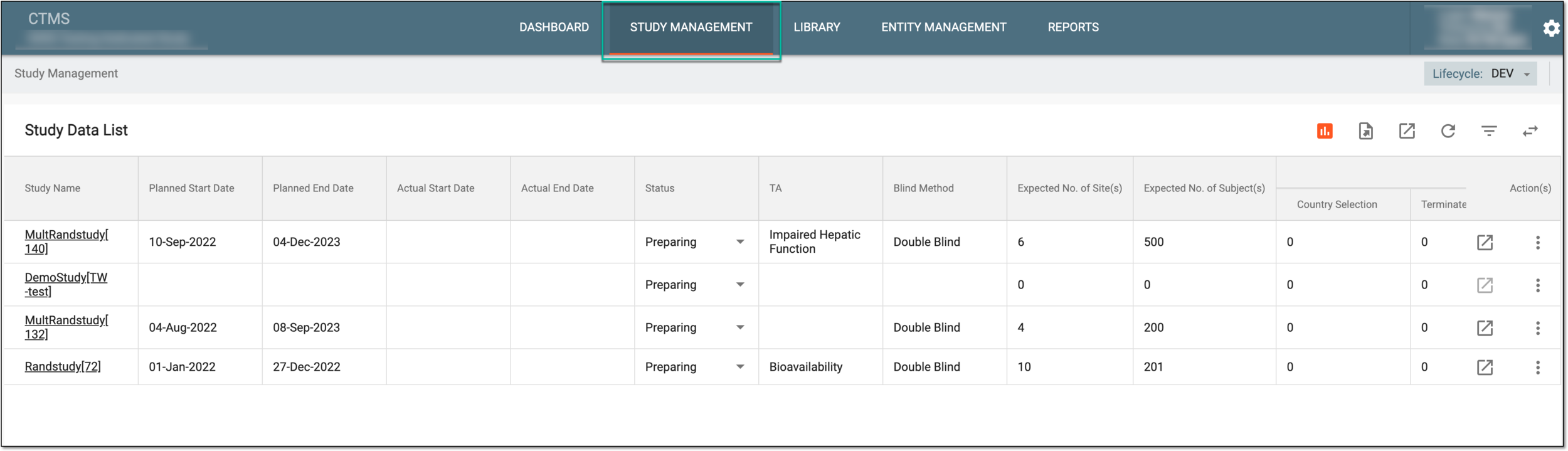 Figure 1. Accessing study management
-
On the Study Data List page that opens, in the table, go to the study whose status you want to change.
-
In the Status column, select the status you want to set for the study. The statuses are explained in the following table.
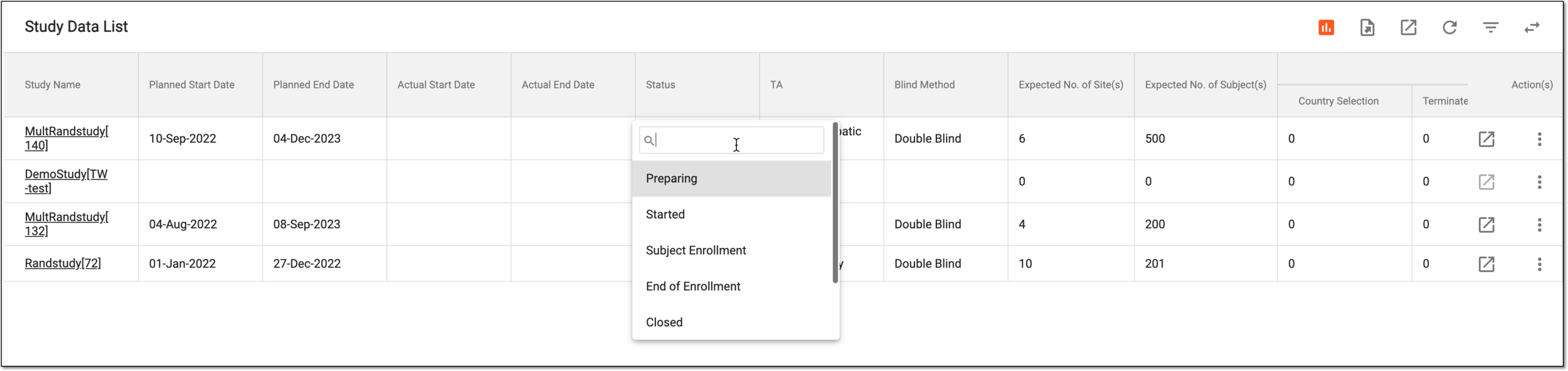 Figure 2. Changing study status
Status
Details
Preparing
The study is being set up and respective preparations are being held.
Started
The study is live and respective sites and institutions start operating in specific countries.
Subject Enrollment
The subjects are actively registered and enrolled in a study.
End of Enrollment
The subject enrollment process of the study is completed.
Closed
The study is closed, although the data analysis and manuscript preparation can still occur. If this status is assigned to the study, you must confirm the action.
Note that you can close the study only after all countries/regions associated with it have been closed and all study-related
                                        protocol deviation records have been completed.
Terminated
The study is aborted before the planned end date for some reason, for instance, due to the observed efficacy of the treatment or, on the contrary, because of the serious adverse effect of the investigated product. If this status is assigned to the study, you must confirm the action.
Suspended
The study research activities are temporarily halted and pending future actions, for instance, collecting more data on adverse effects occurred. If this status is assigned to the study, you must confirm the action.
-
If you update the study status to Closed, Terminated, or Suspended, in the Confirm dialog that appears, provide the details as explained in the following table.
Important
The details you need to provide for action confirmation depend on the authentication method configured for you in the system—via SSO or via providing your login and password.
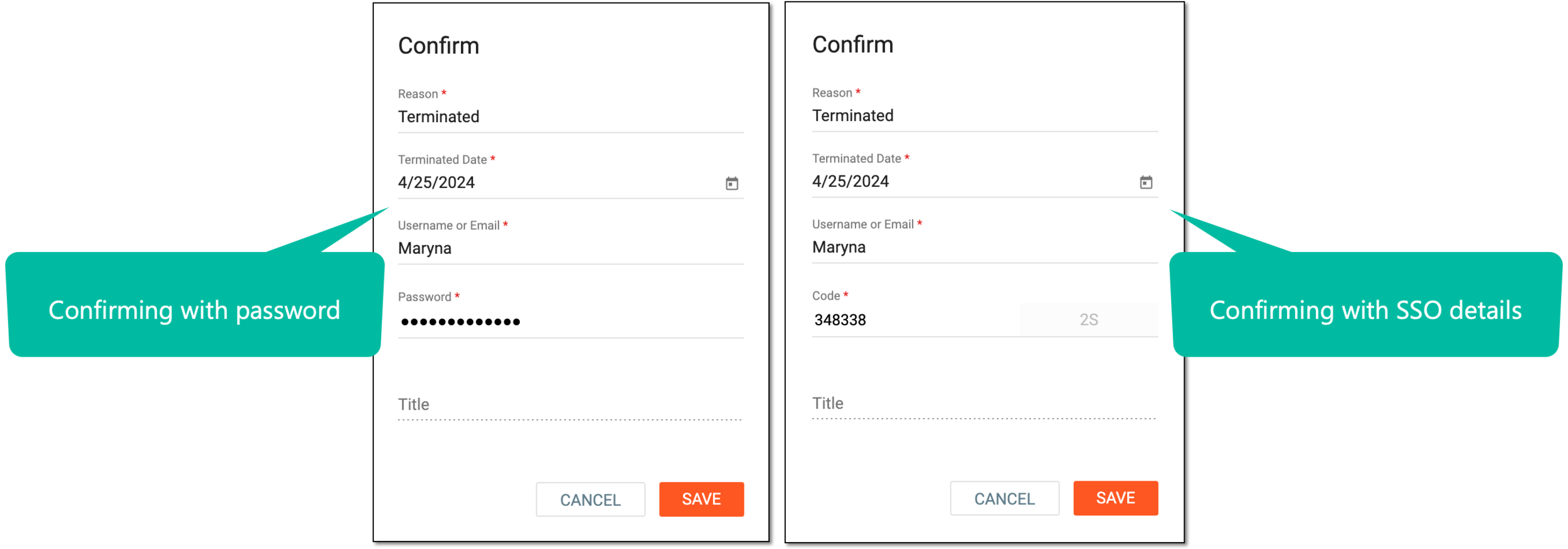 Figure 3. Confirming study status update
Tip
In the following table, mandatory elements are marked with an asterisk (*).
Element
Details
Reason*
Enter the reason for terminating or suspending the study. You do not need to provide a reason for closing the study.
Closed Date* / Terminated Date* / Suspended Date*
Select
 to indicate the date when the study has been closed, terminated, or suspended.
Username or Email*
Enter your CTMS username or email address.
Send Code
Select
 to send the temporary PIN code to your email for which the SSO method is configured.
The button is only available if you use the authorization method via SSO.Code*
Enter the temporary PIN code that you received via email.
The field is only available if you use the authorization method via SSO.Password*
Enter the password you use to log in to the eClinical system.
The field is only available if you use the authorization method by providing your login and password.Title
View the job title associated with your username.
SAVE
Select
 to confirm the study status change.
CANCEL
Select
 to stop the study status change.
Once selected and confirmed, the study status is changed.
In CTMS, with the Operate History option, you can track all the actions performed with a study, find out when and by whom the action has been applied, and if there are any comments on the operation.
-
In the CTMS application header, select the STUDY MANAGEMENT tab.
Figure 1. Accessing study management
-
On the Study Data List page that opens, in the table, go to the study for which you want to explore the operation history.
-
In the Actions column, next to the study of your interest, select More > Operation History
 .
.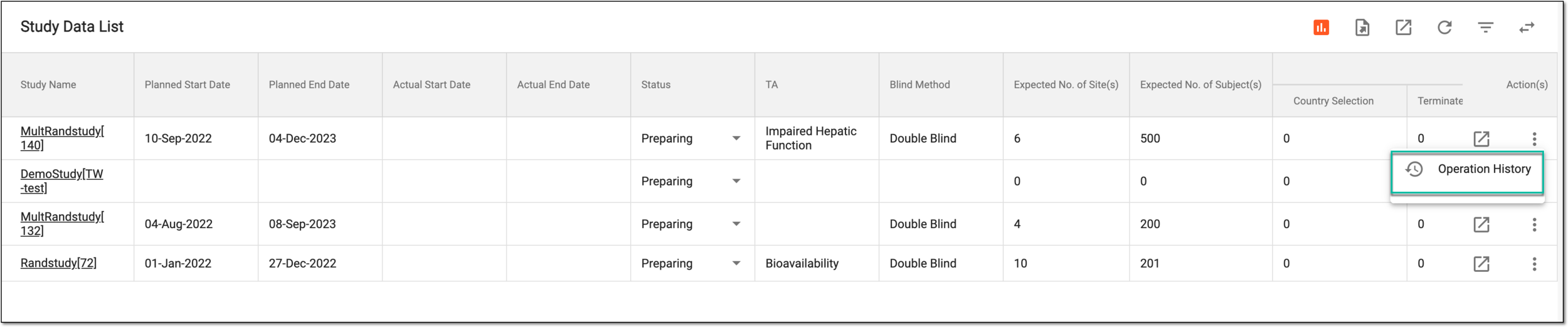 Figure 2. Accessing study operation history
-
In the Operate History dialog that opens, explore the table with all the actions performed with the study.
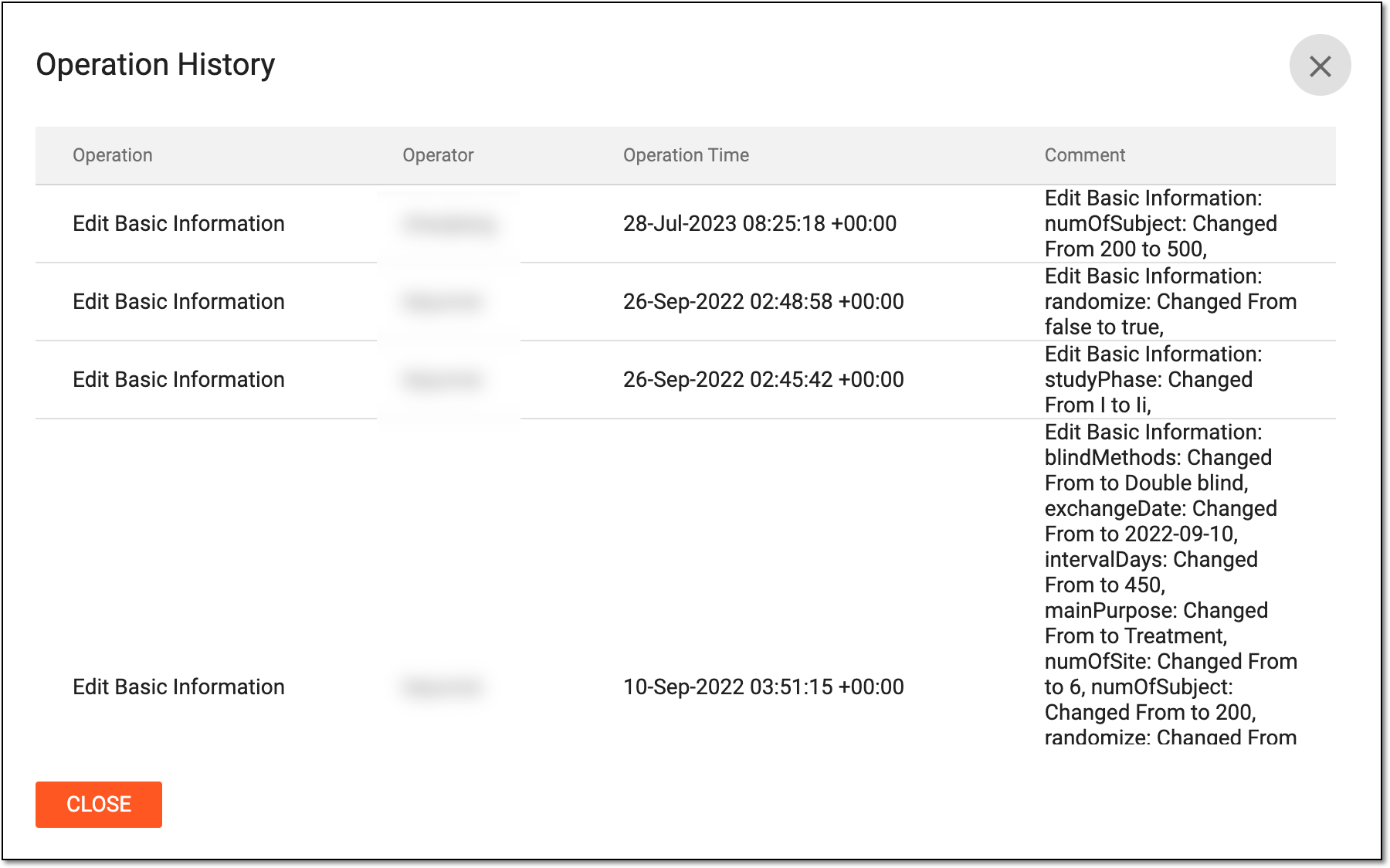 Figure 3. Viewing study operation history
-
Select
 to close the dialog and return to the Study Data List page.
You have explored the study operation history.
In CTMS, you can export the list of the currently maintained studies, and their planned start and end dates as an XLSX file and use it offline, for instance, to share it with someone without access to the system.
The other possible option is to export all the study configurations at once, such as monitoring, protocol deviation, risk monitoring, and so on.
-
In the CTMS application header, select the STUDY MANAGEMENT tab.
Figure 1. Accessing study management
-
On the Study Data List page that opens, export the needed data as follows:
-
Export all the studies by selecting Export
 from the workspace toolbar.
 Figure 2. Exporting study data list
-
Export a specific study by first locating the required study and then next to it, from the Action(s) column, select Export
 and in the menu that appears, select Export Study Data.
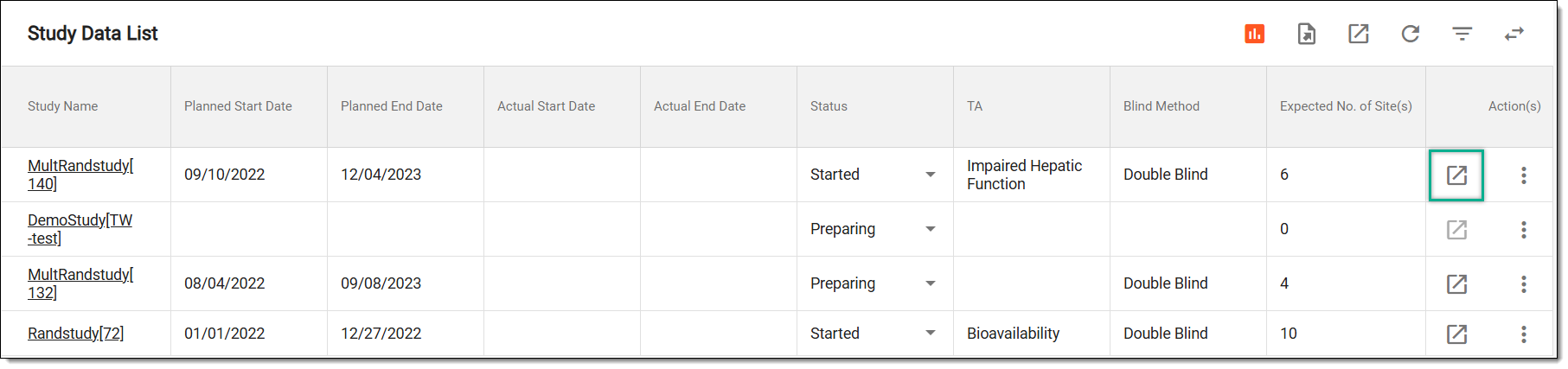 Figure 3. Exporting study data
-
Export configurations of the specific study, such as all the settings made under the Study Management module—monitoring configuration, protocol deviation setting, alert setting, ICF tracking log setting, RBM setting, and tracking log setting. Locate the required study and then next to it, from the Action(s) column, select Export
and in the menu that appears, select Export Study Configuration.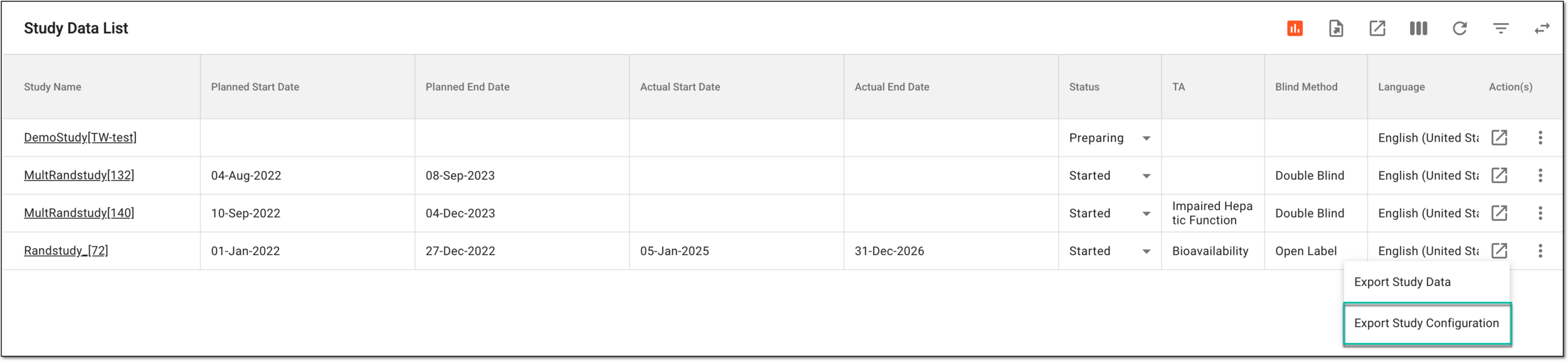 Figure 4. Exporting study configuration
-
-
In the widget that appears, track the export completion. Select the widget to access downloadable files.
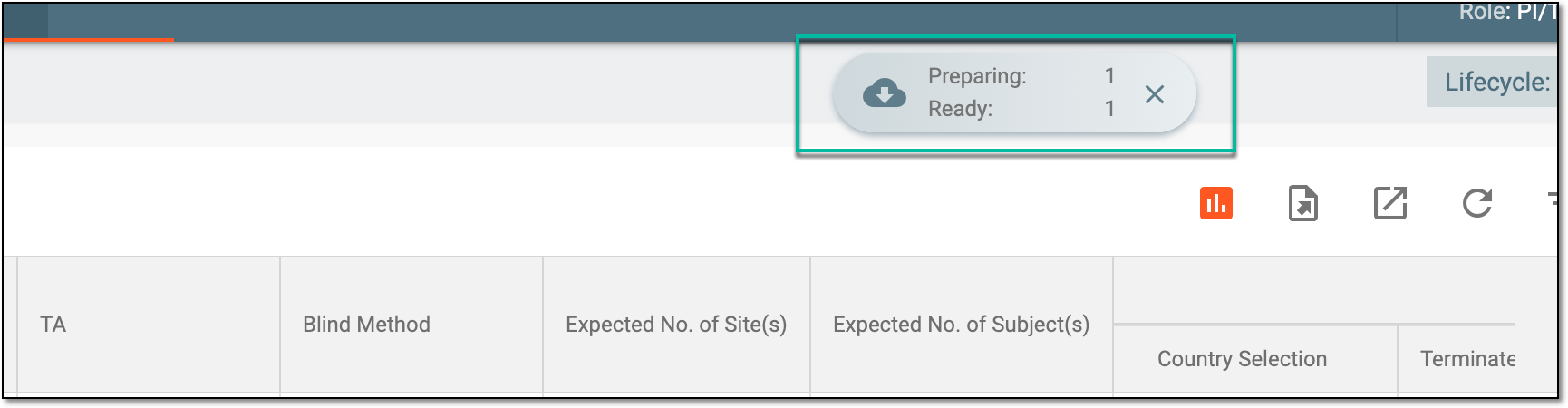 Figure 5. Study data list export progress
-
In the My Downloads dialog that opens, once the exported file appears under the Download is Ready tab, select
 next to it to initiate its downloading to your computer.
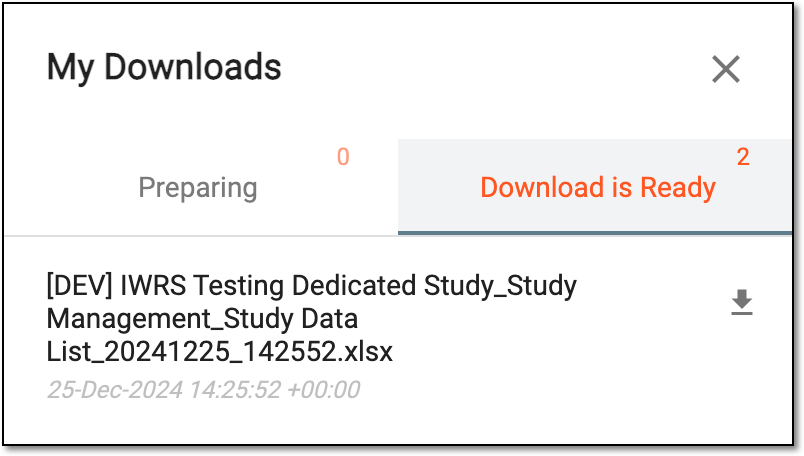 Figure 6. Downloading exported study data list
Once downloaded and saved, the exported study data is available on your computer.
Study decommissioning is the final stage of managing a clinical trial in an eClinical system, marking its formal conclusion when the trial is completed, suspended, or terminated. Before starting decommissioning, ensure all collected data is managed per protocol and regulatory guidelines. During this process, trial data across systems is securely finalized and hardlocked, and CTMS archives essential reports in the ADMIN application so sponsors can easily access and download them later.
Tip
The essential reports that are archived by CTMS in the ADMIN application are specified by the system administrators in the ADMIN application.
The decommissioning procedure is usually performed by the project management (PM) team, who typically oversee the planning, execution, and completion of the clinical trial.
Important
The study decommissioning functionality is only available in the PROD environment (lifecycle) as it is the final operation that cannot be performed in DEV or UAT.
Study decommissioning in CTMS is one of the finalization steps taken once the following preconditions are met in other systems:
-
Data collection, review, and management are over and the study is hardlocked in EDC.
-
Files are properly reviewed and organized and the study is locked in eTMF.
-
All subject and drug-related procedures are completed and the study is locked in IWRS.
-
The study status in CTMS is Closed, Terminated, or Suspended.
-
The ticket for study decommissioning is created via the OKTA system and you have its identification number.
-
In the CTMS application toolbar, expand the Lifecycle menu and select PROD.
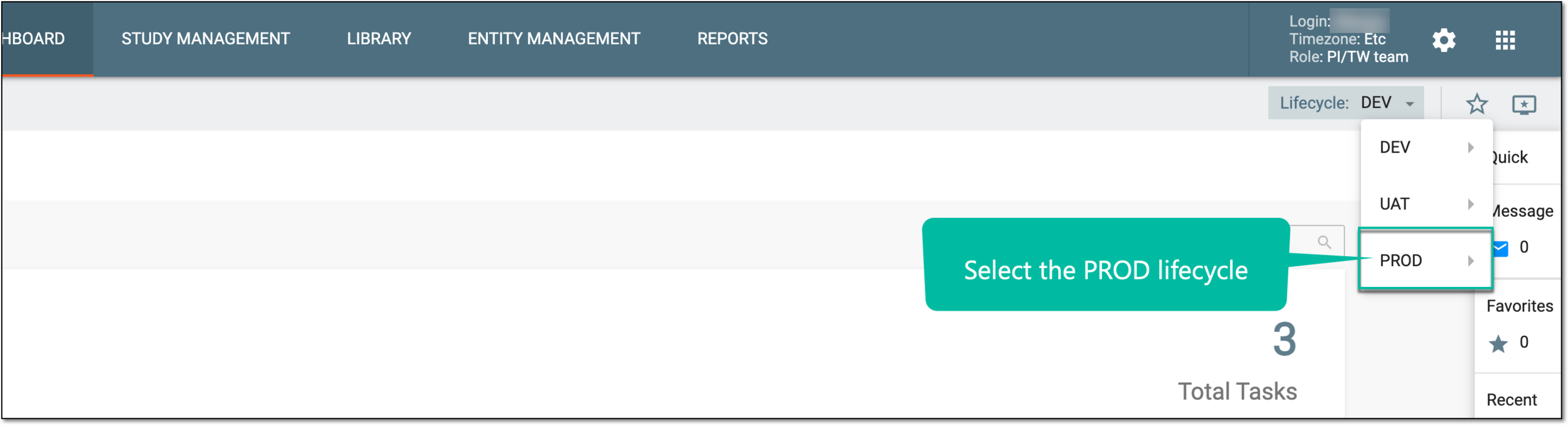 Figure 1. Switching to PROD lifecycle
-
In the application header, select the STUDY MANAGEMENT tab.
-
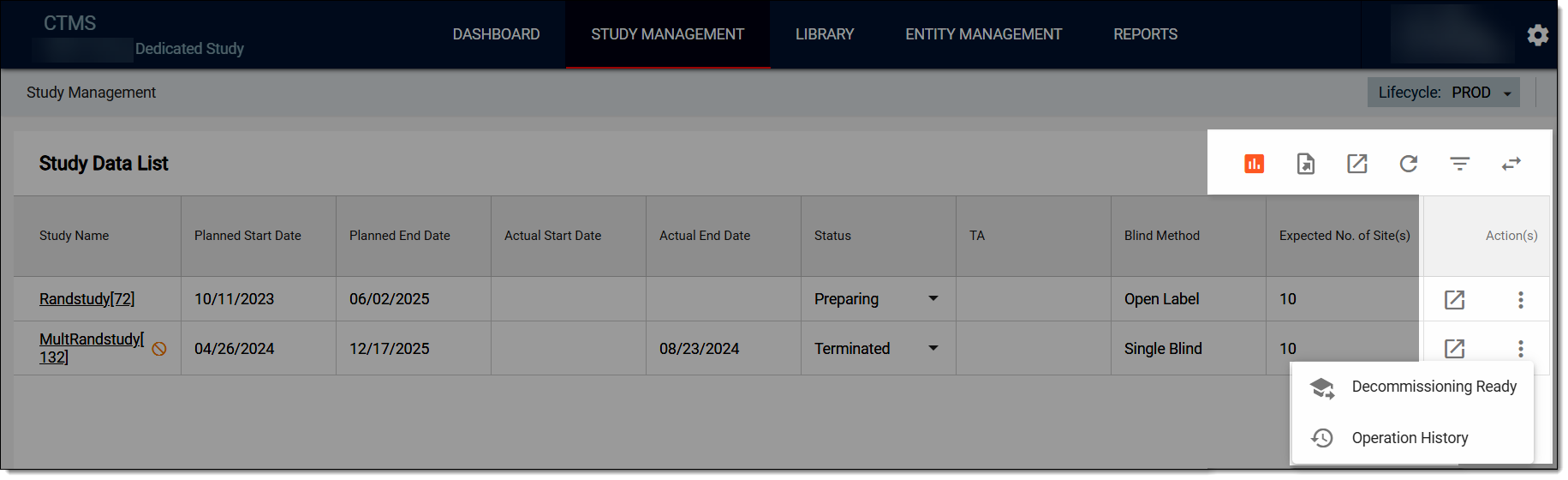
In the Study Data List table, locate the study of your interest and select More
 > Decommissioning Ready
  .
.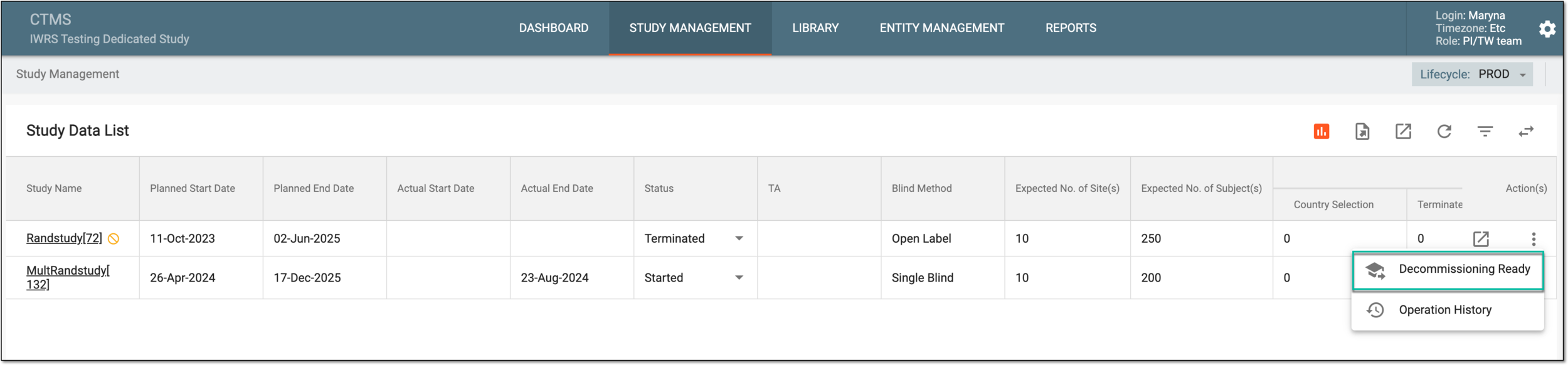 Figure 2. Accessing study decommissioning
-
In the Decommissioning Ready dialog, complete the fields as explained in the following table.
Important
Some fields of the dialog differ depending on your authorization method—via username and password or SSO.
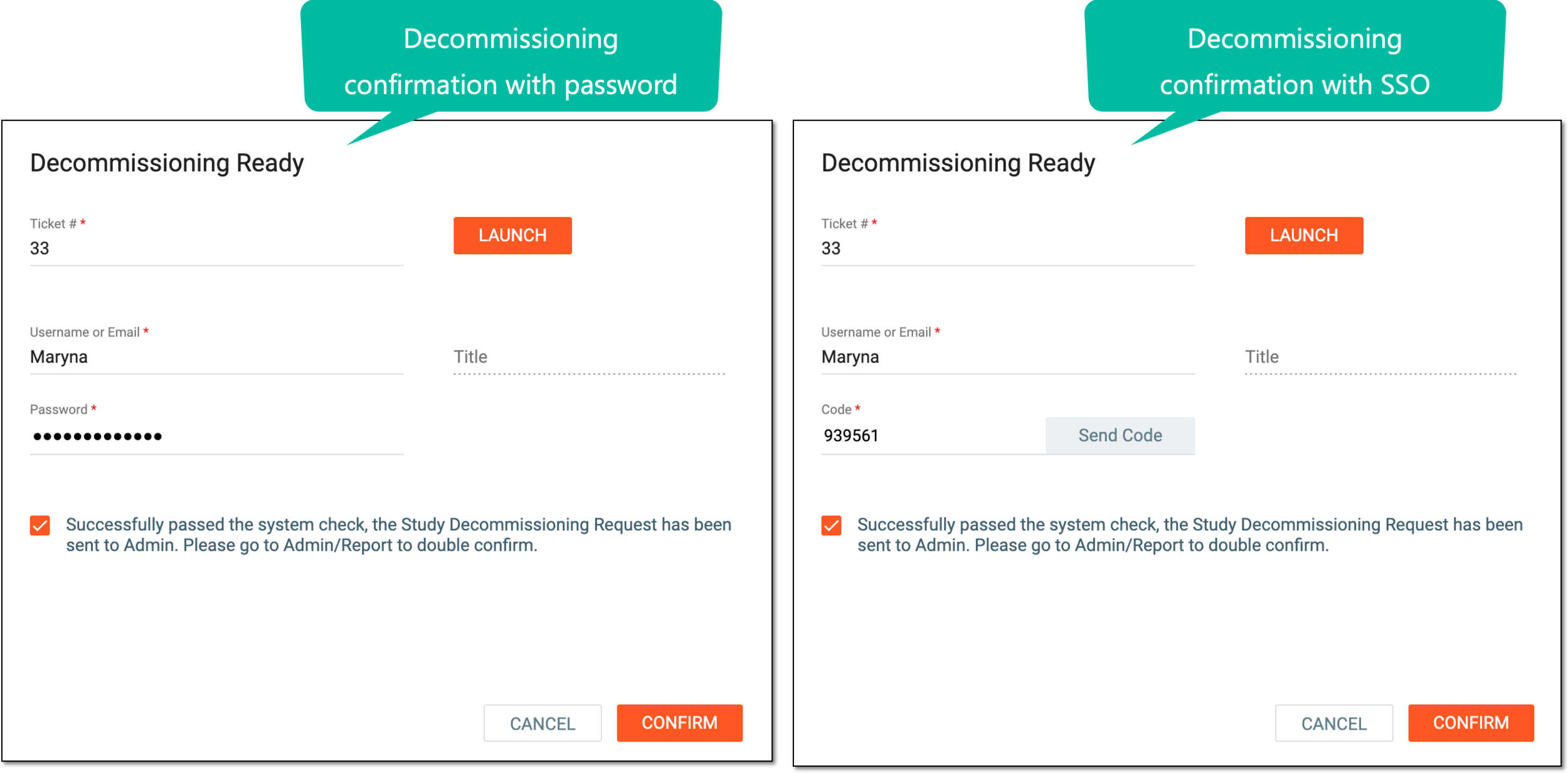 Figure 3. Initiating study decommissioning
Tip
In the following table, mandatory elements are marked with an asterisk (*).
Element
Details
Ticket #*
Enter the ticket identifier number with which the study decommissioning task can be tracked in the OKTA system. The ticket must be created beforehand by the person responsible for decommissioning, usually, the project manager (PM), and the ticket ID must be provided for this purpose.
LAUNCH
Select
 to initiate study decommissioning.
Once launched, the system performs the following activities or checks:
-
First, the system ensures if the preconditions for decommissioning are met in EDC, eTMF, and IWRS.
-
In CTMS, the respective icon
 indicates that the decommissioning procedure is initiated for the study.
 Figure 4. Locating decommissioning study
-
The study is no longer available for amendments in EDC, eTMF, and IWRS. If the user is already working with this study in any eClinical application, they receive the system notification and can no longer perform any actions.
If some preconditions are not met, the system indicates which applications must be revisited. Go to the indicated applications, meet the preconditions, and then reinitiate the decommissioning procedure.
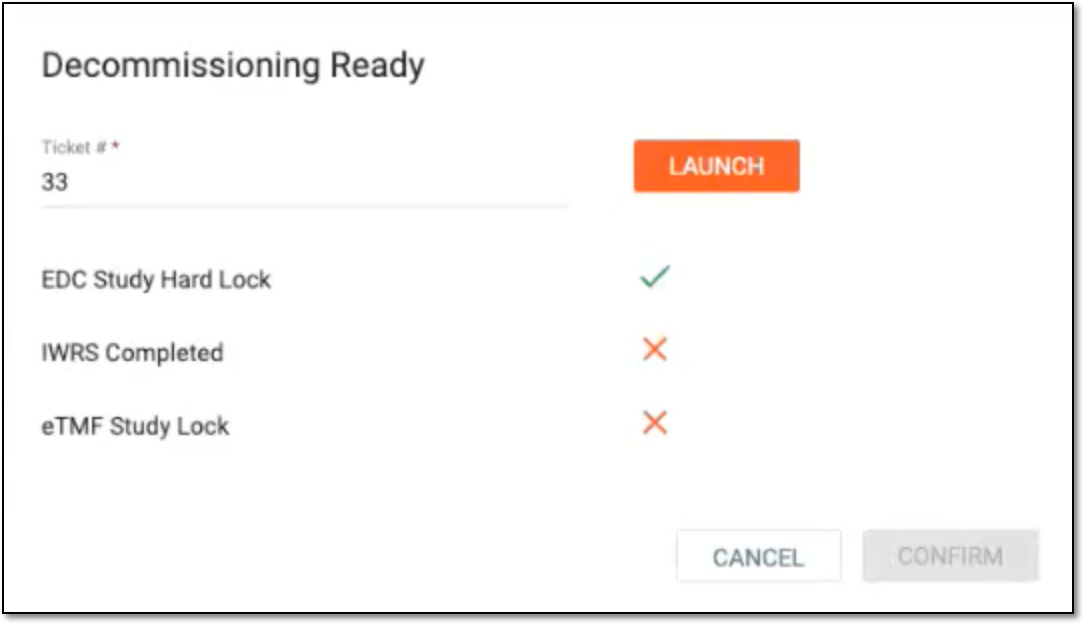 Figure 5. Indicating unmet preconditions
-
The system securely archives the study-related reports in the ADMIN application, ensuring they remain unaltered and are readily accessible to sponsors when needed.
If you close the Decommissioning Ready dialog upon launch without confirmation, the system does not discard the initiated process and the study remains decommissioning.Username or Email*
Enter the username or email address you use to log in to the CTMS system.
Title
Represents the title of the user performing the action. This is autopopulated with the title configured for you via the ADMIN application, you cannot enter the title manually.
Password*
Enter the password you use to log in to the CTMS system.
This field is only available if your authentication method is via username and password. Otherwise, enter a confirmation code.Send Code
Select
to send the temporary PIN code to your email for which the SSO method is configured.This button is only available if your authentication method is via SSO.Code*
Enter the temporary PIN code that you received via email.
The PIN code is valid for 5 minutes before it expires. Select
again to send another email and regenerate the PIN if required.This field is only available if your authentication method is via SSO. Otherwise, enter your password.Successfully passed the system check, the Study Decommissioning Request has been sent to Admin. Please go to Admin/Report to double confirm
Select the checkbox to acknowledge your agreement with the stated.
CONFIRM
Select
 to proceed with decommissioning initiation.
CANCEL
-
If you select
before launching the decommissioning, the dialog closes and your action is discarded with no effect on the study. -
If you select
after launching the decommissioning, the dialog closes but the system does not discard the initiated process
and the study remains decommissioning.
-
Once confirmed, the study decommissioning is initiated in CTMS and requires further confirmation via the ADMIN application otherwise the decommissioning request is not finalized and cannot be completed.
Important
The study decommissioning request can be revoked until confirmed via ADMIN. Once confirmed via ADMIN, the action is final and irreversible.
Study decommissioning is the final stage of study management in the eClinical system as it refers to formally ending your trial once it is completed, suspended, or terminated.
Initiating study decommissioning in CTMS is one of the final steps taken after all preconditions are met in other systems. Nevertheless, once you have initiated decommissioning in CTMS but have not yet confirmed it in ADMIN, you can still revoke the operation. This might be helpful if some last-minute modifications must be done before finalizing your study.
-
In the CTMS application toolbar, expand the Lifecycle menu and select PROD.
Figure 1. Switching to PROD lifecycle
-
In the application header, select the STUDY MANAGEMENT tab.
-
In the Study Data List table, locate the study for which decommissioning is initiated and next to it, select More
> Revoke  .
. Figure 2. Revoking study decommissioning
-
In the Reason dialog, enter the reason for revoking the decommissioning request and select
.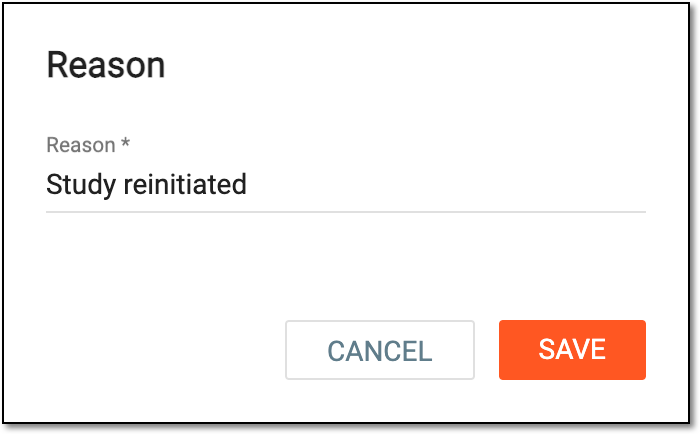 Figure 3. Initiating study decommissioning
Once saved, the study decommissioning is revoked, the decommissioning icon disappears from the study name in CTMS, and the study becomes available again in the eClinical systems—EDC, eTMF, IWRS, and others.