Add tracking log setting
The tracking log setting is a configuration that defines the type of document you intend to track, how the log must be kept, and according to which template the data must be filled.
For example, if you plan to record entries for Financial Disclosure Forms (FDF), you need to set up the FDF log first.
-
Access the study management page in one of the following ways:
-
In the CTMS application header, select the DASHBOARD tab and then select the study dashboard of your interest.
 Figure 1. Accessing study management from dashboard
-
In the CTMS application header, select the STUDY MANAGEMENT tab. Then from the Study Data List table, select the study name of your interest.
 Figure 2. Accessing study management from study data list
-
-
On the page that opens, from the left pane, select Tracking Log > Tracking Log Setting.
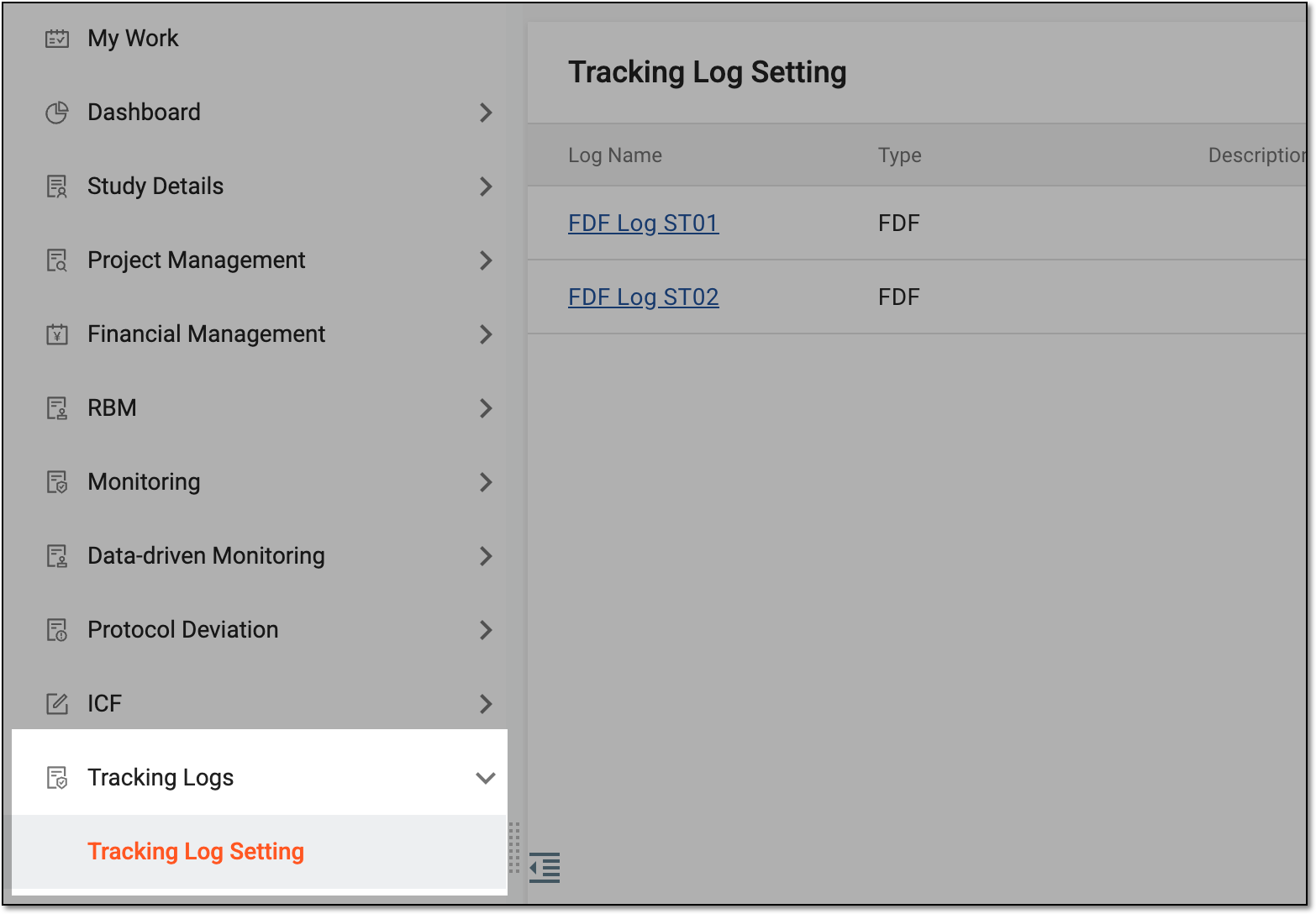 Figure 3. Accessing tracking log setting
-
On the Tracking Log Setting page that opens, from the workspace toolbar, select New Item
 .
. Figure 4. Selecting option to add tracking log setting
-
On the page that opens, enter the regulatory document log details as explained in the following table.
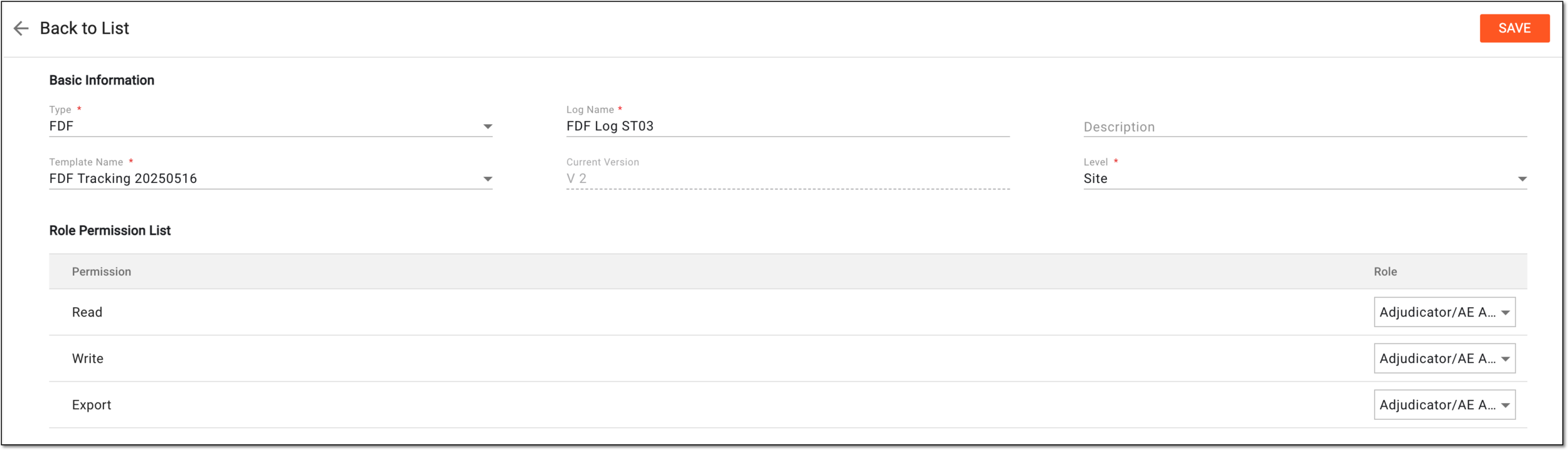 Figure 5. Adding tracking log setting details
Tip
In the following table, mandatory elements are marked with an asterisk (*).
Element
Details
Basic Information
Type*
Select the category of documentation that you want to track with this log. The values of the field depend on the reference data items configured in the CTMS library. The following are examples of some popular study-specific documentation tracking logs:
-
Regulatory Documents: to create a tracking log for documents regarding the regulatory oversight of the study conduct at sites.
For this type, the system can be configured to generate multiple document tracking logs in one, autocreate the tracking log entries, and define conditions for data population between forms. To learn more, go to Add form to regulatory document tracking log template and Configure regulatory document form population settings sections. -
Debarment Log: to create a tracking log for documents, confirming that none of the study investigators, medical personnel, and other participants are debarred or disqualified from practicing clinical research or product handling activities.
-
Equipment Log: to create a tracking log for documents, ensuring that the appliances and equipment used to conduct the clinical trial are in a proper state, precisely calibrated, handled according to specific requirements, and so on.
-
FDF: to create a tracking log for Financial Disclosure Form—mandatory regulatory documents intended to manage financial conflict of interest in the course of the clinical trial conduct that may in any way influence its outcome.
-
1572 Log: to create a tracking log for Form 1572—core regulatory documents that state the investigators' binding commitment to conduct the study in compliance with all the FDA requirements.
Log Name*
Enter the distinguishable name of your regulatory document log.
Description
Enter any additional details highlighting the purpose or scope of the log.
Template Name*
Select the predefined template based on which you want to structure the tracking log form.
The tracking log templates are created in LIBRARY. The templates available on the
                                  list depend on the selected type.
Current Version
Indicates the current version of the tracking log setting. The tracking log setting version can be upgraded to adjust the setting to the latest version of the tracking log template.
Level*
Select one or both of the following:
-
Site: the tracking log setting applies to a certain study site and its pertaining documents.
-
Study: the tracking log setting applies to the entire study and its pertaining documents.
For the Regulatory Documents type, only Site is available for
                                  selection.
Role Permission List
Permission
Lists the permissions you can provide to the users to manage the log according to their roles and responsibilities:
-
Read: select the user roles to provide them access to view the log data, but not make any amendments.
-
Write: select the user roles to provide them access to view the data, complete the tracking log, and update the existing log entries.
-
Export: select the user roles to provide them access to view and export the tracking log data to their computer.
Role
Select the role next to the permission to which you want to assign the ability to read, write, and export the regulatory document log.
SAVE
Select
 to implement the changes.
Back to List
Select
 to discard the changes without saving and return to the Tracking Log Setting page.
 -
Once saved, you can begin adding and managing related entries by completing the added log.