Upgrade version for tracking log setting
In CTMS, when a new version of the tracking log template is created, the logs based on that template must be upgraded to the latest version to inherit the form configuration, behavior logic, and other changes introduced in the template. This can be achieved by upgrading the tracking log setting version, which automatically upgrades the respective logs. This helps apply the updated template structure to existing logs without changing or affecting the current entries.
-
Access the study management page in one of the following ways:
-
In the CTMS application header, select the DASHBOARD tab and then select the study dashboard of your interest.
 Figure 1. Accessing study management from dashboard
-
In the CTMS application header, select the STUDY MANAGEMENT tab. Then from the Study Data List table, select the study name of your interest.
 Figure 2. Accessing study management from study data list
-
-
On the page that opens, from the left pane, select Tracking Log > Tracking Log Setting.
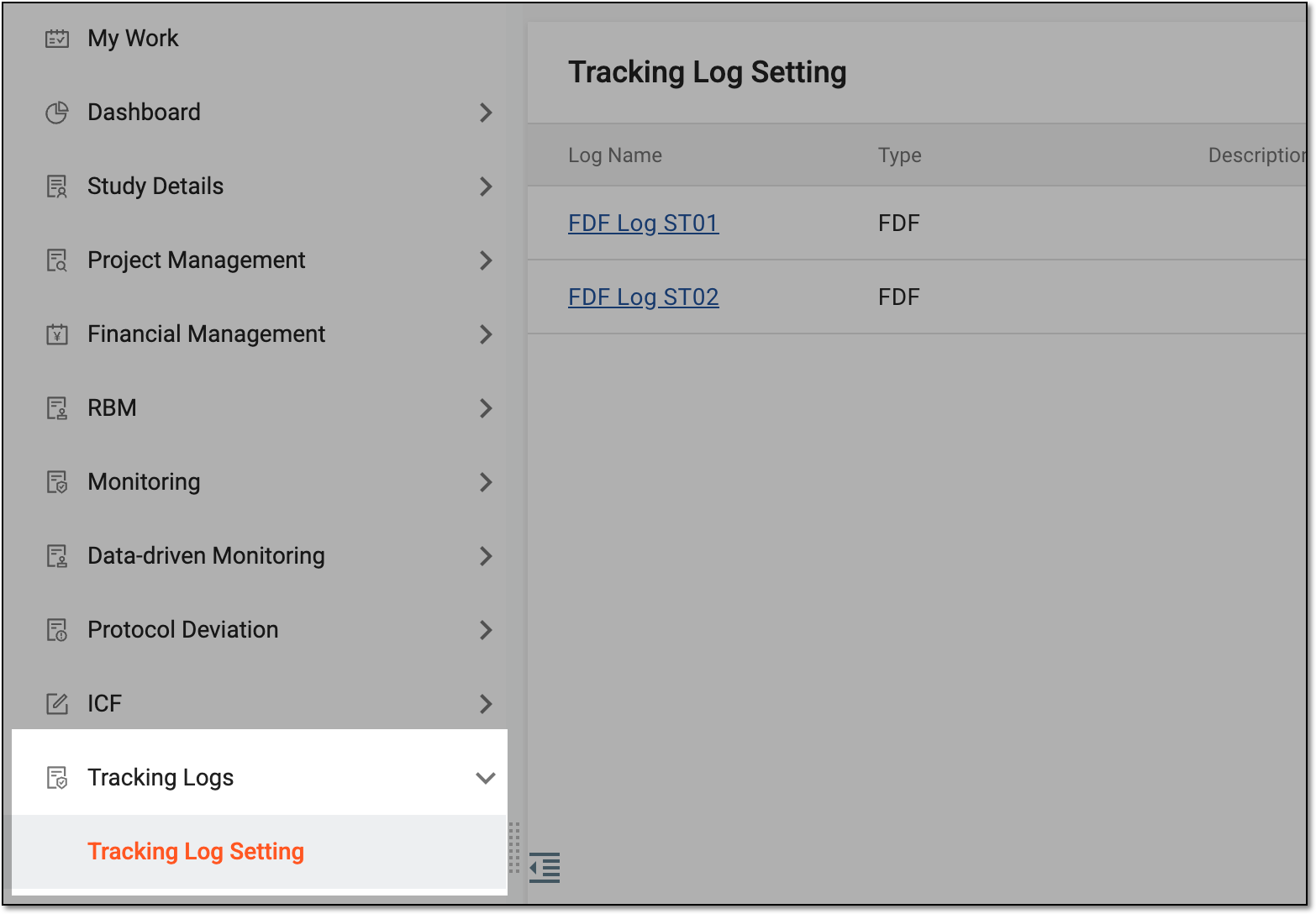 Figure 3. Accessing tracking log setting
-
On the Tracking Log Setting page that opens, next to the log you want to upgrade to the latest template version, from the Action(s) column, select Upgrade Version
 .
. Figure 4. Upgrading tracking log version
-
In the dialog that appears, review the version change details showing the current and target versions. Then select CONFIRM.
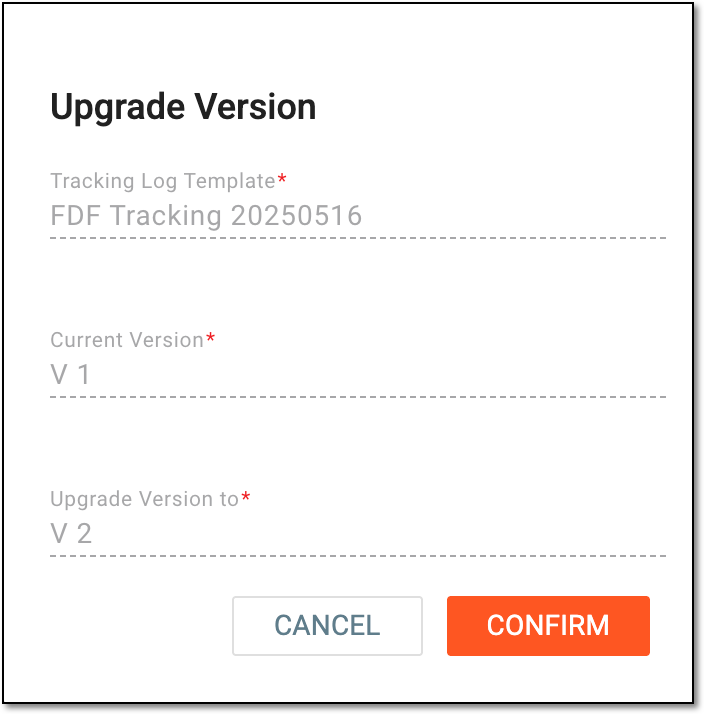 Figure 5. Confirming version upgrade
Once confirmed, the tracking logs following the respective setting are upgraded to the latest template version from the library.