Analyze version change history for tracking log setting
This feature shows the record of all version updates made for the tracking log setting, including the original version, the updated version, and the date of change. It helps track how the log structure has evolved over time and supports transparency and audit readiness.
-
Access the study management page in one of the following ways:
-
In the CTMS application header, select the DASHBOARD tab and then select the study dashboard of your interest.
 Figure 1. Accessing study management from dashboard
-
In the CTMS application header, select the STUDY MANAGEMENT tab. Then from the Study Data List table, select the study name of your interest.
 Figure 2. Accessing study management from study data list
-
-
On the page that opens, from the left pane, select Tracking Log > Tracking Log Setting.
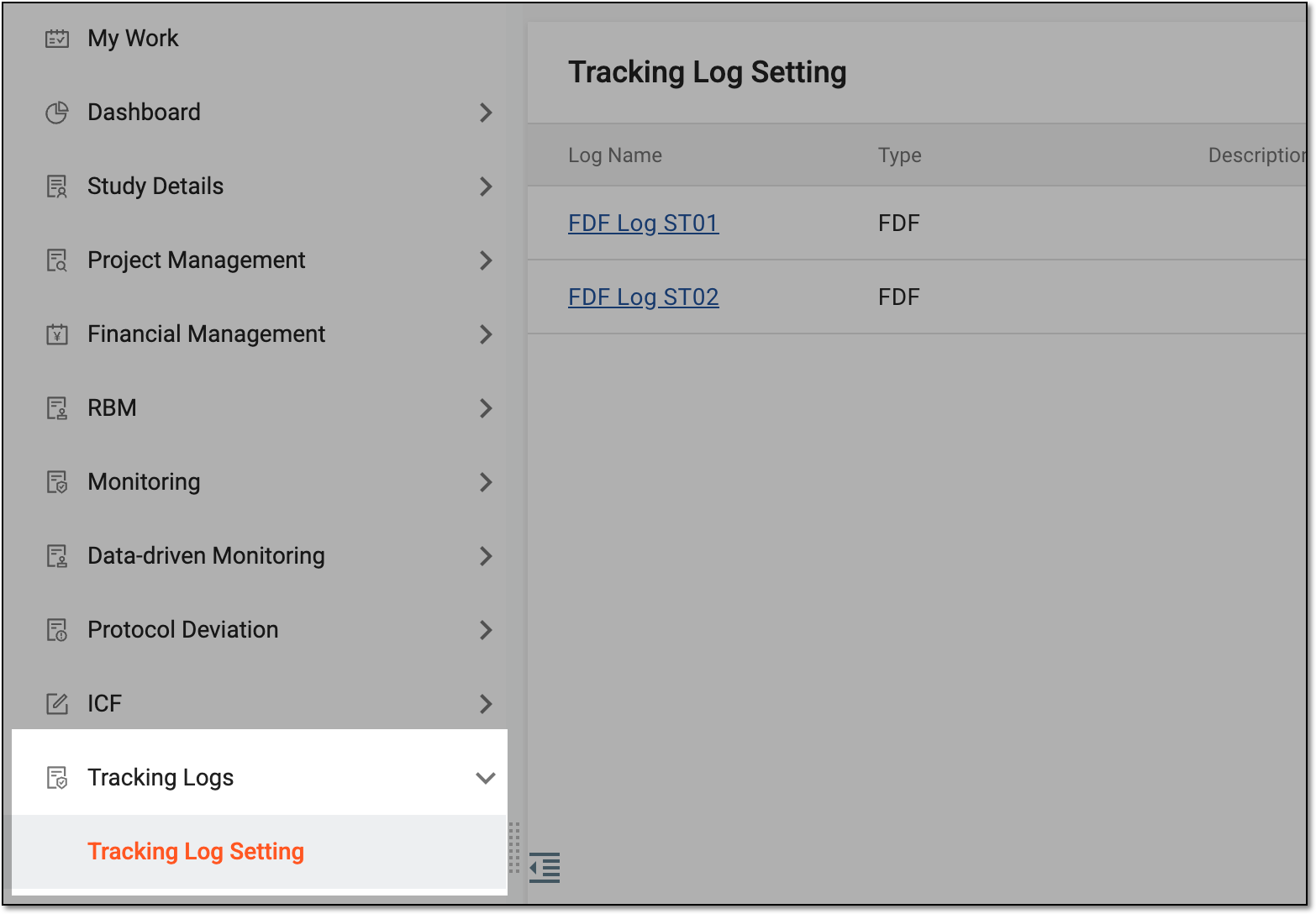 Figure 3. Accessing tracking log setting
-
On the Tracking Log Setting page that opens, next to the required log, from the Action(s) column, select More
 > Version Change History
  .
. Figure 4. Accessing version change history for tracking log setting
-
In the dialog that appears, analyze the version change history.
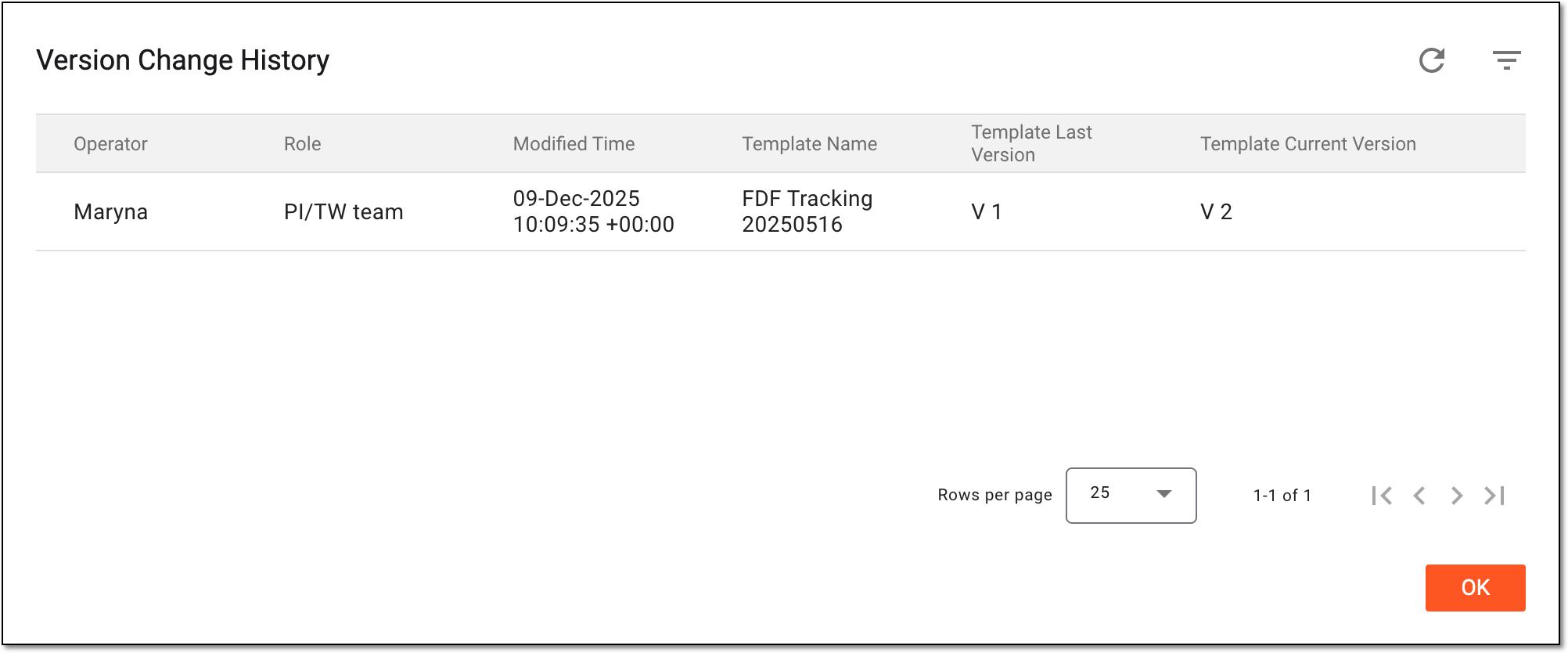 Figure 5. Analyzing version change history for tracking log setting
Once analyzed, select OK to go back to the Tracking Log Setting list.