Configuring tracking log template
The Tracking Log Template subtab in the CTMS library is used to create templates for regulatory documents such as Financial Disclosure Forms (FDF), Form 1572, and others. These templates serve as standardized formats that can be used across studies in the Tracking Logs feature to log and manage required details efficiently.
Once you have created the template, you can start configuring it by adding the required questions and items in accordance with the study or protocol requirements.
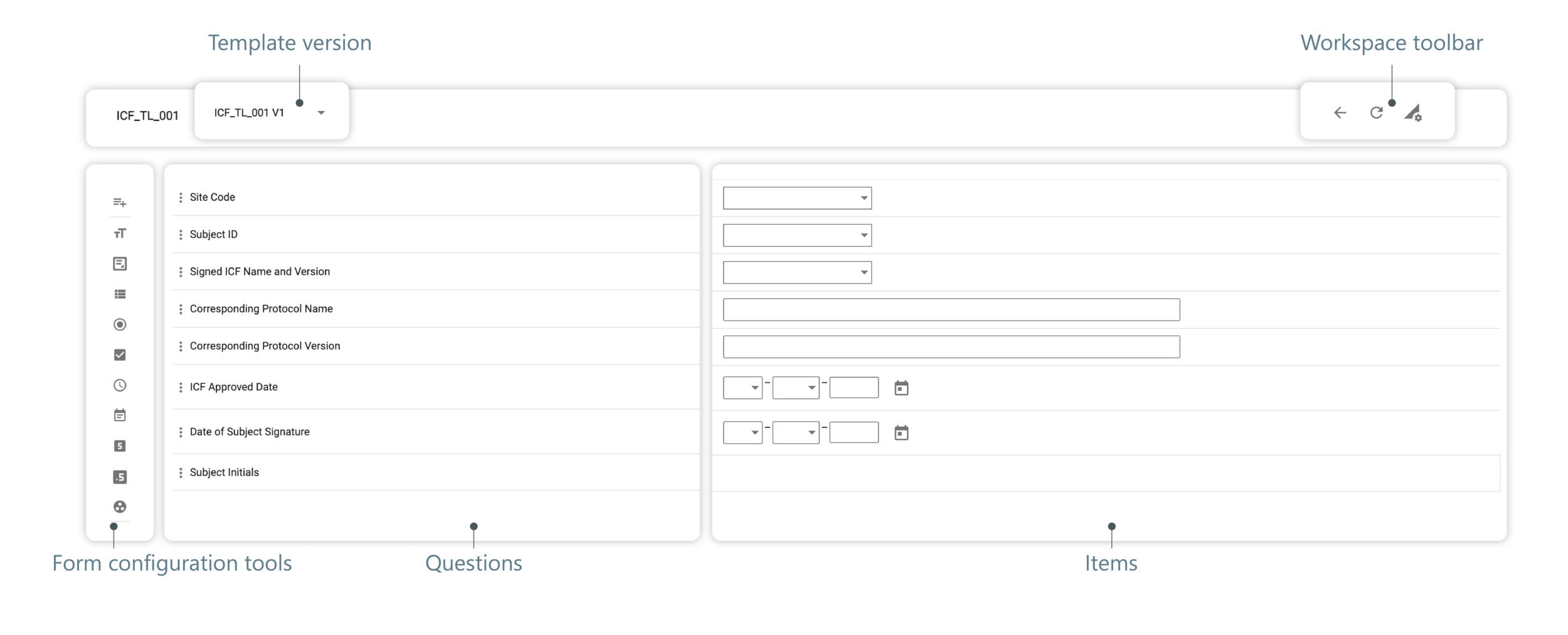
In the following sections, you can learn how to configure your template forms and use available tools.
In CTMS, you can build a library of tracking log templates that support consistent documentation traceability across multiple studies. When managing the tracking log templates of the Regulatory Documents type, they can comprise multiple forms, each intended to be filled with data on the key regulatory document, such as the Financial Disclosure Form (FDF), Form 1572, and others. You can manually add and configure the needed regulatory document tracking log forms to satisfy your business requirements and then reuse them for different studies.
Important
This procedure is only applicable to the tracking log templates of the Regulatory Documents type. For all the rest of the template types, multiple forms are unavailable; thus, once such a template is created from scratch or cloned from the existing one, proceed straight to adding questions to it.
-
In the CTMS application header, select the LIBRARY tab.
-
On the page that opens, from the left pane, select Tracking Log Template.
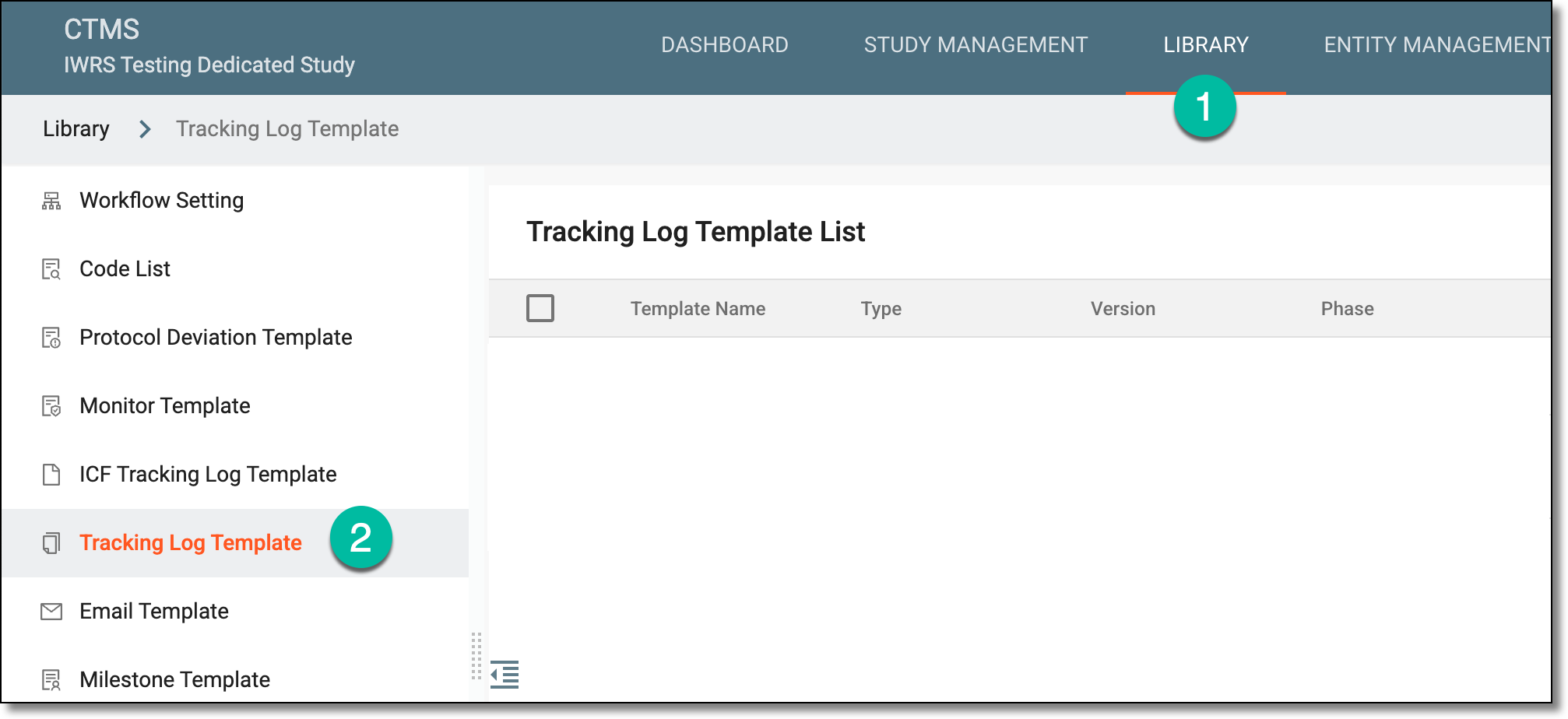 Figure 1. Accessing tracking log template list
-
From the Tracking Log Template List table that opens, locate the template you want to configure and select its name.
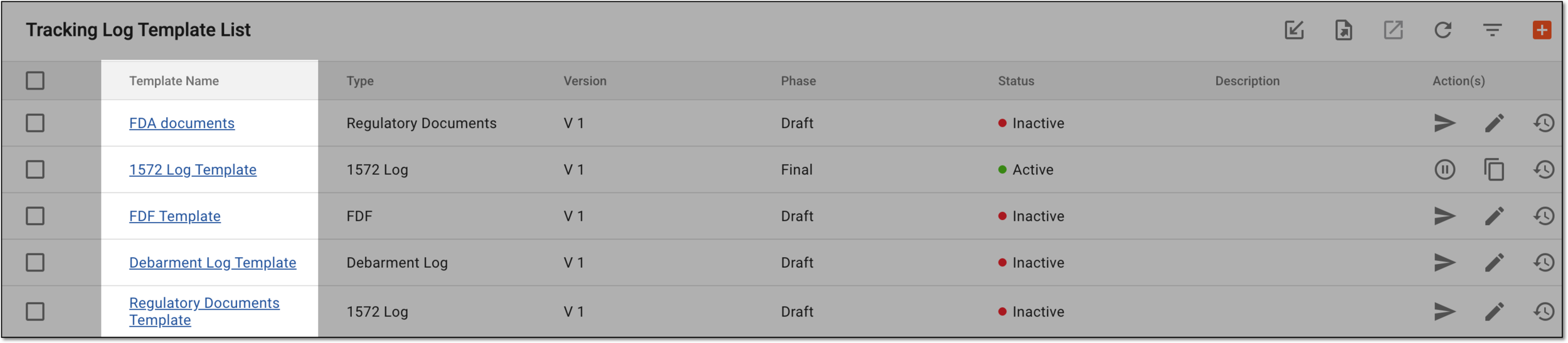 Figure 2. Accessing tracking log template
-
On the page that opens, right-click the needed template name and select New Form
 .
.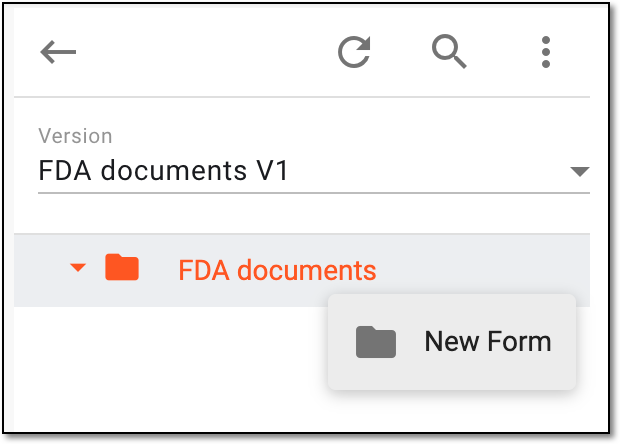 Figure 3. Selecting to add new form
-
In the New panel that expands, complete the details as explained in the following table.
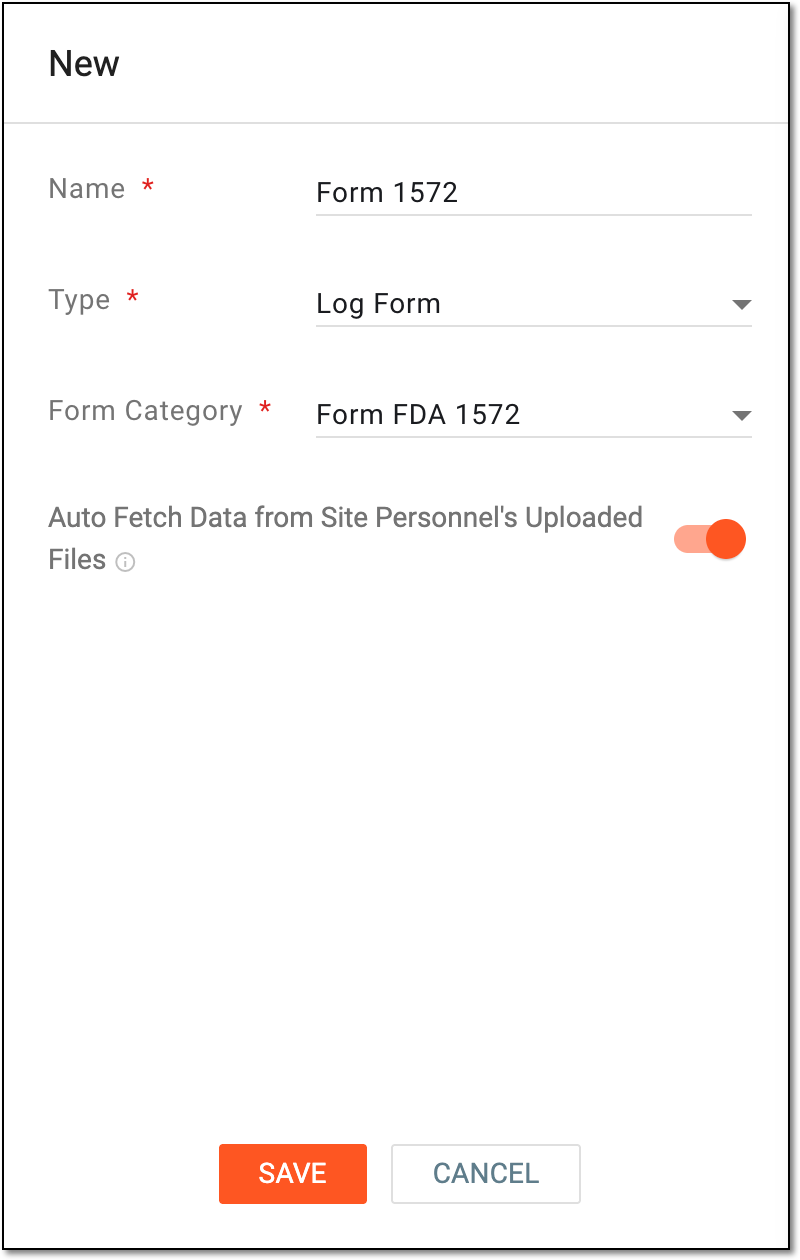 Figure 4. Configuring form for tracking log template
Tip
In the following table, mandatory elements are marked with an asterisk (*).
Element
Details
Name*
Enter the unique distinguishable name of the form.
Type*
Represents the autoselected and the only available type of the form—Log Form—that allows for consistent and sequential record keeping.
Form Category*
Select the category of documentation that must be tracked with the form you create:
-
Form FDA 1572: to create a template form intended for tracking Form 1572—the core regulatory document that states the investigator's binding commitment to conduct the study in compliance with all the FDA requirements.
-
Debarment Statement: to create a template form intended for tracking the documents, confirming that none of the study investigators, medical personnel, and other participants are debarred or disqualified from practicing clinical research or product handling activities.
-
Financial Disclosure Form: to create a template form intended for tracking the Financial Disclosure Form—mandatory regulatory documents intended to manage financial conflict of interest in the course of the clinical trial conduct that may in any way influence its outcome.
-
Other: to create a template form intended for tracking any of the study-specific regulatory documents other than the above.
Auto Fetch Data from Site Personnel's Uploaded Files
Set as follows:
-
Turn on the toggle to enable the system to automatically add entries to the tracking log configured according to this template whenever the electronic version of the Form 1572 is uploaded for the study personnel in CTMS.
-
Turn off the toggle if you only prefer to complete the tracking log entries manually and want to prevent the system from autofilling the log.
This toggle is only available if the Form FDA 1572 category is selected.SAVE
Select
 to implement the changes.
CANCEL
Select
 to discard the changes without saving.
 -
Once saved, the form is added to the tracking log template. You can now start adding questions to the form.
In CTMS, you can build a library of tracking log templates that support consistent documentation traceability across multiple studies. Each template comprises forms intended to be filled with data on the key regulatory documents, such as the Financial Disclosure Form (FDF), Form 1572, and others. You can manually add and configure the needed questions on the tracking log forms to outline the data that must be collected, its format, and dependencies.
-
In the CTMS application header, select the LIBRARY tab.
-
On the page that opens, from the left pane, select Tracking Log Template.
Figure 1. Accessing tracking log template list
-
From the Tracking Log Template List table that opens, locate the template you want to configure and select its name.
Figure 2. Accessing tracking log template
-
On the page that opens, select the needed tracking log template version and then, select the form of your interest.
Important
This step only applies to the tracking log templates of the Regulatory Documents type as they comprise multiple forms.
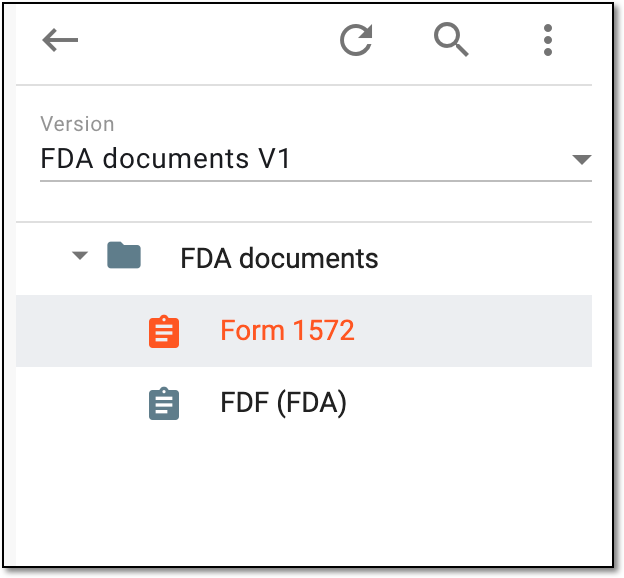 Figure 3. Selecting tracking log template version and form
-
In the form that appears, start configuring questions in one of the following ways.
Tip
Note that some questions can be automatically added to the new form by the system.
Add a new question from scratch and outline the format of the data requested in it.
-
From the left panel, select the type of the question to add it to the template as explained in the following table.
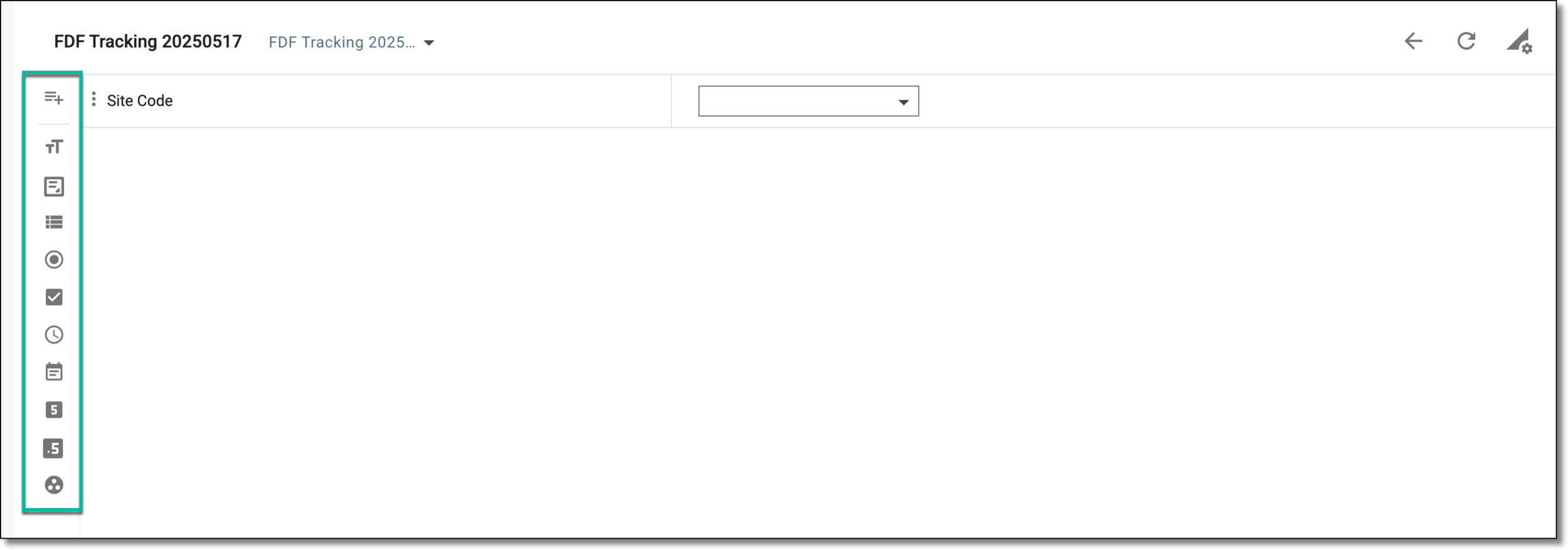 Figure 4. Accessing question type
Element
Details
Question
Select
 to add a custom question intended as a clarification or a tip, as it has no data entry field and is informative in
nature.
to add a custom question intended as a clarification or a tip, as it has no data entry field and is informative in
nature.Label
Select
 to add a question the answer to which must be a short text field.
Use this type for questions inquiring about titles, names, or labels, such as tracking log template name, principal investigator (PI) name, and so on.
Text
Select
 to add a question the answer to which must be a text field for a brief description.
Use this type to create questions, such as "If a financial interest was disclosed, please describe the nature of the interest," "Name of financial interest details reporter," and so on.
TextArea
Select
 to add a question the answer to which must be a larger text field for long descriptions.
Use this type to acquire a detailed description, such as the financial disclosure or else.
ListBox
Select
 to add a question the answer to which must be a dropdown list from which the user can select only one option. The list of answer
options is fetched from the predefined codelists.
to add a question the answer to which must be a dropdown list from which the user can select only one option. The list of answer
options is fetched from the predefined codelists.Use this type to inquire about the category of the protocol deviation, deviation code, or others.
Radio
Select
 to add a question the answer to which must be multiple options (option buttons) from which the user can select only one. The
list of answer options is fetched from the predefined codelists.
to add a question the answer to which must be multiple options (option buttons) from which the user can select only one. The
list of answer options is fetched from the predefined codelists.Use this type to add closed-ended questions with limited answer options.
This data type is suitable for displaying up to 5 options. If your question has more options, then the ListBox is recommended.CheckBox
Select
 to add a question the answer to which must be multiple options from which the user can select one or more options. The list of
answer options is fetched from the predefined codelists.
to add a question the answer to which must be multiple options from which the user can select one or more options. The list of
answer options is fetched from the predefined codelists.Use this type to add multiple-choice questions like: "Select the type of safeguards utilized by research personnel."
Time
Select
 to add a question the answer to which must be a time stamp in various formats, such as hour/minutes, hour/minutes/seconds, and others.
Use this type to inquire about the time at which the event is identified, or reported, and so on.
Date
Select
 to add a question the answer to which must be a date in various formats, such as date/month/year, month/year, and others.
You can select this option to inquire about the date on which the event is identified, or reported, and so on.
Integer
Select
 to add a question the answer to which must be a numeric field to enter a number only.
Use this type to inquire about the number of study participants, recorded events, and so on.
Float
Select
 to add a question the answer to which must be a numeric field that allows entering a number with a decimal point.
Use this type to inquire about the amount of drug used in a study.
Code list Group
Select
 to add a question the answer to which must be a combination of dropdown lists, in each of which the user must select
one option. The list of answer options is fetched from the predefined codelists.
to add a question the answer to which must be a combination of dropdown lists, in each of which the user must select
one option. The list of answer options is fetched from the predefined codelists.Use this type to inquire about the address, where one dropdown list includes provinces, the second includes cities, and the last—a list of streets.
-
After selecting the required question type, in the panel that expands, enter the question information as explained in the following table.
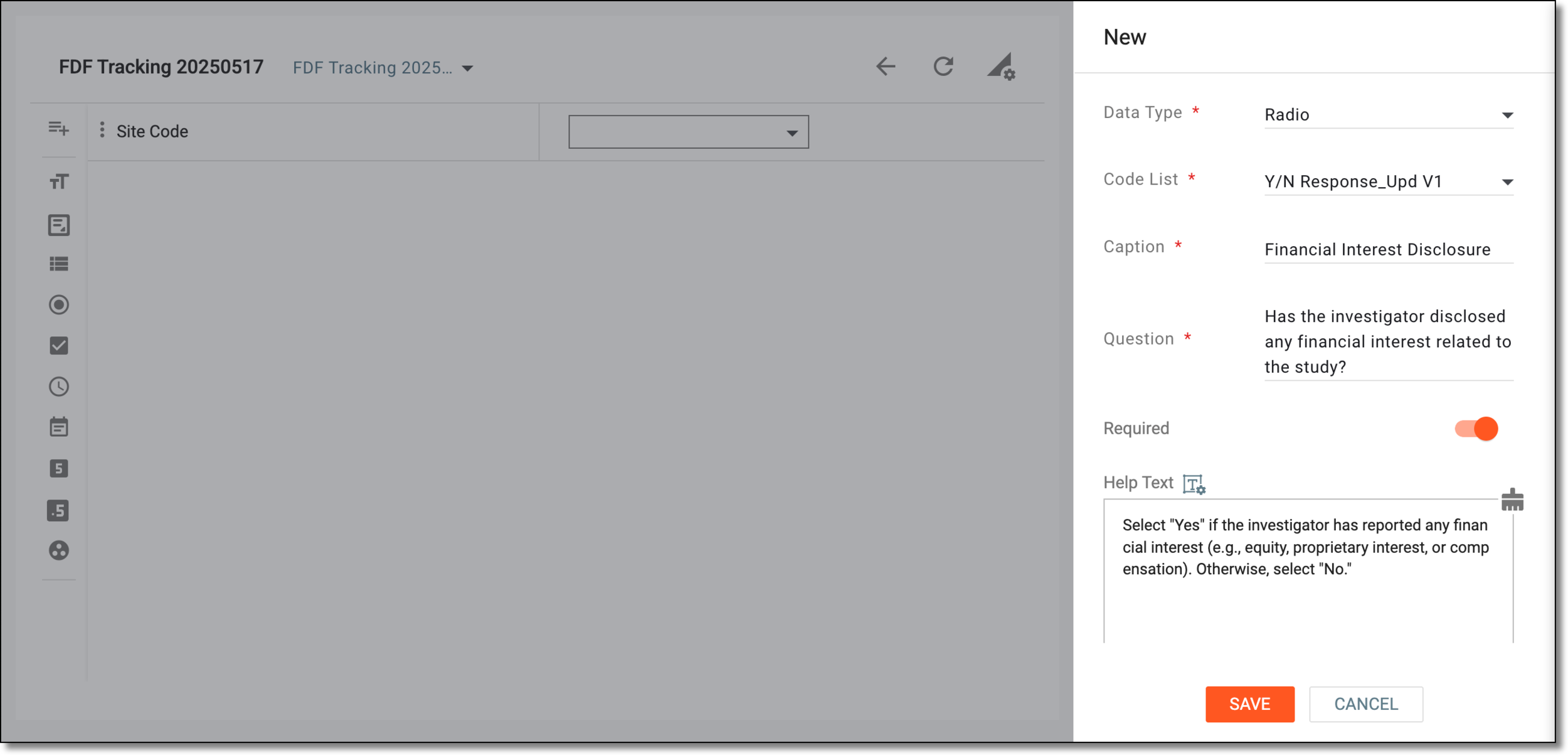 Figure 5. Adding question to tracking log template
Tip
In the following table, mandatory elements are marked with an asterisk (*).
Element
Details
Field Label*
Enter the text of your question that is to be displayed in a form in the final output.
This option is only displayed for the Question type.Data Type*
While adding the question, if you wish to change the data type from the one selected before, then from this dropdown list, select a different data type.
Code List*
Select the code list that includes the options from which you want the user to select an answer.
This option is only displayed if you have selected the following data types: ListBox, Radio, CheckBox, Code list
                                                    Group.
Caption*
Enter a short label or title that helps users quickly understand what information is being requested or recorded, without reading the full question.
Question*
Enter a unique question text that you want to include in the template form.
Format*
Select the format in which you want the user to provide their answer, such as month/date/year, hour/minutes/seconds, and so on.
This option is only displayed for the Date and Time data types.Precision
Enter a precision value up to which you want the user to provide a decimal value in the answer field.
For example, if you set the precision value to 2, then the user can enter the value "2.02" in the answer field.
This option is only displayed for the Float data type.Required
Turn the toggle on if you want the question to be mandatory in the template form.
Help Text
Enter additional information, instructions, or clarification about the item. It may include details on how to answer a corresponding question or what data is collected in the field.
You can also select Rich Text
 to open the text editor where you can format the text with a
variety of styling options. The rich text editor provides a wide range of formatting capabilities such as adding bulleted or numbered lists, making a text bold or italicized, and more.
to open the text editor where you can format the text with a
variety of styling options. The rich text editor provides a wide range of formatting capabilities such as adding bulleted or numbered lists, making a text bold or italicized, and more.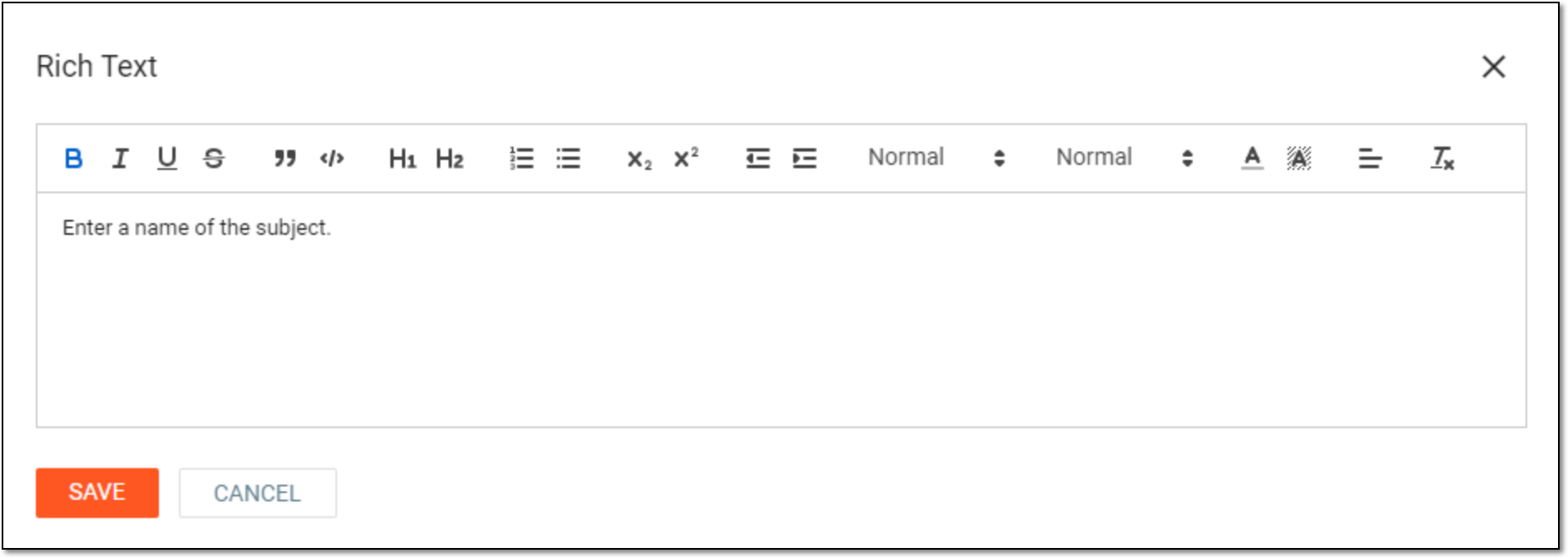 Figure 6. Entering text in rich text editor
SAVE
Select
to save your changes.CANCEL
Select
to discard your changes.
Add a new question from the list of predefined ones that are most common for the selected documents category of the tracking log. These questions have the outlined caption, format of the answer, and so on, but these details can be amended later.
-
From the workspace toolbar, click Select Predefined Items
 .
.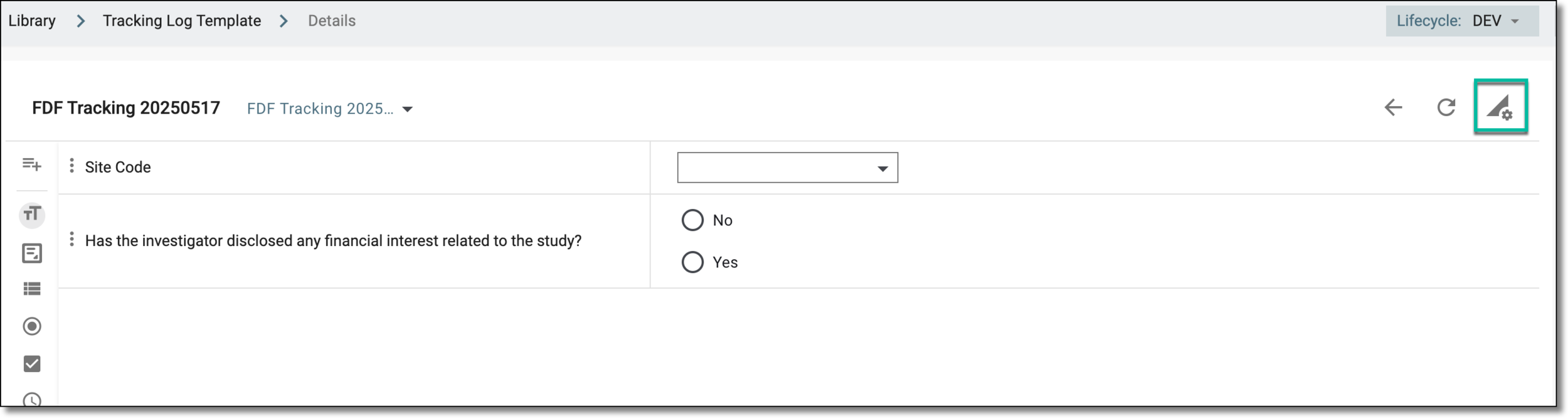 Figure 7. Selecting to add predefined questions
-
In the dialog that opens, select the checkboxes next to the questions you want to add to your form. Then, select
.Tip
The questions marked as Only enable for Site level
 are intended only for the
templates that will be used to configure tracking logs of the site level—to track the documentation at a certain site. If the template is to be
used for the study-level tracking log setting, such questions will be hidden from the form.
are intended only for the
templates that will be used to configure tracking logs of the site level—to track the documentation at a certain site. If the template is to be
used for the study-level tracking log setting, such questions will be hidden from the form.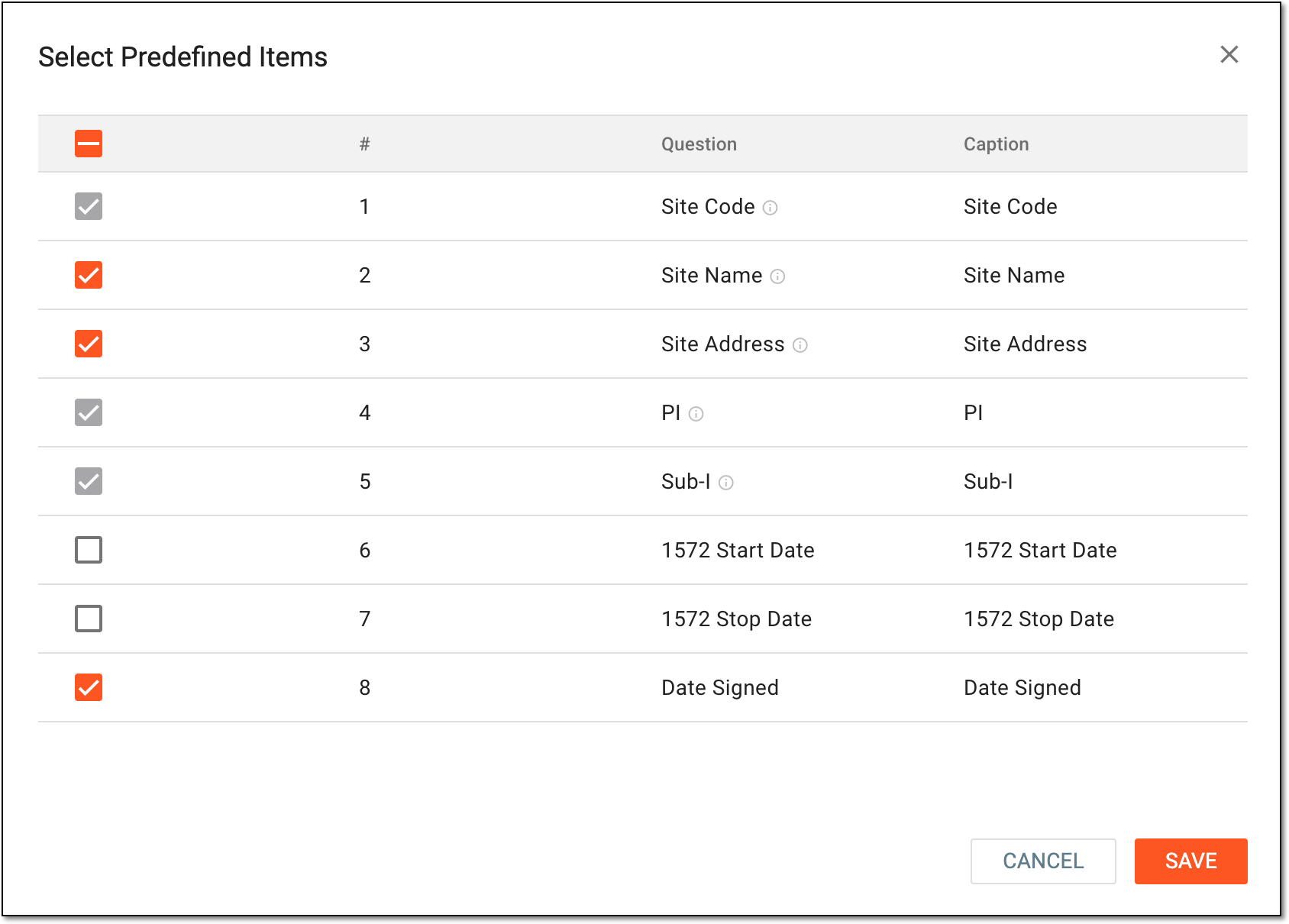 Figure 8. Selecting predefined questions to add to form
-
Once saved, the question is added to your form. You can now configure question dependency rules.
In CTMS, you can edit a particular question in the tracking log template form used to collect and manage data for regulatory documents such as Form 1572, Financial Disclosure Form (FDF), and others. Editing a question in the template may be helpful if you need to adjust its text, data type, answer options, and so on according to the changing protocol or regulatory requirements.
-
In the CTMS application header, select the LIBRARY tab.
-
On the page that opens, from the left pane, select Tracking Log Template.
Figure 1. Accessing tracking log template list
-
From the Tracking Log Template List table that opens, locate the required template and select its name.
Figure 2. Accessing tracking log template
-
On the page that opens, select the needed tracking log template version and then, select the form of your interest.
Important
This step only applies to the tracking log templates of the Regulatory Documents type as they comprise multiple forms.
Figure 3. Selecting tracking log template version and form
-
In the form that appears, locate the question that you want to edit. Then next to it, select More
 > Edit Item
  .
.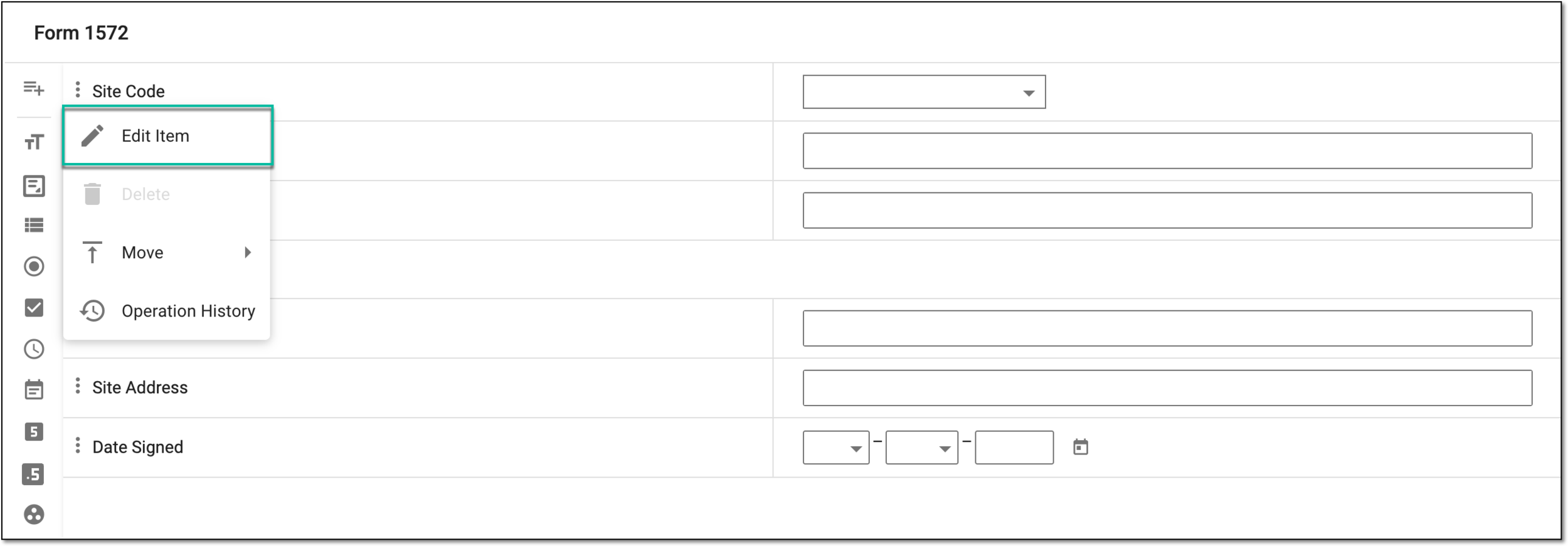 Figure 4. Selecting to edit question
-
In the panel that expands, modify the details of the questions as needed. The details of the question are identical to the ones explained in the table of the Add question to tracking log template form section.
Tip
Some fields can be read-only as they are configured once upon adding the question to the form or they belong to the predefined question whose amendment is restricted.
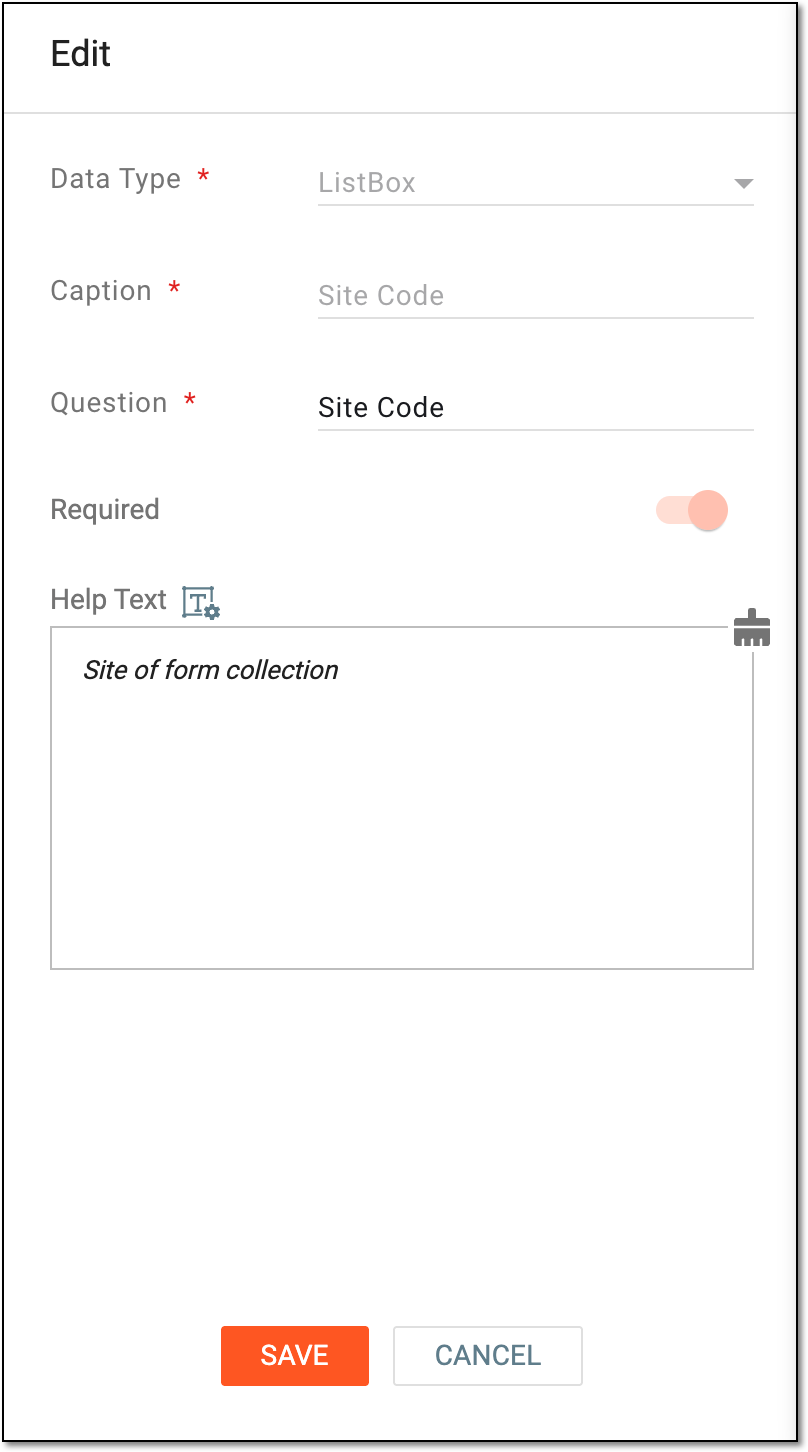 Figure 5. Editing question details
-
Select
to implement the changes.
Once saved, the question is edited.
When adding questions to the tracking log template form, you can set their dependency so that the needed details are only inquired from the user if certain conditions are met. This allows for a more user-oriented and contextual form design to provide straightforward data capture.
For instance, you can set the Date of subject signature field to only appear in your form if the answer to the question Did the subject sign the tracking log form? is Yes.
-
In the CTMS application header, select the LIBRARY tab.
-
On the page that opens, from the left pane, select Tracking Log Template.
Figure 1. Accessing tracking log template list
-
From the Tracking Log Template List table that opens, locate the required template and select its name.
Figure 2. Accessing tracking log template
-
On the page that opens, select the needed tracking log template version and then, select the form of your interest.
Important
This step only applies to the tracking log templates of the Regulatory Documents type as they comprise multiple forms.
Figure 3. Selecting tracking log template version and form
-
In the form that appears, locate the question for which you want to set a dependency on another question item. Then next to it, select More
 > Dependence
  .
.Continuing our example, to make the Date of subject signature question dependent on Did the subject sign the tracking log form? = Yes, we select the Dependence option for Date of subject signature.
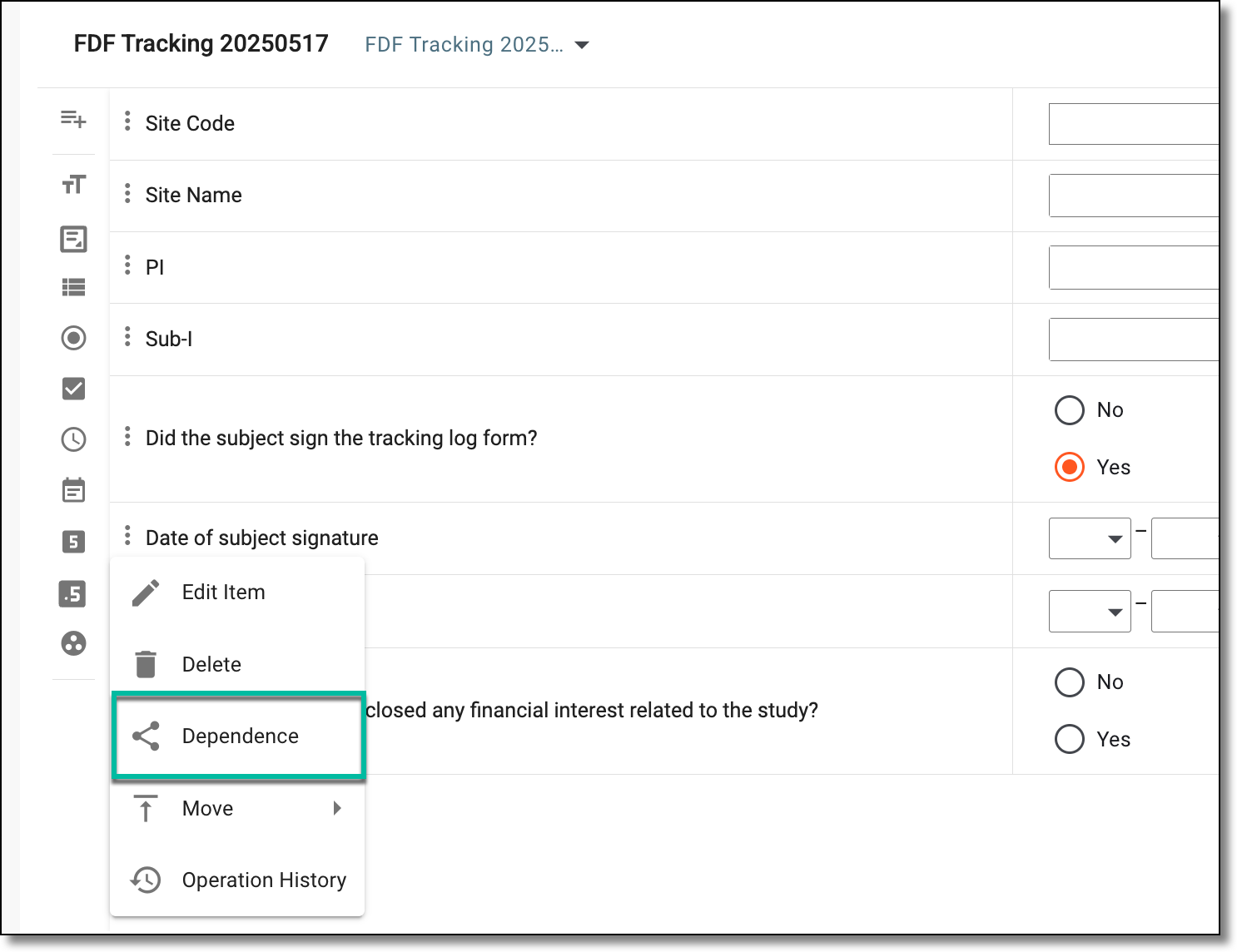 Figure 4. Selecting to set dependency
-
In the Dependence dialog that appears, from the tree, select the question to which you want to create the association. Then from the Define a Condition block, select the checkboxes next to the options that should trigger your dependency rule.
Continuing our example, select the checkbox next to Yes to complete the following dependency: if Did the subject sign the tracking log form? = Yes, then the Date of subject signature question appears.
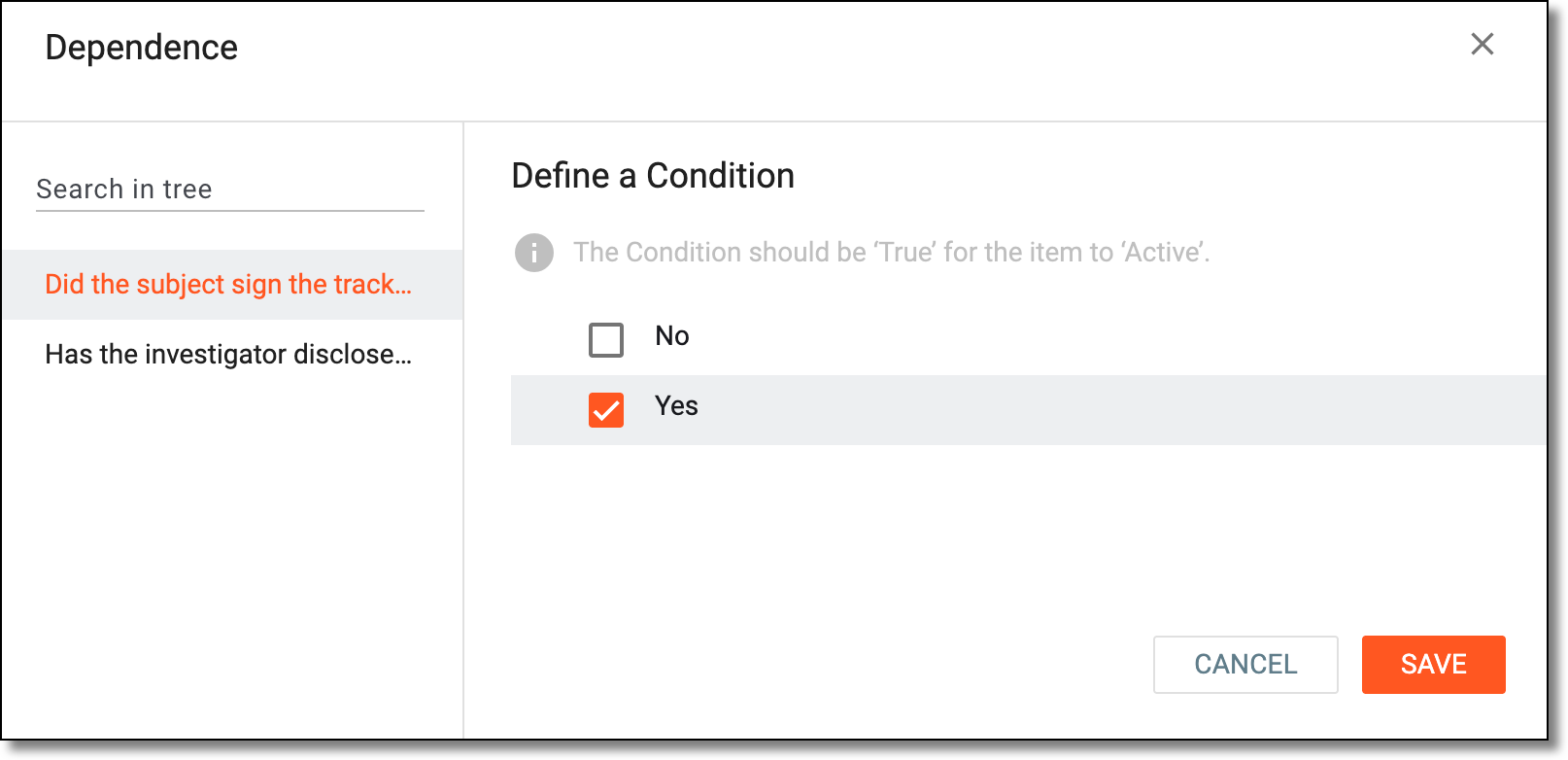 Figure 5. Setting question dependency
-
Select
to save your changes.
Upon saving, the dependency is set between the questions of the tracking log template.
In CTMS, you can move a question in the tracking log template form to a specific location. A tracking log template is a form used to collect and manage study-related data for regulatory documents such as Form 1572, financial disclosure form (FDF), and others. You may want to reposition a question in the template form to better organize the form content, such as place the signature date before the signature date, place the principal investigator's name before the subject ID, and so on.
-
In the CTMS application header, select the LIBRARY tab.
-
On the page that opens, from the left pane, select Tracking Log Template.
Figure 1. Accessing tracking log template list
-
From the Tracking Log Template List table that opens, locate the required template and select its name.
Figure 2. Accessing tracking log template
-
On the page that opens, select the needed tracking log template version and then, select the form of your interest.
Important
This step only applies to the tracking log templates of the Regulatory Documents type as they comprise multiple forms.
Figure 3. Selecting tracking log template version and form
-
In the form that appears, locate the question that you want to move. Then next to it, select More
> Move  .
. -
In the second dropdown menu that opens, select an option as explained in the following table.
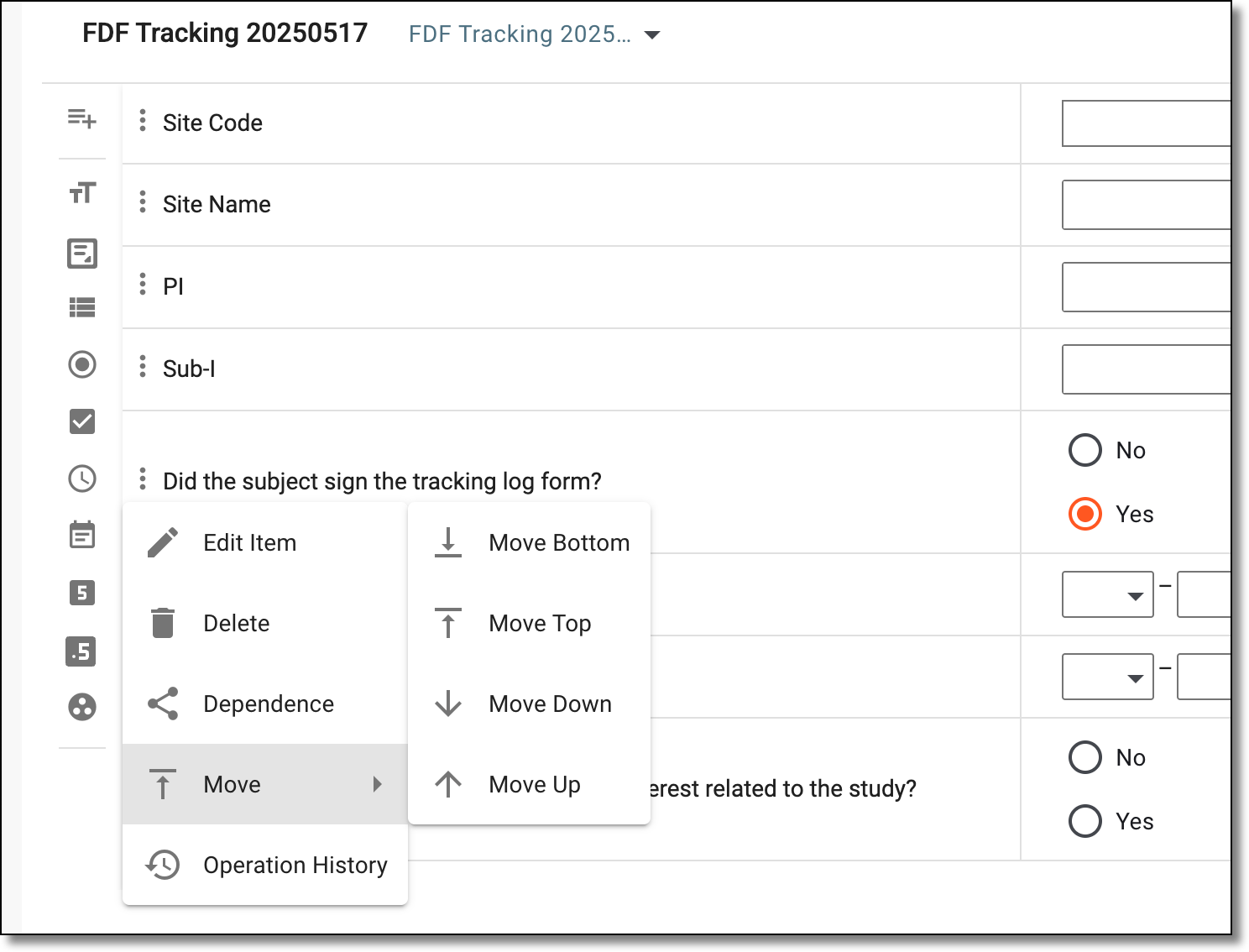 Figure 4. Selecting option to move question
Element
Details
Move Bottom

Select this option to move the selected item to the bottom of the template; that is, the question is placed at the end of the template form.
Move Top
Select this option to move the selected item to the top of the template; that is, the question becomes the first one in the template form.
Move Down

Select this option to move the selected question one place below its current position in the template.
Move Up

Select this option to move the selected question one place above its current position in the template.
Tip
Alternatively, you can move a question by dragging it to its required position.
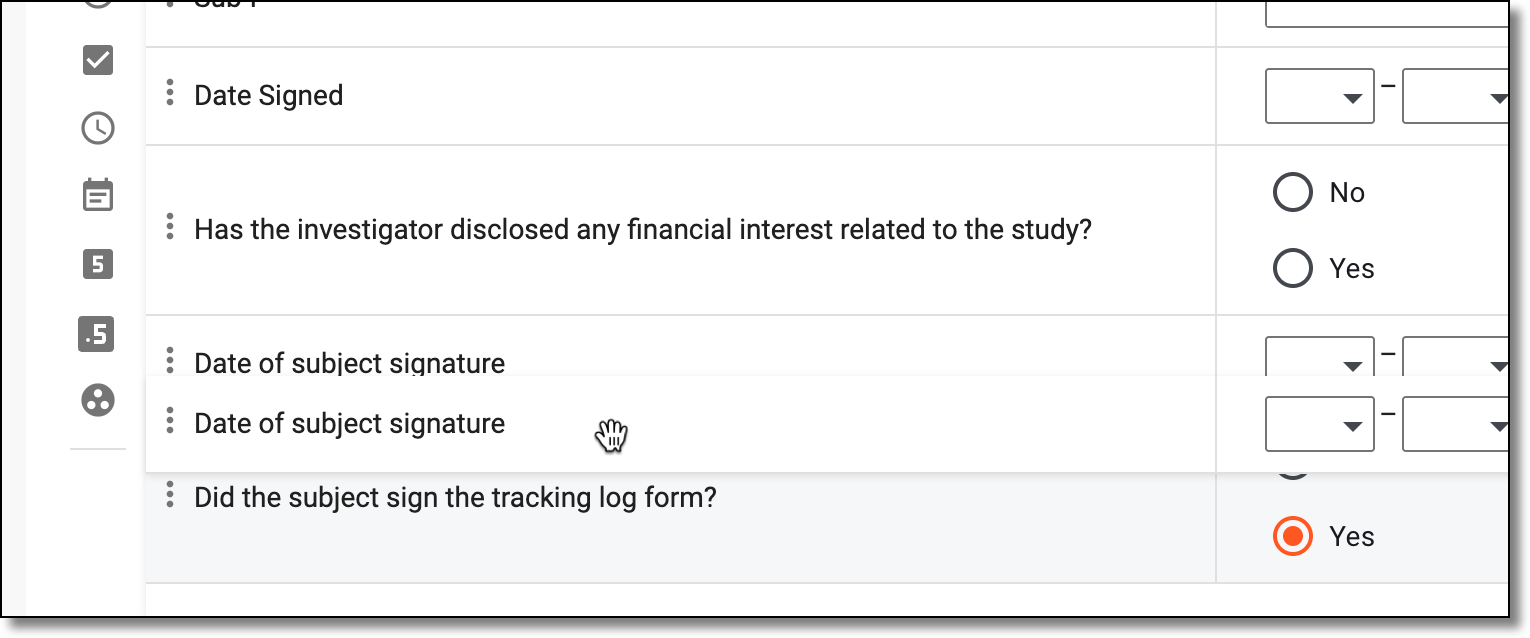 Figure 5. Moving question by dragging
Once you have moved your questions to place them in the required order, the template form is organized.
In CTMS, you can access the change history of a specific question within a tracking log template. A tracking log template is a form used to collect and manage study-related data for regulatory documents such as Form 1572, financial disclosure form (FDF), and others. You may want to view the history to analyze details of edits, such as who made the changes, what was modified, and when the updates occurred—supporting transparency and audit readiness.
-
In the CTMS application header, select the LIBRARY tab.
-
On the page that opens, from the left pane, select Tracking Log Template.
Figure 1. Accessing tracking log template list
-
From the Tracking Log Template List table that opens, locate the required template and select its name.
Figure 2. Accessing tracking log template
-
On the page that opens, select the needed tracking log template version and then, select the form of your interest.
Important
This step only applies to the tracking log templates of the Regulatory Documents type as they comprise multiple forms.
Figure 3. Selecting tracking log template version and form
-
In the form that appears, locate the question that you want to analyze. Then next to it, select More
> Operation History  .
.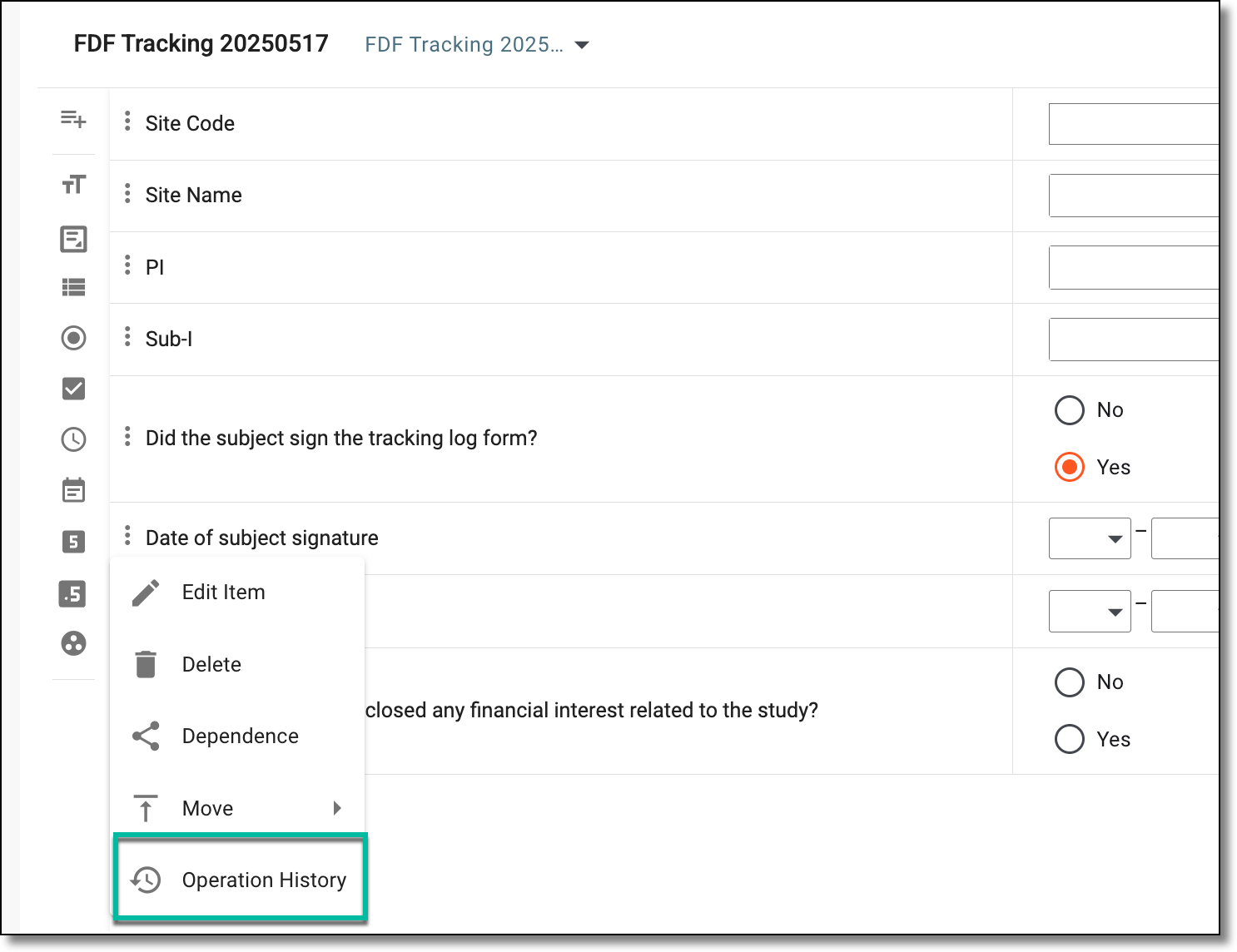 Figure 4. Accessing operation history of question
-
In the dialog that opens, analyze the details of the changes made to the question.
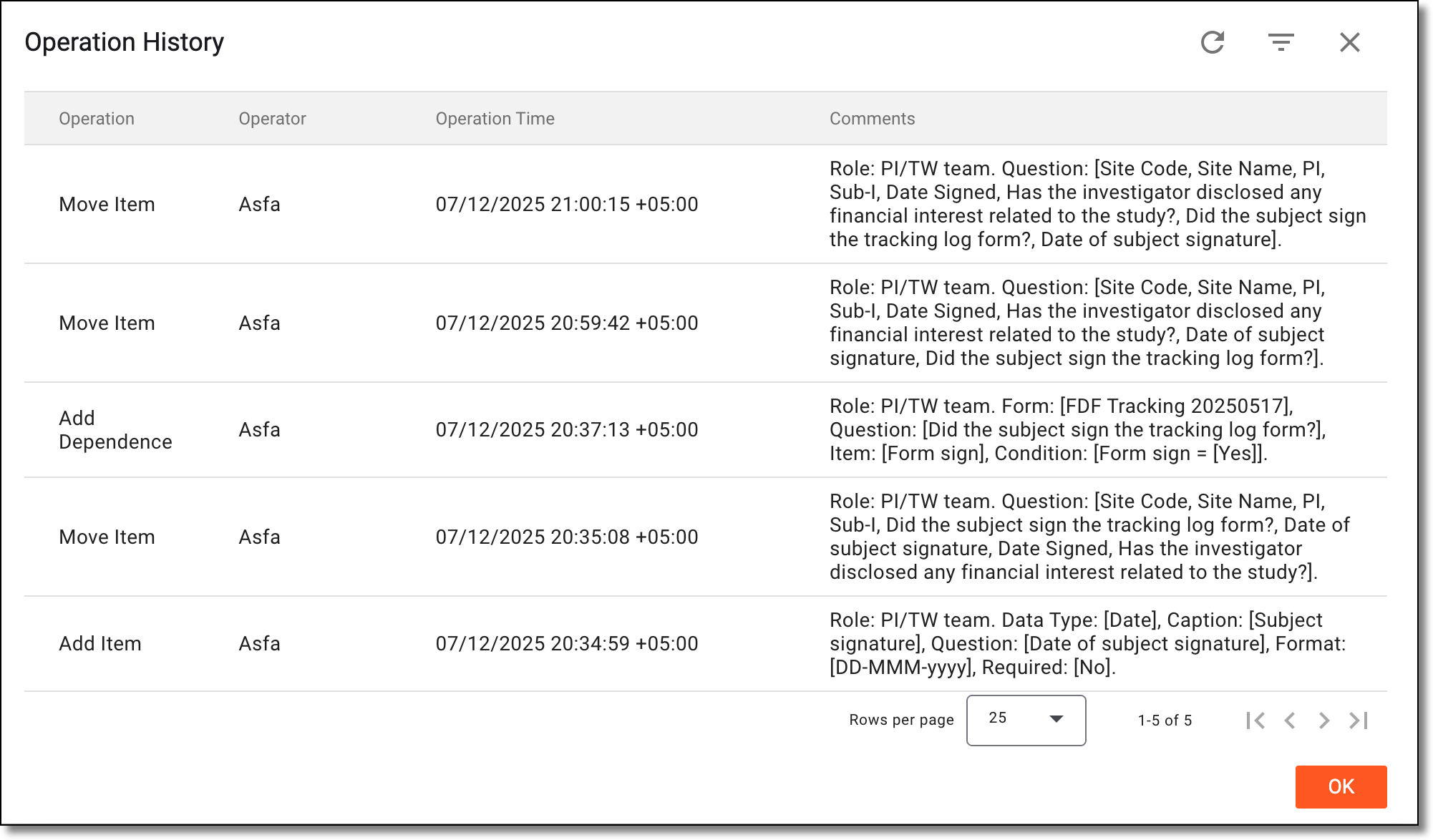 Figure 5. Analyzing operation history of question
Once you have analyzed the question's change history, select OK to close the dialog and return to the tracking log template form.
You can delete a specific question from a tracking log template form if it is no longer required. A tracking log template is a form used to collect and manage study-related data for regulatory documents such as Form 1572, financial disclosure form (FDF), and others. Deleting a question from the form may be required if a question has some errors, does not acquire relevant information, or there is some other reason.
Important
You can only delete custom-created items or predefined items added manually to the form. You cannot delete the items added to your form by default—Site Code, as it is mandatory for all the tracking log templates. However, you can edit these items or move them.
-
In the CTMS application header, select the LIBRARY tab.
-
On the page that opens, from the left pane, select Tracking Log Template.
Figure 1. Accessing tracking log template list
-
On the page that opens, select the needed tracking log template version and then, select the form of your interest.
Important
This step only applies to the tracking log templates of the Regulatory Documents type as they comprise multiple forms.
Figure 2. Selecting tracking log template version and form
-
In the form that appears, locate the question that you want to delete. Then next to it, select More
> Delete  .
.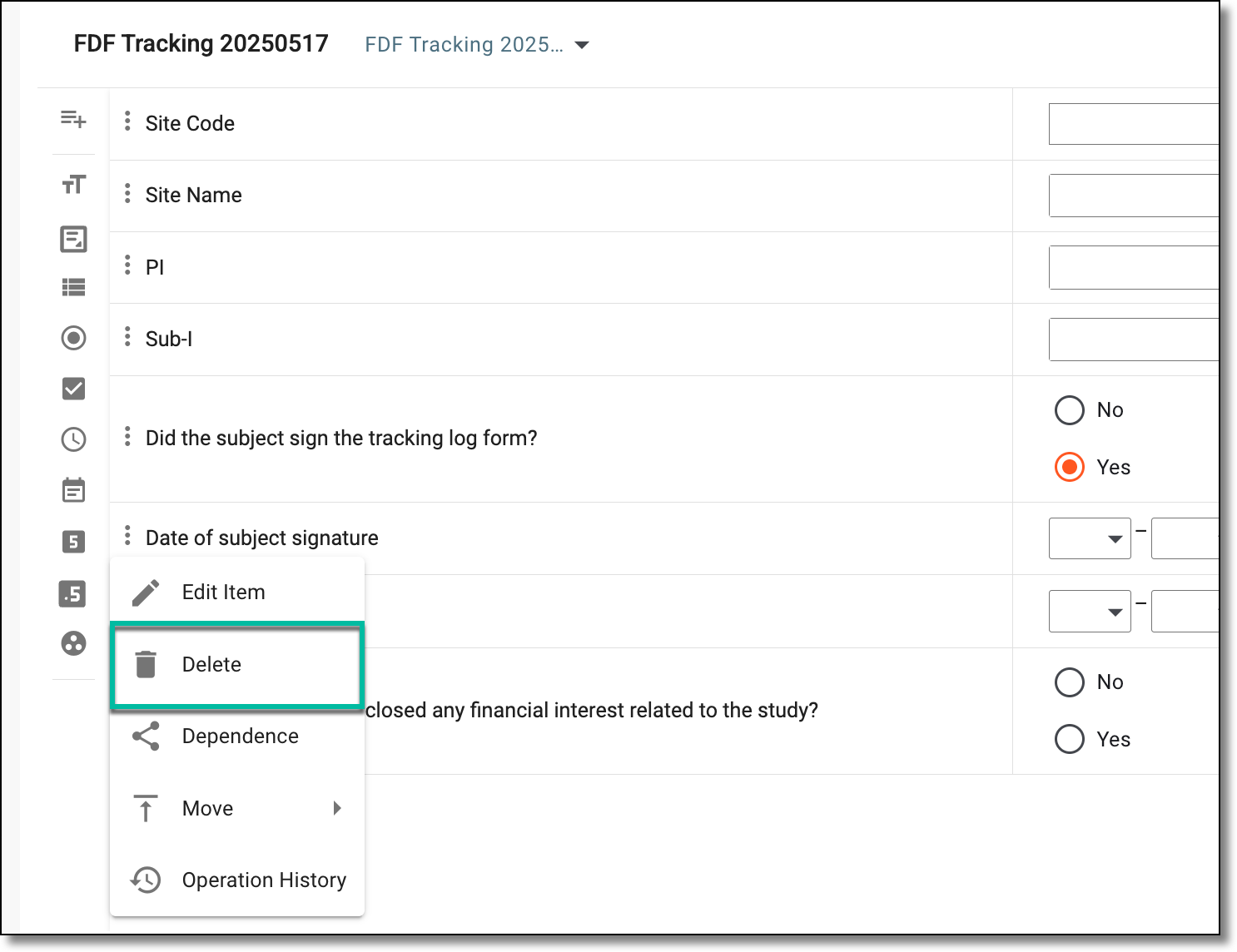 Figure 3. Selecting to delete question
-
In the Delete Item dialog that appears, confirm the action by selecting
 .
.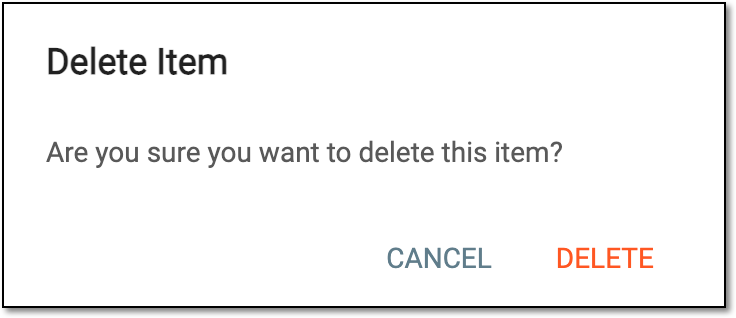 Figure 4. Confirming question deletion
Once confirmed, the question is deleted from the tracking log template form.
The tracking log templates of the Regulatory Documents type comprise multiple forms, each intended to be filled with data on events with the key regulatory document, such as the signature of the Form 1572, Financial Disclosure Form (FDF), debarment statement, and so on. To efficiently record the events with these documents, you can define the baseline tracking log form and set the data population conditions for the rest of the forms. This helps automate the creation of respective log entries, enhances the documentation tracking process, and minimizes risks of unrecorded events due to human error.
For instance, whenever the Form 1572 document is uploaded to the site personnel profile (principal investigator or subinvestigator) in CTMS, you want the system to create a tracking log entry. Also, you want the system to check if there were no previous entries made for the signature of the FDF document by the respective person in more than a year, and if so, create a new tracking log entry for FDF as well.
Using the form population settings, you can make the Form 1572 tracking log entry a baseline, and the FDF form to be populated according to the respective conditions.
Important
The population setting functionality is only available for the tracking log template of the Regulatory Documents type and the following form categories: Debarment Statement, Financial Disclosure Form, or Other.
-
In the CTMS application header, select the LIBRARY tab.
-
On the page that opens, from the left pane, select Tracking Log Template.
Figure 1. Accessing tracking log template list
-
From the Tracking Log Template List table that opens, locate the template of the Regulatory Documents type for which you want to configure the form population settings and select its name.
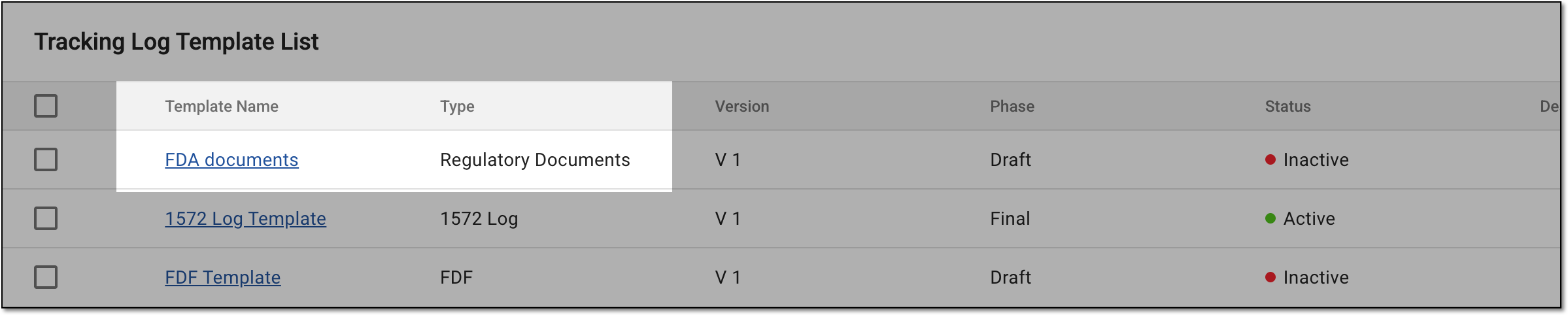 Figure 2. Accessing regulatory documents tracking log template
-
On the page that opens, select the needed tracking log template version and then, select the form of your interest.
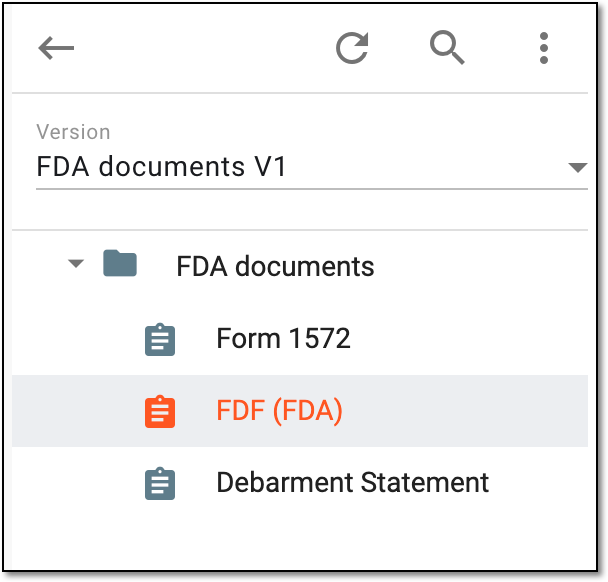 Figure 3. Selecting form to access settings
Important
Note that form population settings are unavailable for the forms of the Form FDA 1572 category; these forms can only be used as a baseline for population.
-
In the form that appears, from the panel on the left, select the menu option
 and then select the Populate Form
Settings checkbox.
and then select the Populate Form
Settings checkbox. Figure 4. Enabling form settings
Tip
The menu option becomes gray once the form population settings are enabled. To disable the settings, you can select the menu option
 and clear the Populate Form Settings checkbox.
 -
Select the Populate Form Settings tab that appears and on the page that opens, configure the basic form settings as explained in the following table.
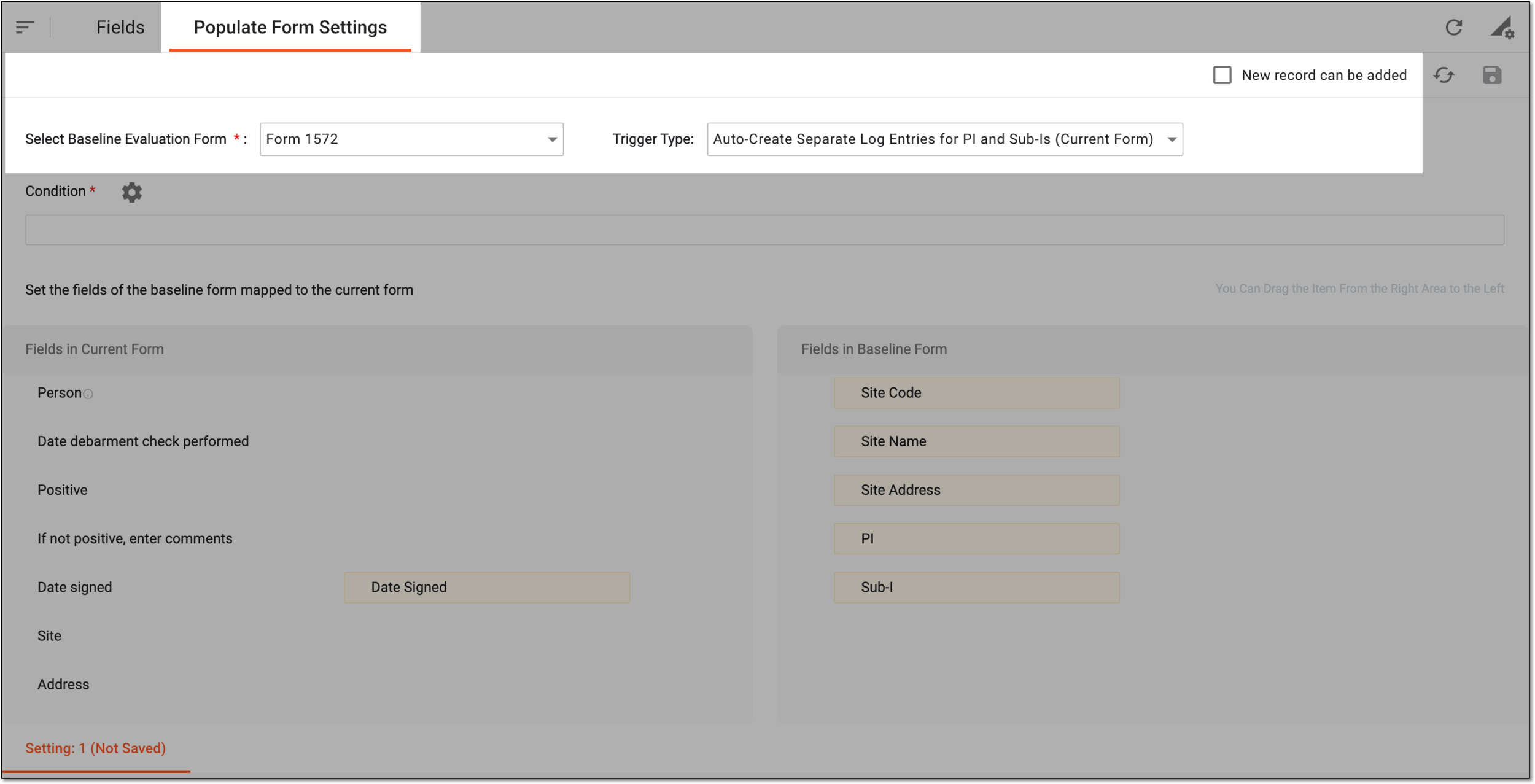 Figure 5. Configuring basic form population settings
Tip
In the following table, mandatory elements are marked with an asterisk (*).
Element
Details
New record can be added
Set as follows:
-
Select the checkbox to allow the users to manually complete new entries of the form in the tracking log that is based on this template.
-
Clear the checkbox to only allow the system to autopopulate the form entries to the tracking log based on the baseline form completion and restrict users from making any manual entries.
Select Baseline Evaluation Form*
Select the form the completion of which must trigger the new tracking log entry for the current form, and the data from which must be autopopulated to the certain mapped fields of the current form.
Only the forms of the Form FDA 1572 category are available here and can be used as baseline.Trigger Type
Represents the preselected and the only one currently available type of behavior for the form, which is Auto-Create Separate Log Entries for PI and Sub-Is (Current Form); meaning that in the tracking log configured according to this template, separate entries will be added for the principal investigator and the subinvestigator to track the document in question, such as FDF, debarment statement, or other.
-
-
Select Condition
 and in the Condition Settings dialog that appears,
configure the rules and dependencies that will trigger the system to autocreate a new log entry. The tools available for condition setting are explained in the following table.
and in the Condition Settings dialog that appears,
configure the rules and dependencies that will trigger the system to autocreate a new log entry. The tools available for condition setting are explained in the following table.Following the scenario of the previous example with the Form 1572 and FDF documents, the following figure shows how you can set the record triggering conditions:
-
The FDF signature person does not exist, or
-
The person exists, but the last debarment check date for them was performed earlier than 365 days ago.
This means that the system checks the FDF tracking log for previous entries, and if there are none that were made for the respective person in a year, the system adds a new one automatically. If the conditions are not met and there is an existing record, the system does not create a new one.
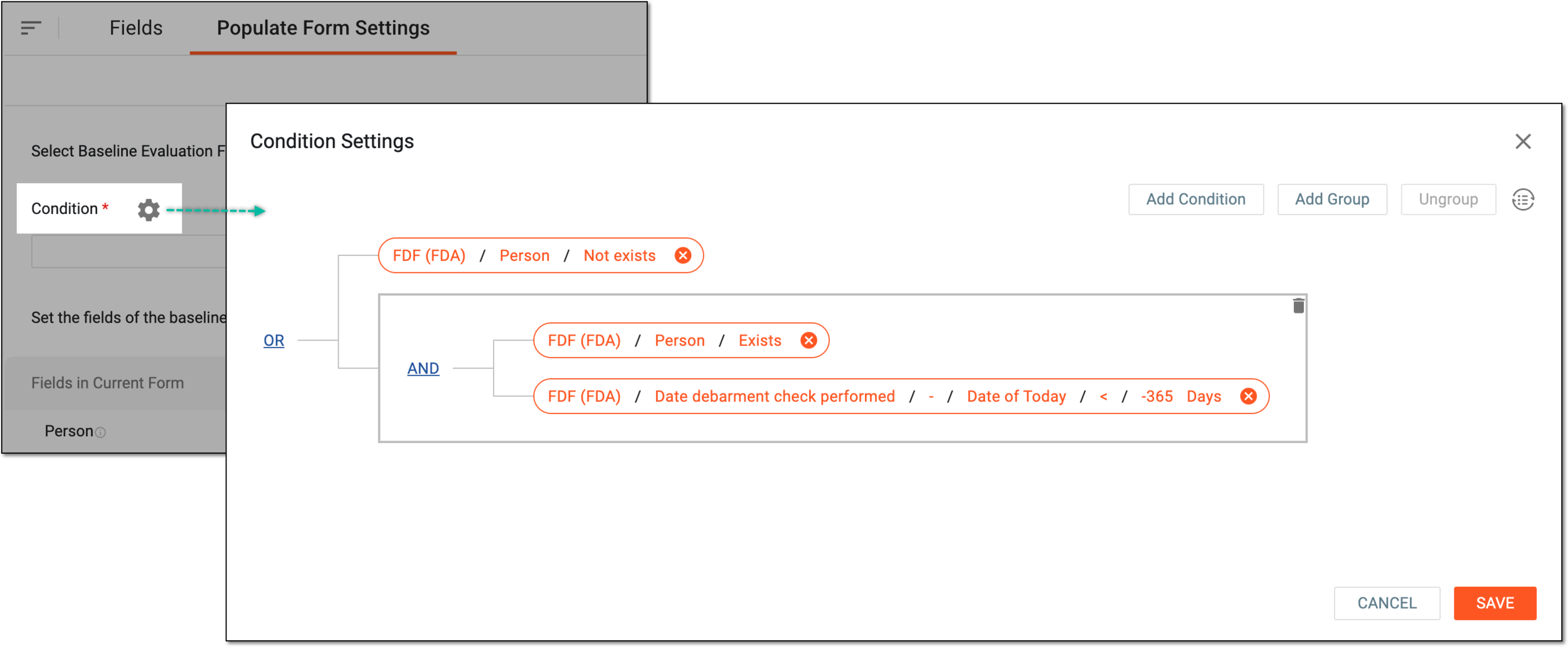 Figure 6. Configuring conditions for form population
Element
Details
Add Condition
Select
 to add a condition field. From the dropdown menus of each field, select the options that you want to set as trigger conditions.
Upon selection of some values, the additional fields may appear to specify the condition.
to add a condition field. From the dropdown menus of each field, select the options that you want to set as trigger conditions.
Upon selection of some values, the additional fields may appear to specify the condition.The main values for condition setting are Form Name to specify the form whose field completion is accounted for, Field to specify the data element in question, and the conditional values like Equal/Not equal, Include/Exclude, Exists/Not exists, and such.
 Figure 7. Configuring standalone condition
Add Group
Select
 to add a set of conditions to act as one within the general scheme. Configure your group following the same logic as for the standalone
condition.
to add a set of conditions to act as one within the general scheme. Configure your group following the same logic as for the standalone
condition. Figure 8. Configuring condition group
Ungroup
Use this option to remove the grouping and convert to standalone conditions. To do this, select the grouped conditions on the diagram, then click
 .
Once done, the fields in the selected group are no longer interdependent.
.
Once done, the fields in the selected group are no longer interdependent.Convert Text
If you prefer entering trigger conditions in text format rather than building a diagram, select
 to open the Convert
Text dialog. In the Trigger Expression field, use variables in braces to outline the conditions that once met trigger the needed log entry.
to open the Convert
Text dialog. In the Trigger Expression field, use variables in braces to outline the conditions that once met trigger the needed log entry.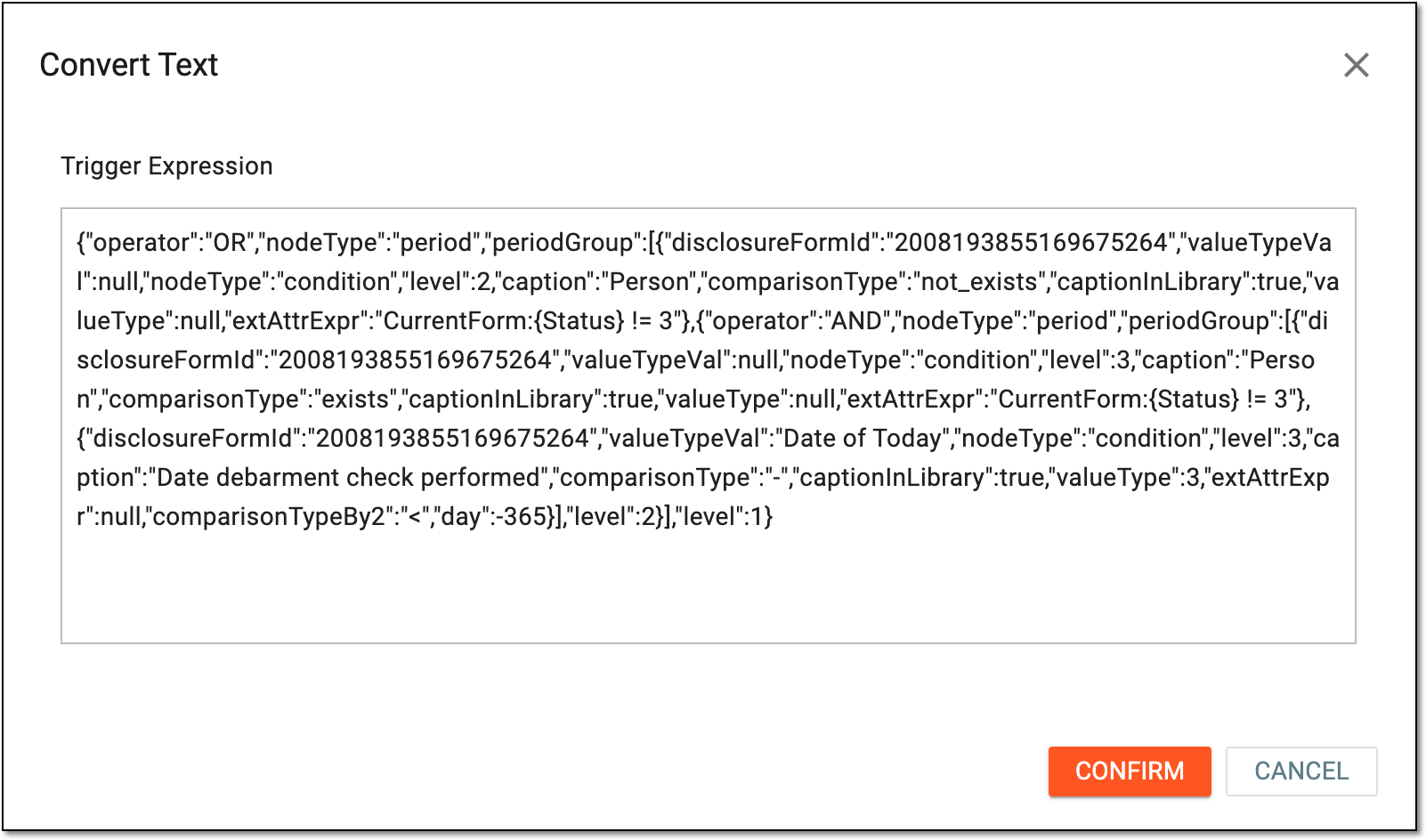 Figure 9. Writing trigger expression
AND/OR
When more than one field is added, the AND/OR operator is used to make the conditions equal or alternate, respectively. Simply click the current operator to choose its value—AND or OR.

Select the red check mark next to the condition field to save its values.

Select the deletion symbol next to the unsaved condition field or group to remove it from the diagram.

Select the red cross symbol next to the saved condition field to remove it from the diagram.
SAVE
Select
to implement the changes.CANCEL
Select
to discard the changes without saving. -
-
Map the fields of the baseline and current form to enable the system to properly populate the values between them, considering the following:
-
The Person field (or its analogue, indicating the individual in charge of the document signature) is not visually mapped but will be autopopulated with the PI or SubI value from the baseline form whenever the respective tracking log entry is created.
-
The predefined questions with the same captions are mapped automatically and this cannot be manually changed. To avoid automapping, use custom questions in the form instead of the predefined ones.
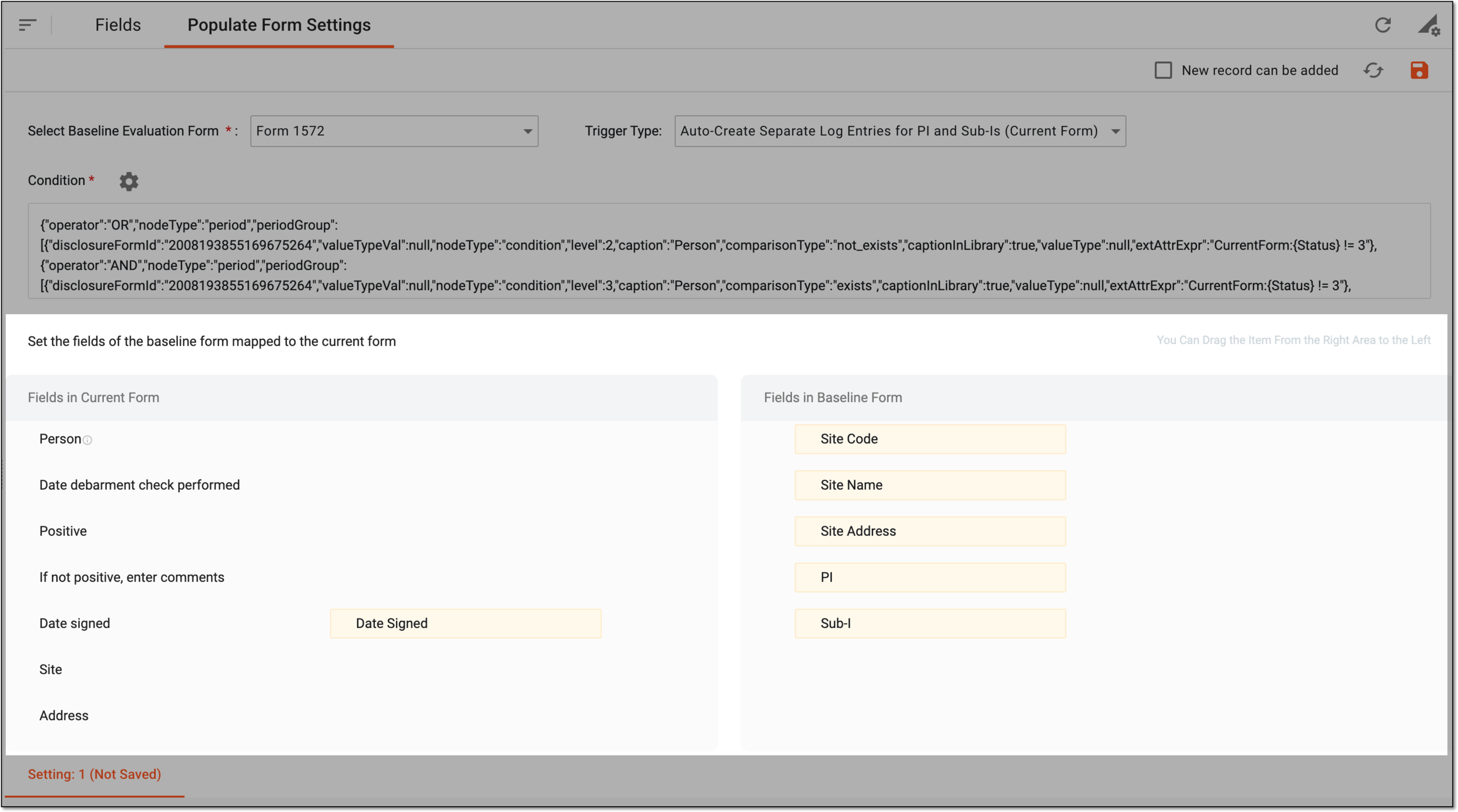 Figure 10. Mapping fields of baseline and current form
-
-
Select Save
 to implement the changes.
Tip
You can select Reset
 to discard the unsaved progress and start over.
 Figure 11. Saving form population settings
Once saved, the form population settings are applied. Once the respective template is activated, and the tracking log setting is added based on this template, the tracking log entries can be created by the system or users as per set conditions.
Tip
The applied settings are indicated with a green check mark symbol. The settings can be discarded if no longer valid by selecting Delete .
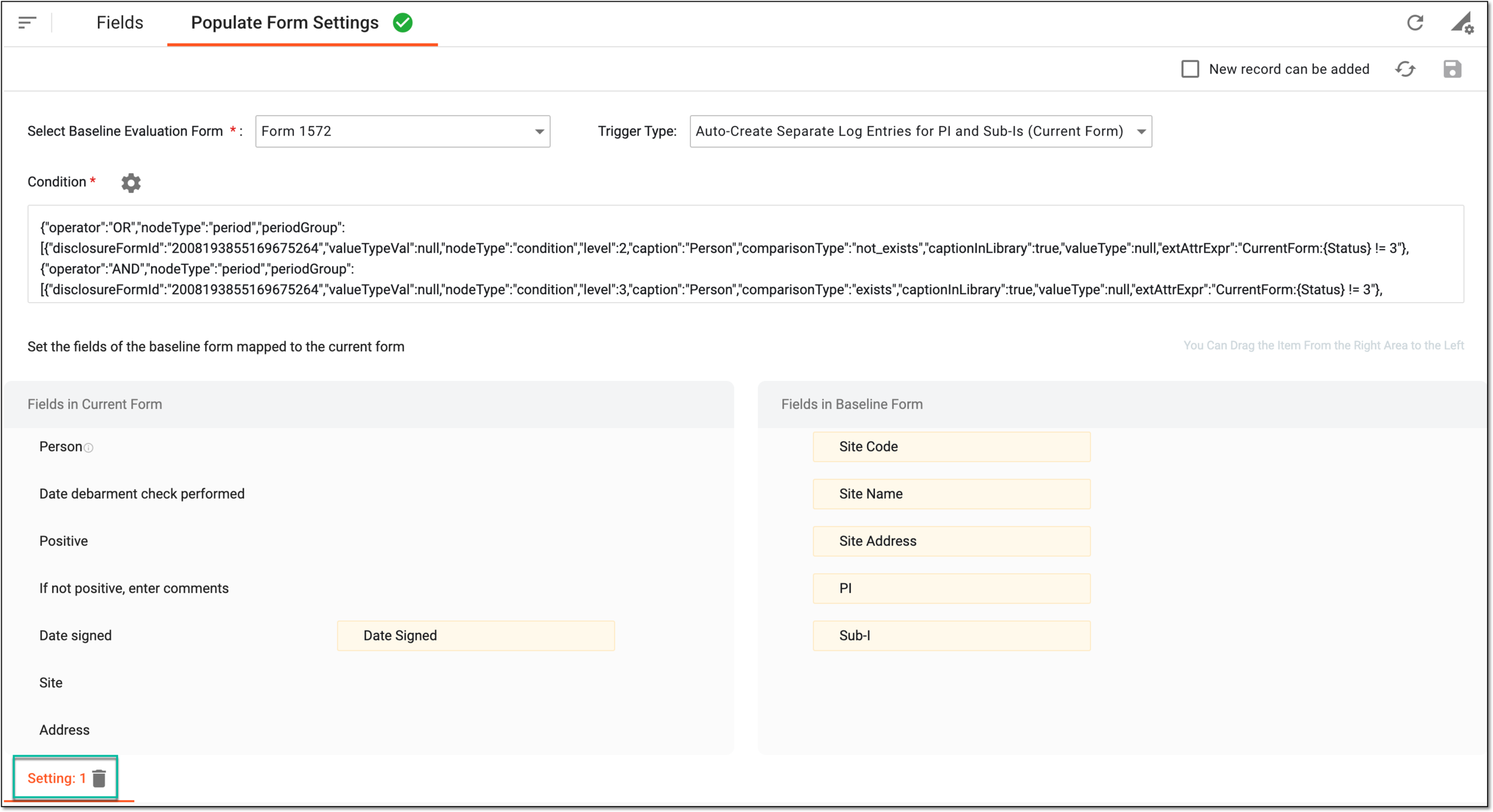 |