Code list creation
In CTMS, you can create code lists for your protocol deviation or monitor template. The code lists that you add under the Code List subtab, are used while adding the data (questions) to the template forms. The code lists include data items from which a reviewer can select an option(s) to answer or fill out the required template form.
For example, for the Subject Enrollment monitor template form, you may inquire the reviewer whether a Pre-Study Visit (PSSV) is completed. To this question, the reviewer can answer yes, no, or not applicable. Instead of providing the reviewer with a text field to type their answer, you can create a code list called Yes/No/NA responses and add the data items Yes, No, and Not Applicable. Then you may simply create the Radio data type for your question and select the Yes/No/NA responses code list.
This way to answer the question Was a Pre-Study Visit (PSSV) completed?, the reviewer can select any of the following option buttons to add their response: Yes, No, and Not Applicable.
You can create a code list in the system by using one of the methods as explained in the following sections.
In CTMS, you can create a code list from scratch by defining the required specifications for it, such as its name, levels, whether you want to display the code with the data items, and so on. Once the specifications are set, you can add data items to the code list as required, that is, as per the study requirements of your protocol, or monitor template forms for which you are creating the code list.
-
In the CTMS application header, select the LIBRARY tab.
-
On the page that opens, from the left pane, select the Code List subtab.
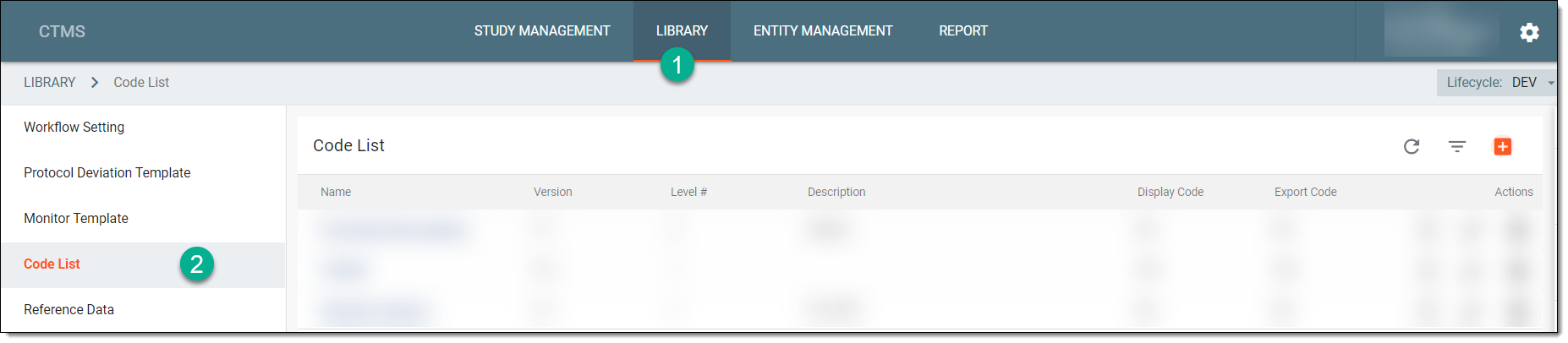 Figure 1. Selecting Code List subtab
-
From the workspace toolbar of the Code List table, select New Item
 .
. -
In the New dialog that appears, add the details as explained in the following table.
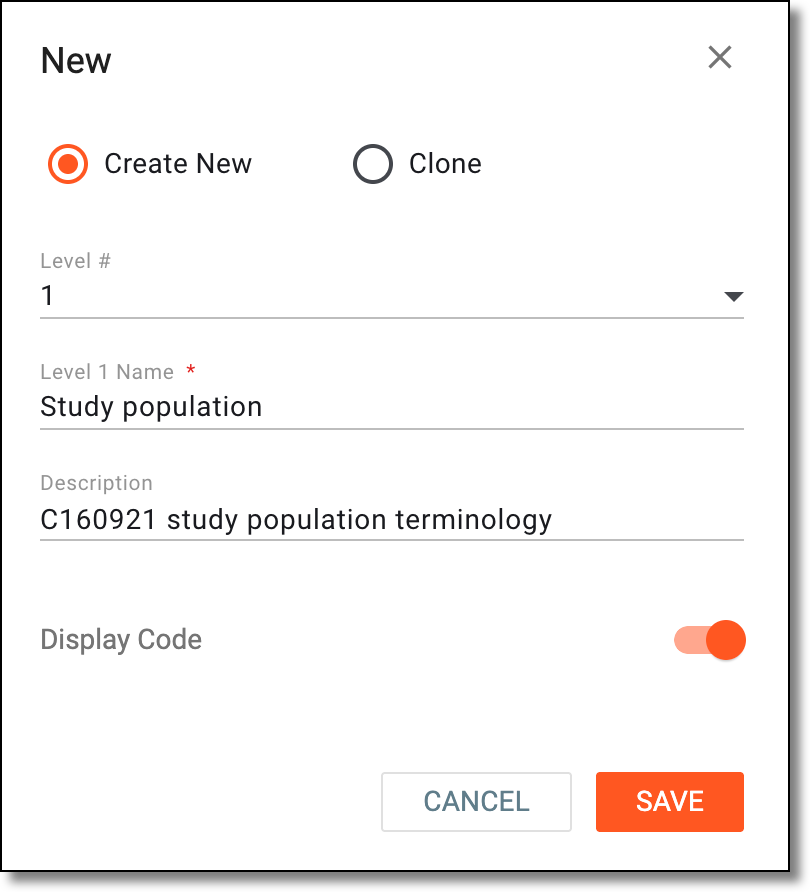 Figure 2. Creating new code list
Tip
In the following table, mandatory elements are marked with an asterisk (*).
Element
Details
Level #
From the dropdown list, select the number of levels (up to three) that you want to add to your code list. For each level, you can add/maintain a separate list of data items.
For example, to add the Address code list, you may require adding data items at three levels. At the first level, you can add a list of states, at the second level, you can add a list of cities, and at the third level, you can add the towns/street address.
Level 1 Name*
Enter the name of the level that represents the data items present at the particular level.
Description
Enter a brief description explaining the purpose of creating the code list, or the overall data items present in the code list.
Display Code
Turn the toggle on if your data items have codes associated with them.
For example, if you are creating a code list for Biological Sample Attribute Terminology, then you may want to mention the associated National Cancer Institute (NCI) codes with the data items.
SAVE
Select
 to save your changes.
CANCEL
Select
 to discard your changes and return to the Code List page.
Upon saving, the code list is created and it appears in the Code List table. You may now proceed with adding data items to the code list.
Using the Clone functionality, you can instantly create code lists for your protocol or monitor templates. When you clone an existing code list, then all the data that you have added, and the specifications of the code list are cloned as well. This way, instead of creating a code list from scratch every time, you can find a code list that matches the one you need, clone it and then modify its data or specifications as required.
-
In the CTMS application header, select the LIBRARY tab.
-
On the page that opens, from the left pane, select the Code List subtab.
Figure 1. Selecting Code List subtab
-
From the workspace toolbar of the Code List table, select New Item
. -
In the New dialog that appears, add the details as explained in the following table.
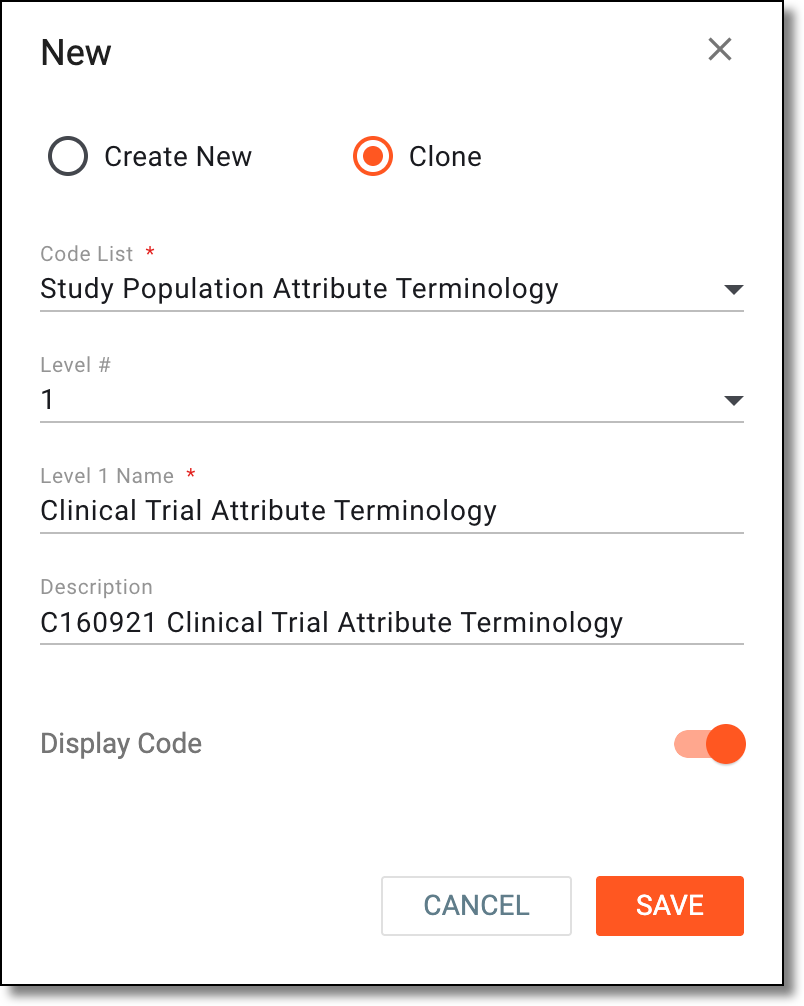 Figure 2. Creating clone of existing code list
Tip
In the following table, mandatory elements are marked with an asterisk (*).
Element
Details
Code List*
From the dropdown list, select an existing code list that you want to clone.
Level #
From the dropdown list, select the number of levels (up to three) that you want to add to your code list. For each level, you can add/maintain a separate list of data items.
For example, to add the Address code list, you may require adding data items at three levels. At the first level, you can add a list of the states, at the second level, you can add a list of cities, and at the third level, you can add the towns/street address.
Level 1 Name*
Enter the name of the level that represents the data items present at the particular level.
Description
Enter a brief description explaining the purpose of creating the code list or the overall data items present in the code list.
Display Code
Turn the toggle on if your data items have codes associated with them.
For example, if you are creating a code list for Biological Sample Attribute Terminology, then you may want to mention the associated National Cancer Institute (NCI) codes with the data items.
SAVE
Select
to save your changes.CANCEL
Select
to discard your changes and return to the Code List page.
Upon saving, the new code list is saved and it appears in the Code List table. You can now proceed with adding or editing the data items in the code list.