Edit data item
In CTMS, you can edit the data items added to the code list. This may be useful if the requirements for your protocol deviation or monitor template have changed, or if the data items added have some errors, or if you have cloned an existing code list and you want to modify some of the data items.
-
In the CTMS application header, select the LIBRARY tab.
-
On the page that opens, from the left pane, select the Code List subtab.
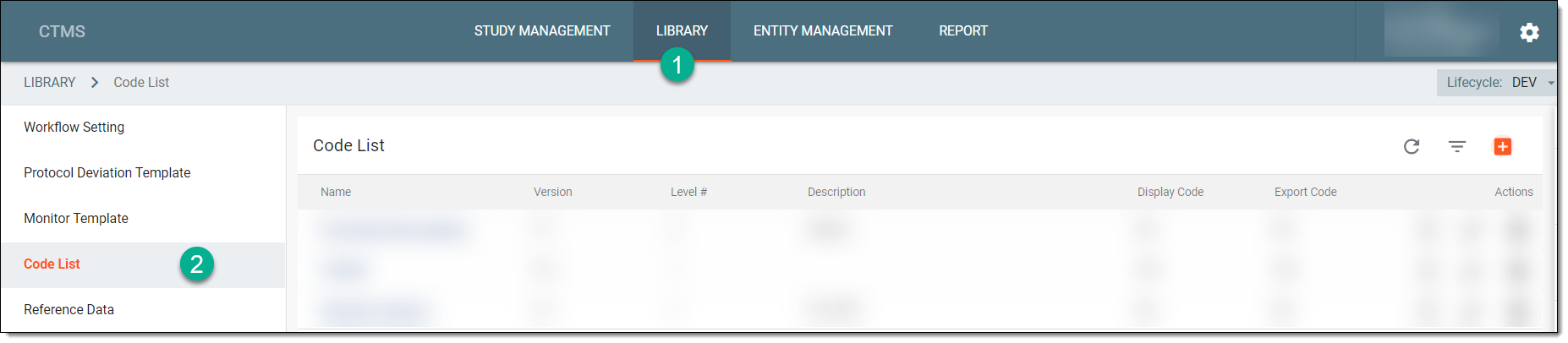 Figure 1. Selecting Code List subtab
-
From the Code List table, select the name of the code list in which your required data items exist.
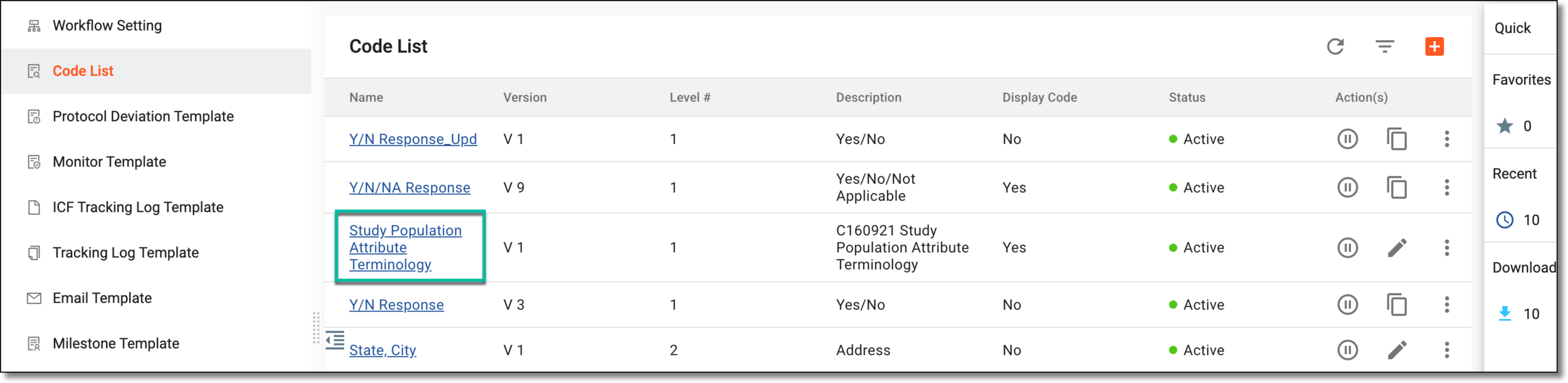 Figure 2. Accessing code list
-
On the Details page that opens, select the required data item from the corresponding level, that is, if you want to edit an item on the second level, then first select the data item from the first level, and then select the required data item from the second level.
-
From the workspace toolbar, next to the data item, select More
 , and from the dropdown menu that appears, select Edit
  .
.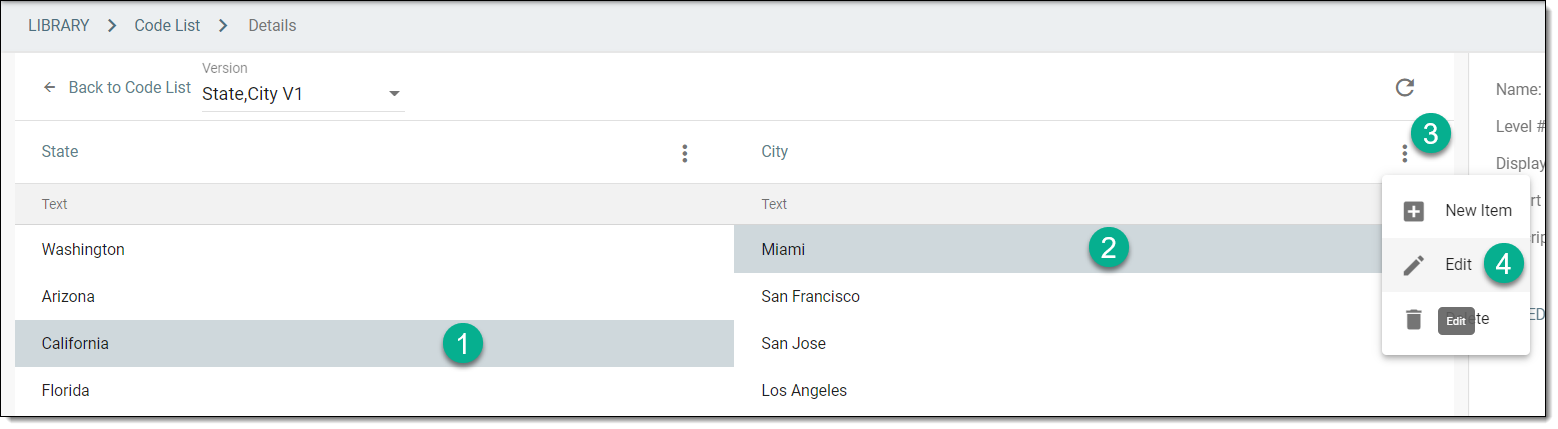 Figure 3. Selecting option to edit data item
-
In the dialog that appears, in the Text* field, edit the data item as required.
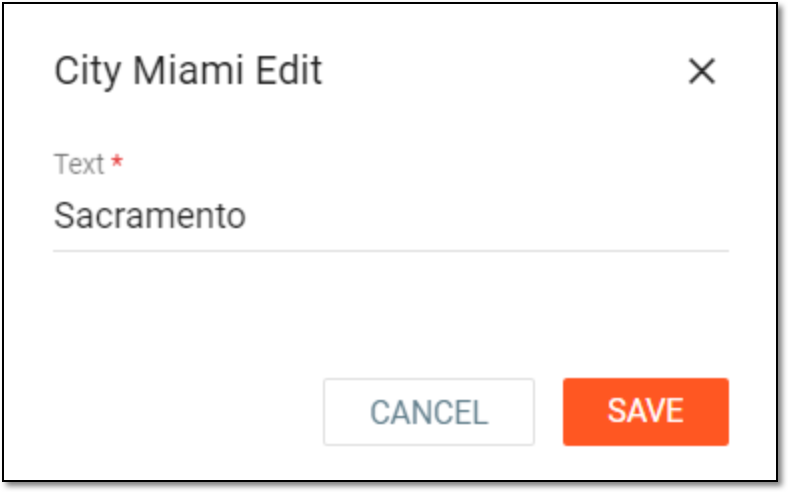 Figure 4. Editing data item in code list
-
Select
 to save your changes.