Add data to code list with multiple levels
In a code list with multiple levels, you have to add data items to each level separately. In CTMS, you can create a code list with multiple levels. For such lists, the procedure to add the data differs from adding the data to a regular code list. The main difference is that for multileveled code lists, you add data to each level individually.
For example, to create a US address code list, you can add two or three levels in it:
-
At the first level, you can add the list of data items mentioning the US states.
-
At the second level, you can add the list of cities corresponding to a particular state.
-
At the last level, the list of towns corresponding to the state and city is added.
-
In the CTMS application header, select the LIBRARY tab.
-
On the page that opens, from the left pane, select the Code List subtab.
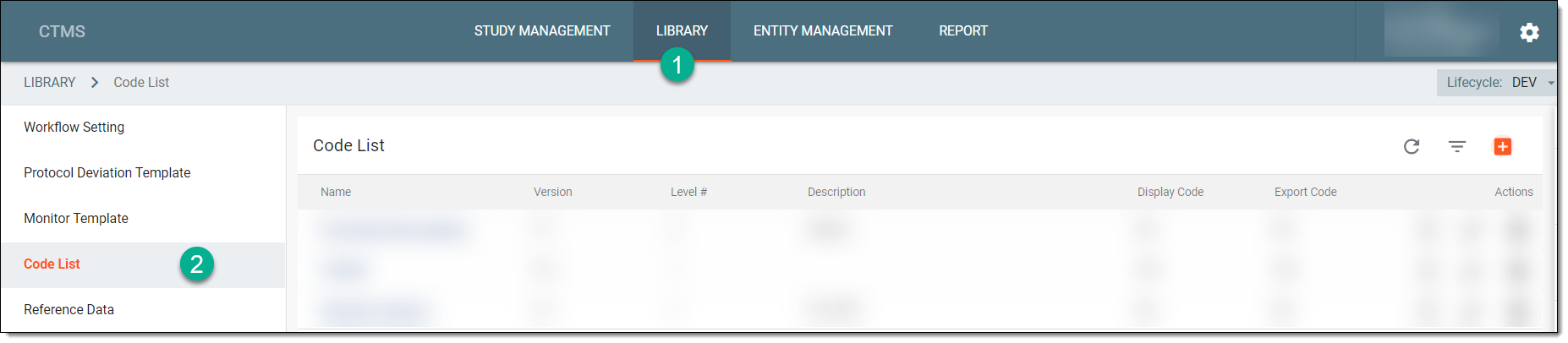 Figure 1. Selecting Code List subtab
-
From the Code List table, select the name of the code list with multiple levels to which you want to add data.
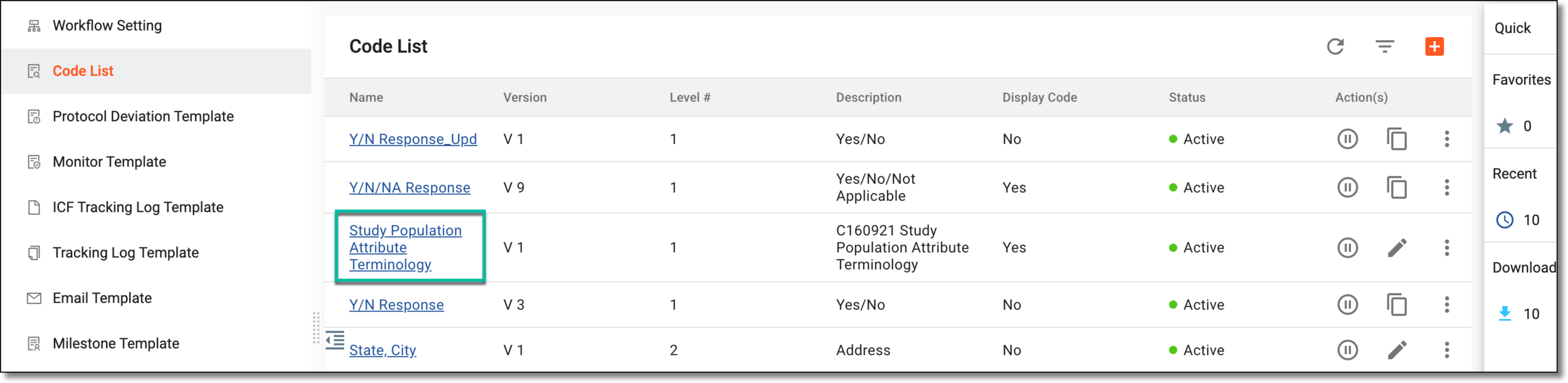 Figure 2. Accessing code list
-
On the Details page that opens, from the workspace toolbar of the first level, select More
 , and from the dropdown menu that appears, select New Item
  .
.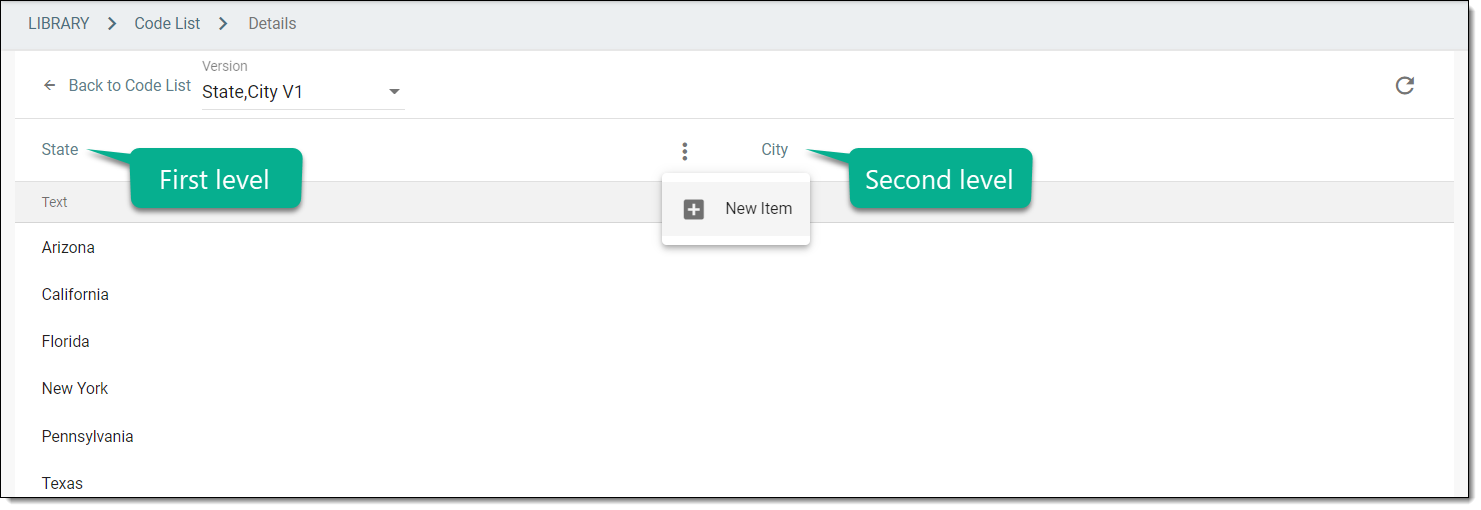 Figure 3. Selecting option to add data item to first level
Important
From the version dropdown list, you can select another version of the code list to view the data items added to the selected version. However, you cannot add or modify data in the previous versions of the code list if the particular version of the code list is in use in the protocol deviation or monitor template.
-
In the dialog that appears, in the Text* field, enter the name of the data item that you want to add, and select
 .
.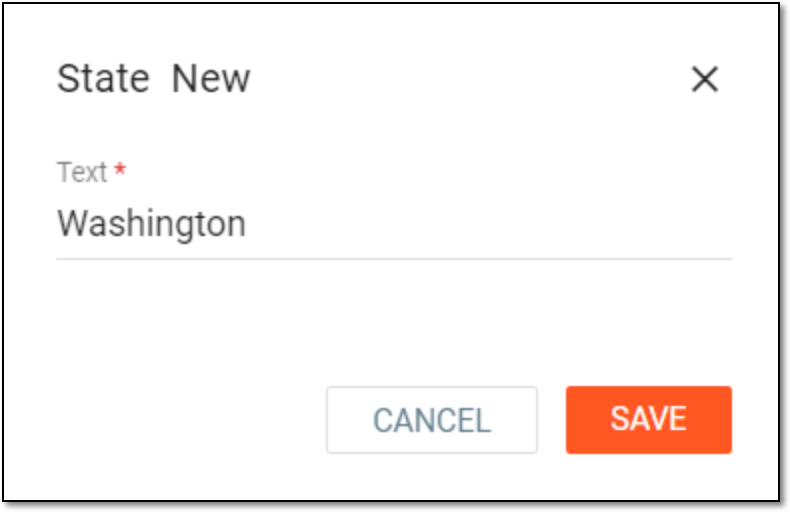 Figure 4. Adding data item to first level of code list
Important
If the data item has any code associated with it, such as a National Cancer Institute (NCI) code, then enter the code in this field. This field is displayed if you have selected the option to display the code with the data items while creating the code list.
-
After the data item at first level is added, add the data item at the second level as follows:
-
Select the data item from the first level.
-
From the workspace toolbar of the second level, select More
, and from the dropdown menu that appears, select New Item .
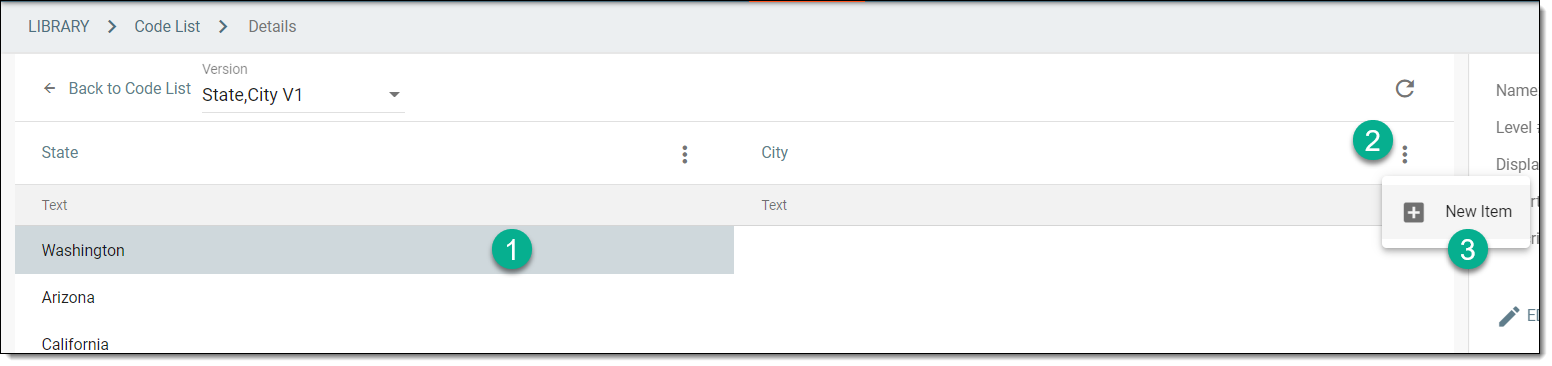 Figure 5. Selecting option to add data item at second level
Tip
If your code list has three levels, then first select a data item from the first level, then select a data item from the second level, and then add the required data item at the third level.
-
-
In the dialog that appears, in the Text* field, add the name of the data item that you want to add and select
.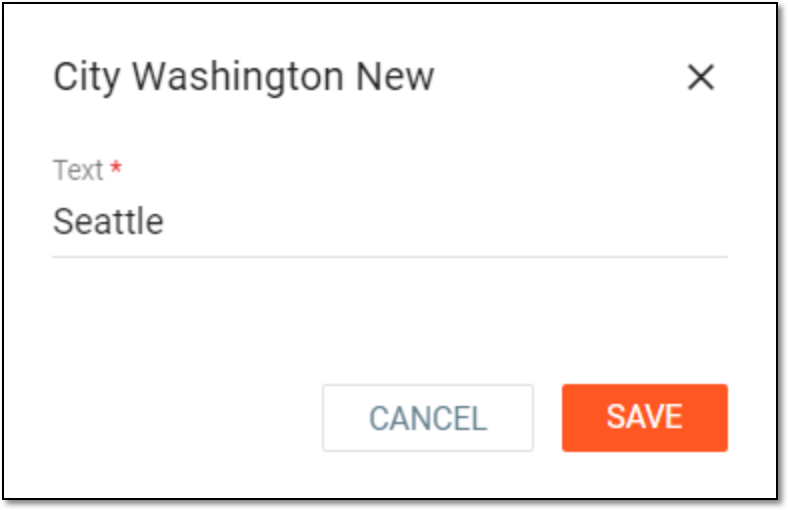 Figure 6. Adding data item to second level of code list
Important
If the data item has any code associated with it, such as a National Cancer Institute (NCI) code, then enter the code in this field. This field is displayed if you have selected the option to display the code with the data items while creating the code list.