Add data to code list
Once you have created the code list, you can now start adding the data items to the code list. The data items that you add are displayed in the Code List dropdown list while adding data to the protocol deviation or monitor template.
-
In the CTMS application header, select the LIBRARY tab.
-
On the page that opens, from the left pane, select the Code List subtab.
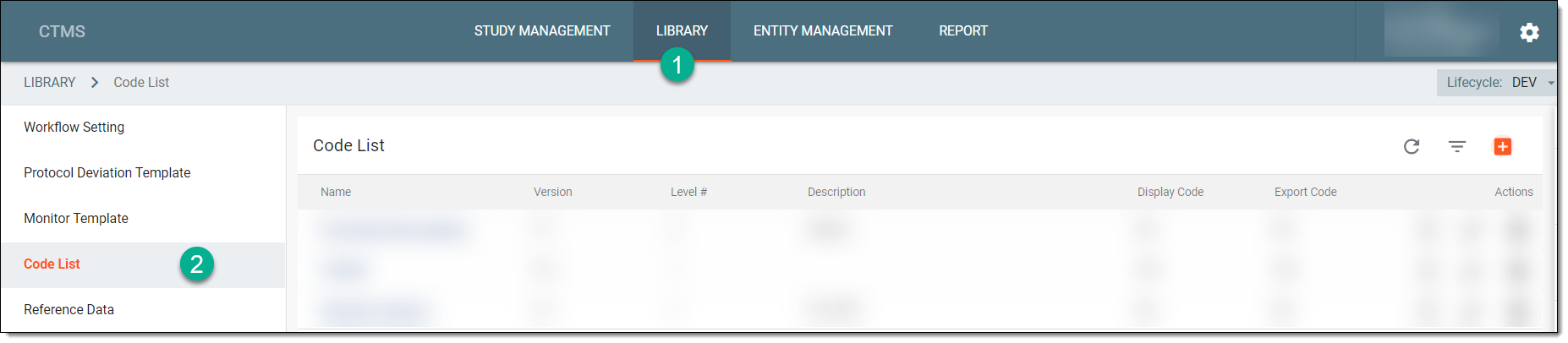 Figure 1. Selecting Code List subtab
-
From the Code List table, select the name of the code list to which you want to add data.
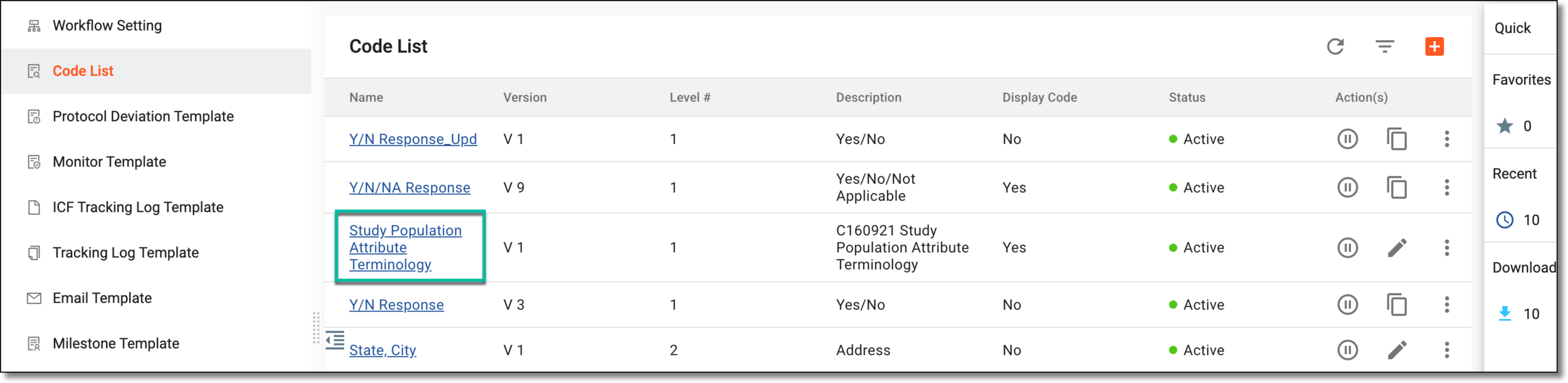 Figure 2. Accessing code list
-
On the Details page that opens, from the workspace toolbar, select More
 > New Item
  .
. Figure 3. Selecting option to add data item
Important
From the version dropdown list, you can select another version of the code list to view the data items added to the selected version. However, you cannot add or modify data in the previous versions of the code list if the particular version of the code list is in use in the protocol deviation or monitor template.
-
In the dialog that appears, add the details as explained in the following table.
 Figure 4. Adding data item to code list
Tip
In the following table, mandatory elements are marked with an asterisk (*).
Element
Details
Text*
Enter the name of the data item that you want to add to your code list.
Code*
If the data item has any code associated with it, such as a National Cancer Institute (NCI) code, then enter the code in this field.
This field is available if you have selected the option to display the code with the data items while creating the
                                  code list.
SAVE
Select
 to save your changes.
CANCEL
Select
 to discard your changes and return to the Details page.