Delete data item
In CTMS, you can delete a data item from a code list. You may need to delete a data item if it is not required in any of the templates existing in your study—protocol deviation, tracking log, monitor template, and so on; or if the data item does not belong to the code list, or due to some other reason.
-
In the CTMS application header, select the LIBRARY tab.
-
On the page that opens, from the left pane, select the Code List subtab.
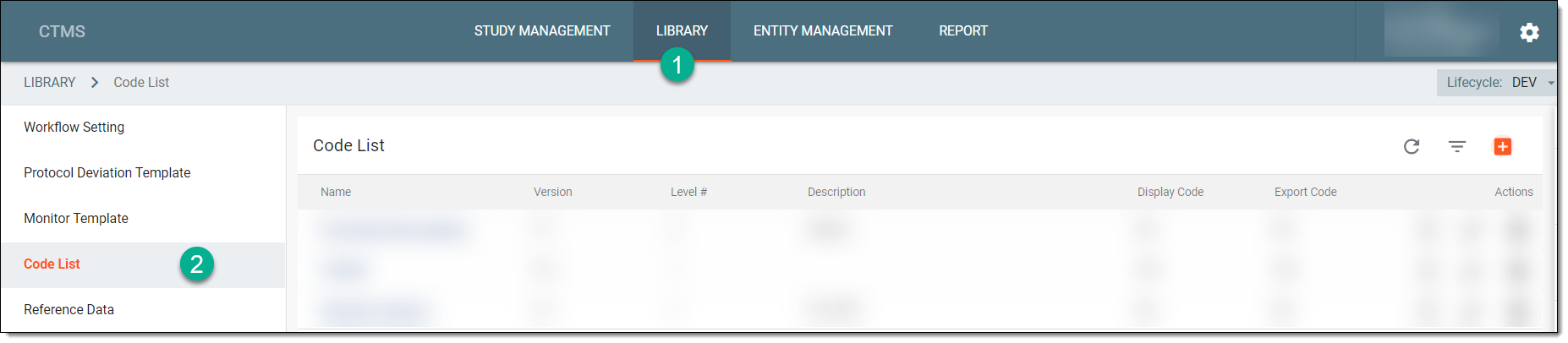 Figure 1. Selecting Code List subtab
-
From the Code List table, select the name of the code list in which your required data items exist.
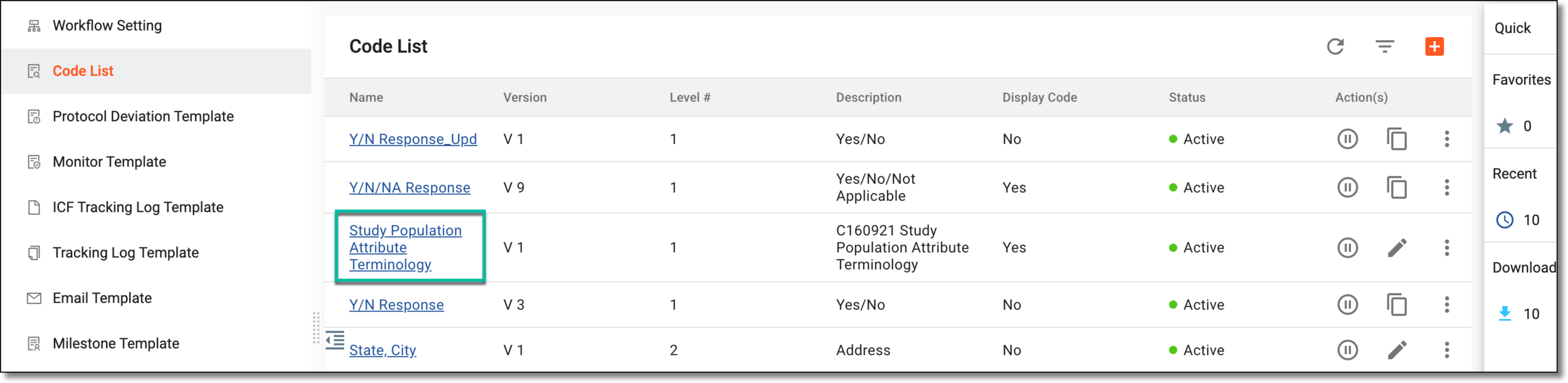 Figure 2. Accessing code list
-
On the Details page that opens, select the required data item from the corresponding level, that is, if you want to delete an item on the second level, then first select the data item from the first level, and then select the required data item from the second level.
-
From the workspace toolbar, next to the data item, select More
 > Delete
  .
.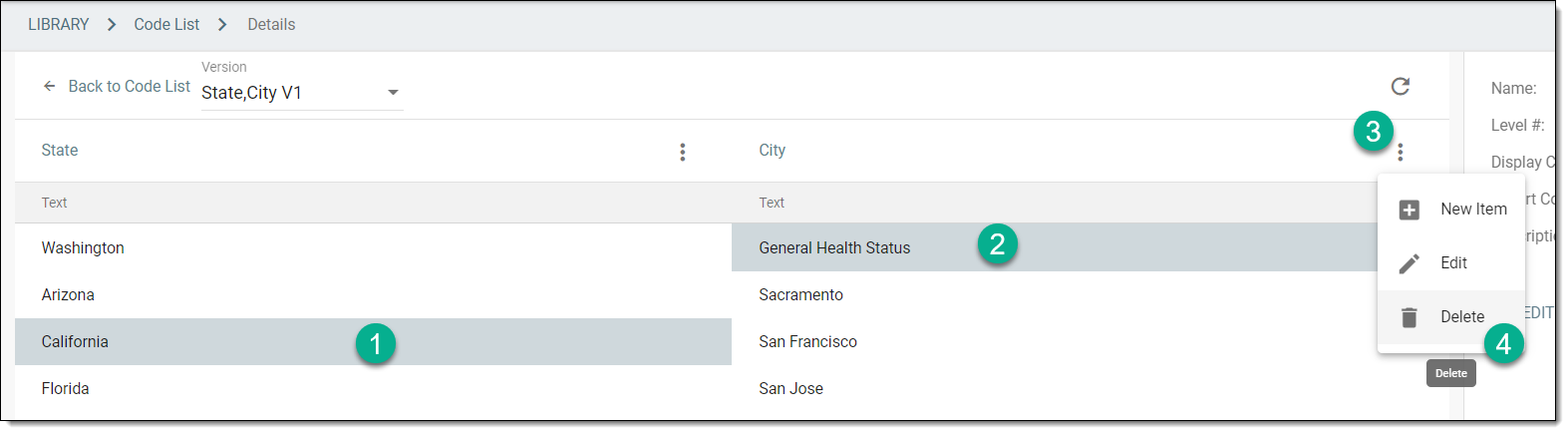 Figure 3. Selecting option to delete data item
-
In the Delete Item dialog that appears, confirm the action by selecting
 .
.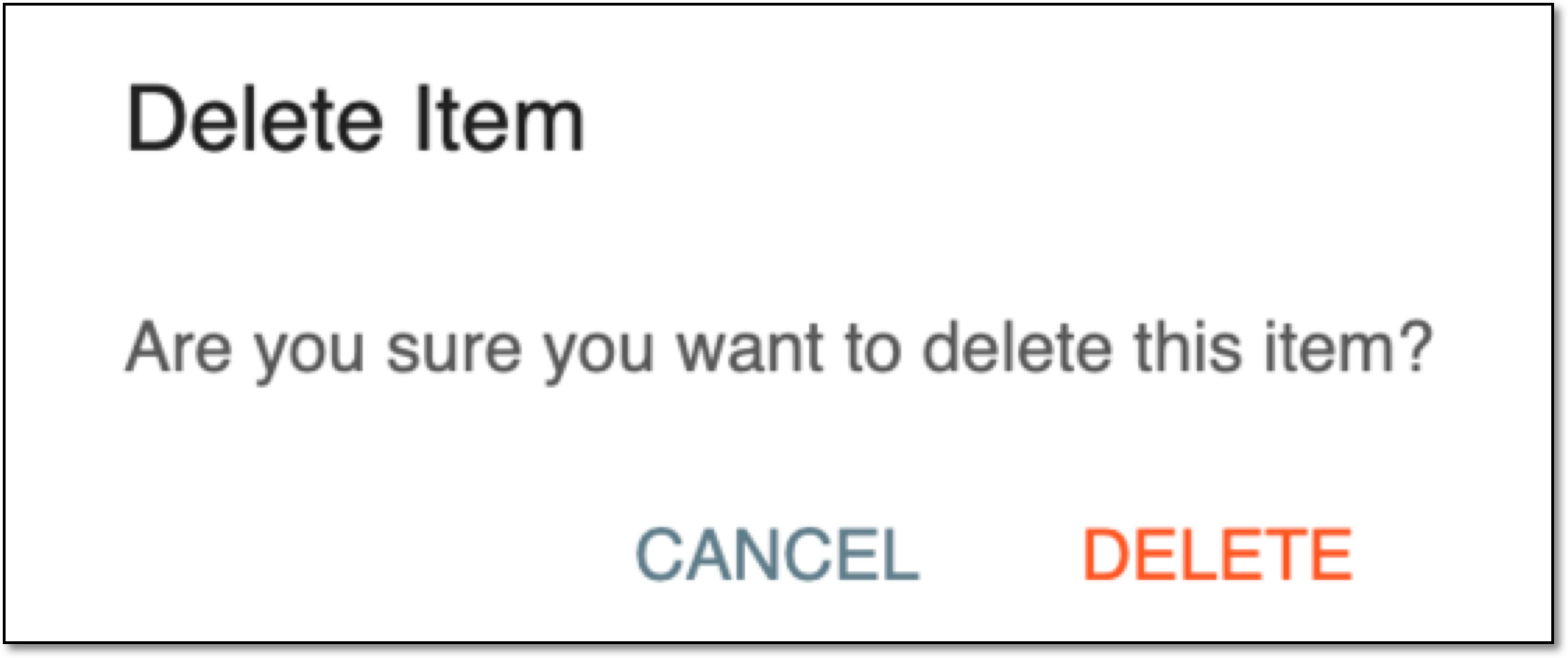 Figure 4. Deleting data item
Upon confirmation, the data item is deleted and a new version of the code list is created (if the code list is being used by a template). You may now use the latest version of the code list in your templates.
If the code list is already used in any completed CTMS form based on the previous template version that has this code list, and the data item that is deleted has been selected, once the instance is updated to the latest template version, the selection is discarded (the field becomes empty), and the user in charge has to select another applicable data item.
For instance, the "Language" code list has three data items: "English," "Spanish," and "Chinese," and this code list is used in the tracking log template "V1." The tracking log entry is made based on this template, and the "English" item is selected. Then the item "English" is deleted from the code list, and the tracking log template "V2" is created. Until the tracking log is upgraded to the latest template version ("V2"), the field selection remains intact. Once the tracking log setting is upgraded to template "V2," the language field becomes empty, and the user must select "Spanish" or "Chinese" as the only remaining options.