Creating tracking log template
In the CTMS library, you can create templates for regulatory documents such as Financial Disclosure Forms (FDF), Form 1572, and others. These templates serve as standardized formats that can be applied across studies to log and manage required details efficiently.
CTMS provides you with the following options to create the tracking log templates.
In CTMS, you can create templates to be reused in tracking logs of such regulatory documents as FDF, Form 1572, and more to define the structure and fields needed to capture study-specific information, ensuring consistent and compliant documentation across studies.
-
In the CTMS application header, select the LIBRARY tab.
-
On the page that opens, from the left pane, select Tracking Log Template.
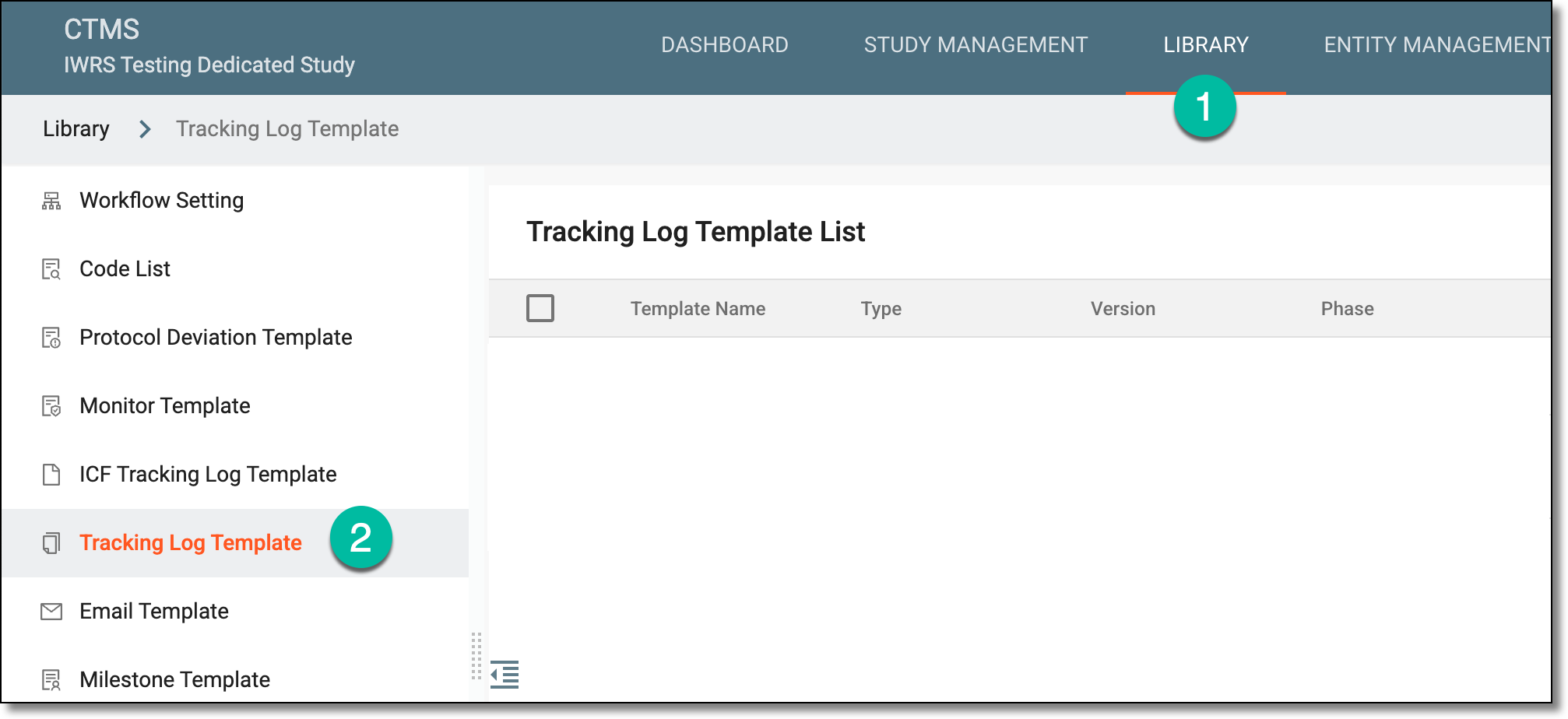 Figure 1. Accessing tracking log template subtab
-
On the Tracking Log Template List page that opens, from the workspace toolbar, select New Item
 .
.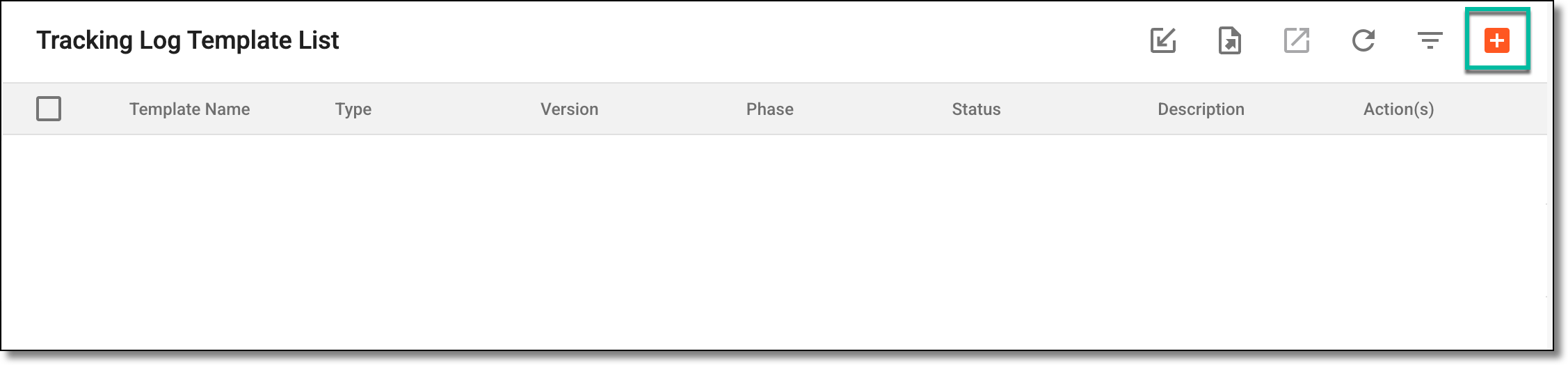 Figure 2. Selecting to create new tracking log template
-
In the New dialog that opens, enter the template details as explained in the following table.
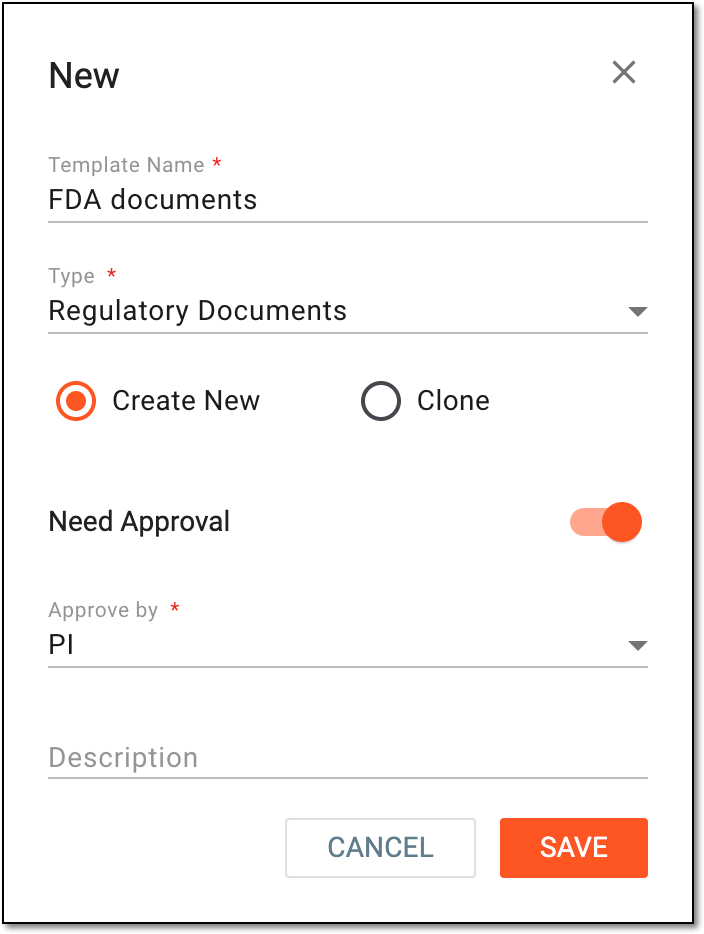 Figure 3. Creating new tracking log template
Tip
In the following table, mandatory elements are marked with an asterisk (*).
Element
Details
Template Name*
Enter a unique name for your template.
Type*
Select the type of regulatory document for which you are creating the template:
-
Regulatory Documents: to create a template of the tracking log for any document regarding regulatory oversight of the study conduct at sites.
For this type only, you can add multiple forms to track the needed documents in one log. -
Debarment Log: to create a template of the tracking log for documents, confirming that none of the study investigators, medical personnel, and other participants are debarred or disqualified from practicing clinical research or product handling activities.
-
Equipment Log: to create a template of the tracking log for documents, ensuring that the appliances and equipment used to conduct the clinical trial are in a proper state, precisely calibrated, handled according to specific requirements, and so on.
-
FDF: to create a template of the tracking log for Financial Disclosure Form—mandatory regulatory documents intended to manage financial conflict of interest in the course of the clinical trial conduct that may in any way influence its outcome.
-
1572 Log: to create a template of the tracking log for Form 1572—core regulatory documents that state the investigators' binding commitment to conduct the study in compliance with all the FDA requirements.
Besides the above, there can be as many options in this list as there are tracking log type data elements configured and activated in Reference Data.Create New
Select this option to create a new template and configure it from scratch in CTMS.
Clone
Select this option to clone the existing template.
Need Approve
Configure as follows:
-
Turn on the toggle on if you want to assign an approver to verify the configured template before it becomes valid and available for further use in the system.
-
Turn off the toggle if there is no need to assign an approver to verify the configured template.
Approve by*
If the Need Approve toggle is turned on, select the user role responsible for approving your configured template.
This field is unavailable if the Need Approve toggle is turned off.Description
Enter additional information or helpful details about the template.
SAVE
Select
 to implement the changes.
CANCEL
Select
 to discard the changes without saving.
 -
Once saved, the new tracking log template is created. You can now proceed to configure it.
The tracking log templates are designed to consistently capture, maintain, and manage regulatory documents—FDF, Form 1572, and others—across various studies. In CTMS, you can instantly prepare these templates by cloning existing ones and further amending them as needed.
-
In the CTMS application header, select the LIBRARY tab.
-
On the page that opens, from the left pane, select Tracking Log Template.
Figure 1. Accessing tracking log template list
-
On the Tracking Log Template List page that opens, from the workspace toolbar, select New Item
.Figure 2. Selecting to clone tracking log template
-
In the New dialog that opens, enter the template details as explained in the following table.
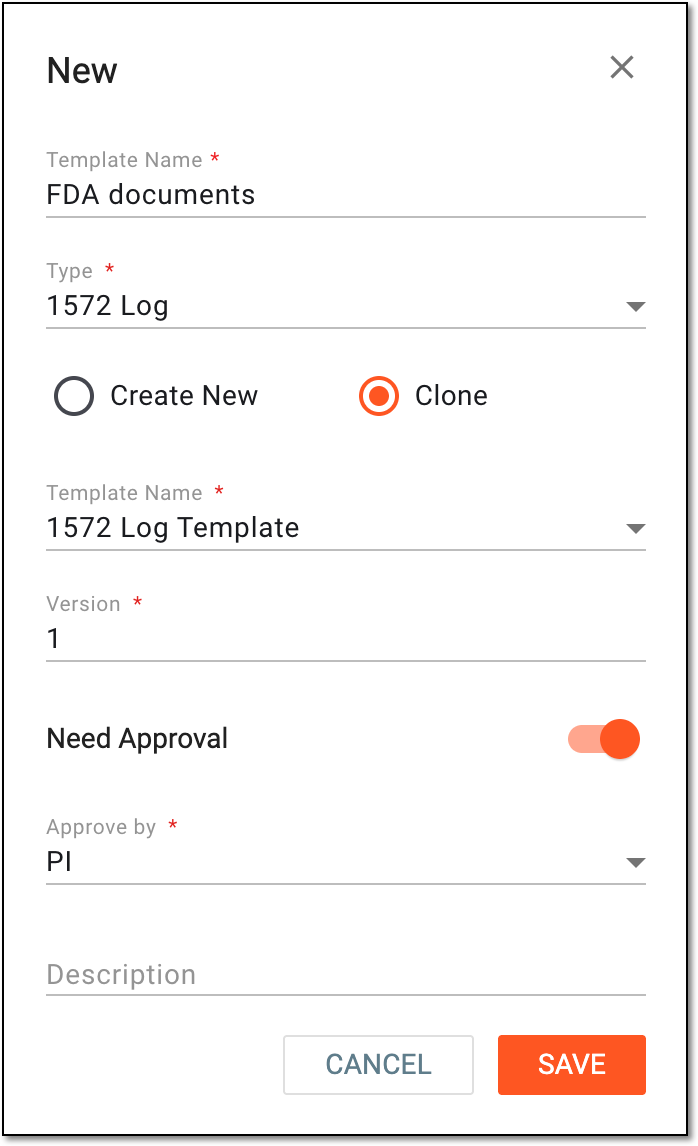 Figure 3. Cloning new tracking log template
Tip
In the following table, mandatory elements are marked with an asterisk (*).
Element
Details
Template Name*
Enter a unique name for your template.
Type*
Select the type of regulatory document for which you are creating the template:
-
Regulatory Documents: to create a template of the tracking log for any document regarding regulatory oversight of the study conduct at sites.
For this type only, you can add multiple forms to track the needed documents in one log. -
Debarment Log: to create a template of the tracking log for documents, confirming that none of the study investigators, medical personnel, and other participants are debarred or disqualified from practicing clinical research or product handling activities.
-
Equipment Log: to create a template of the tracking log for documents, ensuring that the appliances and equipment used to conduct the clinical trial are in a proper state, precisely calibrated, handled according to specific requirements, and so on.
-
FDF: to create a template of the tracking log for Financial Disclosure Form—mandatory regulatory documents intended to manage financial conflict of interest in the course of the clinical trial conduct that may in any way influence its outcome.
-
1572 Log: to create a template of the tracking log for Form 1572—core regulatory documents that state the investigators' binding commitment to conduct the study in compliance with all the FDA requirements.
Besides the above, there can be as many options in this list as there are tracking log type data elements configured and activated in Reference Data.Create New
Select this option to create a new template and configure it from scratch in CTMS.
Clone
Select this option to clone the existing template.
Template Name*
Select the template from which you want to clone the configurations into a newly created one.
Version*
Represents the template version. The version number is autogenerated by the system and cannot be changed manually.
Need Approve
Configure as follows:
-
Turn on the toggle on if you want to assign an approver to verify the configured template before it becomes valid and available for further use in the system.
-
Turn off the toggle if there is no need to assign an approver to verify the configured template.
Approve by*
If the Need Approve toggle is turned on, select the user role responsible for approving your configured template.
This field is unavailable if the Need Approve toggle is turned off.Description
Enter additional information or helpful details about the template.
SAVE
Select
to implement the changes.CANCEL
Select
to discard the changes without saving. -
Once saved, the tracking log template is cloned. You can now proceed to configure it.