Activate/Inactivate data element
In CTMS, you can activate or inactivate data elements of the reference data dictionaries. An inactive data element is not displayed anywhere across the CTMS application. You may need to inactivate a data element if your current study protocol requirements have been updated and a particular data element is not needed anymore but might be useful for another study in the future. In such a scenario, you can inactivate a data element, and later, whenever required, you can activate it again.
Important
You can only activate or inactivate a data elements that you have added. The data elements that are added by the system administrators cannot be modified.
-
In the CTMS application header, select the LIBRARY tab.
-
On the page that opens, from the left pane, select the Reference Data subtab.
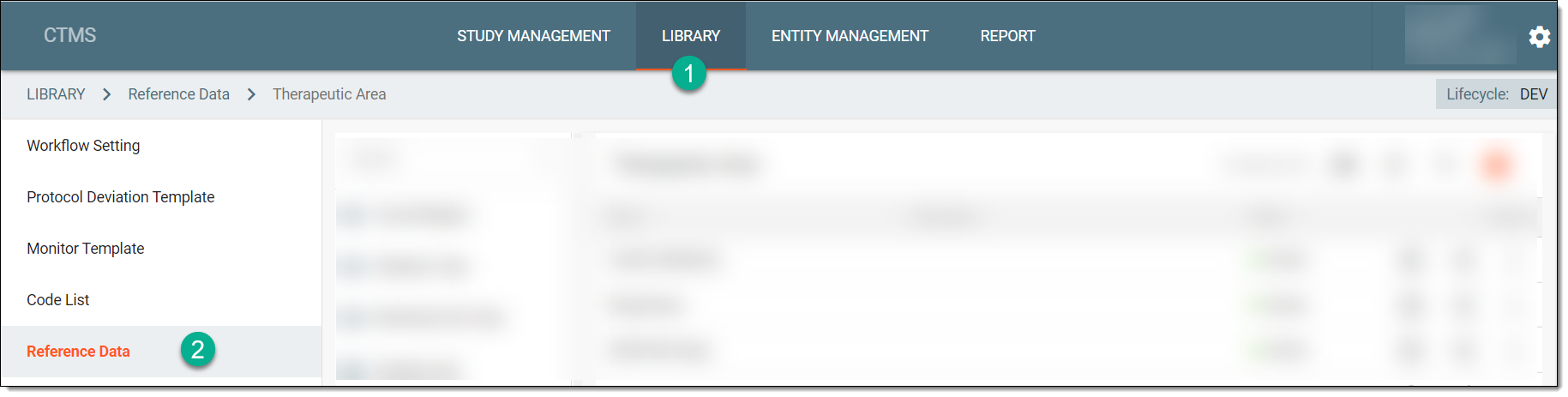 Figure 1. Accessing reference data
-
From the pane displaying the list of available dictionaries, select the required one.
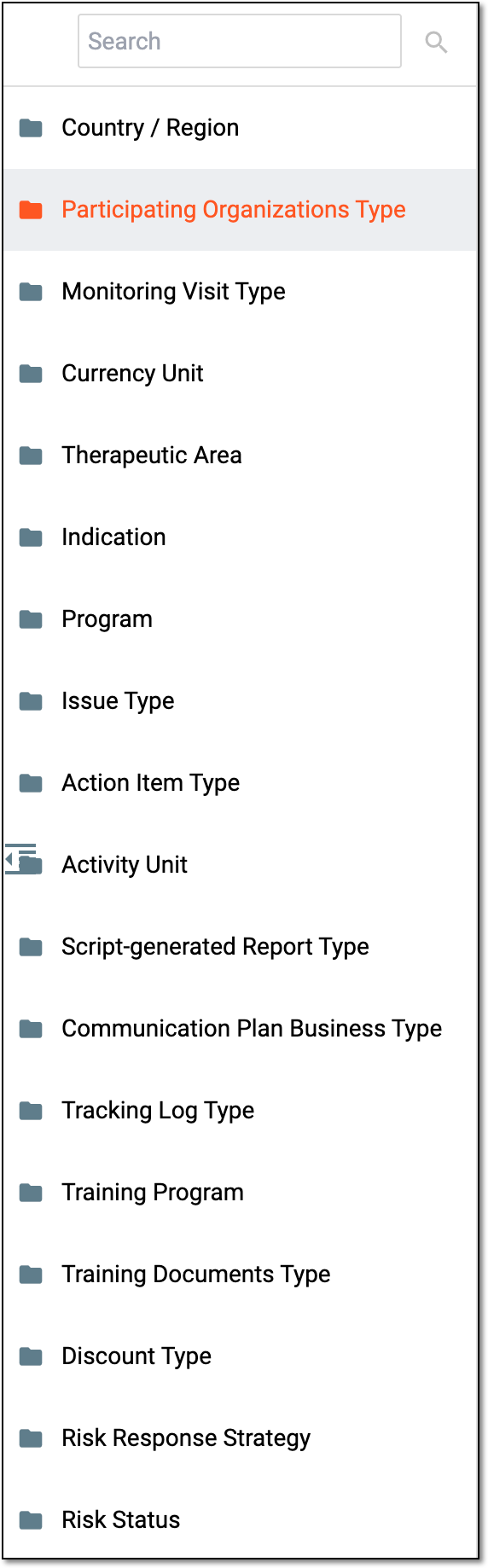 Figure 2. Selecting dictionary
Tip
You can find the required dictionary by entering its name in the Search field.
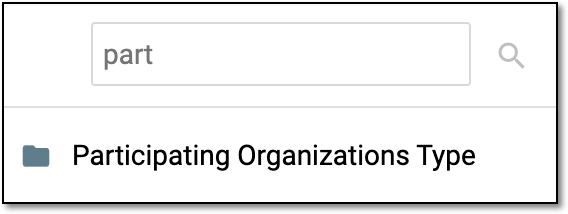 Figure 3. Searching dictionary
-
From the list of data elements that appears, locate the inactivated data element that you want to activate or an active data element that you want to inactivate. Then from the Actions column, select Activate
 or Inactivate
  as required.
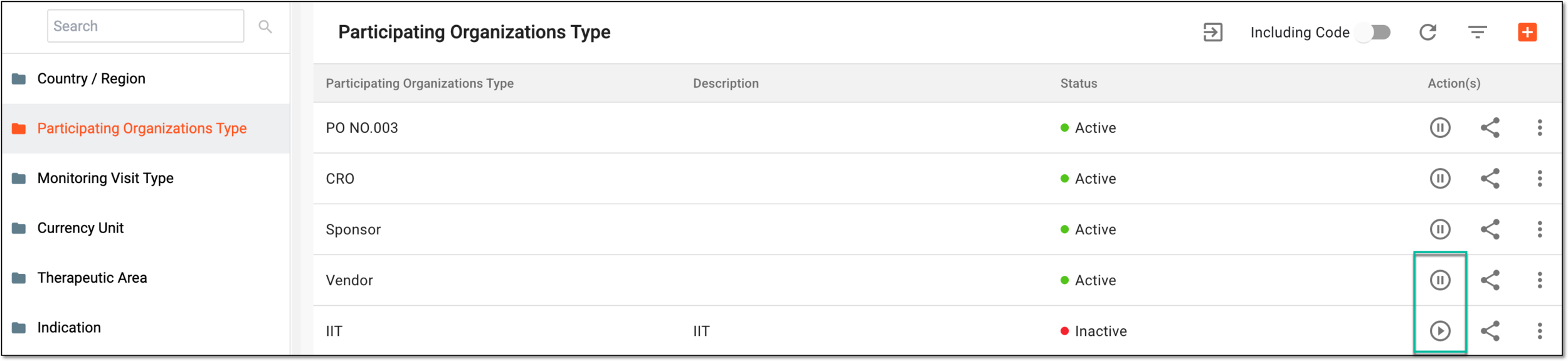 Figure 4. Activating or inactivating data element
Upon selecting the required action, the data element is activated or inactivated.