Check data element reference details
In CTMS, you can view the exact location of where a particular data element is used across the application. This may be required if you want to edit or delete a data element that you have added but the system is hindering the action. Thus, you can find out where the data element is used and fix the issue.
-
In the CTMS application header, select the LIBRARY tab.
-
On the page that opens, from the left pane, select the Reference Data subtab.
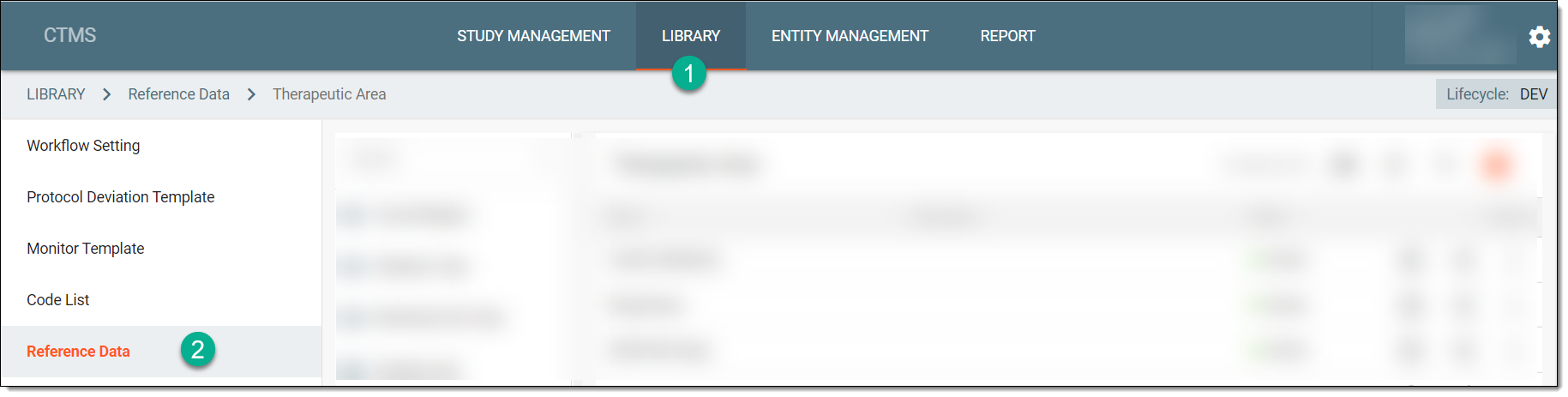 Figure 1. Accessing reference data
-
From the pane displaying the list of available dictionaries, select the required one.
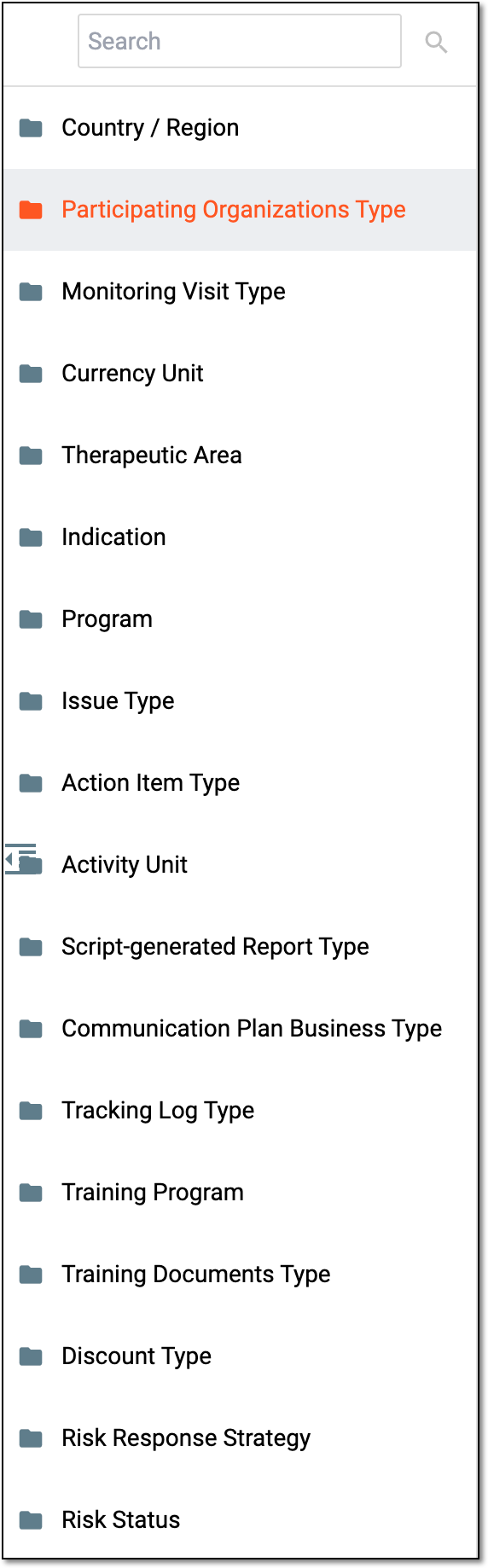 Figure 2. Selecting dictionary
Tip
You can find the required dictionary by entering its name in the Search field.
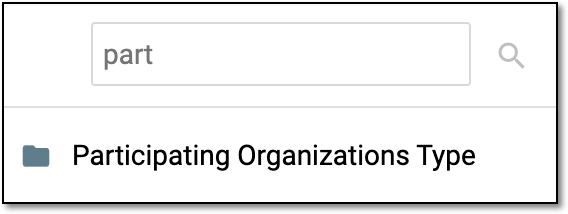 Figure 3. Searching dictionary
-
From the list of data elements that appears, locate the required data element, and next to it, select Reference
 .
.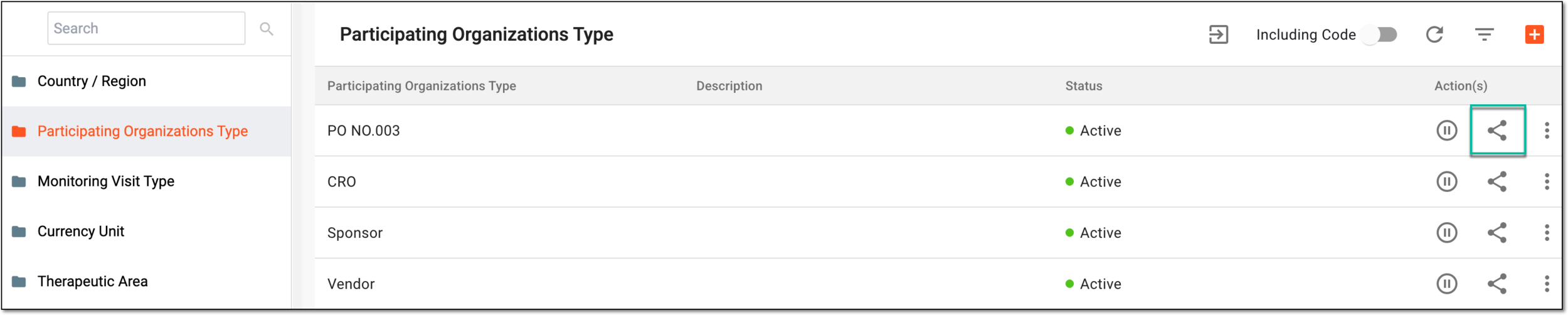 Figure 4. Accessing data element references
-
In the Reference Item dialog that appears, the Module Name column displays the complete path of the location where the data element is used.
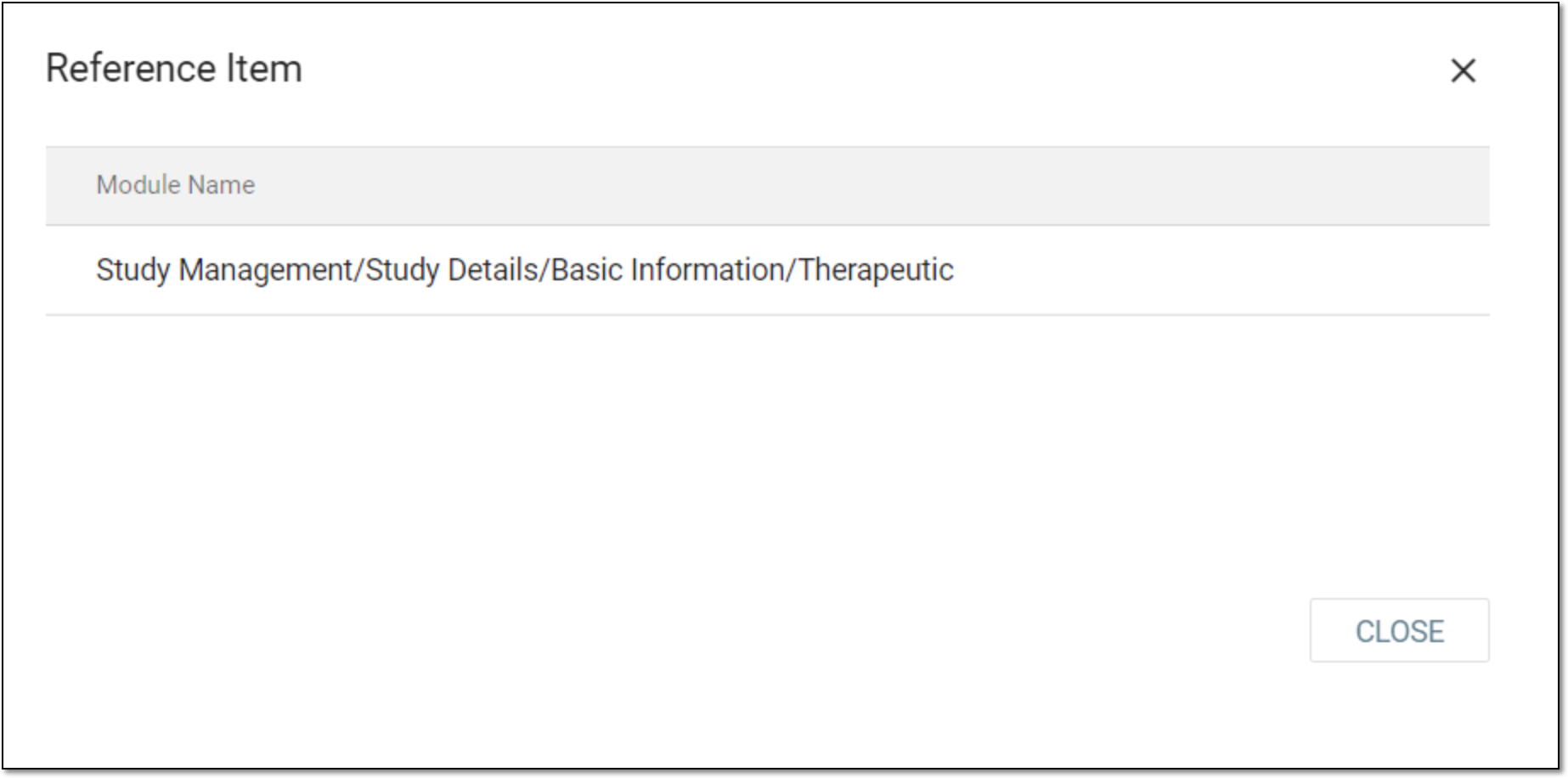 Figure 5. Viewing data element reference details
-
Select
 to close the dialog.
Upon closing the Reference Item dialog, you are redirected to the page displaying the data elements of the selected dictionary.