Site personnel management
In CTMS, you can manage and track the staff members involved in a clinical trial at a specific site. It provides essential details such as personnel names, contact information, and assigned roles, ensuring proper coordination and communication among the study team. This feature helps maintain an organized record of site staff, simplifying site management, role assignments, and compliance with study protocols.
The staff members can be added to the site manually or automatically by the system if, upon adding the staff member to the study, you select the role that belongs to site personnel and specify their site of responsibility.
In the following sections, you can learn how to efficiently manage the personnel overseeing site operations.
Site personnel are staff members responsible for conducting and managing clinical trial activities at a study site. They include investigators, coordinators, and other key roles ensuring compliance with protocols and regulatory requirements.
Important
This functionality is unavailable for the site that is inactive, terminated, closed, or suspended.
The staff members added to the master study are automatically copied to the substudy. You cannot manually add staff members to substudies; they can only inherit the staff list defined in the master study.
-
Access the study management page in one of the following ways:
-
In the CTMS application header, select the DASHBOARD tab and then select the study dashboard of your interest.
 Figure 1. Accessing study management from dashboard
-
In the CTMS application header, select the STUDY MANAGEMENT tab. Then from the Study Data List table, select the study name of your interest.
 Figure 2. Accessing study management from study data list
-
-
From the left pane of the study page that opens, select Study Details > Site List.
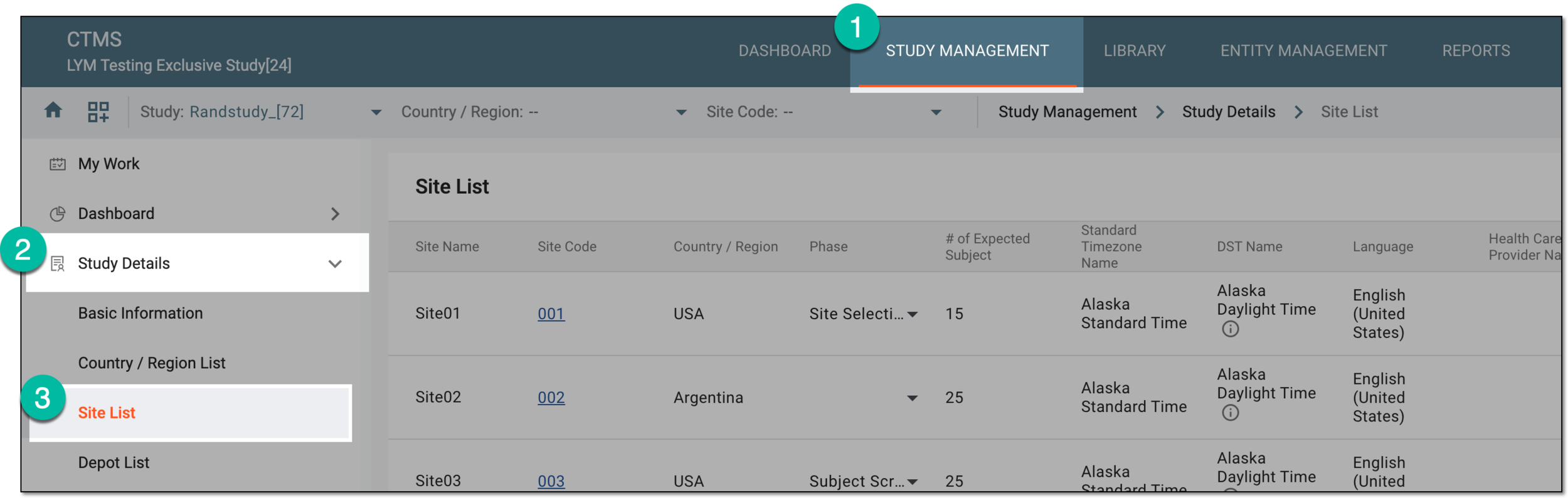 Figure 3. Accessing study sites
-
In the Site List table that appears, in the Site Name column, select the needed site or select Edit
 next to it.
 Figure 4. Accessing option to configure site
-
On the page that opens, two panes appear. The left pane groups sites by country or region, where you can expand or collapse sections and select a specific site. The middle pane displays the contents of the currently opened site.
From the horizontal navigation pane provided, select Site Personnel.
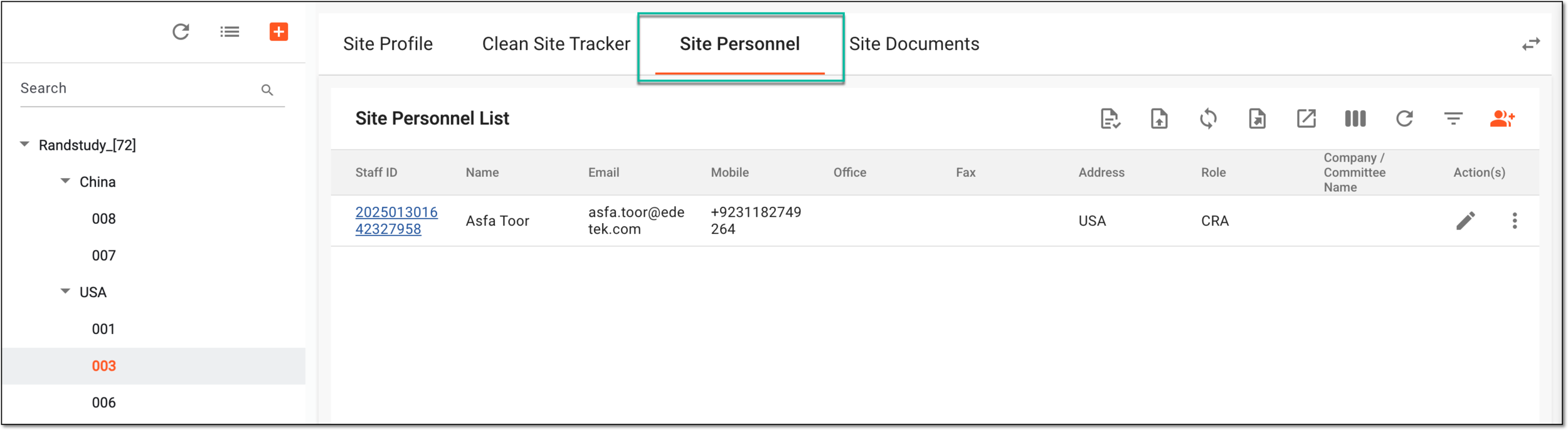 Figure 5. Accessing site personnel tab
-
In the Site Personnel List table, from the workspace toolbar, select New Item
 . From the dropdown menu that appears, select any of the following options:
-
Add from Entity: select to add personnel from the list of existing users in the system.
-
Add from Admin: select to add personnel from the list of existing admins in the system.
-
Add: select this option to create a record for a site employee who has no user profile configured in the eClinical system.
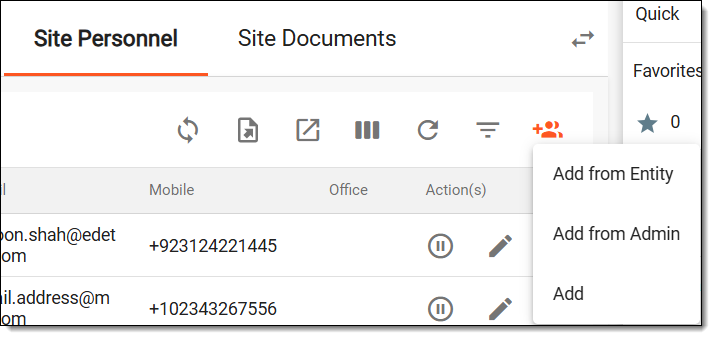 Figure 6. Selecting option to add personnel
-
-
In the form that appears, enter the details as explained in the following table.
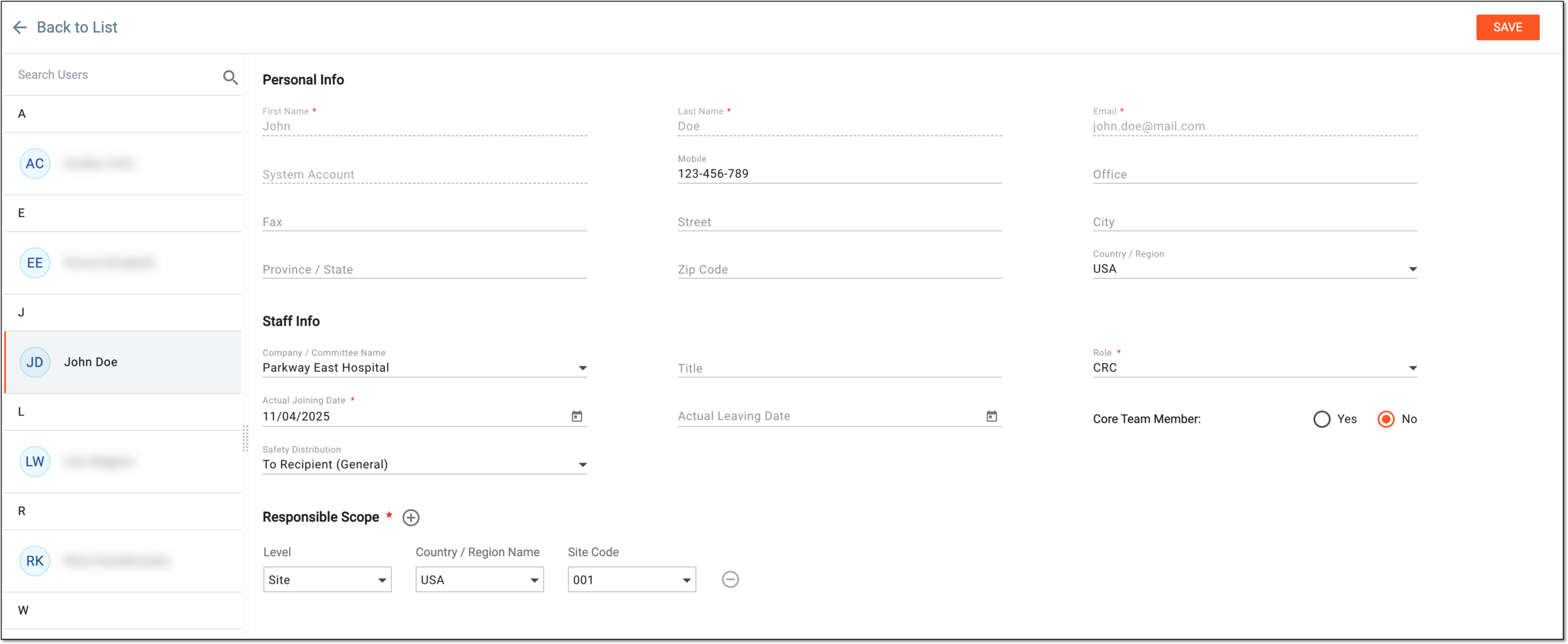 Figure 7. Adding personnel from existing admins
Tip
In the following table, mandatory elements are marked with an asterisk (*).
Element
Details
Search Users
Enter the name of the required user in this field that you want to add as site personnel and select them. Otherwise, scroll the list and select the needed user.
This field and list of existing users are not shown if you are adding site personnel by creating a new user from
                                        scratch.
Personal Info
First Name*
-
Adding personnel from existing users or admins: this field represents the first name of the user.
-
Adding personnel by creating new user from scratch: enter the first name of the user.
Last Name*
-
Adding personnel from existing users or admins: this field represents the last name of the user.
-
Adding personnel by creating new user from scratch: enter the last name of the user.
Email*
-
Adding personnel from existing users or admins: this field represents the email address of the user.
-
Adding personnel by creating new user from scratch: enter the email address of the user.
System Account
-
Adding personnel from existing users or admins: this field represents the account name of the user in the system.
-
Adding personnel by creating new user from scratch: enter the account name of the user in the system.
Mobile
Enter the personal contact number of the user.
Office
Enter the official contact number of the user.
Fax
Enter the fax number of the user.
Street
Enter the name of the street in the mailing address of the user.
City
Enter the city in which the user is located.
Province/State
Enter the province or state in which the user is located.
Zip Code
Enter the postal code in the address of the user.
Country/Region
Enter the country or region in which the user is located.
Staff Info
Company/Committee Name
Select the name of the company or committee for which the user works.
Title
Enter the job title of the user.
Role*
Select the job role assigned to the user in the study, such as investigator, coordinator, and others.
Actual Joining Date
Select the date picker icon
 to choose the date when the personnel officially joined the study.
Actual Leaving Date
Select the date picker icon
to choose the date when the personnel left or will leave the study.Core Team Member
Select an option to specify whether the personnel is part of the study's core team: Yes or No.
Safety Distribution
Select the level of access for safety distribution emails for the staff member:
-
To Recipient (General): the staff member is entitled to receive emails with the safety data reports for all subjects of the sponsor's studies. This level of access is most suitable for investigators.
-
To Recipient (Current Site Only): the staff member is entitled to receive emails with the safety data reports for subjects of the site where they are operating. This level of access is most useful for CRCs, CRAs, and other roles not involved in cross-study activities.
-
No selection: the staff member is not entitled to receive emails with the safety data reports.
Responsible Scope*
Level
Displays the level of responsibility at which the personnel will be working, that is Site.
Country/Region Name
Select the country or region where the personnel is responsible for managing clinical trial activities.
Site Code
Select the unique code identifying the site.
Subdivision
Select a specific section or unit within the site.
This field is displayed only for the CRA or investigator roles.SAVE
Select
 to preserve your changes and add the personnel.
Back to List
Select
 to go back to the Site Personnel List table without saving your changes.
 -
Once saved, the site personnel is added and shown in the Site Personnel List table.
Site personnel are staff members responsible for conducting and managing clinical trial activities at a study site. They include investigators, coordinators, and other key roles ensuring compliance with protocols and regulatory requirements. You can change the site personnel details to update their contact information, role, responsibilities, or employment status as needed. This ensures that the site staff records remain accurate and up to date for effective study management.
Important
The editing is unavailable if:
-
The site is inactive, terminated, closed, or suspended.
-
You are managing a substudy. You can only edit the site personnel details via the master study staff list.
-
Access the study management page in one of the following ways:
-
In the CTMS application header, select the DASHBOARD tab and then select the study dashboard of your interest.
Figure 1. Accessing study management from dashboard
-
In the CTMS application header, select the STUDY MANAGEMENT tab. Then from the Study Data List table, select the study name of your interest.
Figure 2. Accessing study management from study data list
-
-
From the left pane of the study page that opens, select Study Details > Site List.
Figure 3. Accessing study sites
-
In the Site List table that appears, in the Site Name column, select the needed site or select Edit
next to it.Figure 4. Accessing option to configure site
-
On the page that opens, two panes appear. The left pane groups sites by country or region, where you can expand or collapse sections and select a specific site. The middle pane displays the contents of the currently opened site.
From the horizontal navigation pane provided, select Site Personnel.
-
In the Site Personnel List table, next to the personnel you want to update, select Edit
.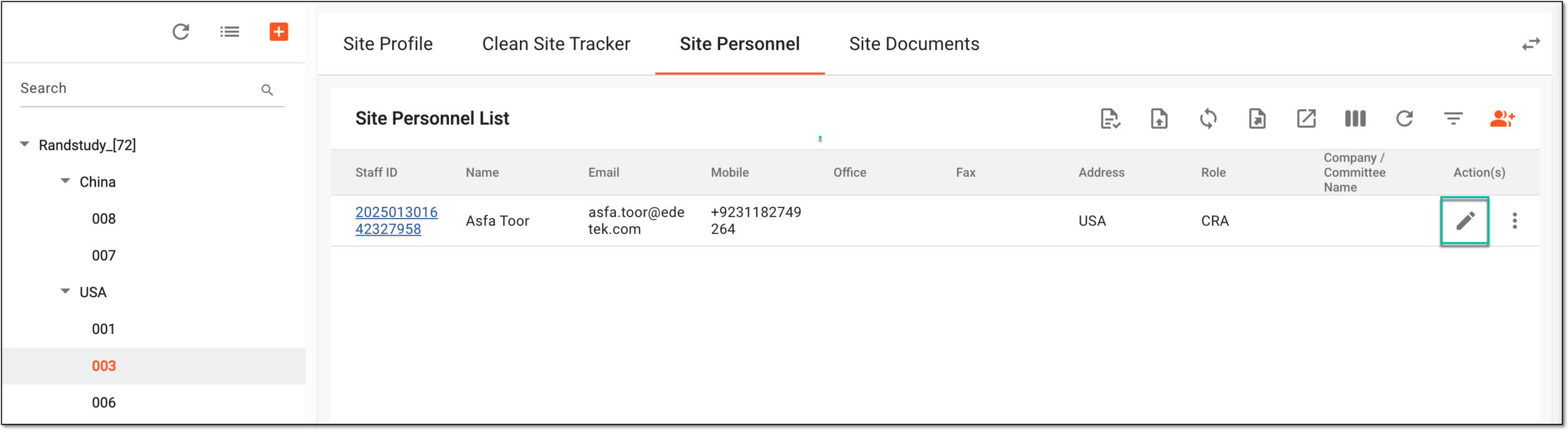 Figure 5. Selecting option to edit personnel
-
In the form that appears, update the details of the site personnel as needed. These fields are identical to the ones explained in the table of the Add site personnel section.
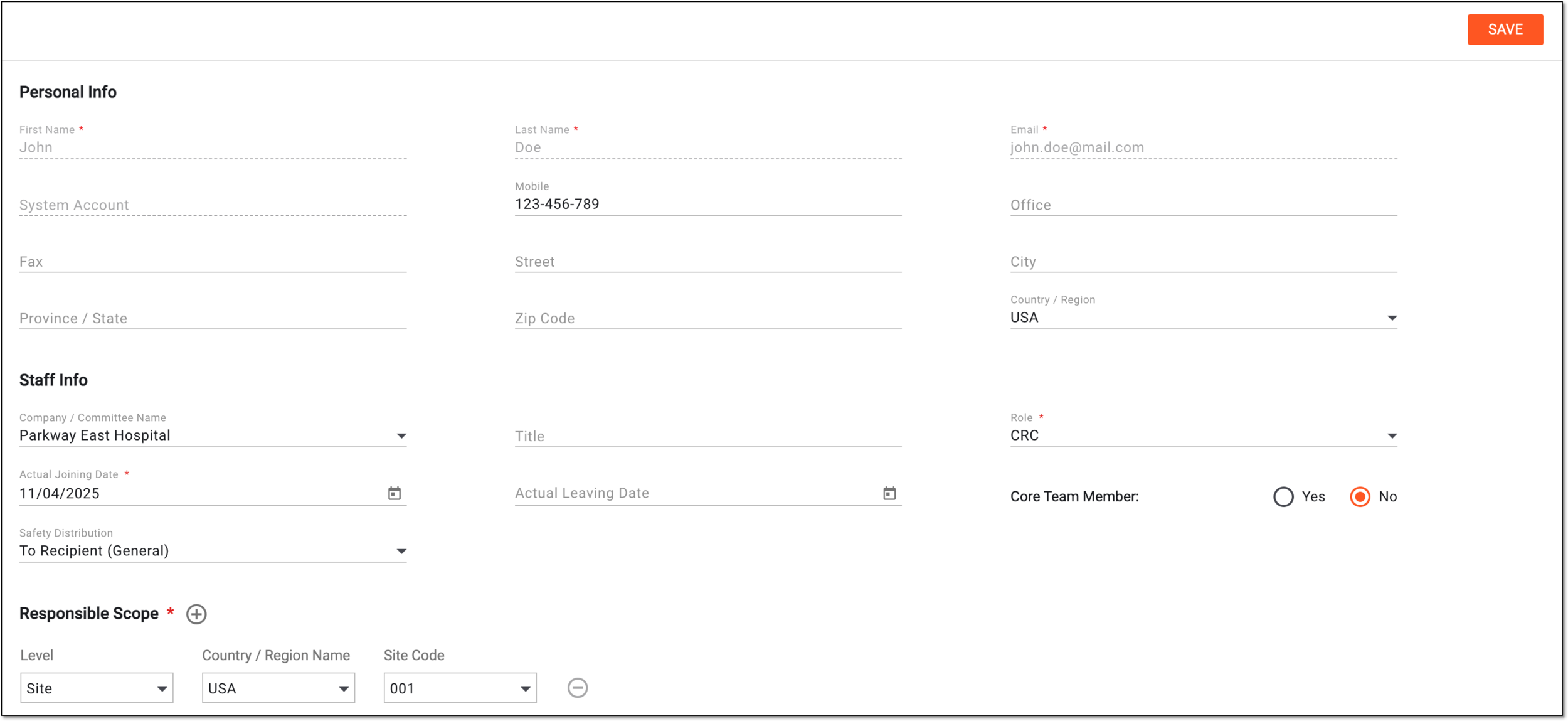 Figure 6. Editing site personnel
Tip
Note that the following fields cannot be updated: First Name, Last Name, Email, System Account, and Level.
-
Select SAVE.
Once selected, the site personnel details are updated.
Site personnel are staff members responsible for conducting and managing clinical trial activities at a study site. Activating or inactivating site personnel helps manage staff availability for a clinical trial. Activation allows personnel to participate in study activities, while inactivation restricts their access and involvement. This ensures that only authorized and active staff members are assigned to the site.
Important
Activation and deactivation options are unavailable if:
-
The site is inactive, terminated, closed, or suspended.
-
You are managing a substudy. You can only activate and inactivate the site personnel via the master study staff list.
-
Access the study management page in one of the following ways:
-
In the CTMS application header, select the DASHBOARD tab and then select the study dashboard of your interest.
Figure 1. Accessing study management from dashboard
-
In the CTMS application header, select the STUDY MANAGEMENT tab. Then from the Study Data List table, select the study name of your interest.
Figure 2. Accessing study management from study data list
-
-
From the left pane of the study page that opens, select Study Details > Site List.
Figure 3. Accessing study sites
-
In the Site List table that appears, in the Site Name column, select the needed site or select Edit
next to it.Figure 4. Accessing option to configure site
-
On the page that opens, two panes appear. The left pane groups sites by country or region, where you can expand or collapse sections and select a specific site. The middle pane displays the contents of the currently opened site.
From the horizontal navigation pane provided, select Site Personnel.
-
In the Site Personnel List table, do one of the following:
-
Next to the active site personnel, select Inactivate
 to deactivate the user on the site.
 -
Next to inactive site personnel, select Activate
 to reactivate the user on the site.
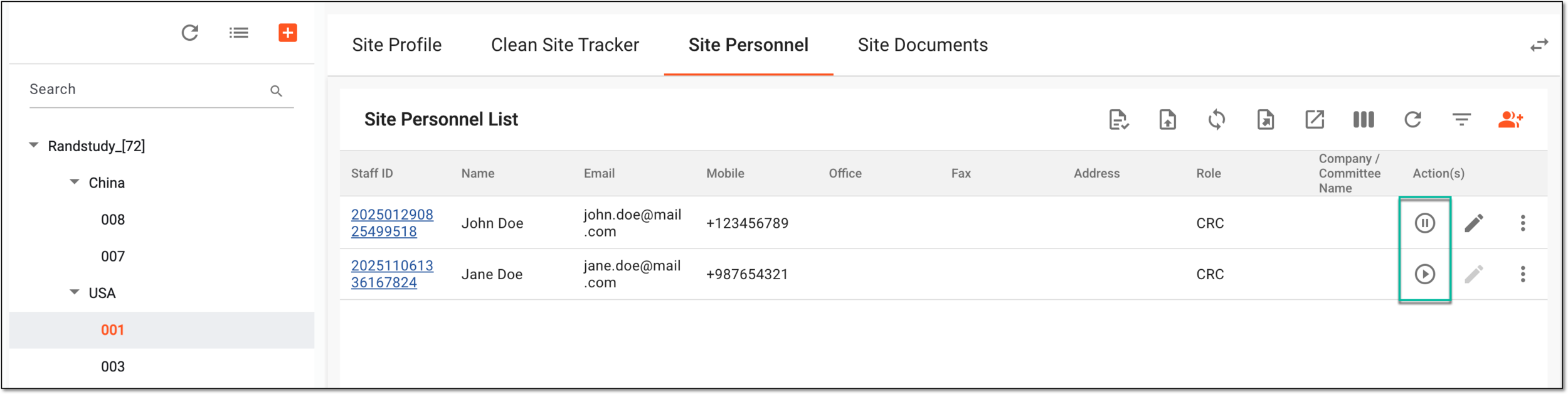 Figure 5. Activating or inactivating site personnel
-
-
In the Reason dialog that appears, enter the reason for inactivating or activating the site personnel. Then, select SAVE.
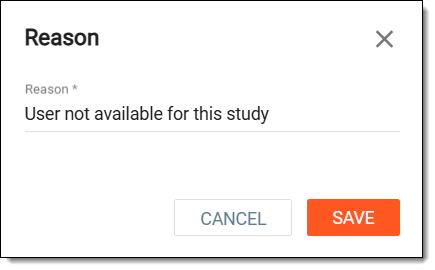 Figure 6. Entering reason for inactivating site personnel
Once saved, the site personnel is inactivated or activated.
Site personnel are staff members responsible for conducting and managing clinical trial activities at a study site. Using the Operation History functionality, you can track and review all changes made to site personnel records. It provides a detailed log of modifications ensuring transparency and compliance in site personnel management.
-
Access the study management page in one of the following ways:
-
In the CTMS application header, select the DASHBOARD tab and then select the study dashboard of your interest.
Figure 1. Accessing study management from dashboard
-
In the CTMS application header, select the STUDY MANAGEMENT tab. Then from the Study Data List table, select the study name of your interest.
Figure 2. Accessing study management from study data list
-
-
From the left pane of the study page that opens, select Study Details > Site List.
Figure 3. Accessing study sites
-
In the Site List table that appears, in the Site Name column, select the needed site or select Edit
next to it.Figure 4. Accessing option to configure site
-
On the page that opens, two panes appear. The left pane groups sites by country or region, where you can expand or collapse sections and select a specific site. The middle pane displays the contents of the currently opened site.
From the horizontal navigation pane provided, select Site Personnel.
-
In the Site Personnel List table, next to the site personnel for which you want to view the operation history, select More
 > Operation History
  .
.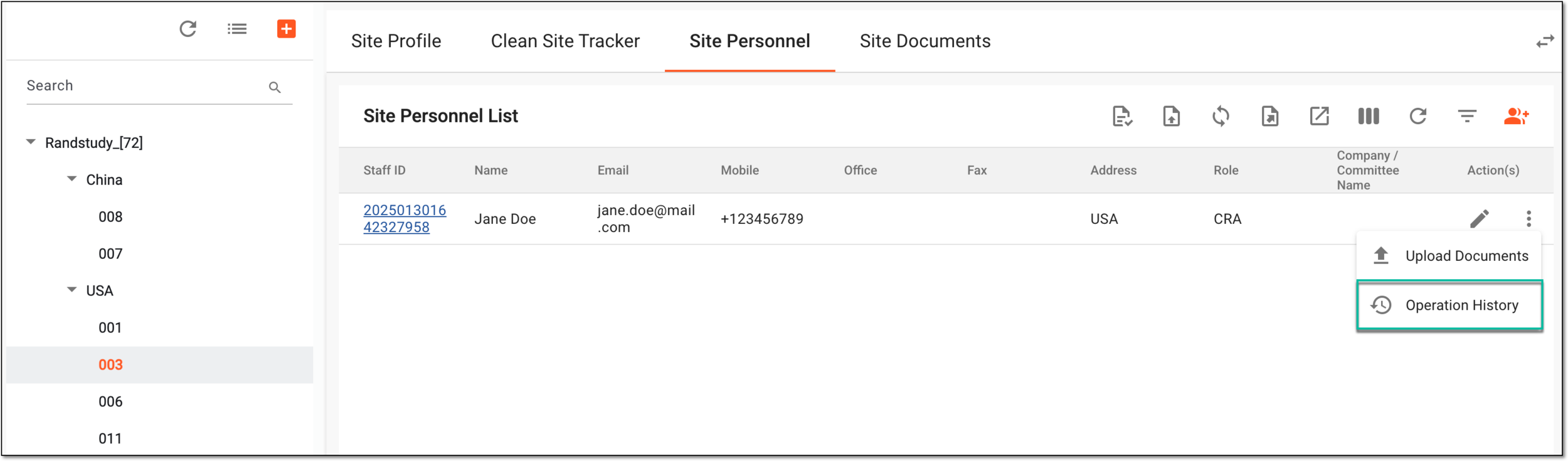 Figure 5. Accessing option to view operation history
-
In the Operation History dialog that opens, view the list of actions that have been performed by the site personnel.
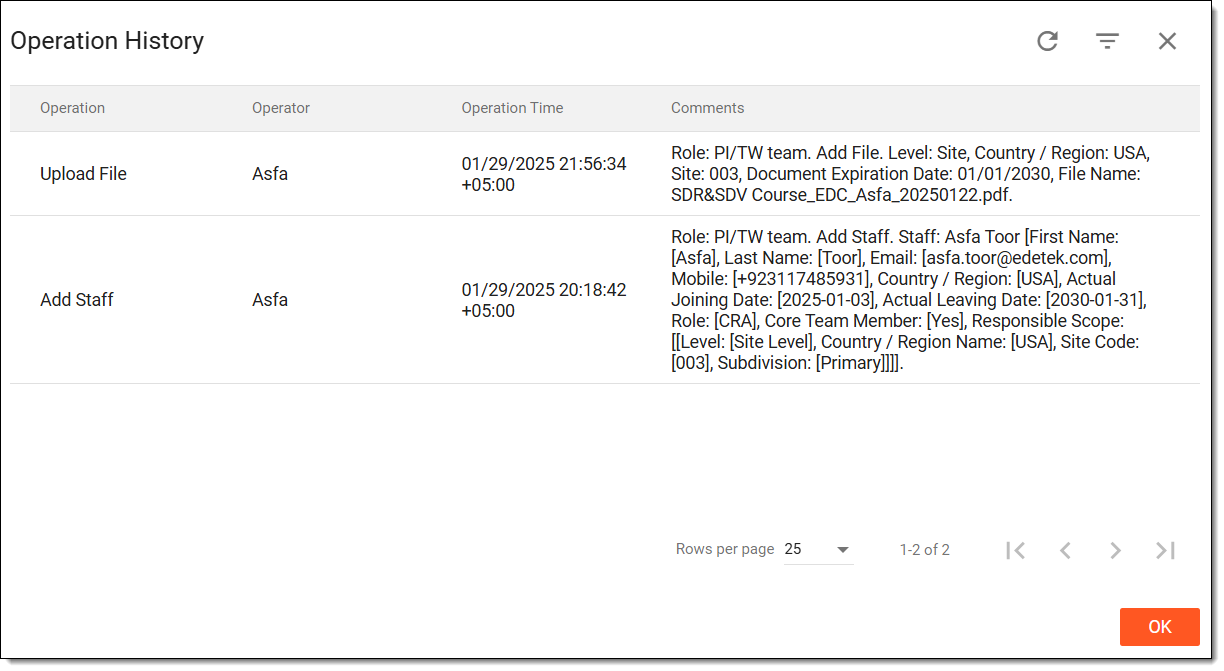 Figure 6. Viewing site personnel operation history
Once you have viewed the operation history, select OK to close the dialog and return to the Site Personnel List table.
Site personnel are staff members responsible for conducting and managing clinical trial activities at a study site. Using the Delete functionality, you can remove a staff member's record from the system when they are no longer associated with the study. This helps maintain accurate personnel records by eliminating outdated or irrelevant entries.
Important
You cannot delete site personnel if:
-
The site is inactive, terminated, closed, or suspended.
-
The site personnel has the Active status. Inactivate site personnel to delete them.
-
You are managing a substudy. You can only delete the site personnel via the master study staff list.
-
Access the study management page in one of the following ways:
-
In the CTMS application header, select the DASHBOARD tab and then select the study dashboard of your interest.
Figure 1. Accessing study management from dashboard
-
In the CTMS application header, select the STUDY MANAGEMENT tab. Then from the Study Data List table, select the study name of your interest.
Figure 2. Accessing study management from study data list
-
-
From the left pane of the study page that opens, select Study Details > Site List.
Figure 3. Accessing study sites
-
In the Site List table that appears, in the Site Name column, select the needed site or select Edit
next to it.Figure 4. Accessing option to configure site
-
On the page that opens, two panes appear. The left pane groups sites by country or region, where you can expand or collapse sections and select a specific site. The middle pane displays the contents of the currently opened site.
From the horizontal navigation pane provided, select Site Personnel.
-
In the Site Personnel List table, next to the inactivated site personnel you want to remove, select More
> Delete  .
.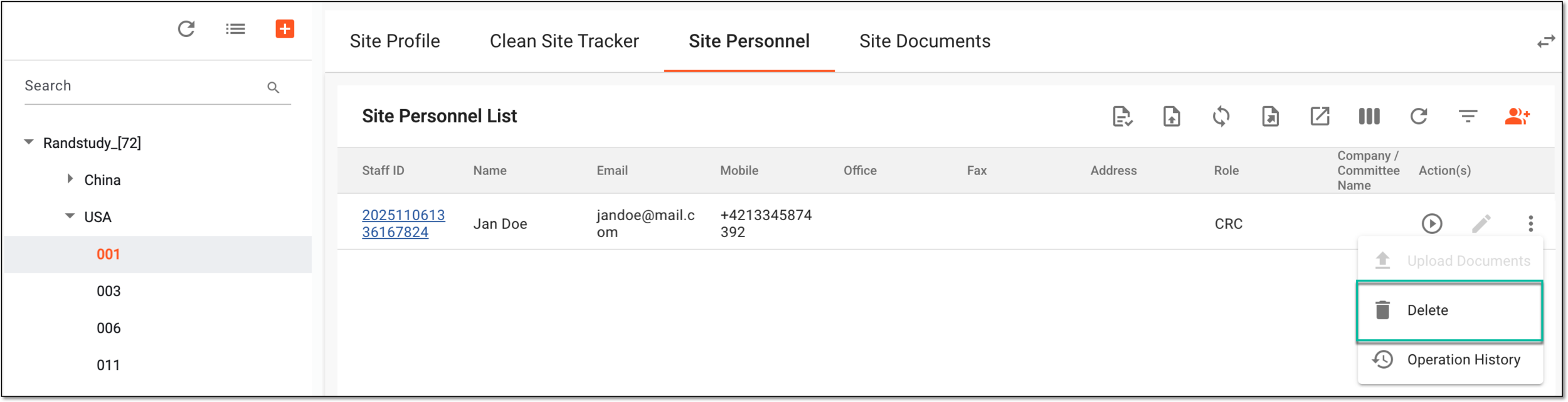 Figure 5. Accessing option to delete site personnel
-
In the Reason dialog that opens, describe the reason for deleting the site personnel. Then, select SAVE.
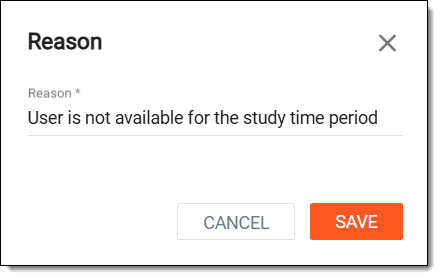 Figure 6. Entering reason to delete site personnel
Once saved, the inactivated site personnel is deleted from the system and can no longer manage the site operations.
Site personnel are staff members responsible for conducting and managing clinical trial activities at a study site. The Export feature helps generate a list of all personnel associated with a site in the CTMS system and download it to your personal computer for offline usage.
-
Access the study management page in one of the following ways:
-
In the CTMS application header, select the DASHBOARD tab and then select the study dashboard of your interest.
Figure 1. Accessing study management from dashboard
-
In the CTMS application header, select the STUDY MANAGEMENT tab. Then from the Study Data List table, select the study name of your interest.
Figure 2. Accessing study management from study data list
-
-
From the left pane of the study page that opens, select Study Details > Site List.
Figure 3. Accessing study sites
-
In the Site List table that appears, in the Site Name column, select the needed site or select Edit
next to it.Figure 4. Accessing option to configure site
-
On the page that opens, two panes appear. The left pane groups sites by country or region, where you can expand or collapse sections and select a specific site. The middle pane displays the contents of the currently opened site.
From the horizontal navigation pane provided, select Site Personnel.
-
In the Site Personnel List table, from the workspace toolbar, select Export
 .
.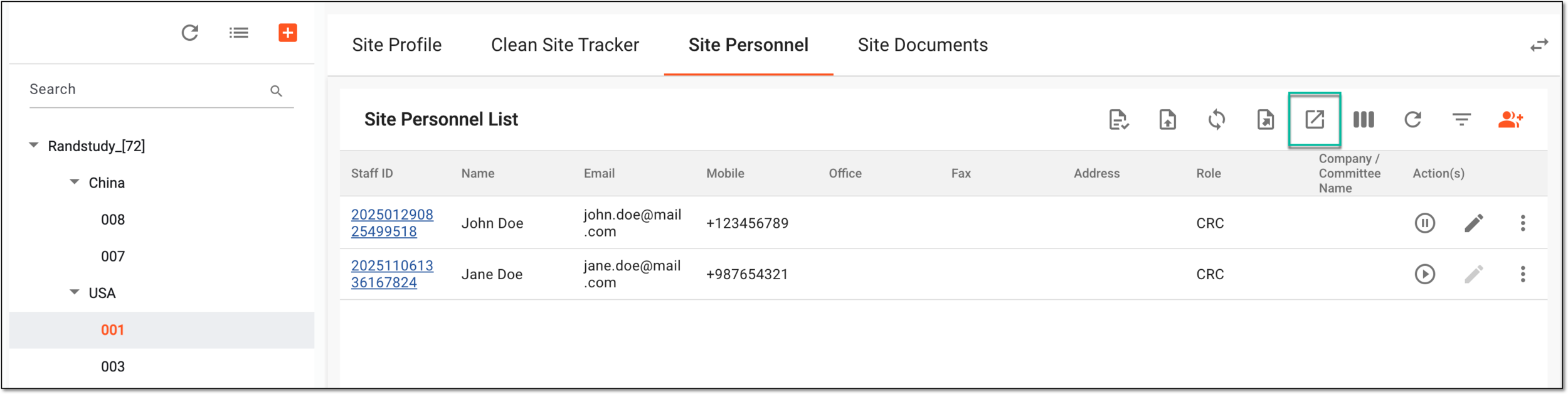 Figure 5. Accessing option to export site personnel list
-
The downloads widget appears showing the export progress. Select the widget to access exported files.
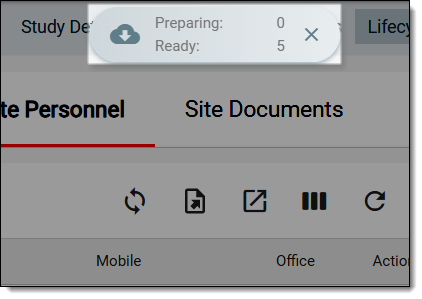 Figure 6. Download widget showing site personnel list being exported
-
In the My Downloads dialog that opens, you can find the following tabs:
-
Preparing: lists all the files whose export is in progress, and they are not yet ready for download. Wait until the needed file moves to the Download is Ready tab.
-
Download is Ready: lists the files whose export is complete, and they can be downloaded to your computer by selecting
 .
.
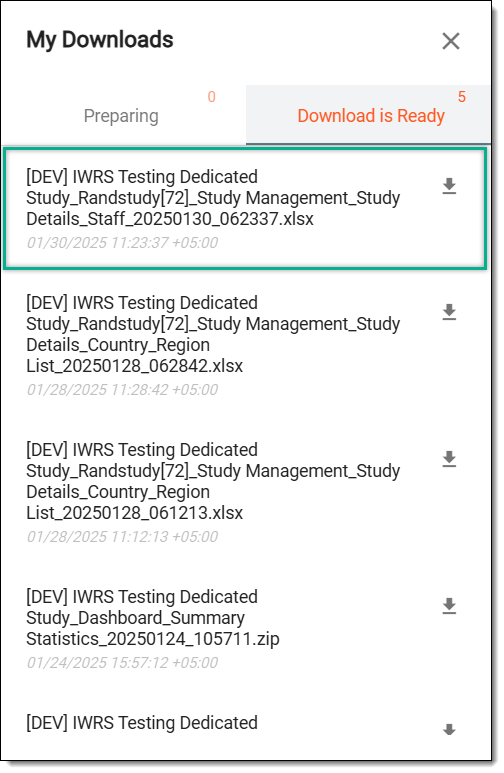 Figure 7. Downloading site personnel list
-
Once downloaded and saved, the site personnel data in the XLSX format becomes available on your computer.
Tip
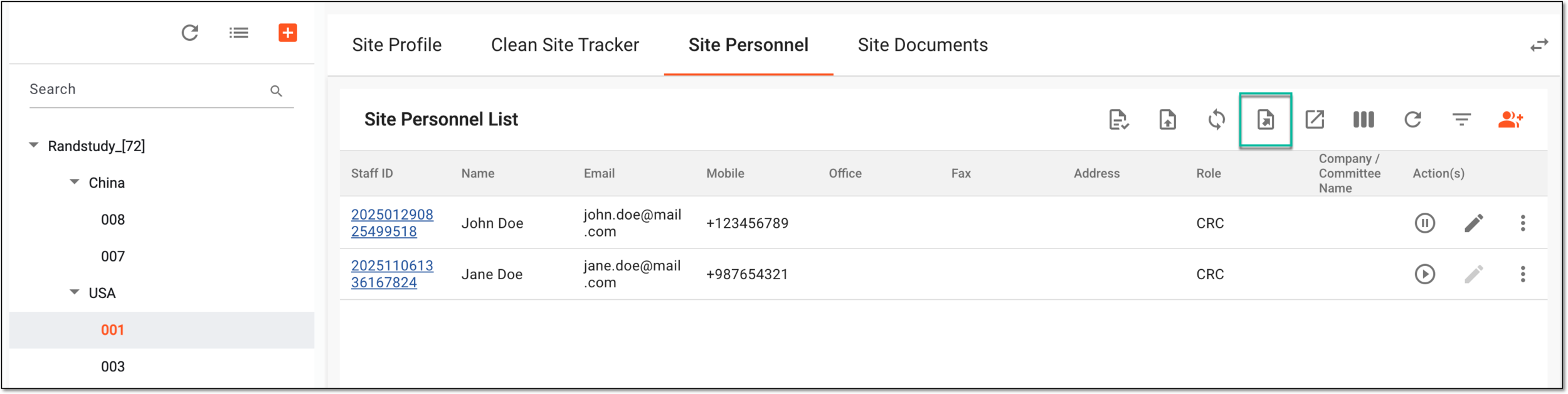
The extracted file version is saved in the system and can be accessed from Export History  .
.
Site personnel are staff members responsible for conducting and managing clinical trial activities at a study site. Using the Upload Documents functionality, you can add and store essential documents related to site staff, such as certifications, training records, and regulatory approvals. This ensures all required documentation is readily available for compliance and audit purposes.
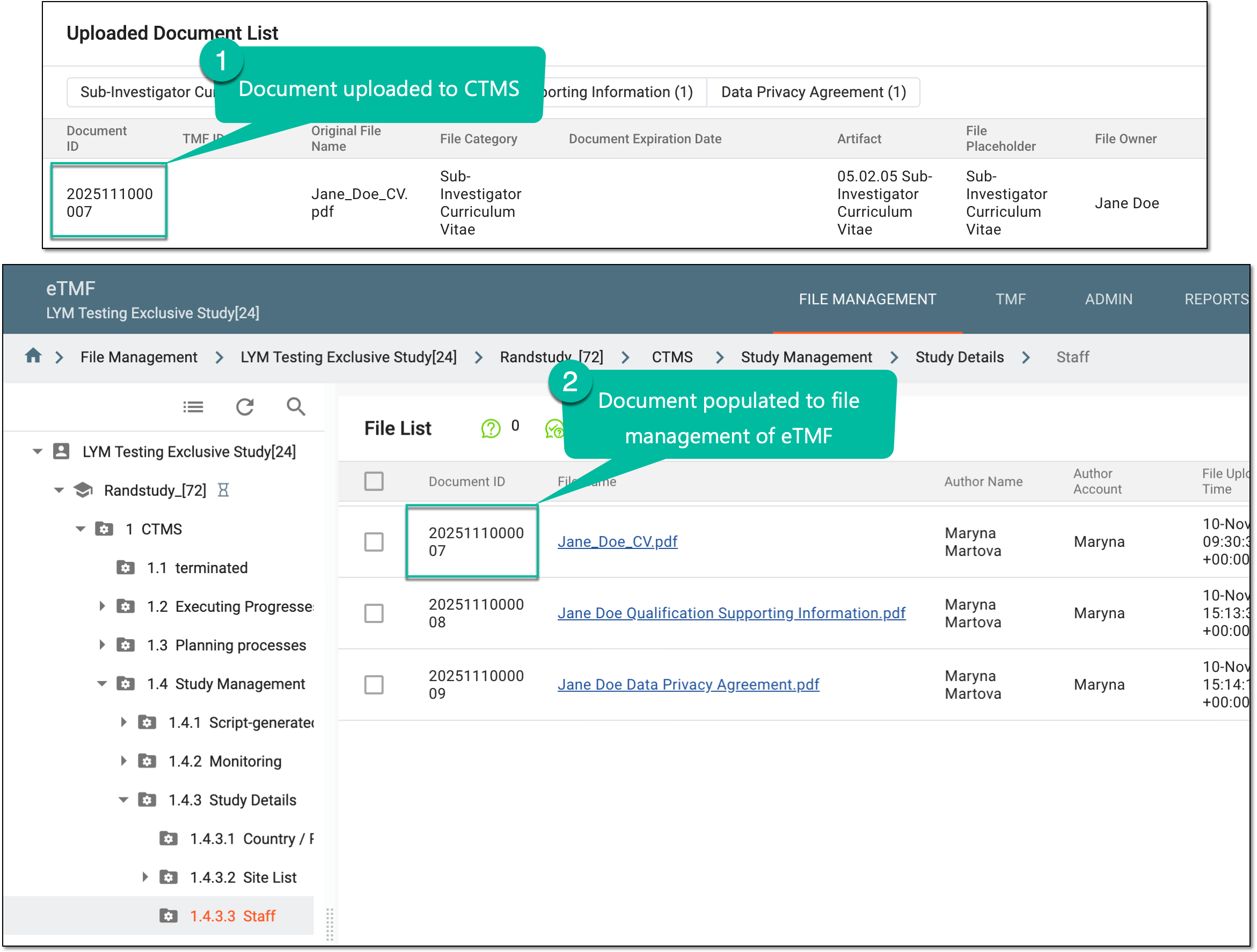
The site personnel documents are stored in CTMS and autopopulated to the preconfigured file management directory of eTMF.
Important
This functionality is unavailable for the site that is inactive, terminated, closed, or suspended.
When uploading documents for personnel via the master study, they are automatically copied to all the substudies and vice versa.
For the documents for which it is configured to autofetch data to the tracking log, the respective tracking log entry is automatically added upon the file upload.
-
Access the study management page in one of the following ways:
-
In the CTMS application header, select the DASHBOARD tab and then select the study dashboard of your interest.
Figure 1. Accessing study management from dashboard
-
In the CTMS application header, select the STUDY MANAGEMENT tab. Then from the Study Data List table, select the study name of your interest.
Figure 2. Accessing study management from study data list
-
-
From the left pane of the study page that opens, select Study Details > Site List.
Figure 3. Accessing study sites
-
In the Site List table that appears, in the Site Name column, select the needed site or select Edit
next to it.Figure 4. Accessing option to configure site
-
On the page that opens, two panes appear. The left pane groups sites by country or region, where you can expand or collapse sections and select a specific site. The middle pane displays the contents of the currently opened site.
From the horizontal navigation pane provided, select Site Personnel.
-
In the Site Personnel List table, next to the site personnel for which you want to upload the documents, select More
> Upload Documents  .
.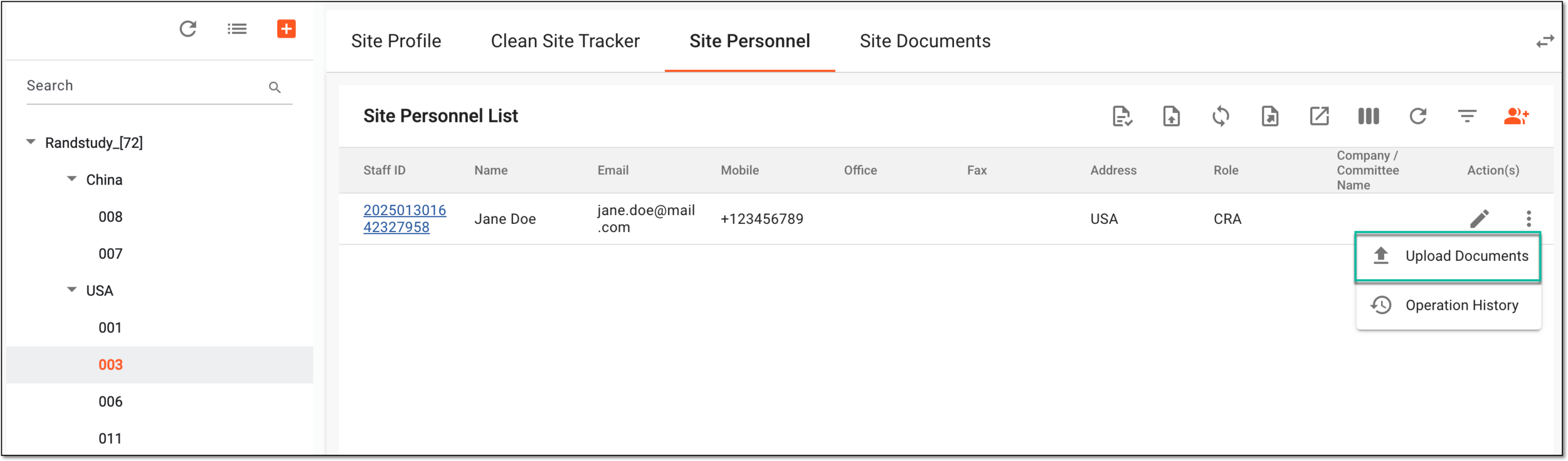 Figure 5. Accessing option to upload site personnel documents
-
On the Upload File page that opens, enter the details as explained in the following table.
 Figure 6. Uploading site personnel document
Tip
In the following table, mandatory elements are marked with an asterisk (*).
Element
Details
Click or drag the file to this area to upload
Drag a file from your computer to this area or select this area and choose the document you want to upload from your computer.
File Name*
When the file is selected, its name is automatically filled in this field. If necessary, you can edit the file name.
File Category*
Select the type of the file you upload, such as curriculum vitae (CV), regulatory document, FDA form, or else. The available options of this field depend on the staff member's role at the site, such as the option Principal Investigator Curriculum Vitae is only available when uploading documents for the PI.
For the selected category, the system checks the existing tracking logs configured based on the templates that have a matching form category and a configuration to autofetch data to the tracking log. If yes, then the respective tracking log entry is created automatically upon uploading the document.
For instance, it is configured to automatically add the tracking log entries for the Form 1572 document. Thus, when you upload a file and select the Form FDA 1572 category, the respective algorithm is triggered to add the tracking log entry.
Document Expiration Date
Select the date when the uploaded document expires and looses its validity.
Level
Displays the site personnel's level of responsibility (such as site, country, and so on).
This value is autopopulated from the staff member's responsibility scope defined in their
                                        profile.
Country/Region Name
Displays the specific country or region where the personnel is responsible.
This value is autopopulated from the staff member's responsibility scope defined in their
                                        profile.
Site Code
Displays the unique code identifying the site where the personnel is responsible.
This value is autopopulated from the staff member's responsibility scope defined in their
                                        profile.
Artifact*
Represents the uploaded document's categorization in the TMF structure according to DIA RM. The value is autopopulated based on the selected file category but can be manually changed if needed.
The artifact you select here defines the artifact-level directory in the essential document storage of eTMF when the document is pushed to TMF.File Placeholder
Select the placeholder that further categorizes the uploaded document within the chosen artifact.
The placeholder you select here defines the placeholder in the essential document storage of eTMF to which the document is uploaded when pushed to TMF.File Owner
Represents the name of the staff member for whom the document is uploaded and to whom it belongs.
SAVE
Select
 to upload the document.
CANCEL
Select
 to dismiss the document upload process.
Once saved, the document for the site personnel is uploaded to CTMS and autopopulated to the respective eTMF directory.
Tip
If you need the uploaded file to be available in your study Trial Master File (TMF), you can manually push the document to TMF.
While managing your study site personnel, you can upload essential documents related to them, such as curriculum vitae, certifications, training records, and regulatory approvals. Some documents can be expected to be collected for certain personnel, and some can be optional. In CTMS, you can check the completion summary for all the site personnel in one comprehensive report to oversee the document collection process effectively.
-
Access the study management page in one of the following ways:
-
In the CTMS application header, select the DASHBOARD tab and then select the study dashboard of your interest.
Figure 1. Accessing study management from dashboard
-
In the CTMS application header, select the STUDY MANAGEMENT tab. Then from the Study Data List table, select the study name of your interest.
Figure 2. Accessing study management from study data list
-
-
From the left pane of the study page that opens, select Study Details > Site List.
Figure 3. Accessing study sites
-
In the Site List table that appears, in the Site Name column, select the needed site or select Edit
next to it.Figure 4. Accessing option to configure site
-
On the page that opens, two panes appear. The left pane groups sites by country or region, where you can expand or collapse sections and select a specific site. The middle pane displays the contents of the currently opened site.
From the horizontal navigation pane provided, select Site Personnel.
-
From the workspace toolbar of Site Personnel List, select Document Completion Summary
 .
.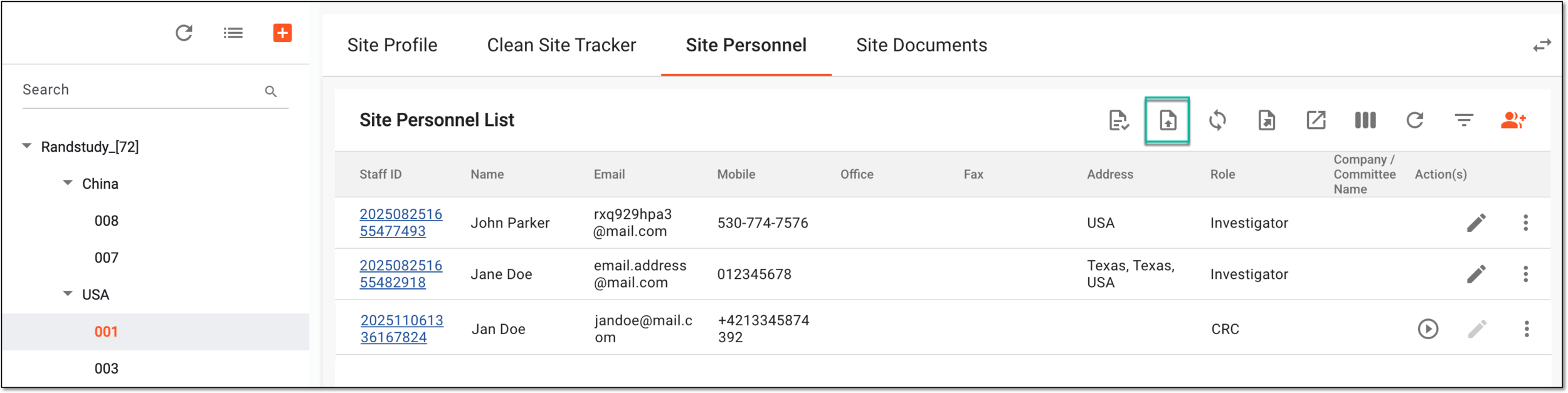 Figure 5. Accessing document completion summary for site personnel
-
On the Document Completion Summary page that opens, check the current completion status for every document of your site personnel as follows:
-
Missing: the document is expected to be collected but not yet uploaded to the system.
-
Completed: the document is already uploaded to the system.
-
N/A: the document is not expected to be collected as it is not applicable for the site personnel.
 Figure 6. Checking document completion summary
-
You have checked the document completion summary for your site's personnel and can now upload the missing documents if needed.
While managing your study site personnel, you can upload essential documents related to them, such as curriculum vitae, certifications, training records, and regulatory approvals. Storing these documents in CTMS ensures their readily availability for compliance and audit purposes. For convenience, you can access all the documents uploaded for a certain site's personnel in one place.
-
Access the study management page in one of the following ways:
-
In the CTMS application header, select the DASHBOARD tab and then select the study dashboard of your interest.
Figure 1. Accessing study management from dashboard
-
In the CTMS application header, select the STUDY MANAGEMENT tab. Then from the Study Data List table, select the study name of your interest.
Figure 2. Accessing study management from study data list
-
-
From the left pane of the study page that opens, select Study Details > Site List.
Figure 3. Accessing study sites
-
In the Site List table that appears, in the Site Name column, select the needed site or select Edit
next to it.Figure 4. Accessing option to configure site
-
On the page that opens, two panes appear. The left pane groups sites by country or region, where you can expand or collapse sections and select a specific site. The middle pane displays the contents of the currently opened site.
From the horizontal navigation pane provided, select Site Personnel.
-
From the workspace toolbar of Site Personnel List, select Uploaded Document List
 .Figure 5. Accessing uploaded documents for site personnel
-
On the Uploaded Document List page that opens, you can find all the files uploaded for any of the site personnel.
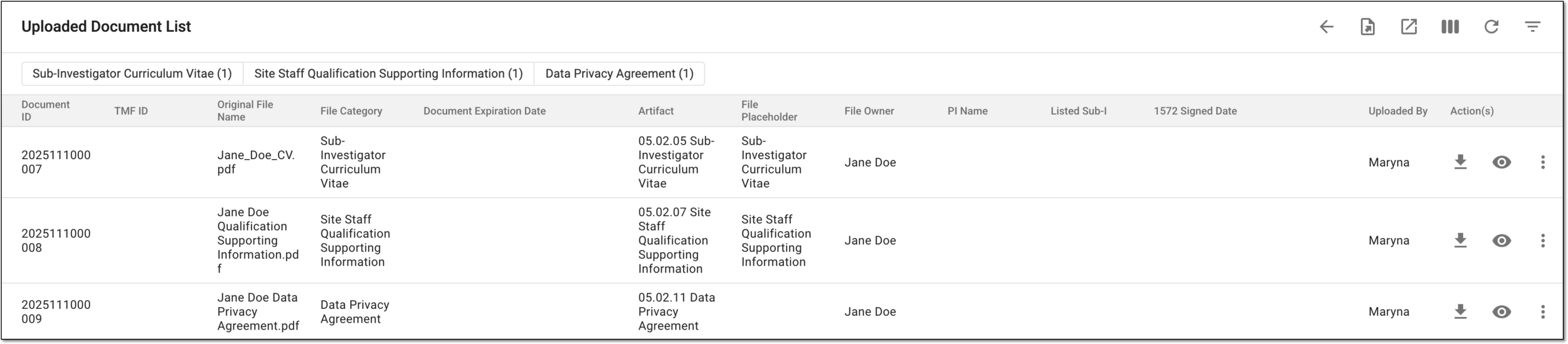 Figure 6. Uploaded document list for site personnel
Tip
Use the Preview
 or Download options to check any document's contents in the browser or download the file to your computer, respectively.
You have studied the complete list of documents for your site personnel.
While managing your study site personnel, you can upload their essential documents to the system, such as curriculum vitae, certifications, training records, and regulatory approvals. These documents are stored in CTMS and autopopulated to the preconfigured file management directory of eTMF. However, if you need to add the file directly to your study Trial Master File (TMF), you can manually push the document to the related artifact-level folder of the essential documents storage of eTMF.
Important
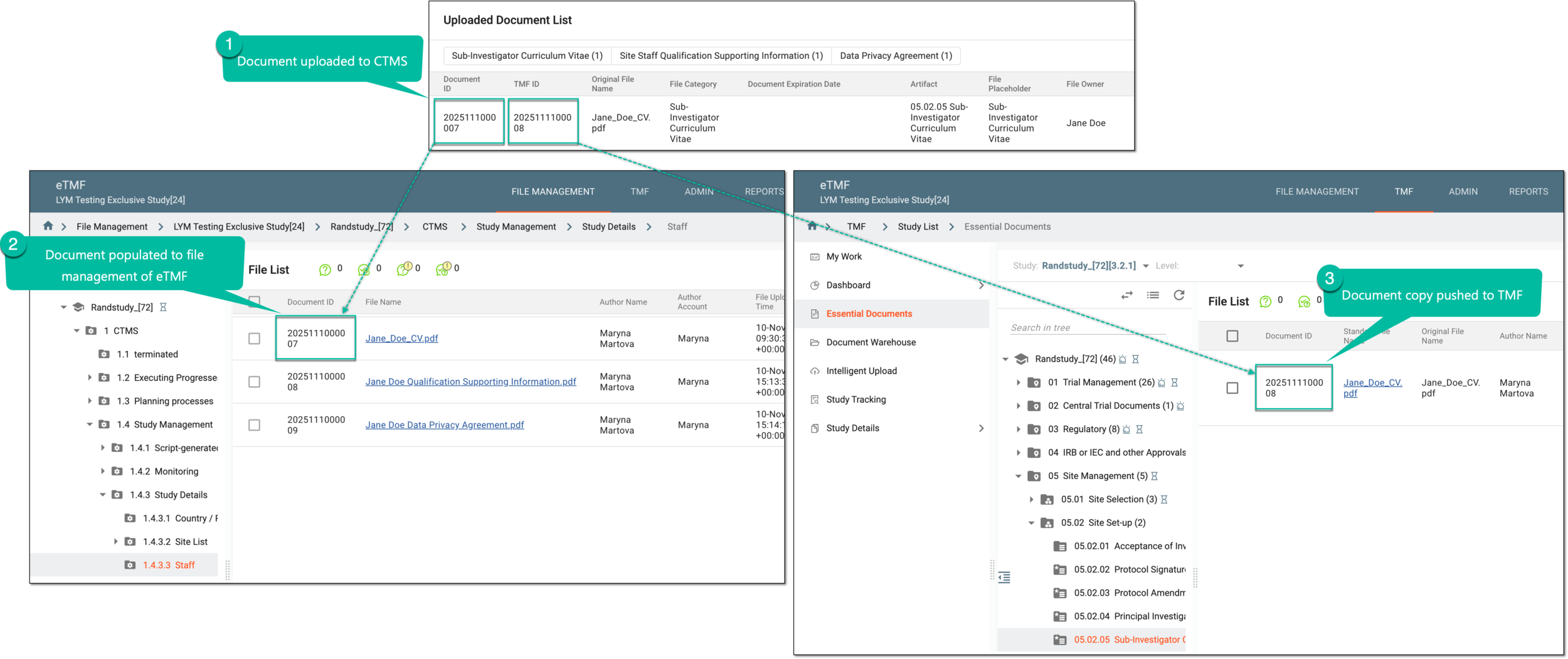
By pushing the document to TMF, you create a copy of the original document that is placed in the needed folder and acquires its own ID in eTMF. Thus, it becomes an independent file existing in essential documents and not influenced by any changes made to the original file stored in CTMS or file management storage of eTMF.
The folder where the document is pushed in TMF depends on the artifact selected for the file upon its upload to CTMS.
-
Access the study management page in one of the following ways:
-
In the CTMS application header, select the DASHBOARD tab and then select the study dashboard of your interest.
Figure 1. Accessing study management from dashboard
-
In the CTMS application header, select the STUDY MANAGEMENT tab. Then from the Study Data List table, select the study name of your interest.
Figure 2. Accessing study management from study data list
-
-
From the left pane of the study page that opens, select Study Details > Site List.
Figure 3. Accessing study sites
-
In the Site List table that appears, in the Site Name column, select the needed site or select Edit
next to it.Figure 4. Accessing option to configure site
-
On the page that opens, two panes appear. The left pane groups sites by country or region, where you can expand or collapse sections and select a specific site. The middle pane displays the contents of the currently opened site.
From the horizontal navigation pane provided, select Site Personnel.
-
From the workspace toolbar of Site Personnel List, select Uploaded Document List
.Figure 5. Accessing uploaded documents for site personnel
-
In Uploaded Document List, locate the file that you need to upload from CTMS to the essential documents storage of eTMF. Then from the Action(s) column next to it, select More
> Push into TMF  .
.Tip
This option is unavailable for the documents whose status is changed to Archived.
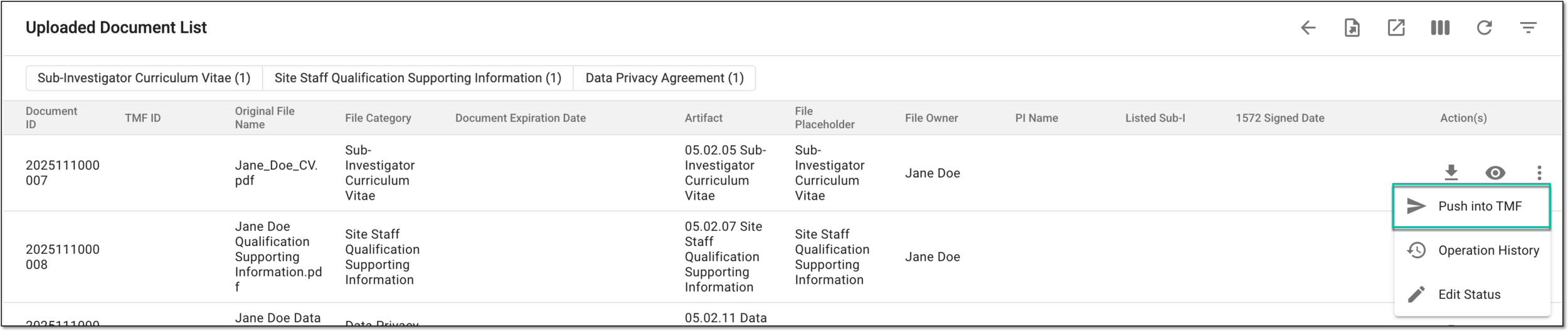 Figure 6. Pushing site personnel document to TMF
Once selected, the copy of the document is created and pushed to the respective artifact-level folder of your study in TMF. The document now acquires a new value—TMF ID—that you can check in Uploaded Document List. You can go to Essential Documents of the eTMF app and locate the needed file by its TMF ID.
While managing your study site personnel, you can upload essential documents related to them, such as curriculum vitae, certifications, training records, and regulatory approvals. These documents are stored in CTMS, and sometimes, you might want to change their status to a more relevant one. By changing the status from Active to Archived and vice versa, you can make the document available for different operations in CTMS or not.
For instance, once the principal investigator's qualification certificate expires, you can change its status to Archived and upload the most recent certification instead, still keeping the older version in the system but with the respective status.
-
Access the study management page in one of the following ways:
-
In the CTMS application header, select the DASHBOARD tab and then select the study dashboard of your interest.
Figure 1. Accessing study management from dashboard
-
In the CTMS application header, select the STUDY MANAGEMENT tab. Then from the Study Data List table, select the study name of your interest.
Figure 2. Accessing study management from study data list
-
-
From the left pane of the study page that opens, select Study Details > Site List.
Figure 3. Accessing study sites
-
In the Site List table that appears, in the Site Name column, select the needed site or select Edit
next to it.Figure 4. Accessing option to configure site
-
On the page that opens, two panes appear. The left pane groups sites by country or region, where you can expand or collapse sections and select a specific site. The middle pane displays the contents of the currently opened site.
From the horizontal navigation pane provided, select Site Personnel.
-
From the workspace toolbar of Site Personnel List, select Uploaded Document List
.Figure 5. Accessing uploaded documents for site personnel
-
In Uploaded Document List, locate the file whose status you need to change. Then from the Action(s) column next to it, select More
> Edit Status 
 Figure 6. Selecting option to change status for site personnel document
-
In the Edit Status dialog that appears, the Archived status is selected by default for active files and Active for archived ones; the selection cannot be changed. Enter the reason to justify your action and select
.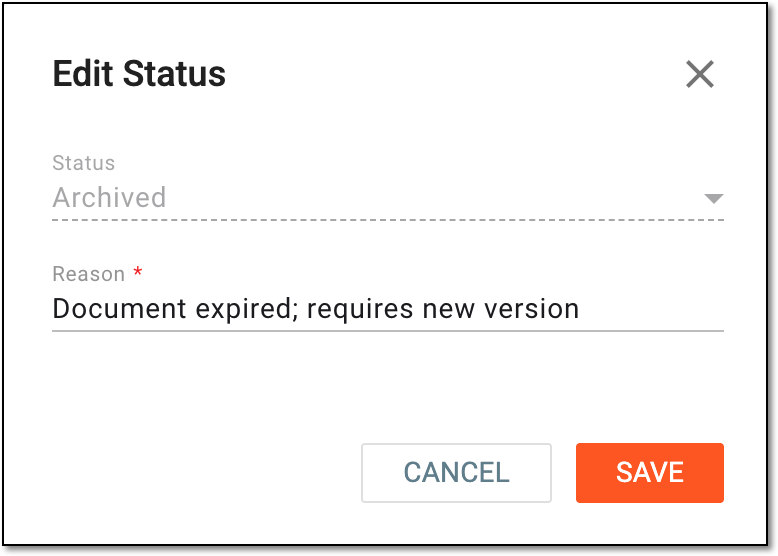 Figure 7. Changing status of site personnel document
Once saved, the status of the site personnel document is changed.
While managing your study site personnel, you can upload essential documents related to them, such as curriculum vitae, certifications, training records, and regulatory approvals.
In the course of a clinical trial, various modifications can be made to the site personnel document, and it is vital to keep record of such changes for compliance and traceability reasons. The operation history provides an exhaustive, structured log of events, helping you trace what they were, who performed them, and when.
-
Access the study management page in one of the following ways:
-
In the CTMS application header, select the DASHBOARD tab and then select the study dashboard of your interest.
Figure 1. Accessing study management from dashboard
-
In the CTMS application header, select the STUDY MANAGEMENT tab. Then from the Study Data List table, select the study name of your interest.
Figure 2. Accessing study management from study data list
-
-
From the left pane of the study page that opens, select Study Details > Site List.
Figure 3. Accessing study sites
-
In the Site List table that appears, in the Site Name column, select the needed site or select Edit
next to it.Figure 4. Accessing option to configure site
-
On the page that opens, two panes appear. The left pane groups sites by country or region, where you can expand or collapse sections and select a specific site. The middle pane displays the contents of the currently opened site.
From the horizontal navigation pane provided, select Site Personnel.
-
From the workspace toolbar of Site Personnel List, select Uploaded Document List
.Figure 5. Accessing uploaded documents for site personnel
-
In Uploaded Document List, locate the file whose history of changes you need to analyze. Then from the Action(s) column next to it, select More
> Operation History 
 Figure 6. Accessing operation history for site personnel document
-
In the Operation History dialog that opens, analyze the details of all the actions performed with the site personnel document from its upload and up to date.
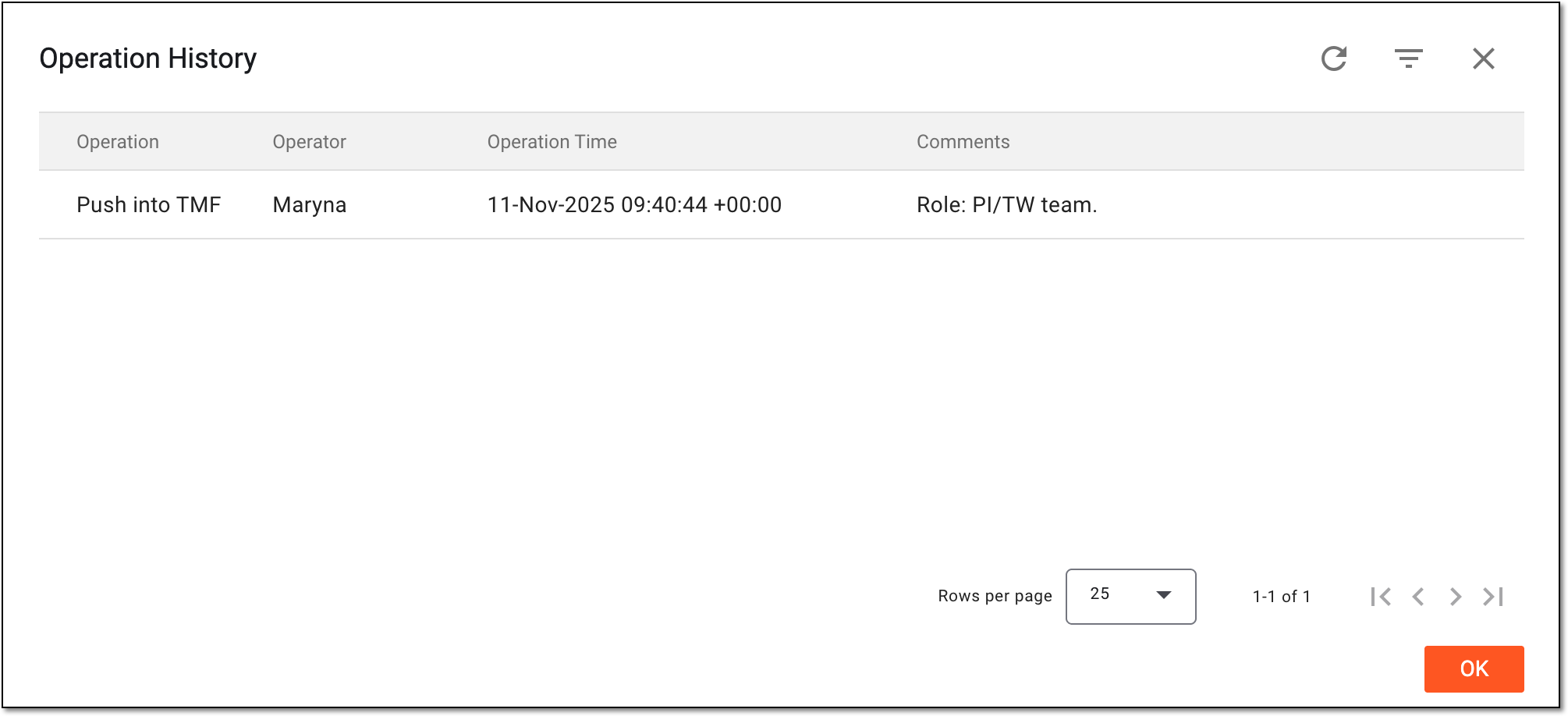 Figure 7. Analyzing operation history for site personnel document
You have analyzed the operation history for the operation history for site personnel document. You can now select OK to close the dialog and return to Uploaded Document List.