Add staff members to study
There are different staff members who make the study conduct possible, including principal investigators, clinical research coordinators, data managers, clinical research associates, and so on. A list of staff members who are working on the study or at sites can be viewed on a separate page. You can add new staff members to the study if needed.
Important
Staff members added to the master study are automatically copied to the substudy. You cannot add the staff members directly to substudies—they only use the staff list from the master study.
-
Access the study management page in one of the following ways:
-
In the CTMS application header, select the DASHBOARD tab and then select the study dashboard of your interest.
 Figure 1. Accessing study management from dashboard
-
In the CTMS application header, select the STUDY MANAGEMENT tab. Then from the Study Data List table, select the study name of your interest.
 Figure 2. Accessing study management from study data list
-
-
From the left pane of the study page that opens, select Study Details > Staff.
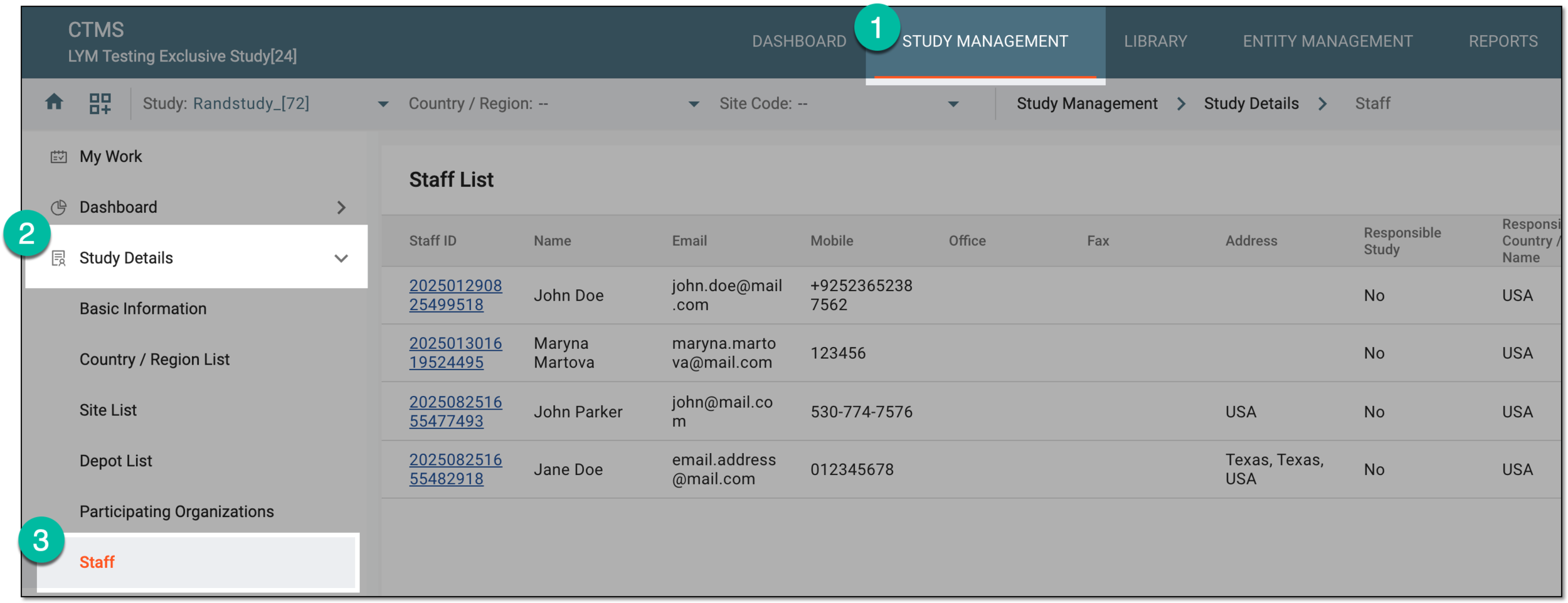 Figure 3. Accessing study staff
-
In the Staff List table, from the workspace toolbar, select New Item
 . From the dropdown menu that appears, select any of the following options:
-
Add from Entity: to add staff from the list of existing staff members in the system.
-
Add from Admin: to add staff from the list of existing admins in the system.
-
Add: to create a user to add as staff from scratch.
 Figure 4. Selecting option to add staff
-
-
In the form that appears, enter the details as explained in the following table.
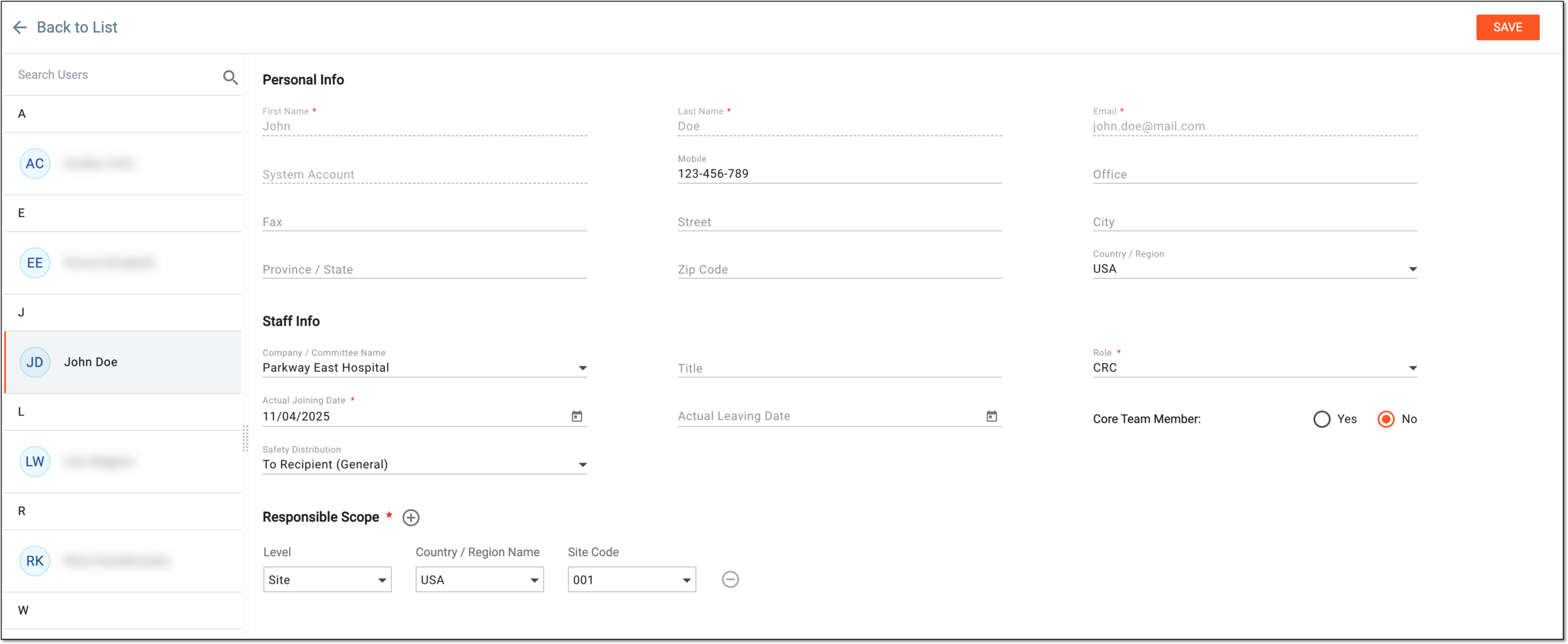 Figure 5. Adding staff member to study
Tip
In the following table, mandatory elements are marked with an asterisk (*).
Element
Details
Search Users
Enter the name of the person that you want to add as staff member; once the results appear, select the name. Otherwise, scroll the list and select the needed name.
This field and list of existing users are not shown if you are adding site personnel by creating a new user from
                                  scratch.
Personal Info
First Name*
-
Adding staff from existing users or admins: this field represents the first name of the user.
-
Adding staff by creating a new user from scratch: enter the first name of the user.
Last Name*
-
Adding staff from existing users or admins: this field represents the last name of the user.
-
Adding staff by creating a new user from scratch: enter the last name of the user.
Email*
-
Adding staff from existing users or admins: this field represents the email address of the user.
-
Adding staff by creating a new user from scratch: enter the email address of the user.
System Account
-
Adding staff from existing users or admins: this field represents the account name of the user in the system.
-
Adding staff by creating a new user from scratch: enter the account name of the user in the system.
Mobile
Enter the personal contact number of the staff member.
Office
Enter the official contact number of the staff member.
Fax
Enter the fax number of the staff member.
Address
Enter the mailing address of the staff member.
City
Enter the city where the staff member is located.
Province/State
Enter the province or state where the staff member is located.
Country/Region
Enter the country or region where the staff member is located.
Staff Info
Company/Committee Name
Select the name of the company or committee for which the staff member works.
Title*
Enter the job title of the staff member.
Role*
Select the job role assigned to the staff member in the study, such as investigator, coordinator, and others.
If you select the role that belongs to site personnel according to its configurations, this staff
                                  member automatically appears in the personnel list of the respective site.
If the existing list of roles is insufficient, you can add custom roles for the study staff to suit your business needs.Actual Joining Date*
Select the date when the staff member officially joined the study.
Actual Leaving Date
Select the date when the staff member left or is expected to leave the study.
Core Team Member
Select an option to specify whether the staff member is part of the study's core team: Yes or No.
Safety Distribution
Select the level of access for safety distribution emails for the staff member:
-
To Recipient (General): the staff member is entitled to receive emails with the safety data reports for all subjects of the sponsor's studies. This level of access is most suitable for investigators.
-
To Recipient (Current Site Only): the staff member is entitled to receive emails with the safety data reports for subjects of the site where they are operating. This level of access is most useful for CRCs, CRAs, and other roles not involved in cross-study activities.
-
No selection: the staff member is not entitled to receive emails with the safety data reports.
Responsible Scope*
Level
Select the level at which the staff operates—if they are entitled to perform activities of the entire study, a specific country, or a certain site only. The options available here depend on the applicable level settings of the selected role.
If you add a staff member of the site level and whose role belongs to site personnel , then the
                                  added staff member also appears in the respective personnel list of the respective site.
Country/Region Name
Select the country or region where the staff member is involved in the study conduct.
This field is only available if the Country/Region or Site level is selected for the staff.Site Code
Select the unique identifier of the site where the staff member is involved in the study conduct.
This field is only available if the Site level is selected for the
                                  staff.
Subdivision
Select a specific section or unit within the site.
This field is displayed only for the CRA or investigator roles.SAVE
Select
 to implement the changes.
Back to List
Select
 to go back to Staff List without saving your changes.
 -
Once done, the staff member is added to the study.