Managing roles for study staff
There are different staff members who make the study conduct possible, including the roles of principal investigators, clinical research coordinators, data managers, clinical research associates, and so on. A list of roles for staff members can be managed per study to better reflect its structure and business needs.
There are different staff members who make the study conduct possible by playing their respective business roles. In CTMS, the common clinical trial roles are preconfigured for you in the system, including investigator (principal and sub), clinical research coordinator (CRC), and clinical research associate (CRA). The list of roles involved in the study can be expanded by adding new ones according to your needs, and then assigning them to your study staff members to better reflect your personnel hierarchy and functional responsibilities.
-
Access the study management page in one of the following ways:
-
In the CTMS application header, select the DASHBOARD tab and then select the study dashboard of your interest.
 Figure 1. Accessing study management from dashboard
-
In the CTMS application header, select the STUDY MANAGEMENT tab. Then from the Study Data List table, select the study name of your interest.
 Figure 2. Accessing study management from study data list
-
-
From the left pane of the study page that opens, select Study Details > Staff.
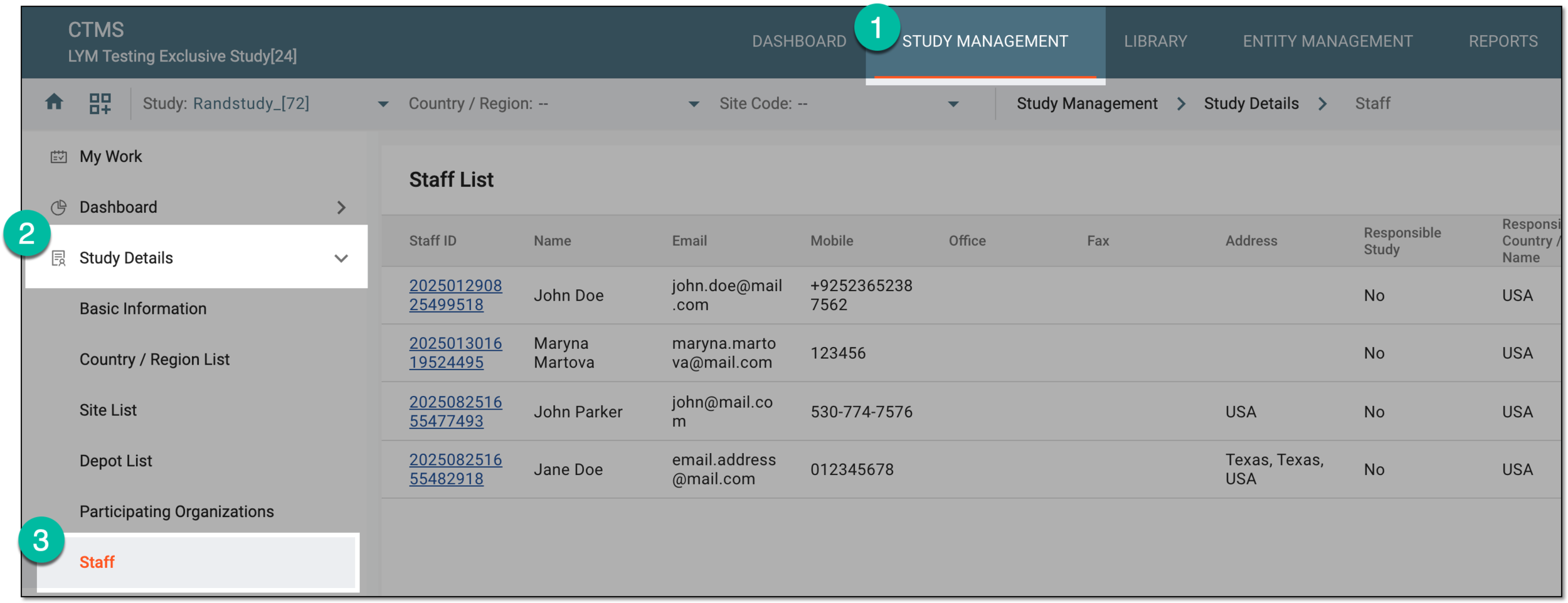 Figure 3. Accessing study staff
-
In the Staff List table, from the workspace toolbar, select Role Management
 .
. Figure 4. Accessing role management
-
On the Role Management page that opens, from the workspace toolbar, select New Item
 .
. Figure 5. Selecting option to add new role
-
In the New dialog that appears, enter the details as explained in the following table.
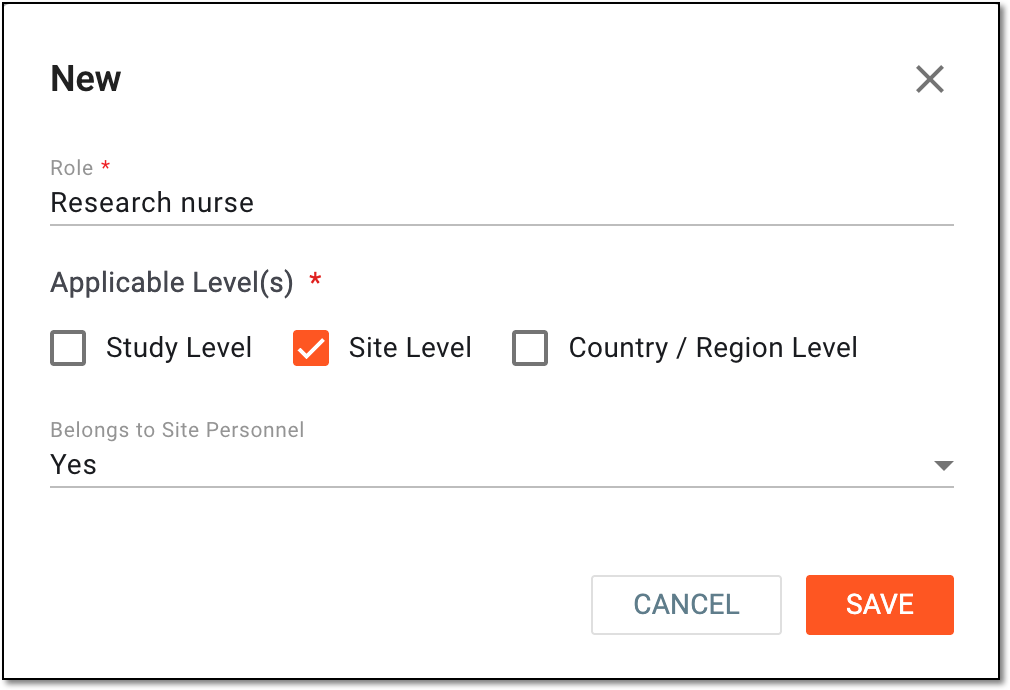 Figure 6. Adding new staff role
Tip
In the following table, mandatory elements are marked with an asterisk (*).
Element
Details
Role*
Enter the name of the role you are adding.
Applicable Level(s)*
Select the level at which the role operates; this depends on the scope of responsibility of the personnel that belong to this role—if they are entitled to perform activities of the entire study, a specific country, or a certain site only.
This setting of the role dictates the available levels of responsibility for the staff for whom
                                        this role is selected.
Belongs to Site Personnel
Select one of the following:
-
Yes: the role is intended for staff members working at a site directly. Thus, when such a role is selected for the staff member, this staff member automatically appears in the personnel list of the respective site.
For instance, Site 001 is a hospital, and the nurses are the site personnel. Thus, the "Research Nurse" role that is intended for those nurses must be set as Yes here.
-
No: the role is intended for study staff members who are not site personnel but can be involved in some site-related activities. Thus, when such a role is selected for the staff member, this staff member is not directly associated with any site.
For instance, Site 001, which is a hospital, is visited by the regulatory coordinator for monitoring, but this person is not part of the site personnel. Thus, the "Regulatory coordinator" role intended for this person must be set as No here.
SAVE
Select
 to implement the changes.
CANCEL
Select
 to discard the changes.
 -
Once saved, the role is added to the list. You can now select this role when adding the staff members to the study.
There are different staff members who make the study conduct possible by playing their respective business roles, such as investigator (principal and sub), clinical research coordinator (CRC), clinical research associate (CRA), and so on. In CTMS, you can add custom business roles that you can then assign to your study staff members to better reflect your personnel hierarchy and functional responsibilities.
You can adjust the role details whenever needed to keep up with the changing requirements.
-
Access the study management page in one of the following ways:
-
In the CTMS application header, select the DASHBOARD tab and then select the study dashboard of your interest.
Figure 1. Accessing study management from dashboard
-
In the CTMS application header, select the STUDY MANAGEMENT tab. Then from the Study Data List table, select the study name of your interest.
Figure 2. Accessing study management from study data list
-
-
From the left pane of the study page that opens, select Study Details > Staff.
Figure 3. Accessing study staff
-
In the Staff List table, from the workspace toolbar, select Role Management
.Figure 4. Accessing role management
-
On the Role Management page that opens, locate the custom role that you want to edit. Then from the Action(s) column next to it, select Edit
 .
.Important
You can only edit active custom roles added by users; preset roles or roles that are inactivated cannot be adjusted.
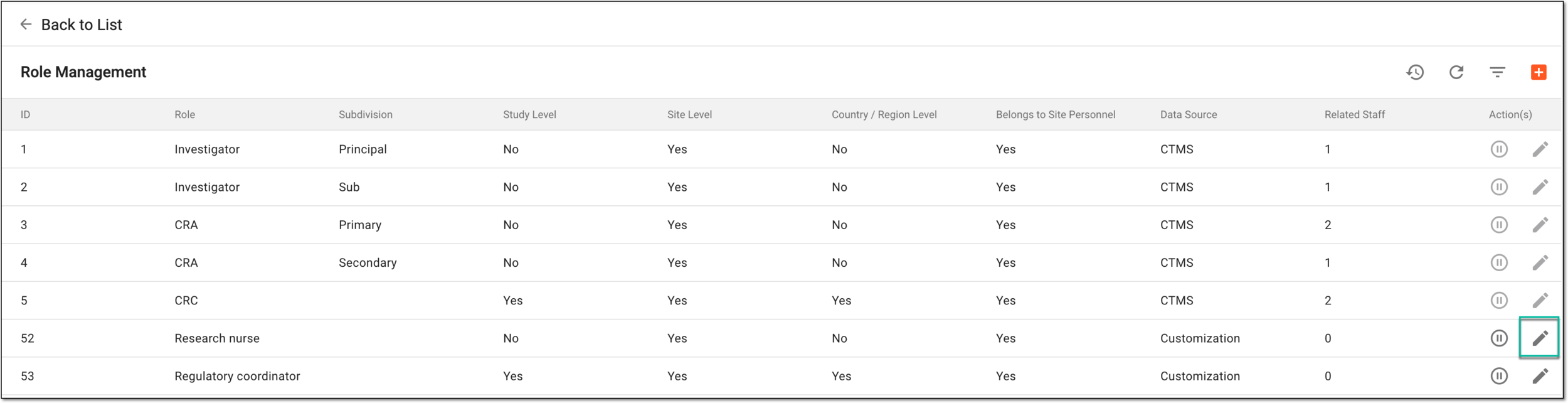 Figure 5. Selecting option to edit role details
-
In the Edit dialog that appears, adjust the details as needed. These details are the same as those explained in the table of the Add new role for study staff section.
Tip
The ID field is read-only as the identifier is assigned automatically by the system upon the role creation.
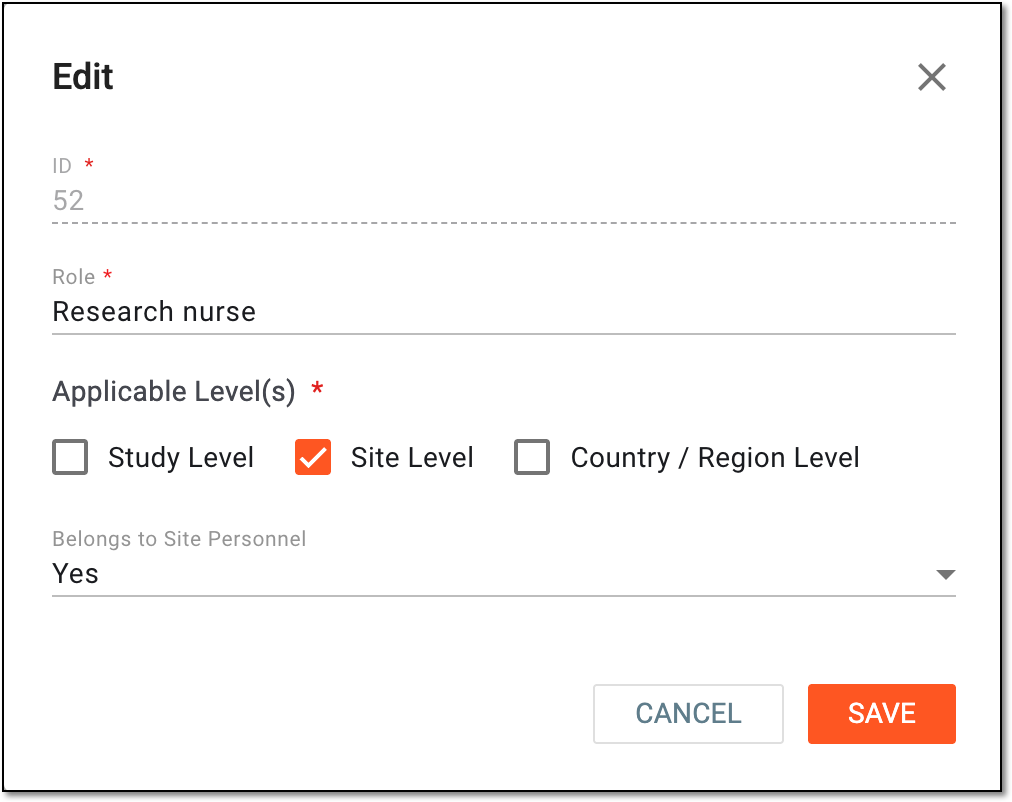 Figure 6. Editing role details
-
Select
to implement the changes.
Once saved, the study staff role is edited.
There are different staff members who make the study conduct possible by playing their respective business roles, such as investigator (principal and sub), clinical research coordinator (CRC), clinical research associate (CRA), and so on. In CTMS, you can add custom business roles that you can then assign to your study staff members to better reflect your personnel hierarchy and functional responsibilities.
If some roles are temporarily irrelevant to your study, you can inactivate them to prevent them from appearing on the list of roles when adding the study staff members. This helps keep the list of roles concise and current at all times. If the role is reinstated, you can activate it to make it available for staff members again.
-
Access the study management page in one of the following ways:
-
In the CTMS application header, select the DASHBOARD tab and then select the study dashboard of your interest.
Figure 1. Accessing study management from dashboard
-
In the CTMS application header, select the STUDY MANAGEMENT tab. Then from the Study Data List table, select the study name of your interest.
Figure 2. Accessing study management from study data list
-
-
From the left pane of the study page that opens, select Study Details > Staff.
Figure 3. Accessing study staff
-
In the Staff List table, from the workspace toolbar, select Role Management
.Figure 4. Accessing role management
-
On the Role Management page that opens, locate the custom role that you want to activate or inactivate. Then from the Action(s) column next to it, select one of the following:
-
Activate
 : to make the role available for selection when adding the study staff members.
 -
Inactivate
 : to make the role unavailable for selection (hidden from the list) when adding the study staff
members.
: to make the role unavailable for selection (hidden from the list) when adding the study staff
members.
Important
You can only activate or inactivate custom roles added by users; preset roles are active by default and cannot be deactivated.
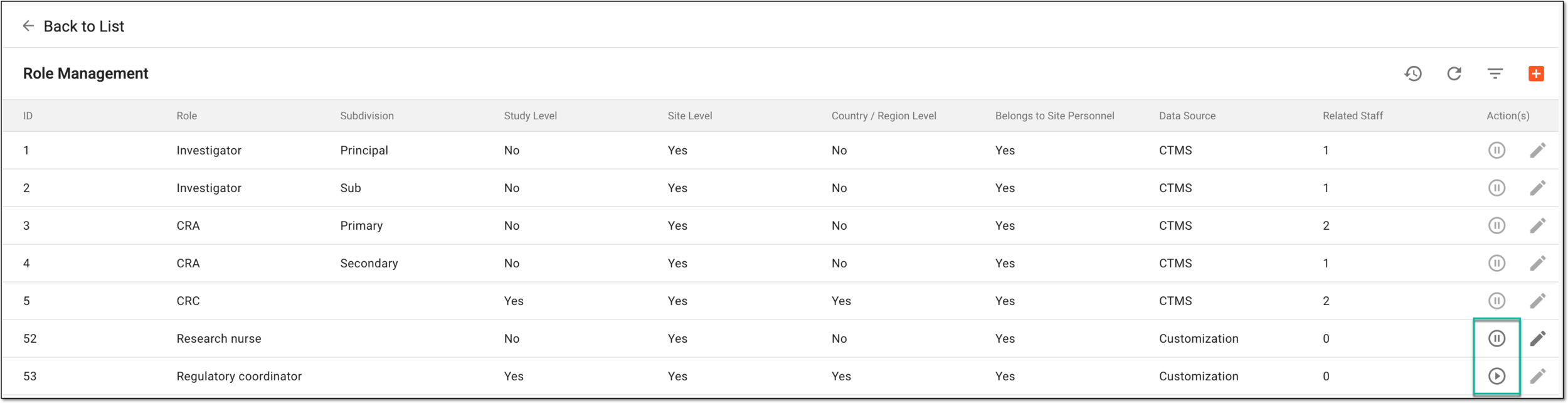 Figure 5. Activating and inactivating study staff roles
-
-
In the Reason dialog that appears, enter the comment to justify the role activation or inactivation. Then select
to
confirm your action.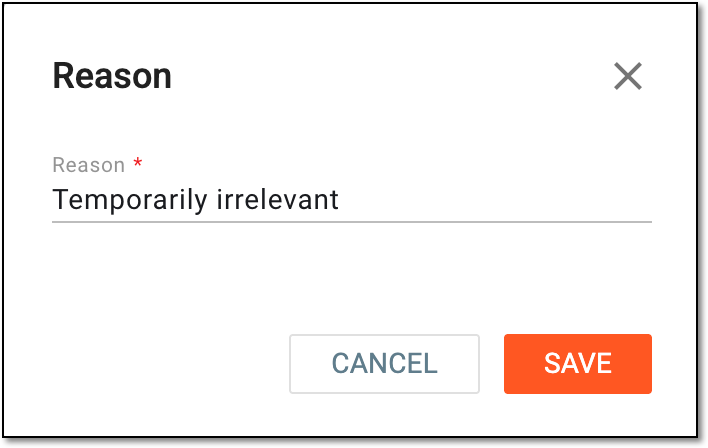 Figure 6. Providing reason for role inactivation
Once confirmed, based on your performed action, the role is activated and available or inactivated and unavailable for selection when managing the study staff members.
A study staff role, such as principal investigator, clinical research coordinator, data manager, and so on, can be predefined or manually added to the study staff management feature of CTMS for better categorization of the study personnel and precise reflection of the business processes in the system.
In the course of a clinical trial, various modifications can be made to the list of staff roles, and it is needed to keep record of such changes for compliance and traceability reasons. The operation history provides an exhaustive, structured log of events, helping you trace what they were, who performed them, and when.
-
Access the study management page in one of the following ways:
-
In the CTMS application header, select the DASHBOARD tab and then select the study dashboard of your interest.
Figure 1. Accessing study management from dashboard
-
In the CTMS application header, select the STUDY MANAGEMENT tab. Then from the Study Data List table, select the study name of your interest.
Figure 2. Accessing study management from study data list
-
-
From the left pane of the study page that opens, select Study Details > Staff.
Figure 3. Accessing study staff
-
In the Staff List table, from the workspace toolbar, select Role Management
.Figure 4. Accessing role management
-
On the Role Management page that opens, from the workspace toolbar, select Operation History
 .
. Figure 5. Accessing operation history for role management
-
In the Operation History dialog that opens, analyze the details of all the actions performed with the staff roles from their creation to date.
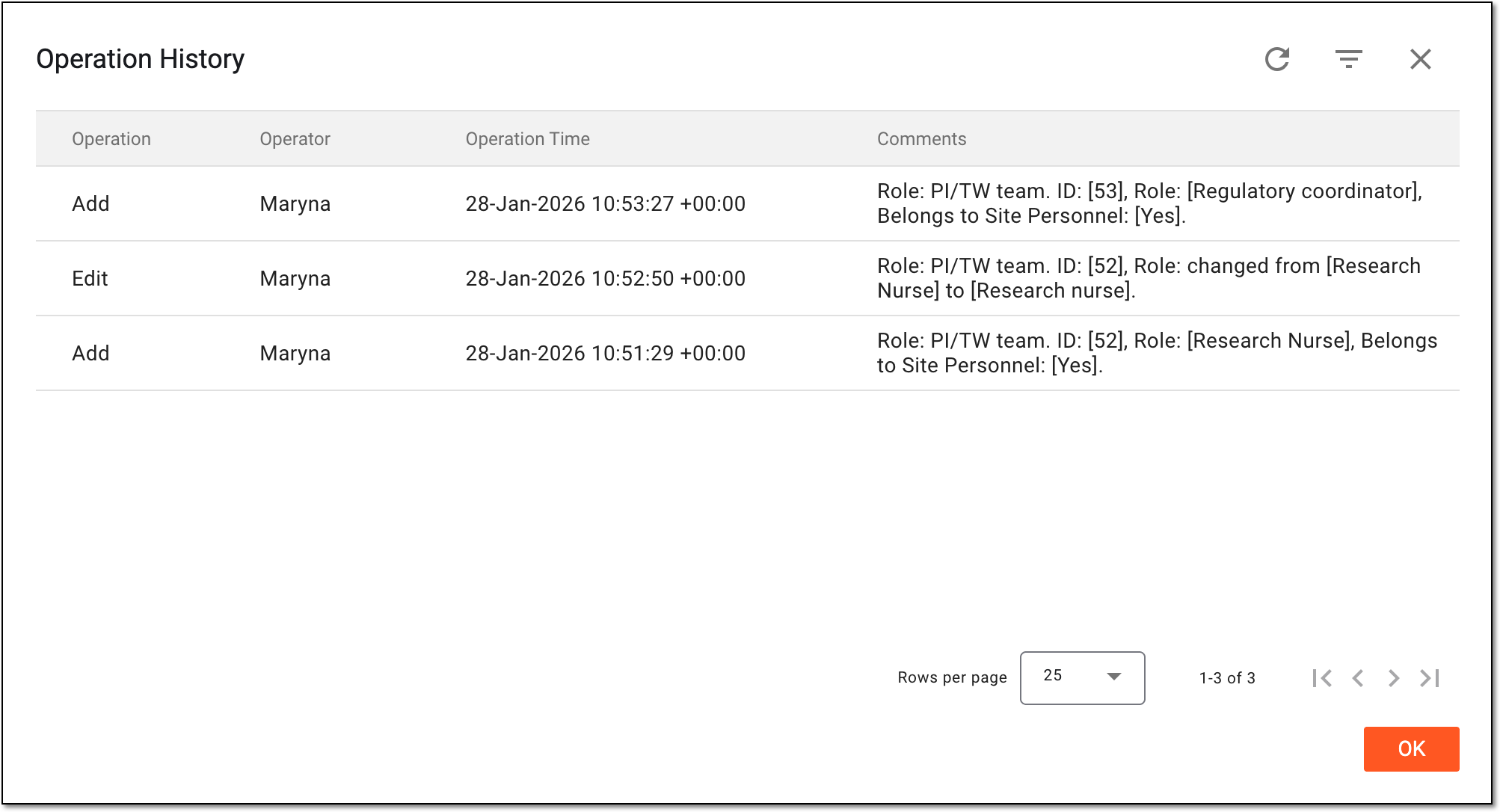 Figure 6. Analyzing operation history for role management
You have analyzed the operation history for the staff role list. You can now select OK to close the dialog and return to the Role Management page.