Delete staff member from study
There are different staff members who make the study conduct possible, including principal investigators, clinical research coordinators, data managers, clinical research associates, and so on. A list of staff members who are working on the study or at sites can be viewed on a separate page. You can delete staff members who no longer belong to the study.
Important
You can only delete staff member from master study, and for a substudy, this option is unavailable.
-
Access the study management page in one of the following ways:
-
In the CTMS application header, select the DASHBOARD tab and then select the study dashboard of your interest.
 Figure 1. Accessing study management from dashboard
-
In the CTMS application header, select the STUDY MANAGEMENT tab. Then from the Study Data List table, select the study name of your interest.
 Figure 2. Accessing study management from study data list
-
-
On the study page that opens, in the left pane, expand Study Details and select Staff.
-
In the Staff List table, next to the inactivated staff member you want to remove, select More
 > Delete
  .
.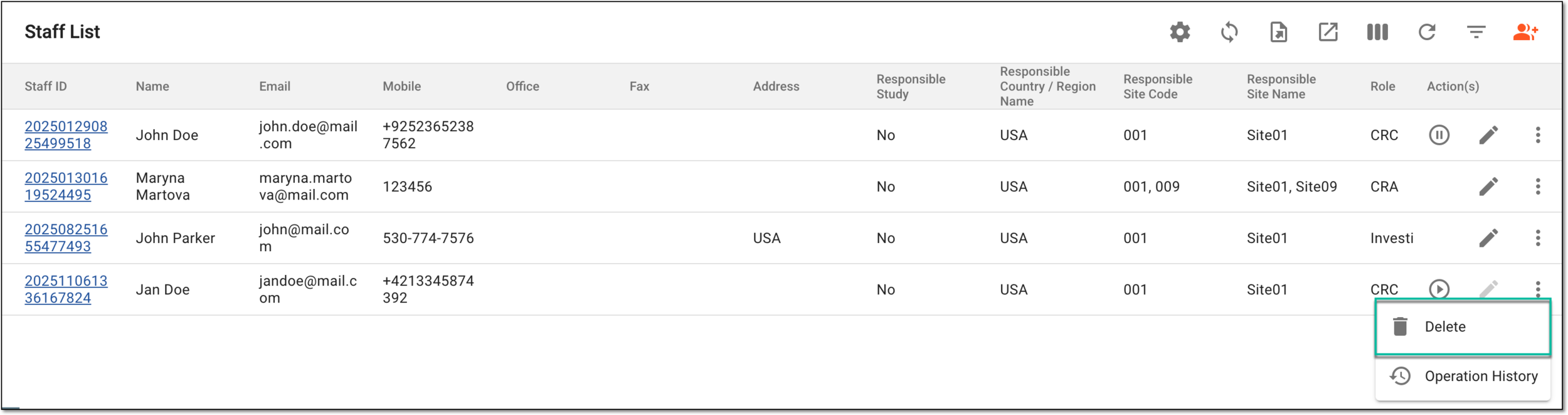 Figure 3. Accessing option to delete staff member
-
In the Reason dialog that opens, describe the reason for deleting the staff member. Then, select SAVE.
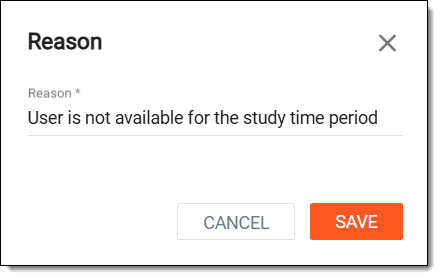 Figure 4. Entering reason to delete staff member
Once confirmed, a staff member is deleted.