Analyze essential documents
In the eTMF application, the Essential Documents page represents file storage based on the DIA TMF reference model. It contains specific files required for compliance and regulatory purposes. These files are used for planning and integrity purposes, for example, a file that includes the detailed plan of the eClinical trial, along with modifications made to the original protocol.
Important
To manage TMF files on the Essential Documents page, ensure that all of them are imported from S3 or DIA EMS and structured as per DIA RM.
-
In the eTMF application header, select the TMF tab.
-
On the page that opens, in the left pane, select the Study List subtab.
-
In the Study List table, select the study for which you want to access the relevant files and documents.
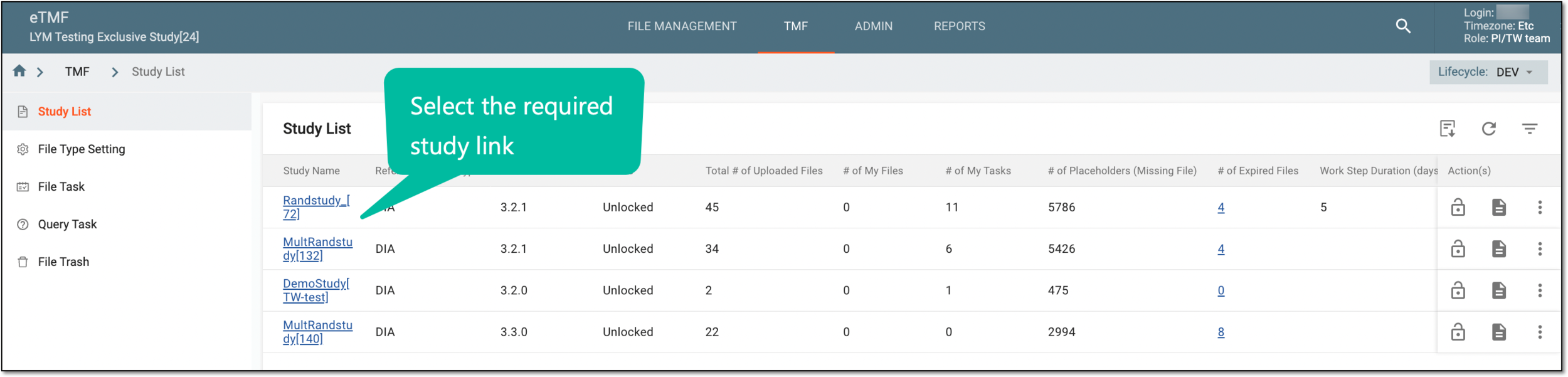 Figure 1. Selecting study
-
On the page that opens, in the left pane, select the Essential Documents subtab.
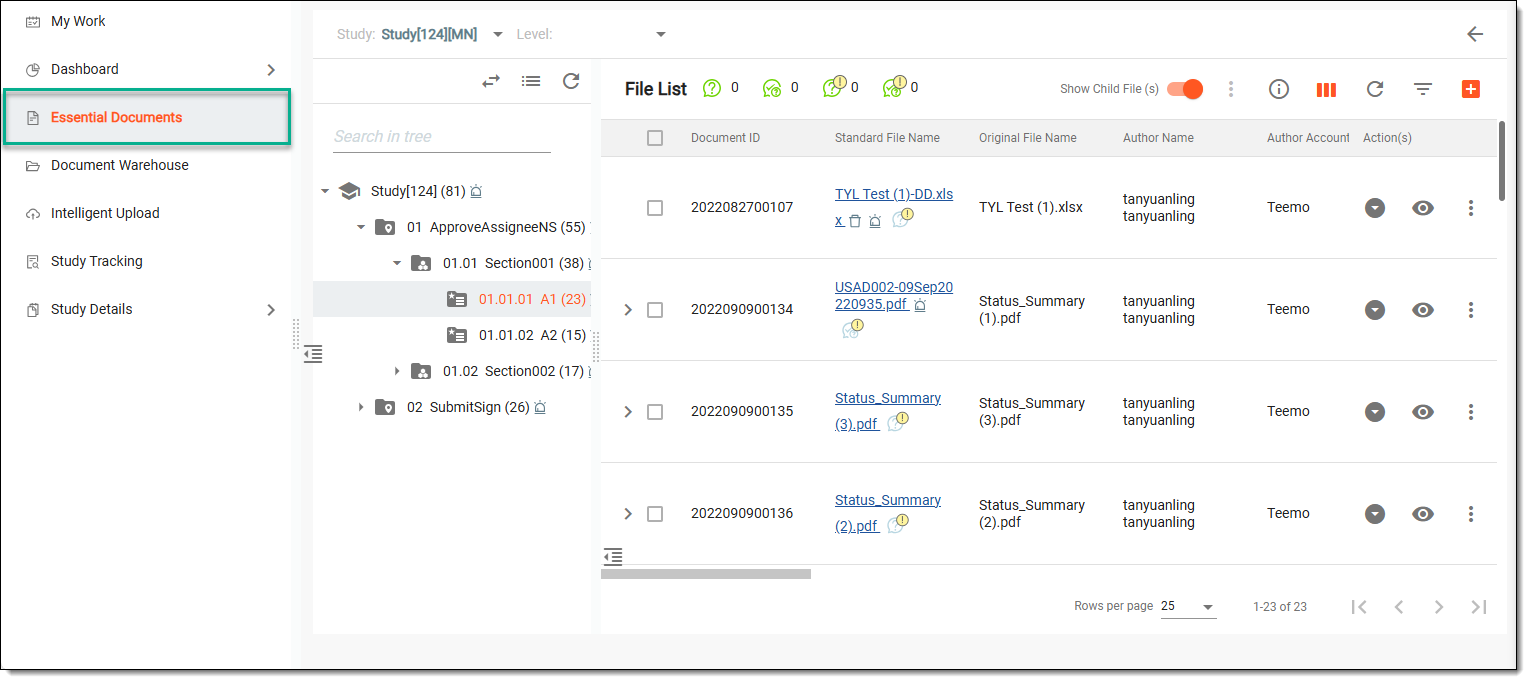 Figure 2. Accessing essential documents
-
On the Essential Documents page that appears, view the details of various elements as explained in the following table.
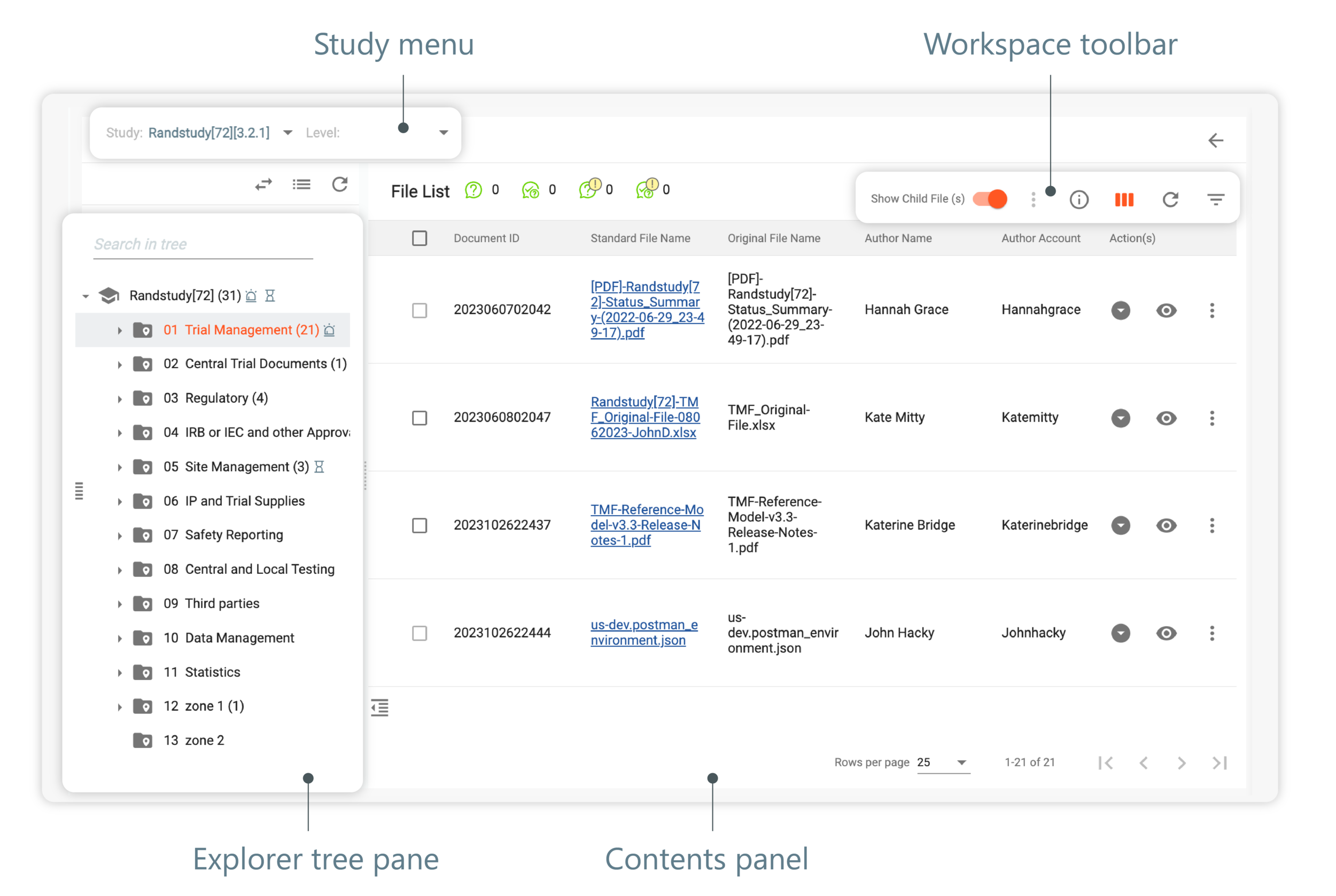 Figure 3. Essential documents storage UI structure
Element
Details
Explorer tree pane
Represents the explorer tree of directories structured according to the DIA RM version specified at the stage of the TMF base creation. Next to each directory, the total number of files within (based on the selected level) is indicated in brackets.
You can perform the following actions from the explorer tree pane:
-
Switch View
 : select this icon to switch between DIA RM and the custom mode.
 -
Collapse All
 : select this icon to minimize or all expanded directories.
 -
Refresh
 : select to refresh the directories.
Workspace Toolbar
For more information about the Essential Documents page workspace toolbar, refer to the Contents panel section.
From the toolbar with the Filter condition, you can apply filters to
search for the desired record. These filter conditions remain on the File List table even if you leave the page or log out of the eClinical account.
condition, you can apply filters to
search for the desired record. These filter conditions remain on the File List table even if you leave the page or log out of the eClinical account.Contents panel
For more information about the Essential Documents page contents panel, refer to the Contents panel section.
Study menu
Represents the name of the study for which you are viewing the relevant files and documents.
Level menu
Represents the level of the study for which you are viewing the relevant files and documents, such as Study Level, Country Level, and Site Level.
Based on the currently selected level, the total number of files is displayed next to the directories of the explorer tree
                                  pane. If the study level is selected, the number of files in brackets next to the directory means only the number of study-level files; if the country or site level is selected, then the number indicates only country- or site-level files.
Country menu
Represents the name of the country for which you are viewing the relevant files and documents.
This menu becomes available if, in the level menu, Country Level is selected.Site menu
Represents the unique identifier of the site for which you are viewing the relevant files and documents.
This menu becomes available if, in the level menu, Site Level is selected. -
-
In the File List table of the contents panel, the files have their respective properties, as explained in the following table.
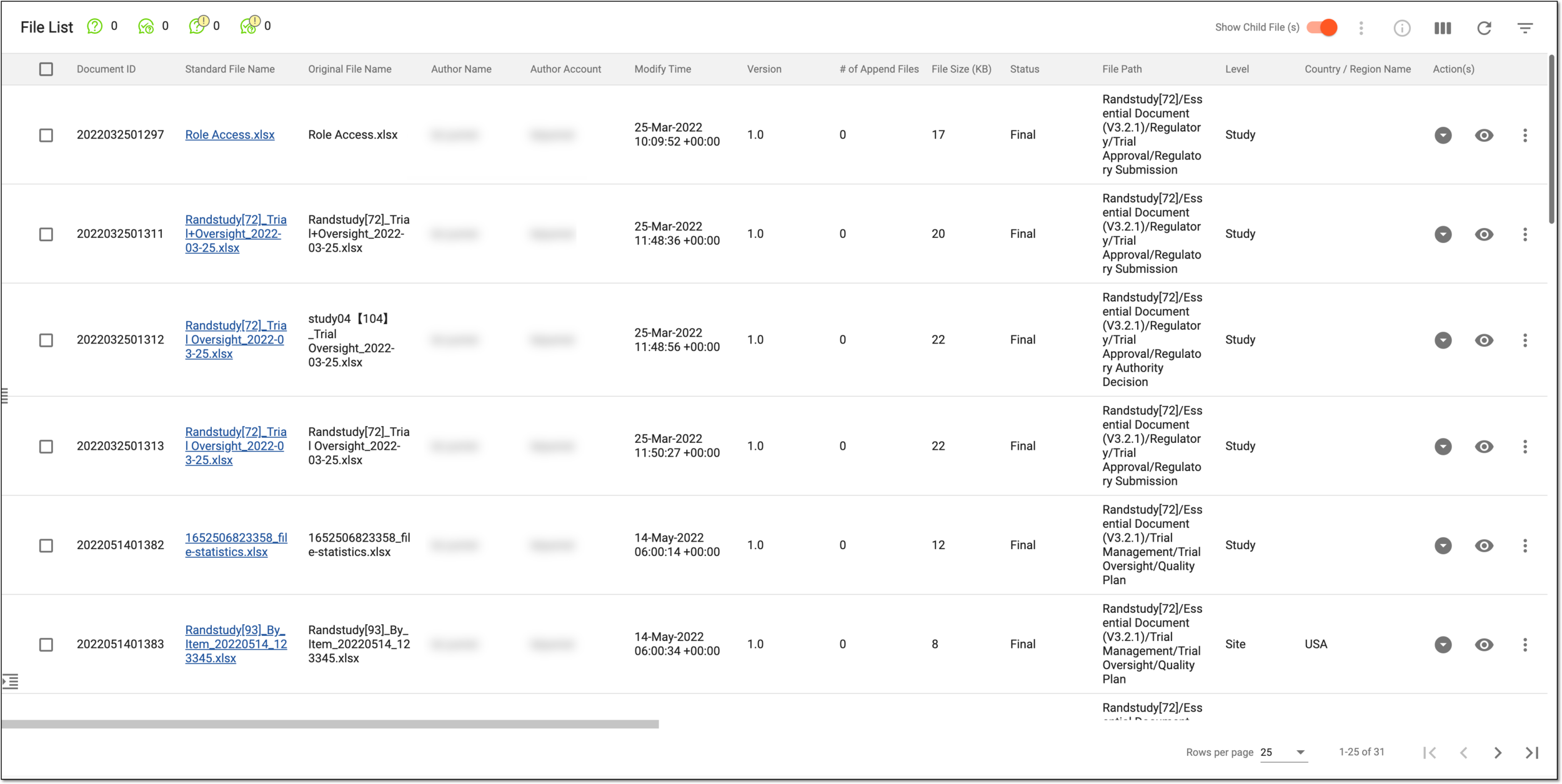 Figure 4. File list of essential documents
Tip
The available columns for file properties may vary based on the custom file type configurations of your study.
Column
Details
Document ID
Represents the unique identification assigned to the file upon uploading to the eTMF system for tracking purposes.
Standard File Name
Represents the name of the file under which it is currently available in the eTMF system.
Original File Name
Represents the file's primary name before it was changed upon upload to the eTMF system or further file amendments.
Author Name
Represents the first and last name of the user, as specified in user information in ADMIN, who is associated with the file as its owner in eTMF.
Author Account
Represents the login name of the user account, as specified in user information in ADMIN, which is associated with the file as its owner in eTMF.
File Uploaded Time (UTC)
Represents the date and time when the file was uploaded to the essential documents.
Modify Time
Represents the exact date, time, and time zone indicator of when the latest modification was made to the file.
Version
Represents the current version number of the file. File version changes upon appending or replacing.
# of Append Files
Represents the number of supplementary documents that are currently appended to the original (master) file.
File Size (KB)
Represents the size of the file to give you an understanding of how much storage space it takes in eTMF or might take on your computer upon download.
Status
Represents the current auditing status of the file—Auditing, Rejected, Final, or Dropped.
File Path
Represents the complete path to the directory where the file resides, helping you to locate the document.
Level
Represents the level at which the file is available. It can be a country, a site, or a study.
For instance, the files "Investigator Brochure" differ for the U.S. and European Union, so each such file you upload can be associated with the specific country or region, thus making it a country-level file.
Or if the files are the licenses of the specific sites' principal investigator (PI), each is associated with the specific site, thus making them the site-level files.
Country / Region Name
Represents the name of the country or region to which the file relates. This value is only available for the country- and site-level files.
Site Code
Represents the unique identifiers of the site to which the file relates. This value is only available for the site-level files.
Site Phase
Represents the current phase of the site set via the CTMS application.
Document Expiration Date
Represents the date when the file becomes outdated and must be replaced with a newer version or otherwise addressed.
Zone
Represents the zone-level directory to which the file belongs.
Section
Represents the section-level directory to which the file belongs.
Artifact
Represents the artifact-level directory to which the file belongs.
Artifact #
Represents the number of the artifact-level directory to which the file belongs.
Placeholder
Represents a title and link to the relevant placeholder document associated with the specific file.
Original Document Needed
Represents whether the original (source) document collection is obligatory (Yes) or optional (No) for the file.
Original Document Received
Represents whether the original (source) document is already collected (Yes) or not (No).
File Description
Represents any auxiliary details added to the file by the user upon uploading it to eTMF.
File Type
Represents the custom file type configured in eTMF to help distinguish your study documents according to their purpose and business value.
After you have analyzed the details of the files of interest via the Essential Documents storage, you can manage your essential documents at different levels that represent study containers, the folders inside the study containers, and the files inside these folders: