File updating actions in essential documents
In eTMF, based on your business needs, you can update the version of the file that exists in the Essential Documents storage in one of the ways discussed in the following sections.
The first file uploaded to the main repository is the master file, and the supplementary document that provides additional information or supports the master file is an appended file. It may include items such as amendments to the study protocol, safety reports, data listings, or other relevant documents.
In eTMF, you can append a new file version to an existing (master) file. The procedure of appending varies depending on the file directory.
-
In the eTMF application header, select the TMF tab.
-
On the page that opens, in the left pane, select the Study List subtab.
-
In the Study List table, select the study for which you want to access the relevant files and documents.
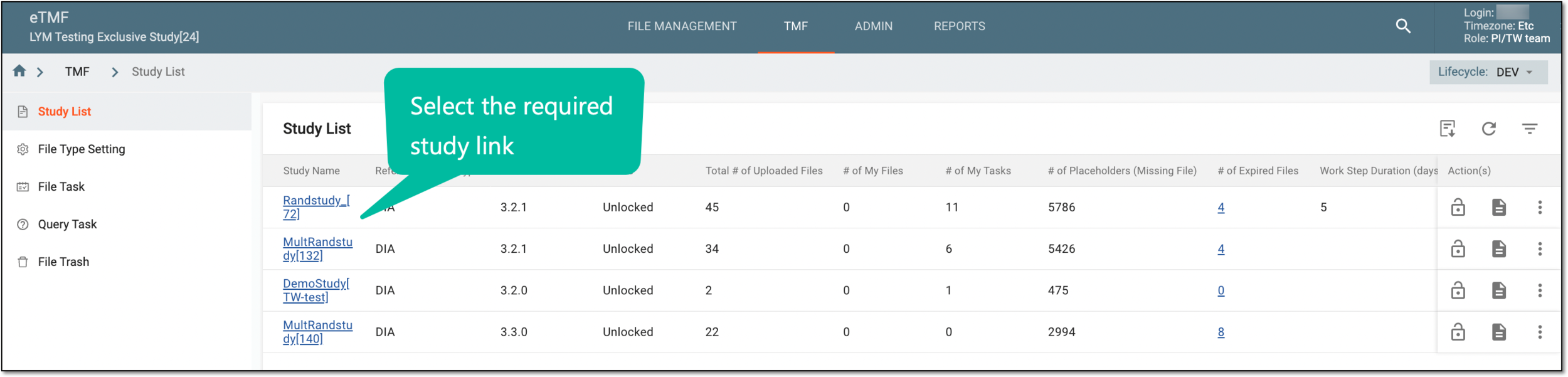 Figure 1. Selecting study
-
On the page that opens, in the left pane, select the Essential Documents subtab.
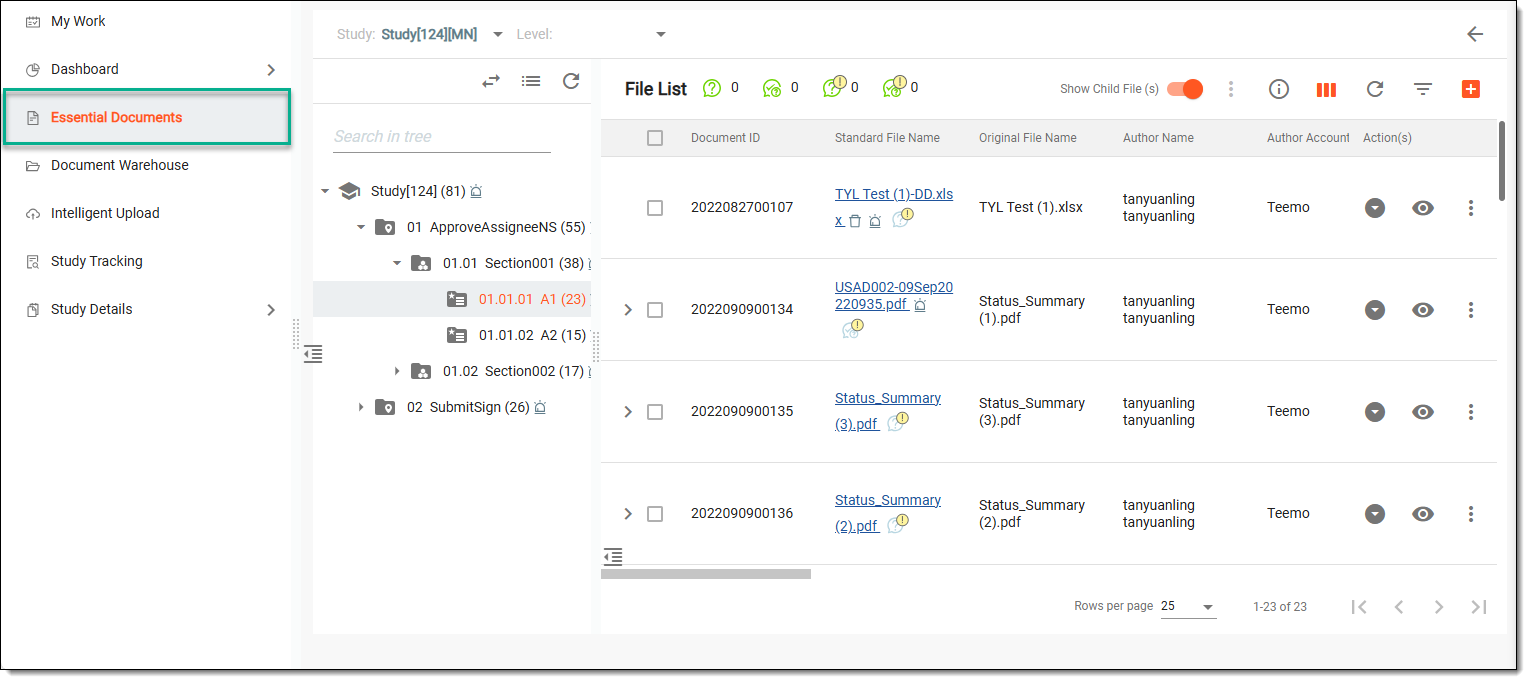 Figure 2. Accessing essential documents
-
In the explorer tree that appears, select the directory containing the file that you want to append.
-
In the Actions column next to the file, select More
 > Append
  and then select one of the following options:
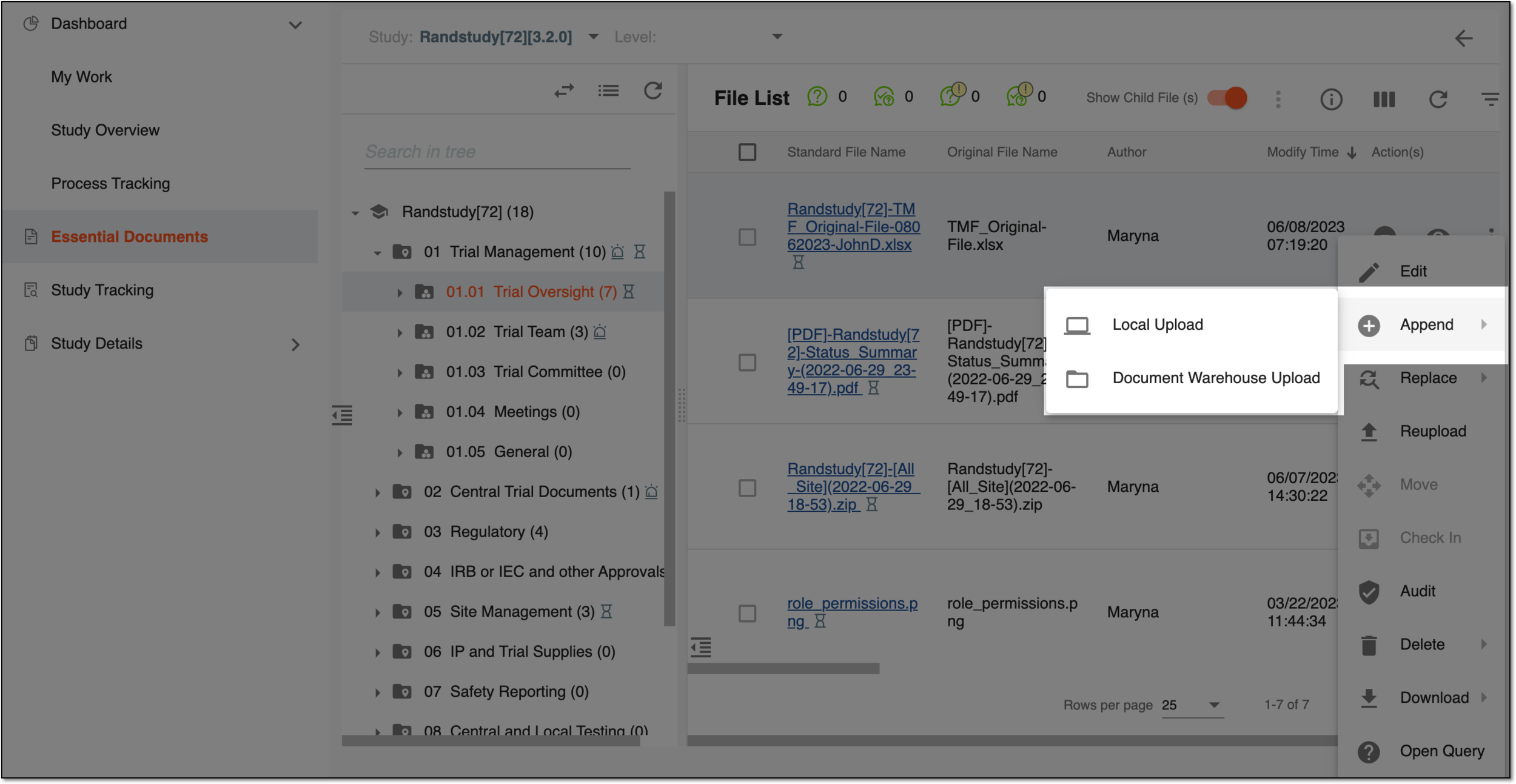 Figure 3. File appending options
-
Local Upload: to upload the new file from your local machine and perform the configurations as explained in the File configuration elements table.
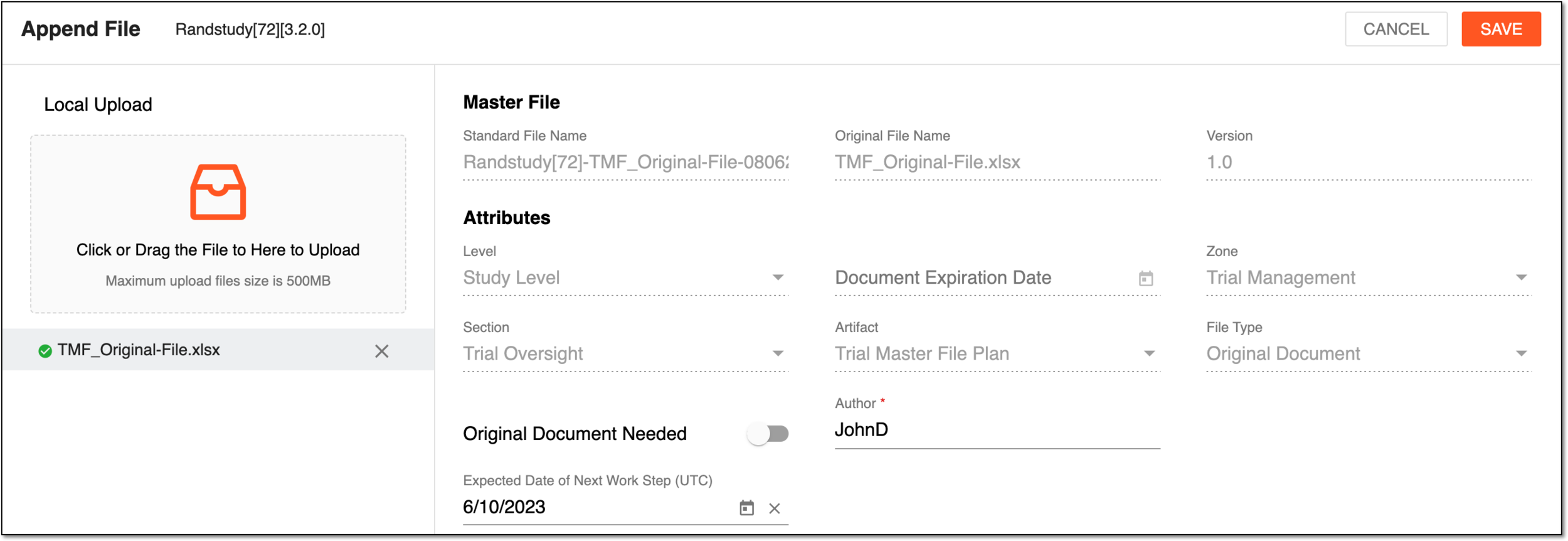 Figure 4. Appending file via local upload
-
Document Warehouse Upload: to select the new file from the Document Warehouse storage and perform the configurations as explained in the File configuration elements table.
Tip
You can preview the files before saving by selecting File Preview
 .
.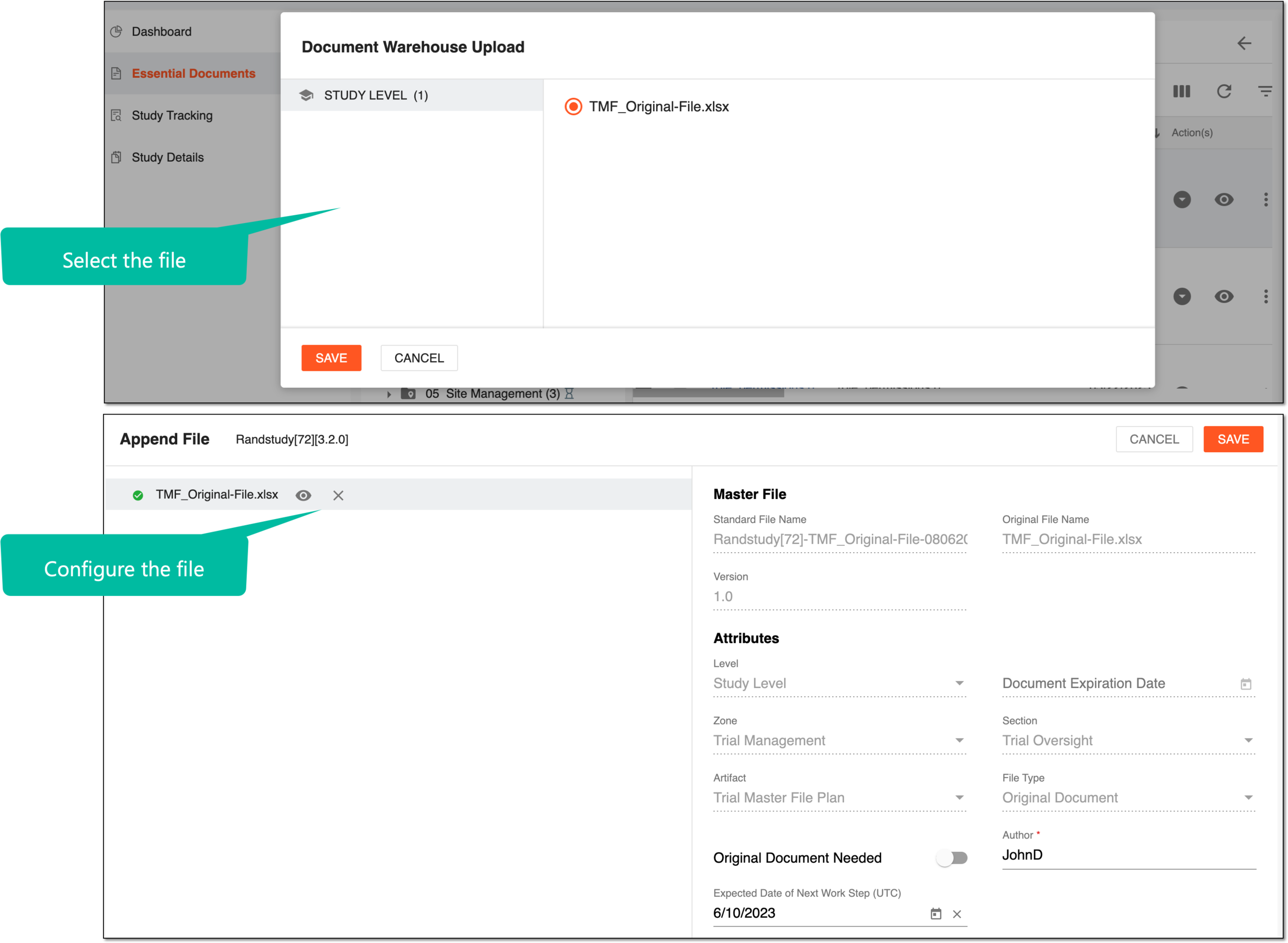 Figure 5. Appending file from document warehouse
-
Uploaded by Emails: to select a new file uploaded by emails.
-
-
Select
 to save changes.
Upon saving, the file is appended to the master file and inherits a workflow (if any). The master file version stays the same, and the appended file version number increases by 0.1.
For example, if the master file version is 1.0, then the appended file version is 1.1.
If the file workflow requires it, you can now audit the file.
Once the appended file passes all the audits, it disappears from the content panel and goes to the Lifecycle panel where you can download it.
In eTMF, you can replace a file with another or multiple file versions in bulk. This functionality aids in maintaining file versioning, controlling file upload history, and allowing for accessibility to all previous versions accessibility in the system. The procedure of file replacement varies depending on the file directory.
-
In the eTMF application header, select the TMF tab.
-
In the Study List table that appears, select the study in whose storage you need to replace a file.
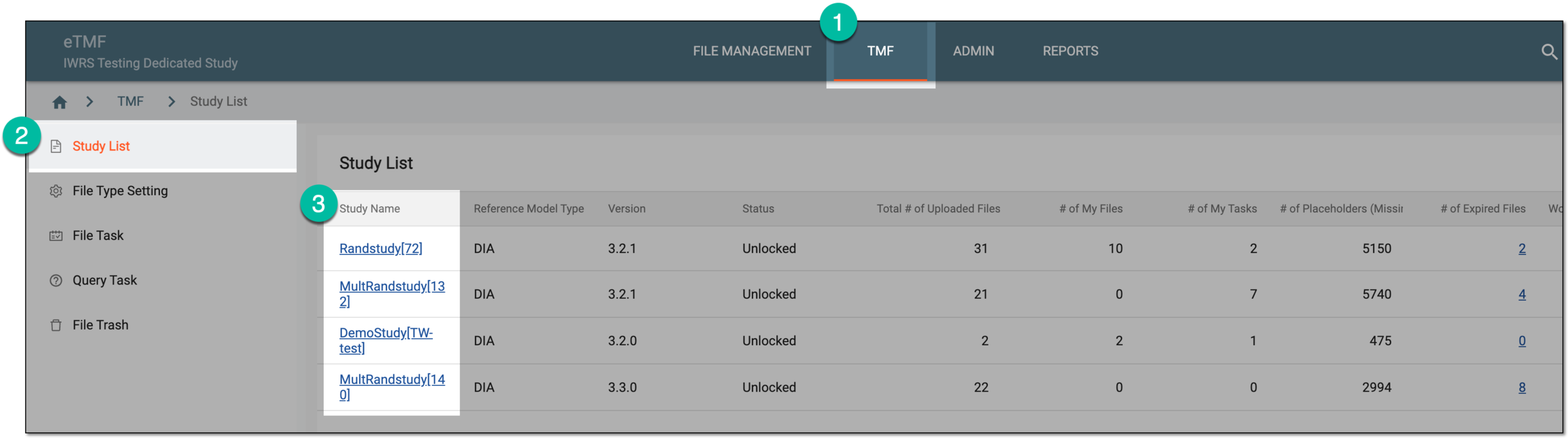 Figure 1. Selecting study to access details
-
On the page that opens, in the left pane, select Essential Documents.
-
In the explorer tree that appears, select the directory containing the file that you want to replace.
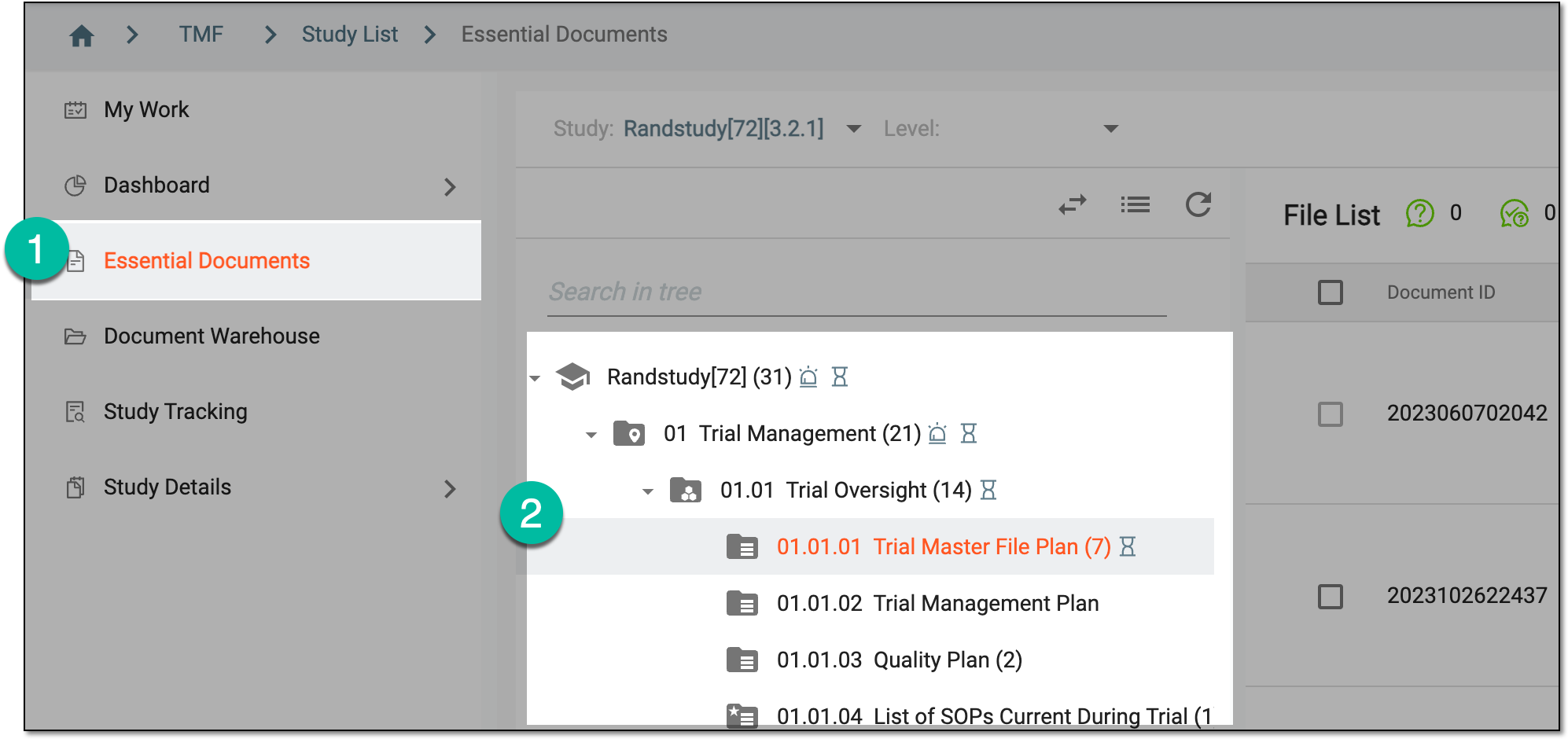 Figure 2. Accessing essential documents directory
-
In the Actions column next to the file select More
> Replace  and then select one of the available options—Local Upload
  or Document Warehouse Upload
  .
.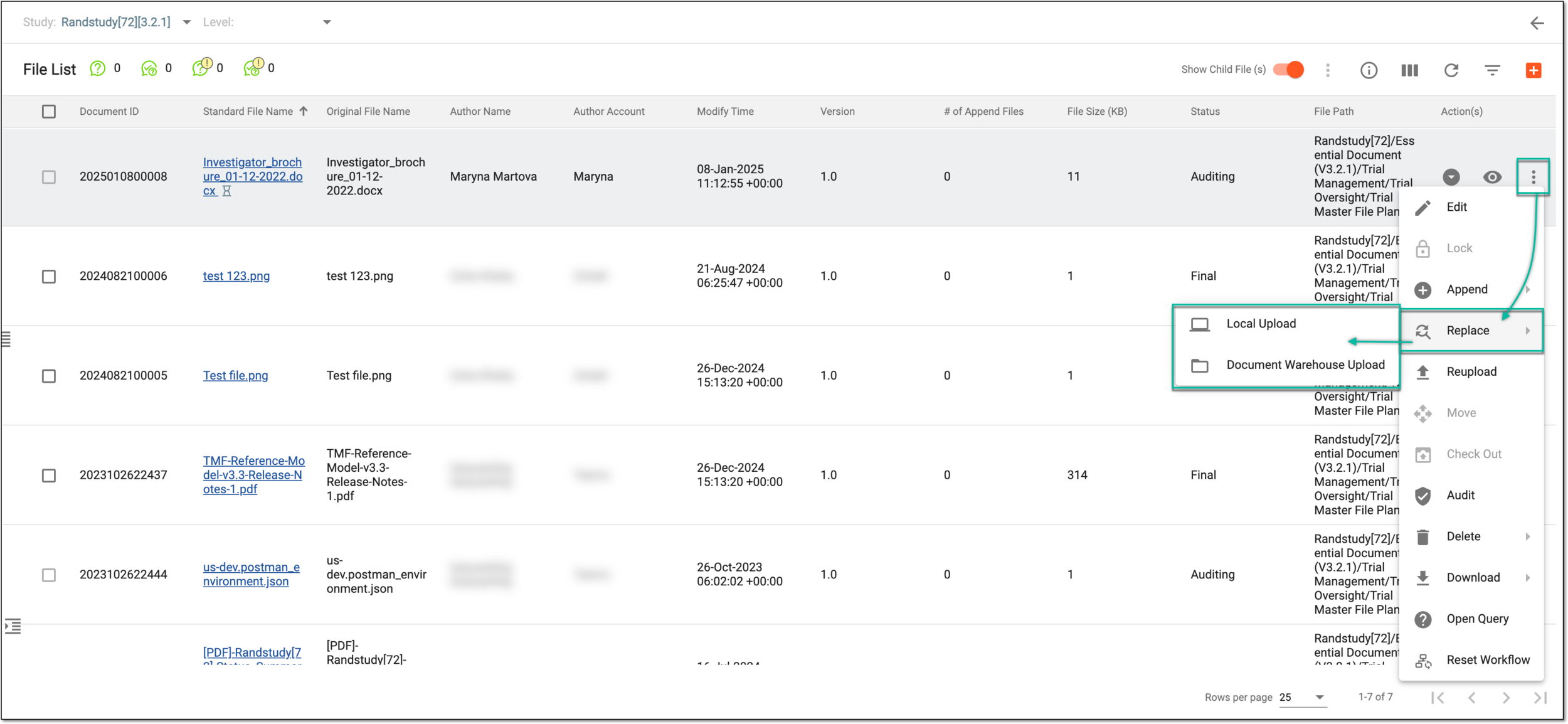 Figure 3. Accessing file replacement options
Select Local Upload to upload the replacement files from your computer and perform their configuration as explained in the following table.
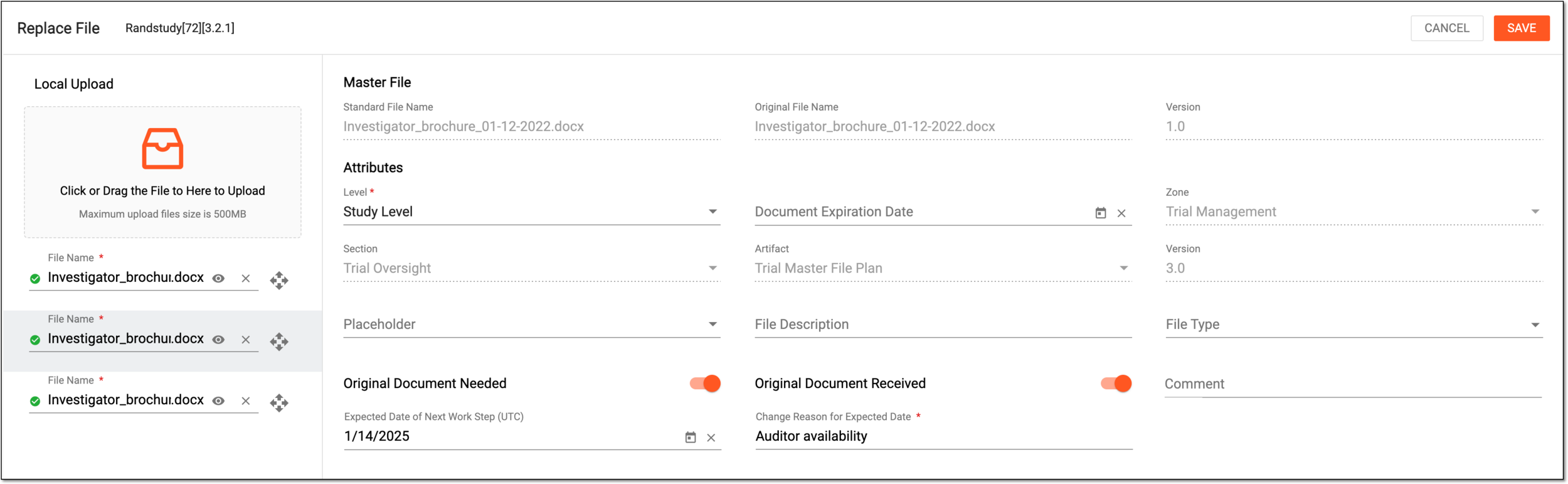 Figure 4. Replacing file via local upload
Tip
In the following table, mandatory elements are marked with an asterisk (*).
Element
Details
Local Upload
Click the upload area and select the files on your computer, or drag the files to the area to submit them. Once done, the replacement files appear right below the upload area.
File Name*
Represents the name of the file for upload that can be edited if you want to adjust the original file name to your study requirements.
The name of each file needs to be unique. A folder cannot have two files with identical names.Preview the file contents to ensure it is the right one saving by selecting File Preview
.
Select this option next to the file to remove it from the list of files for replacement.

Use this option to drag the files and place them in the order that satisfies your replacement versioning scenario. Changing the file order influences the version attribute for this file.
For instance, if you are replacing the current file with three follow-up versions, sort the replacement files to follow the versioning—starting with the earliest file version on top, then the second, and lastly the third one.
Master File
Standard File Name
Represents the name of the original file currently available in the system that is being replaced.
Original File Name
Represents the original name of the file—the one it had before being renamed in eTMF.
Version
Represents the version of the file currently available in the system that is being replaced.
Attributes
Level*
Select the file level attribute: Country Level, Study Level, or Site Level.
For instance, the investigator brochure differs for the U.S. and European Union, so you might want to associate such file with the specific country. Or if the file is the license of the specific site's principal investigator (PI), you might want to associate this document with that specific site.
Country/Region Name
Select the country or region to which the file belongs. The field is only available if the file level property is set to Site or Country.
Editing this property might change the file level.Site Code
Select the site to which the file belongs. The field is only available if the file level property is set to Site.
Editing this property might change the file level.Document Expiration Date
Set the expiration date of the file that triggers an alert email if overdue.
This field can be mandatory or optional depending on the mandatory properties
                                              settings of your study.
Zone
Represents the zone-level directory to which the file belongs. The property is autopopulated according to the master file location and cannot be manually changed.
Section
Represents the section-level directory to which the file belongs. The property is autopopulated according to the master file location and cannot be manually changed.
Artifact
Represents the artifact-level directory to which the file belongs. The property is autopopulated according to the master file location and cannot be manually changed.
Version
Represents the version number that will be assigned to this file once replacement is submitted. The value autopopulates based on the master file version and replacement files' order in the upload panel.
To adjust the file version, drag the files on the upload panel to sort them in the desired order.
For instance, if the current master file version is 1.0, then the replacement file on top of the list obtains version 2.0, the second one—3.0, and so on.
Placeholder
Select the placeholder with which you want to associate the file.
This field can be mandatory or optional depending on the mandatory properties
                                              settings of your study.
File Description
Enter any auxiliary details to help the study team differentiate the uploaded files and their designation.
File Type
Select the custom file type of the file.
Upon file type selection, additional fields can appear depending on the predefined elements of the naming convention for this file
                                              type.
For instance, the system might require the original file name, upload date, author, and such details to compose the uploaded file name.
This field can be mandatory or optional depending on the mandatory properties
                                              settings of your study.
Original Document Needed
Turn the toggle on or off to make the original (source) document collection obligatory or optional, respectively.
Original Document Received
Turn the toggle on or off to specify whether the original (source) document is already collected. The field is only available if the Original Document Needed toggle is turned on.
Comment
Enter a comment to provide any useful information about the uploaded file. This comment is available for the reviewer upon the file audit.
Expected Date of Next Work Step (UTC)
Represents the expected date of the next action with the file according to the workflow associated with the folder to which you are uploading your file.
The system automatically populates the expected date according to the following configurations of the associated workflow:
-
The unified study-level setting of all the workflow steps (nodes) duration upon configuring the DIA RM or custom TMF base. For such a setting, the system adds the set number of days to the current date to calculate the expected date of the next workflow step.
-
The individual workflow step (node) duration setting upon associating the workflow to the folder. For such a setting, the system adds the number of days set for each individual workflow step to the current date to calculate the expected date of the next step.
If both the study-level and the individual workflow node duration settings are applied, the individual setting for the workflow nodes has higher priority and overwrites the study-level setting.Change Reason for Expected Date*
Enter the reason for changing the expected date of the next action with the file according to the workflow associated with the folder to which you are uploading your file.
SAVE
Select
to save the implemented changes.CANCEL
Select
 to dismiss changes without saving.
Tip
The fields to complete along with your file may differ based on your study settings, file type, and so on.
Select Document Warehouse Upload to choose the replacement files from the Document Warehouse storage within the eTMF application as follows.
-
In the Document Warehouse Upload dialog that appears, select the files that you want to use as replacement and click
.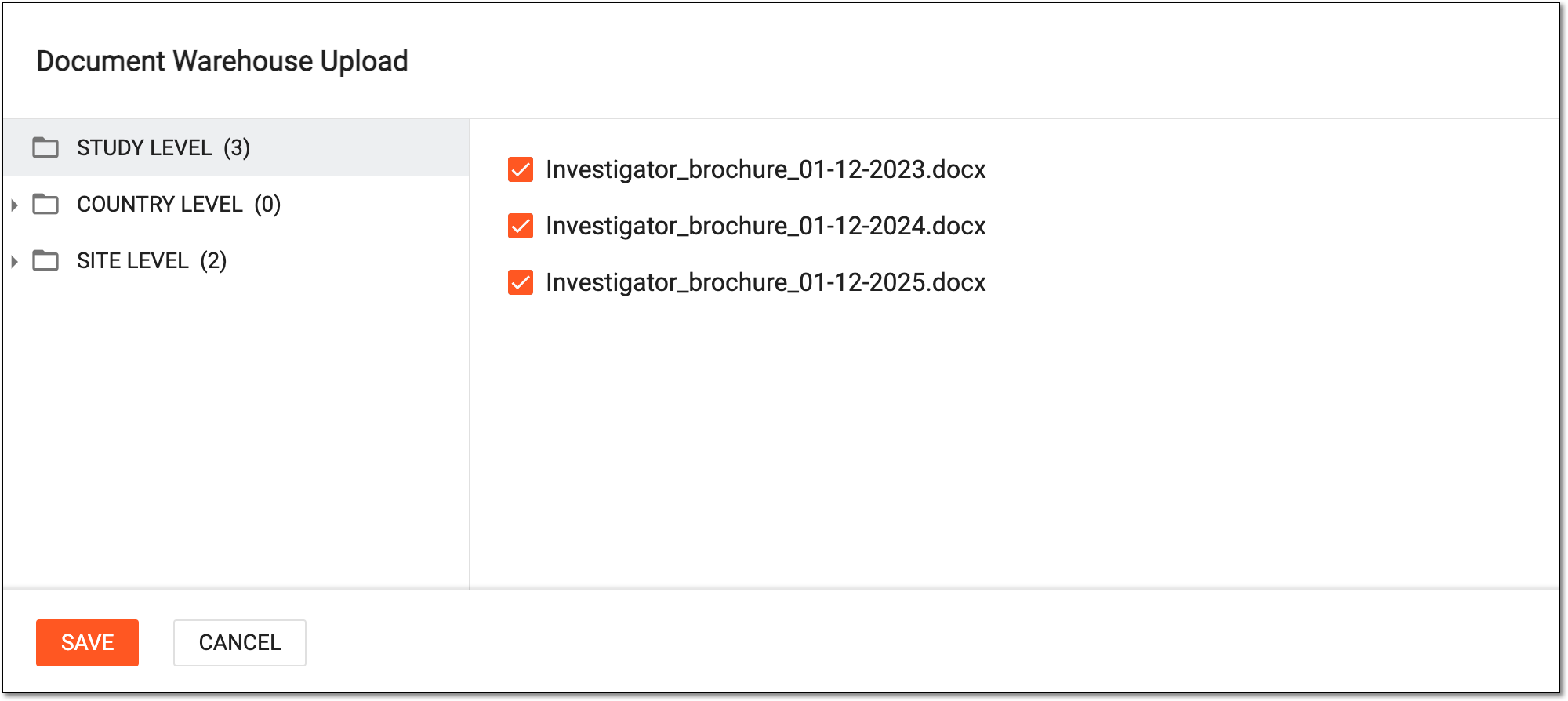 Figure 5. Selecting replacement files from warehouse storage
-
On the Replace File page that opens, perform the file configuration as explained in the following table.
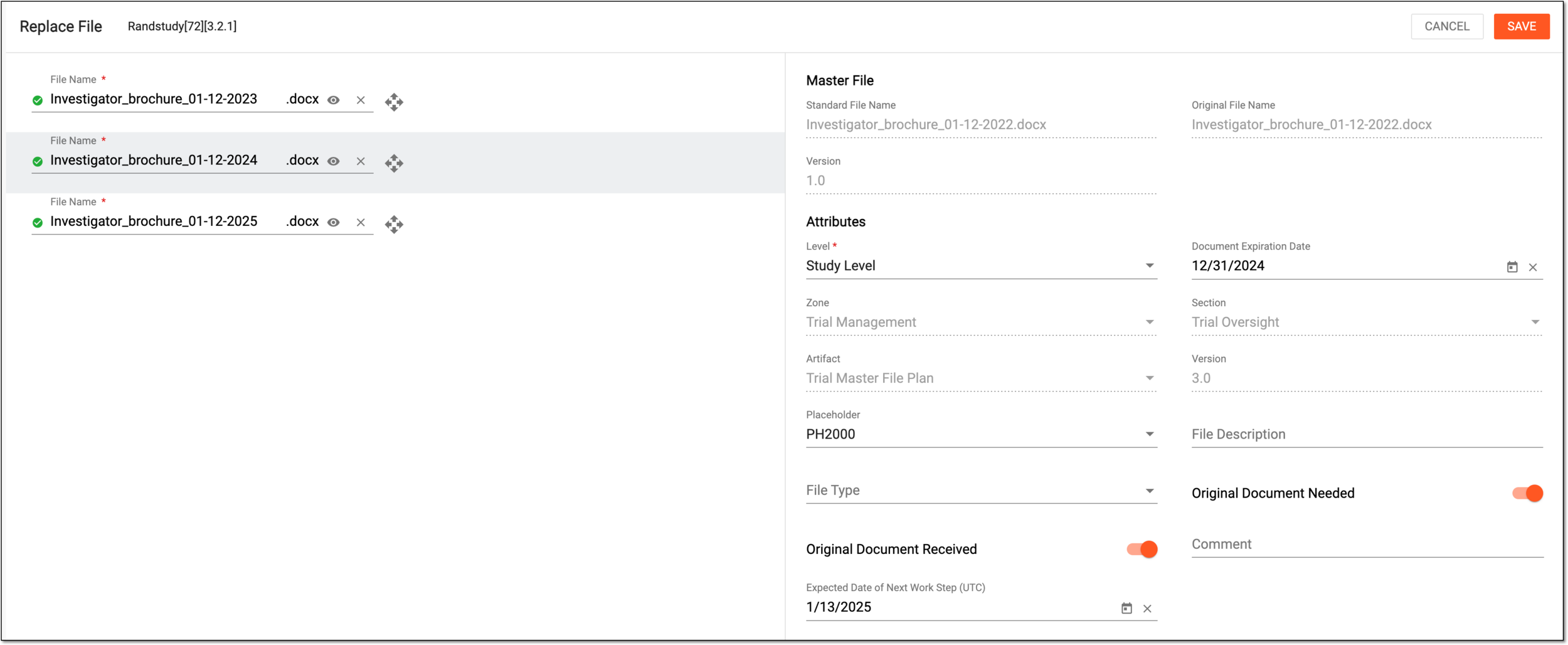 Figure 6. Configuring replacement files attributes
Tip
In the following table, mandatory elements are marked with an asterisk (*).
Element
Details
File Name*
Update the name of the document if you want to adjust the original file name to your study requirements.
The name of each file needs to be unique. A folder cannot have two files with identical names.Preview the file contents to ensure it is the right one saving by selecting File Preview
.Select this option next to the file to remove it from the list of files for replacement.
Use this option to drag the files and place them in the order that satisfies your replacement versioning scenario. Changing the file order influences the version attribute for this file.
For instance, if you are replacing the current file with three follow-up versions, sort the replacement files to follow the versioning—starting with the earliest file version on top, then the second, and lastly the third one.
Master File
Standard File Name
Represents the name of the original file currently available in the system that is being replaced.
Original File Name
Represents the original name of the file—the one it had before being renamed in eTMF.
Version
Represents the version of the file currently available in the system that is being replaced.
Attributes
Level*
Select the file level attribute: Country Level, Study Level, or Site Level.
For instance, the investigator brochure differs for the U.S. and European Union, so you might want to associate such file with the specific country. Or if the file is the license of the specific site's principal investigator (PI), you might want to associate this document with that specific site.
Country/Region Name
Select the country or region to which the file belongs. The field is only available if the file level property is set to Site or Country.
Editing this property might change the file level.Site Code
Select the site to which the file belongs. The field is only available if the file level property is set to Site.
Editing this property might change the file level.Document Expiration Date
Set the expiration date of the file that triggers an alert email if overdue.
This field can be mandatory or optional depending on the mandatory properties
                                                    settings of your study.
Zone
Represents the zone-level directory to which the file belongs. The property is autopopulated according to the master file location and cannot be manually changed.
Section
Represents the section-level directory to which the file belongs. The property is autopopulated according to the master file location and cannot be manually changed.
Artifact
Represents the artifact-level directory to which the file belongs. The property is autopopulated according to the master file location and cannot be manually changed.
Version
Represents the version number that will be assigned to this file once replacement is submitted. The value autopopulates based on the master file version and replacement files' order in the upload panel.
To adjust the file version, drag the files on the upload panel to sort them in the desired order.
For instance, if the current master file version is 1.0, then the replacement file on top of the list obtains version 2.0, the second one—3.0, and so on.
Placeholder
Select the placeholder with which you want to associate the file.
This field can be mandatory or optional depending on the mandatory properties
                                                    settings of your study.
File Description
Enter any auxiliary details to help the study team differentiate the uploaded files and their designation.
File Type
Select the custom file type of the file.
Upon file type selection, additional fields can appear depending on the predefined elements of the naming convention for this
                                                    file type.
For instance, the system might require the original file name, upload date, author, and such details to compose the uploaded file name.
This field can be mandatory or optional depending on the mandatory properties
                                                    settings of your study.
Original Document Needed
Turn the toggle on or off to make the original (source) document collection obligatory or optional, respectively.
Original Document Received
Turn the toggle on or off to specify whether the original (source) document is already collected. The field is only available if the Original Document Needed toggle is turned on.
Comment
Enter a comment to provide any useful information about the uploaded file. This comment is available for the reviewer upon the file audit.
Expected Date of Next Work Step (UTC)
Represents the expected date of the next action with the file according to the workflow associated with the folder to which you are uploading your file.
The system automatically populates the expected date according to the following configurations of the associated workflow:
-
The unified study-level setting of all the workflow steps (nodes) duration upon configuring the DIA RM or custom TMF base. For such a setting, the system adds the set number of days to the current date to calculate the expected date of the next workflow step.
-
The individual workflow step (node) duration setting upon associating the workflow to the folder. For such a setting, the system adds the number of days set for each individual workflow step to the current date to calculate the expected date of the next step.
If both the study-level and the individual workflow node duration settings are applied, the individual setting for the workflow nodes has higher priority and overwrites the study-level setting.Change Reason for Expected Date*
Enter the reason for changing the expected date of the next action with the file according to the workflow associated with the folder to which you are uploading your file.
This field is only available when any change is made to the value of the Expected Date of
                                                    Next Work Step (UTC) field.
SAVE
Select
to save the implemented changes.CANCEL
Select
to dismiss changes without saving.Tip
The fields to complete along with your file may differ based on your study settings, file type, and so on.
-
-
Upon replacement, the new files become available and the one with the latest version becomes high-level, inheriting a workflow (if any).
If the file workflow requires it, you can now audit the file.
Once the replaced file passes all the audits, the previous versions disappear from the contents panel and go to the Lifecycle panel where you can download them.
In eTMF, if you need to make any amendments to the file that is already uploaded to the system but do not want to create a new file version, make any changes as per your needs offline and then use the Reupload feature to update it.
For example, you have uploaded a file in the eTMF system but noticed a typo in the title. With the Reupload feature, you do not need to replace or append the file and change its version—make adjustments to the file offline and upload it back to the system. The file version is not changed upon updating via Reupload.
Important
In FILE MANAGEMENT, the Reupload option is unavailable for system files to prevent any manipulations with them that can lead to data loss.
-
In the eTMF application header, select the TMF tab.
-
On the page that opens, in the left pane, select the Study List subtab.
-
In the Study List table, select the study for which you want to access the relevant files and documents.
Figure 1. Selecting study
-
On the page that opens, in the left pane, select the Essential Documents subtab.
Figure 2. Accessing essential documents
-
In the Actions column next to the file, select More
> Reupload  .
. -
In the Reupload File panel that appears on the right, select the Upload area and select the file, or drag the file to the Upload area to submit the file. Once done, the file appears right below the Upload area.
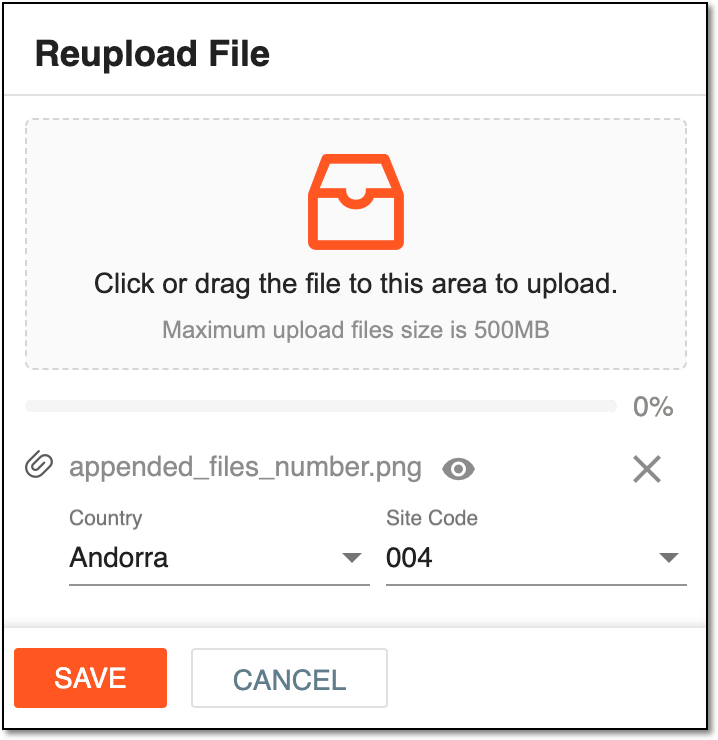 Figure 3. Uploading file from FILE MANAGEMENT page
Tip
You can preview the file(s) before saving by selecting File Preview
.When uploading a file(s) under Essential Documents, complete the configuration as explained in the File configuration elements table.
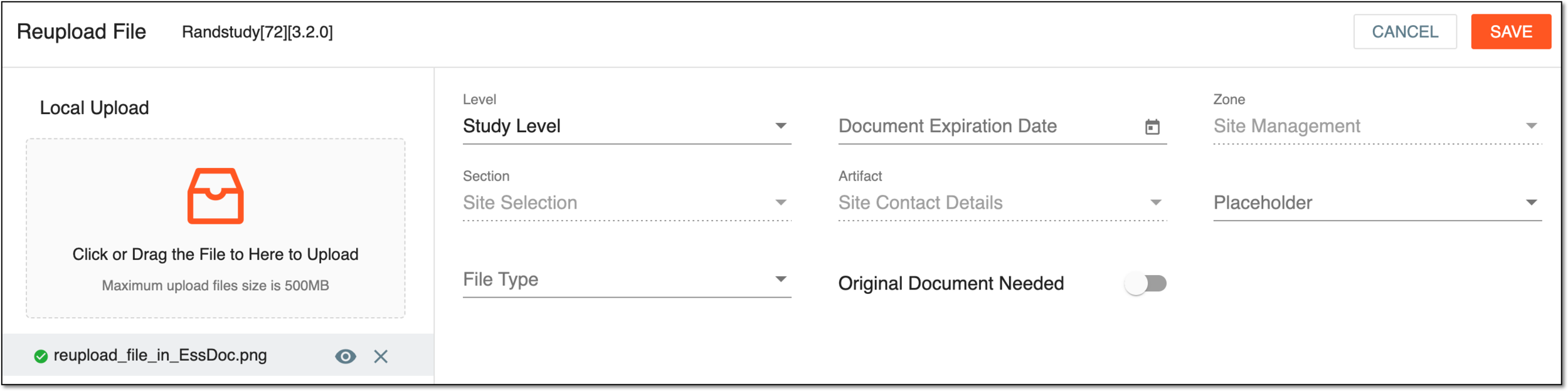 Figure 4. Uploading file from Essential Documents page
-
Select
to save changes.
Upon saving, the uploaded file displays in the File List table instead of the previous file you have had.
You can also upload the deleted file version again from the Lifecycle panel.
A schema, each step of which represents a stage of a specific entity lifecycle in the system.
A workflow can be considered an instrument to help control various actions on system entities for the sake of accountability, as it limits the actions that can be performed on the entity associated with a workflow. This provides an additional tier of scrutiny, and the approval/rejection mechanism reduces the risk of unintended impact on sensitive resources and important information.
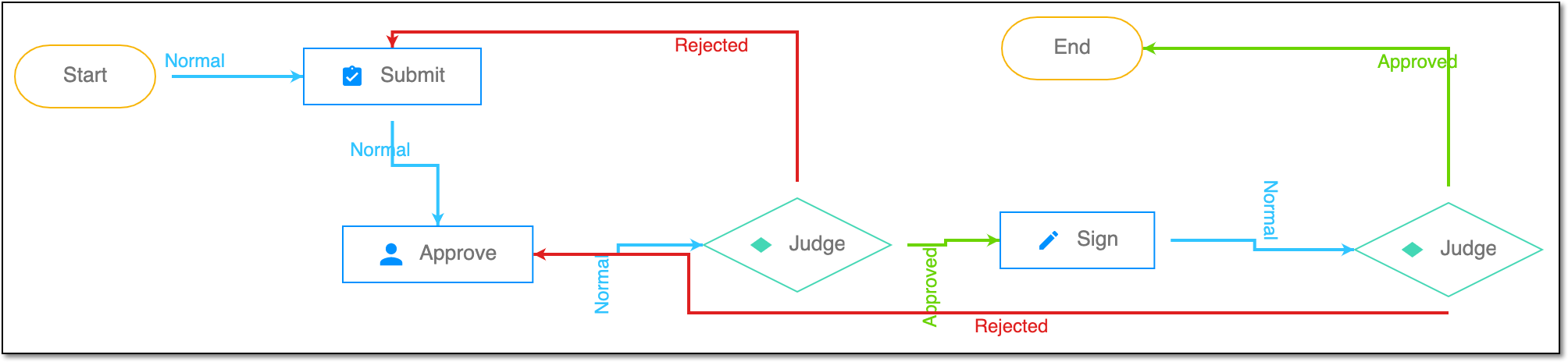 |
For instance, in eTMF, the workflow dictates the procedure of file and folder management from the moment of upload to the approval stage; in CTMS, the workflow controls the process of creation, completion, and approval of a trip report; in EDC, the workflow covers the process of source document handling.
A person responsible for overseeing and conducting the research study at a specific investigational site or multiple sites, depending on the study's design. The role of a PI is multifaceted and involves various responsibilities, such as study oversight, protocol adherence, participant recruitment and informed consent implementation, regulatory compliance, and so on.
In the eClinical system, the Principal Investigator (PI) role that is assigned to a person who oversees the data entering and signs off subjects—gives authorized confirmation that all the entered data is valid and follows the industry standards. The responsibilities of PI can vary depending on study requirements.