Add naming convention
In eTMF, you can add a custom naming convention for files of the same type to better organize the storage and simplify file tracking. The naming convention is configured from the attributes sequence with a separator.
-
In the eTMF application header, select the TMF tab.
-
On the page that opens, in the left pane, select the File Type Setting subtab.
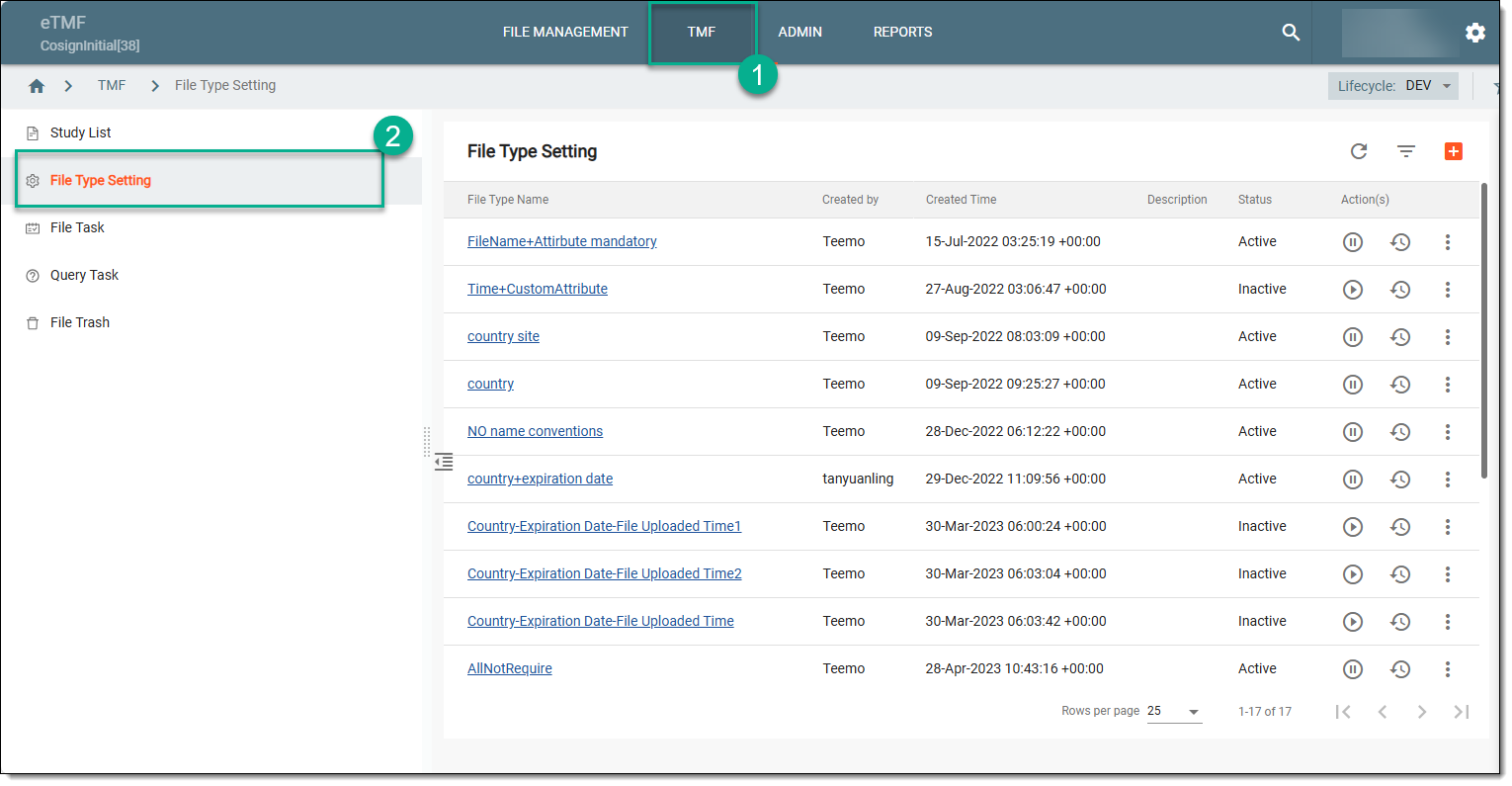 Figure 1. Selecting file type setting
-
On the File Type Setting page that opens, in the table, select the file type name of your interest.
-
On the Details page that opens, below the Attribute List table, you can find the Naming Convention panel.
-
In the Attribute List table, next to the attributes that you want to include in the file name, select the checkboxes from the Select as Naming Components column. Selected attributes appear successively in the Naming Convention block. The divider (dash) is automatically added between them.
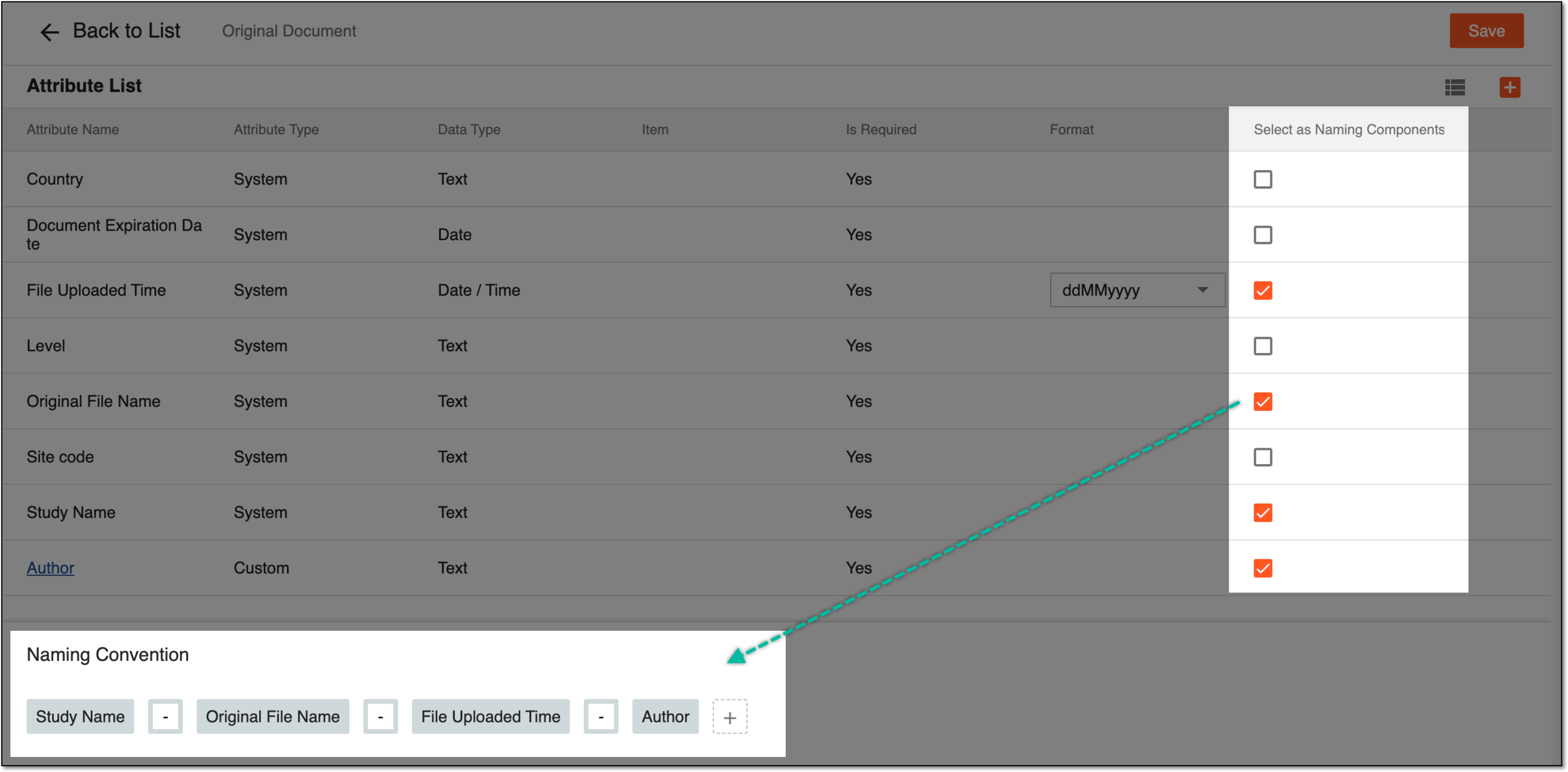 Figure 2. Adding elements of naming convention
Tip
Here are some useful tips to manage naming convention elements:
-
You can drag the attributes to adjust their order.
-
You can manually add a divider (dash) by selecting
 in the Naming Convention
panel.
in the Naming Convention
panel. -
You can delete attributes from the naming convention by clearing the checkboxes in the Attribute List or selecting
 that appears upon hovering over them.
-
-
Select
 on the top right of the page to complete the naming convention settings.
Upon saving, the naming convention is set. The system can now use it upon adding files of this custom type. You can also add custom attributes for the file type.