Manage file type attributes
In the eTMF application, the file type attributes are the customizable file parameters that are collected upon file upload. The newly created file type has only got a predefined set of standard file attributes such as Document Expiration Date, Country, Level, and so on. But, you can customize the attribute list by adding predefined attributes to it. For example, you can add the Author attribute for the system to collect the name of the user who adds the file(s) of this type to the system.
-
In the eTMF application header, select the TMF tab.
-
On the page that opens, in the left pane, select the File Type Setting subtab.
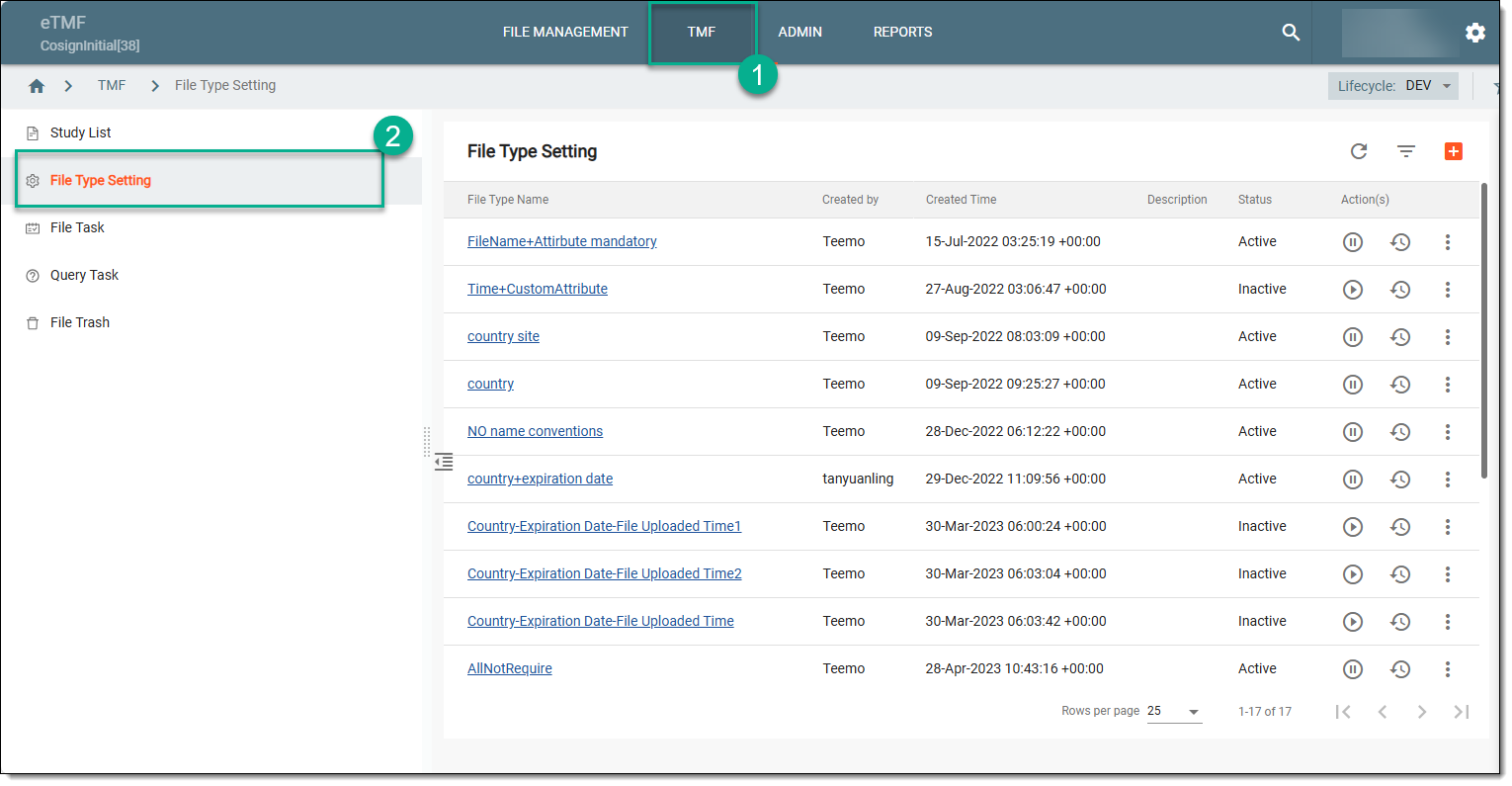 Figure 1. Selecting file type setting
-
On the File Type Setting page that opens, in the table, select the file type name of your interest.
-
On the Details page that opens, from the workspace toolbar, select Attribute Library
 to
add predefined attributes to your file type.
to
add predefined attributes to your file type.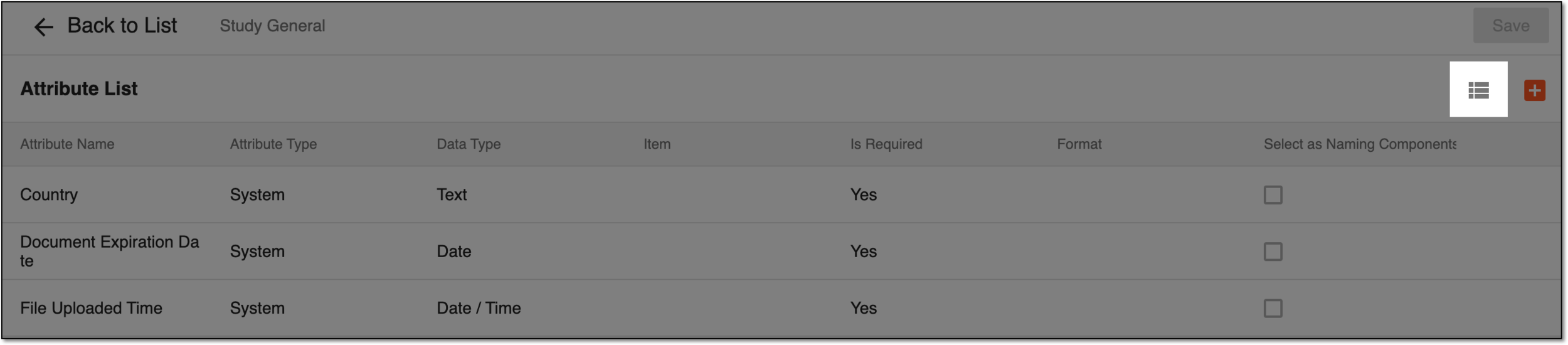 Figure 2. Viewing file type attributes
-
In the Attribute List dialog that opens, select the checkboxes next to the attributes you want to add to your file type.
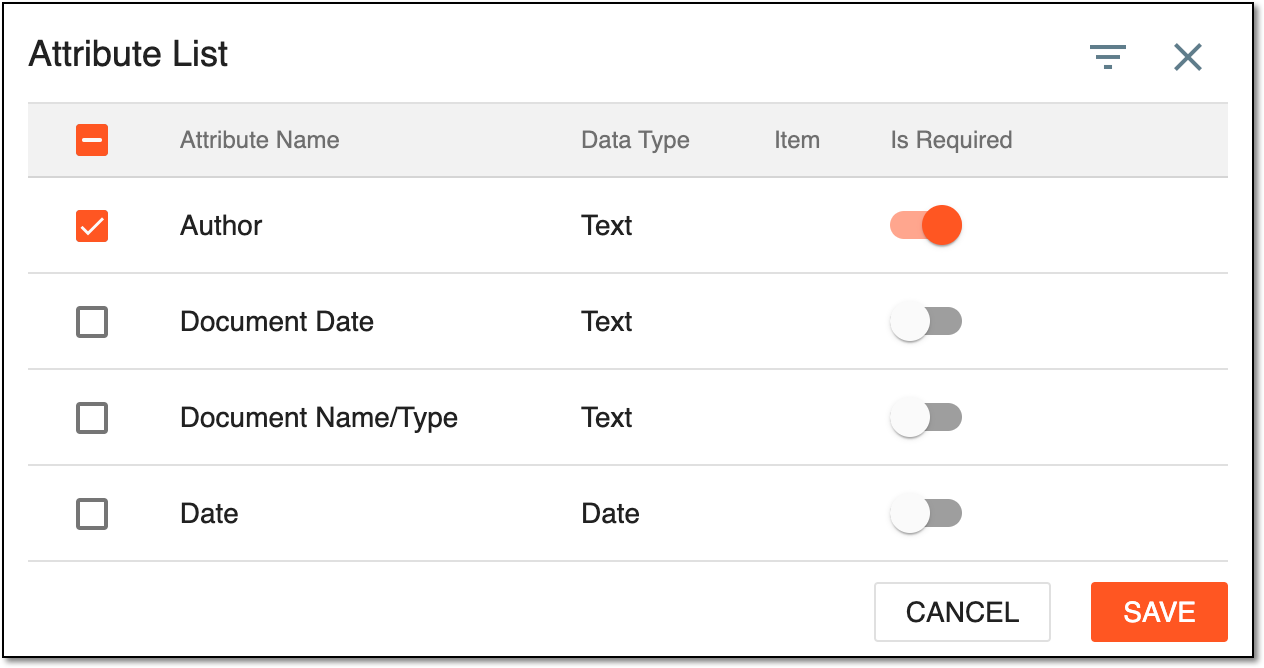 Figure 3. Adding attribute to file type
Important
To make the attribute mandatory for collection upon file upload, turn on the Is Required toggle next to it. If the toggle is turned off, the attribute is optional, even if it is a part of the naming convention for the file type.
-
Select
 to implement the changes.
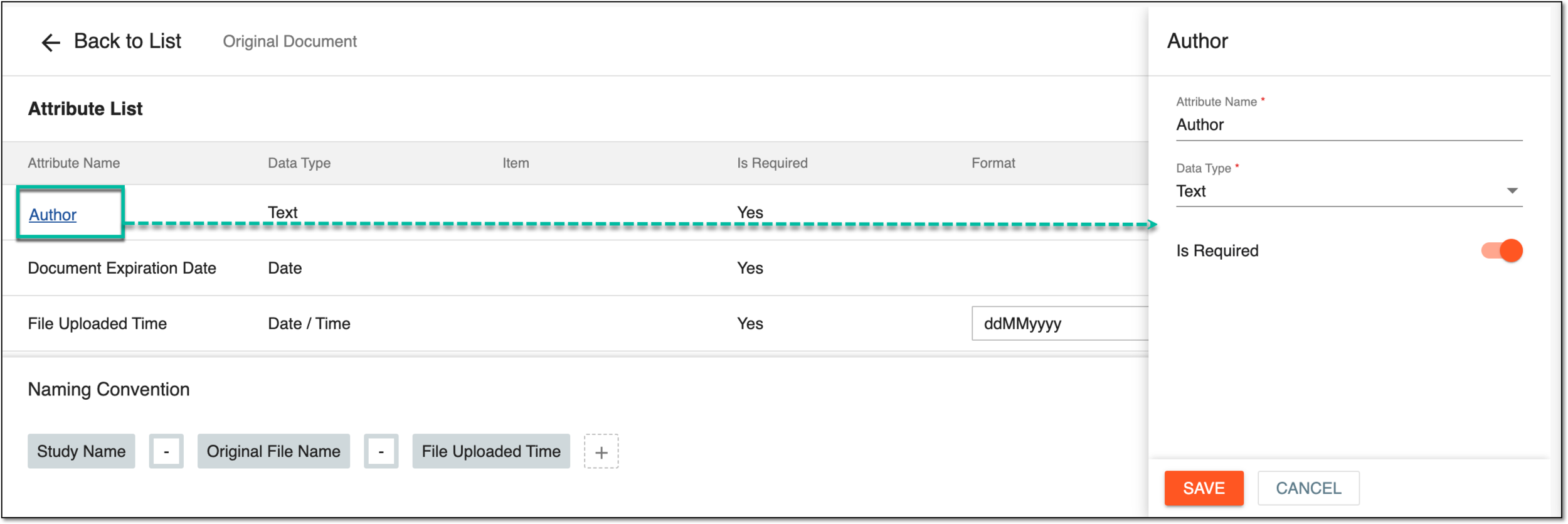
Upon saving, the attribute list of the file type is updated.
Tip
The added attribute names are active links that you can select to open the editing panel and update the attribute details.
If there is no satisfactory attribute among the existing ones in Attribute List, you can add a new custom attribute.
Add custom attribute
In eTMF, the newly created file type has only got a predefined set of standard file attributes such as Document Expiration Date, Country, Level, and so on. But, you can adjust the attribute list as per your business needs by creating new custom attributes.
-
In the eTMF application header, select the TMF tab.
-
On the page that opens, in the left pane, select the File Type Setting subtab.
Figure 1. Selecting file type setting
-
On the File Type Setting page that opens, in the table, select the file type name of your interest.
-
On the Attribute List page that opens, from the workspace toolbar, select
 .
.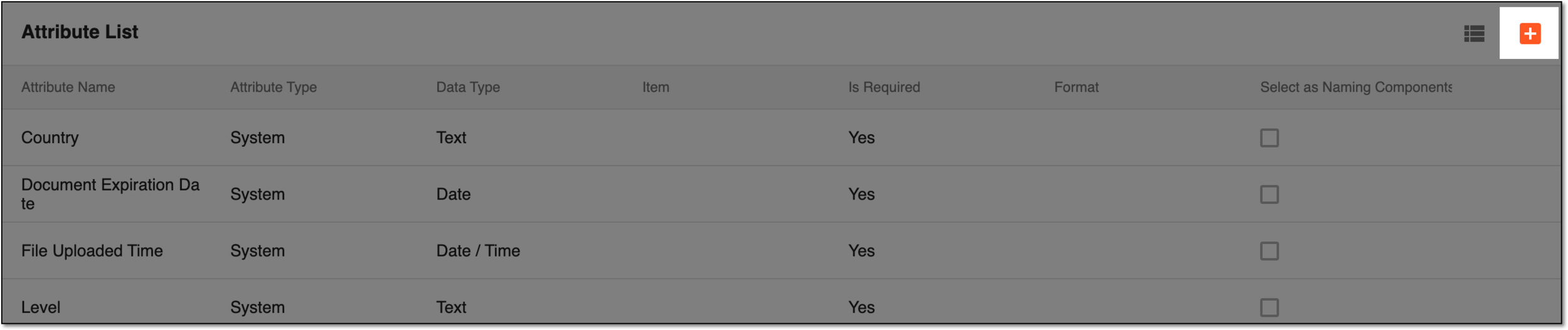 Figure 2. Adding custom attribute
-
In the New form that appears, configure the new custom attribute as explained in the following table.
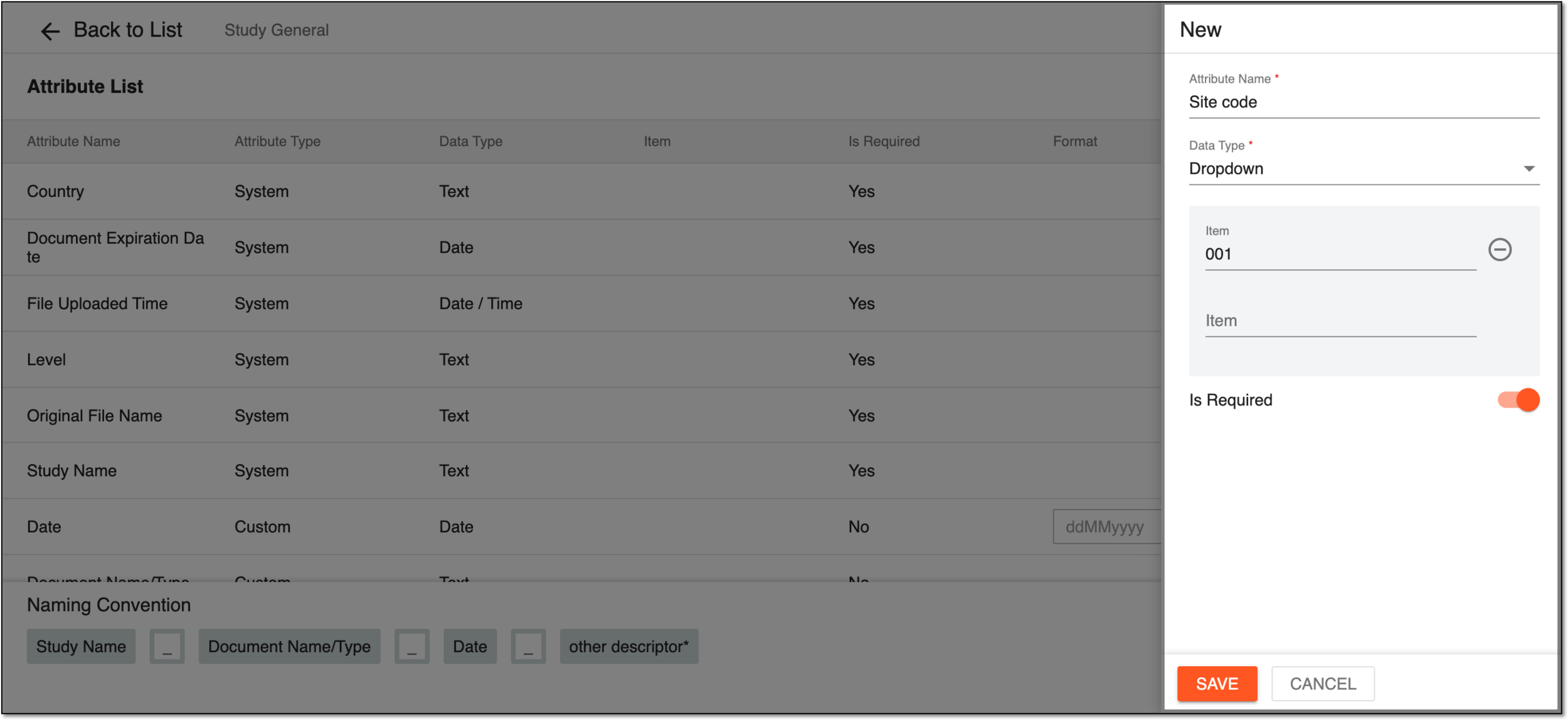 Figure 3. Configuring new custom attribute
Tip
In the following table, mandatory elements are marked with an asterisk (*).
Element
Details
Attribute Name*
Enter a unique and descriptive name for your new attribute.
Data Type*
Expand the dropdown menu to select one of the available options to represent the data type you expect to collect for this attribute:
-
Text: if you expect users to enter any arbitrary data.
-
Date: if you expect users to select the date as a value of the attribute.
-
Number: if you expect users to enter any numbered data as a value of the attribute.
-
Dropdown: if you want to give users a few options to select among. If selected, the fields to add item values appear and need to be specified.
Is Required
-
Turn the toggle on to make your attribute mandatory for collection upon uploading the file if the attribute is a part of the naming convention for this file type.
-
Turn the toggle off to make your attribute optional for collection upon uploading the file even if the attribute is a part of the naming convention for this file type.
SAVE
Select
to implement the changes.CANCEL
Select
 to dismiss changes without saving.
 -
Upon saving, your customized attribute is added. You can also add a naming convention for files of the same file type.