File upload actions in essential documents
In eTMF, you there are multiple ways of uploading files to Essential Documents as discussed in the following sections.
You can upload a file directly from your computer to the Essential Documents list if the file contains important or primary information required for auditing, validating, and other purposes.
-
In the eTMF application header, select the TMF tab.
-
On the page that opens, in the left pane, select the Study List subtab.
-
In the Study List table, select the name of the study to which you want to upload the file.
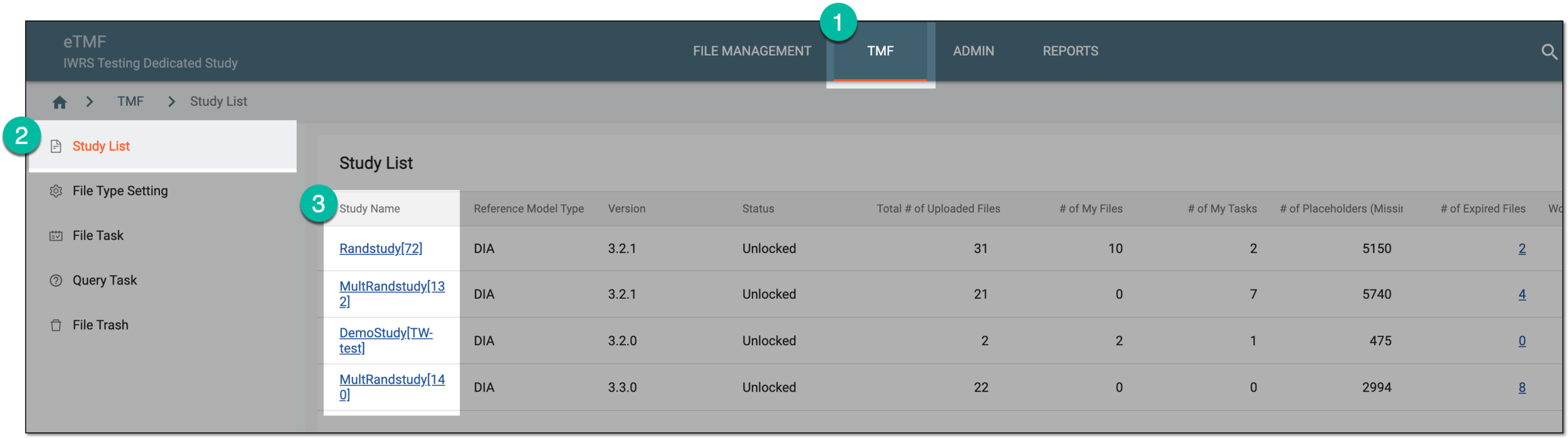 Figure 1. Selecting study
-
On the page that opens, in the left pane, select the Essential Documents subtab.
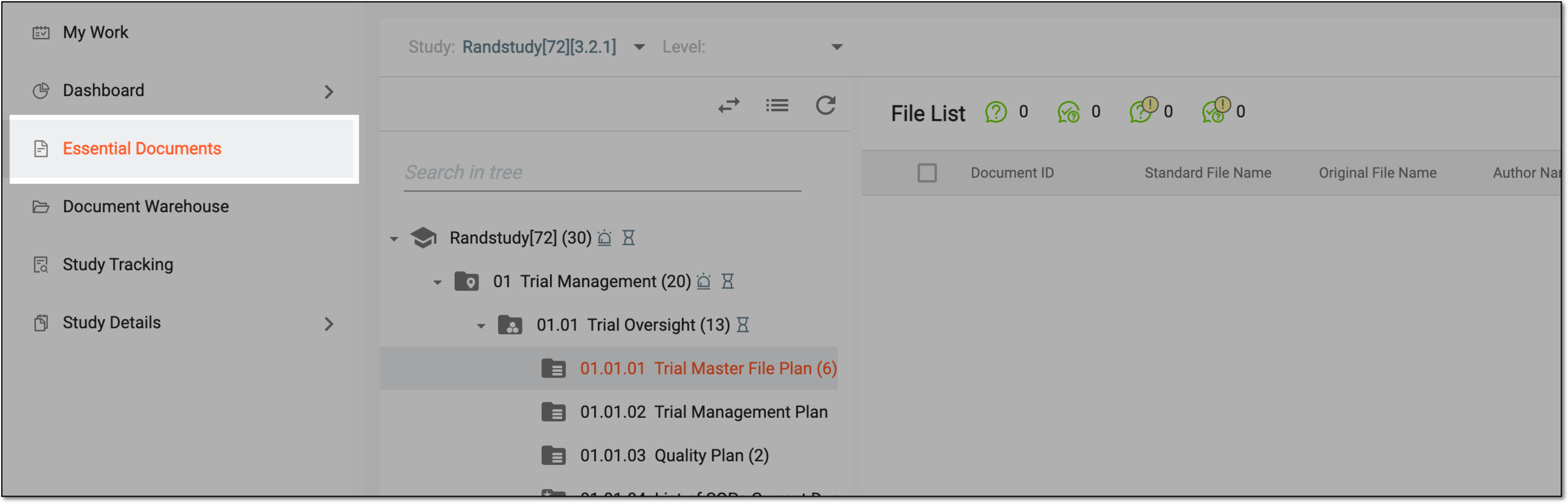 Figure 2. Opening essential documents
-
On the Essential Documents page that opens, drill down to an artifact-level folder in which you want to upload the files.
Important
Under the Essential Documents subtab, the directories are structured according to the DIA's standards with the hierarchies of Zone > Section > Artifact. You can only upload files to an artifact-level folder—the lowest level of the hierarchy where individual trial documents (artifacts) are stored
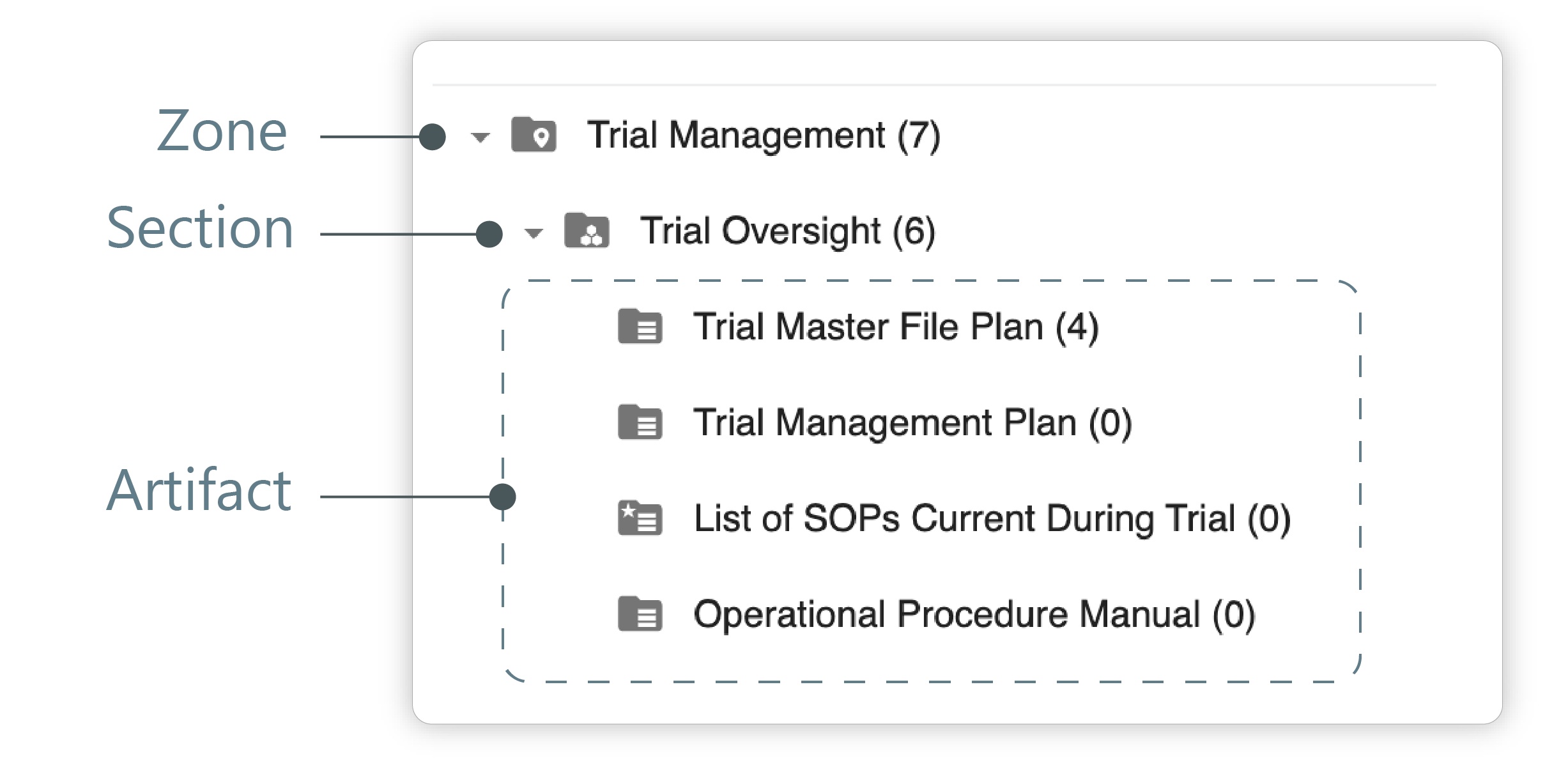 Figure 3. Distinguishing zone, section, and artifact folder levels
-
From the workspace toolbar, select Upload File
 > Local Upload
  .
.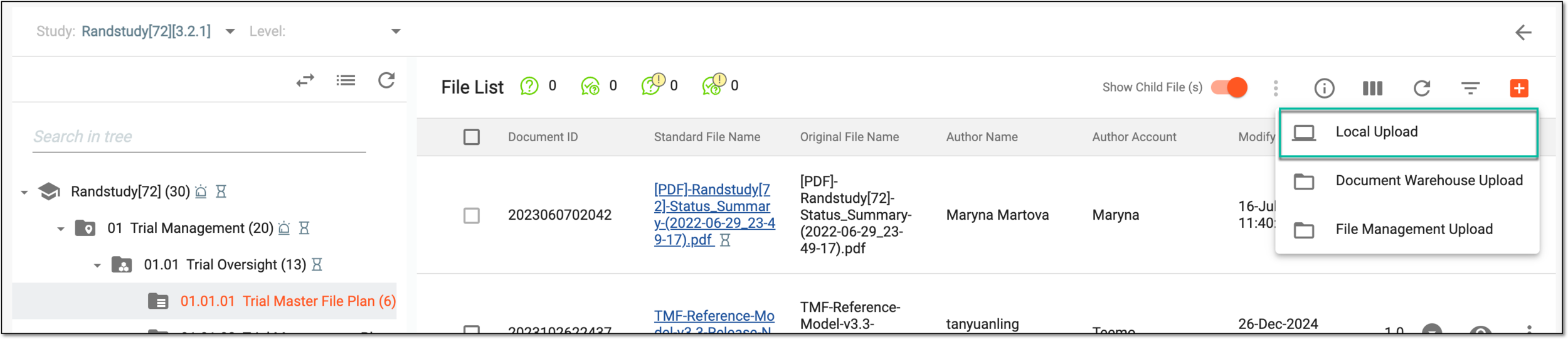 Figure 4. Selecting local upload option
-
On the New Files page, the Zone, Section, and Artifact properties are autopopulated according to the selected artifact-level folder.
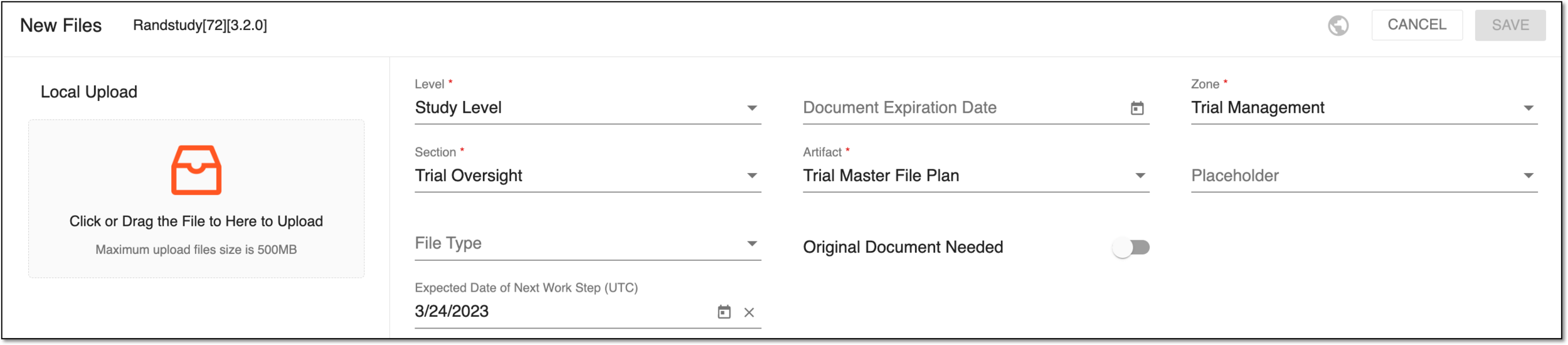 Figure 5. Uploading files via local upload
-
In the Local Upload panel on the left, select the area to choose files on your computer or drag files here to add them to the upload list.
You can preview the files before saving by selecting File Preview
 .
.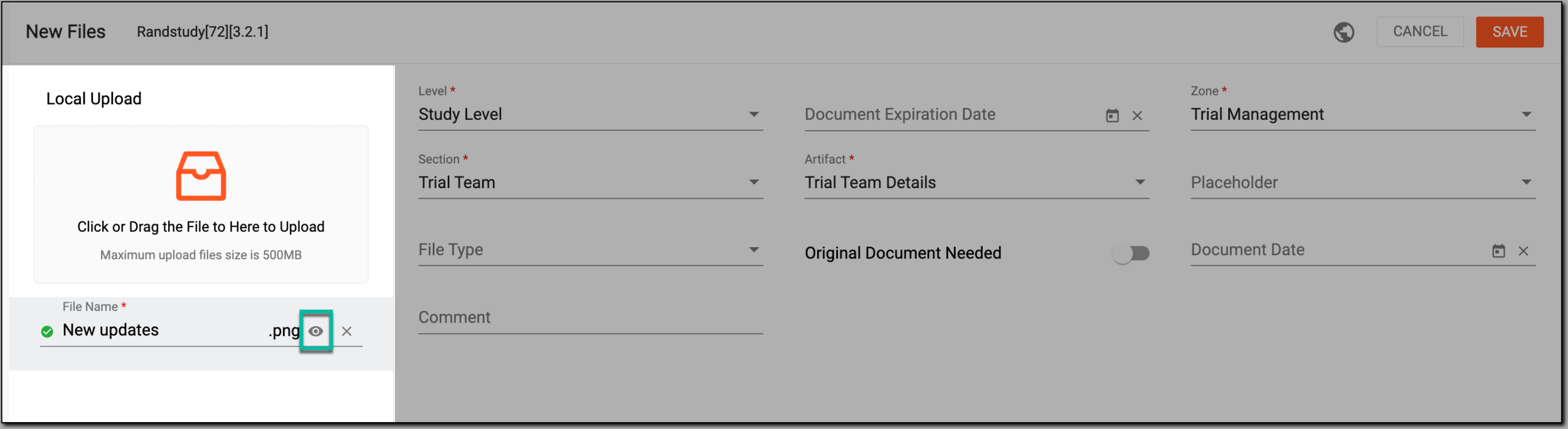 Figure 6. Adding files to upload list
Important
The exclamation mark icon
 next to the file
name indicates that it has not been configured yet. Once you configure the properties, the icon changes to the checked one
next to the file
name indicates that it has not been configured yet. Once you configure the properties, the icon changes to the checked one  .
. -
Configure your files to finalize the upload in one of the following ways.
On the Local Upload panel, in the list of uploads, select each file name sequentially to open the configuration panel on the right and configure each of the files individually. Fill in the fields as explained in the following table.
Important
More fields can be available than suggested in the following instructions if the artifact to which you upload files has them preconfigured according to the applied DIA RM.
For instance, the Tracking Documents artifact can have an optional field Version Date for file configuration, or the Database Change Control artifact can have the Change Control Date field, and so on.
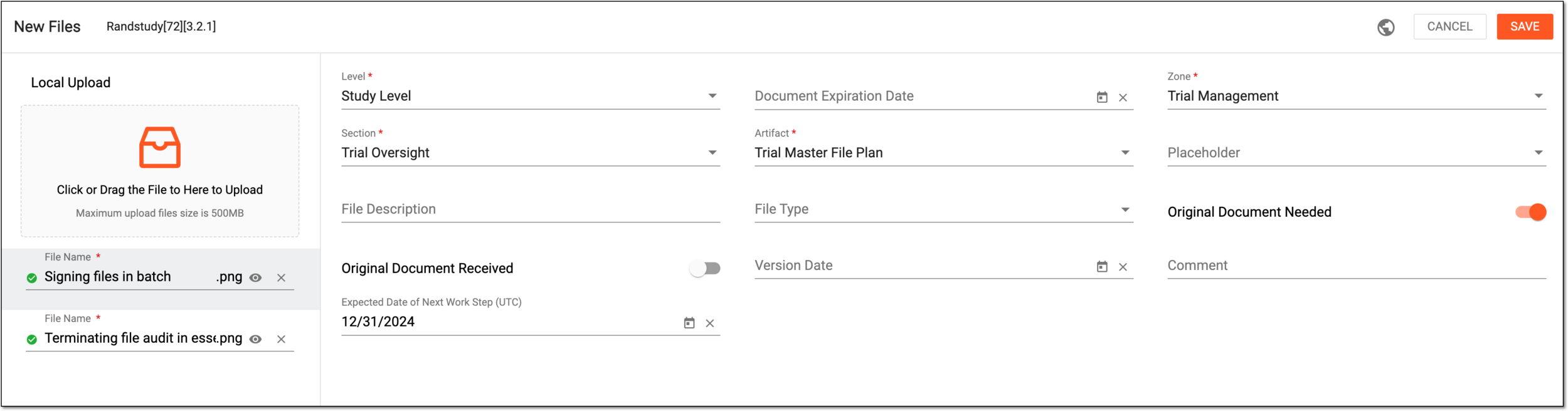 Figure 7. Configuring files individually
Tip
In the following table, mandatory elements are marked with an asterisk (*).
Element
Details
File Name*
Represents the name of the document for upload. If you need to adjust it, enter the new or edit the prepopulated name of the document.
The name of each file needs to be unique. A folder cannot have two files with identical names.Level*
Select the file level attribute: Country Level, Study Level, or Site Level.
Country/Region Name
Select the country or region to which the file belongs.
The field is only available if the file level property is set to Site Level or Country Level. Editing this property might change the file’s level.Site Code
Select the site to which the file belongs.
The field is only available if the file level property is set to Site Level. Editing this property might change the file’s level.Document Expiration Date
Set the expiration date of the file that triggers an alert email if overdue.
This field can be mandatory or optional depending on the mandatory properties
                                              settings of your study.
Zone*
Select the zone level to which the file belongs. The property is autopopulated according to the selected artifact-level folder and editing changes the file’s location.
Section*
Select the section level to which the file belongs. The property is autopopulated according to the selected artifact-level folder and editing changes the file’s location.
Artifact*
Select the artifact level to which the file belongs. The property is autopopulated according to the selected artifact-level folder and editing changes the file’s location.
Placeholder
Select the placeholder with which you want to associate the file.
This field can be mandatory or optional depending on the mandatory properties
                                              settings of your study.
File Description
Enter any auxiliary details to help the study team differentiate the uploaded files and their designation.
File Type
Select the custom file type of the file.
Upon file type selection, additional fields can appear depending on the predefined elements of the naming convention for this file
                                              type.
For instance, the system might require the original file name, upload date, author, and such details to compose the uploaded file name.
This field can be mandatory or optional depending on the mandatory properties
                                              settings of your study.
Original Document Needed
Turn the toggle on or off to make the original (source) document collection obligatory or optional, respectively.
Original Document Received
Turn the toggle on or off to specify whether the original (source) document is already collected.
The field is only available if the Original Document Needed toggle is turned
                                              on.
Comment
Enter a comment to provide any useful information about the uploaded file. This comment is available for the reviewer upon the file audit.
Expected Date of Next Work Step (UTC)
Represents the expected date of the next action with the file according to the workflow associated with the folder to which you are uploading your file.
The system automatically populates the expected date according to the following configurations of the associated workflow:
-
The unified study-level setting of all the workflow steps (nodes) duration upon configuring the DIA RM or custom TMF base. For such a setting, the system adds the set number of days to the current date to calculate the expected date of the next workflow step.
-
The individual workflow step (node) duration setting upon associating the workflow to the folder. For such a setting, the system adds the number of days set for each individual workflow step to the current date to calculate the expected date of the next step.
If both the study-level and the individual workflow node duration settings are applied, the individual setting for the workflow nodes has higher priority and overwrites the study-level setting.Change Reason for Expected Date*
Enter the reason for changing the expected date of the next action with the file according to the workflow associated with the folder to which you are uploading your file.
This field is only available if you change the value of the Expected Date of Next Work Step (UTC)
                                              field.
SAVE
Select
 to implement the changes.
CANCEL
Select
 to dismiss changes without saving.
-
From the workspace toolbar, select Global Setting
 .
.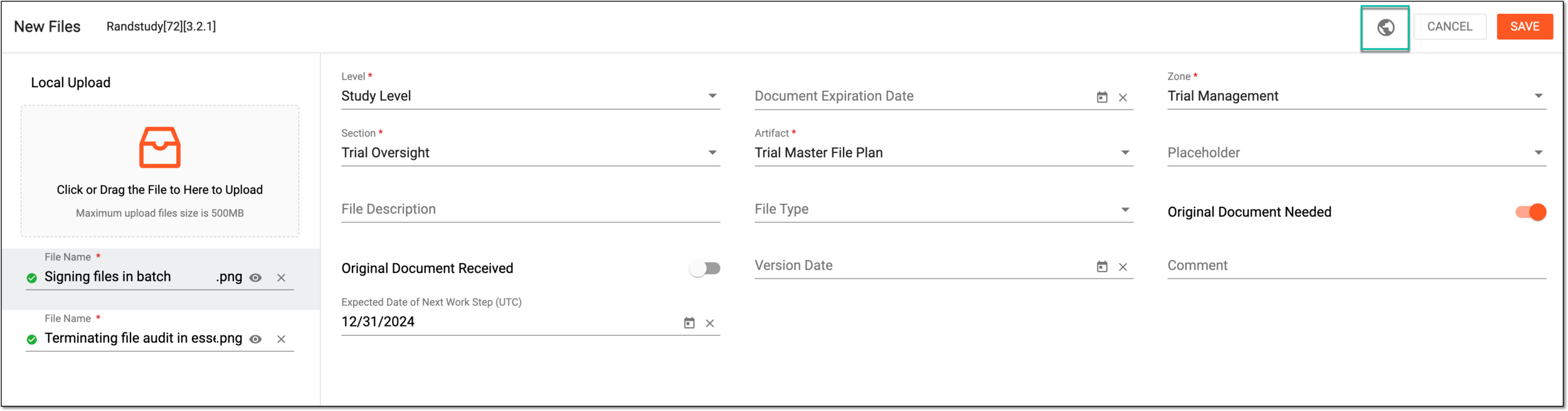 Figure 8. Accessing file global setting
-
In the Global Setting dialog that appears, configure the parameters for all the files at once as explained in the following table.
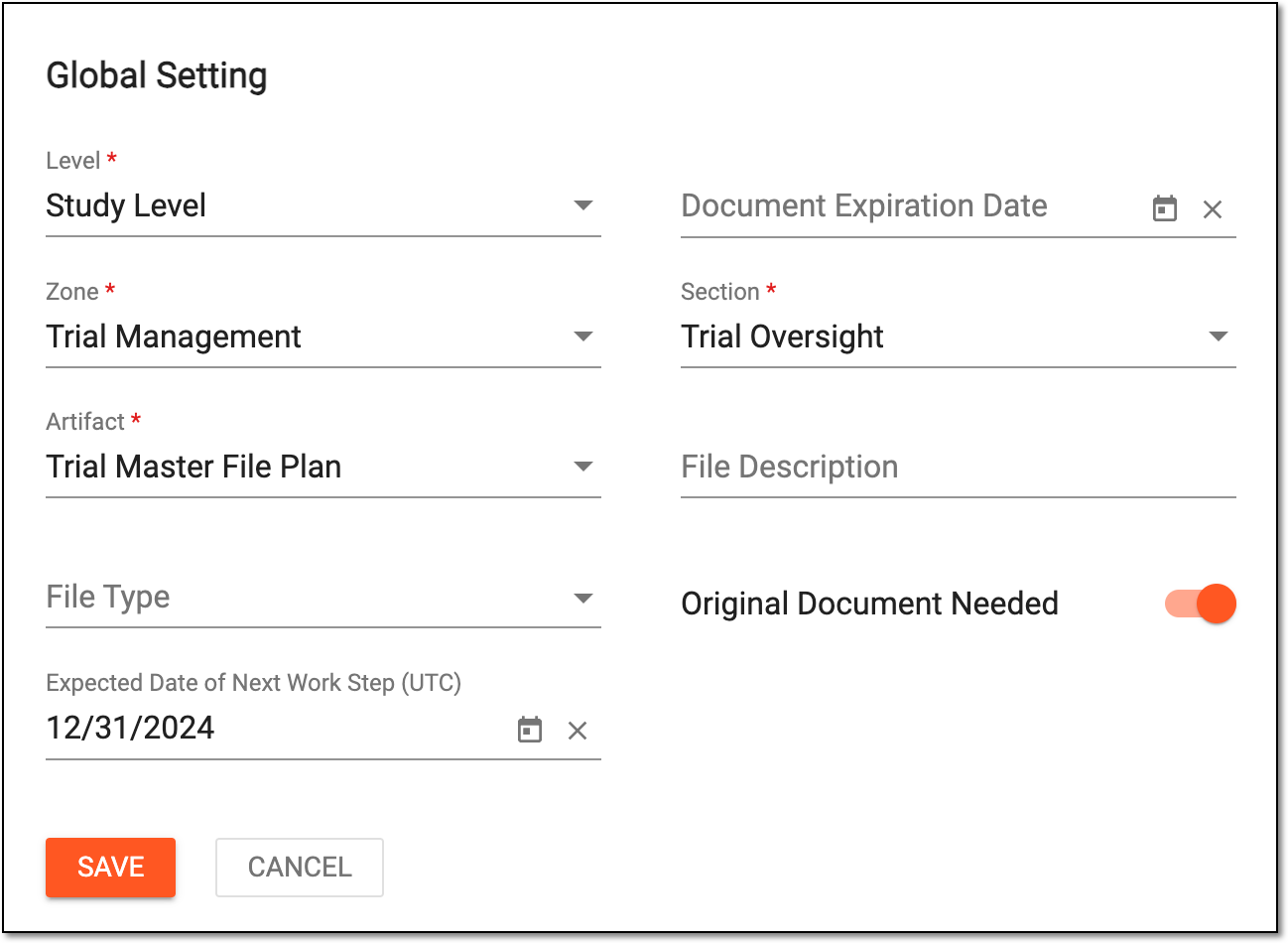 Figure 9. Configuring global settings for files
Tip
In the following table, mandatory elements are marked with an asterisk (*).
Element
Details
Level*
Select the level attribute for all the uploaded files—Country Level, Study Level, or Site Level.
Country/Region Name
Select the country or region to which the files belong.
The field is only available if the file level property is set to Site Level or Country Level. Editing this property might change the file’s level.Site Code
Select the site to which the files belong.
The field is only available if the file level property is set to Site Level. Editing this property might change the file’s level.Document Expiration Date
Set the expiration date of the files that is to trigger an alert email if overdue.
This field can be mandatory or optional depending on the mandatory properties
                                                    settings of your study.
Zone*
Select the zone level to which the files belong.
The property is autopopulated according to the artifact-level folder selected for upload. Changing the selection here affects the file upload location.Section*
Select the section level to which the files belong.
The property is autopopulated according to the artifact-level folder selected for upload. Changing the selection here affects the file upload location.Artifact*
Select the artifact level to which the files belong.
The property is autopopulated according to the artifact-level folder selected for upload. Changing the selection here affects the file upload location.File Description
Enter any auxiliary details to help the study team differentiate the uploaded files and their designation.
File Type
Select the custom file type of the files.
Upon file type selection, additional fields can appear depending on the predefined elements of the naming convention for this
                                                    file type.
For instance, the system might require the original file name, upload date, author, and such details to compose the uploaded file name.
This field can be mandatory or optional depending on the mandatory properties
                                                    settings of your study.
Original Document Needed
Turn the toggle on or off to make the original (source) documents collection obligatory or optional, respectively for all files.
Expected Date of Next Work Step (UTC)
Represents the expected date of the next action with the files according to the workflow associated with the folder to which you are uploading them.
The system automatically populates the expected date according to the following configurations of the associated workflow:
-
The unified study-level setting of all the workflow steps (nodes) duration upon configuring the DIA RM or custom TMF base. For such a setting, the system adds the set number of days to the current date to calculate the expected date of the next workflow step.
-
The individual workflow step (node) duration setting upon associating the workflow to the folder. For such a setting, the system adds the number of days set for each individual workflow step to the current date to calculate the expected date of the next step.
If both the study-level and the individual workflow node duration settings are applied, the individual setting for the workflow nodes has higher priority and overwrites the study-level setting.Change Reason for Expected Date*
Enter the reason for changing the expected date of the next action with the file according to the workflow associated with the folder to which you are uploading your file.
This field is only available if you change the value of the Expected Date of Next Work Step
                                                    (UTC) field.
SAVE
Select
to implement the changes.CANCEL
Select
to dismiss changes without saving. -
-
Upon saving, your files are uploaded to the selected artifact-level directory of Essential Documents.
Under the Essential Documents subtab, you can upload files from different locations. This section explains how to upload files to the system from the Document Warehouse storage of the eTMF application.
-
In the eTMF application header, select the TMF tab.
-
On the page that opens, in the left pane, select the Study List subtab.
-
In the Study List table, select the name of the study to which you want to upload the file.
Figure 1. Selecting study
-
On the page that opens, in the left pane, select the Essential Documents subtab.
Figure 2. Opening essential documents
-
On the Essential Documents page that opens, drill down to an artifact-level folder in which you want to upload the files.
Important
Under the Essential Documents subtab, you can only upload files to an artifact-level folder—the lowest level of the hierarchy where individual trial documents (artifacts) are stored.
-
From the workspace toolbar, select Upload File
> Document Warehouse
Upload  .
.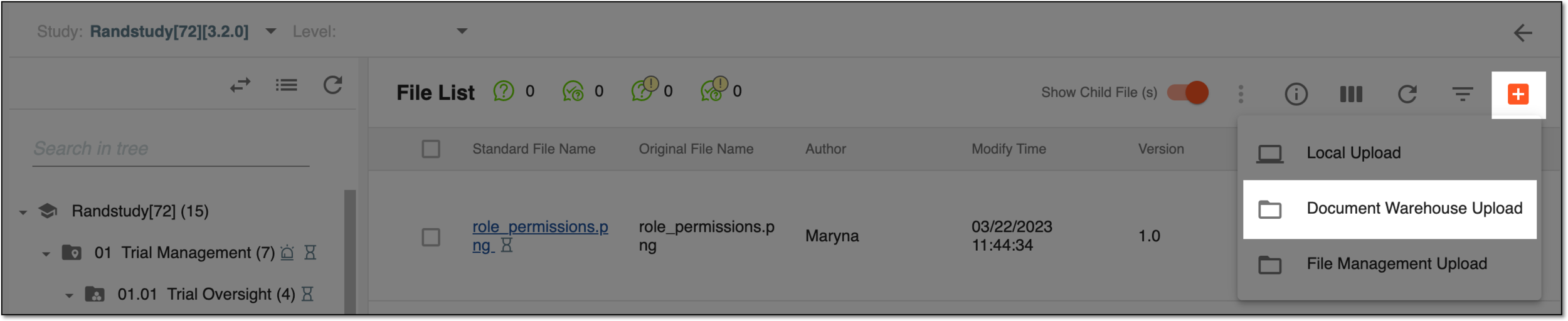 Figure 3. Accessing document warehouse
-
In the Document Warehouse Upload dialog that appears, select the level—study, country, or site—and then the needed files. Then select
.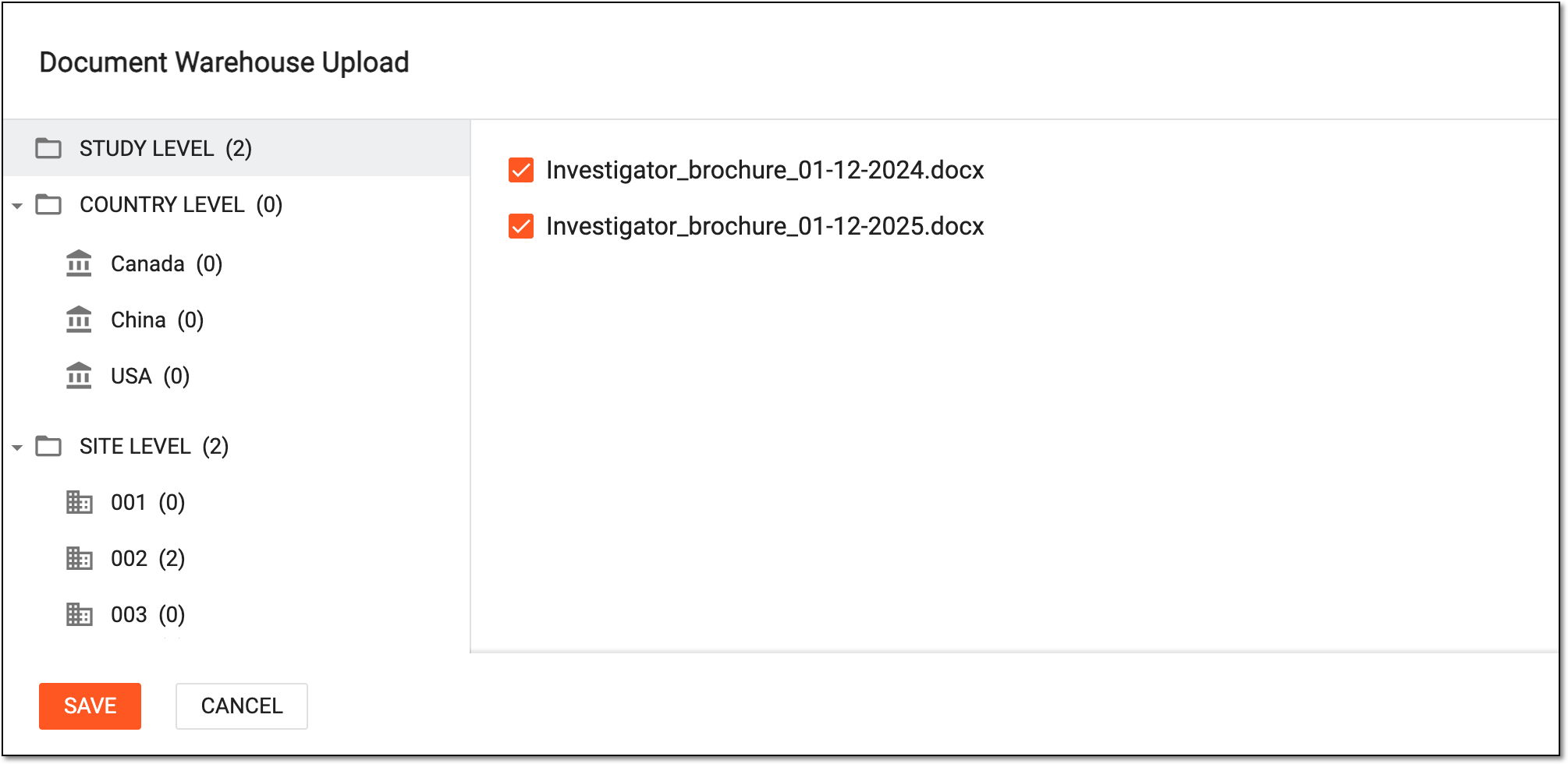 Figure 4. Uploading files from document warehouse
-
To finalize the file upload, complete the file configurations in one of the following ways.
On the New Files panel, in the list of uploads, select each file name sequentially to open the configuration panel on the right and configure each of the files individually. Fill in the fields as explained in the following table.
Important
More fields can be available than suggested in the following instructions if the artifact to which you upload files has them preconfigured according to the applied DIA RM.
For instance, the Tracking Documents artifact can have an optional field Version Date for file configuration, or the Database Change Control artifact can have the Change Control Date field, and so on.
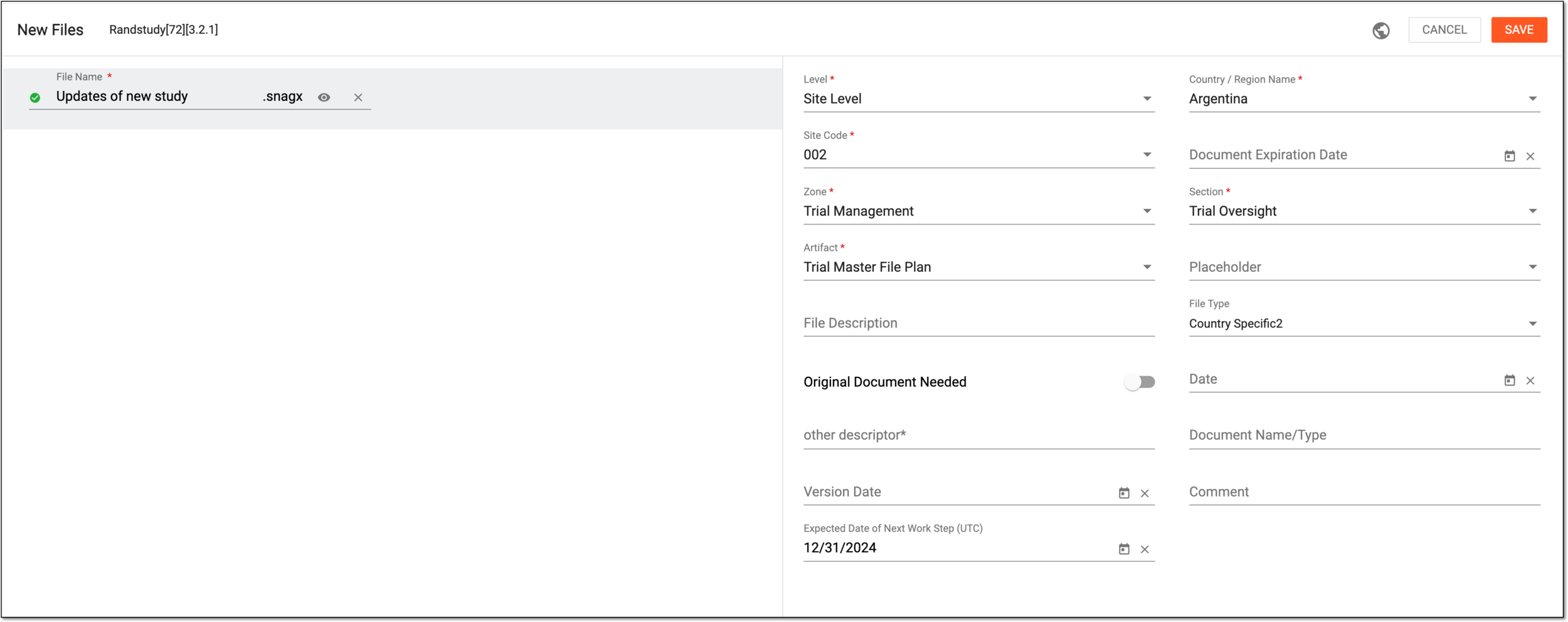 Figure 5. Configuring file added from warehouse
Tip
In the following table, mandatory elements are marked with an asterisk (*).
Element
Details
File Name*
Enter the name of the document.
The name of each file needs to be unique. A folder cannot have two files with identical names.Level*
Select the file level attribute: Country Level, Study Level, or Site Level.
Country/Region Name*
Select the country/region to which the file belongs.
The field is only available if the file-level property is set to Site Level or Country Level. Editing this property might change the file’s level.Site Code*
Select the site to which the file belongs.
The field is only available if the file-level property is set to Site Level. Editing this property might change the file’s level.Document Expiration Date
Set the expiration date of the file that triggers an alert email if overdue.
This field can be mandatory or optional, depending on the mandatory properties
                                              settings of your study.
Zone*
Select the zone level to which the file belongs. The property is autopopulated according to the selected artifact-level folder, and editing changes the file’s location.
Section*
Select the section level to which the file belongs. The property is autopopulated according to the selected artifact-level folder, and editing changes the file’s location.
Artifact*
Select the artifact level to which the file belongs. The property is autopopulated according to the selected artifact-level folder, and editing changes the file’s location.
Placeholder
Select the placeholder with which you want to associate the file.
This field can be mandatory or optional depending on the mandatory properties
                                              settings of your study.
File Description
Enter any auxiliary details to help the study team differentiate the uploaded files and their designation.
File Type
Select the custom file type of the file.
Upon file type selection, additional fields can appear depending on the predefined elements of the naming convention for this file
                                              type.
For instance, the system might require the original file name, upload date, author, and such details to compose the uploaded file name.
This field can be mandatory or optional depending on the mandatory properties
                                              settings of your study.
Original Document Needed
Turn the toggle on or off to make the original (source) document collection obligatory or optional, respectively.
Original Document Received
Turn the toggle on or off to specify whether the original (source) document is already collected. The field is only available if the Original Document Needed toggle is turned on.
Comment
Enter a comment to provide any useful information about the uploaded file. This comment is available for the reviewer upon the file audit.
Expected Date of Next Work Step (UTC)
Represents the expected date of the next action with the file according to the workflow associated with the folder to which you are uploading your file.
The system automatically populates the expected date according to the following configurations of the associated workflow:
-
The unified study-level setting of all the workflow steps (nodes) duration upon configuring the DIA RM or custom TMF base. For such a setting, the system adds the set number of days to the current date to calculate the expected date of the next workflow step.
-
The individual workflow step (node) duration setting upon associating the workflow to the folder. For such a setting, the system adds the number of days set for each individual workflow step to the current date to calculate the expected date of the next step.
If both the study-level and the individual workflow node duration settings are applied, the individual setting for the workflow nodes has higher priority and overwrites the study-level setting.Change Reason for Expected Date*
Enter the reason for changing the expected date of the next action with the file according to the workflow associated with the folder to which you are uploading your file.
This field is only available if the value of the Expected Date of Next Work Step (UTC) field is
                                              changed.
SAVE
Select
to implement the changes.CANCEL
Select
to dismiss changes without saving.-
From the workspace toolbar, select Global Setting
.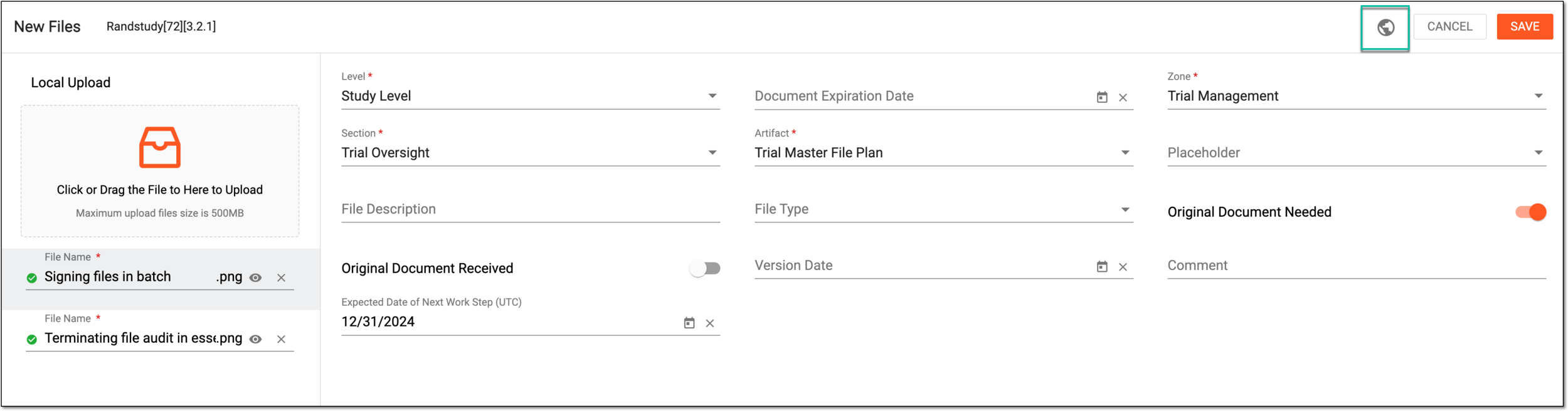 Figure 6. Accessing global setting for files added from warehouse
-
In the Global Setting dialog that appears, configure the parameters for all the files at once as explained in the following table.
Figure 7. Configuring global settings for files
Tip
In the following table, mandatory elements are marked with an asterisk (*).
Element
Details
Level*
Select the level attribute for all the uploaded files—Country Level, Study Level, or Site Level.
Country/Region Name
Select the country or region to which the files belong.
The field is only available if the file-level property is set to Site Level or Country Level. Editing this property might change the file’s level.Site Code
Select the site to which the files belong.
The field is only available if the file-level property is set to Site Level. Editing this property might change the file’s level.Document Expiration Date
Set the expiration date of the files that are to trigger an alert email if overdue.
This field can be mandatory or optiona,l depending on the mandatory properties
                                                    settings of your study.
Zone*
Select the zone level to which the files belong.
The property is autopopulated according to the artifact-level folder selected for upload. Changing the selection here affects the file upload location.Section*
Select the section level to which the files belong.
The property is autopopulated according to the artifact-level folder selected for upload. Changing the selection here affects the file upload location.Artifact*
Select the artifact level to which the files belong.
The property is autopopulated according to the artifact-level folder selected for upload. Changing the selection here affects the file upload location.File Description
Enter any auxiliary details to help the study team differentiate the uploaded files and their designation.
File Type
Select the custom file type for the files.
Upon file type selection, additional fields can appear depending on the predefined elements of the naming convention for this
                                                    file type.
For instance, the system might require the original file name, upload date, author, and such details to compose the uploaded file name.
This field can be mandatory or optional, depending on the mandatory properties
                                                    settings of your study.
Original Document Needed
Turn the toggle on or off to make the original (source) documents collection obligatory or optional, respectively, for all files.
Expected Date of Next Work Step (UTC)
Represents the expected date of the next action with the files according to the workflow associated with the folder to which you are uploading them.
The system automatically populates the expected date according to the following configurations of the associated workflow:
-
The unified study-level setting of all the workflow steps (nodes) duration upon configuring the DIA RM or custom TMF base. For such a setting, the system adds the set number of days to the current date to calculate the expected date of the next workflow step.
-
The individual workflow step (node) duration is set upon associating the workflow with the folder. For such a setting, the system adds the number of days set for each individual workflow step to the current date to calculate the expected date of the next step.
If both the study-level and the individual workflow node duration settings are applied, the individual setting for the workflow nodes has higher priority and overwrites the study-level setting.Change Reason for Expected Date*
Enter the reason for changing the expected date of the next action with the file according to the workflow associated with the folder to which you are uploading your file.
This field is only available if the value of the Expected Date of Next Work Step (UTC)
                                                    field is changed.
SAVE
Select
to implement the changes.CANCEL
Select
to dismiss changes without saving. -
-
Upon saving the configuration, your files are uploaded from the Document Warehouse storage to the selected artifact-level directory of Essential Documents.
A file is uploaded to the storage under the FILE MANAGEMENT tab if it relates to non-primary files (documents with general information about the clinical trial, general data sets, communications, and so on) or is not ready to be classified according to the DIA RM, which is required for the files under the Essential Documents storage. Thus, once the file under the FILE MANAGEMENT tab is ready for classification or revised as a primary document, it can be uploaded directly to the dedicated directory of the essential document storage.
This section explains how to upload files to the Essential Documents storage from the FILE MANAGEMENT tab of the eTMF application.
-
In the eTMF application header, select the TMF tab.
-
On the page that opens, in the left pane, select the Study List subtab.
-
In the Study List table, select the name of the study to which you want to upload the file.
Figure 1. Selecting study
-
On the page that opens, in the left pane, select the Essential Documents subtab.
Figure 2. Opening essential documents
-
On the Essential Documents page that opens, drill down to an artifact-level folder in which you want to upload the files.
Important
Under the Essential Documents subtab, you can only upload files to an artifact-level folder—the lowest level of the hierarchy where individual trial documents (artifacts) are stored.
-
From the workspace toolbar, select Upload File
> File Management Upload
.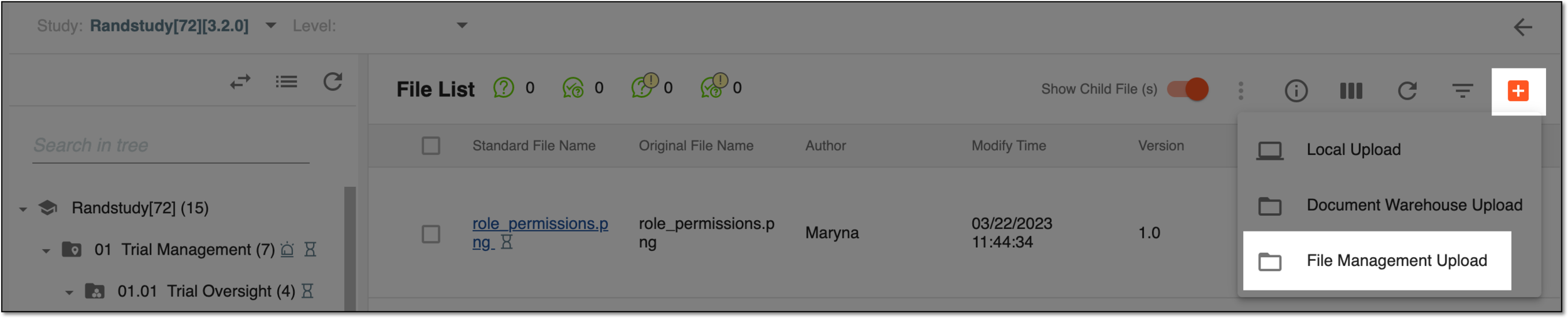 Figure 3. Accessing option to manage file uploads
-
In the File Management Upload dialog that appears, drill down the file explorer tree to locate the needed files. Select the checkboxes next to the files you want to upload and then select
.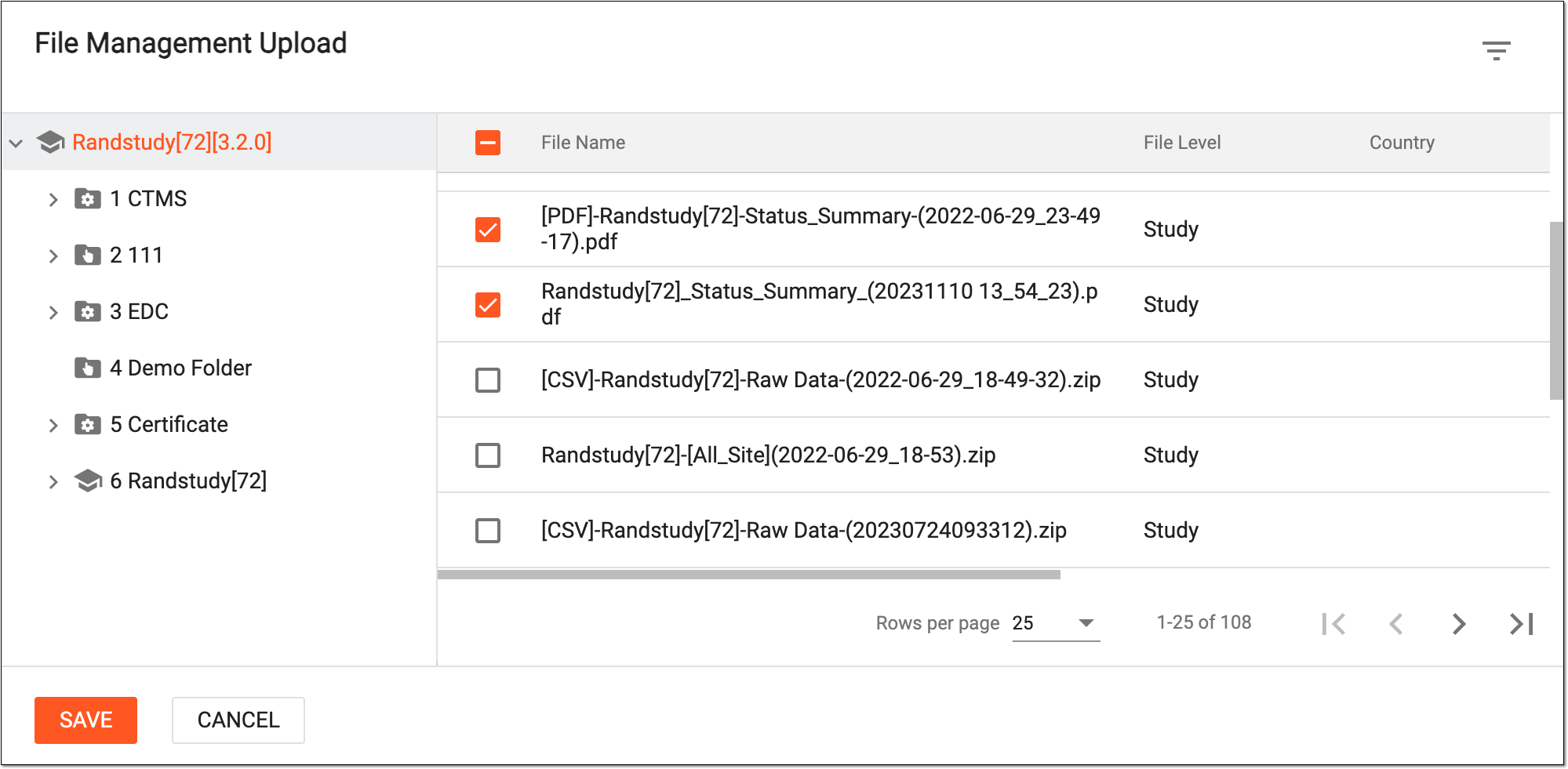 Figure 4. Selecting files for upload
-
To finalize the file upload, complete the file configurations in one of the following ways.
On the New Files panel, in the list of uploads, select each file name sequentially to open the configuration panel on the right and configure each of the files individually. Fill in the fields as explained in the following table.
Important
More fields can be available than suggested in the following instructions if the artifact to which you upload files has them preconfigured according to the applied DIA RM.
For instance, the Tracking Documents artifact can have an optional field Version Date for file configuration, or the Database Change Control artifact can have the Change Control Date field, and so on.
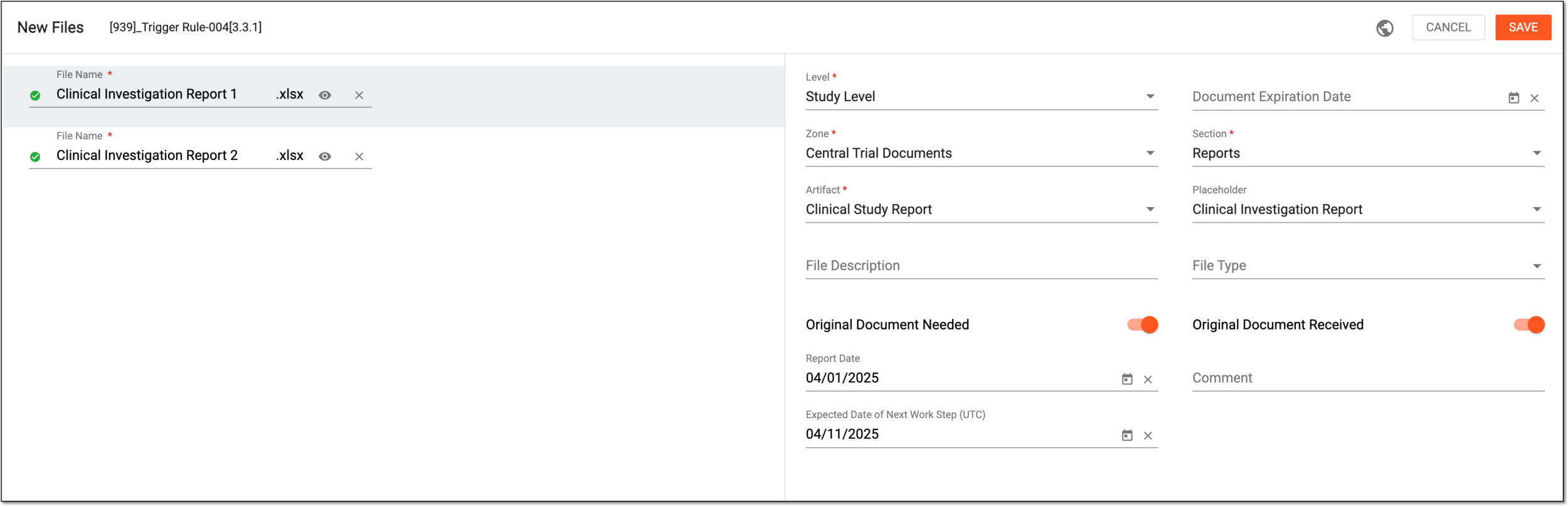 Figure 5. Configuring file added from file management
Tip
In the following table, mandatory elements are marked with an asterisk (*).
Element
Details
File Name*
Enter the name of the document.
The name of each file needs to be unique. A folder cannot have two files with identical names.Level*
Select the file level attribute: Country Level, Study Level, or Site Level.
Country/Region Name*
Select the country/region to which the file belongs. The field is only available if the file level property is set to Site Level or Country Level. Editing this property might change the file’s level.
Site Code*
Select the site to which the file belongs. The field is only available if the file level property is set to Site Level. Editing this property might change the file’s level.
Document Expiration Date
Set the expiration date of the file that triggers an alert email if overdue.
This field can be mandatory or optional depending on the mandatory properties
                                              settings of your study.
Zone*
Select the zone level to which the file belongs. The property is autopopulated according to the selected artifact-level folder and editing changes the file’s location.
Section*
Select the section level to which the file belongs. The property is autopopulated according to the selected artifact-level folder and editing changes the file’s location.
Artifact*
Select the artifact level to which the file belongs. The property is autopopulated according to the selected artifact-level folder and editing changes the file’s location.
Placeholder
Select the placeholder with which you want to associate the file.
This field can be mandatory or optional depending on the mandatory properties
                                              settings of your study.
File Description
Enter any auxiliary details to help the study team differentiate the uploaded files and their designation.
File Type
Select the custom file type of the file.
Upon file type selection, additional fields can appear depending on the predefined elements of the naming convention for this file
                                              type.
For instance, the system might require the original file name, upload date, author, and such details to compose the uploaded file name.
This field can be mandatory or optional depending on the mandatory properties
                                              settings of your study.
Original Document Needed
Turn the toggle on or off to make the original (source) document collection obligatory or optional, respectively.
Original Document Received
Turn the toggle on or off to specify whether the original (source) document is already collected. The field is only available if the Original Document Needed toggle is turned on.
Comment
Enter a comment to provide any useful information about the uploaded file. This comment is available for the reviewer upon the file audit.
Expected Date of Next Work Step (UTC)
Represents the expected date of the next action with the file according to the workflow associated with the folder to which you are uploading your file.
The system automatically populates the expected date according to the following configurations of the associated workflow:
-
The unified study-level setting of all the workflow steps (nodes) duration upon configuring the DIA RM or custom TMF base. For such a setting, the system adds the set number of days to the current date to calculate the expected date of the next workflow step.
-
The individual workflow step (node) duration setting upon associating the workflow to the folder. For such a setting, the system adds the number of days set for each individual workflow step to the current date to calculate the expected date of the next step.
If both the study-level and the individual workflow node duration settings are applied, the individual setting for the workflow nodes has higher priority and overwrites the study-level setting.Change Reason for Expected Date*
Enter the reason for changing the expected date of the next action with the file according to the workflow associated with the folder to which you are uploading your file.
This field is only available if the value of the Expected Date of Next Work Step (UTC) field is
                                              changed.
SAVE
Select
to implement the changes.CANCEL
Select
to dismiss changes without saving.-
From the workspace toolbar, select Global Setting
.Figure 6. Accessing global setting for files added from file management
-
In the Global Setting dialog that appears, configure the parameters for all the files at once as explained in the following table.
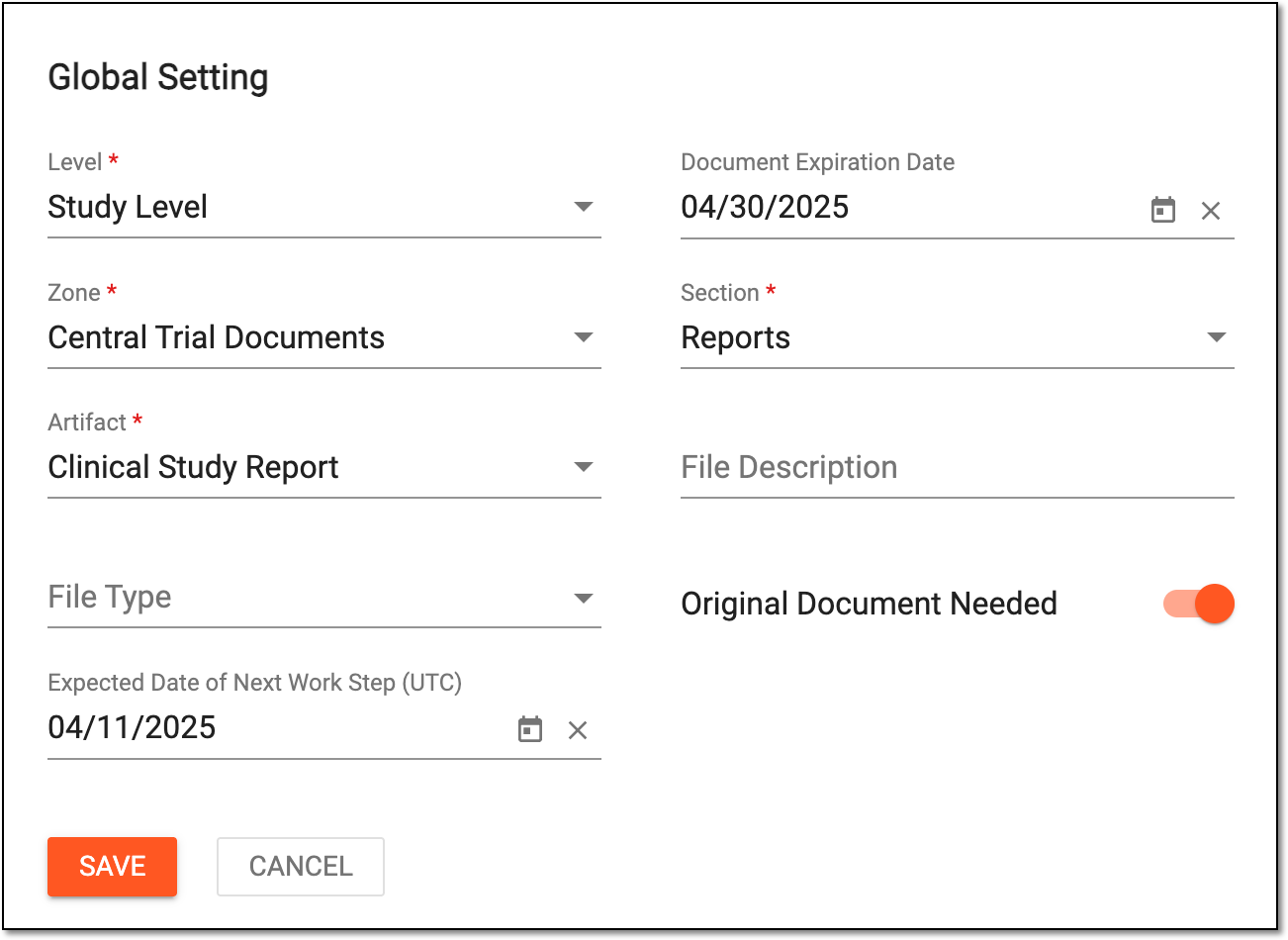 Figure 7. Configuring global settings for files added from file management
Tip
In the following table, mandatory elements are marked with an asterisk (*).
Element
Details
Level*
Select the level attribute for all the uploaded files—Country Level, Study Level, or Site Level.
Country/Region Name*
Select the country or region to which the files belong.
The field is only available if the file level property is set to Site Level or Country Level. Editing this property might change the file’s level.Site Code*
Select the site to which the files belong.
The field is only available if the file level property is set to Site Level. Editing this property might change the file’s level.Document Expiration Date
Set the expiration date of the files that is to trigger an alert email if overdue.
This field can be mandatory or optional depending on the mandatory properties
                                                    settings of your study.
Zone*
Select the zone level to which the files belong.
The property is autopopulated according to the artifact-level folder selected for upload. Changing the selection here affects the file upload location.Section*
Select the section level to which the files belong.
The property is autopopulated according to the artifact-level folder selected for upload. Changing the selection here affects the file upload location.Artifact*
Select the artifact level to which the files belong.
The property is autopopulated according to the artifact-level folder selected for upload. Changing the selection here affects the file upload location.File Description
Enter any auxiliary details to help the study team differentiate the uploaded files and their designation.
File Type
Select the custom file type of the files.
Upon file type selection, additional fields can appear depending on the predefined elements of the naming convention for this
                                                    file type.
For instance, the system might require the original file name, upload date, author, and such details to compose the uploaded file name.
This field can be mandatory or optional depending on the mandatory properties
                                                    settings of your study.
Original Document Needed
Turn the toggle on or off to make the original (source) documents collection obligatory or optional, respectively for all files.
Expected Date of Next Work Step (UTC)
Represents the expected date of the next action with the files according to the workflow associated with the folder to which you are uploading them.
The system automatically populates the expected date according to the following configurations of the associated workflow:
-
The unified study-level setting of all the workflow steps (nodes) duration upon configuring the DIA RM or custom TMF base. For such a setting, the system adds the set number of days to the current date to calculate the expected date of the next workflow step.
-
The individual workflow step (node) duration setting upon associating the workflow to the folder. For such a setting, the system adds the number of days set for each individual workflow step to the current date to calculate the expected date of the next step.
If both the study-level and the individual workflow node duration settings are applied, the individual setting for the workflow nodes has higher priority and overwrites the study-level setting.Change Reason for Expected Date*
Enter the reason for changing the expected date of the next action with the file according to the workflow associated with the folder to which you are uploading your file.
This field is only available if the value of the Expected Date of Next Work Step (UTC)
                                                    field is changed.
SAVE
Select
to implement the changes.CANCEL
Select
to dismiss changes without saving. -
-
Upon saving the configuration, your files are uploaded from the FILE MANAGEMENT storage to the selected artifact-level directory of Essential Documents.
In eTMF, there is a functionality of automatic file extraction from the email server, where all the files sent by your study participants and executors to specific email addresses are automatically saved in the Files Uploaded by Emails module of eTMF. The files retrieved from the email server are autoprocessed by the system, analyzing their names and contents and then, based on this analysis, transferred to their intended Essential Documents directories.
Tip
The system can detect errors in the retrieved file names and trigger a respective notification letter to the email sender. For instance, if the naming convention requires the study name to be present in the file name, and the system retrieves the file that does not follow this convention, the sender of the email from which the file is retrieved will receive the letter with the respective notification.
Some files cannot be autoprocessed and require manual transfer. This can be achieved either by transferring files from the Files Uploaded by Emails report page or by pulling the files directly to the intended artifact-level folder on the Essential Documents side. This section explains how to do the latter.
-
In the eTMF application header, select the TMF tab.
-
On the page that opens, in the left pane, select the Study List subtab.
-
In the Study List table, select the name of the study to which you want to upload the file.
Figure 1. Selecting study
-
On the page that opens, in the left pane, select the Essential Documents subtab.
Figure 2. Opening essential documents
-
On the Essential Documents page that opens, drill down to an artifact-level folder in which you want to upload the files.
Important
Under the Essential Documents subtab, you can only upload files to an artifact-level folder—the lowest level of the hierarchy where individual trial documents (artifacts) are stored.
-
From the workspace toolbar, select Upload File
> Uploaded by Email
 .
.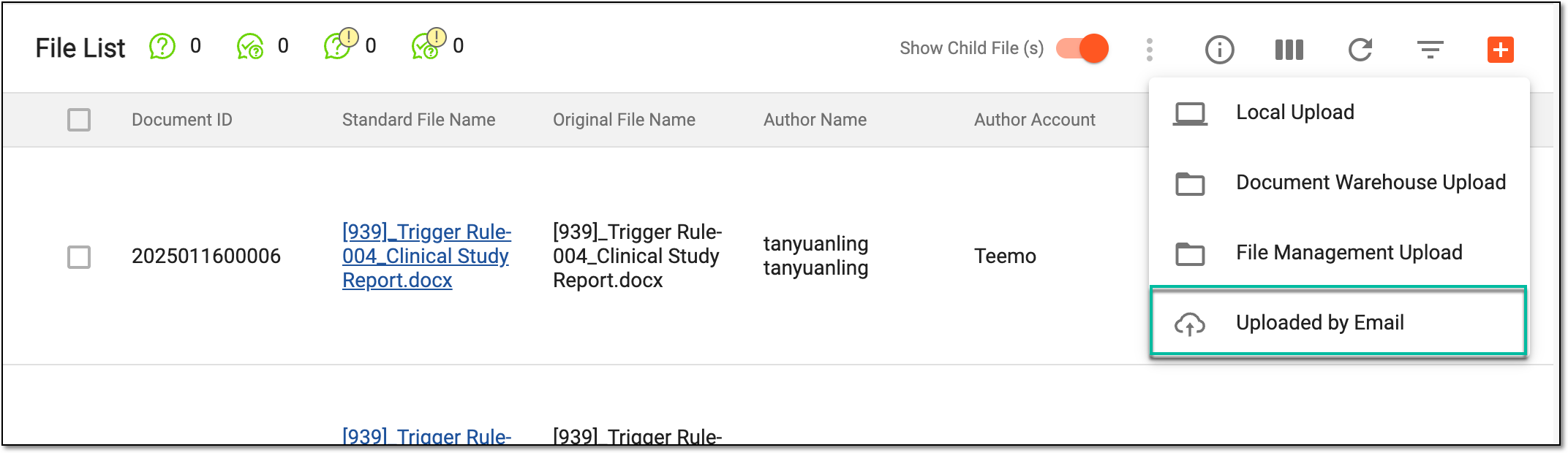 Figure 3. Selecting to upload files extracted from emails
-
In the Uploaded by Email dialog that appears, select the checkboxes next to the unreviewed files that you want to extract from Files Uploaded by Emails and upload to the selected directory of Essential Documents. Then select
.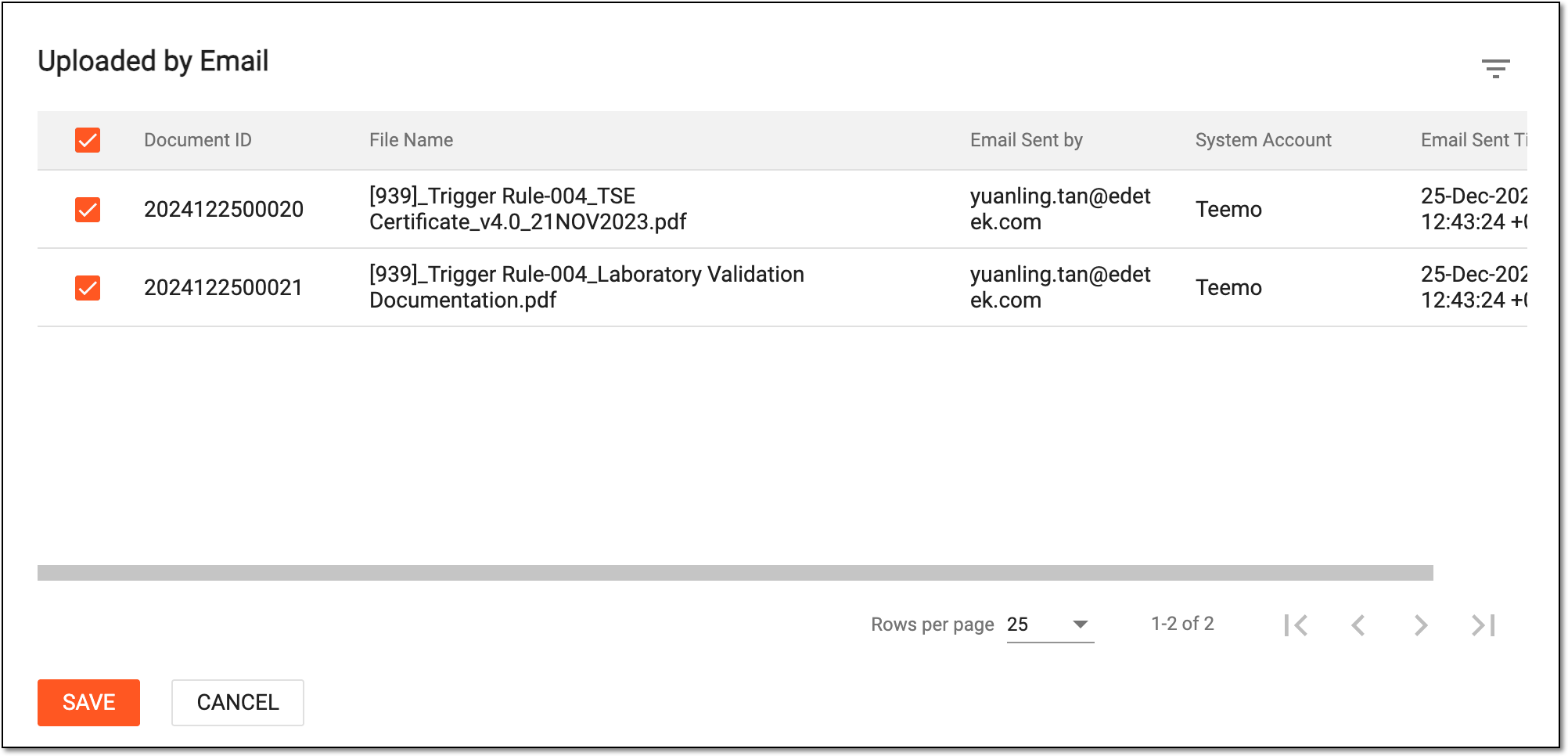 Figure 4. Selecting unreviewed files to upload
-
To finalize the file upload, complete the file configurations in one of the following ways.
On the New Files panel, in the list of uploads, select each file name sequentially to open the configuration panel on the right and configure each of the files individually. Fill in the fields as explained in the following table.
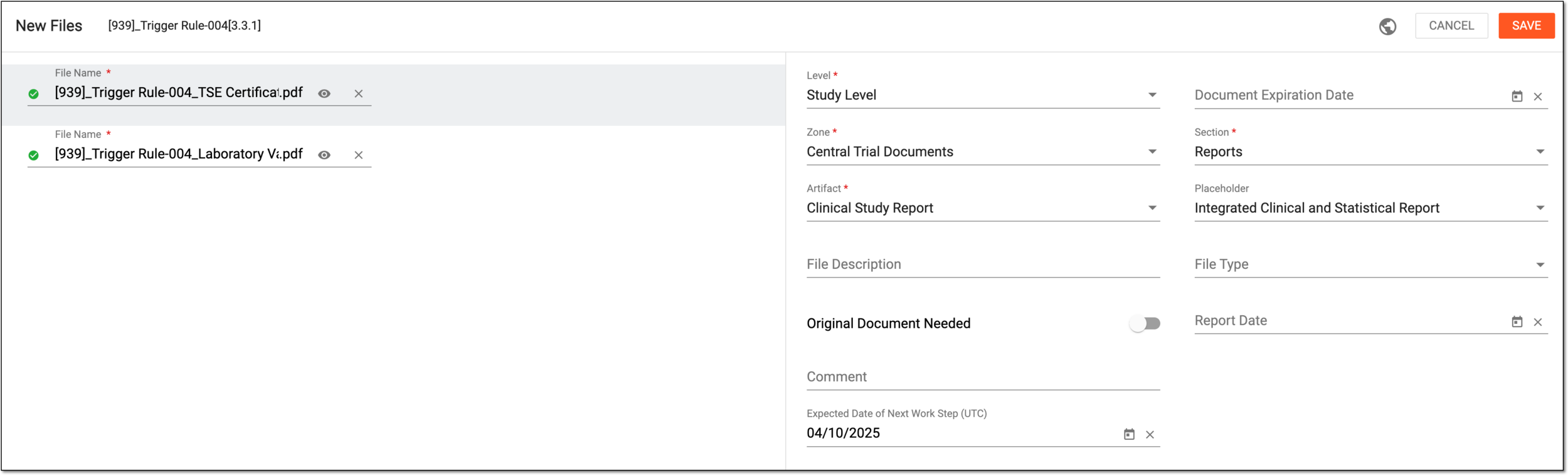 Figure 5. Configuring unreviewed file details
Tip
In the following table, mandatory elements are marked with an asterisk (*).
Element
Details
File Name*
Enter the unique name of the document.
Level*
Select the file level attribute: Country Level, Study Level, or Site Level.
Country/Region Name*
Select the country or region to which the file belongs.
The field is only available if the file level property is set to Site Level or Country Level. Editing this property might change the file’s level.Site Code*
Select the site to which the file belongs.
The field is only available if the file level property is set to Site Level. Editing this property might change the file’s level.Document Expiration Date
Set the expiration date of the file that triggers an alert email if overdue.
This field can be mandatory or optional depending on the mandatory properties
                                              settings of your study.
Zone*
Select the zone level to which the file belongs. The property is autopopulated according to the selected artifact-level folder and editing changes the file’s location.
Section*
Select the section level to which the file belongs. The property is autopopulated according to the selected artifact-level folder and editing changes the file’s location.
Artifact*
Select the artifact level to which the file belongs. The property is autopopulated according to the selected artifact-level folder and editing changes the file’s location.
Placeholder
Select the placeholder with which you want to associate the file.
This field can be mandatory or optional depending on the mandatory properties
                                              settings of your study.
File Description
Enter any auxiliary details to help the study team differentiate the uploaded files and their designation.
File Type
Select the custom file type of the file.
Upon file type selection, additional fields can appear depending on the predefined elements of the naming convention for this file
                                              type.
For instance, the system might require the original file name, upload date, author, and such details to compose the uploaded file name.
This field can be mandatory or optional depending on the mandatory properties
                                              settings of your study.
Original Document Needed
Turn the toggle on or off to make the original (source) document collection obligatory or optional, respectively.
Original Document Received
Turn the toggle on or off to specify whether the original (source) document is already collected.
The field is only available if the Original Document Needed toggle is turned
                                              on.
Comment
Enter a comment to provide any useful information about the uploaded file. This comment is available for the reviewer upon the file audit.
Expected Date of Next Work Step (UTC)
Represents the expected date of the next action with the file according to the workflow associated with the folder to which you are uploading your file.
The system automatically populates the expected date according to the following configurations of the associated workflow:
-
The unified study-level setting of all the workflow steps (nodes) duration upon configuring the DIA RM or custom TMF base. For such a setting, the system adds the set number of days to the current date to calculate the expected date of the next workflow step.
-
The individual workflow step (node) duration setting upon associating the workflow to the folder. For such a setting, the system adds the number of days set for each individual workflow step to the current date to calculate the expected date of the next step.
If both the study-level and the individual workflow node duration settings are applied, the individual setting for the workflow nodes has higher priority and overwrites the study-level setting.Change Reason for Expected Date*
Enter the reason for changing the expected date of the next action with the file according to the workflow associated with the folder to which you are uploading your file.
This field is only available if the value of the Expected Date of Next Work Step (UTC) field is
                                              changed.
SAVE
Select
to implement the changes.CANCEL
Select
to dismiss changes without saving.Important
More fields can be available than suggested in the following instructions if the artifact to which you upload files has them preconfigured according to the applied DIA RM.
For instance, the Tracking Documents artifact can have an optional field Version Date for file configuration, or the Database Change Control artifact can have the Change Control Date field, and so on.
-
From the workspace toolbar, select Global Setting
.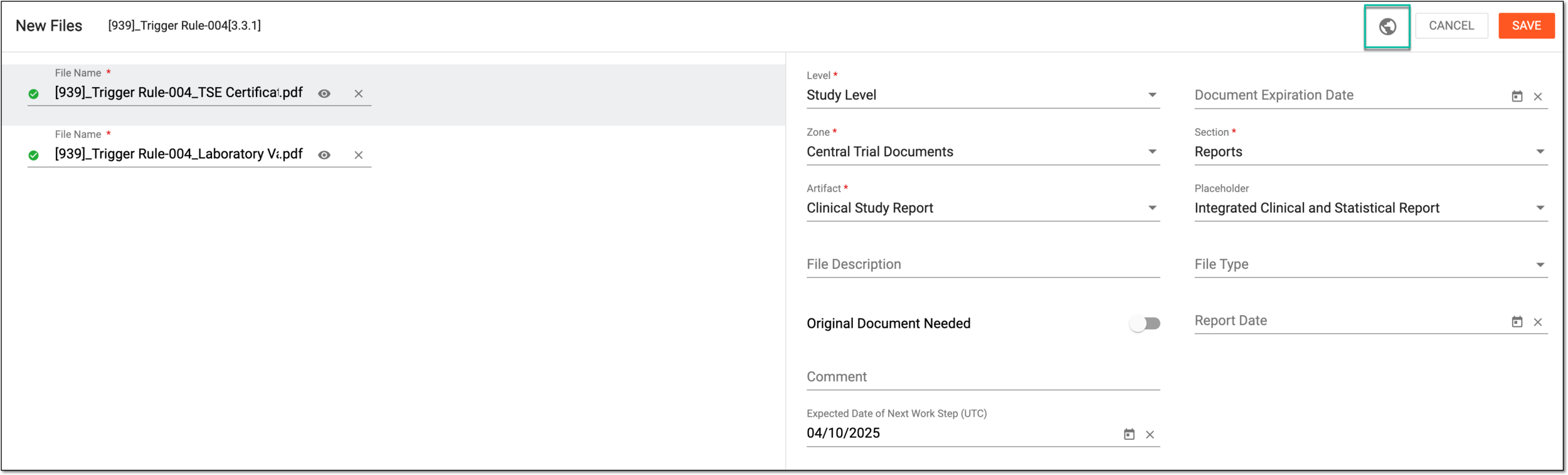 Figure 6. Accessing global setting for unreviewed files
-
In the Global Setting dialog that appears, configure the parameters for all the files at once as explained in the following table.
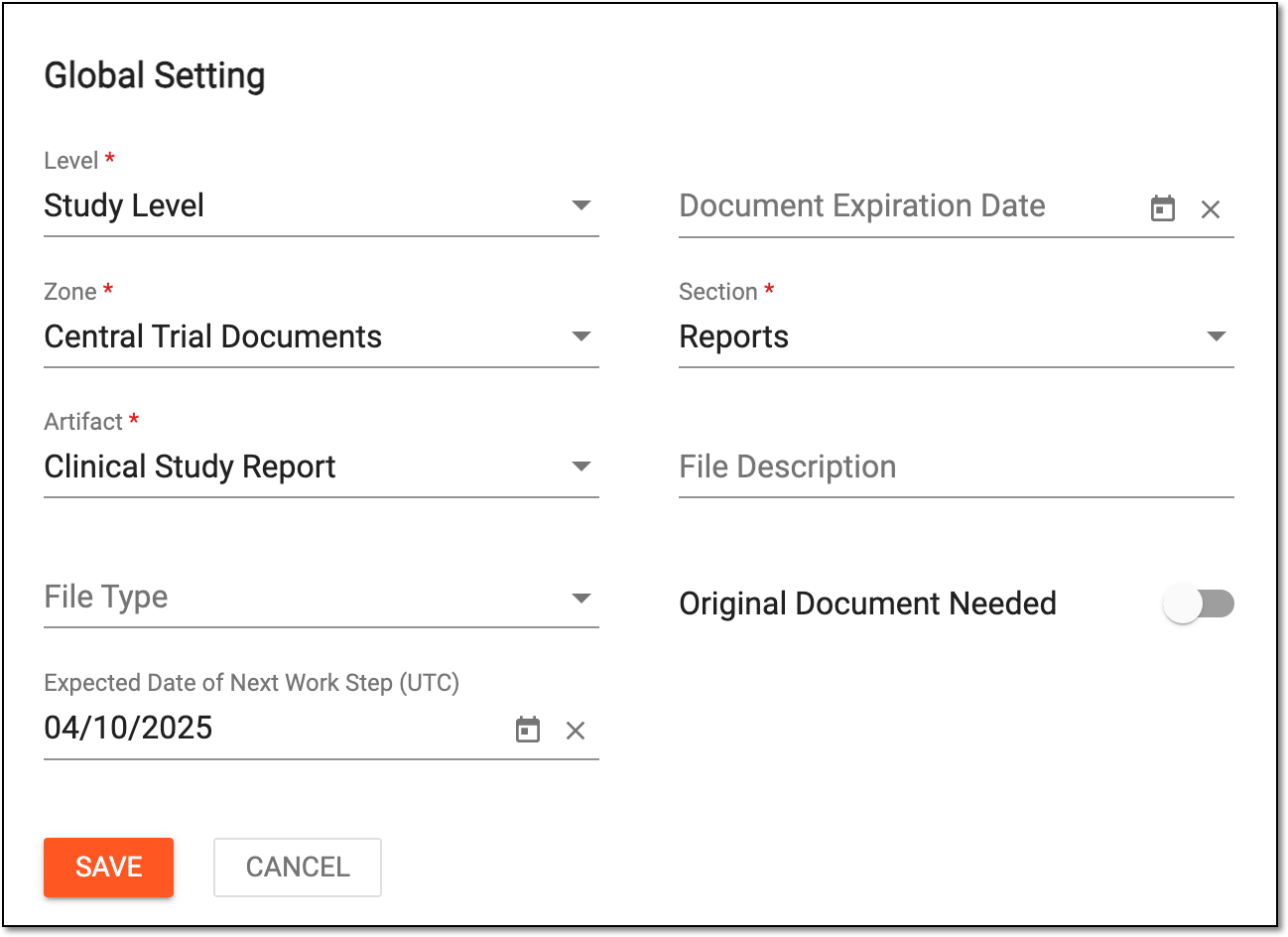 Figure 7. Configuring global settings for unreviewed files
Tip
In the following table, mandatory elements are marked with an asterisk (*).
Element
Details
Level*
Select the level attribute for all the uploaded files—Country Level, Study Level, or Site Level.
Country/Region Name
Select the country or region to which the files belong.
The field is only available if the file level property is set to Site Level or Country Level. Editing this property might change the file’s level.Site Code
Select the site to which the files belong.
The field is only available if the file level property is set to Site Level. Editing this property might change the file’s level.Document Expiration Date
Set the expiration date of the files that is to trigger an alert email if overdue.
This field can be mandatory or optional depending on the mandatory properties
                                                    settings of your study.
Zone*
Select the zone level to which the files belong.
The property is autopopulated according to the artifact-level folder selected for upload. Changing the selection here affects the file upload location.Section*
Select the section level to which the files belong.
The property is autopopulated according to the artifact-level folder selected for upload. Changing the selection here affects the file upload location.Artifact*
Select the artifact level to which the files belong.
The property is autopopulated according to the artifact-level folder selected for upload. Changing the selection here affects the file upload location.File Description
Enter any auxiliary details to help the study team differentiate the uploaded files and their designation.
File Type
Select the custom file type of the files.
Upon file type selection, additional fields can appear depending on the predefined elements of the naming convention for this
                                                    file type.
For instance, the system might require the original file name, upload date, author, and such details to compose the uploaded file name.
This field can be mandatory or optional depending on the mandatory properties
                                                    settings of your study.
Original Document Needed
Turn the toggle on or off to make the original (source) documents collection obligatory or optional, respectively for all files.
Expected Date of Next Work Step (UTC)
Represents the expected date of the next action with the files according to the workflow associated with the folder to which you are uploading them.
The system automatically populates the expected date according to the following configurations of the associated workflow:
-
The unified study-level setting of all the workflow steps (nodes) duration upon configuring the DIA RM or custom TMF base. For such a setting, the system adds the set number of days to the current date to calculate the expected date of the next workflow step.
-
The individual workflow step (node) duration setting upon associating the workflow to the folder. For such a setting, the system adds the number of days set for each individual workflow step to the current date to calculate the expected date of the next step.
If both the study-level and the individual workflow node duration settings are applied, the individual setting for the workflow nodes has higher priority and overwrites the study-level setting.Change Reason for Expected Date*
Enter the reason for changing the expected date of the next action with the file according to the workflow associated with the folder to which you are uploading your file.
This field is only available if the value of the Expected Date of Next Work Step (UTC)
                                                    field is changed.
SAVE
Select
to implement the changes.CANCEL
Select
to dismiss changes without saving. -
-
Upon saving the configuration, your files are uploaded from the Files Uploaded by Emails module to the selected artifact-level directory of Essential Documents.
In eTMF, from the Lifecycle panel, you can find the file version that has been deleted as a result of appending or replacing actions and upload this version back to its file group.
For example, you have had the appended file version 1.1 that got deleted and needs to be restored. If you upload it back to the system from the Lifecycle panel, then it appears again in the respective file group and obtains its version number—1.1.
-
In the eTMF application header, select the TMF tab.
-
In the Study List table that appears, select the study name to which the file of your interest belongs.
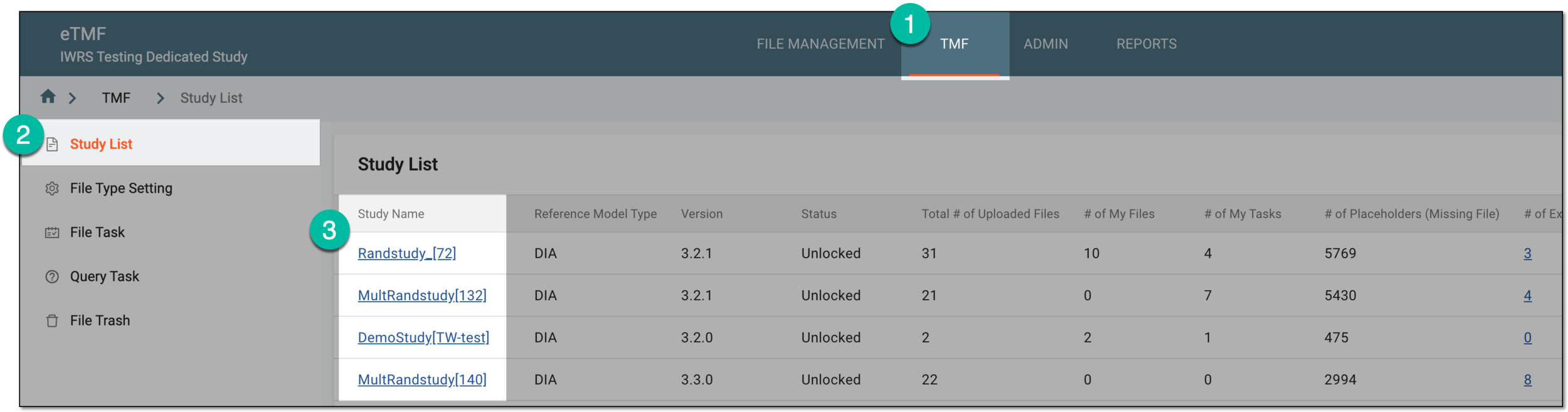 Figure 1. Accessing study under TMF tab
-
On the page that opens, from the left pane, select Essential Documents.
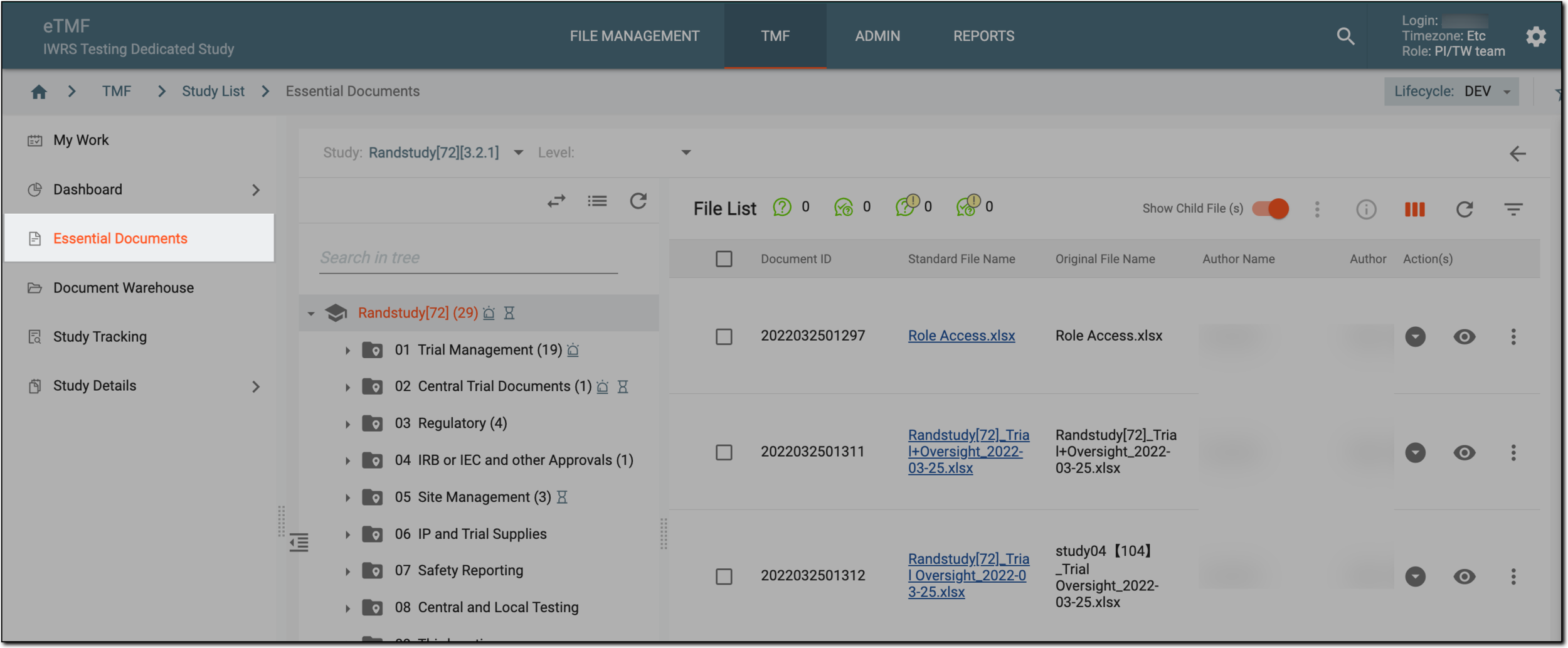 Figure 2. Selecting Essential Documents under TMF
-
In the File List table that appears, go to the file of your interest.
-
In the Actions column next to the file, select Lifecycle
 . Then in the
Lifecycle panel that opens, select Reupload
. Then in the
Lifecycle panel that opens, select Reupload  next to the file version of
your interest.
next to the file version of
your interest.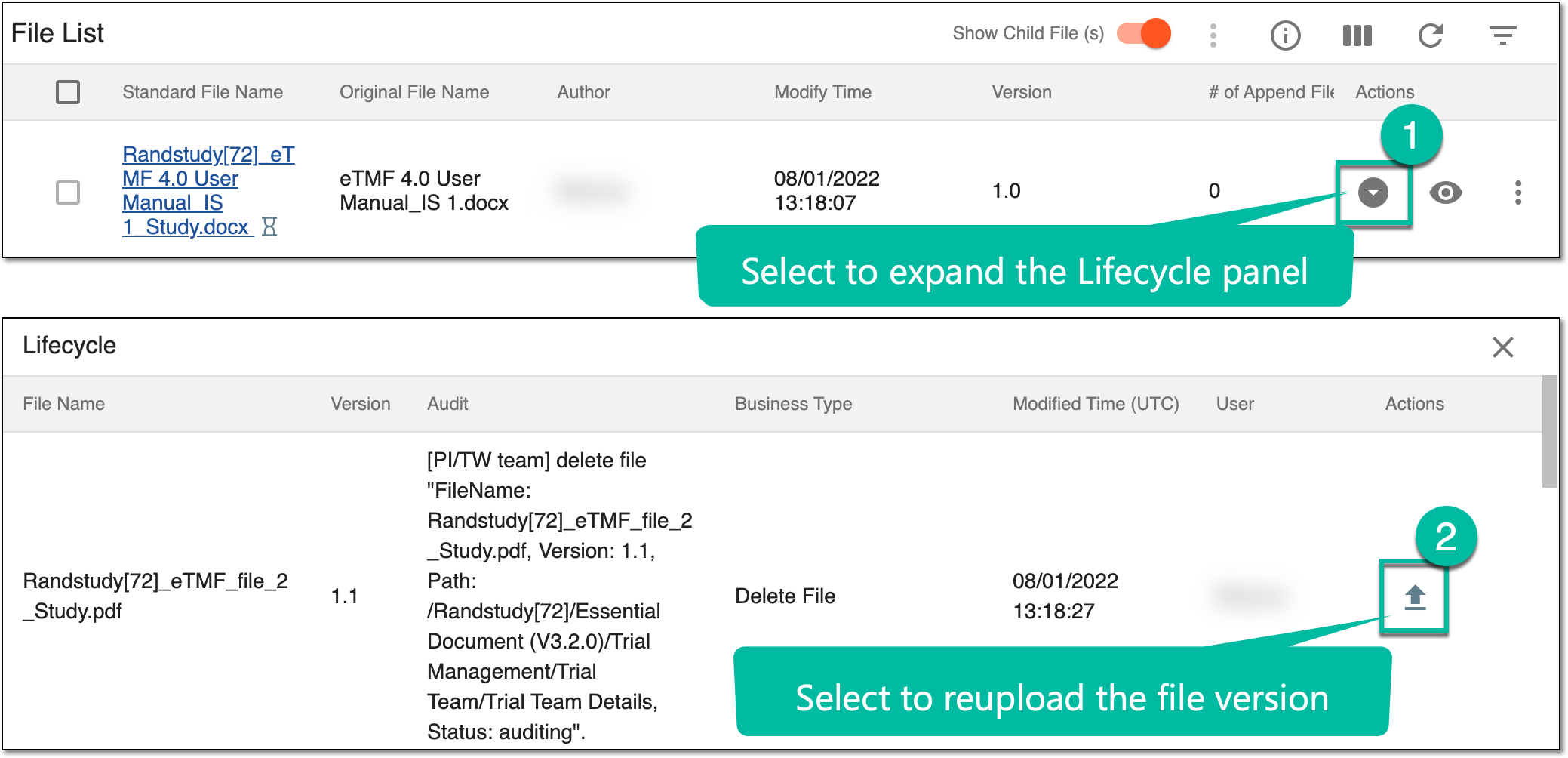 Figure 3. Reuploading file version from lifecycle panel
Important
There can be only one file of each version number in a file group. So if there is an existing version 1.1, you cannot upload this version and Reupload
next to this file version disappears from the Lifecycle panel. -
In the Reupload File panel that opens, select the Upload area and select the file or drag the file to the Upload area to submit the file. Once done, the file appears right below the Upload area.
-
Select
to save changes.
Upon upload, the file version is restored within its file group and obtains the version number it had before deletion.
A model for organizations from DIA that helps the organizations to effectively compile the minimum list of essential documents to ensure the compliance of the investigator, sponsor, and monitor with the industry standards of good clinical practice (GCP) and with the regulatory requirements.
A schema, each step of which represents a stage of a specific entity lifecycle in the system.
A workflow can be considered an instrument to help control various actions on system entities for the sake of accountability, as it limits the actions that can be performed on the entity associated with a workflow. This provides an additional tier of scrutiny, and the approval/rejection mechanism reduces the risk of unintended impact on sensitive resources and important information.
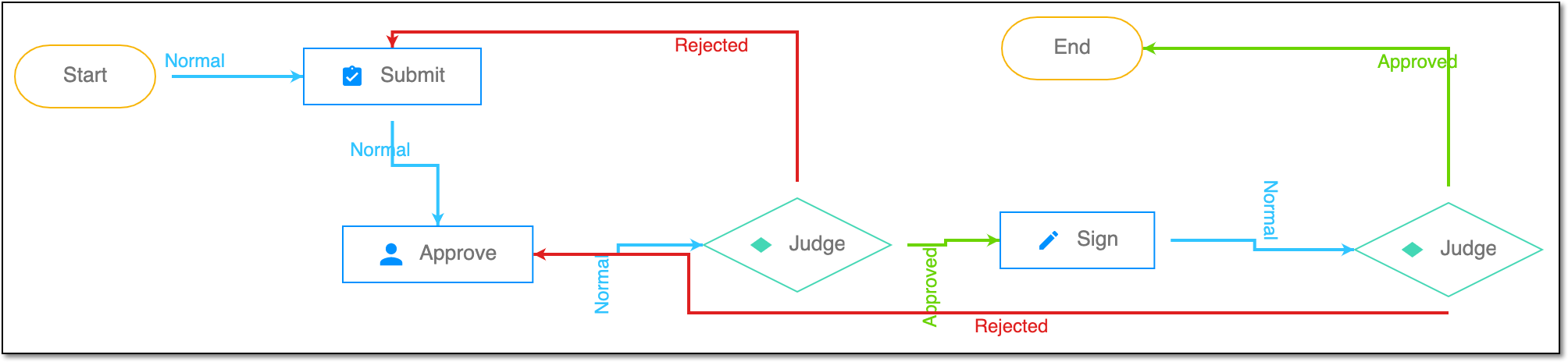 |
For instance, in eTMF, the workflow dictates the procedure of file and folder management from the moment of upload to the approval stage; in CTMS, the workflow controls the process of creation, completion, and approval of a trip report; in EDC, the workflow covers the process of source document handling.
In a clinical trial, a location where the subject treatment and drug dispensation occur. It can be a hospital, a private laboratory, or other institutions.