File management
The eTMF application is a storage repository and management center for clinical trial files.
The FILE MANAGEMENT page opens upon signing in to eTMF and has the standard eTMF application UI structure. The files, which are available in FILE MANAGEMENT, are uploaded in all clinical systems, support custom folder hierarchies, and thus, do not need to be consistent with the DIA TMF reference model.
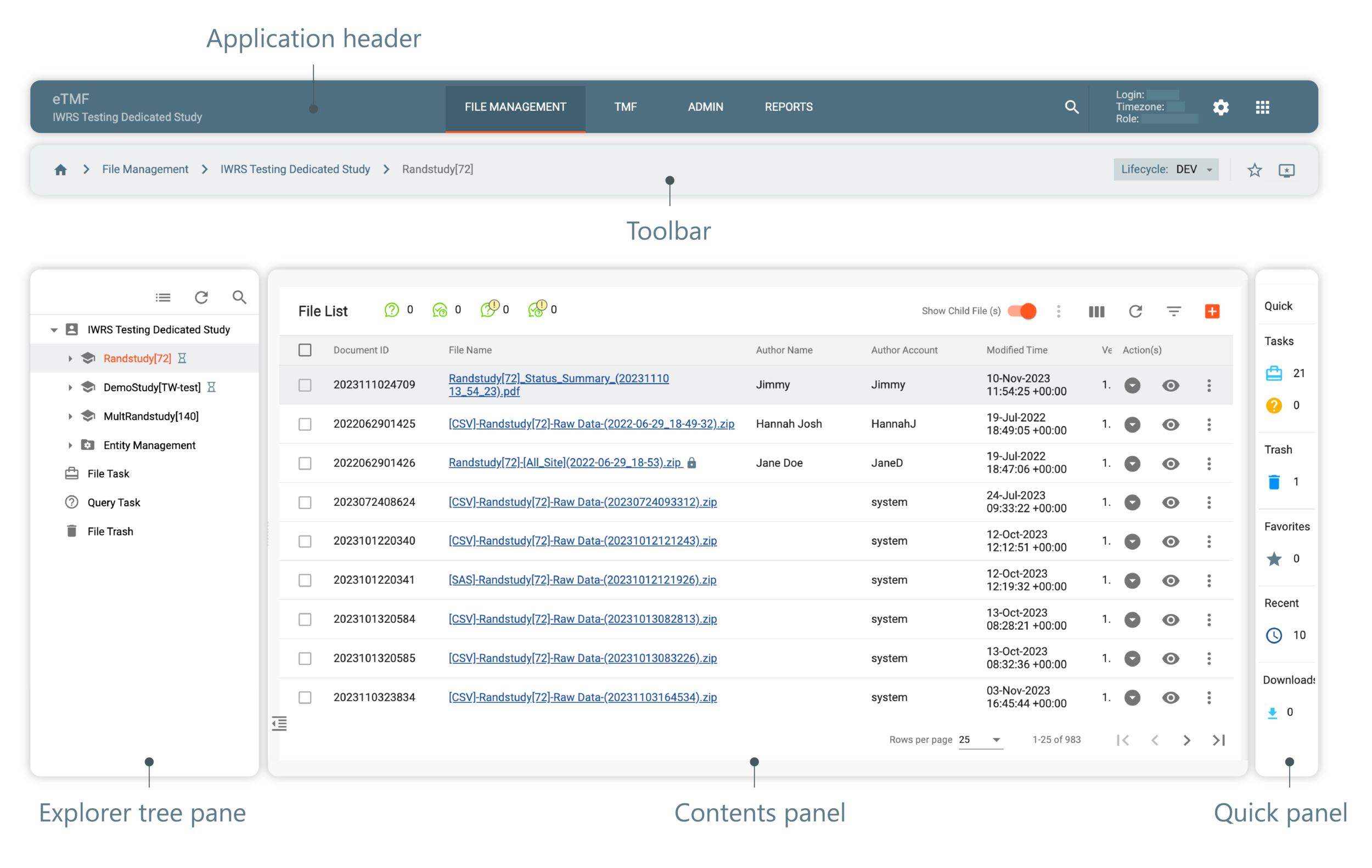
In the explorer tree pane, you can select a study and a directory to view the files. Once you have selected the study, related files are displayed in the File List table. To view the files of a specific directory, select it in the explorer tree.
From the FILE MANAGEMENT page, you can work with files or folders on different occasions and levels:
-
Study level: at this level, you can arrange all the folders and files study-wide, by creating these folders and files, copying and moving them, and even locking or unlocking the study with all the content it preserves, and many more.
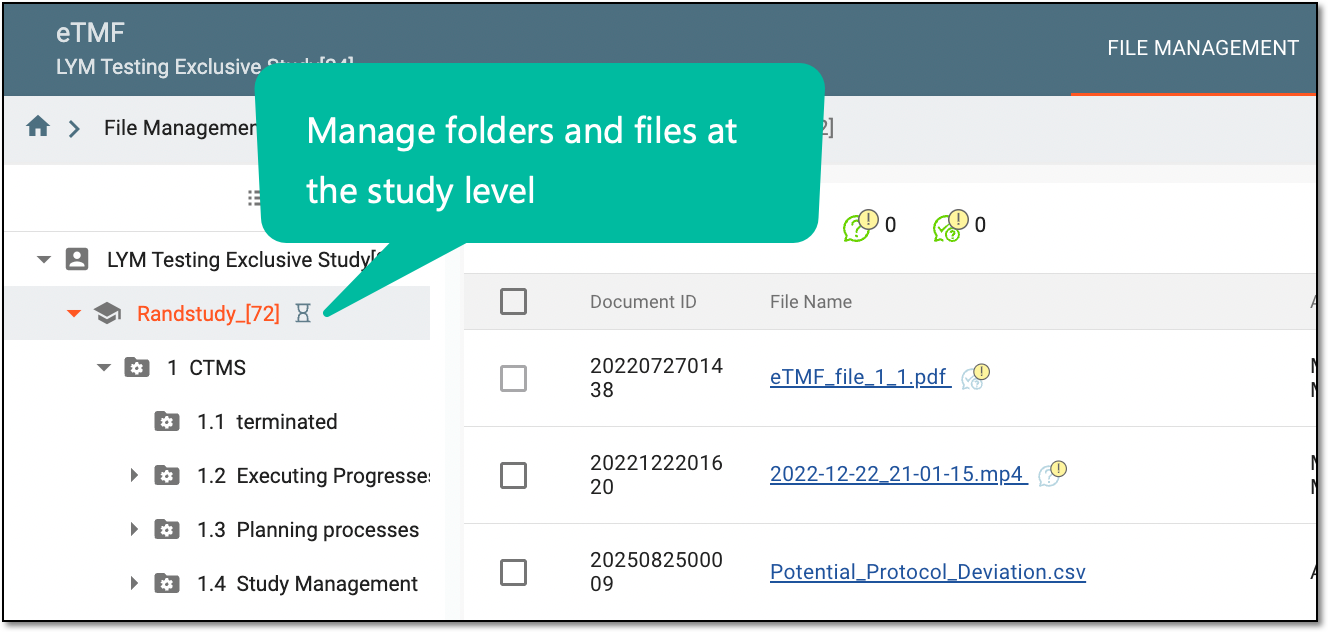 Figure 2. Study-level management
-
Folder level: at this level, you can create folders in various ways, download, and export them. Additionally, you can import the template and edit the folder.
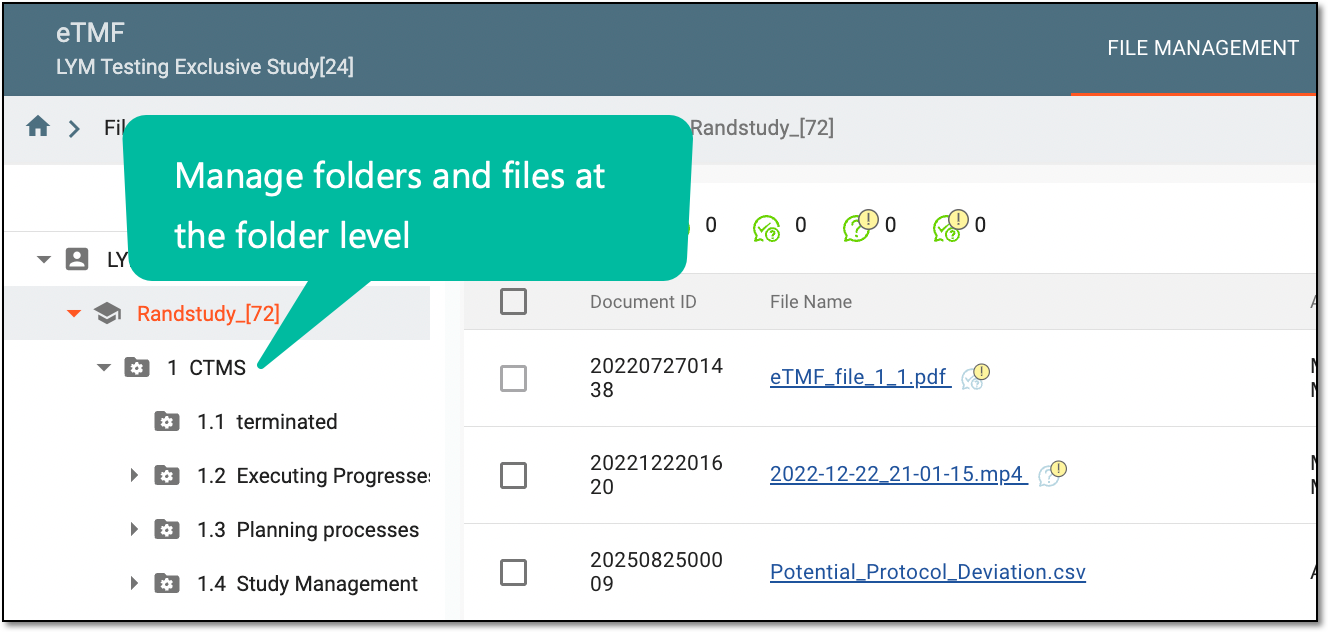 Figure 3. Folder-level management
-
File level: at this level, you can view and preview, edit, lock, and unlock, check in and check out files, and much more.
 Figure 4. File-level management