Folder-level management of files and folders
The eTMF application is a storage repository and management center for clinical trial files.
At the folder level, you can manage folders and files, which belong to a particular study, in various ways: edit, lock, unlock, move, download, and export folders, create folders and files inside the folder, and copy the folders and files.
Under the FILE MANAGEMENT tab, you can manually create a custom directory to logically arrange certain artifacts.
Important
You cannot create a new folder if its parent folder is locked. You need to unlock the folder first.
-
In the eTMF application header, select the FILE MANAGEMENT tab.
-
In the left explorer pane, locate the target folder and right-click it. In the menu that opens, select New Folder
 .
.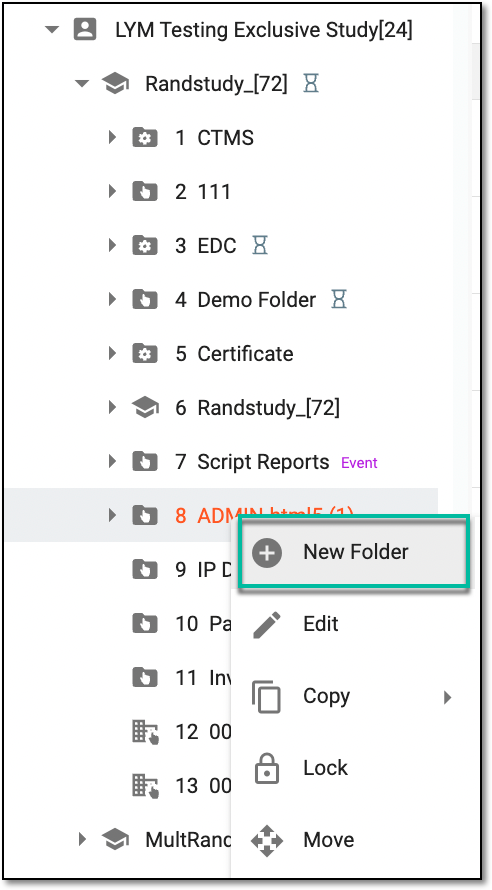 Figure 1. Accessing option to create custom folder at folder level
-
In the New Folder dialog that appears, select the folder type—Common or Site—as follows.
-
Select
 to save changes.


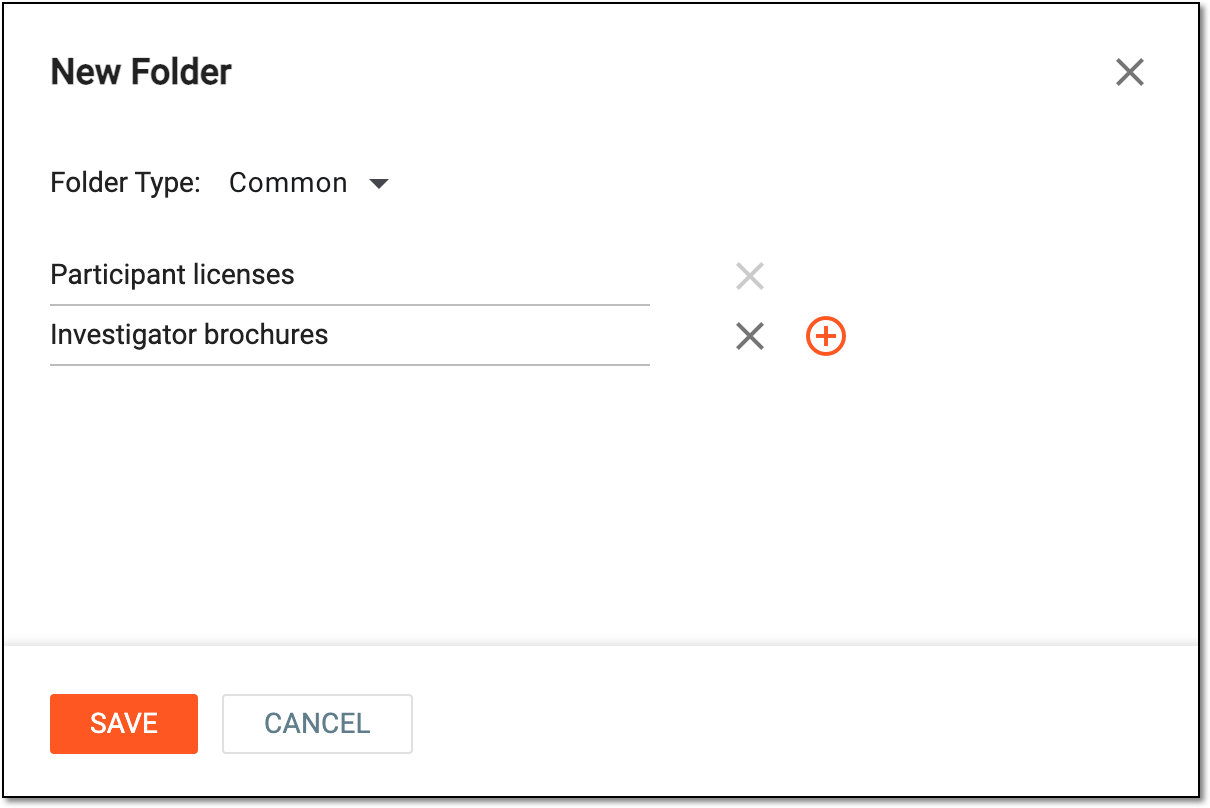
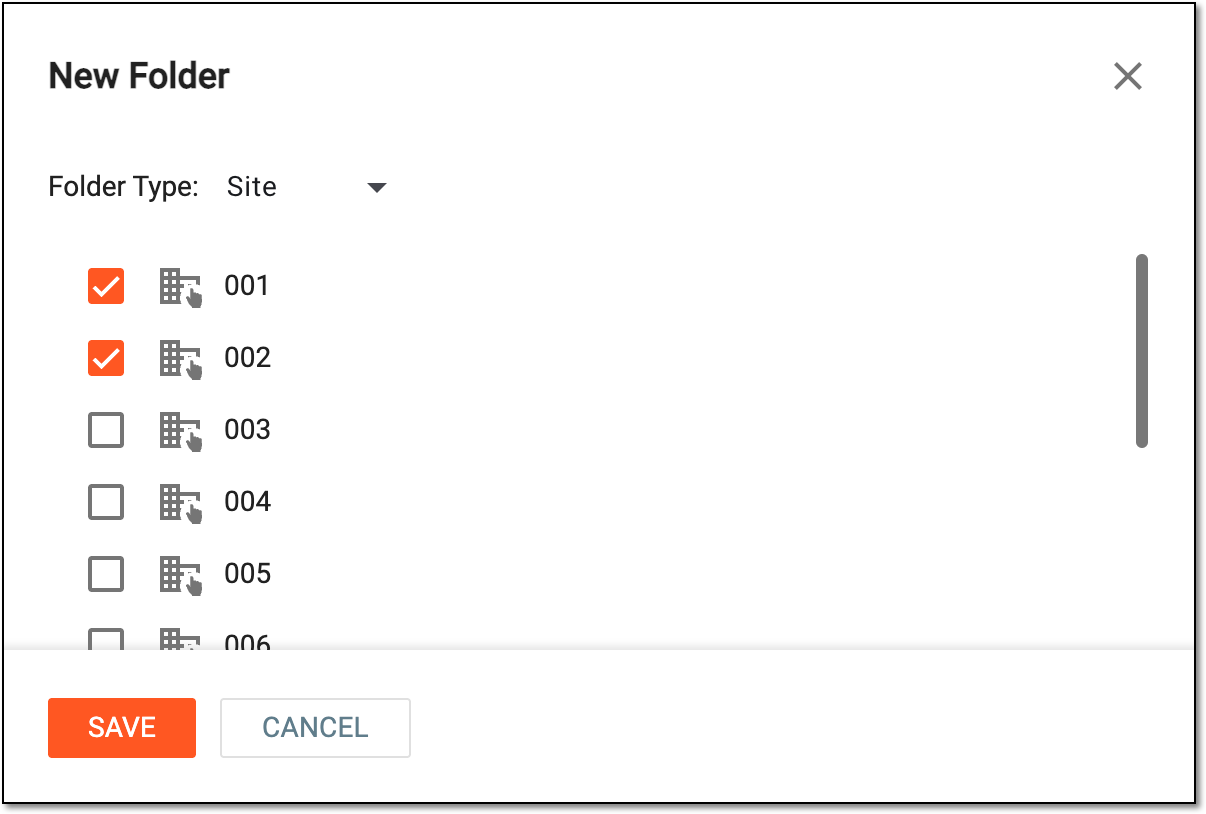
Upon saving, a new folder of either type is created and appears in the selected directory.
In eTMF, under the FILE MANAGEMENT tab, the manually-created directories (folders) can be a data source for other applications, such as CTMS, EDC, and IWRS. The system processes files uploaded to these directories and generates specific reports in other applications. This might become helpful if you want to extract the data from an eClinical application and upload it into eTMF for review, analysis, or other purposes.
An example of such interaction can be the script-generated reports of CTMS. Once the directory is configured in eTMF, and the respective script is configured on the CTMS side, the system starts running the script every time the files are uploaded to the eTMF directory and generates reports based on the extracted data in CTMS.
To make the directory accessible for other applications, you need to configure the event setting for it.
-
In the eTMF application header, select the FILE MANAGEMENT tab.
-
On the page that opens, in the explorer tree pane, select the directory for which you want to configure the event setting.
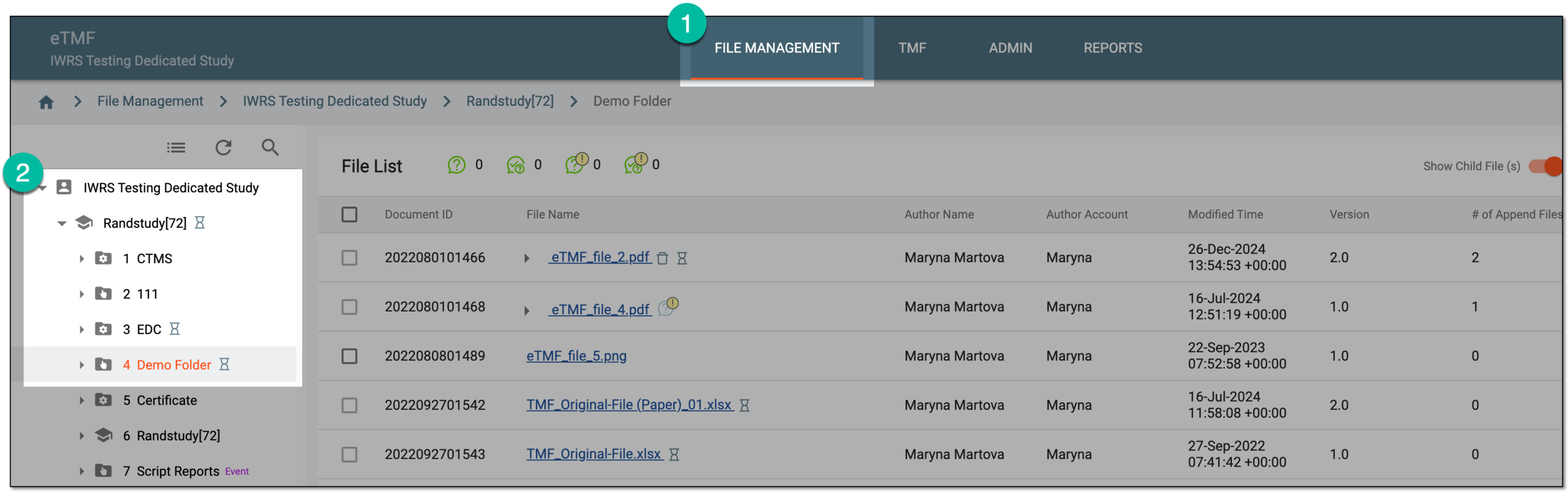 Figure 1. Accessing file management directory
Tip
If needed, you can create a custom folder from scratch.
-
Right-click the directory and from the menu that appears, select Event Setting
 .
.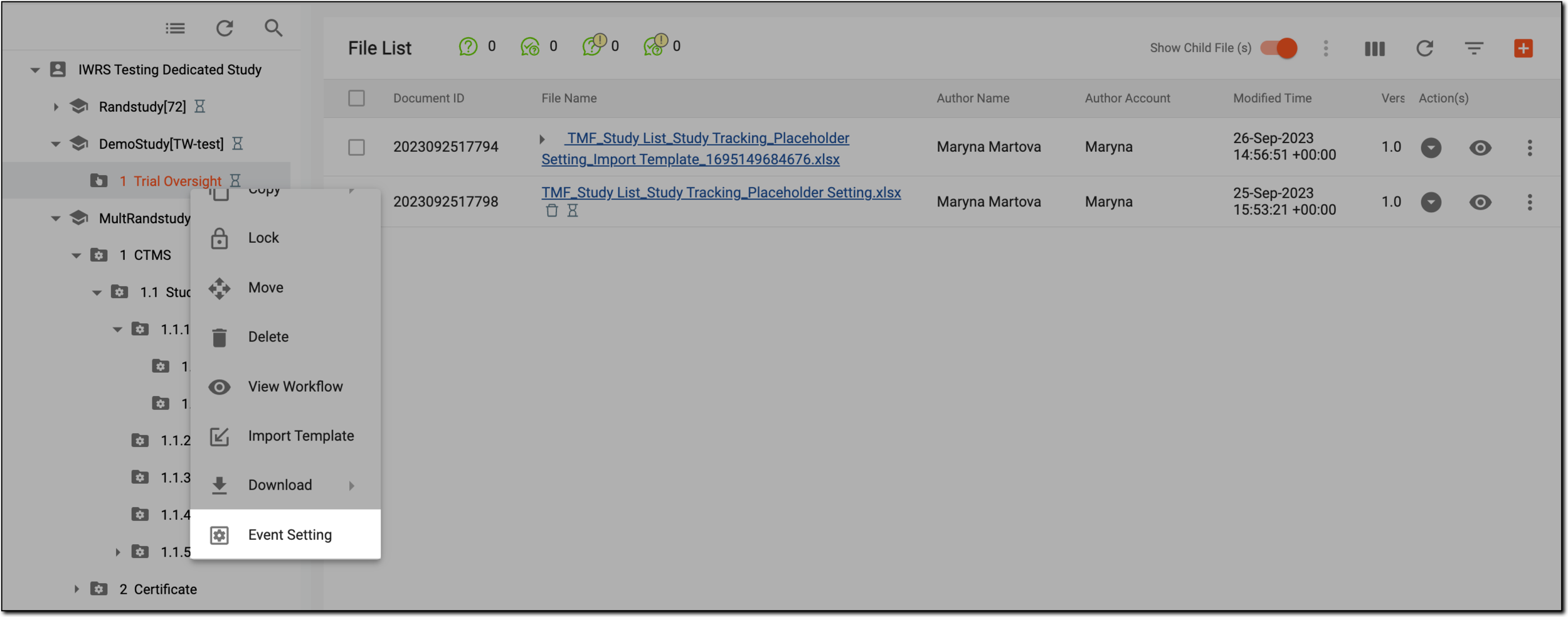 Figure 2. Accessing event setting
-
In the Event Setting dialog that appears, complete the configurations as explained in the following table.
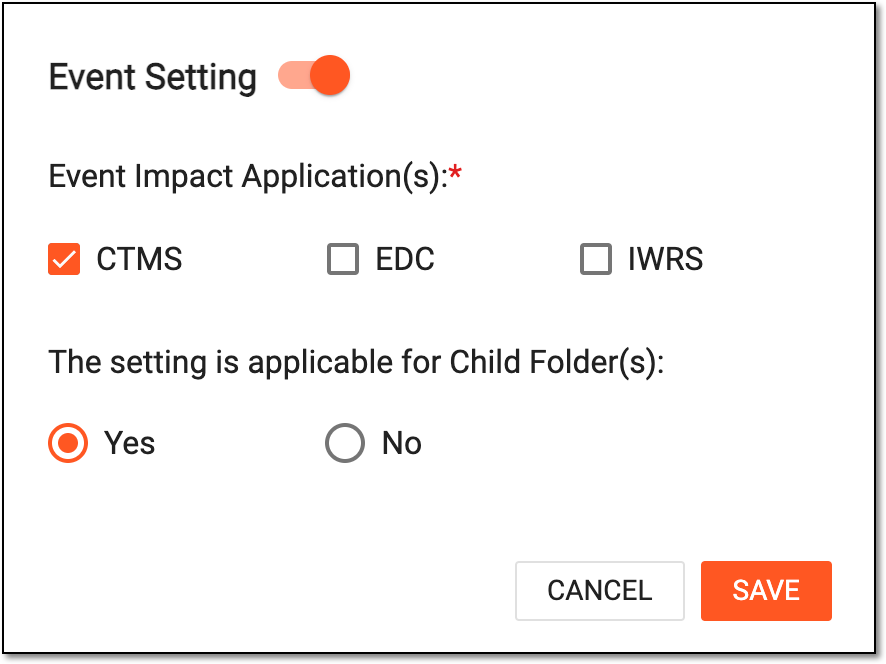 Figure 3. Configuring event setting
Tip
In the following table, mandatory elements are marked with an asterisk (*).
Element
Details
Event Impact Application(s)*
Select the checkboxes next to the eClinical applications for which this directory must be accessible.
The setting is applicable for Child Folder(s)
-
Select Yes if you want all the child folders within this directory to inherit the same event setting configurations.
The event setting configurations for child folders are uneditable if inherited from the parent folder. -
Select No if you want the child folders within this directory to have their individual settings.
The workflow of the
                                        parent folder is autoassigned to the child folder. You cannot associate a workflow to the child folder that is different from the parent
                                        folder.
SAVE
Select
to save the implemented changes.CANCEL
Select
 to discard the changes without saving and close the dialog.
 -
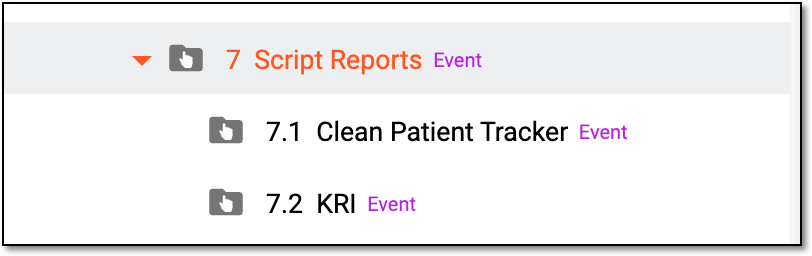
Once saved, the directory follows the newly assigned logic. Once the files are uploaded to this directory, the system runs the script preconfigured in other applications to extract and process data. In the eTMF tree, such directories have the respective Event marker next to them.
 |
In the eTMF application, editing a folder means updating the folder name. In this section, you can learn how to edit a folder from the FILE MANAGEMENT tab.
Important
In FILE MANAGEMENT, the Edit option is unavailable for system folders to prevent any manipulations with them that can lead to data loss.
-
In the eTMF application header, select the FILE MANAGEMENT tab.
-
In the left explorer pane, select the needed directory and right-click it. In the menu that appears, select Edit
 .
.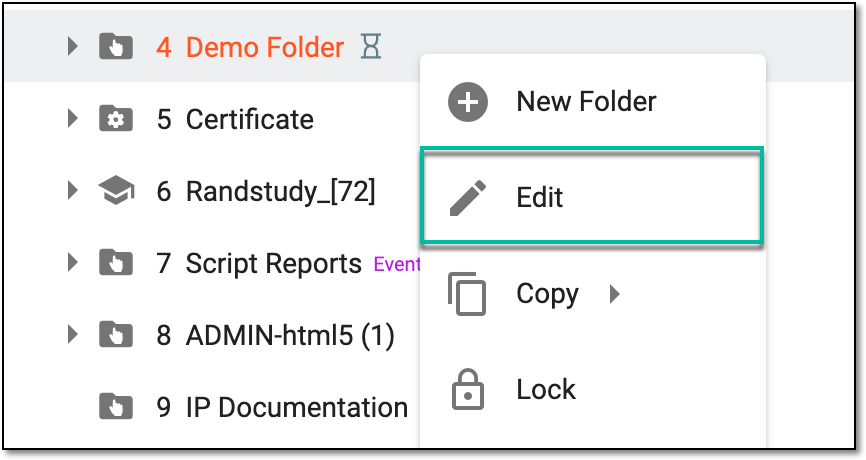 Figure 1. Selecting option to edit folder
-
In the Edit Folder dialog that appears, update the folder name as needed.
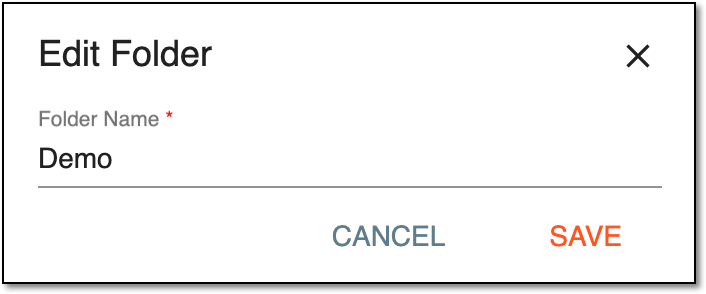 Figure 2. Editing folder
-
Select
 to save changes.
Upon saving, the folder name is updated.
In the eTMF application, you may need to copy folders to quickly recreate the needed folder structure. The only limitation is that you cannot copy folders of the system-created directories.
In eTMF, you can copy folders at the study level and folder level (as discussed in the following procedure) that define the folder correspondence to the whole study or its individual artifacts.
-
In the eTMF application header, select the FILE MANAGEMENT tab.
-
In the left explorer pane, locate the study folder that you need to copy. Right-click the folder, and from the dropdown menu that opens, select Copy
 > Copy Folder From
  .
.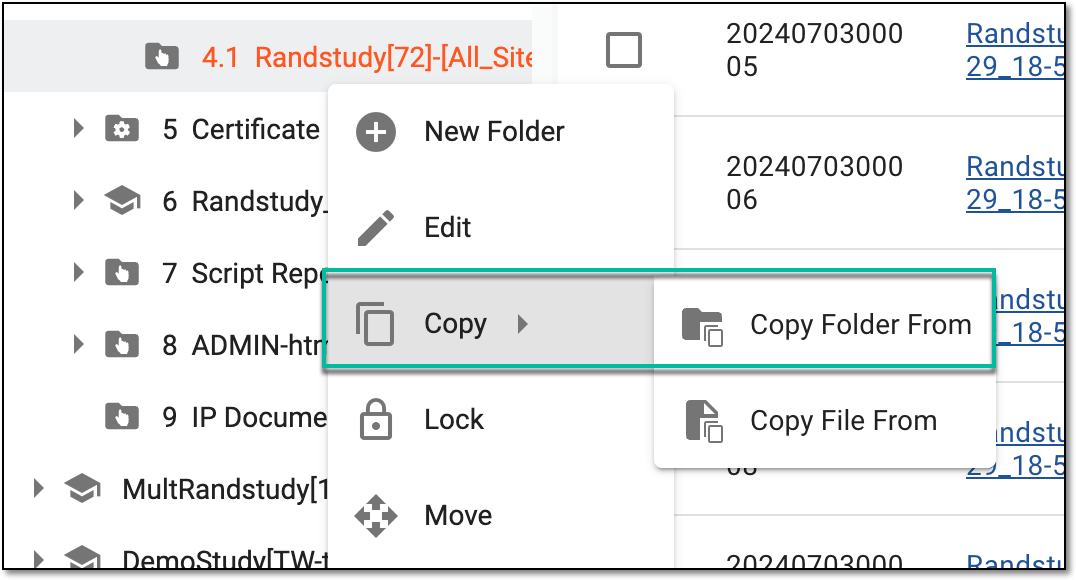 Figure 1. Accessing option to copy folder at folder level
-
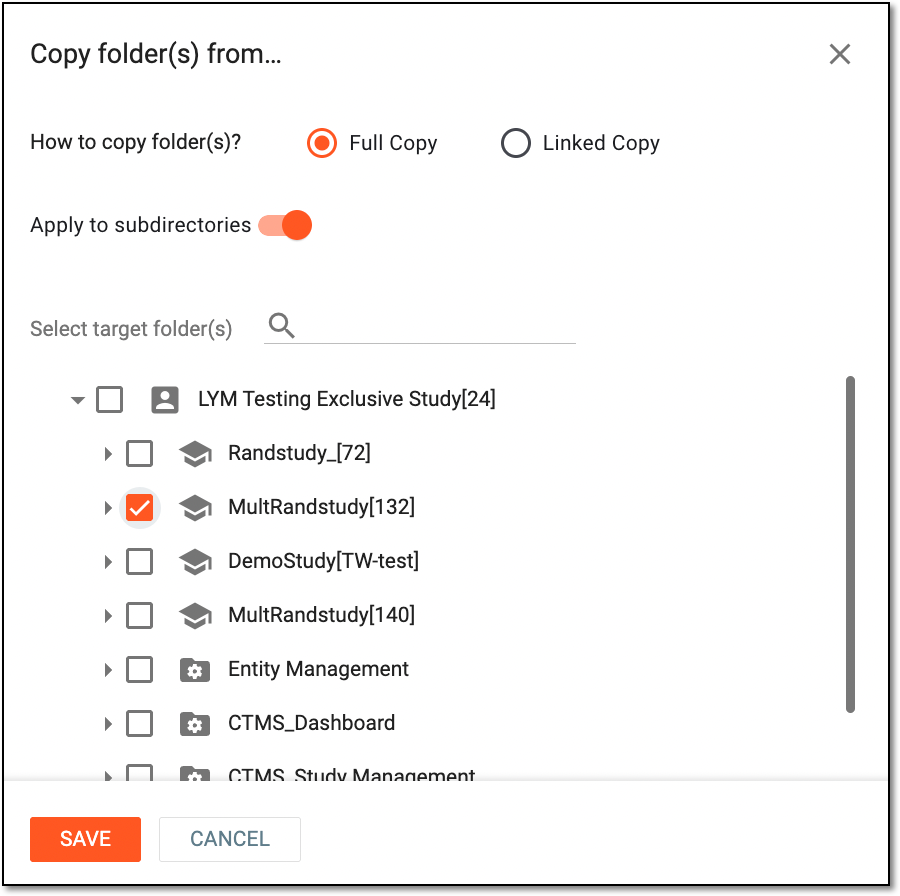
In the Copy folder(s) from dialog that appears, perform the copying as explained in the following table.
Element
Details
How to copy folder(s)
Select one of the following:
Select the option to create linked copies of a folder, enabling the system to populate any modifications of the original folder to all its linked copies.
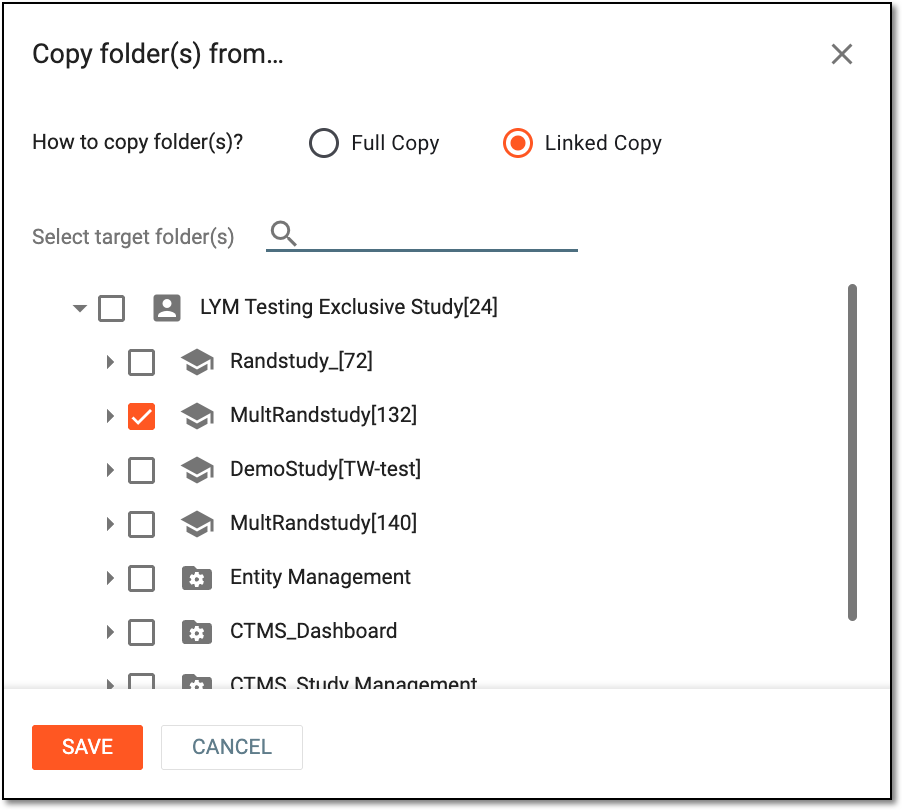 Figure 3. Making linked copies
The linking represents the connection between the original and the copied objects. Thus, when users modify the original object, all the changes are automatically applied to its linked copy.
The structure of the Linked folder cannot be changed. Thus, you cannot delete subfolders and files within.Apply to subdirectories
Turn this toggle on to copy all subdirectories of the selected root directory. If turned off, the empty folder is copied with no subdirectories in it.
This toggle is only available when Full Copy is selected for the folder
                                        copying. For Linked Copy, the subdirectories and files within are copied by default.
Select target folder(s)
In the explorer tree, select the directories you want to copy.
Select target folder(s)
Select the magnifying glass symbol
 and enter the name of the target directory to search for it faster.
SAVE
Select
to implement the changes.CANCEL
Select
 to discard the changes and close the dialog.
Upon saving, the folders are copied and appear in the selected target directory. If it is a linked copy, the Linked Folder  indicator is displayed next to the folder node in the explorer tree.
In the eTMF application, you can add new files by copying the existing ones and creating their linked copies. This may become helpful, for example, when you need to store the same file in different folders. The only limitation is that you cannot copy the system-created files.
In eTMF, you can copy files at the study level and folder level (as discussed in the following procedure), depending on the file of your interest.
-
In the eTMF application header, select the FILE MANAGEMENT tab.
-
In the left explorer pane, locate the study and study folder of your interest and right-click it. In the menu that opens, select Copy
> Copy File From  .
.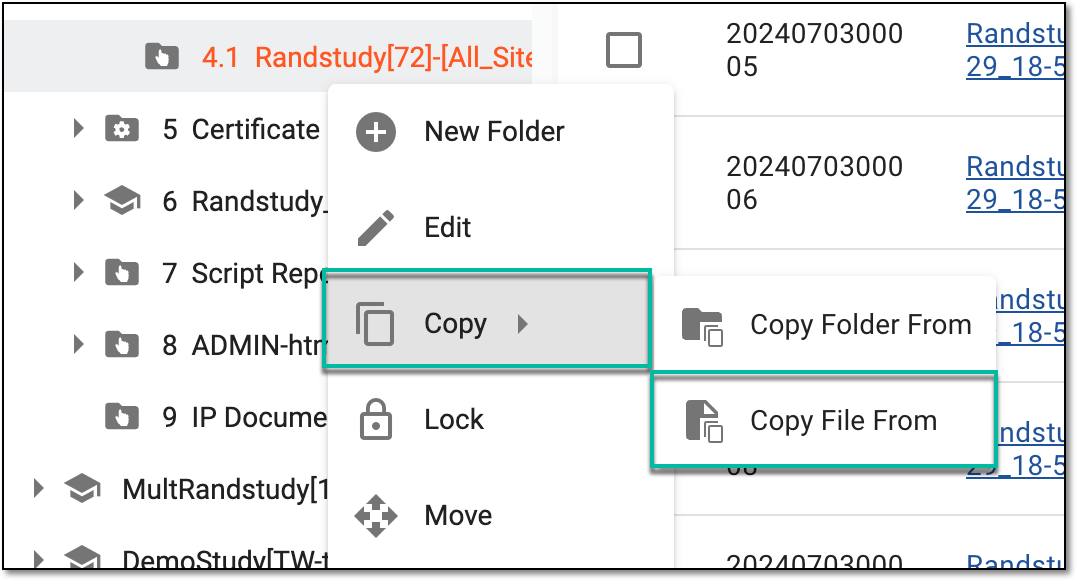 Figure 1. Selecting option to copy file
-
In the Copy file(s) from dialog that appears, perform the file copying as explained in the following table.
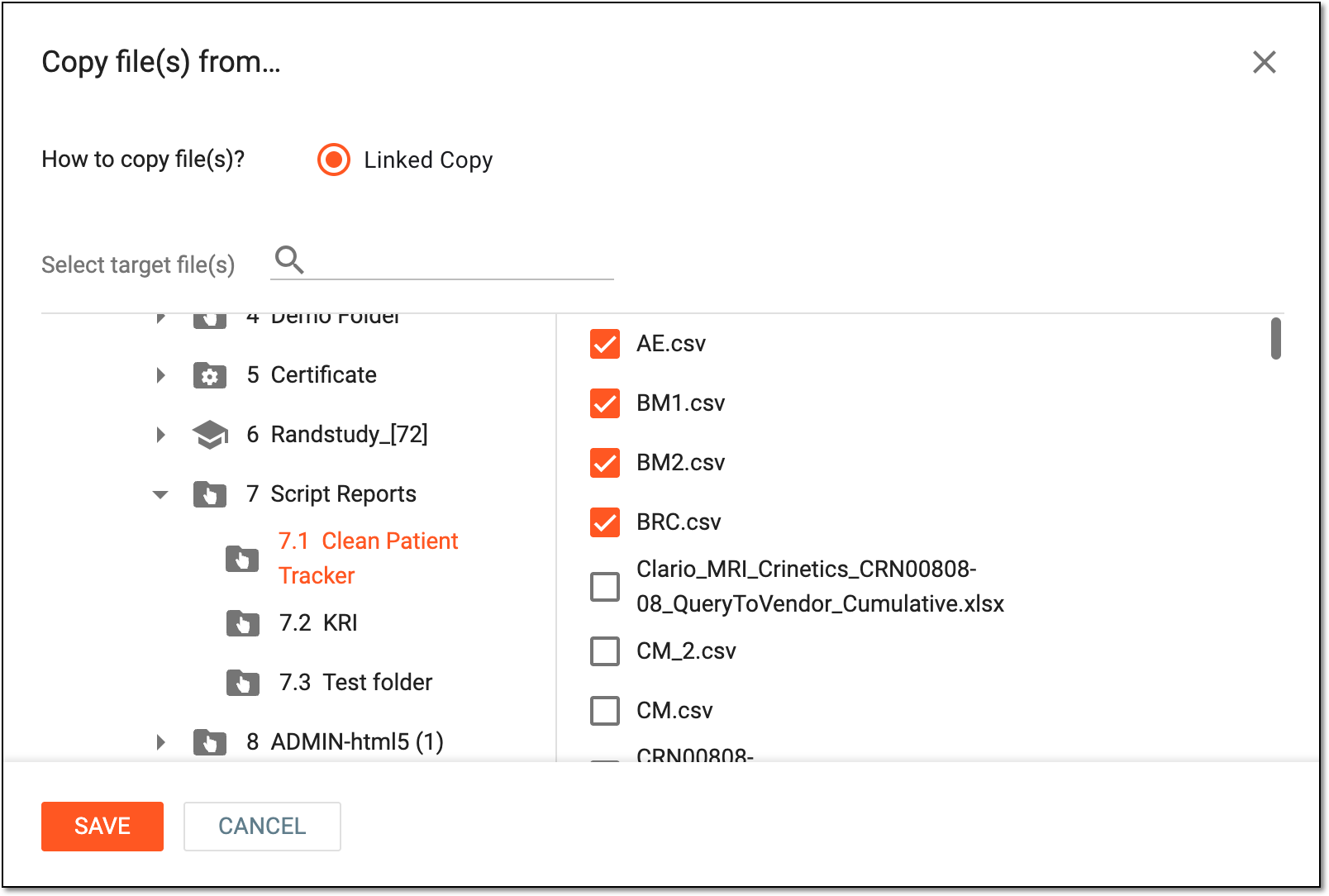 Figure 2. Copying files
Element
Details
How to copy file(s)
Only the Linked Copy option is available for file copying. With this option, you create the connected file copies, enabling the system to propagate any modifications of the original file to all its linked copies.
Select target file(s)
In the explorer tree on the left, select the directory from which you want to copy files. In the file list that appears on the right, select the checkboxes next to the files you want to copy.
Select target file(s)
Select the magnifying glass symbol
and enter the name of the target file or directory to search for it faster.SAVE
Select
to implement the changes.CANCEL
Select
to discard the changes and close the dialog.
Once saved, the file and its archived versions are copied to the selected directory. The Linked File  tag is
displayed next to the file name in the table.
tag is
displayed next to the file name in the table.

When working with a folder, you might want to prevent it from being modified by other users. In eTMF, under the FILE MANAGEMENT storage, you can temporarily lock the folder.
Important
In FILE MANAGEMENT, the Lock option is unavailable for system folders to prevent any manipulations with them that can lead to data loss.
The study-level folder cannot be locked if it contains files in the Audit status. Files must be audited first, and then you can lock the study.
-
In the eTMF application header, select the FILE MANAGEMENT tab.
-
In the left explorer pane, locate and select the study and the study folder that you need to lock. Right-click the folder and in the menu that appears, select Lock
 .
.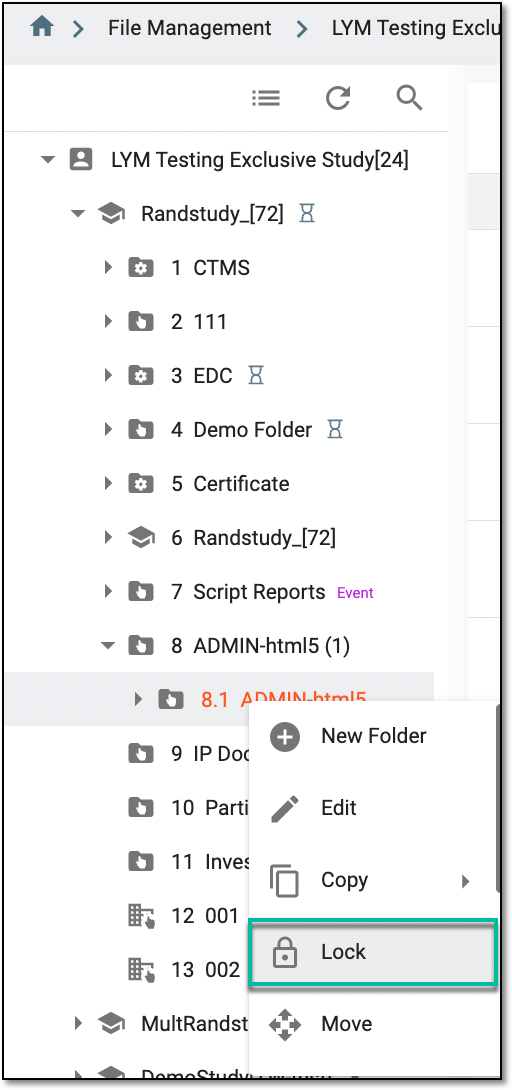 Figure 1. Locking folder
The folder or study is now locked and the Locked Folder icon  appears on its node in the explorer tree pane.
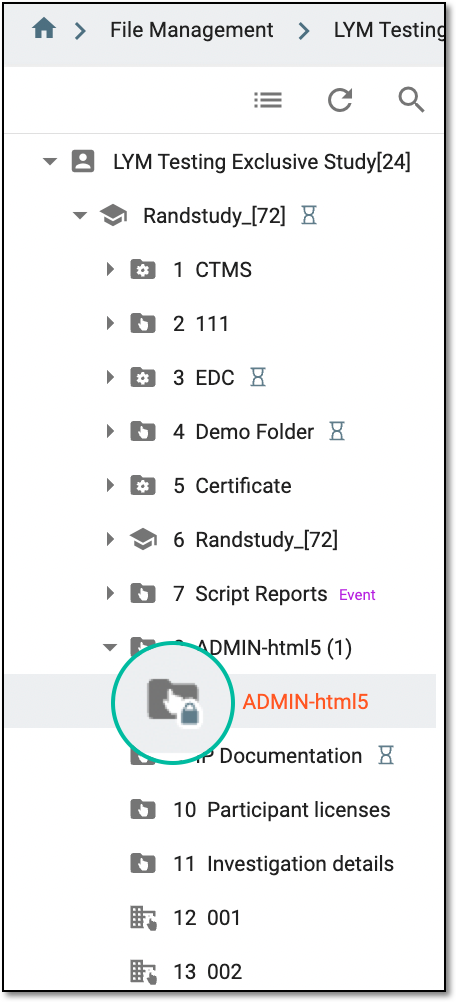 |
Sometimes, while working with a folder, you might want to prevent it from being modified by other users by locking it. When you are done, you need to make the folder available again by unlocking it.
Important
In FILE MANAGEMENT, the Unlock option is unavailable for system folders to prevent any manipulations with them that can lead to data loss.
-
In the eTMF application header, select the FILE MANAGEMENT tab.
-
In the left explorer pane, locate and select the study folder that you want to unlock. Right-click the folder and in the menu that opens, select Unlock
 .
.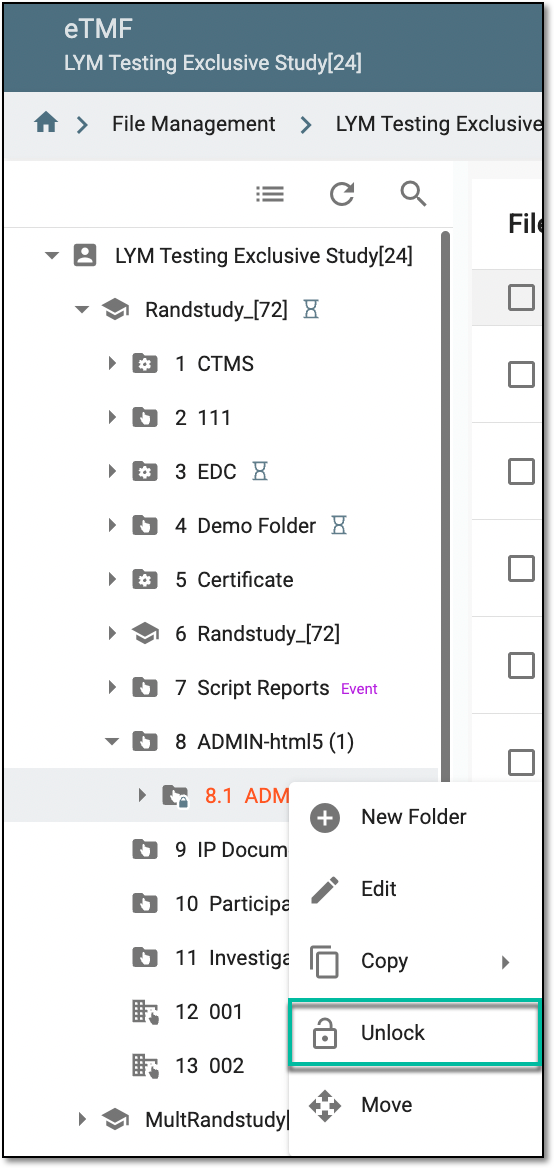 Figure 1. Unlocking folder
The folder is now unlocked, and the label disappears from its node. Now you can preview, edit, and audit files in the folders.
In eTMF, you can move folders to change their locations in the eTMF explorer pane.
Important
The folders cannot be moved if:
-
The folder with such a name already exists in the target directory. You need to rename the folder with the Edit option first
-
The folder is locked. You need to unlock the folder first.
-
The folder is created by the system. Such folders cannot be moved from the original directories.
-
In the eTMF application header, select the FILE MANAGEMENT tab.
-
In the left explorer pane, locate and select the directory you want to move. Right-click the folder and from the dropdown menu, select the Move
 option.
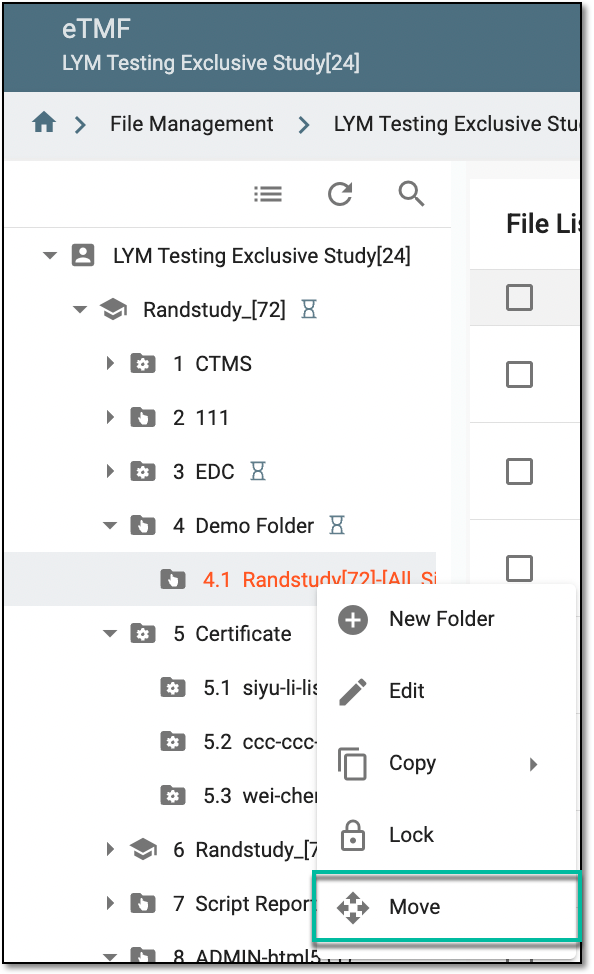 Figure 1. Accessing option to move folder
-
In the Move Folder(s) dialog that appears, perform the following steps:
-
In the left column, select the folders to move.
-
In the right column, select the target folder where the selected folder must be stored.
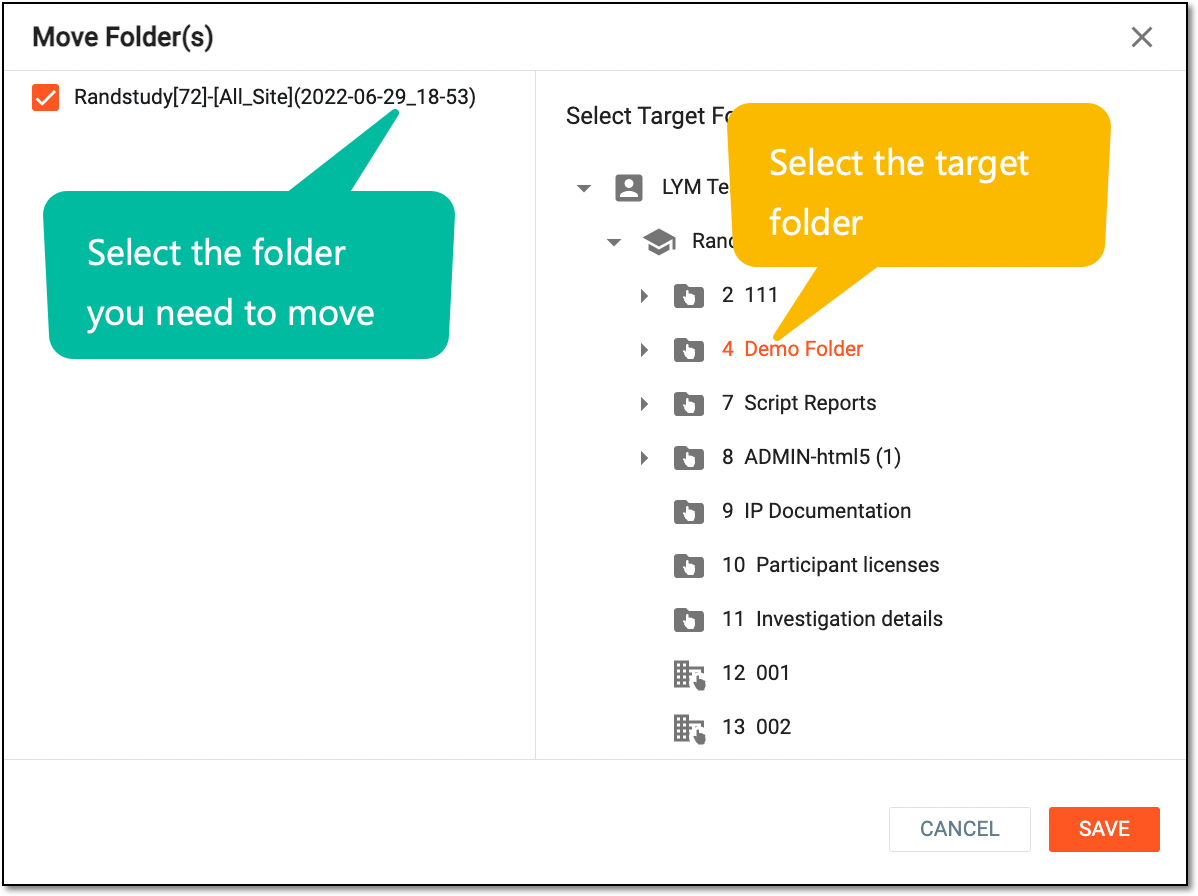 Figure 2. Moving folder
-
-
Select
. Now, in the Reason dialog that appears, enter the reason why you are moving the folder to a different
directory.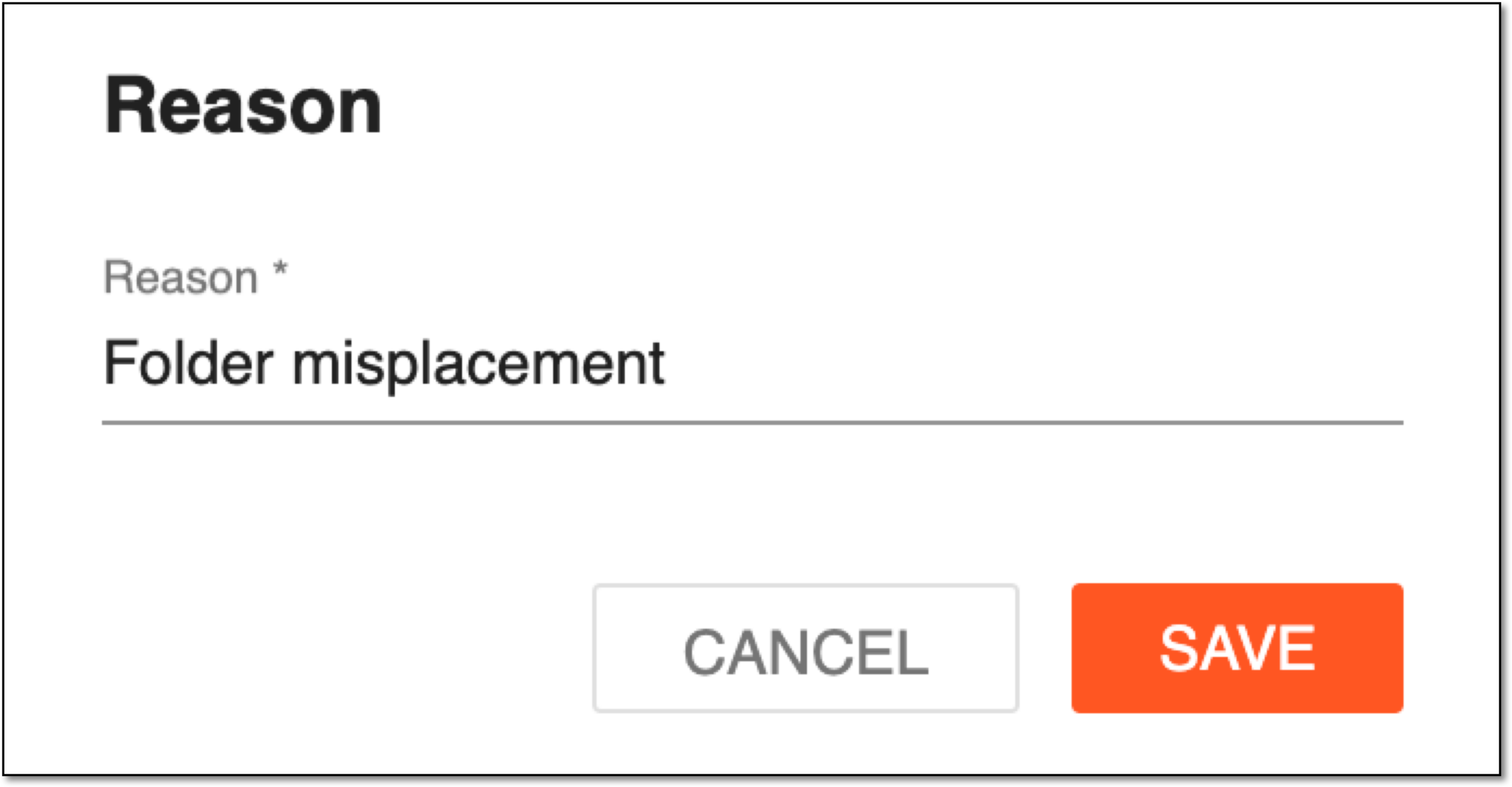 Figure 3. Reason for folder relocation
-
In the Reason dialog, select
to save the changes.
Upon saving, the folders are moved to the target directory.
In eTMF, an empty folder can be deleted at any time. However, if the folder contains any files within it, it does not allow you to delete it until it is empty.
Important
The Delete option is unavailable:
-
For system folders to prevent any manipulations with them that can lead to data loss.
-
If the subfolders of the folder are locked. Unlock the subfolders first.
-
If there are any checked-out files or those in the Auditing status.
-
In the eTMF application header, select the FILE MANAGEMENT tab.
-
On the page that opens, in the explorer tree pane, right-click the folder that you want to delete. In the menu that opens, select Delete
 .
.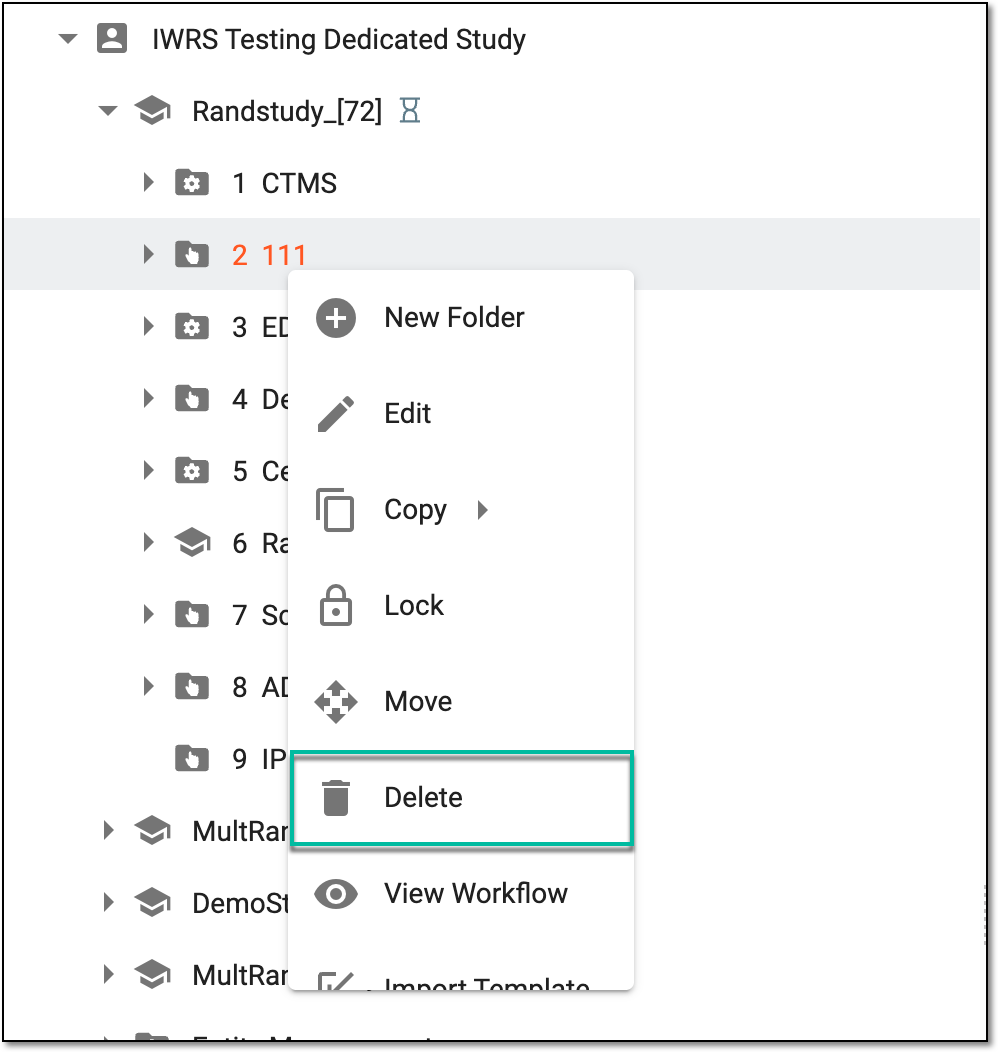 Figure 1. Selecting option to delete folder
-
In the Delete Item confirmation dialog that appears, select
 .
.Important
Deleting the folder does not trigger any workflows for approval. Always check the objects within the folders before deleting them.
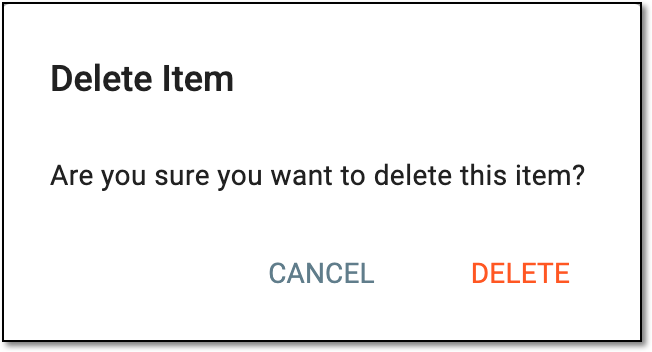 Figure 2. Confirming folder deletion
Once the deletion is confirmed, the folder and objects within are deleted and moved to Trash where you can permanently delete your folder or restore it.
A workflow is a schema, each step of which represents a stage of a specific entity lifecycle in the system.
You may need to view an eTMF study workflow to analyze whether various actions on system entities are performed as expected. This provides an additional tier of scrutiny in which the approval and rejection mechanism reduces the risk of unintended impact on sensitive resources and important information.
-
In the eTMF application header, select the FILE MANAGEMENT tab.
-
In the left explorer pane, locate and select the study folder whose workflow you need to check, and right-click it. From the dropdown menu that opens, select View workflow
 .
.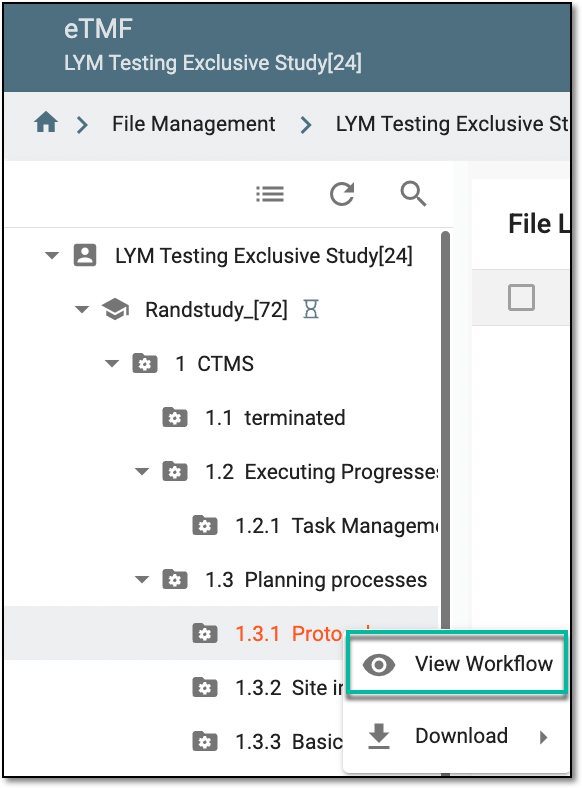 Figure 1. Accessing option to view workflow
-
In the dialog that opens, study the workflow for your folder.
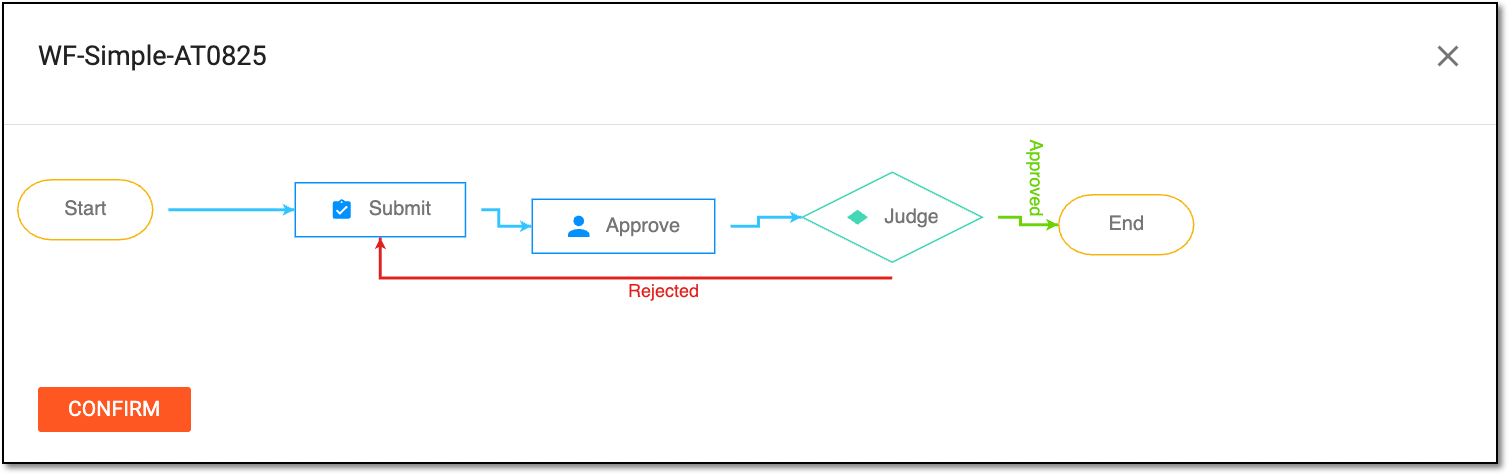 Figure 2. Analyzing study workflow
-
Now, select
 to close the dialog.
Once selected, the dialog closes and you return to the file management page. If you need to introduce any changes to the existing workflow, refer to the Edit workflow section and add the required changes.
Suppose you need to quickly modify the folder structure by adding more folders or hierarchies in the folder's structure. You can do that with the Download Template functionality: download the folder structure, make the necessary changes (by adding more directories or directory hierarchies), and then import the updated structure back into the eTMF app using the Import Template functionality.
-
In the eTMF application header, select the FILE MANAGEMENT tab.
-
In the left explorer pane, locate and select the study folder whose templates you need to download, and right-click it. From the dropdown menu that opens, select Download
 > Template
  .
.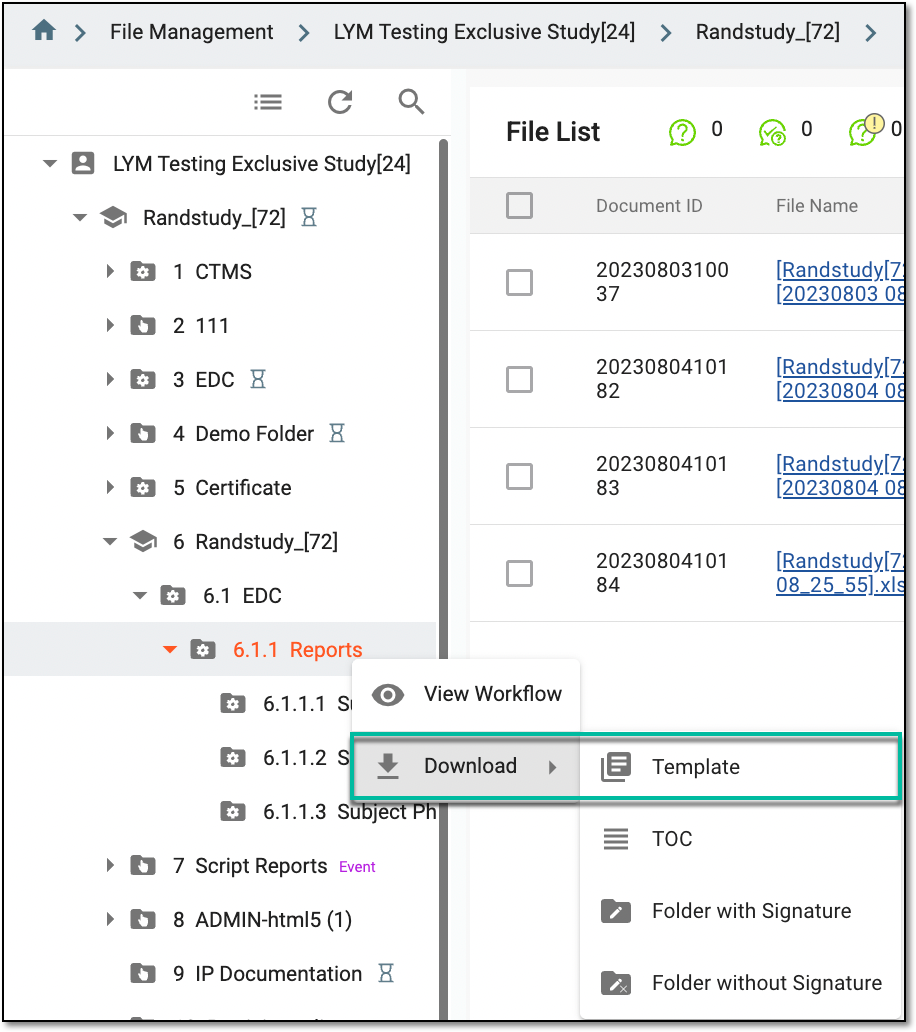 Figure 1. Accessing option to download template
-
In the Export Template dialog that appears, select the directories to be exported.
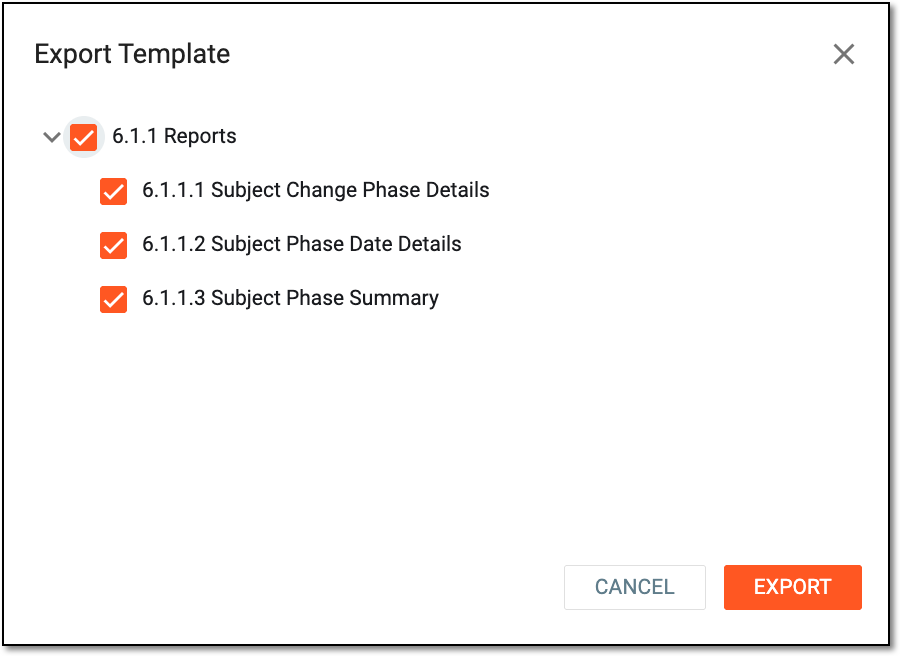 Figure 2. Selecting templates to download
-
Select
 and follow the prompts to open the file on your computer. Now, open the file. The file contents correspond to the folder's structure.
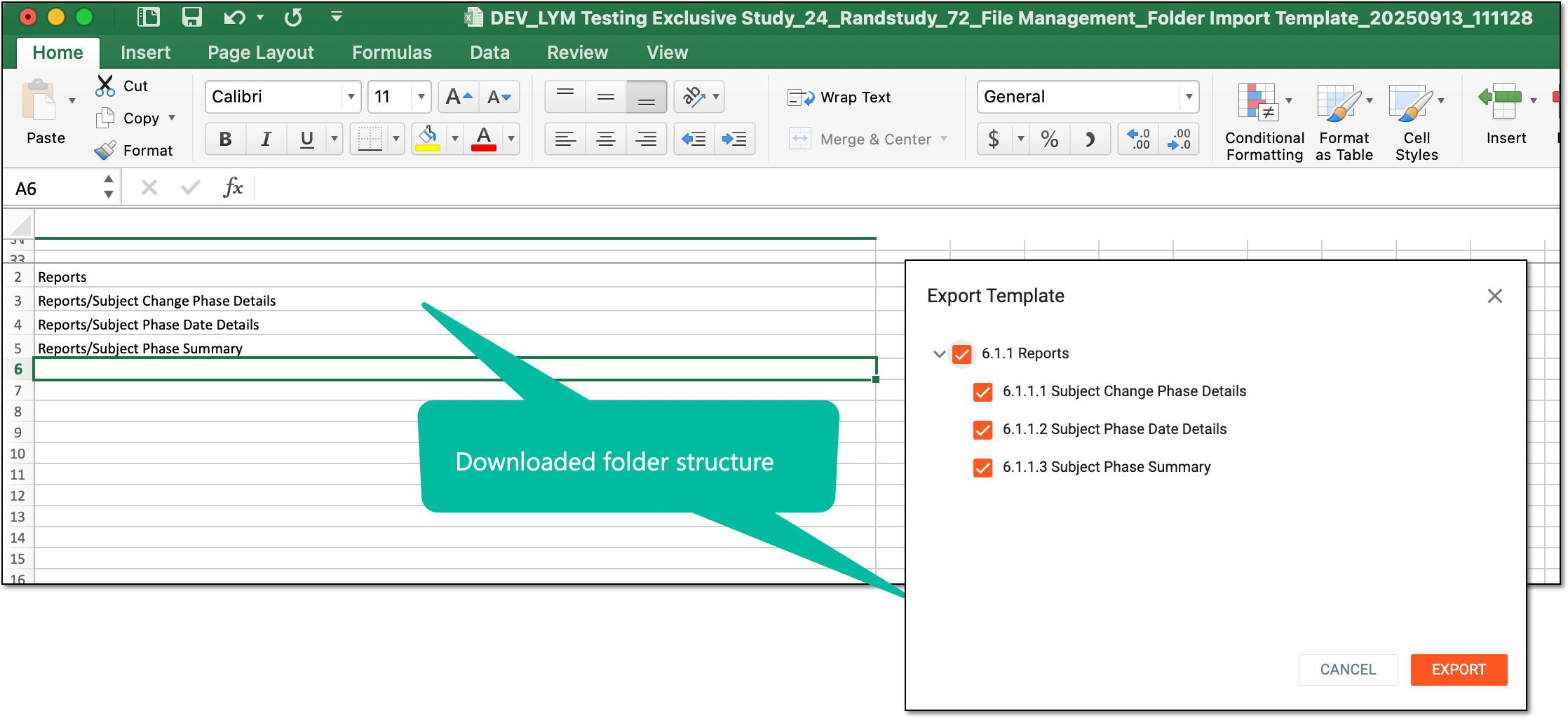 Figure 3. Example of downloaded file representing folder's hierarchy
Tip
If required, you can add the rows—representing new folders in the existing hierarchy.
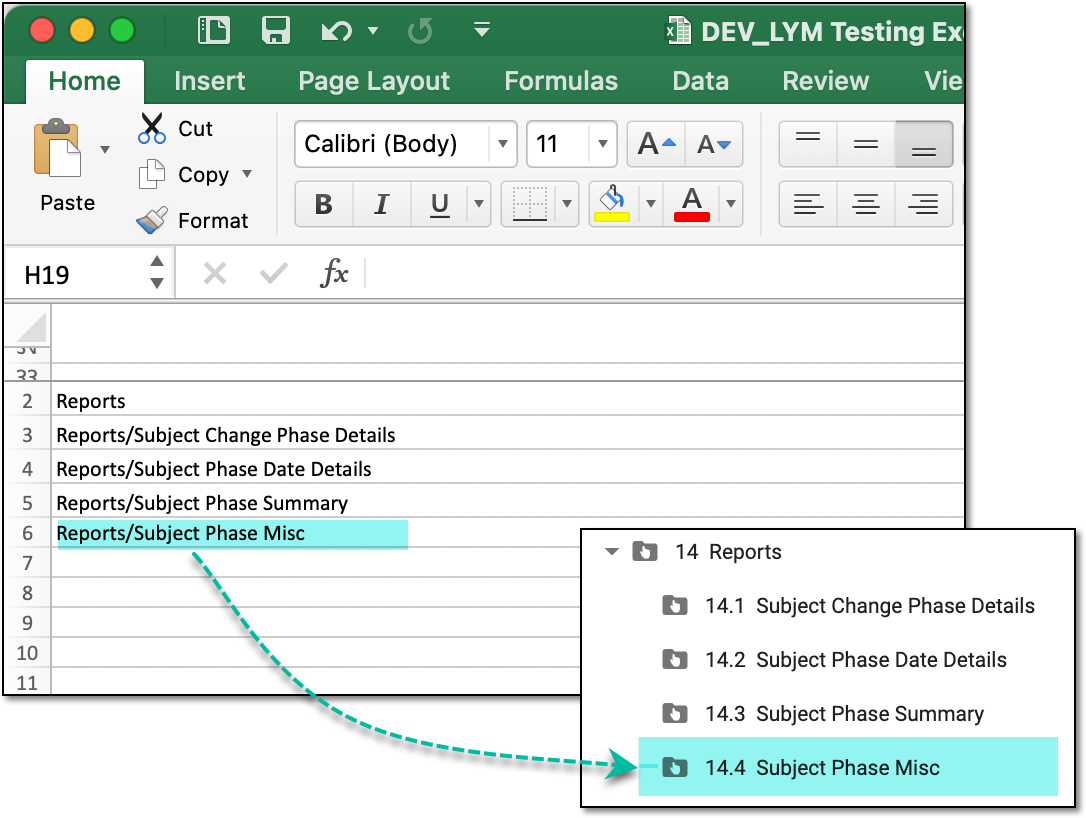 Figure 4. Example of added rows representing added folders in eTMF folder structure
After saving the file, if you want to work with this file structure in the eTMF app, you must import the file back.
In the eTMF app, you can download a folder with files to work with them offline on your computer. This Download option is powered with the functionality to download such files with or without electronic signatures, depending on your organization's rules and business processes.
-
In the eTMF application header, select the FILE MANAGEMENT tab.
-
In the left explorer pane, locate the study folder of your interest and right-click it. In the open menu, select Download
and then one of the following options:-
Folder with Signature
 : to download all the files in this folder and a PDF file
containing all the data on electronic signatures for the downloaded files.
: to download all the files in this folder and a PDF file
containing all the data on electronic signatures for the downloaded files.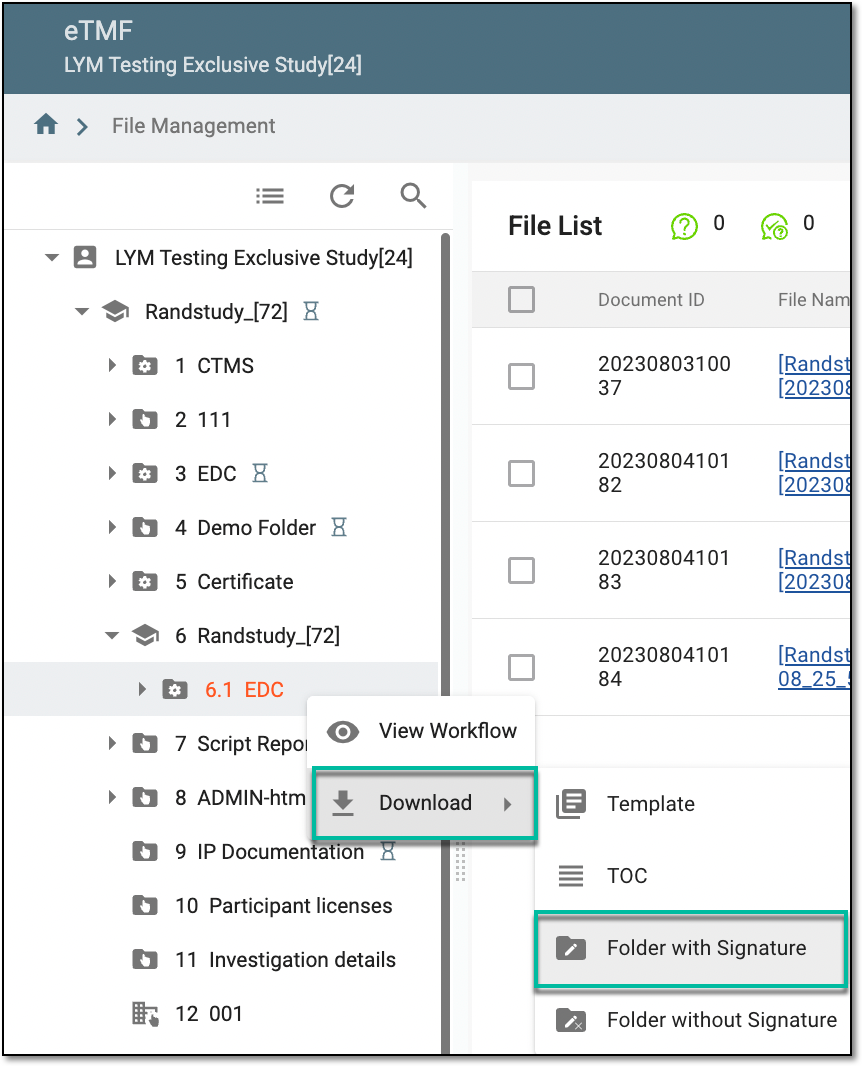 Figure 1. Accessing option to download folder with signature
-
Folder without Signature
 : to download all the files in this folder without
an additional file with electronic signature information.
: to download all the files in this folder without
an additional file with electronic signature information.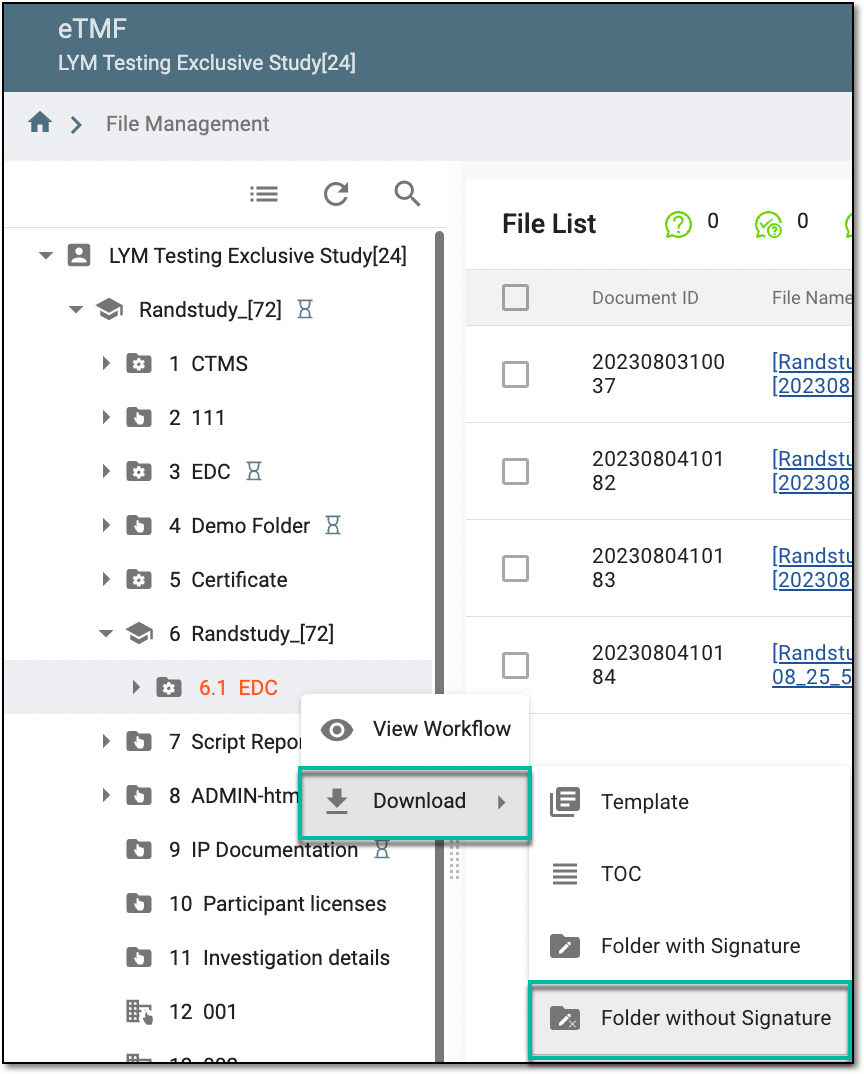 Figure 2. Accessing option to download folder without signature
-
-
The confirmation message appears that the folder is being zipped. Once ready, it will be available in the Quick > Download option. Select
 to close the dialog.
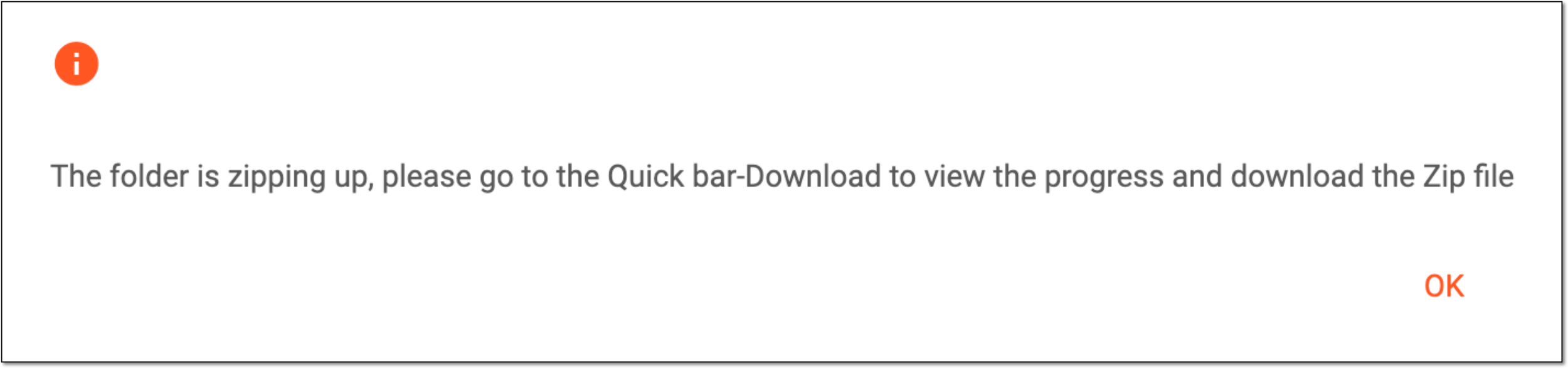 Figure 3. Notification on folder download
-
Now, you can access the ZIP file and download it, select the widget that appears below the application header.
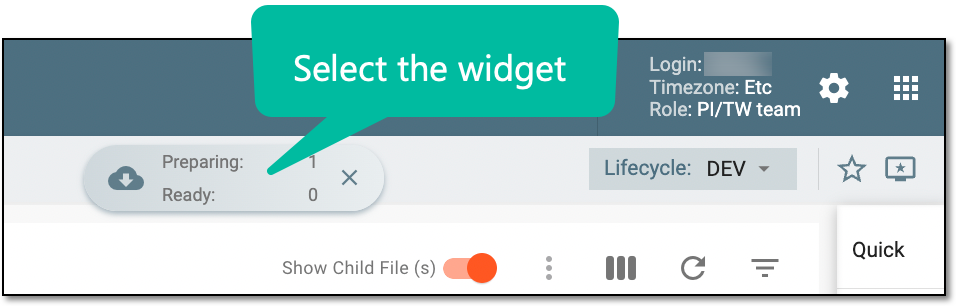 Figure 4. Accessing widget panel
-
Now, in the My Downloads panel, perform the action as discussed in the following table.
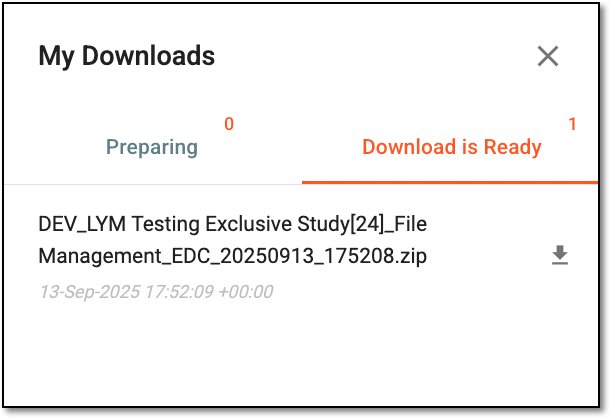 Figure 5. Working with files to be downloaded
Element
Details
Preparing
Switch to the tab to access the files that are prepared, if any.
Download is ready
The tab is open by default. The tab displays the list of files that can now be downloaded to your computer.
Download
Next to the required file, select the Download option and follow your computer prompts.

Select the option to close the panel.
Upon downloading and saving, the ZIP file becomes available on your computer.
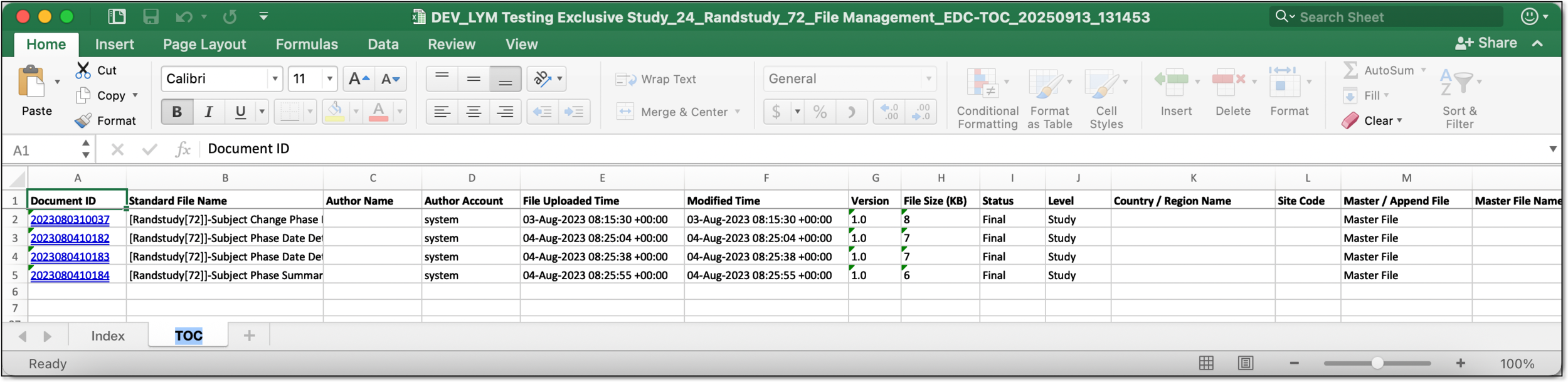
When downloading a folder from the FILE MANAGEMENT storage, its TOC (table of contents) is automatically downloaded with it. The TOC is a document that contains basic information for all files at the folder level. For your convenience, in the eTMF system, you can download the TOC separately.
-
In the eTMF application header, select the FILE MANAGEMENT tab.
-
In the left explorer pane, locate and select the study folder whose TOC you need to download. Right-click the folder and in the dropdown menu that opens, select Download
> TOC  , and follow the prompts to save the file.
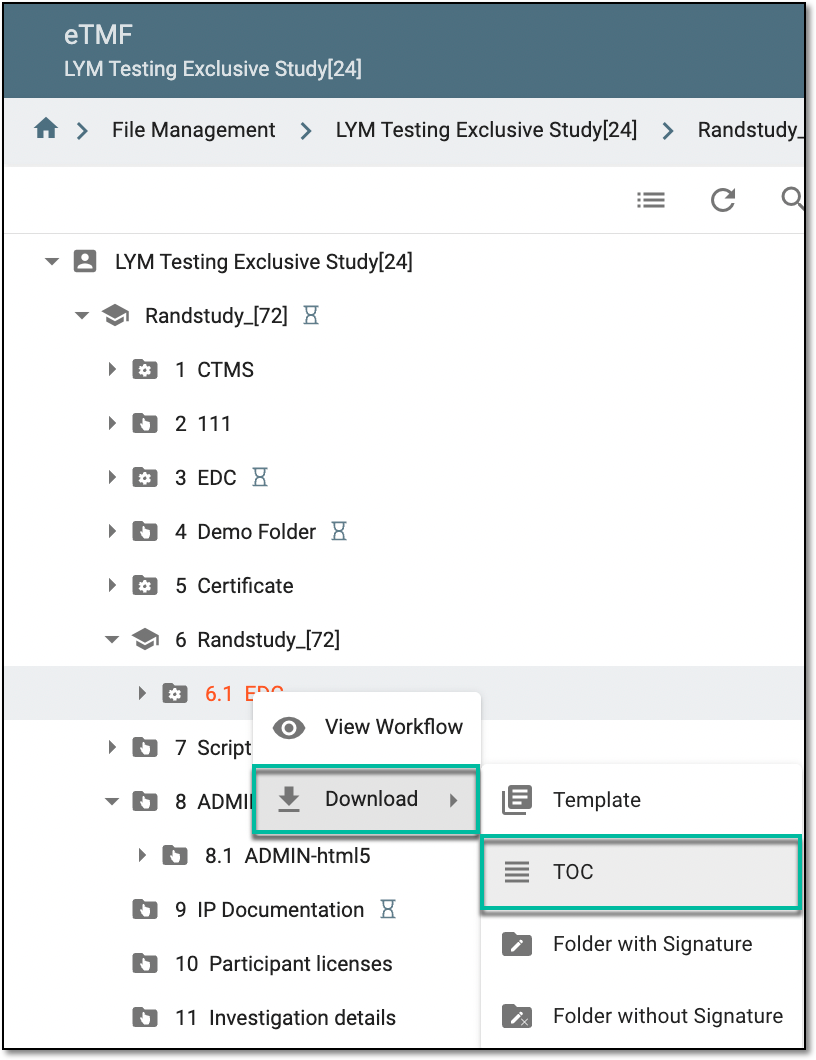 Figure 1. Downloading TOC
Upon saving, the TOC is downloaded to your computer in the XLSX format. The file consists of two tabs: the Index tab (includes the metadata on the file being downloaded) and the TOC tab itself with all the details for your convenience.
An eClinical application that is mainly used to manage and control the personnel, communication, budget, progress, expenses, documents, and declaration involved in the entire clinical trial. It provides study and site management, study quality control, study progress tracking, project management, risk management, reports, and a visualized dashboard.
Get to know all the possibilities of the app with the comprehensive CTMS User Guide.
An eClinical application that is mainly used to collect and manage subject data during clinical trials. It integrates with the Study Designer (SD) application and uses preconfigured there case report forms (CRFs) to complete data collection and management. It also provides an audit trail, data alert, source data verification (SDV), payment management, adjudication, and other functions as well as supports data export according to the CDISC ODM standard.
Get to know all the possibilities of the app with the comprehensive EDC User Guide.
An eClinical application that represents unified and configurable subject randomization and trial supply management tool for subject grouping, drug inventories, shipments, and dispensations, as well as other vital processes during a clinical trial.
Get to know all the possibilities of the app with the comprehensive IWRS User Guide.
A schema, each step of which represents a stage of a specific entity lifecycle in the system.
A workflow can be considered an instrument to help control various actions on system entities for the sake of accountability, as it limits the actions that can be performed on the entity associated with a workflow. This provides an additional tier of scrutiny, and the approval/rejection mechanism reduces the risk of unintended impact on sensitive resources and important information.
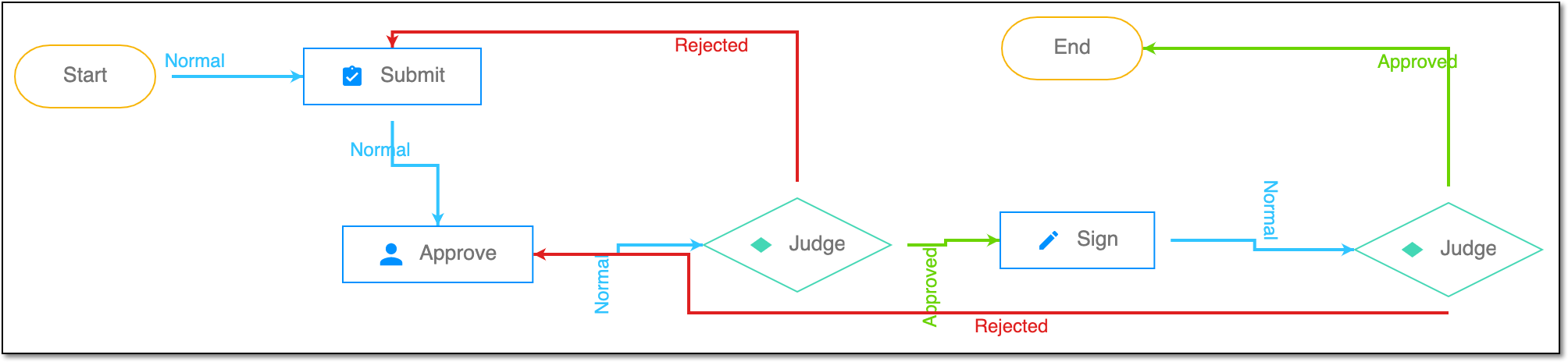 |
For instance, in eTMF, the workflow dictates the procedure of file and folder management from the moment of upload to the approval stage; in CTMS, the workflow controls the process of creation, completion, and approval of a trip report; in EDC, the workflow covers the process of source document handling.