File-level management
The eTMF application is a storage repository and management center for clinical trial files.
At this level, you organize, store, and control your clinical trial files with vast functionality that includes file preview, audit, approval, checking in and out, locking and unlocking, deleting, and many more.
The eTMF application is a file storage and management system. Hence, to work with files in eTMF, you need to upload them into the system.
A file is uploaded to file management storage if it is related to the eClinical trial and contains non-primary files, such as documents with general information about the clinical trial, general data sets, communications, and so on.
Since this storage contains files that are not used for primary purposes (protocol and amendments, investigators' brochures, informed consent documents, and such), you cannot upload files from the essential document list. When uploading files from your computer to eTMF under the FILE MANAGEMENT tab, you need to remember that if you upload the file into the folder with an associated workflow, the file inherits this workflow.
Important
The files cannot be uploaded to a directory if the selected directory is locked. You need to unlock the folder first.
-
In the eTMF application header, select the FILE MANAGEMENT tab.
-
On the page that opens, in the explorer tree pane, select the study directory to which you want to upload the files.
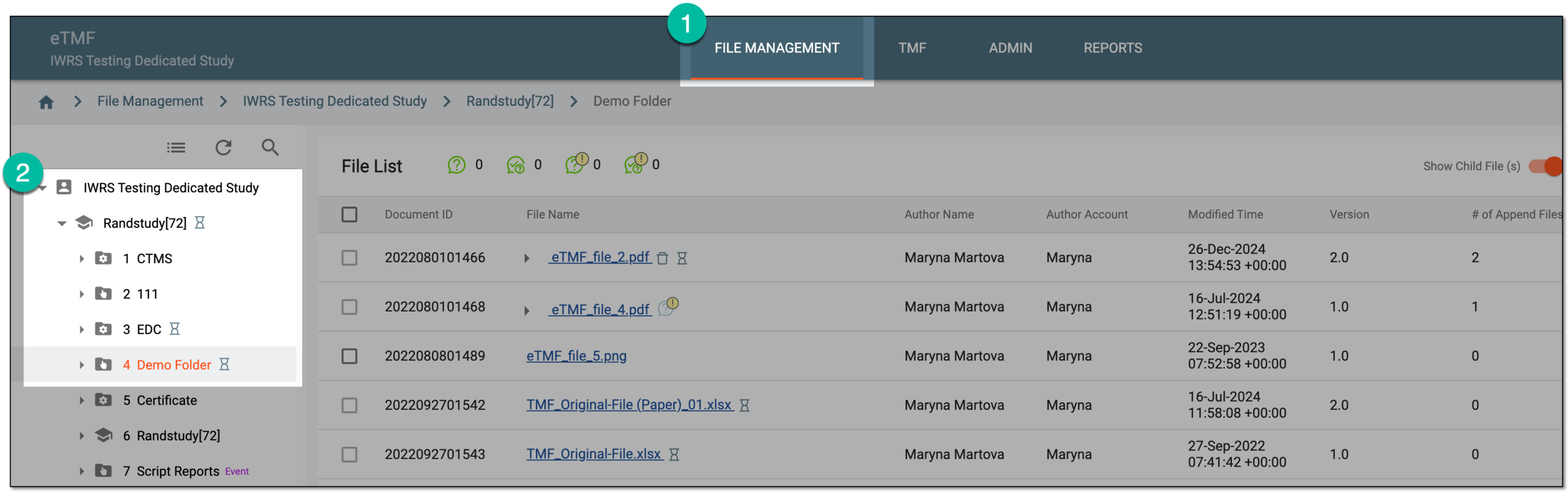 Figure 1. Accessing file management directory
-
From the workspace toolbar, select Upload File
 .
. Figure 2. Adding files to file management directory
Tip
Alternatively, you can upload files by dragging them from your computer folder directly to the table area of the contents panel.
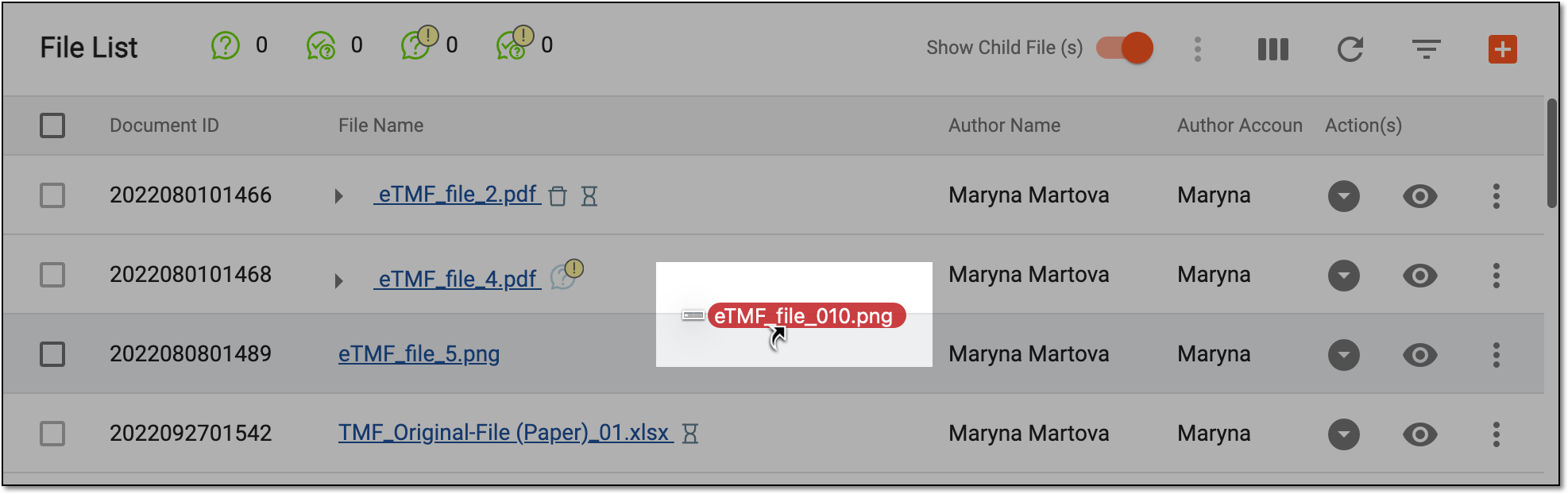 Figure 3. Dragging files to upload
-
In the Upload File panel that appears on the right, select the Upload area and choose the file to upload. Complete the file settings as explained in the following table.
Tip
Alternatively, drag the file to the Upload area to submit the file. Once done, the file appears right below the Upload area.
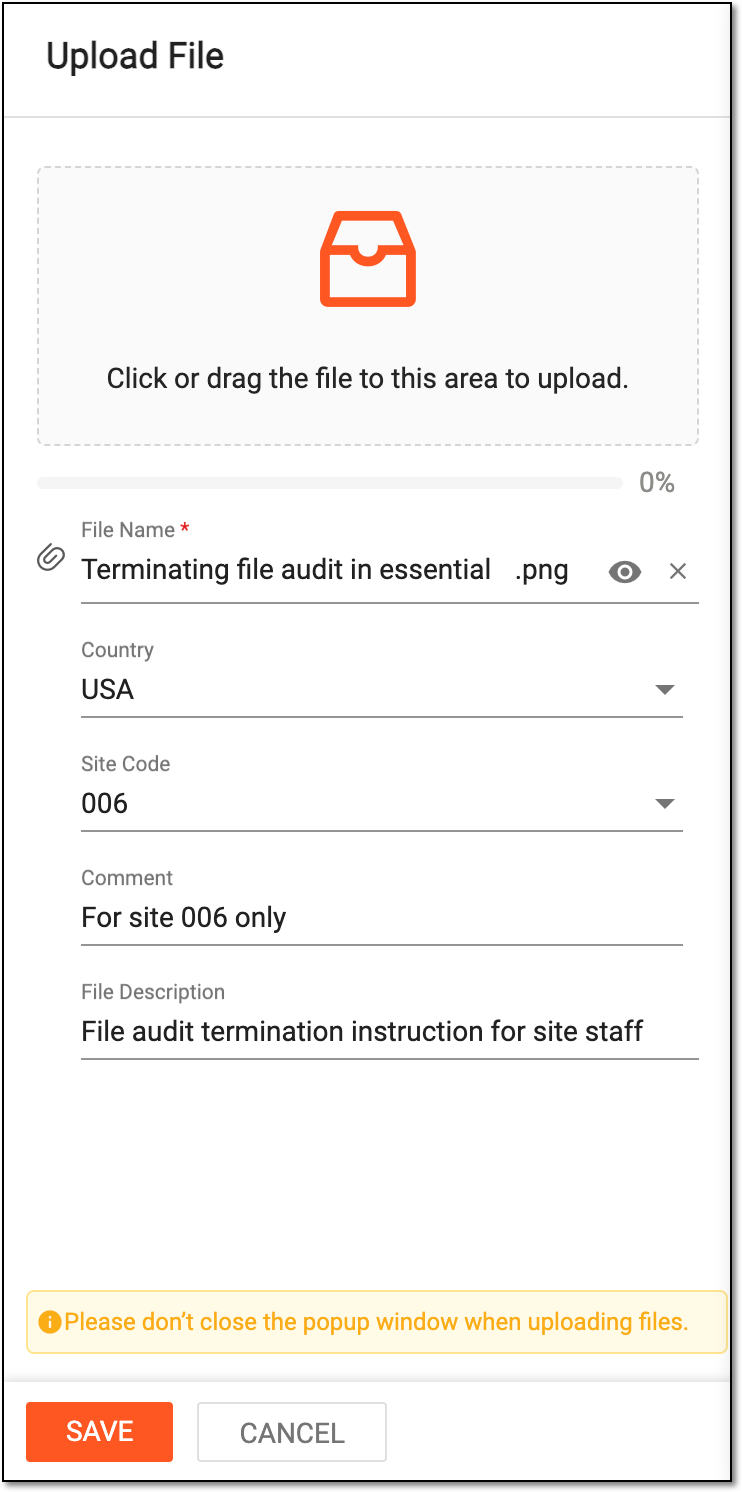 Figure 4. Completing file settings for upload
Tip
In the following table, mandatory elements are marked with an asterisk (*).
Element
Details
File Name*
Represents the original name of the file autofilled by the eClinical system. This name can be edited if required.
File Preview
Select File Preview
 to preview the file in a new browser tab before uploading.
Country
Select the country to which the uploaded file belongs. The available options are retrieved from CTMS according to the selected study.
By selecting the Country property, you determine the file-level attribute needed for file organization:
-
Study level: the file has no country or site code.
-
Country level: the file has a country code, but no site code.
-
Site level: the file has a country and site code.
The country value can be populated automatically upon the site code selection.Site Code
Select the site to which the uploaded file belongs. The available options are retrieved from CTMS according to the selected study and country.
If the country value is not selected, all the study sites are available in this list. Once the site code is selected, its country autopopulates in the Country field.
By selecting the Site Code property, you determine the file level attribute needed for file organization:
-
Study level: the file has no country or site code.
-
Country level: the file that has a country code, but no site code.
-
Site level: the file has a country and site code.
List of Co-signatories*
Select the assignees who are supposed to cosign the document.
This field is only available if you are uploading the file to the folder whose workflow includes the Co-Sign node.Comment
Enter a comment if you want to provide any details on the uploaded file.
This comment is available for the reviewer upon the file audit.File Description
Enter any auxiliary details to help the study team differentiate the uploaded files and their designation.
SAVE
Select
 to implement the file settings and complete the upload.
CANCEL
Select
 to discard the changes without saving.
 -
Upon saving, the files are uploaded to the selected directory.
The eTMF application is a storage repository and management center for clinical trial files.
The files that must be well-managed during clinical trials are crucial for data integrity. One of the management aspects for such files is understanding the stage of the file readiness, or in other words, its lifecycle.
-
In the eTMF application header, select the FILE MANAGEMENT tab.
-
In the left explorer panel, locate and select the study folder that comprises the required file.
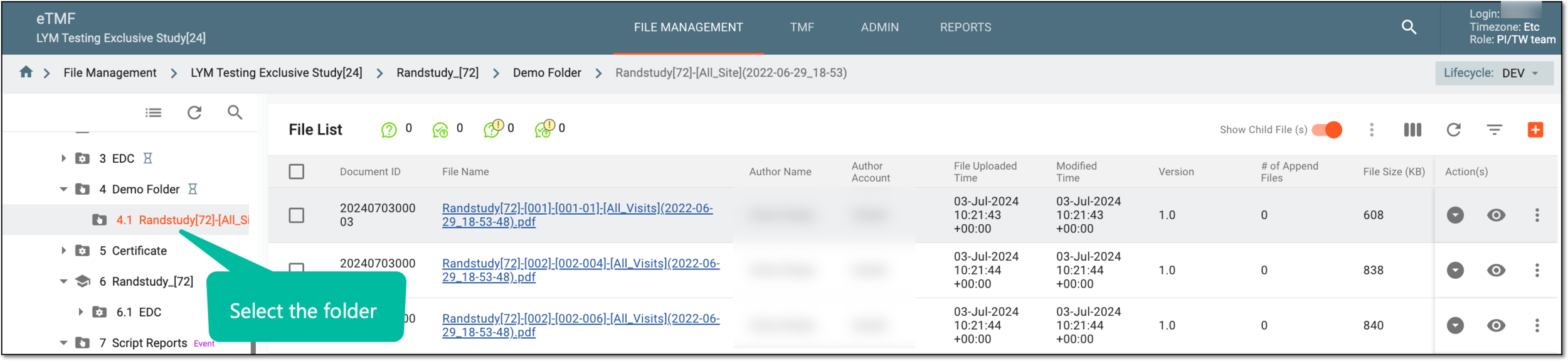 Figure 1. Accessing study folder
-
In the contents panel, find the file whose lifecycle you need to view—you can use filters to do this more quickly. Next to the file, select Lifecycle
 .
.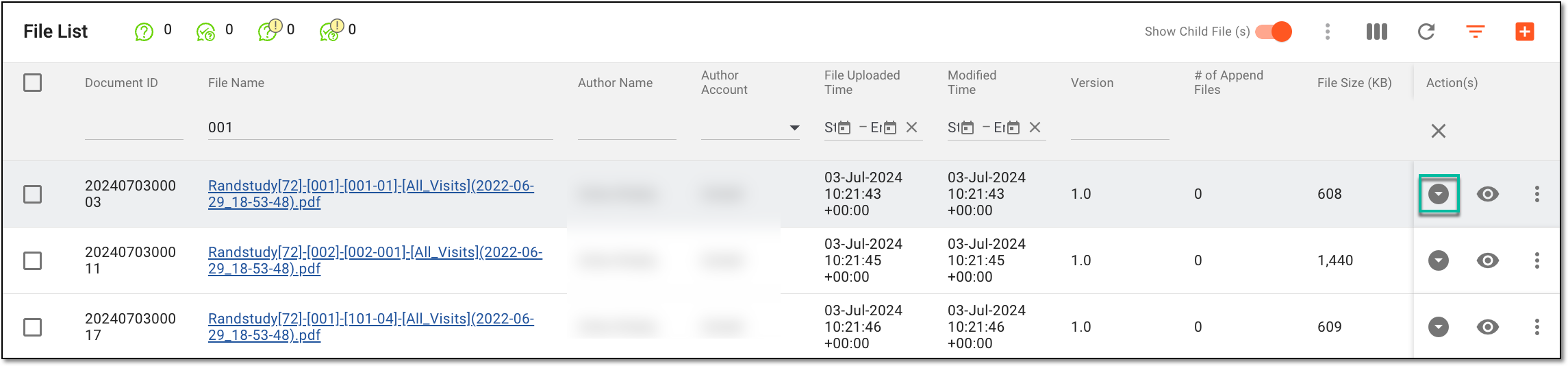 Figure 2. Selecting lifecycle option
-
In the Lifecycle contents pane that opens below the table, analyze the details about the file against the properties discussed in the following table.
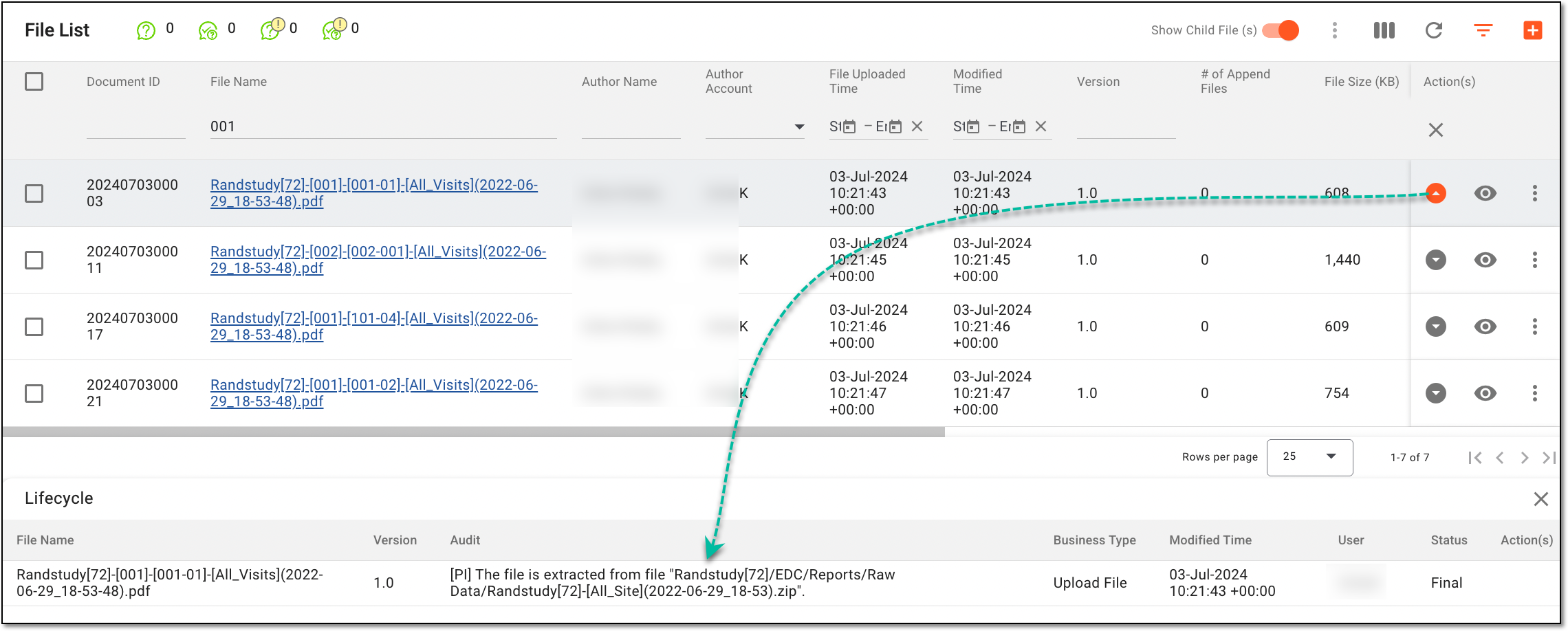 Figure 3. File lifecycle details
Column
Details
File name
The title of the file.
Version
An iteration of the file that was created at a specific point in time and contains a particular set of content and changes.
Audit
The information on how and when the file was obtained, what procedures were performed with this file, and by whom.
Business Type
The action type performed on the file, for example, Upload File means that the file was uploaded, Edit File—edited, and so on.
Modified Time
A timestamp (a date, time, and timezone) of the action performed, DD-MMM-YYYY 00:00:00 +00:00.
User
A login of the user who uploaded or modified the file.
Status
The information about the success or failure of the performed action.
After you have analyzed the file details, select  .
.
In eTMF, you can examine the file without downloading it with the Preview functionality. Additionally, if you are trying to preview a file in ZIP format, the system provides a list of files within it, and if needed, you can access their contents as long as they are in a format available for preview.
Important
The in-browser preview is available for the most common file formats. However, if a file preview is not supported, download the file to access its contents.
-
In the eTMF application header, select the FILE MANAGEMENT tab.
-
On the page that opens, in the explorer tree pane, select the study directory that contains the file you want to preview.
-
In the table that appears, next to the needed file, select File Preview
.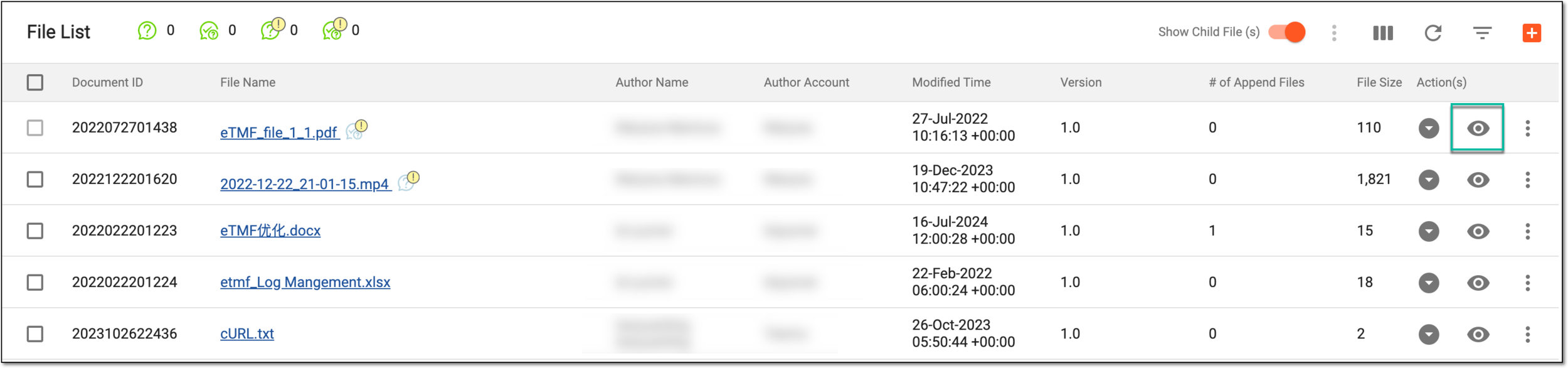 Figure 1. Accessing option to preview file
Tip
For the files in the ZIP format, in the contents panel that opens, review the complete list of archived files. Next to the needed file, select File Preview
.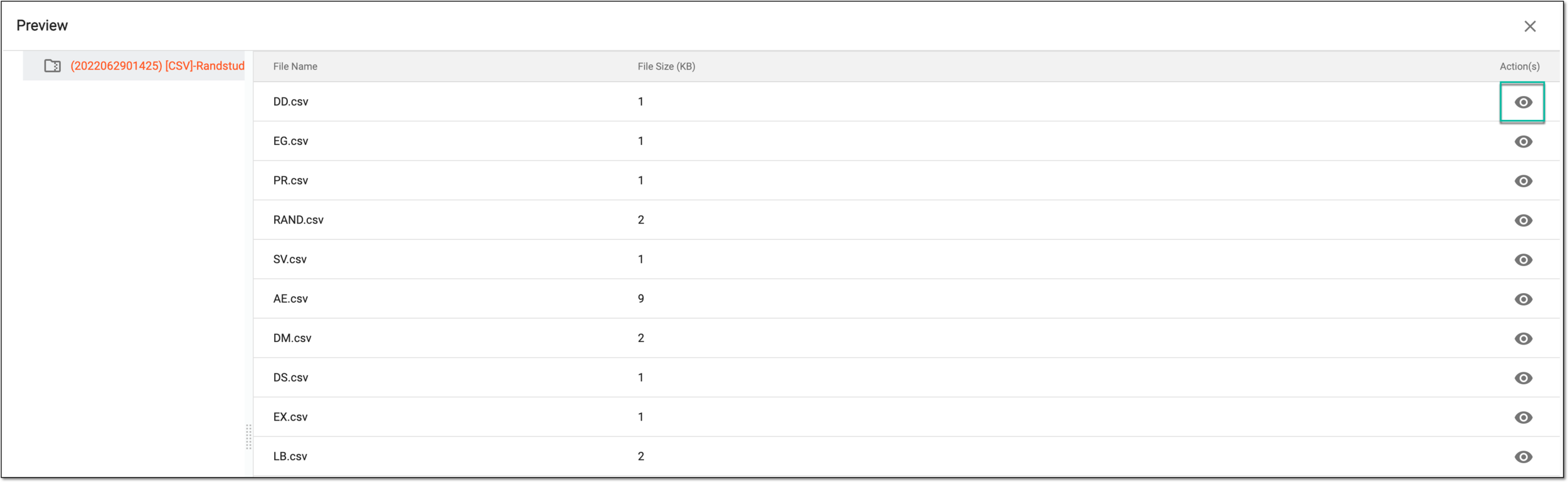 Figure 2. Previewing ZIP files
-
In the new browser tab that opens, preview the file content.
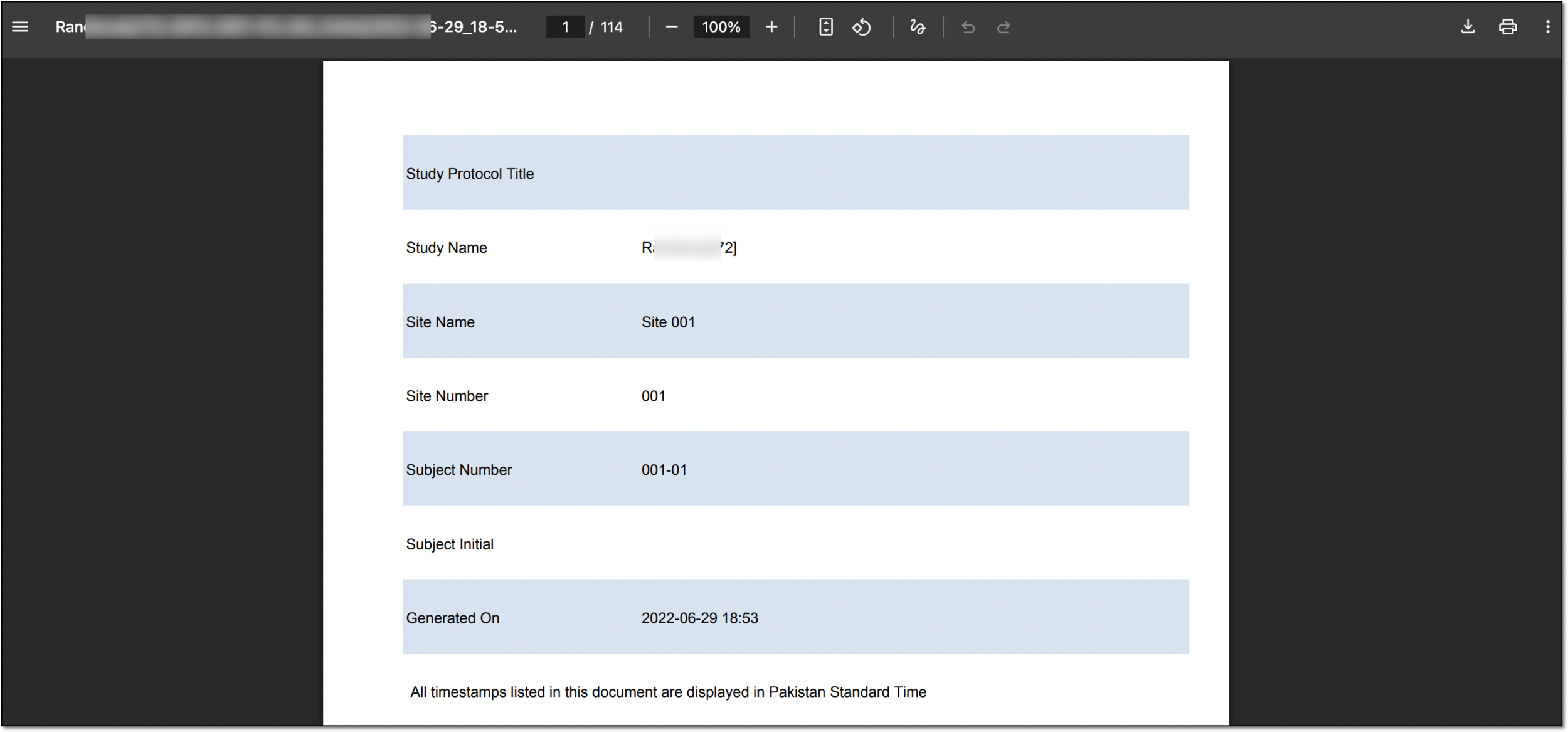 Figure 3. Previewing file in new browser tab
After you have examined the file contents, you can repeat this procedure to check all the files you need.
In the eTMF application, editing a file means updating different file properties, for instance, its name. In this section, you can learn how to edit a file from the FILE MANAGEMENT tab.
Important
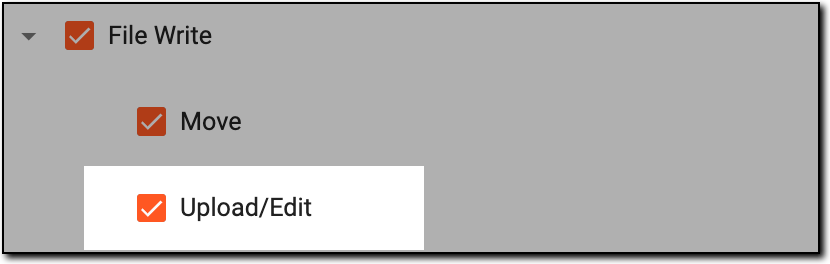
Only the users who have the Upload/Edit permission granted via ADMIN are authorized to make changes to files marked as Final or Dropped.
 |
-
In the eTMF application header, select the FILE MANAGEMENT tab.
-
On the page that opens, in the explorer tree pane, select the required study directory.
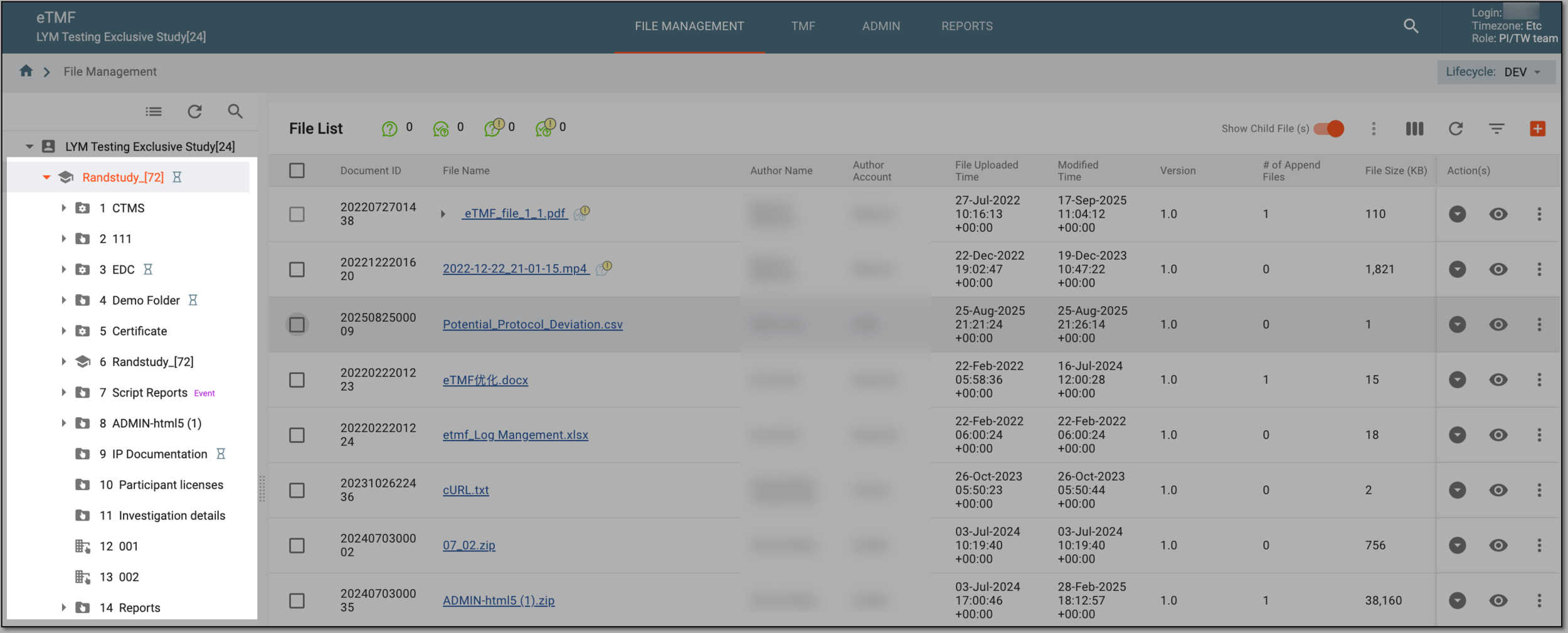 Figure 2. Accessing directories of file management
-
In the File List table that appears, go to the needed file. In the Actions column next to it, select More
 > Edit
  .
.Important
The Edit option is unavailable for system files to prevent any manipulations with them that can lead to data loss.
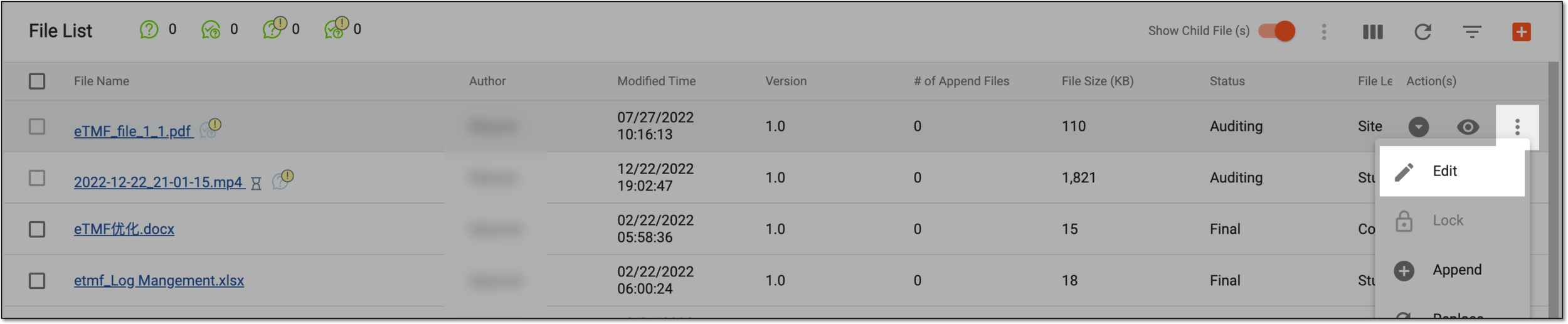 Figure 3. Selecting to edit file
-
In the Edit dialog that appears, update the fields as explained in the following table.
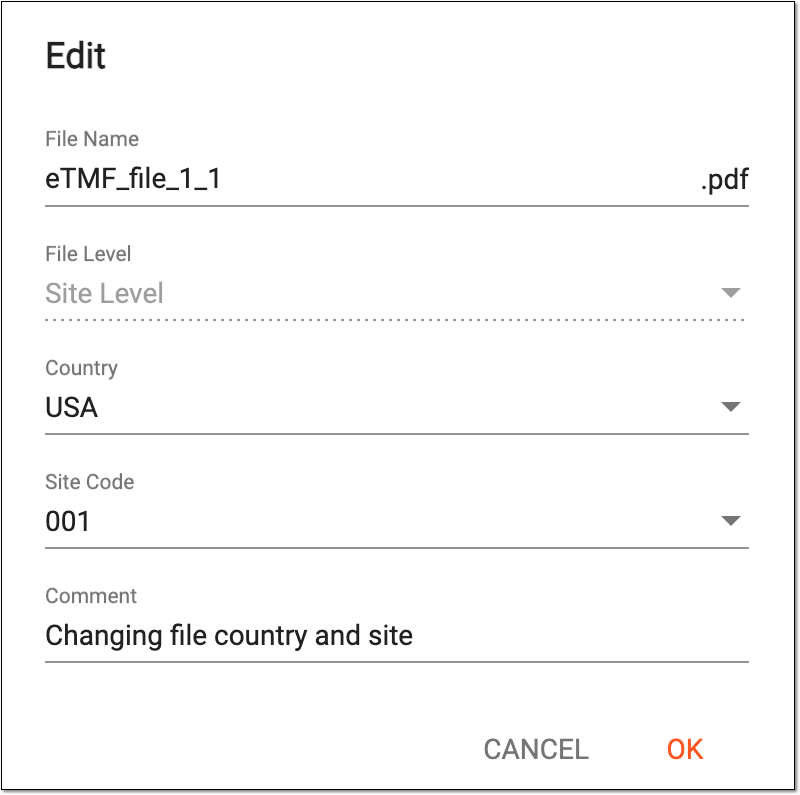 Figure 4. Editing file
Tip
In the following table, mandatory elements are marked with an asterisk (*).
Element
Details
File Name*
Update the file name as needed.
For the files in the Auditing status, only the assigned approver with the permission Edit File Name During Approval can edit the file name.File Level
Represents the read-only value that is automatically generated based on the Country and Site Code fields, as follows:
-
If Country is specified and Site Code is not, the file is at the country level.
-
If both Country and Site Code are specified, the file is at the site level.
-
If both Country and Site Code are not specified, the file is at the study level.
Country
Select the country to which this file belongs in the system.
Site Code
Select the site code to which this file belongs in the system.
Comment
Enter the comment to add some auxiliary information about the file or your actions with it.
OK
Select
 to save the implemented changes.
CANCEL
Select
 to dismiss changes without saving.
 -
Upon saving, the file properties are updated.
When working with files in eTMF, you may want to restrict access of other users from introducing changes to some of the files. In such a case, you can lock the needed files. The Lock feature also provides a mechanism to restrict unauthorized and undesirable edits, thus enhancing the reliability of stored documents and streamlining version control.
Tip
In eTMF, you can lock files in the FILE MANAGEMENT tab and Essential Documents.
-
In the eTMF application header, select the FILE MANAGEMENT tab.
-
On the page that opens, in the explorer tree pane, select the required study directory.
Figure 1. Accessing directories of file management
-
In the File List table, in the Actions column next to the file, select More
 > Lock
  .
.Important
Also, in FILE MANAGEMENT, the Lock option is unavailable for system files to prevent any manipulations with them that can lead to data loss.
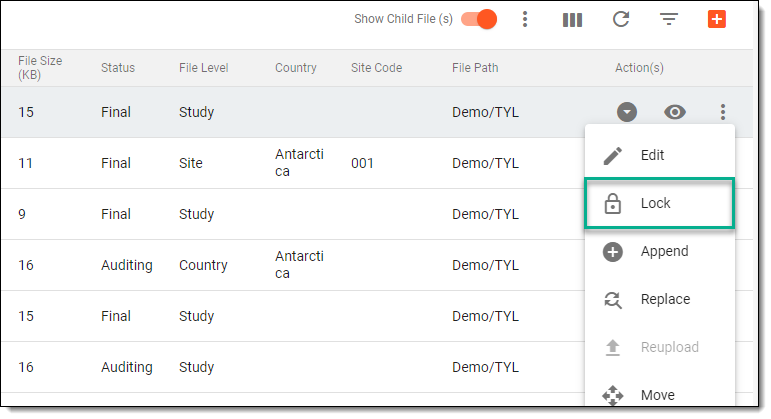 Figure 2. Selecting option to lock file
-
In the Reason dialog that opens, enter the reason for locking the file.
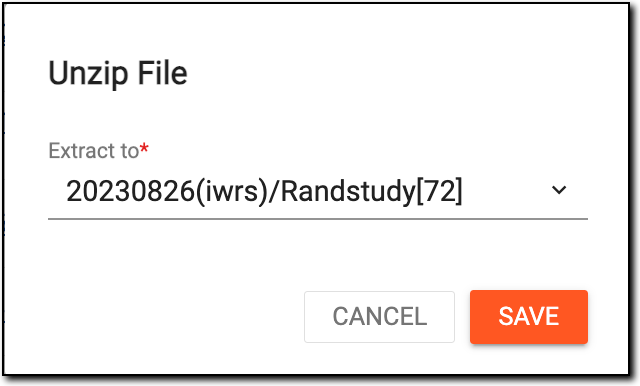 Figure 3. Entering reason for locking file
Upon saving, the file is locked in the eTMF system. The corresponding locked icon  appears next to the file name.
When working with files in eTMF, you may want to provide access to files that you have previously locked. In such a case, you can unlock the needed files. The Unlock feature allows authorized users to remove the restrictions placed on a file, thereby enabling subsequent edits or updates. This functionality is essential for making approved modifications to documents, thus facilitating collaboration between different teams.
Tip
In eTMF, you can unlock files in the FILE MANAGEMENT tab and in the Essential Documents.
-
In the eTMF application header, select the FILE MANAGEMENT tab.
-
On the page that opens, in the explorer tree pane, select the required study directory.
Figure 1. Accessing directories of file management
-
In the File List table, in the Actions column next to the file, select More
> Unlock  .
.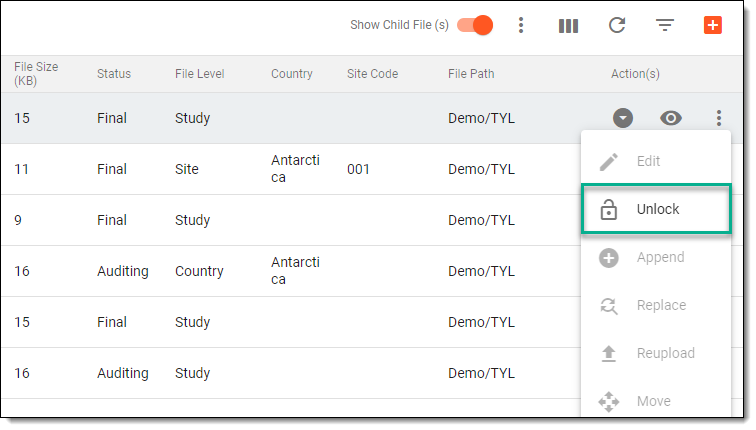 Figure 2. Selecting option to unlock file
-
In the Reason dialog that opens, enter the reason for unlocking the file.
Figure 3. Entering reason for unlocking file
Upon saving, the file is unlocked in the eTMF system. The corresponding locked icon disappears next to the file name.
The Append functionality in eTMF has been designed to complement existing files with missing file pages or files to comply with sponsors' or regulatory requirements.
One of the scenarios when you might need to append the file includes missing signed pages.
Suppose a Monitoring Visit Report (MVR) is finalized and sent for PI acknowledgement, but some signed pages of the report come back later. To resolve the issue and ensure that all the documents are in place, you can append the signed page to the already reviewed and approved MVR PDF, retaining the preappended version in the audit trail.
-
In the eTMF application header, select the FILE MANAGEMENT tab.
-
On the page that opens, in the explorer tree pane, select the required study directory.
Figure 1. Accessing directories of file management
-
In the File List table, in the Actions column next to the file to which you need to attach an additional file, select More
> Append  .
.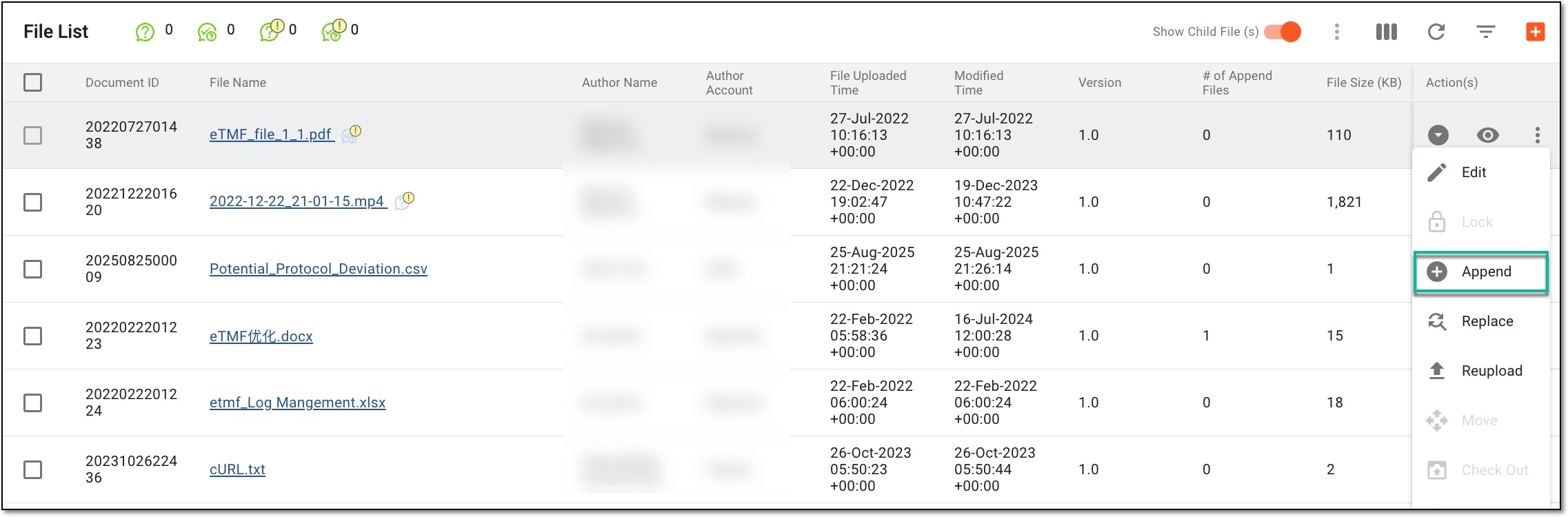 Figure 2. Accessing option to append file
-
On the Append File panel that opens, drag the file, add a description to the file and comment if required (the rest of the fields are read-only and cannot be modified), and select
. If needed, you can append more than one file.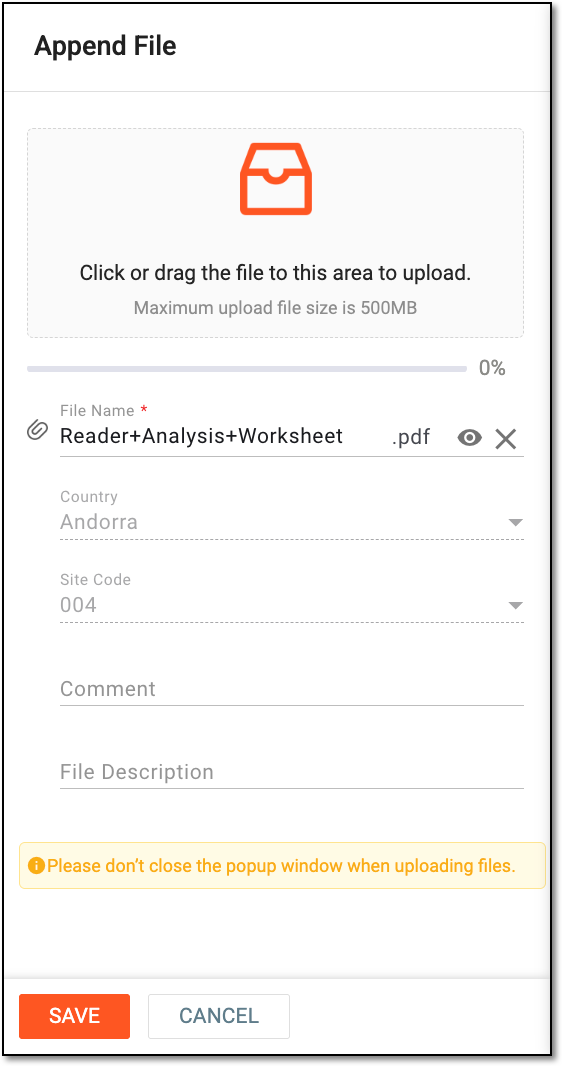 Figure 3. Appending files
Once saved, an additional file has been attached to the existing one.
While managing your TMF documents, you may need to replace the outdated version of the file with a new one that contains all the required fixes or updates. You can do that with the Replace functionality.
-
In the eTMF application header, select the FILE MANAGEMENT tab.
-
On the page that opens, in the explorer tree pane, select the required study directory.
Figure 1. Accessing directories of file management
-
In the File List table, select the needed file. Now, in the Actions column next to the file to which you need to replace, select More
> Replace  .
.Tip
If needed, you can replace more than one file. To do that, select multiple files.
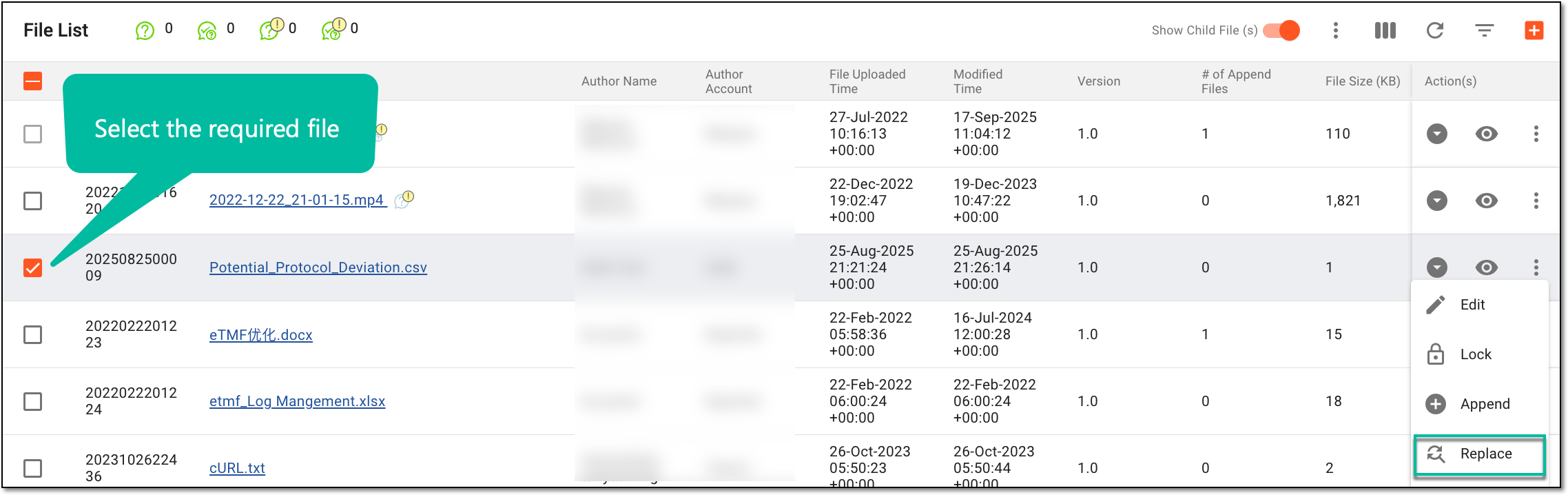 Figure 2. Accessing option to replace file
-
On the Replace File panel that opens, drag the file, add a description to the file and comment if required (the rest of the fields are read-only and cannot be modified), and select
.Tip
If you intend to replace multiple files, ensure that you have moved all of them to the Replace File panel.
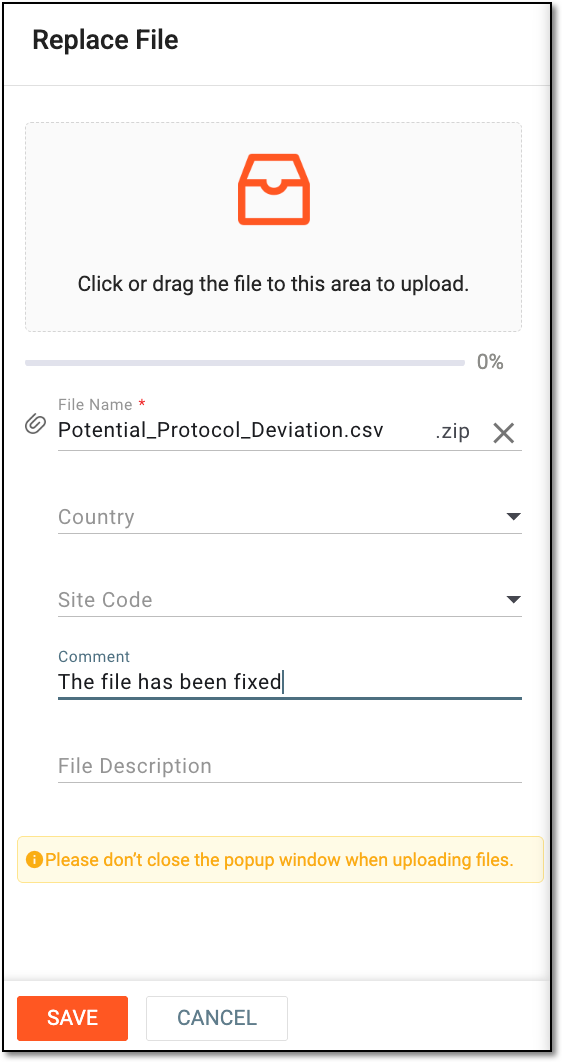 Figure 3. Replacing files
Once saved, the file replaces the existing one. All the audit details of the performed action are saved in the system.
In the context of a Trial Master File (TMF), you may need to replace or reload the files while managing them. The key difference between the Replace and Reupload functionalities is that replacement implies a deliberate, often quality-driven substitution, while reuploading can be a more informal process, possibly for correction, but does not inherently signify a formal swap of versions.
-
In the eTMF application header, select the FILE MANAGEMENT tab.
-
On the page that opens, in the explorer tree pane, select the required study directory.
Figure 1. Accessing directories of file management
-
In the File List table, in the Actions column next to the file to which you need to reload, select More
> Reupload  .
.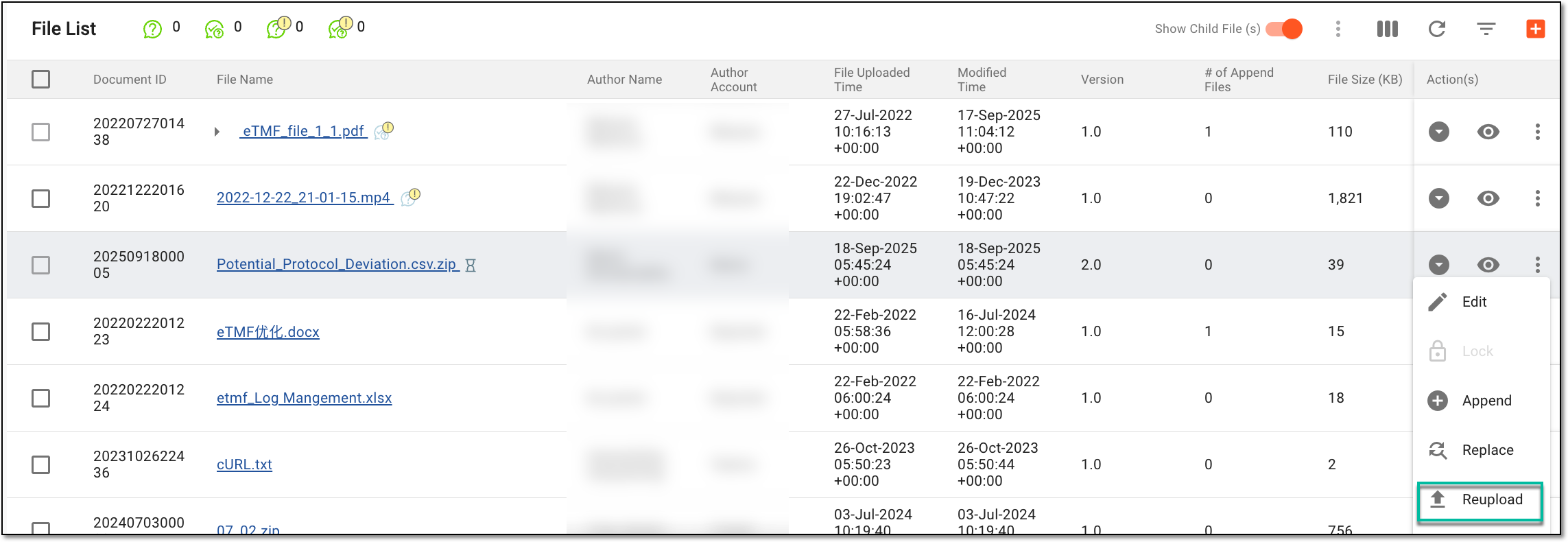 Figure 2. Accessing option to reupload file
-
On the Reupload File panel that opens, drag the file and add the necessary details about the new file: the country and site to which it belongs, the reason for the reload, and a description of the new file.
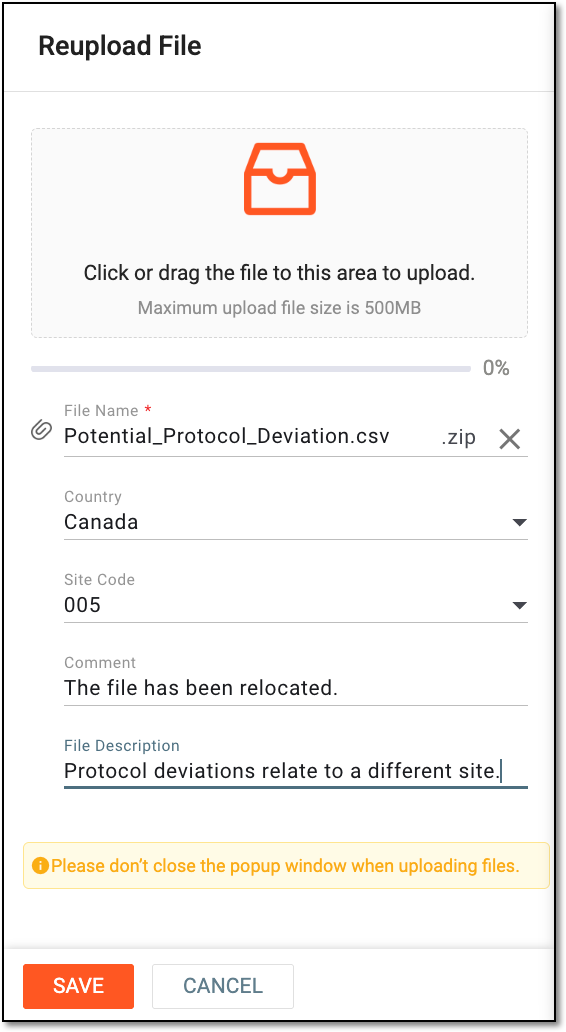 Figure 3. Reloading file
-
After introducing the required changes, select
.
Once saved, the new file is uploaded to the system and now complements the study details.
In eTMF, you can move files between different directories to more efficiently arrange your eTMF files. However, there are certain limitations in the Move functionality:
-
You cannot move files between different studies, only between the directories within the same study.
-
You cannot move the files that are stored in or targeted to the locked directory. You must unlock the directory first.
-
You cannot move files that are DIA RM artifacts. Any modifications added to the DIA RM artifact may compromise the reliability of the TMF documentation and violate the regulatory requirements.
-
You cannot move files in the Auditing status.
-
You cannot move the system files.
-
In the eTMF application header, select the FILE MANAGEMENT tab.
-
On the page that opens, in the explorer tree pane, select the required study directory.
Figure 1. Accessing directories of file management
-
Now, locate the subfolder and file that you need to move, and in the Actions column next to the file, select More
> Move  .
.Tip
You can also use the multiselect option to move multiple files at once.
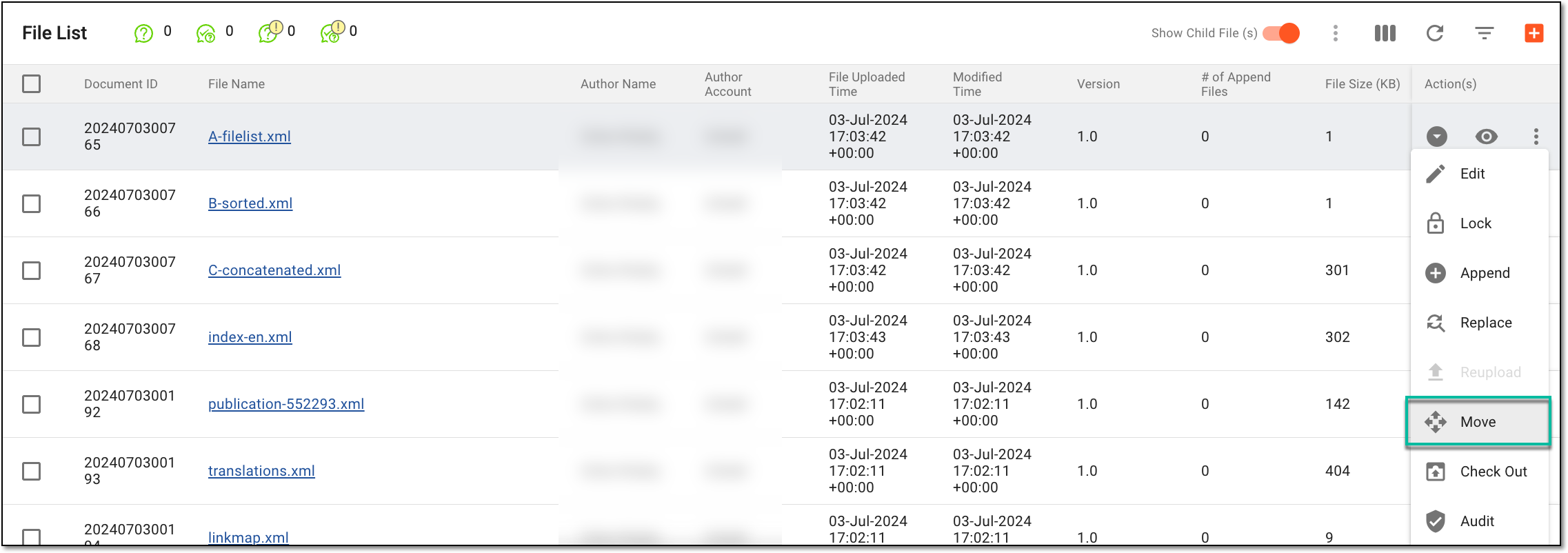 Figure 2. Accessing option to move file
-
In the Move File(s) dialog that appears, in the left column, the file you need to move is preselected—ensure that it is the needed one. In the right column, expand the study and select a new target folder for the file.
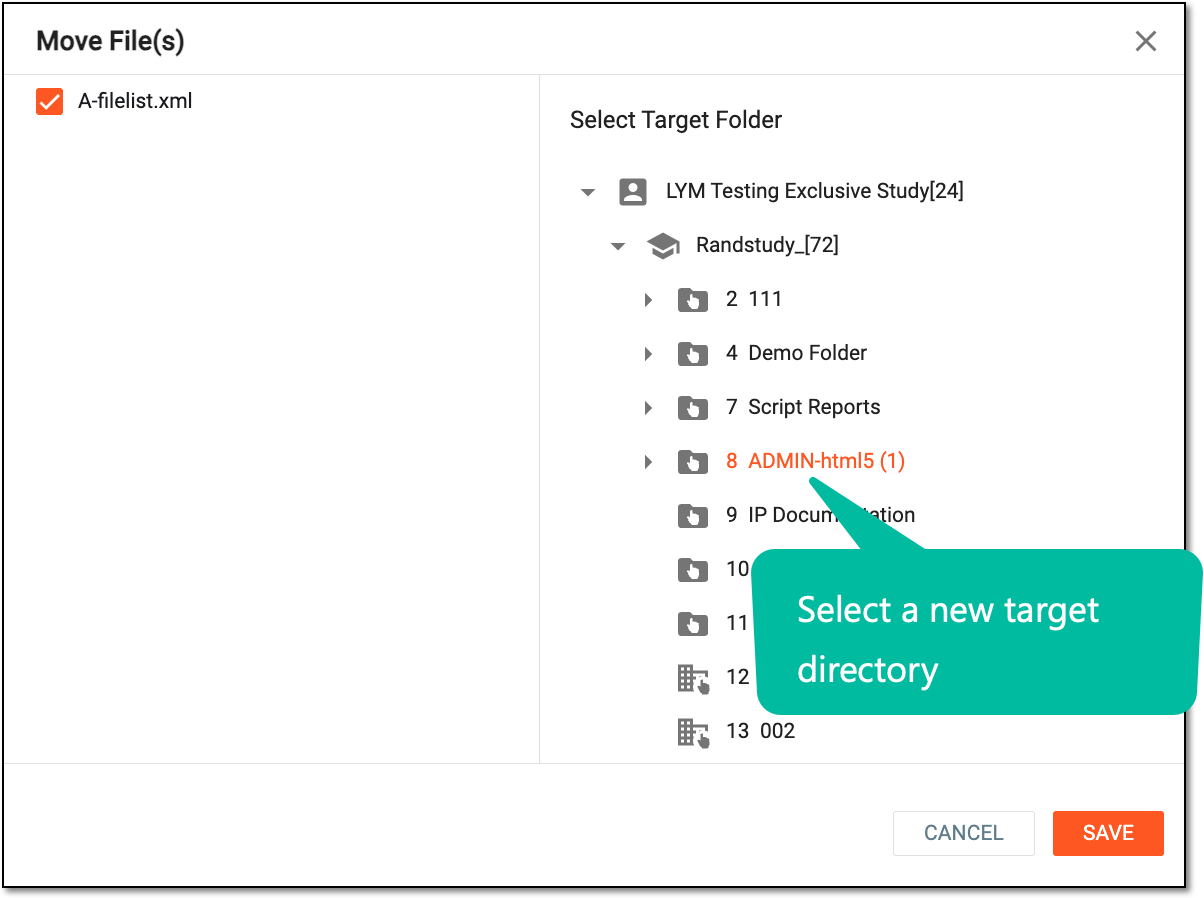 Figure 3. Selecting new target directory
-
Select
and in the Reason dialog that appears, enter the reason why you are moving the file to a different
directory.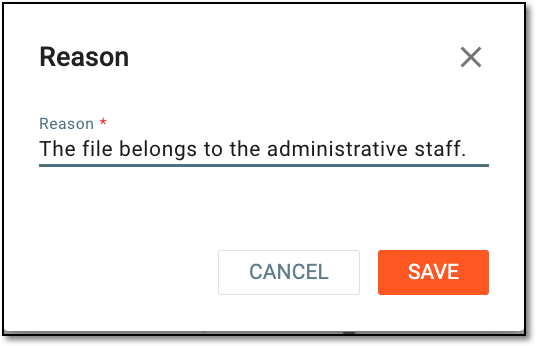 Figure 4. Providing reason to move files
-
Select
to save the changes.Important
When moving a file that already exists in the target directory, select the Skip or Replace option in the dialog that appears:
-
Skip: terminates the file movement.
-
Replace: replaces the file in the target directory with the moved file.
-
The file has been moved and is available under the new location.
The Check Out option helps you prevent the file from any modifications while you need to work with this file.
One example of why you may need to check out the file is when you download the file for offline processing, and thus, to prevent it from being amended by other users in the meantime.
On the other hand, the Check In functionality makes the changes you have introduced to the file available to others.
Important
The Check In and Check Out options are unavailable for system files to prevent any manipulations with them that can lead to data loss.
-
In the eTMF application header, select the FILE MANAGEMENT tab.
-
On the page that opens, in the explorer tree pane, select the required study directory.
Figure 1. Accessing directories of file management
-
Now, in the File List table that appears, locate the required file, in the Actions column, next to the needed file, select More
, and then one of the following:-
Select Check Out
 to prevent the file from editing. Now, you can download the file and introduce the required changes.
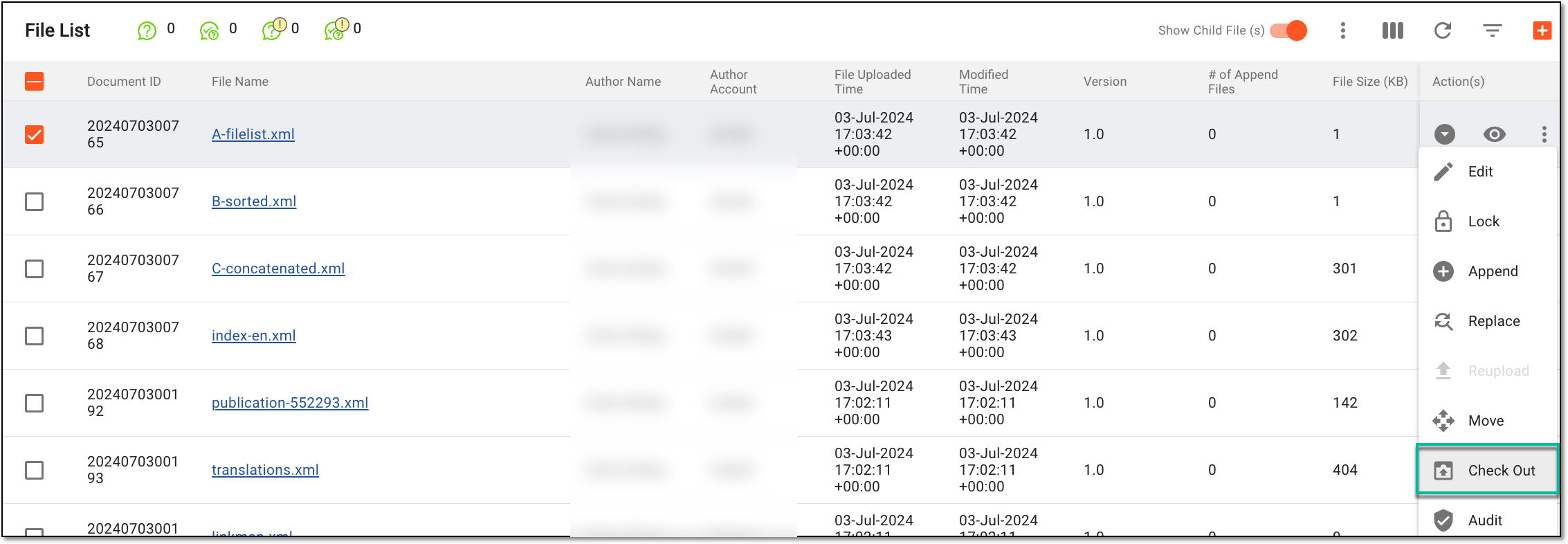 Figure 2. Accessing option to check out files
-
In the confirmation dialog that opens, select OK.
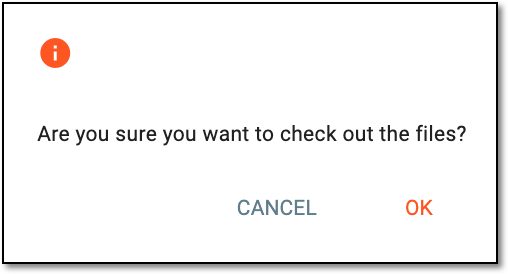 Figure 3. Confirming file check-out
-
Select Check In next to the file that you need to make available again and update it with certain changes.
Tip
The file that you need to check into the system has to have the lock label
next to it. -
In the Check In dialog that appears, perform a set of actions as explained in the following table.
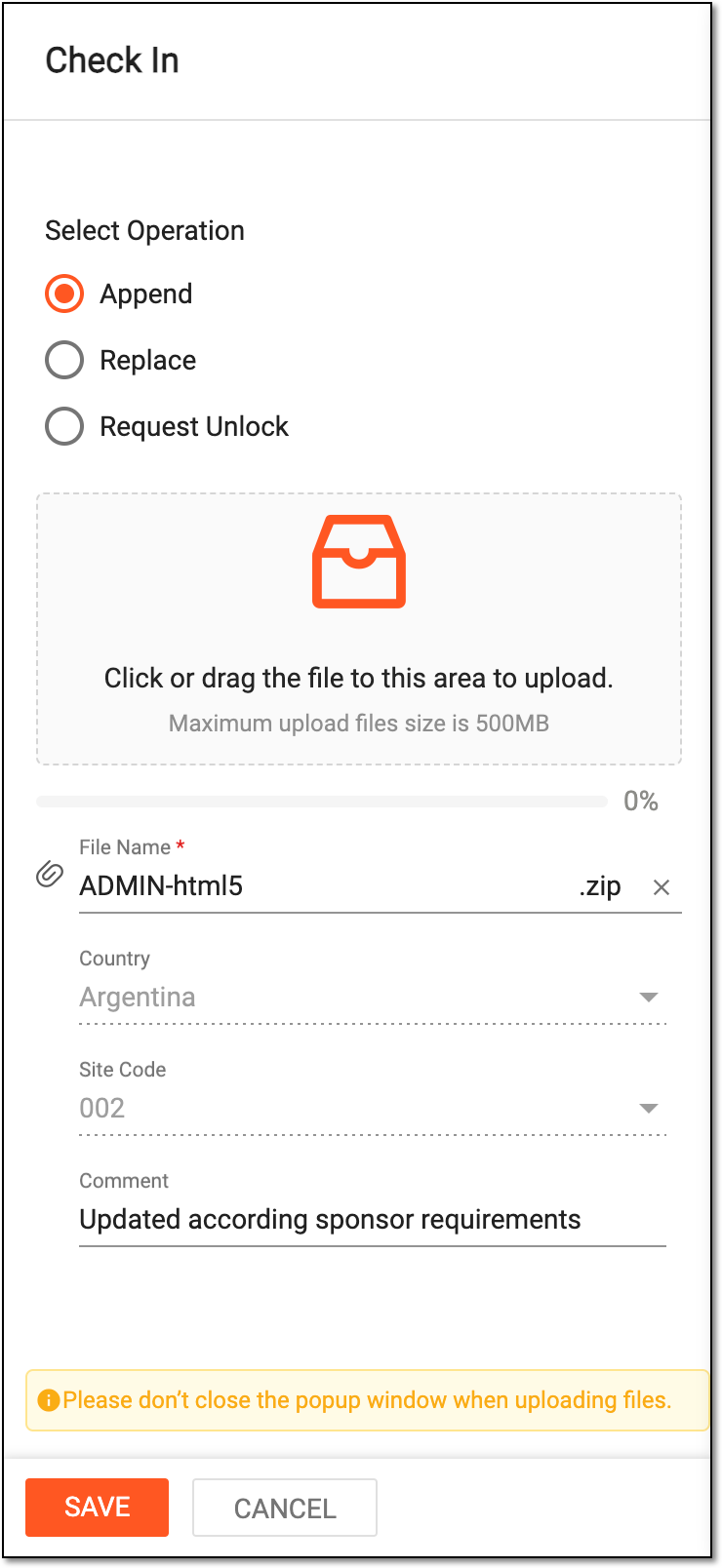 Figure 4. Uploading file to check it in
Tip
In the following table, mandatory elements are marked with an asterisk (*).
Element
Details
Select operation
Append
Select the Append option to unlock the file and append it to the master file.
The file cannot be checked in via the Append feature if the directory in which it is located is locked.Replace
Select the Replace option to unlock the file and replace the master file.
The file cannot be checked in via the Replace feature if the directory in which it is located is locked. You need to unlock the directory first.Request Unlock
Select the Request Unlock option to unlock the file without appending or replacing it. When selecting this option, you have to specify the reason for your actions, and you do not need to upload the file.
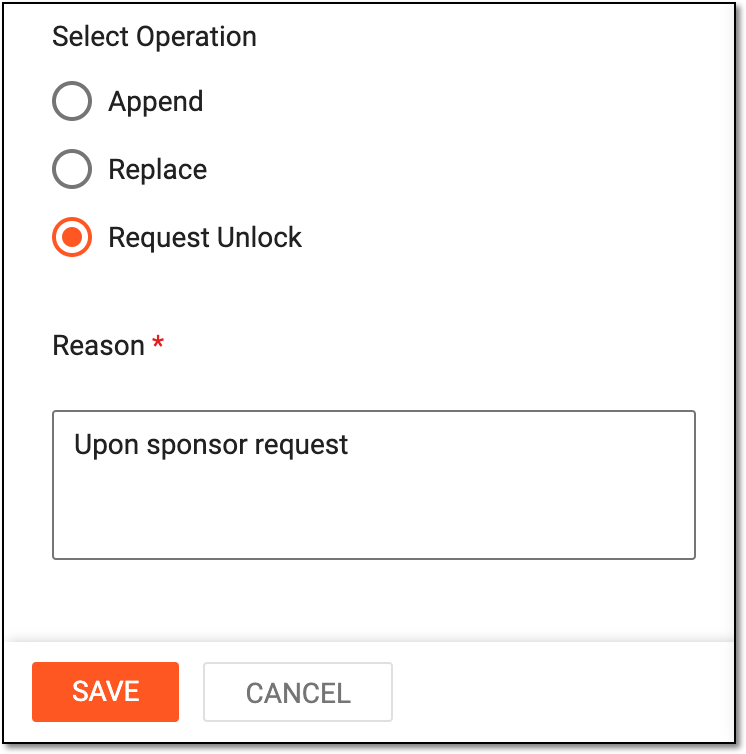 Figure 5. Requesting to unlock upon checking in
Click or drag the file to this area to upload
Drag the file from your computer to the area or click this area to select the file on your computer for upload.
This option is only available for Append and Replace operations.File Name*
Represents the name of the file being uploaded. The file name can be updated if required.
This option is only available for Append and Replace operations.[File properties]
Represent the fields autopopulated by the system or available for manual completion based on the file level and other custom properties, such as file author, country of origin, and more.
This option is only available for Append and Replace operations.SAVE
Select
to implement the changes.CANCEL
Select
to discard the file checking in operation.
-
Upon saving, the file is checked out and unavailable or checked in again, depending on the performed actions.
In the eTMF, files are constantly subjected to change due to deletions, copying, and other modifications, and it is vital to have an established audit process to control changes to sensitive files and data. Thus, the file audit is held to assess and confirm the validity and compliance of all operations involving files.
Under the FILE MANAGEMENT storage, you can also keep unorganized and unclassified files. Since these files are constantly subjected to change with all the deletions, copying, and so on, you may want to control the actions via the auditing procedure according to the workflow that is associated with folders containing files: if the action is attempted with the file, the authorized user has to approve, sign, or reject this action.
Tip
You can also approve files in batch using the File Task functionality.
-
In the eTMF application header, select the FILE MANAGEMENT tab.
-
On the page that opens, in the explorer tree pane, select the required study directory.
Figure 1. Accessing directories of file management
-
In the Actions column next to the file of your interest, select More
>
Audit  .
.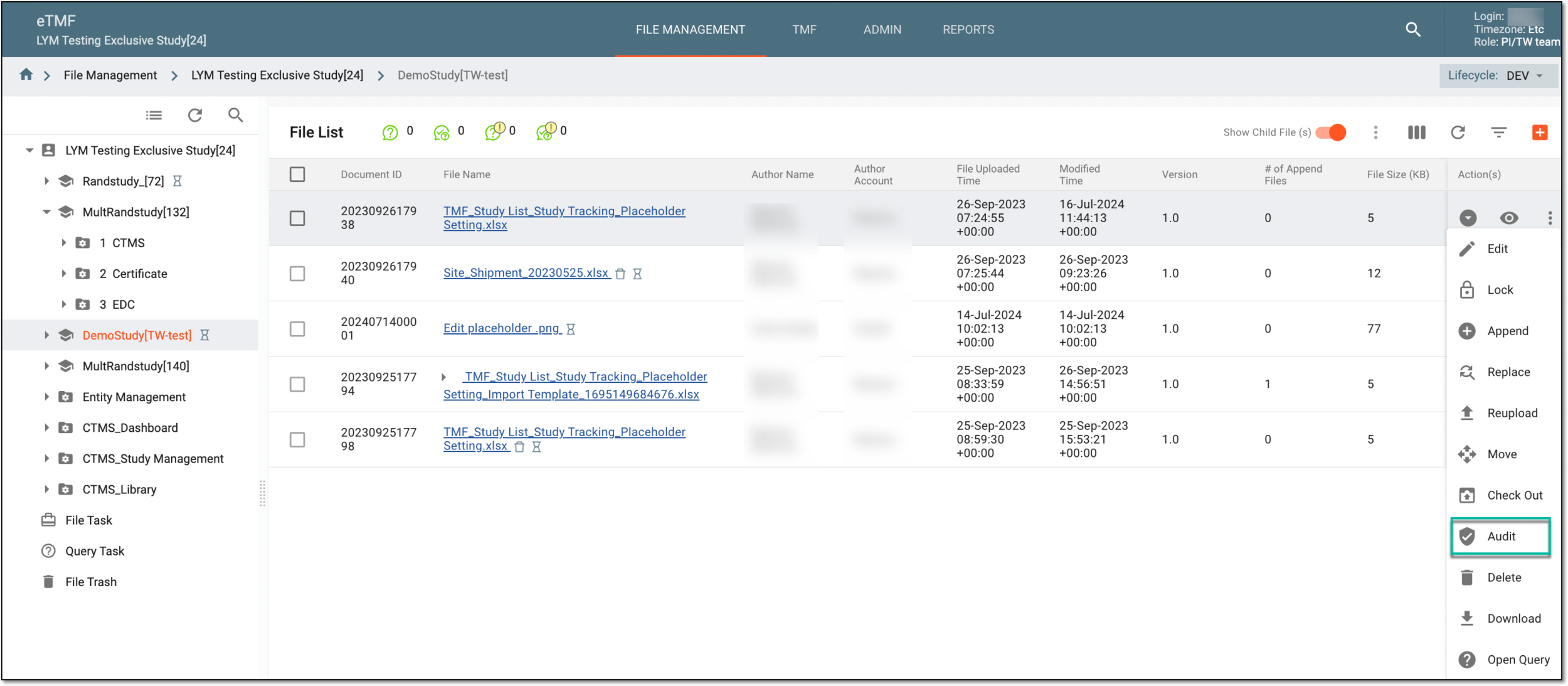 Figure 2. Selecting to audit file
Tip
The audit option can be disabled or hidden if:
-
The file is in a folder without a workflow.
-
The file is in the linked folder.
-
The file is in the locked folder.
-
The file is the linked one.
-
-
In the dialog that appears, select the Approve option and add a comment for your operation, if needed.
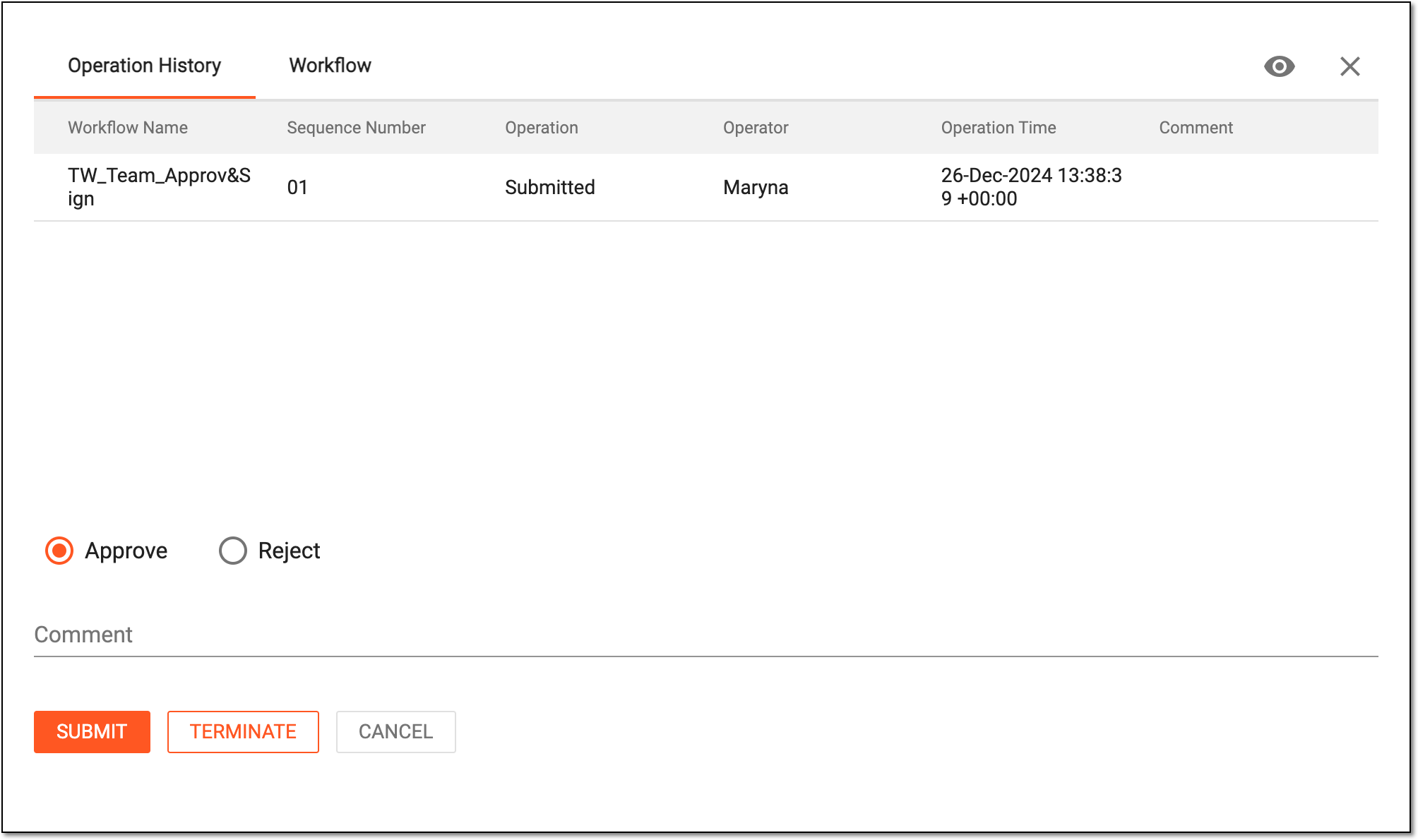 Figure 3. Approving file
Important
If you audit the file deletion, to help your judgment, you can see the deletion reason in the comments to the latest operation in the history.
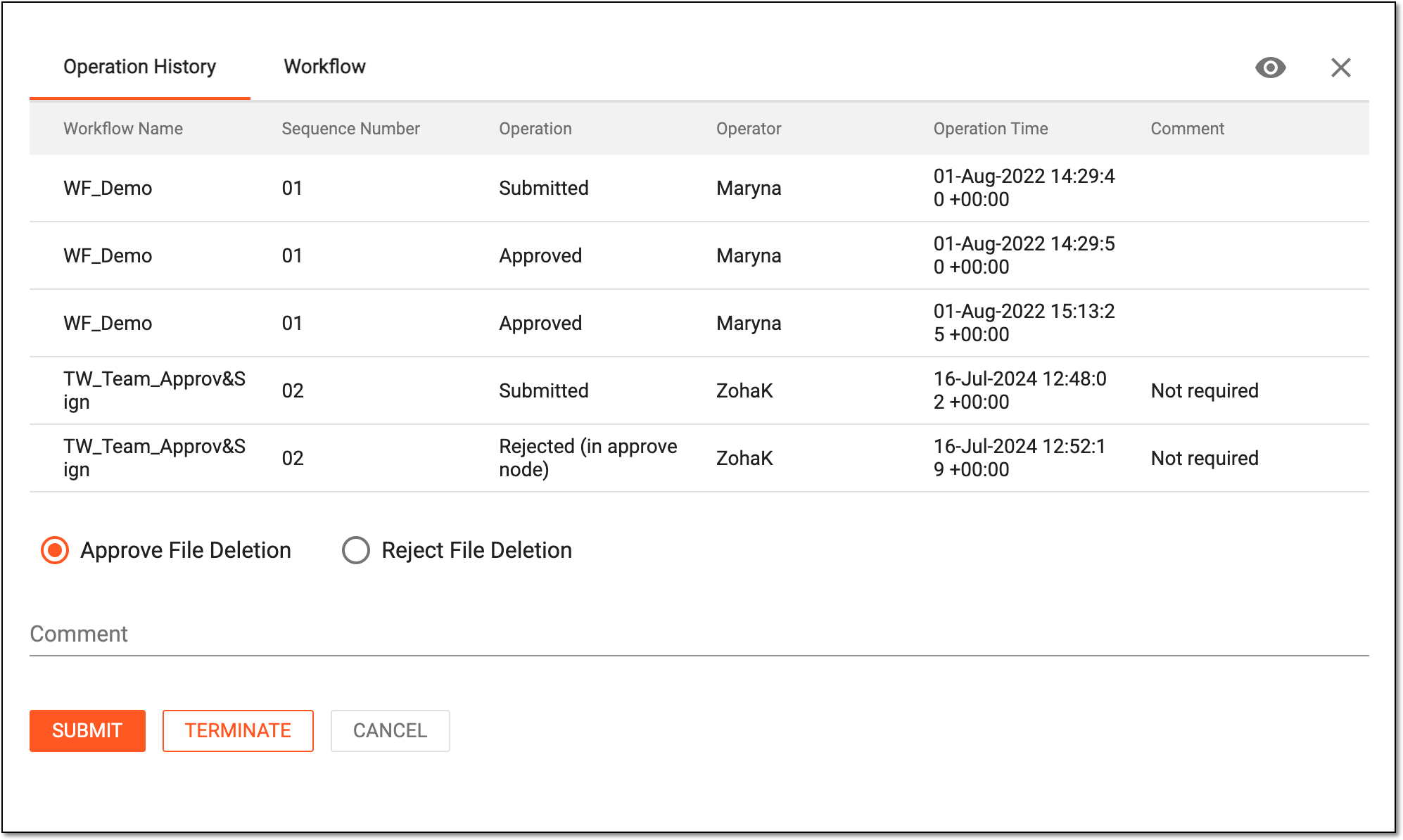 Figure 4. Auditing file deletion
-
Select
 to complete the approval process.
Upon submission, the file is audited and approved. The file status changes according to the associated workflow.
In the eTMF, files are constantly subjected to change due to deletions, copying, and other modifications, and it is vital to have an established audit process to control changes to sensitive files and data. Thus, the file audit is held to assess and confirm the validity and compliance of all operations involving files.
Under the FILE MANAGEMENT storage, you can also keep unorganized and unclassified files. Since these files are constantly subjected to change with all the deletions, copying, and so on, you may want to control the actions via the auditing procedure according to the workflow that is associated with folders containing files: if the action is attempted with the file, the authorized user has to approve, sign, or reject this action.
Tip
You can also reject files in batch using the File Task functionality.
-
In the eTMF application header, select the FILE MANAGEMENT tab.
-
On the page that opens, in the explorer tree pane, select the required study directory.
Figure 1. Accessing directories of file management
-
In the Actions column next to the file of your interest, select More
>
Audit .Figure 2. Selecting to audit file
Tip
The audit option can be disabled or hidden if:
-
The file is in a folder without a workflow.
-
The file is in the linked folder.
-
The file is in the locked folder.
-
The file is the linked one.
-
-
In the dialog that appears, select the Reject option and complete the rest of the details as explained in the following table.
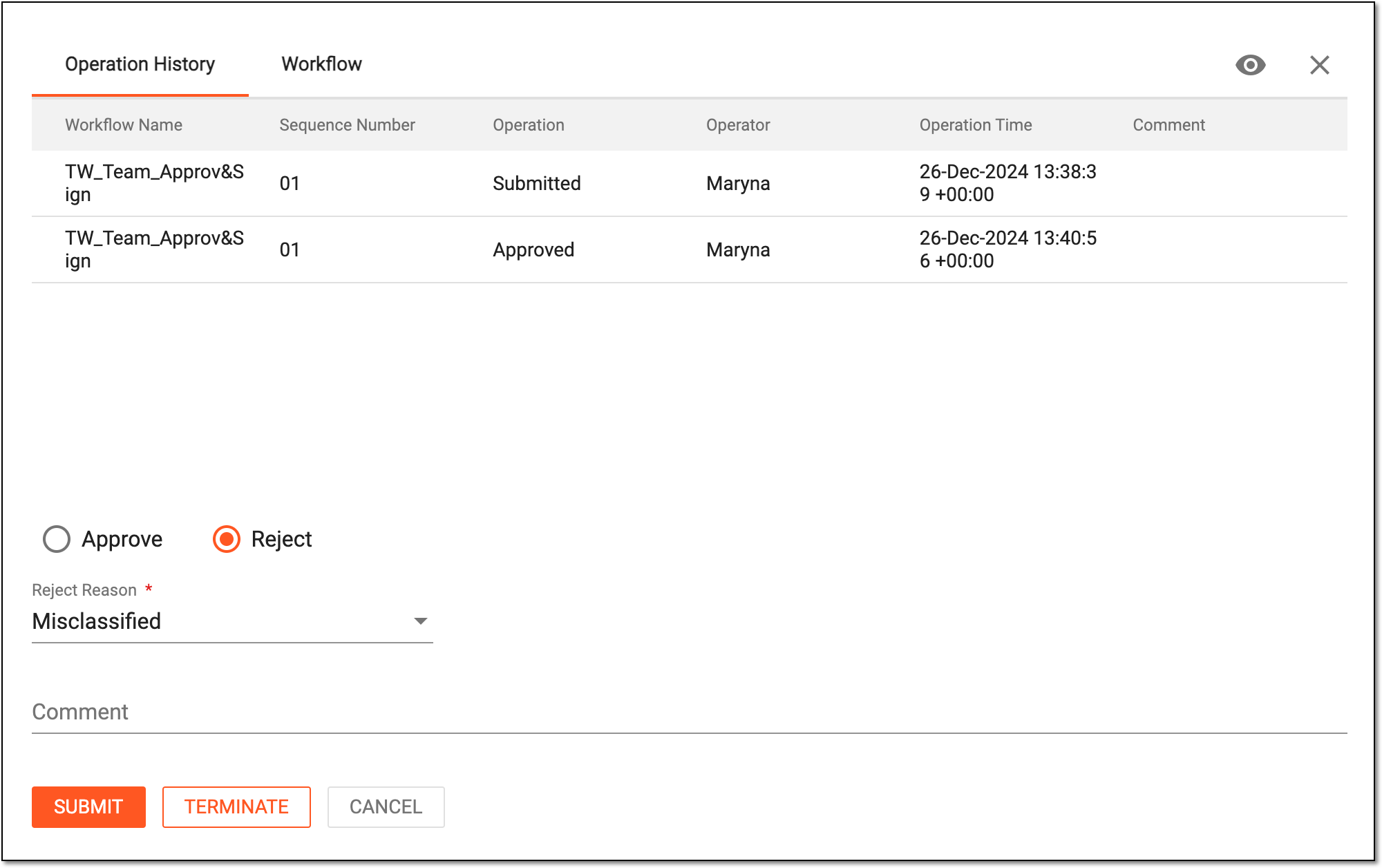 Figure 3. Rejecting file
Tip
In the following table, mandatory elements are marked with an asterisk (*).
Element
Details
Reject reason*
Select the reason why you are rejecting the file, such as Missing Signature, Duplicate Document, and so on.
Comments
Enter a comment to support your action, if needed.
SUBMIT
Select
to complete the rejection process.TERMINATE
Select
 to terminate the file audit.
CANCEL
Select
to dismiss your actions without saving and close the dialog.Important
If you audit the file deletion, to help your judgment, you can see the deletion reason in the operation history.
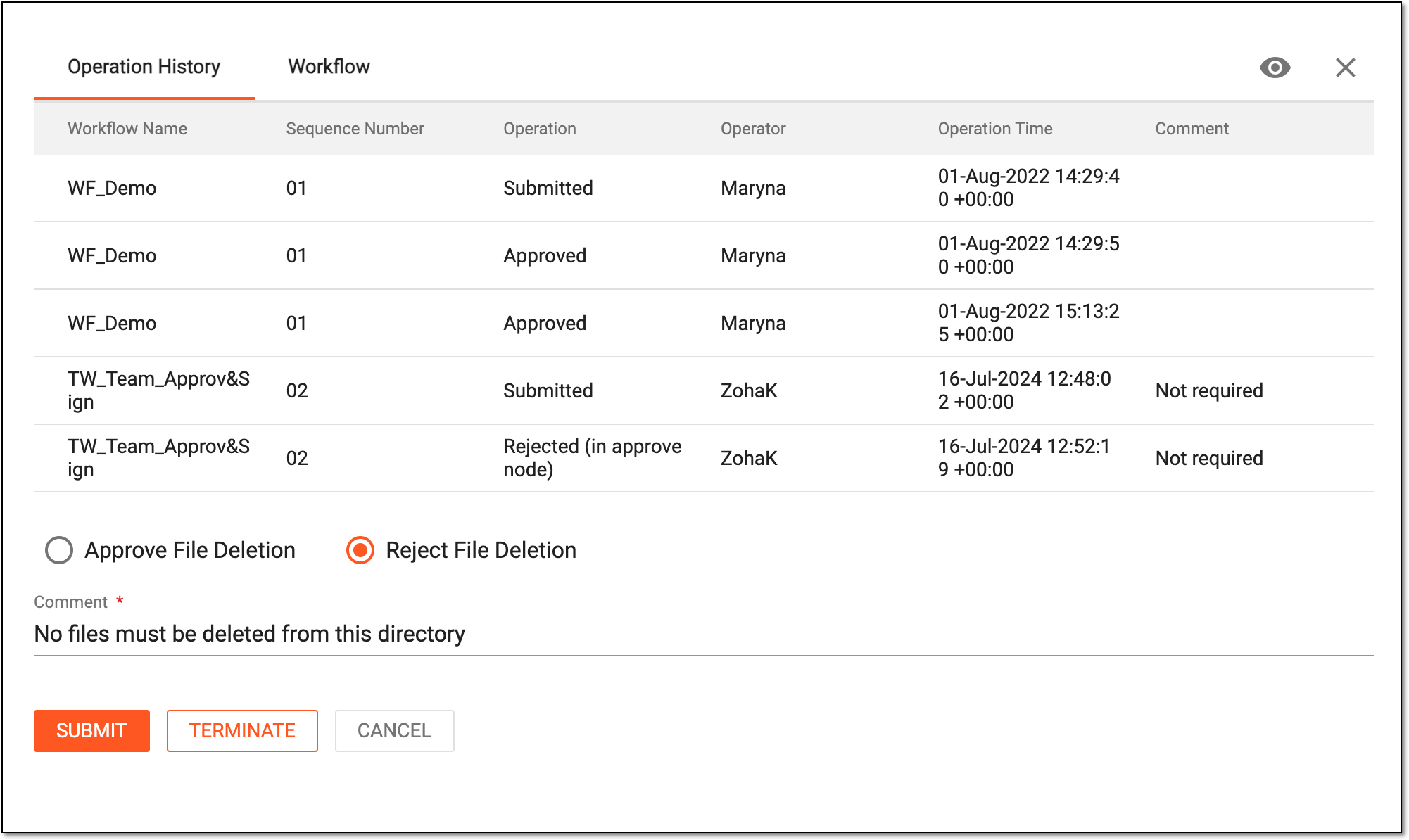 Figure 4. Rejecting file deletion upon audit
Upon submission, the file is audited and rejected. The file status changes according to the associated workflow.
In the eTMF, files are constantly subjected to change due to deletions, copying, and other modifications, and it is vital to have an established audit process to control changes to sensitive files and data. Thus, the file audit is held to assess and confirm the validity and compliance of all operations involving files.
Under the FILE MANAGEMENT storage, you can also keep unorganized and unclassified files. Since these files are constantly subjected to change with all the deletions, copying, and so on, you may want to control the actions via the auditing procedure according to the workflow that is associated with folders containing files: if the action is attempted with the file, the authorized user has to approve, sign, or reject this action.
Tip
You can also sign files in batch using the File Task functionality.
-
In the eTMF application header, select the FILE MANAGEMENT tab.
-
On the page that opens, in the explorer tree pane, select the required study directory.
Figure 1. Accessing directories of file management
-
In the Actions column next to the file of your interest, select More
>
Audit .Figure 2. Selecting to audit file
Tip
The audit option can be disabled or hidden if:
-
The file is in a folder without a workflow.
-
The file is in the linked folder.
-
The file is in the locked folder.
-
The file is the linked one.
-
-
In the dialog that appears, select the Approve option and complete the rest of the details as explained in the following table.
Important
For security, the system logs you out after three failed attempts to confirm your identity with a password or code.
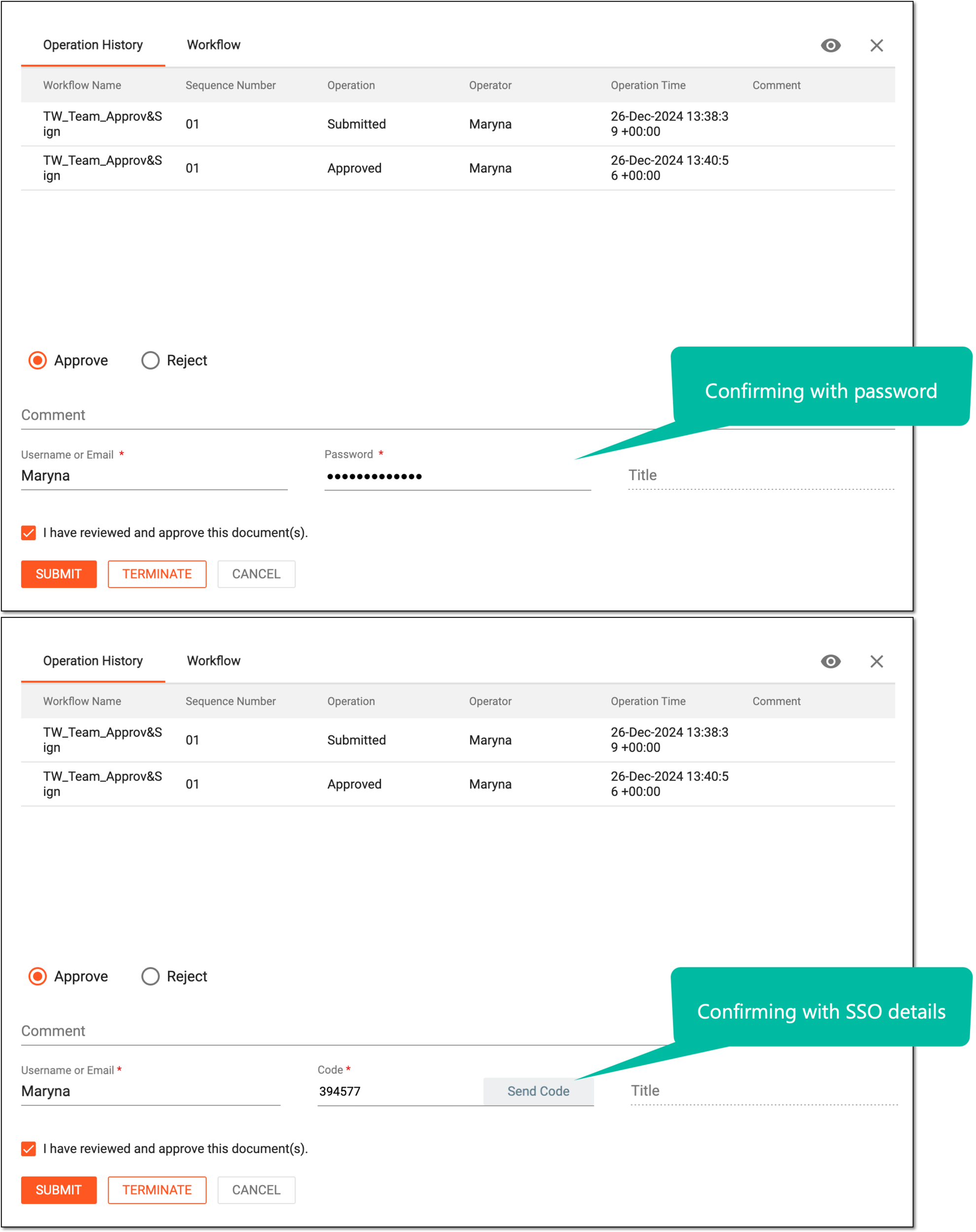 Figure 3. Signing for file approval
Tip
In the following table, mandatory elements are marked with an asterisk (*).
Element
Details
Comments
Enter a comment to support your action, if needed.
Username or Email*
Enter your username or email that you use to log in to the eClinical applications.
Password*
Enter your system password to confirm an electronic signature.
The field is only available if you use the authorization method by providing your login and password.Send Code
Select
 to send the temporary PIN code to your email for which the SSO method is configured.
The button is only available when using the authorization method via SSO.Code*
Enter the temporary PIN code that you received via email to confirm an electronic signature.
The field is only available if you use the authorization method via SSO.Title
Represents the title of the user entered in the Username or Email field if it is configured for them in the ADMIN application. The field cannot be edited manually.
I have reviewed and approve this document(s)
Select this checkbox to acknowledge that you have reviewed the document for which you are signing.
SUBMIT
Select
to complete the approval process.TERMINATE
Select
to terminate the file audit.CANCEL
Select
to dismiss your actions without saving and close the dialog.Tip
If you audit the file deletion, to help your judgment, you can see the deletion reason in the operation history.
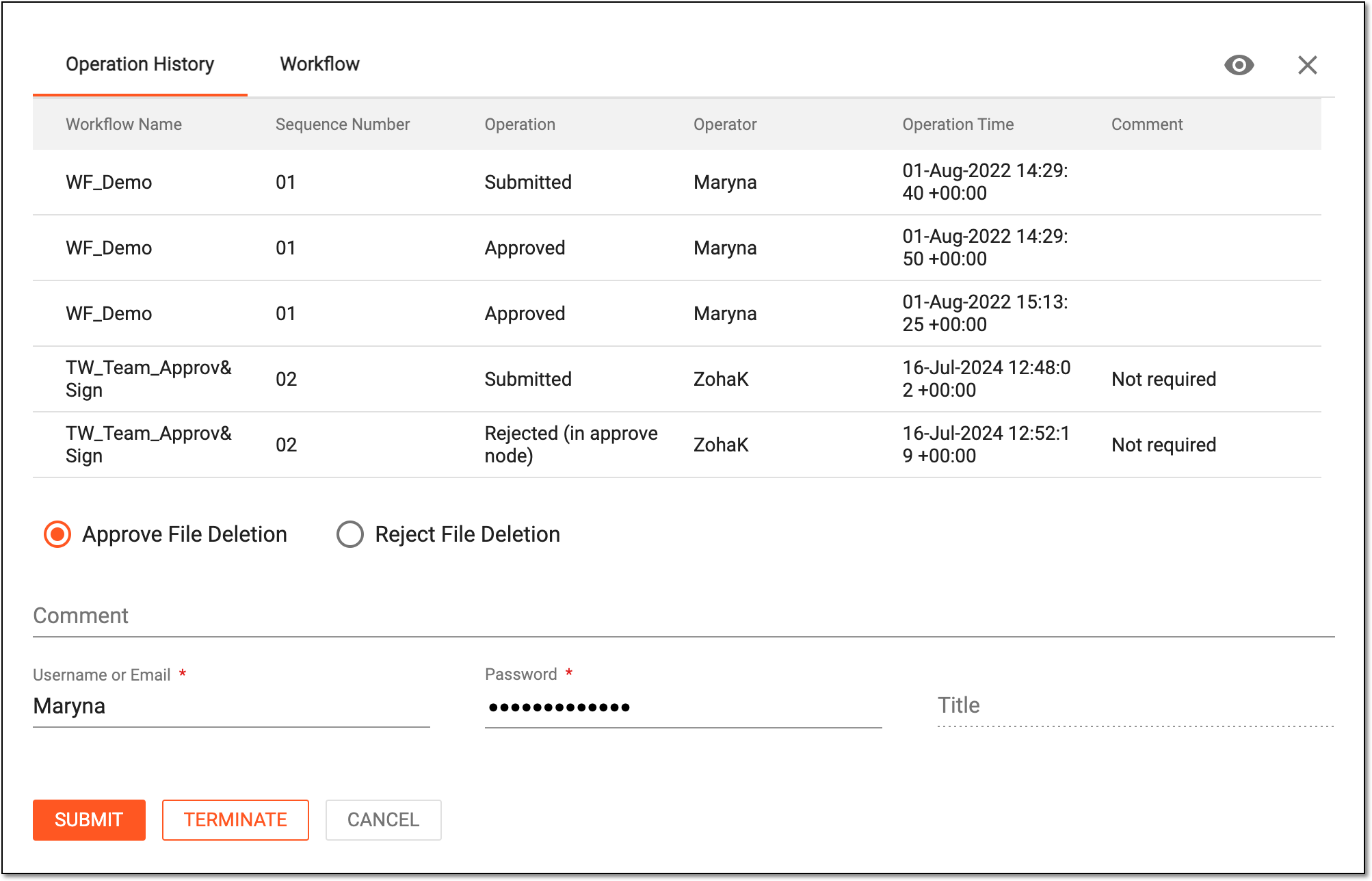 Figure 4. Signing for file deletion
Upon submission, the file is audited and approved. The file status changes according to the associated workflow.
In the eTMF, files are constantly subjected to change due to deletions, copying, and other modifications, and it is vital to have an established audit process to control changes to sensitive files and data. Thus, the file audit is held to assess and confirm the validity and compliance of all operations involving files.
Under the FILE MANAGEMENT storage, you can also keep unorganized and unclassified files. Since these files are constantly subjected to change with all the deletions, copying, and so on, you may want to control the actions via the auditing procedure according to the workflow that is associated with folders containing files: if the action is attempted with the file, the authorized user has to approve, sign, or reject this action.
Nevertheless, sometimes you might need to terminate the file audit before its completion.
For instance, if you need to delete a file whose audit has already started, the deletion is impossible until the audit is completed. Thus, you can terminate the audit and then proceed with the deletion.
-
In the eTMF application header, select the FILE MANAGEMENT tab.
-
On the page that opens, in the explorer tree pane, select the required study directory.
Figure 1. Accessing directories of file management
-
In the Actions column next to the file of your interest, select More
>
Audit .Figure 2. Selecting to audit file
Tip
The audit option can be disabled or hidden if:
-
The file is in a folder without a workflow.
-
The file is in the linked folder.
-
The file is in the locked folder.
-
The file is the linked one.
-
-
In the dialog that appears, select
.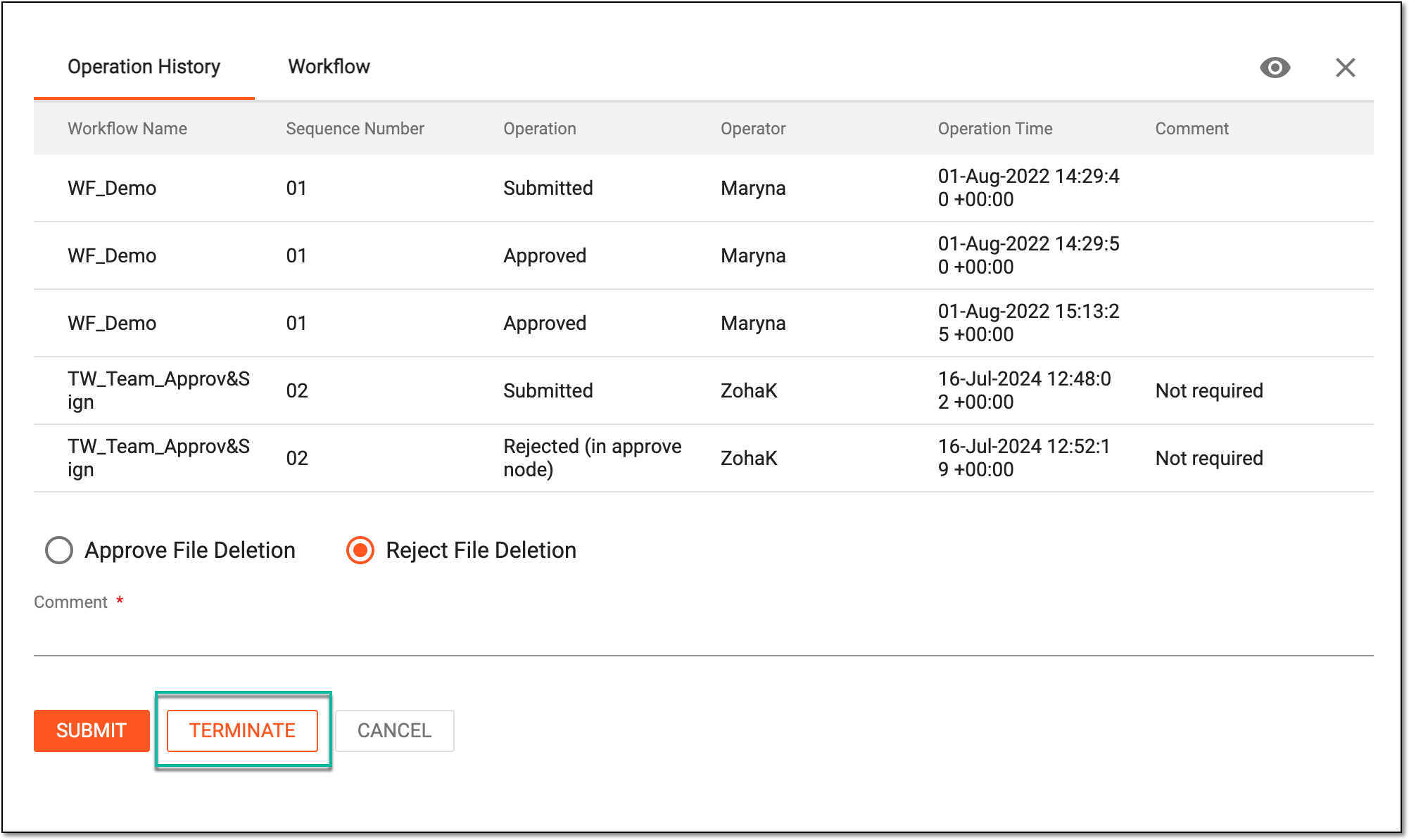 Figure 3. Terminating file audit
-
In the Comment dialog that appears, enter the accompanying comment for your action and select
.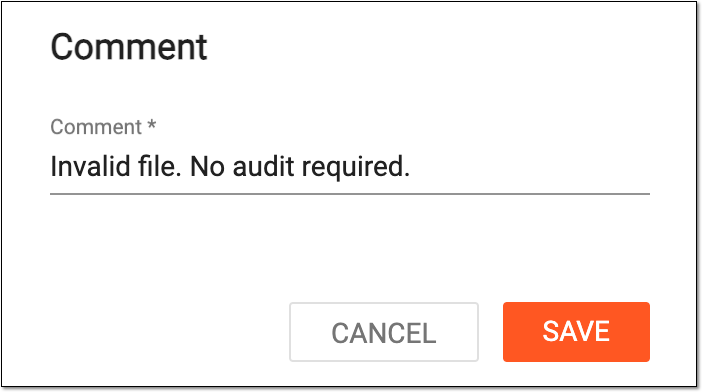 Figure 4. Commenting on file audit termination
Once terminated, the file audit is aborted, and the file status changes to Dropped.
In the eTMF application, if the file is obsolete or no longer needed, you can delete the file or file group under a certain folder.
Important
The Delete option is unavailable for the following file types:
-
System files: to prevent any manipulations with them that can lead to data loss.
-
DIA RM artifacts: any modifications added to the DIA RM artifact may compromise the reliability of the TMF documentation and violate the regulatory requirements.
-
In the eTMF application header, select the FILE MANAGEMENT tab.
-
On the page that opens, in the explorer tree pane, select the required study directory.
Figure 1. Accessing directories of file management
-
In the Actions column next to the file you want to remove, select More
>
Delete  .
.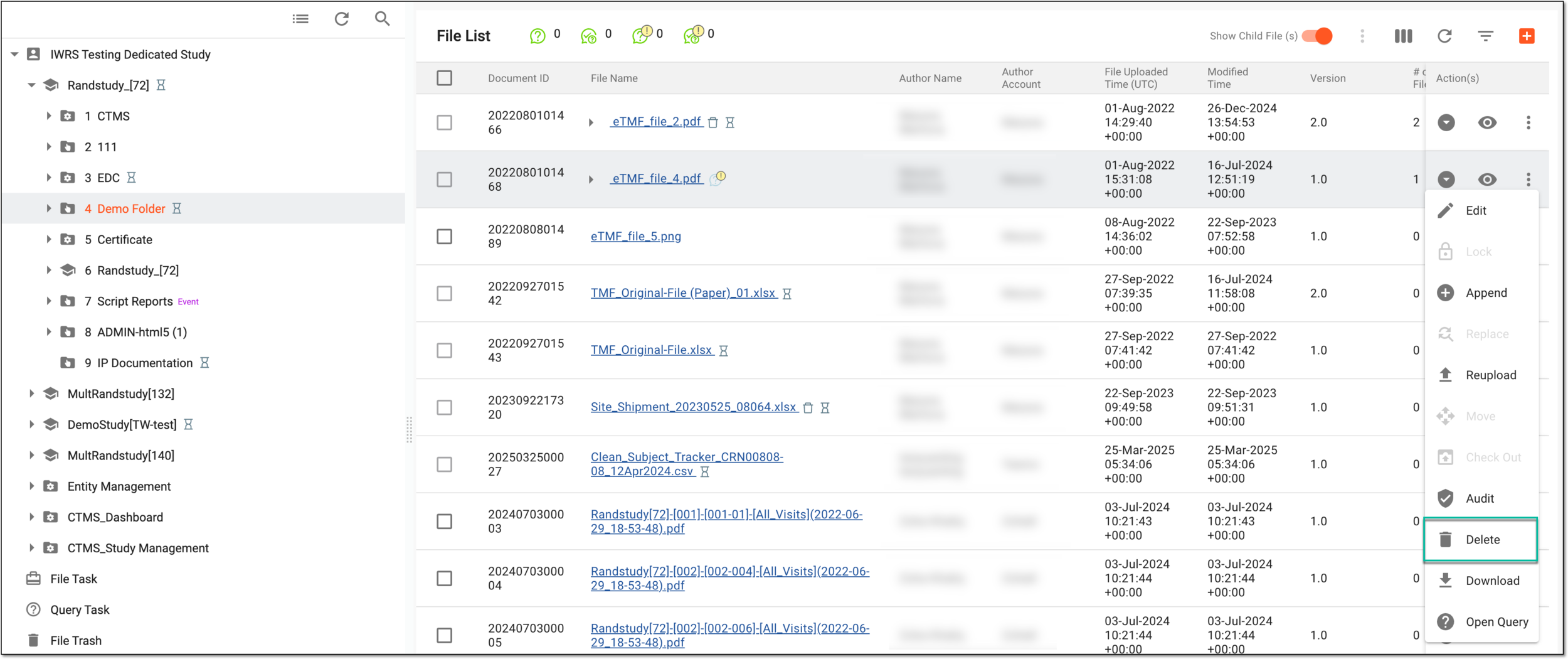 Figure 2. Selecting option to delete file
-
In the Delete Options dialog that appears, select one of the following:
-
Delete Group: this action is only available for master files and results in deleting the whole file group (master file, replaced files, and appended files).
-
Delete File: this action is available for master, appended, and replaced files and results in deleting only the corresponding file.
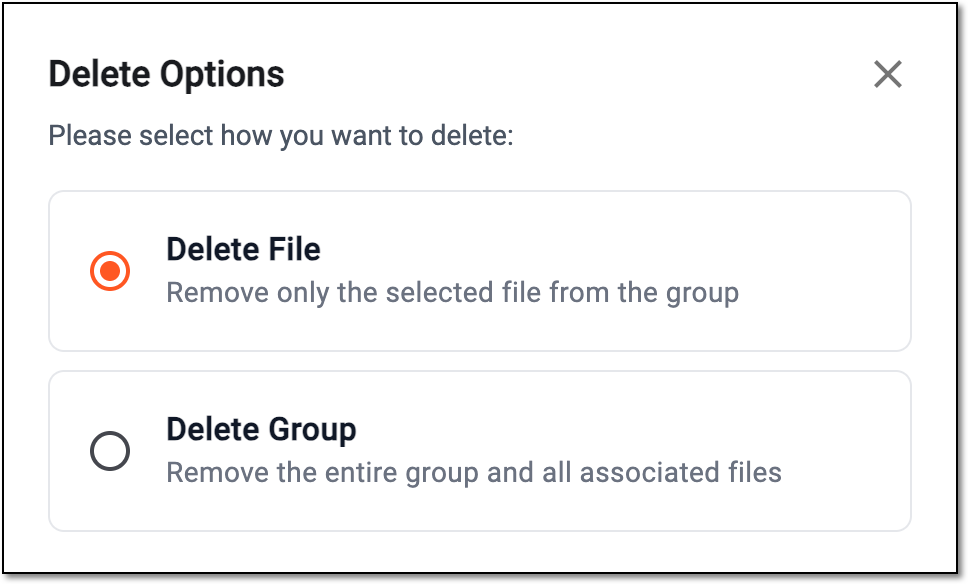 Figure 3. Selecting to delete file or file group
-
-
In the confirmation dialog that appears, enter the reason for the file or file group deletion and select
 .
.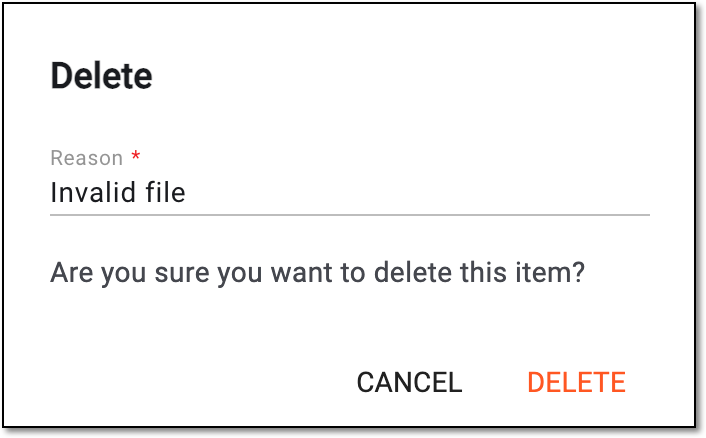 Figure 4. Providing reason and confirming file deletion
Upon deleting, one of the following results occurs:
-
If the file or file group has no workflow or its status is Auditing or Dropped, it is deleted and moved to the Trash page, where it can be restored or permanently deleted.
-
If the file or file group has a workflow associated with it, deleting master files in the Final status requires an audit. Once you perform the Delete action, the workflow is triggered, and the file status changes to Auditing (delete). When the workflow is finished and your deletion is approved, the file is moved to the Trash. Otherwise, if rejected, the file remains in the file storage.
If you need to work with the eTMF file offline, you can download it, introduce the required changes, and then, for example, return it to the file management storage.
-
In the eTMF application header, select the FILE MANAGEMENT tab.
-
On the page that opens, in the explorer tree pane, select the required study directory.
Figure 1. Accessing directories of file management
-
In the File List table that opens, locate the file you want to download and next to it, in the Action(s) column, select More
> Download  .
.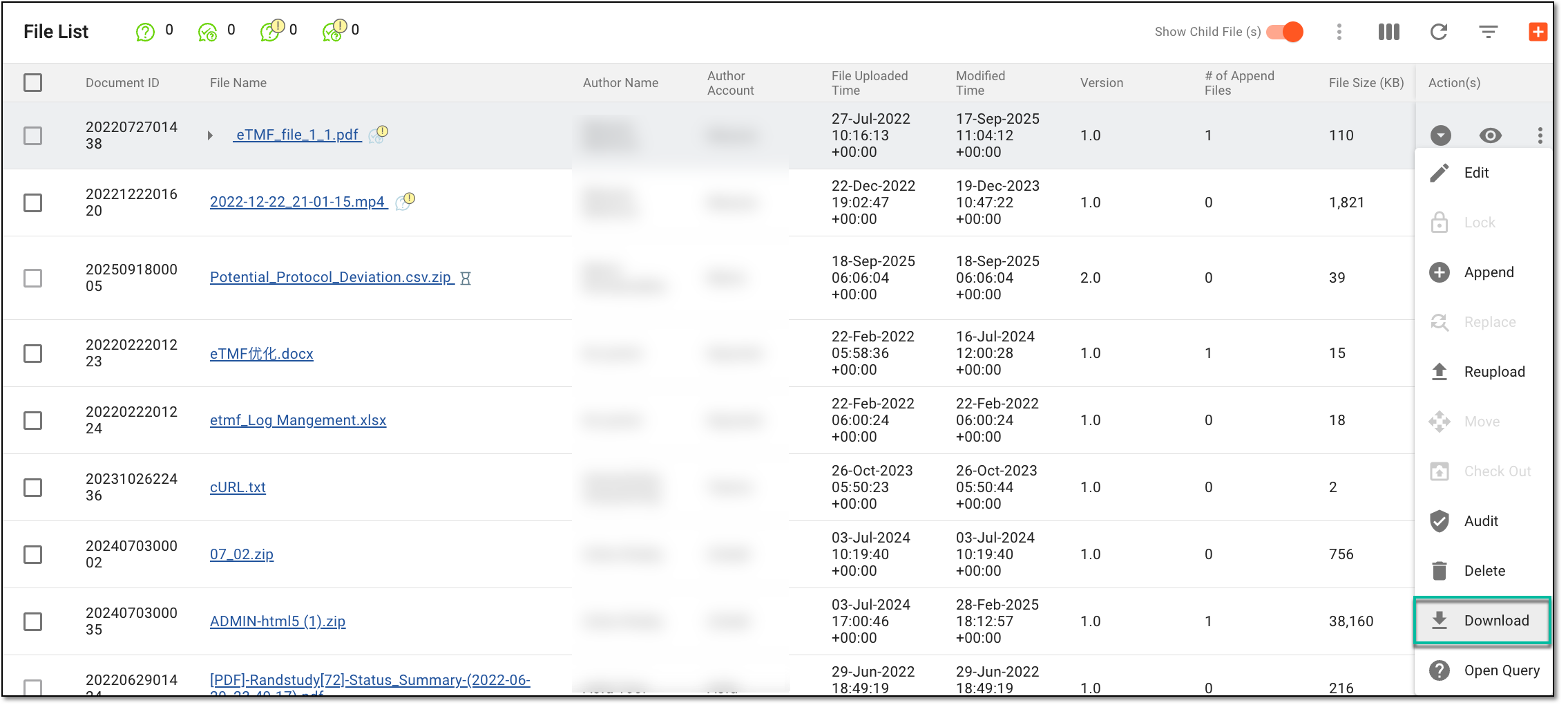 Figure 2. Accessing option to download file
Once selected, the file is downloaded to your computer. Follow the prompts of your operating system to access it. After introducing the required changes, you can upload the file back to the system.
The first file uploaded to the main repository is the master file, and the supplementary document that provides additional information or supports the master file is an appended file. It may include items such as amendments to the study protocol, safety reports, data listings, or other relevant documents.
A replaced file in eTMF is a file that has been substituted with a newer, more relevant, or otherwise more valid version. For instance, it can be a newer version of some specialist's license document.
In eTMF, the file that is appended or replaced and passed all the audits disappears from the list that contains all the files, so that only the master file is available in the list. However, you can download the appended or replaced file if required.
-
In the eTMF application header, select the FILE MANAGEMENT tab.
-
On the page that opens, in the explorer tree pane, select the required directory that contains the file you want to download.
-
In the File List table that appears, go to the required file and select the hyperlink under the File Name column.
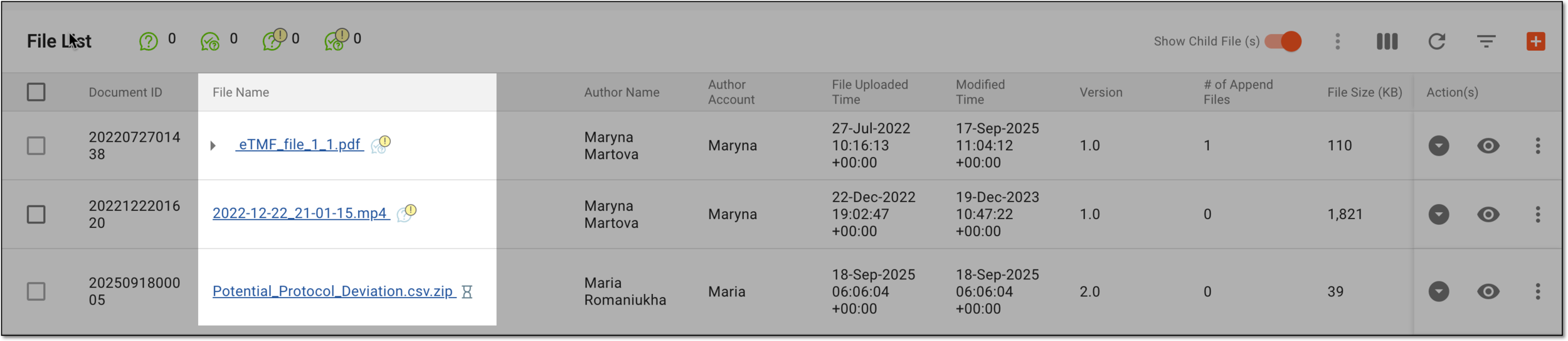 Figure 1. Accessing file
-
In the View dialog that appears, locate the appended or replaced file version. Then, from the Action(s) column next to it, select Download without Signature
 .
.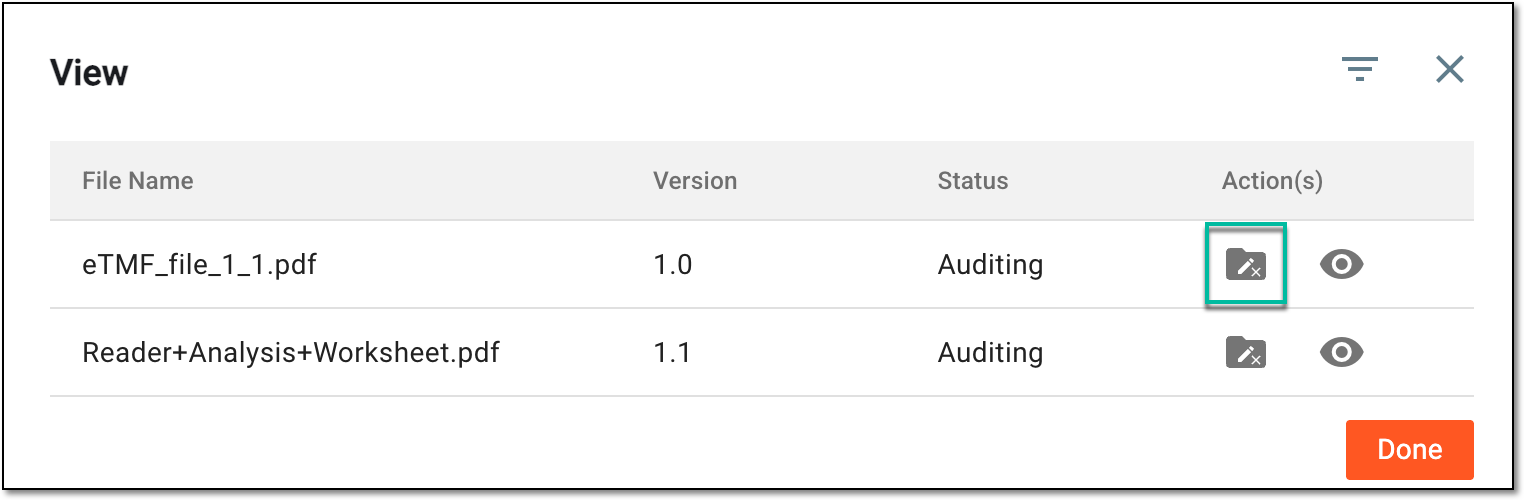 Figure 2. Downloading appended file version
The appended file is downloaded to your PC, and you can work with it offline. Select  to go back to the File List
page.
to go back to the File List
page.
In eTMF, from the Lifecycle panel, you can find the file version that has been deleted as a result of appending or replacing actions and upload this version back to its file group.
For example, you have had the appended file version 1.1 that got deleted and needs to be restored. If you upload it back to the system from the Lifecycle panel, then it appears again in the respective file group and obtains its version number—1.1.
-
In the eTMF application header, select the FILE MANAGEMENT tab.
-
On the page that opens, in the explorer tree pane, select the required study directory.
Figure 1. Accessing directories of file management
-
In the File List table that appears, go to the file of your interest.
-
In the Actions column next to the file, select Lifecycle
 . Then in the
Lifecycle panel that opens, select Reupload
. Then in the
Lifecycle panel that opens, select Reupload  next to the file version of
your interest.
next to the file version of
your interest.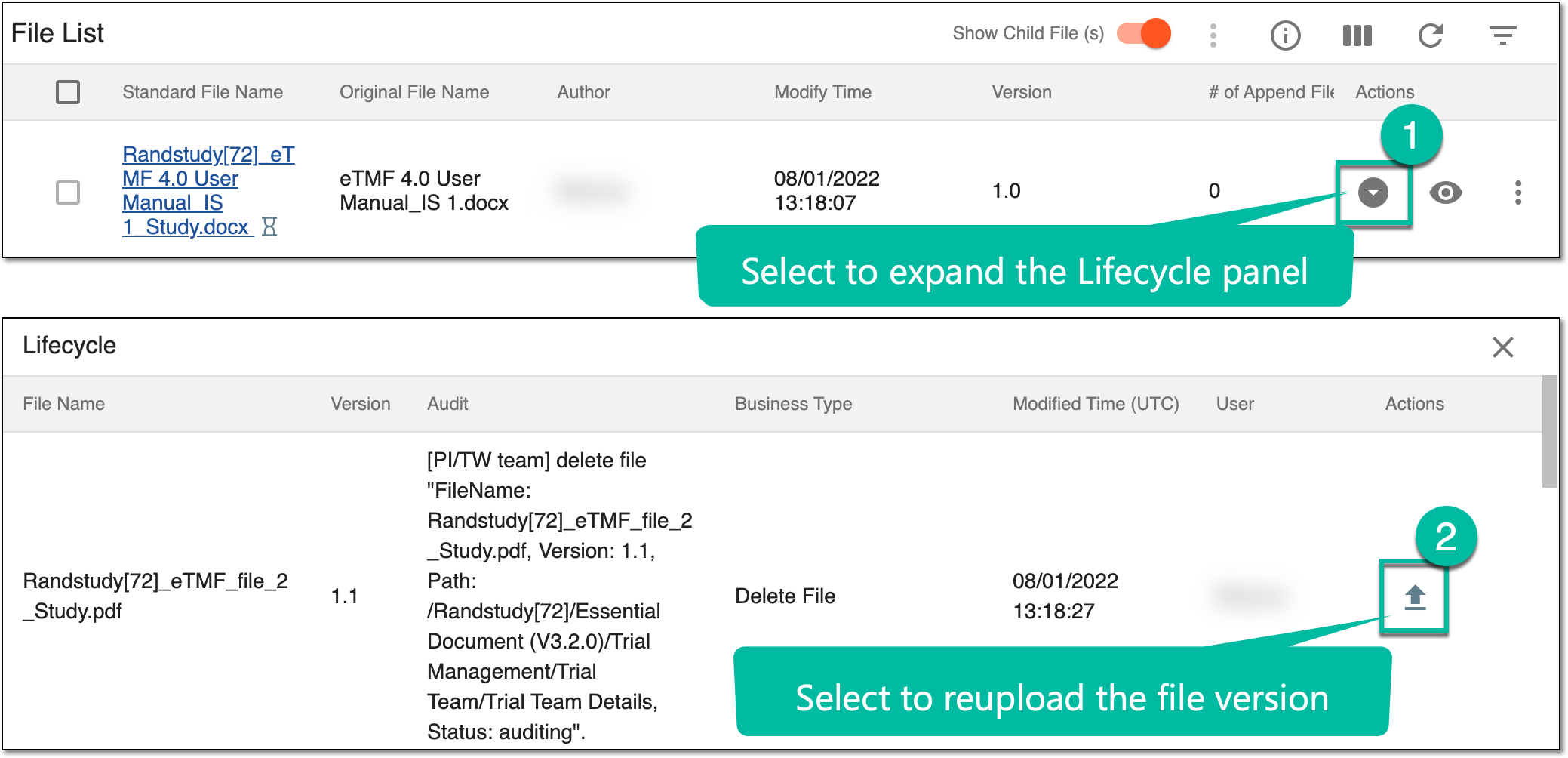 Figure 2. Reuploading file version from Lifecycle panel
Important
There can be only one file of each version number in a file group. So if there is an existing version 1.1, you cannot upload this version and Reupload
next to this file version disappears from the Lifecycle panel. -
In the Reupload File panel that opens, select the Upload area and select the file or drag the file to the Upload area to submit the file. Once done, the file appears right below the Upload area.
-
Select
to save changes.
Upon upload, the file version is restored within its file group and obtains the version number it had before deletion.
While doing quality control on clinical trial files in the File Management directory, you can open queries about the file content, format, attributes, and so on, and send them to specific roles or personnel.
-
In the eTMF application header, select the FILE MANAGEMENT tab.
-
On the page that opens, in the explorer tree pane, select the required study directory.
Figure 1. Accessing directories of file management
-
In the Actions column next to the file, select More
> Open Query  .
.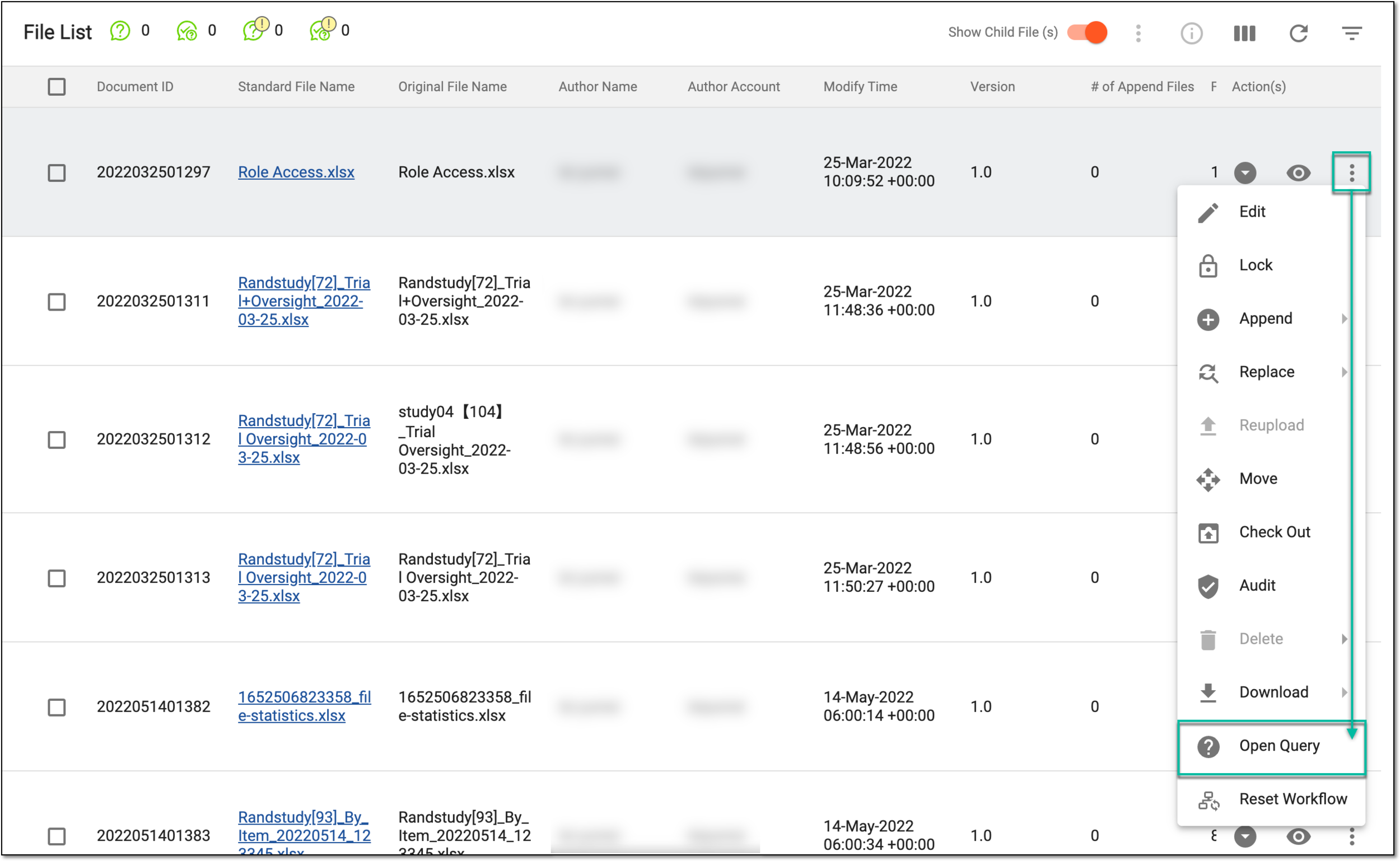 Figure 2. Opening query
-
In the Open Query dialog that opens, fill in the fields as explained in the following table.
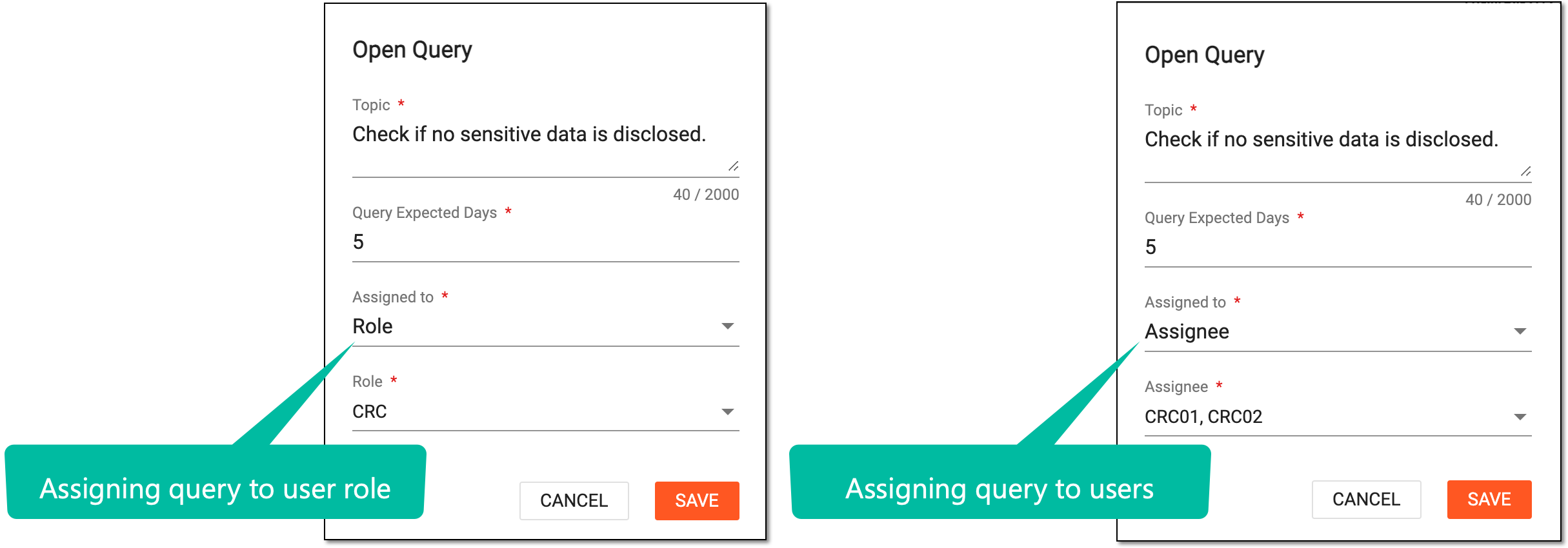 Figure 3. Opening query
Tip
In the following table, mandatory elements are marked with an asterisk (*).
Element
Details
Topic*
Enter the descriptive topic of your query that you want the assignee to address.
Query Expected Days*
Enter the number of days to define the query expiration period.
You can set the expected days value for all your queries with the Study Configuration feature. Then the number is predefined upon opening a new query. Nevertheless, it is always editable.
Assigned to*
Select to whom you want to address the query—a specific group of users with the same scope of responsibilities and access rights (Role) or a certain person or people (Assignee).
Role*
Select the user role to whose representatives you want to address your query. This field becomes available if Role is selected in the Assigned to field.
For instance, if you need someone to check the file against the source document, you can select the CRC role here, as they work at sites and have access to subject data in source documents.
Keep in mind that the user role with which you currently operate the system is unavailable in the list. Thus, you cannot open a query assigned to yourself. For example, if you are logged in as CRC, the CRC role is missing from the
                                        list.
Assignee*
Select the name of the users to whom you want to address your query. This field becomes available if Assignee is selected in the Assigned to field.
For instance, if you need someone to check the file against the source document at a specific site and you know the person working there, you can select their name here, and they will address your inquiry.
Keep in mind that your own user name is unavailable in the list. Thus, you cannot open a query assigned to yourself.SAVE
Select
to implement the changes.CANCEL
Select
to discard the changes and close the dialog.
Upon saving, the query is open, and a respective Open Query icon  appears next to the file name. Now, the
assigned users receive your query and can answer it.
appears next to the file name. Now, the
assigned users receive your query and can answer it.
In eTMF, you can upload a zipped folder if you want to upload multiple files. Once the zipped folder is uploaded, you can unzip it—extract the files to a desired location. The extracted files from the zipped folder appear separately on the File List page of the selected location.
-
In the eTMF application header, select the FILE MANAGEMENT tab.
-
On the page that opens, in the explorer tree pane, select the directory from which you want to unzip the folder.
Figure 1. Accessing file management directory
-
In the File List table that appears, under the Action(s) column next to the needed zipped folder, select More
> Unzip File  .
.Important
Unzip File
only appears for ZIP files.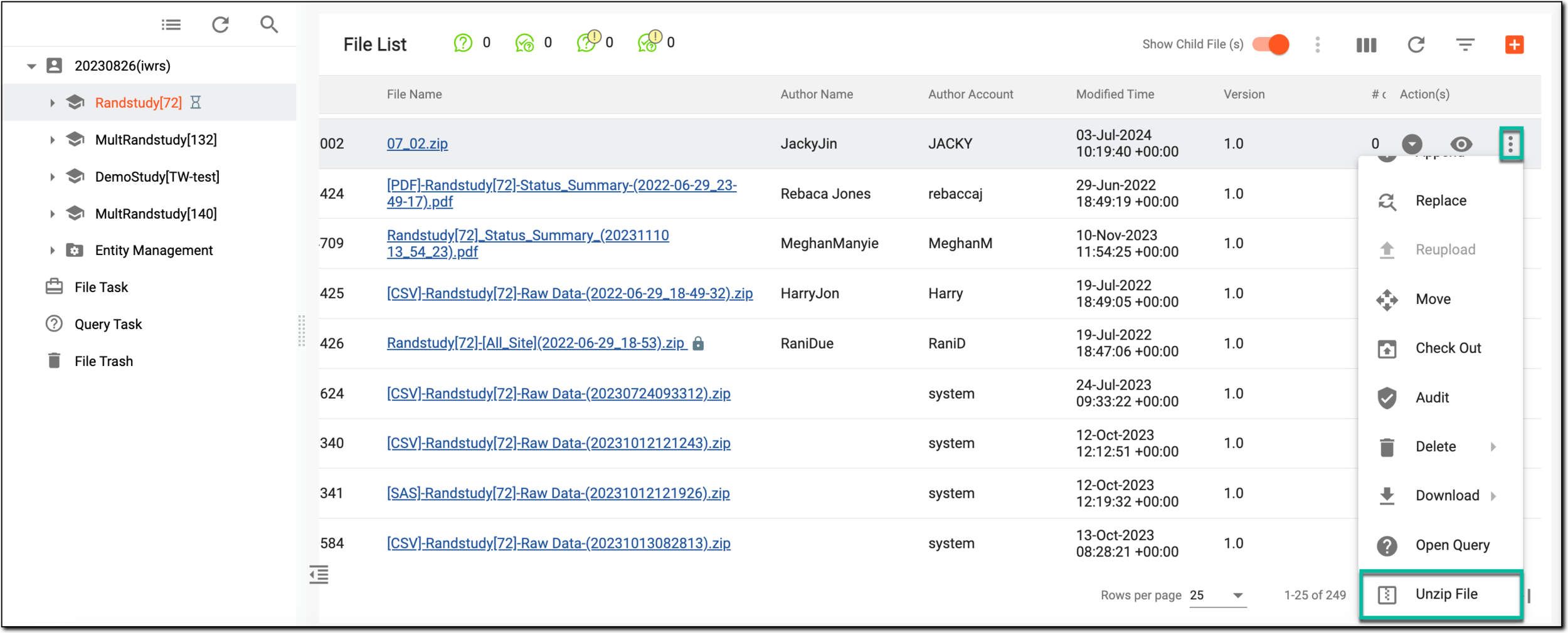 Figure 2. Selecting to unzip file
-
In the Unzip File dialog that appears, from the Extract To field, select the location where you want to save the extracted files. Then select
.Figure 3. Selecting location for unzipped files
Upon saving, the file is extracted to the desired location, and the details of this file appear in the unzip file list report.
An eClinical application that is mainly used to manage and control the personnel, communication, budget, progress, expenses, documents, and declaration involved in the entire clinical trial. It provides study and site management, study quality control, study progress tracking, project management, risk management, reports, and a visualized dashboard.
Get to know all the possibilities of the app with the comprehensive CTMS User Guide.
A schema, each step of which represents a stage of a specific entity lifecycle in the system.
A workflow can be considered an instrument to help control various actions on system entities for the sake of accountability, as it limits the actions that can be performed on the entity associated with a workflow. This provides an additional tier of scrutiny, and the approval/rejection mechanism reduces the risk of unintended impact on sensitive resources and important information.
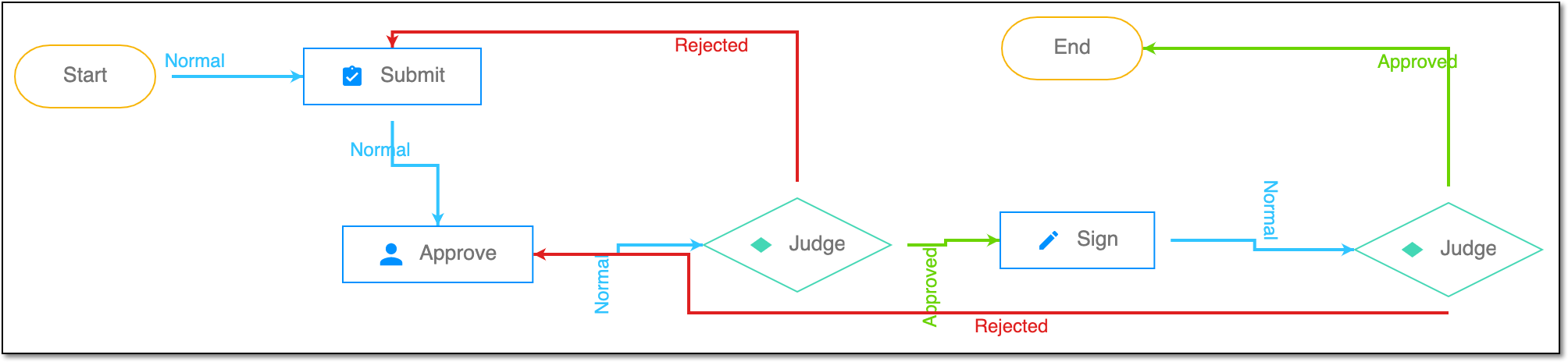 |
For instance, in eTMF, the workflow dictates the procedure of file and folder management from the moment of upload to the approval stage; in CTMS, the workflow controls the process of creation, completion, and approval of a trip report; in EDC, the workflow covers the process of source document handling.
An eClinical application that represents an administrative system used to manage users, authorities, and sponsors at the company level. It provides studies, sites, and sponsors with high-granularity role-based access management across all eClinical applications.
A model for organizations from DIA that helps the organizations to effectively compile the minimum list of essential documents to ensure the compliance of the investigator, sponsor, and monitor with the industry standards of good clinical practice (GCP) and with the regulatory requirements.
A person responsible for the successful planning, execution, and management of clinical trials. The CRC’s scope of work might include study preparation, site setup, patient recruitment, regulatory compliance control, data collection, and more.
In the eClinical system, the Clinical Research Coordinator (CRC) user role is granted to a person who works on a site with subjects and is responsible for entering data to EDC, ensuring the data is entered correctly according to all requirements, and answering queries from data managers on any questionable data pieces.