View unzipped file list
In eTMF, from the Unzip File List report, you can track the progress of files being extracted from ZIP or RAR archives. This is helpful when dealing with large folders, whose extraction is time-consuming. The report provides you with all the basic information about all unzipped folders in the eTMF application, such as the name of the file, its status, and so on.
Important
To view this report, you must have the Unzip File List permission granted to your user role via the ADMIN application.
The Unzip File List report only contains records of all ZIP files whose extraction process is initiated. It does not display the information of the files within ZIP or RAR folders that are not in the process of extraction yet.
-
In the eTMF application header, select the REPORT tab.
-
On the page that opens, in the left pane, select Unzip File List.
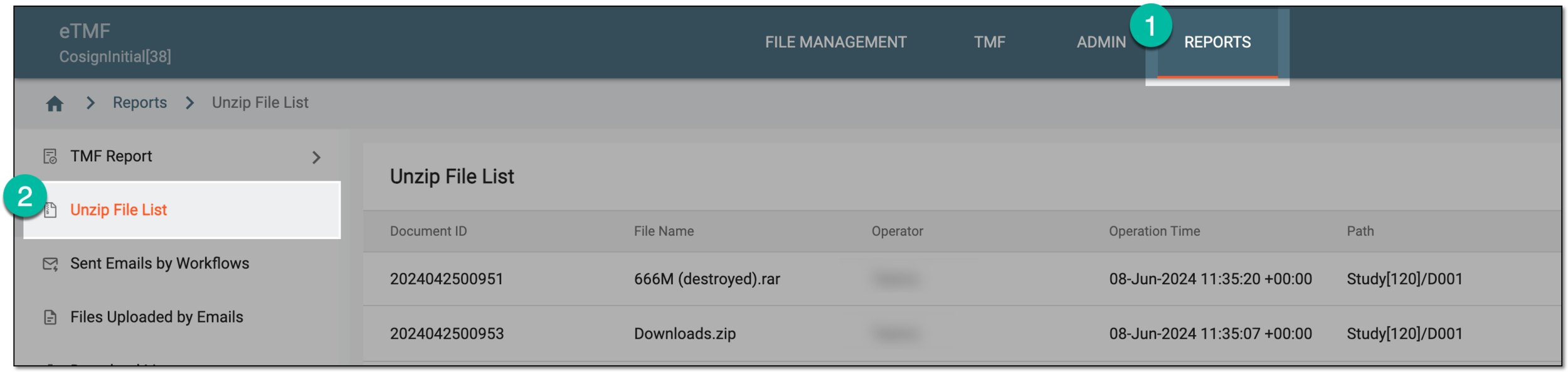 Figure 1. Accessing unzipped file list
-
In the Unzip File List table that appears, view the details of all the unzipped files as explained in the following table.
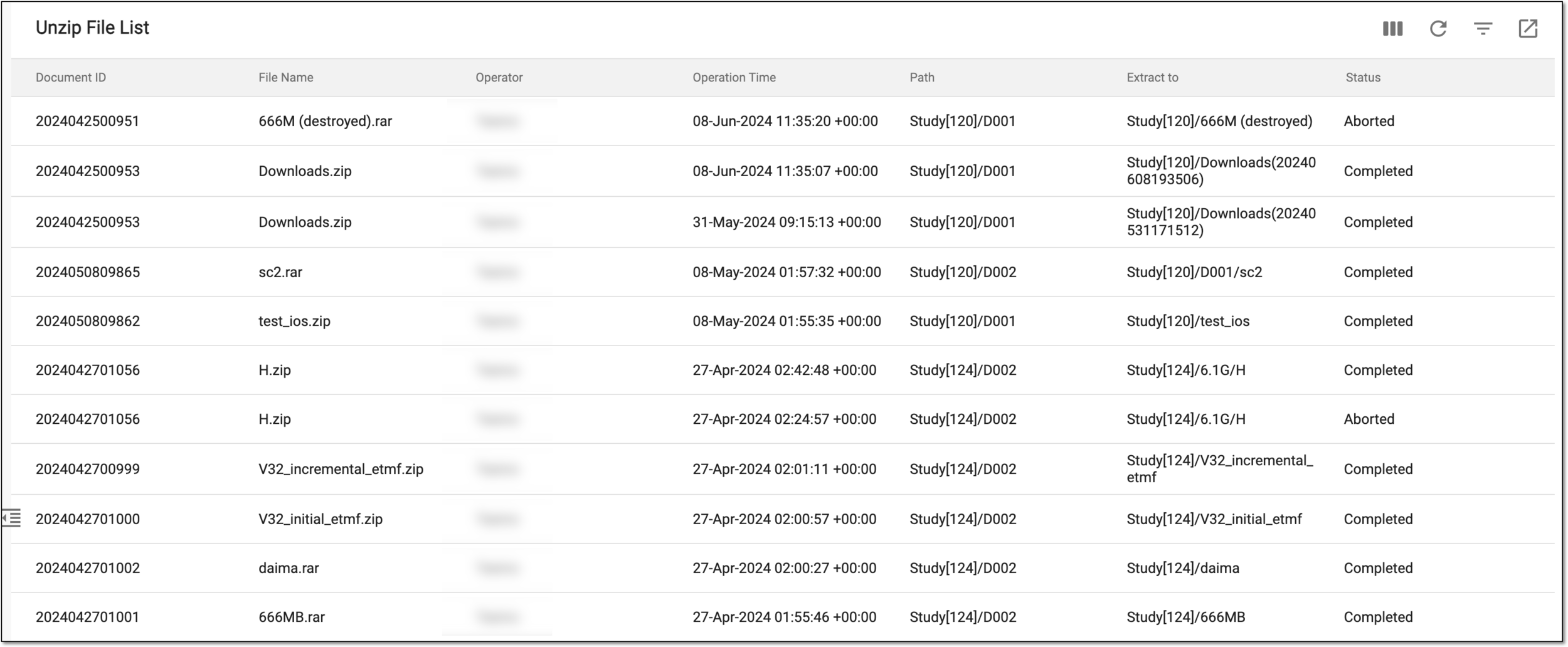 Figure 2. Viewing unzipped file list
Column
Details
Document ID
Represents the unique ID of the ZIP or RAR file assigned to it by the system upon upload to eTMF.
File Name
Represents the name of the ZIP or RAR file.
Operator
Represents the name of the user who extracted the contents of the ZIP or RAR file.
Operate Time
Represents the time when the file extraction process was initiated.
Path
Represents the path to the directory in eTMF to which the ZIP or RAR file was uploaded.
Extract to
Represents the path to the directory in eTMF where the extracted contents of the ZIP or RAR file are placed.
Status
Represents either of the following statuses of the file contents extraction:
-
Started: the file is currently under the extraction process and is not completely extracted.
-
Completed: the file is completely extracted and saved to the desired location.
-
Aborted: the file could not be correctly extracted due to an error.
-
You have viewed the Unzip File List report; you can also export it to work with it offline.