Export report
In the eTMF application, the REPORTS tab provides an overview of all the files (except for the files in the CTMS application). The export feature in the REPORTS tab allows you to export each of the reports and work with their data offline or share them with third parties that have no access to the system.
Important
To view and export each report, you must have the respective permission granted to your user role via the ADMIN application.
-
In the eTMF application header, select the REPORTS tab.
-
On the page that opens, in the left pane, select the report you want to export.
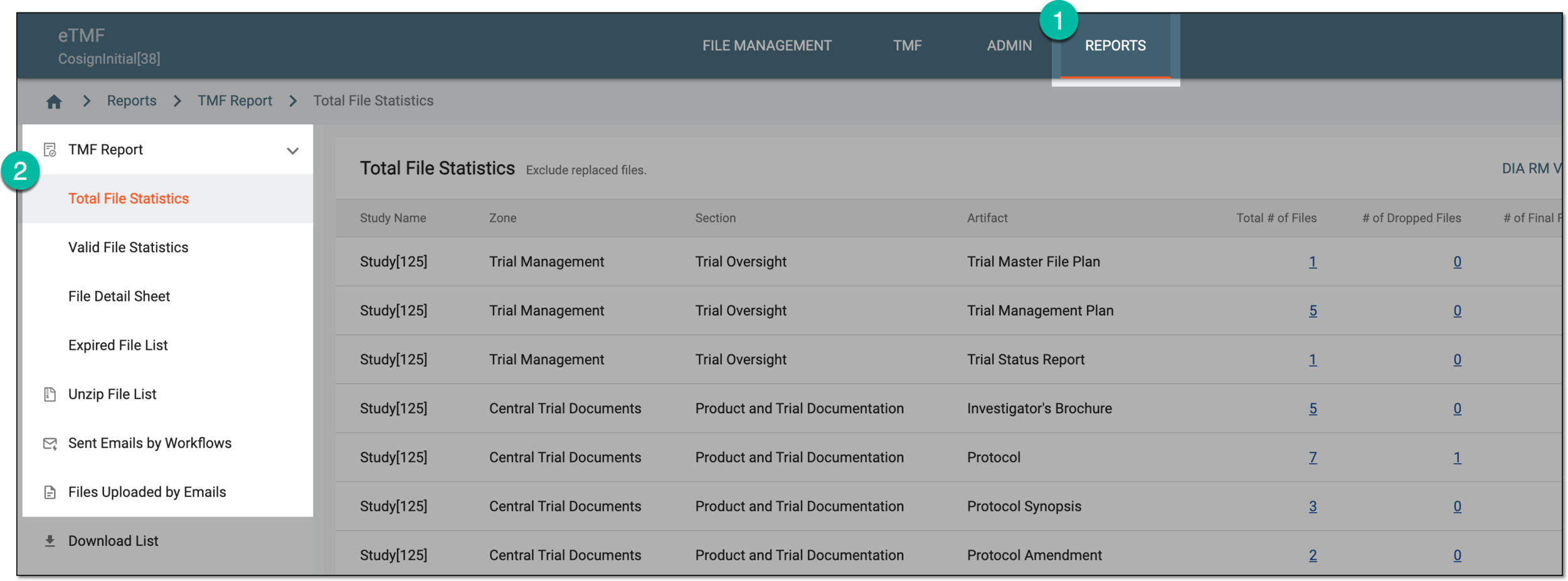 Figure 1. Accessing report to export
-
In the report table that appears, optionally use Filter
 or Refresh
  options to have the targeted
and most recent data in the exported file.
options to have the targeted
and most recent data in the exported file.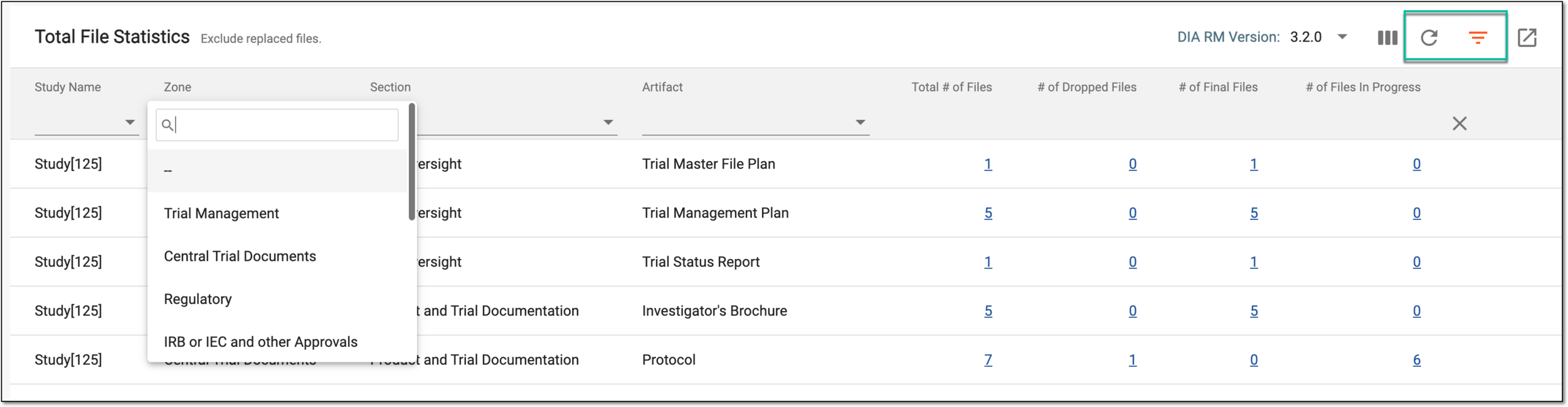 Figure 2. Applying filtering or refreshing report data
-
From the workspace toolbar, select Export
 .
. Figure 3. Exporting report
The report is exported and available on your computer. If any filtering has been applied before export, the resulting file contains only the filtered data.