Table grid
In eClinical, the contents panel usually comprises a table displaying the application data. The table comes equipped with a number of features and actions that you can use to view the data as needed.
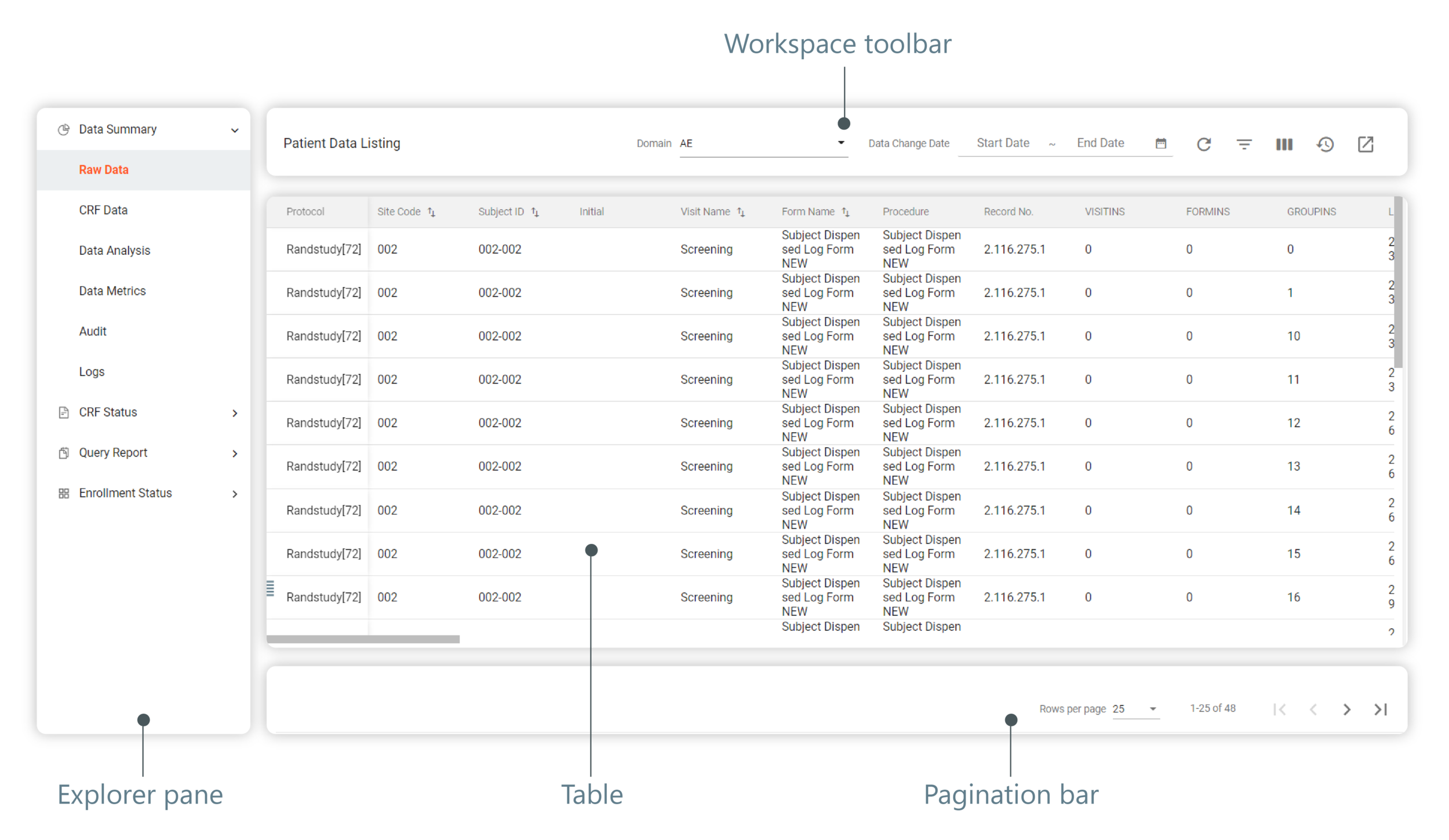
This type of content panel usually consists of the elements as depicted and explained as follows.
-
Explorer pane: in some applications, the explorer pane contains subtabs to navigate within the application pages.
-
Table: contains a list of entities with their characteristics and attributes that can be sorted or filtered in accordance with your needs.
-
Multiselect: provides an option to select multiple objects, for instance, files in eTMF application, with which you want to perform simultaneous actions using More or other options of the workspace toolbar.
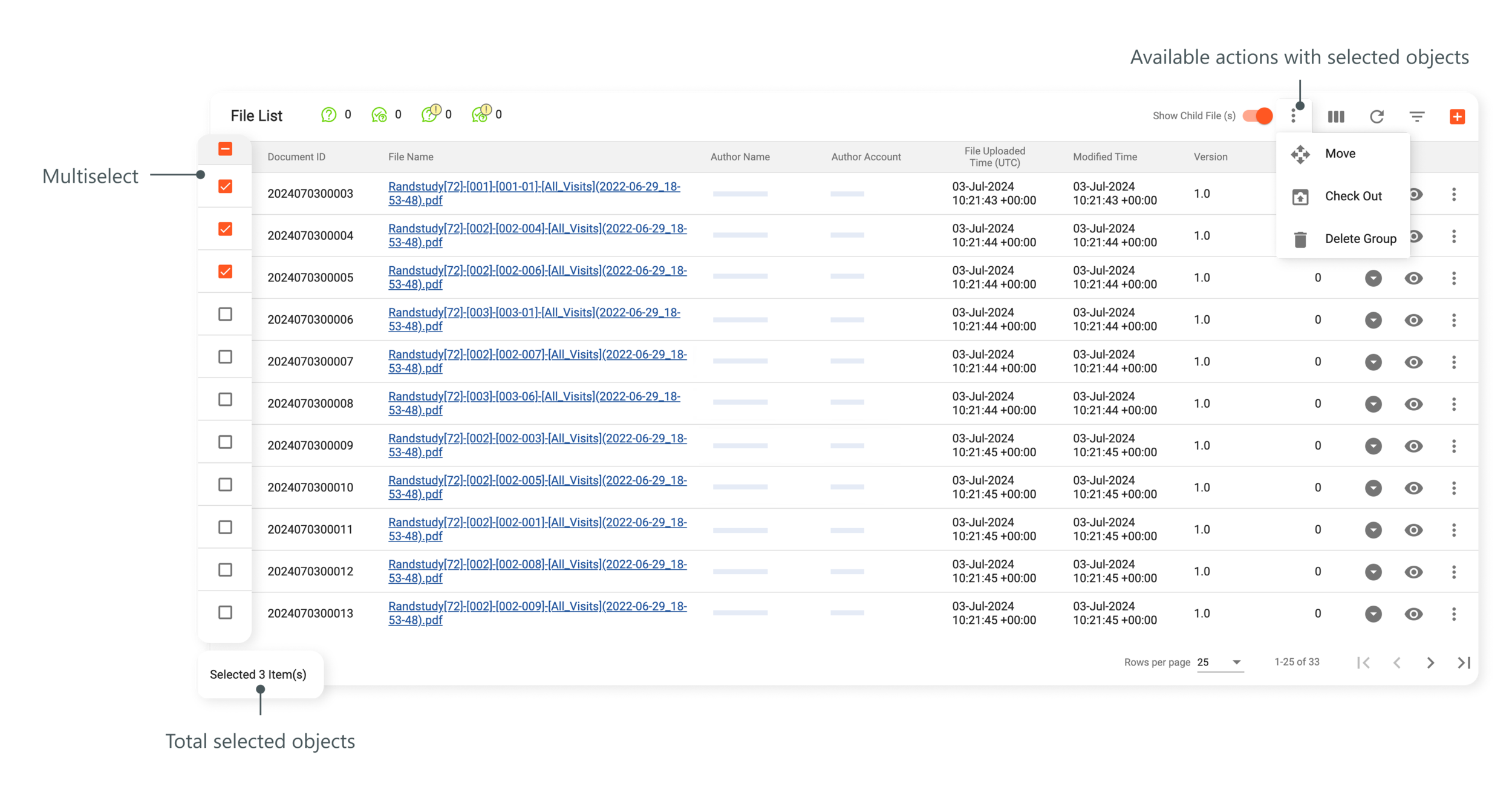 Figure 2. Multiselect example in eTMF
-
-
Workspace toolbar: contains icons to perform actions with table entities. Here are the most common action buttons:
-
Filter
 : select to filter the table contents according to your needs.
 -
Refresh
 : select to refresh the table
contents.
: select to refresh the table
contents. -
Export
 : select to export
the contents of the current page.
: select to export
the contents of the current page. -
Columns
 : select to choose the columns you want to show or hide from the table.
 -
Pinned Columns
 : select to pin some or all of the columns in the table to make them static.
 -
More
 : select to access additional actions with
chosen objects, such as deletion, checking out, or else depending on the application.
: select to access additional actions with
chosen objects, such as deletion, checking out, or else depending on the application.
-
-
Pagination bar: as the table may contain more data than one page can fit, you can use pagination to navigate contents as you need.