Export data
In eClinical applications, you can export the data displayed in the contents panel to your computer. This may be required if you want to perform an analysis on the data or need it to be shared in some external platform, and so on.
To export the data displayed in the table grid, simply select Export  from the workspace toolbar, and the data is downloaded to your computer in a preconfigured format (XLSX, PDF, or else).
Tip
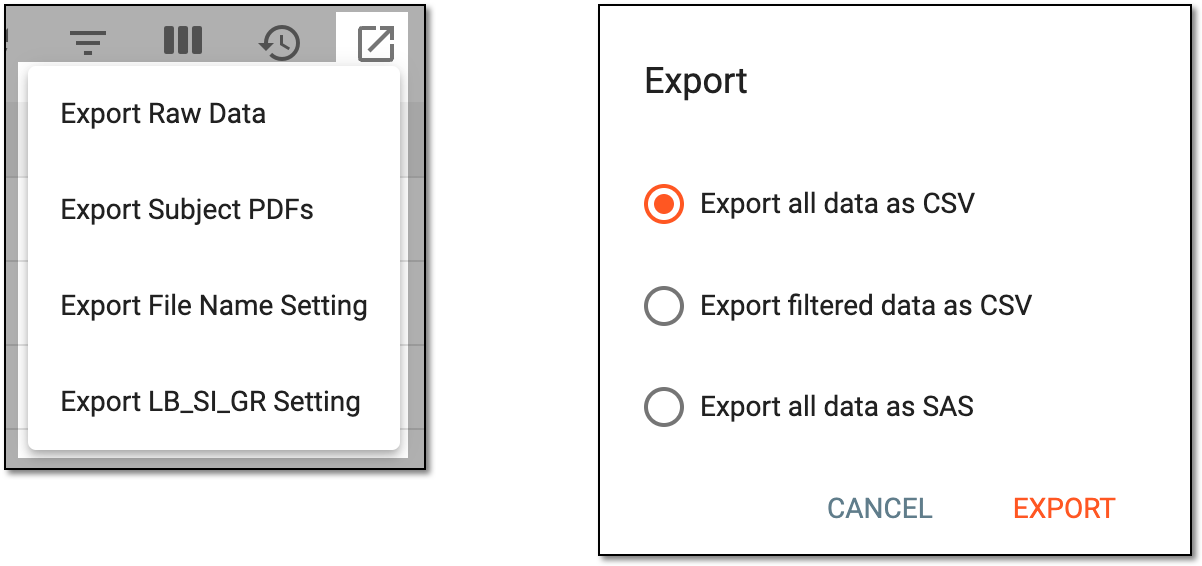
In some cases, selecting the Export option opens up an additional dropdown menu where the system inquires
what type of data you want to export from the contents panel, or sometimes, selecting the option opens up the Export dialog asking you in which format you want to download the exported data.
In some applications, the History  icon is provided in the workspace toolbar to display the export history. Upon selecting, the
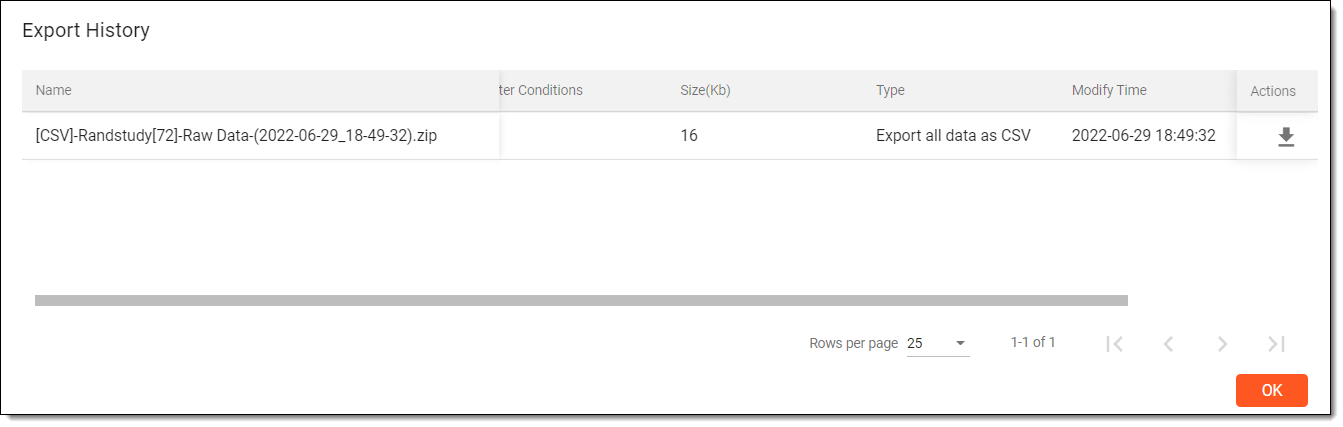
Export History page opens, where you can view the details of the exported files, such as the user who exported the file, the date and time at which the file was exported, and so on.
icon is provided in the workspace toolbar to display the export history. Upon selecting, the
Export History page opens, where you can view the details of the exported files, such as the user who exported the file, the date and time at which the file was exported, and so on.
Additionally, if the file you exported is too large, then upon selecting Export from the workspace toolbar, the export process is
continued in the background. As soon as the file is ready, it is available for download from the Export History page.